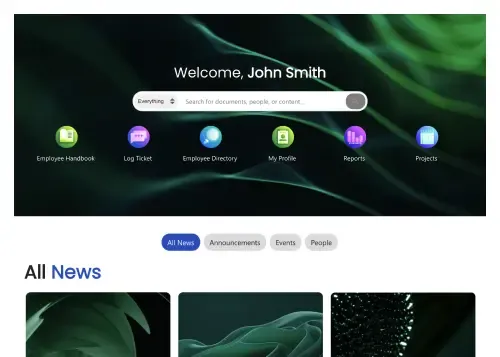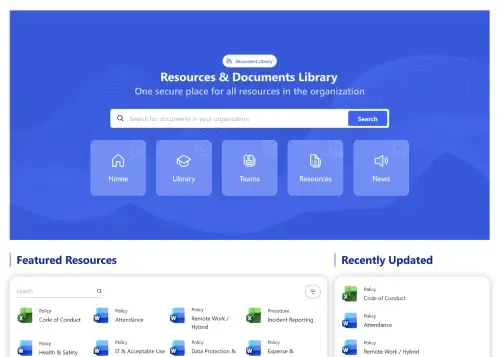
CTA
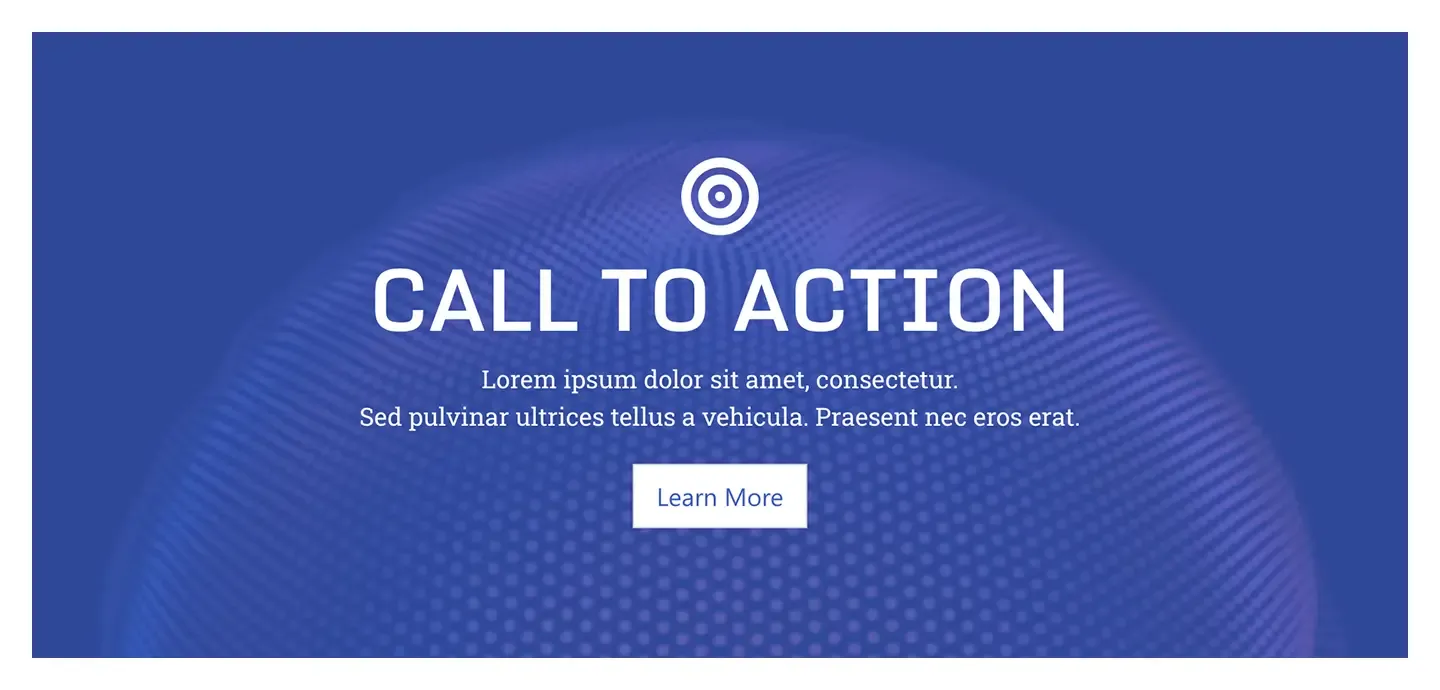
Full-width call to action banner with an icon, headline, two lines of supporting text, and a single button. Use it to push one next step from any page.
Full-width call to action banner with an icon, headline, two lines of supporting text, and a single button. Use it to push one next step from any page.
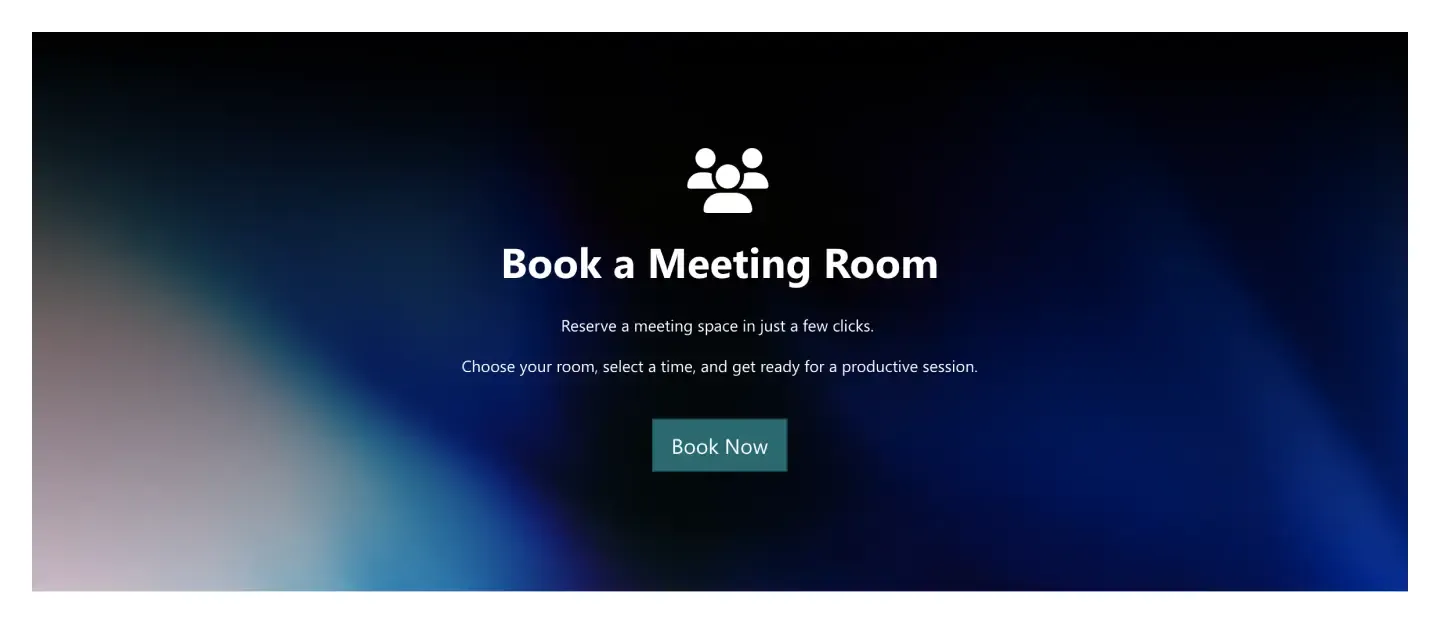
Image-backed call to action with an icon, short headline, one line of copy, and a button. It's suited to bookings, requests, or sign-ups.
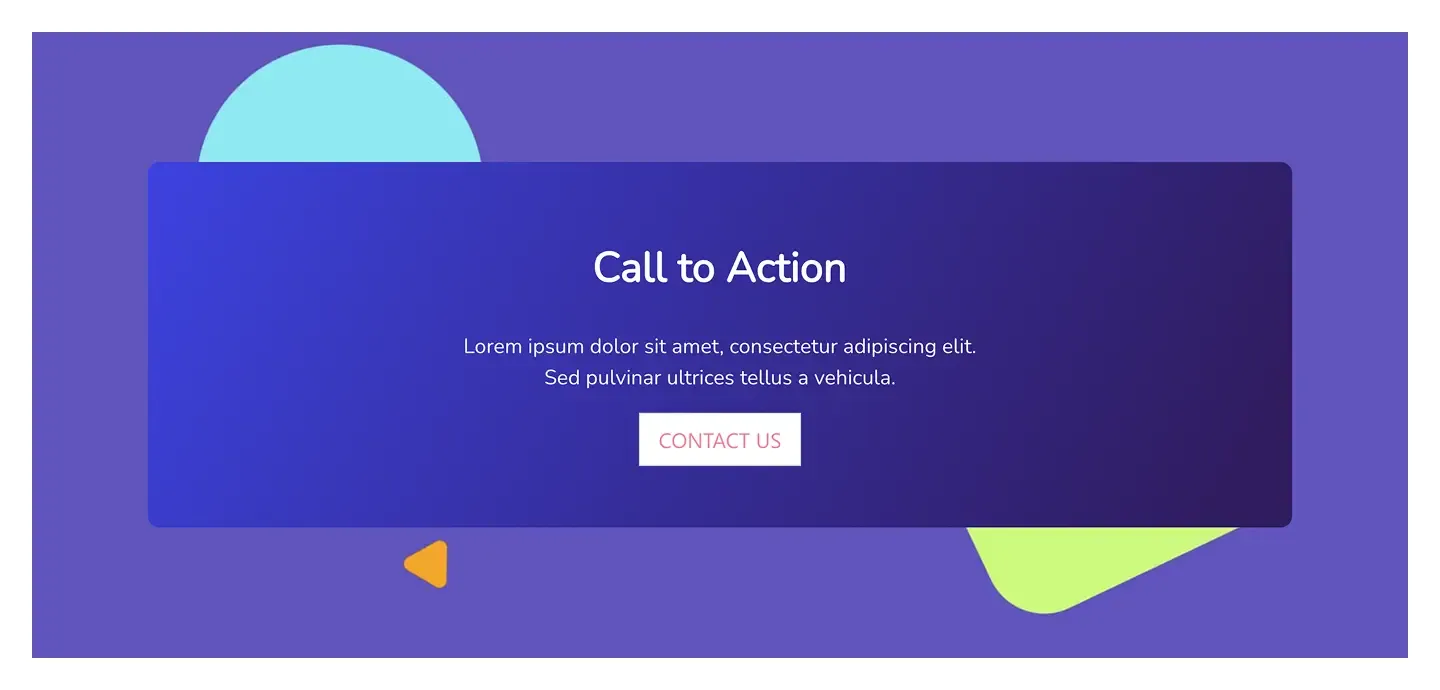
Call to action card framed on a decorative background, with centered headline, short text, and an outlined button for a softer, lower-pressure prompt.
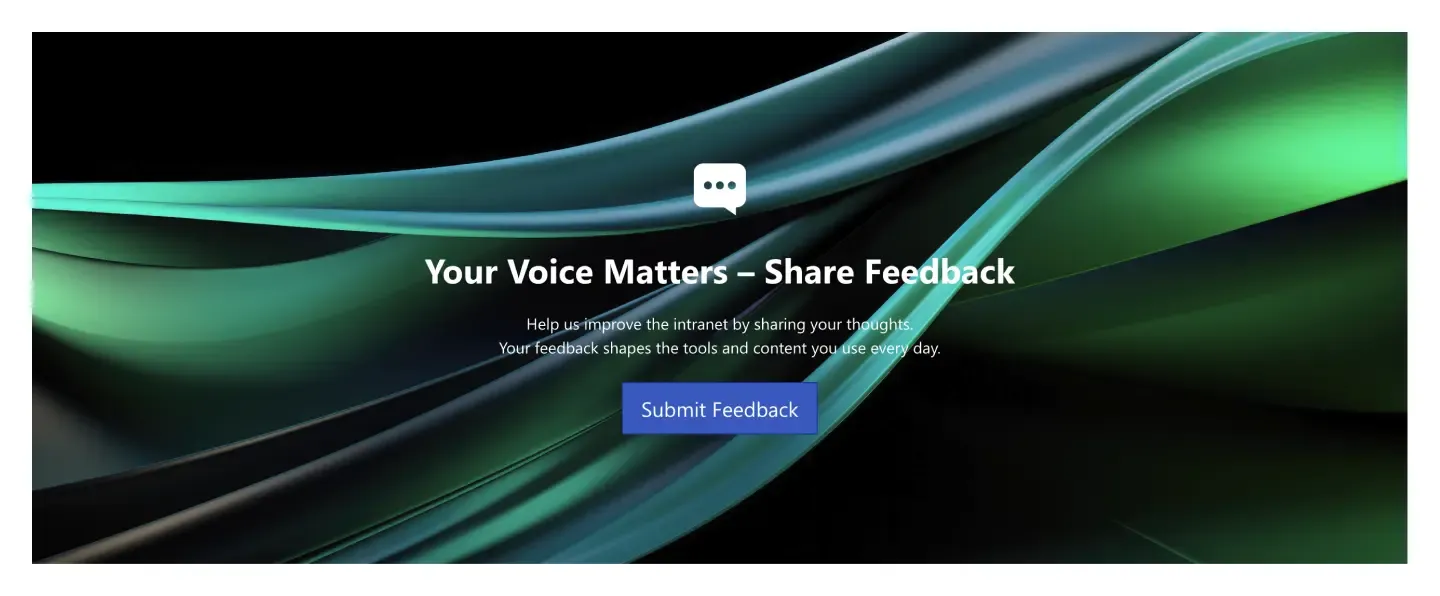
Full-bleed image banner with an icon, headline, two lines of copy, and a button. It's ideal for feedback, survey, or participation requests.
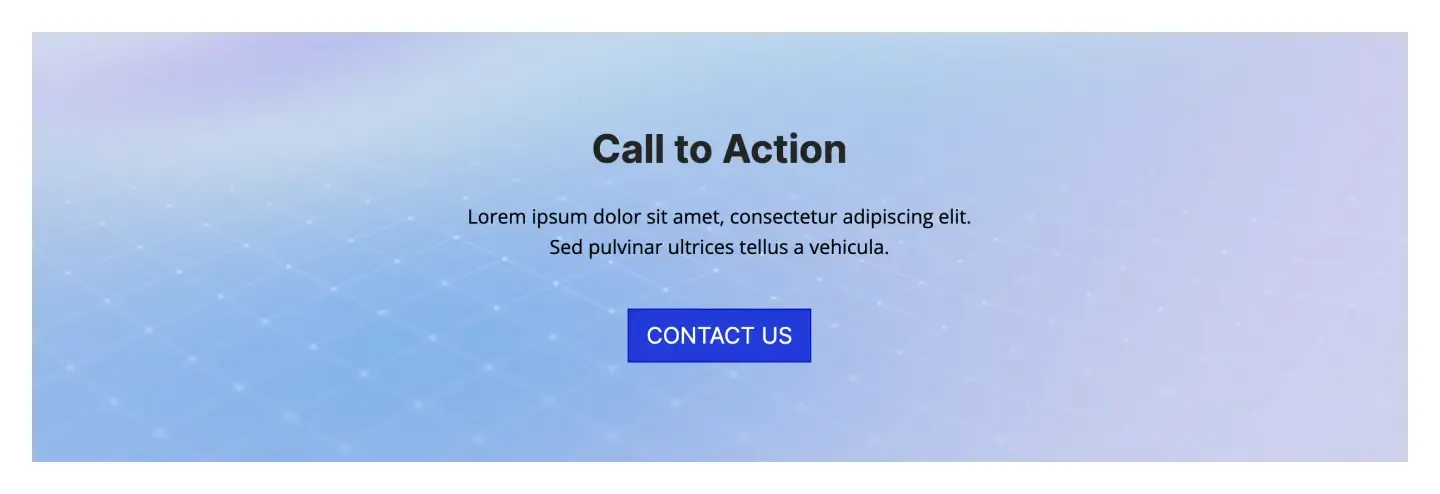
Light call to action banner with a subtle pattern, centered headline, two lines of text, and a contact button. It works as a page closer before the footer.

Call to action banner with a parallax background that shifts on scroll, plus an icon, headline, and button. It adds motion to an otherwise static page.
A call to action section is a pre-built block you add to a SharePoint page to point people at one next step: start onboarding, submit a request, share feedback, book a room. SharePoint's Button and Call to action web parts give you a link with limited styling. ShortPoint CTA sections pair a short headline with a prominent button, an icon, and an optional image, decorative or parallax background. That way you can add a button in SharePoint that looks designed rather than bolted on, and Theme Builder keeps every button on brand. Compare every design in the carousel, from a full-width banner with one button to a parallax banner that moves on scroll, and preview each one on a live SharePoint page.
Use ShortPoint to add branded buttons and promo banners to any SharePoint page: choose a CTA section, set the link and label, pick an icon, and let Theme Builder keep button colors and corner styles consistent site-wide.
Describe the section you need and let AI Designer write and build the block.
Swap layouts, resize the block and edit every piece of content visually.
Apply your brand colors, typography and corner radius in one place.
Pull headlines, dates and items from SharePoint lists so the block updates itself.
Reuse the same section across every department page and site.
Proper labels, contrast and keyboard support for every reader.
Link straight to Microsoft Forms, Planner, Teams or any external tool.
Pre-styled variants that match the rest of your page.
Built from standard ShortPoint elements you can reuse anywhere else.
Everything stays readable and tappable when the block stacks on mobile.
Add a branded call to action button or banner to a SharePoint page in minutes. No coding required.
Start free trial & add ShortPoint to your site : Click "Start a Trial" and get access to ShortPoint instantly. No credit card needed. Sign in with your Microsoft 365 credentials to activate your trial instantly, or download the package manually and activate it from there.
Insert a Section : Edit your SharePoint page, insert the ShortPoint web part, and pick any call to action section (CTA, CTA 3, Paralax CTA) from the Sections tab of the Templates Library. It drops into your page as a ready-made block you can move, duplicate, or restyle.
Customize & Publish : Replace the placeholder content with your own, connect your SharePoint data sources, apply your company branding with Theme Builder, and publish the page for immediate use.
To add a button in SharePoint without code, insert the ShortPoint web part, choose a call to action section, and set the button text and link. You can then adjust colors, icons, and hover styles visually, right from the design element's settings.
Yes, the SharePoint call to action web part is built in, along with a basic button web part, but both offer limited styling. ShortPoint CTA sections go further with more layouts, images, parallax backgrounds, and full brand control.
Yes, a CTA button can link to any URL, including a SharePoint page, a Microsoft Forms survey, a document library, a Teams channel, or an external site, so people reach the next step in one click.
Yes, you can add an icon to any CTA button. Choose from the built-in icon library or upload your own SVG to match your intranet's visual style.
Yes, CTA sections work with both Microsoft 365 and on-premises SharePoint. That includes SharePoint Online in Microsoft 365, as well as SharePoint Server Subscription Edition, 2019, 2016, and 2013.
Yes, CTA buttons use real links with accessible default contrast and visible focus states. For wider coverage, the ShortPoint Accessibility widget helps your pages meet WCAG 2.1 and 2.2 guidelines.