Apps and Tools
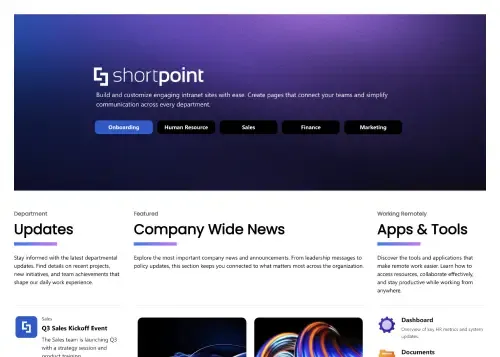
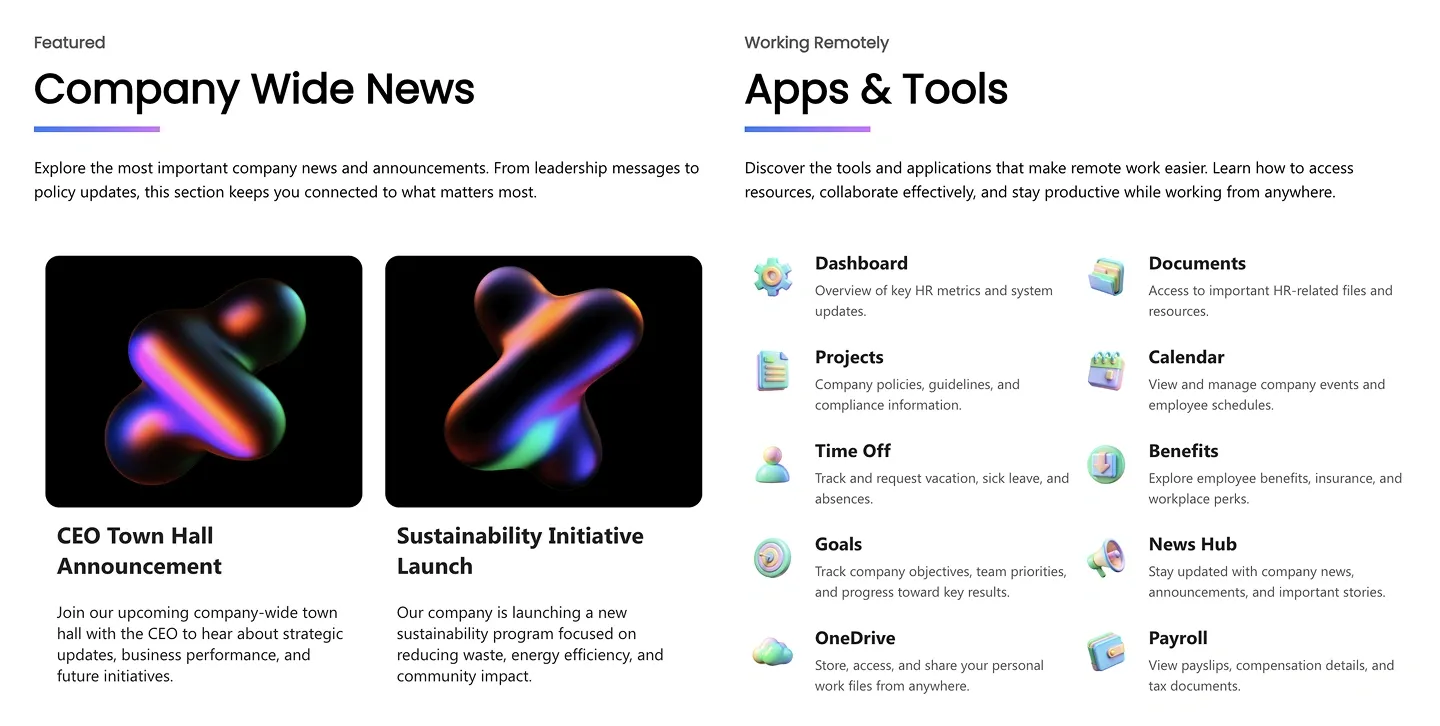
Two-column block pairing two featured news cards with an icon list of apps and tools. Each item links to an internal or Microsoft 365 app.
Two-column block pairing two featured news cards with an icon list of apps and tools. Each item links to an internal or Microsoft 365 app.
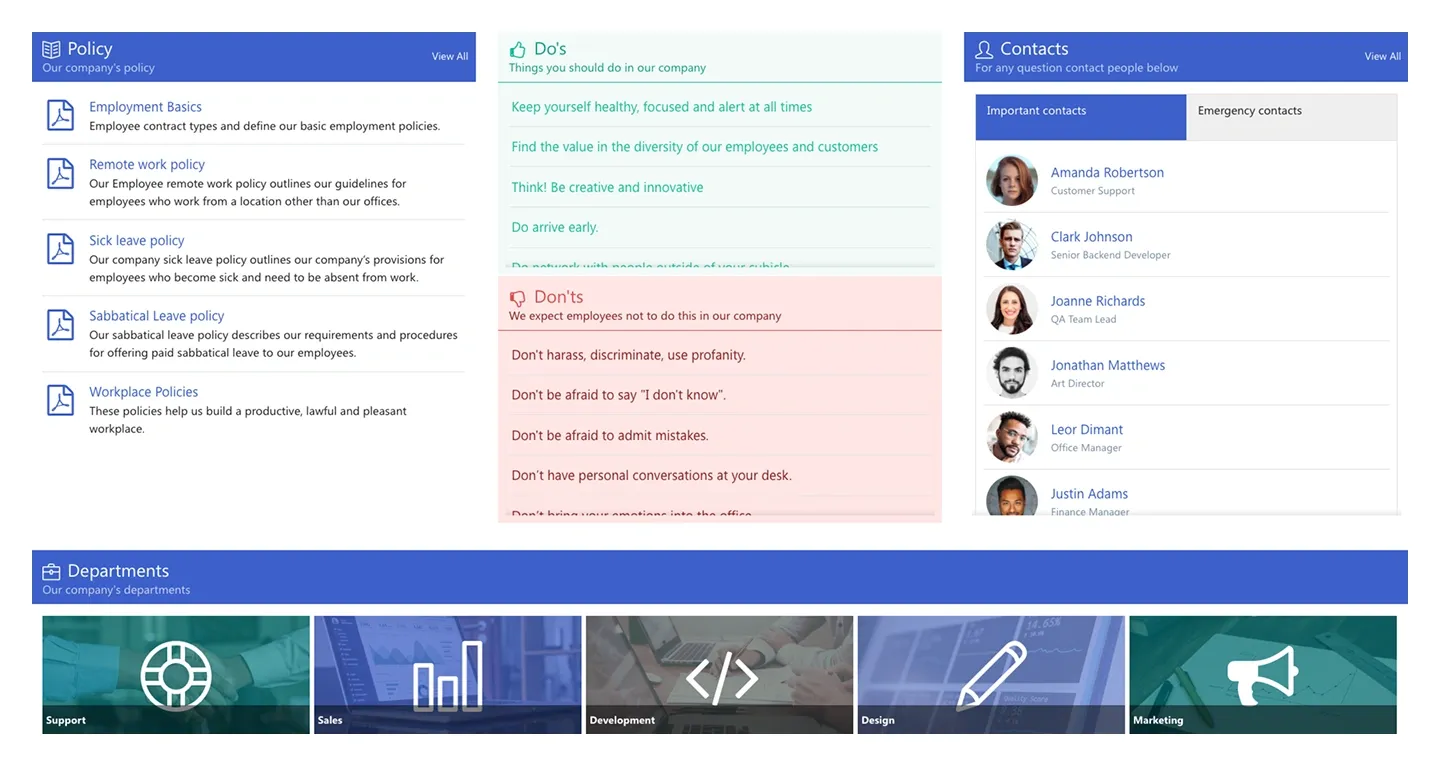
Policy hub with a linked document list, side-by-side Do's and Don'ts lists, a key contacts list, and a row of department tiles. It connects to a library and a list.
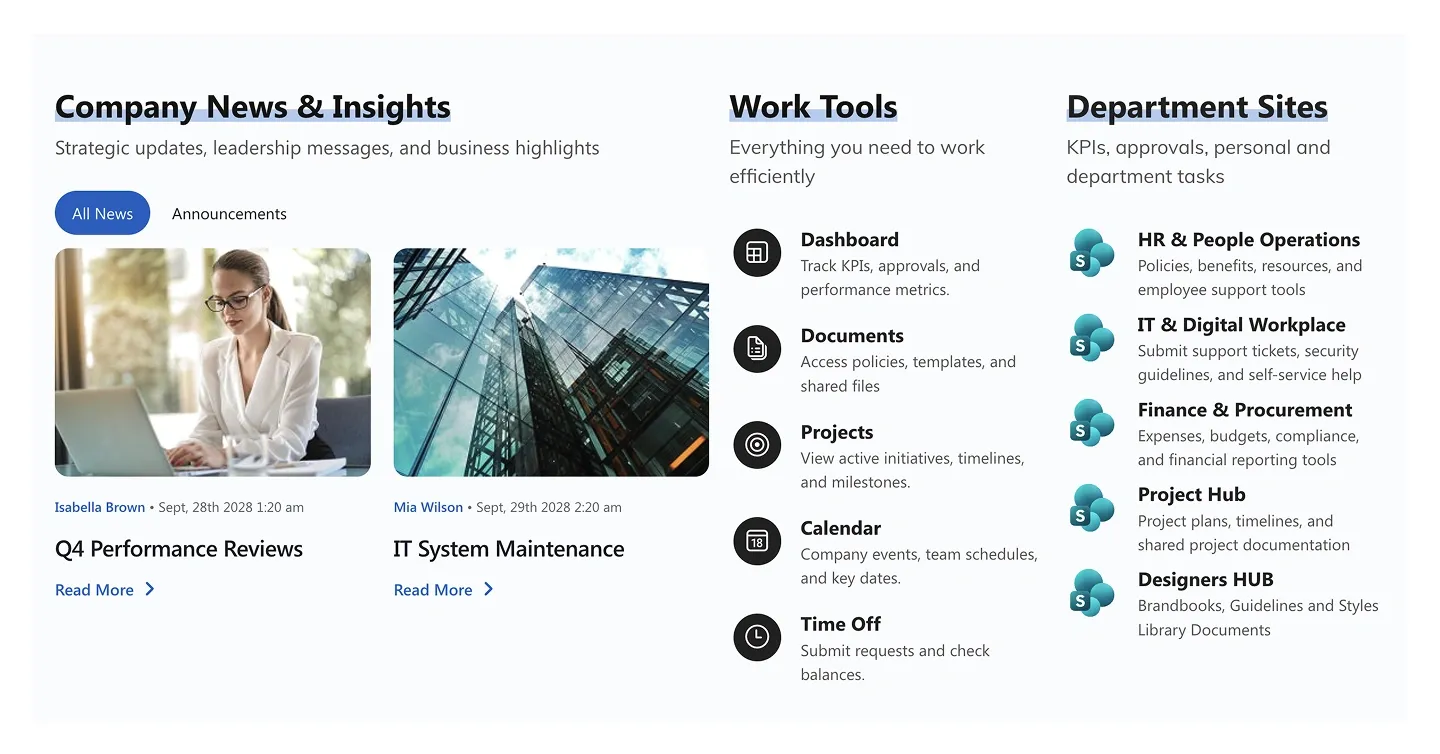
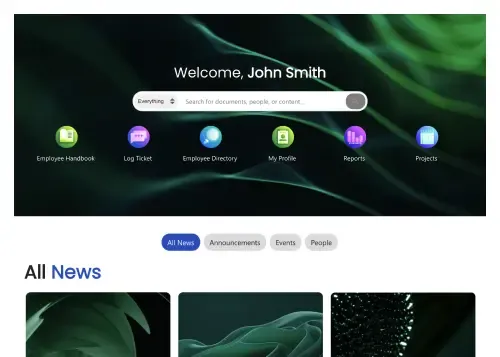
Three-column homepage block: news cards with author and date, an icon list of work tools, and links to department sites with short descriptions.
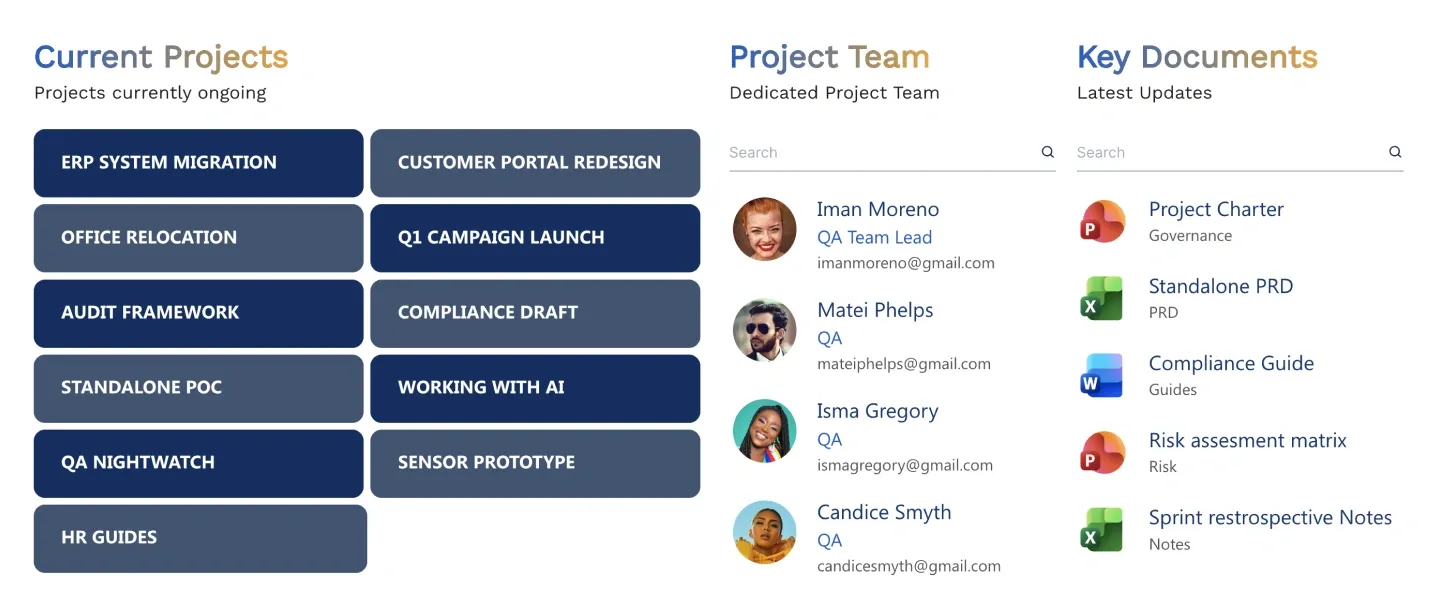
Project overview in three columns: project name tiles, the team with roles and contacts, and key documents by file type. It connects to lists and a library.
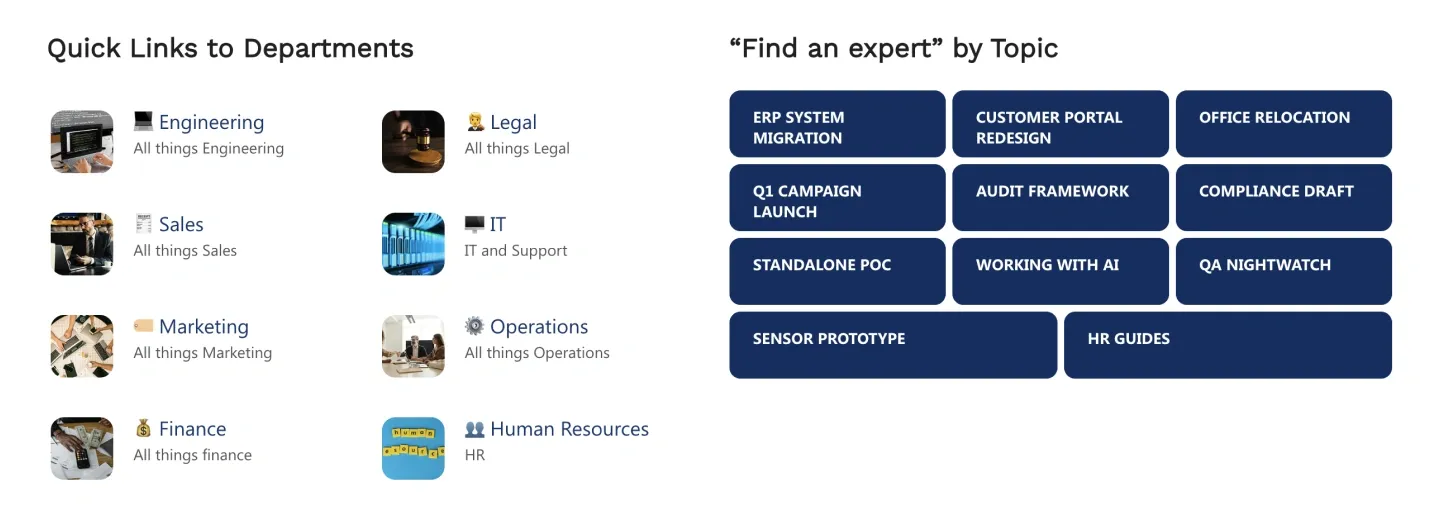
Quick links to departments with an image and one-line description each, beside a grid of topic buttons for finding an expert or resource.
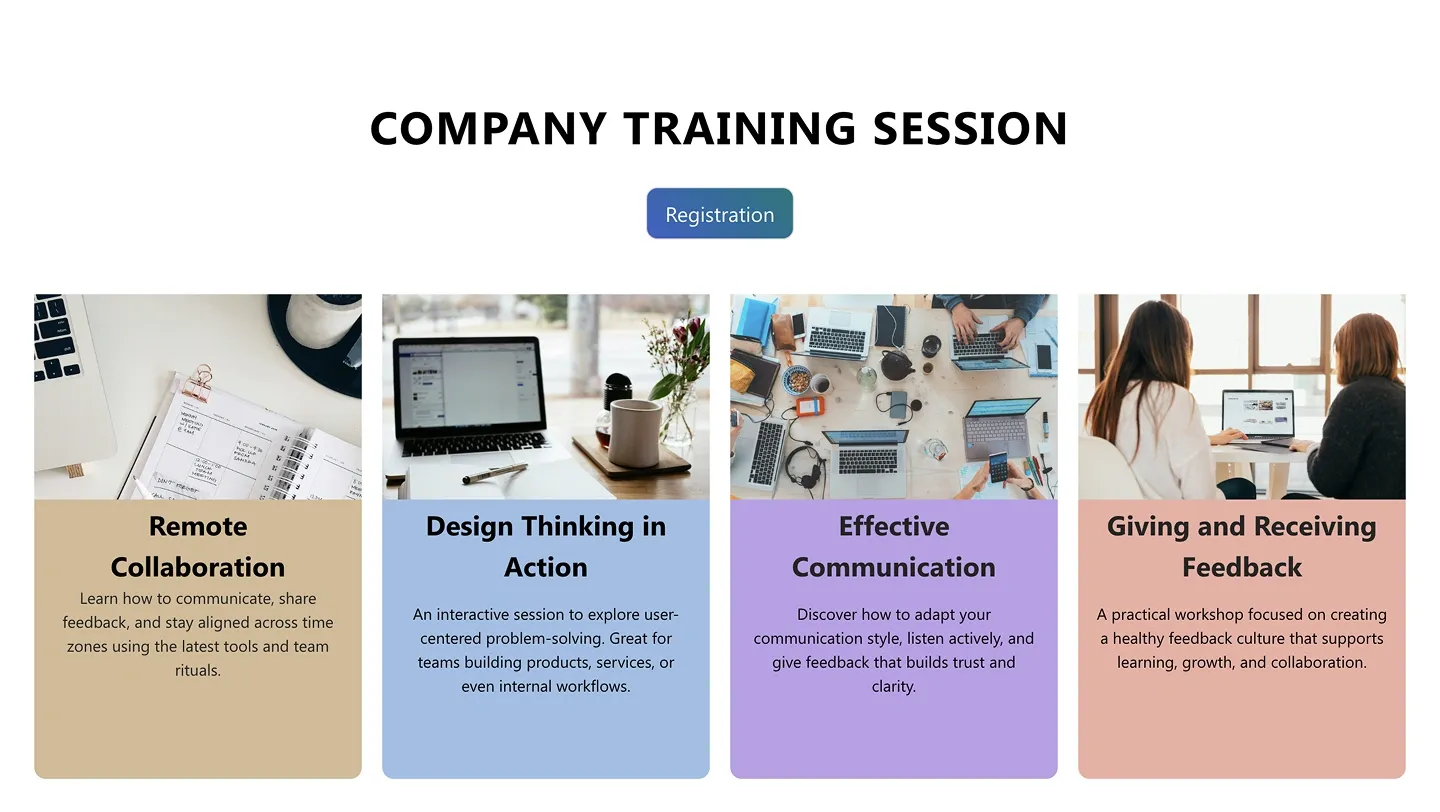
Events block with a centered title and registration button above a row of image event cards, each with a title and short description.
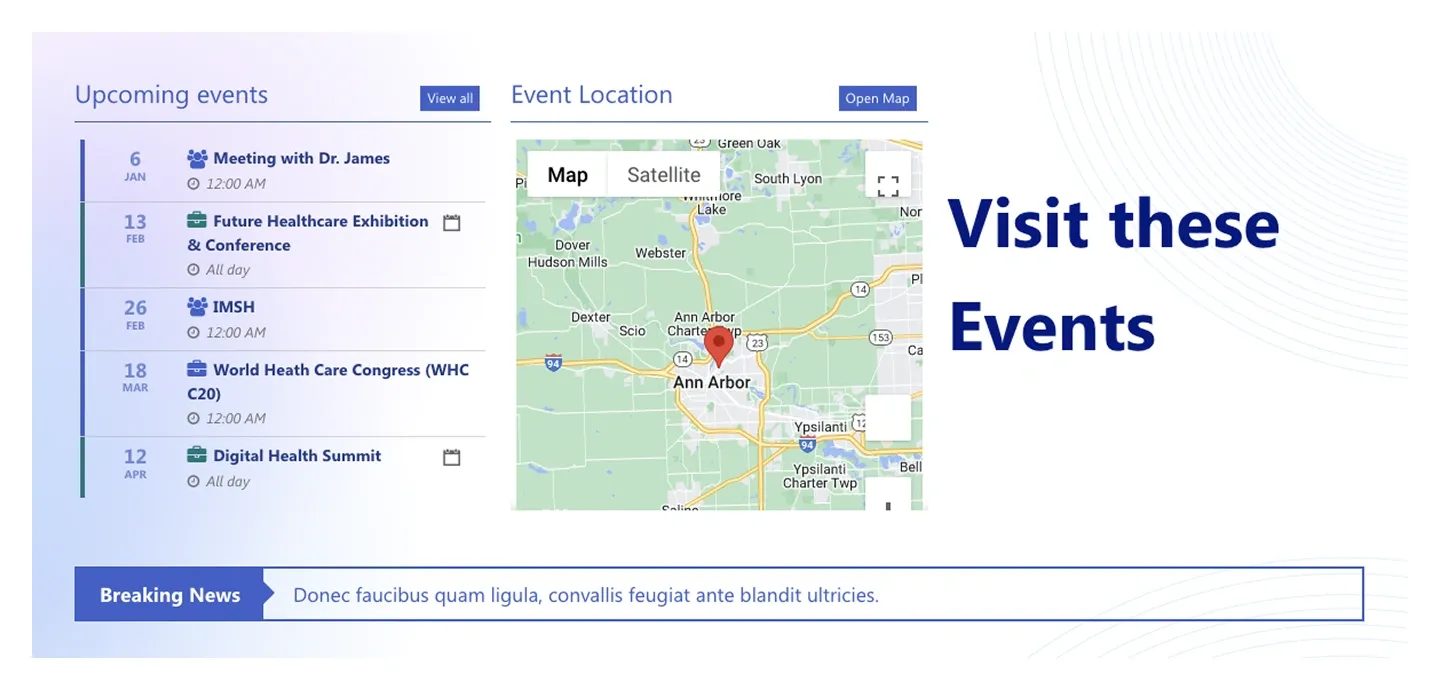
Events section with a dated upcoming events list, an embedded venue map, a bold headline, and a scrolling breaking-news bar—connects to a calendar.
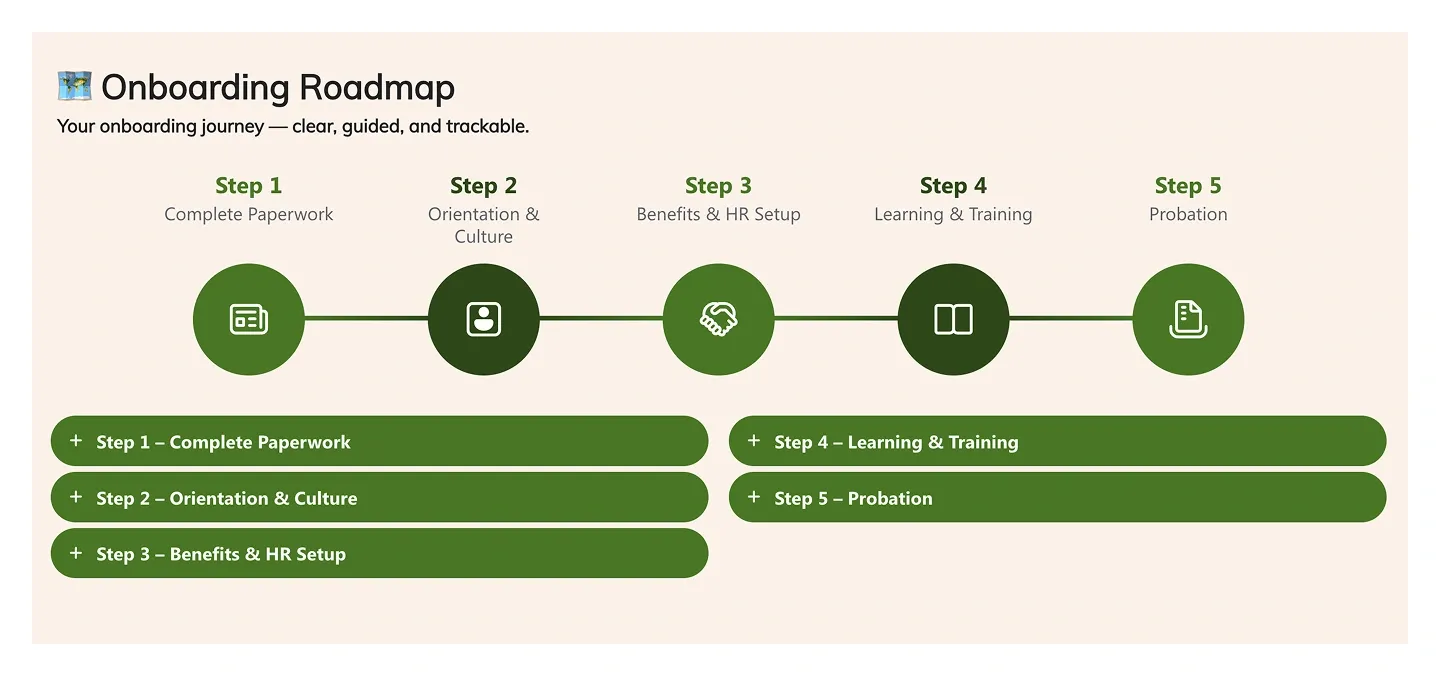
Step-by-step roadmap with numbered icons on a connecting line and an expandable panel per step. Use it for onboarding, process, or program journeys.
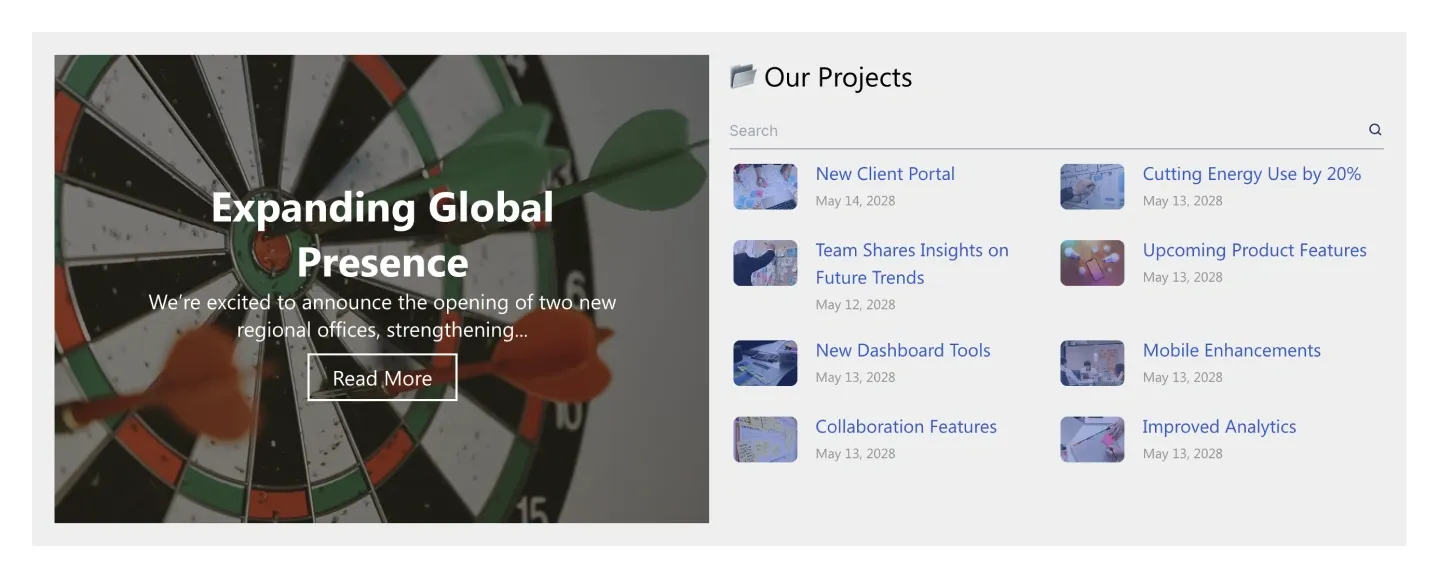
Split block with an image panel, headline, and button on one side, and a searchable two-column project list with thumbnails and dates on the other.
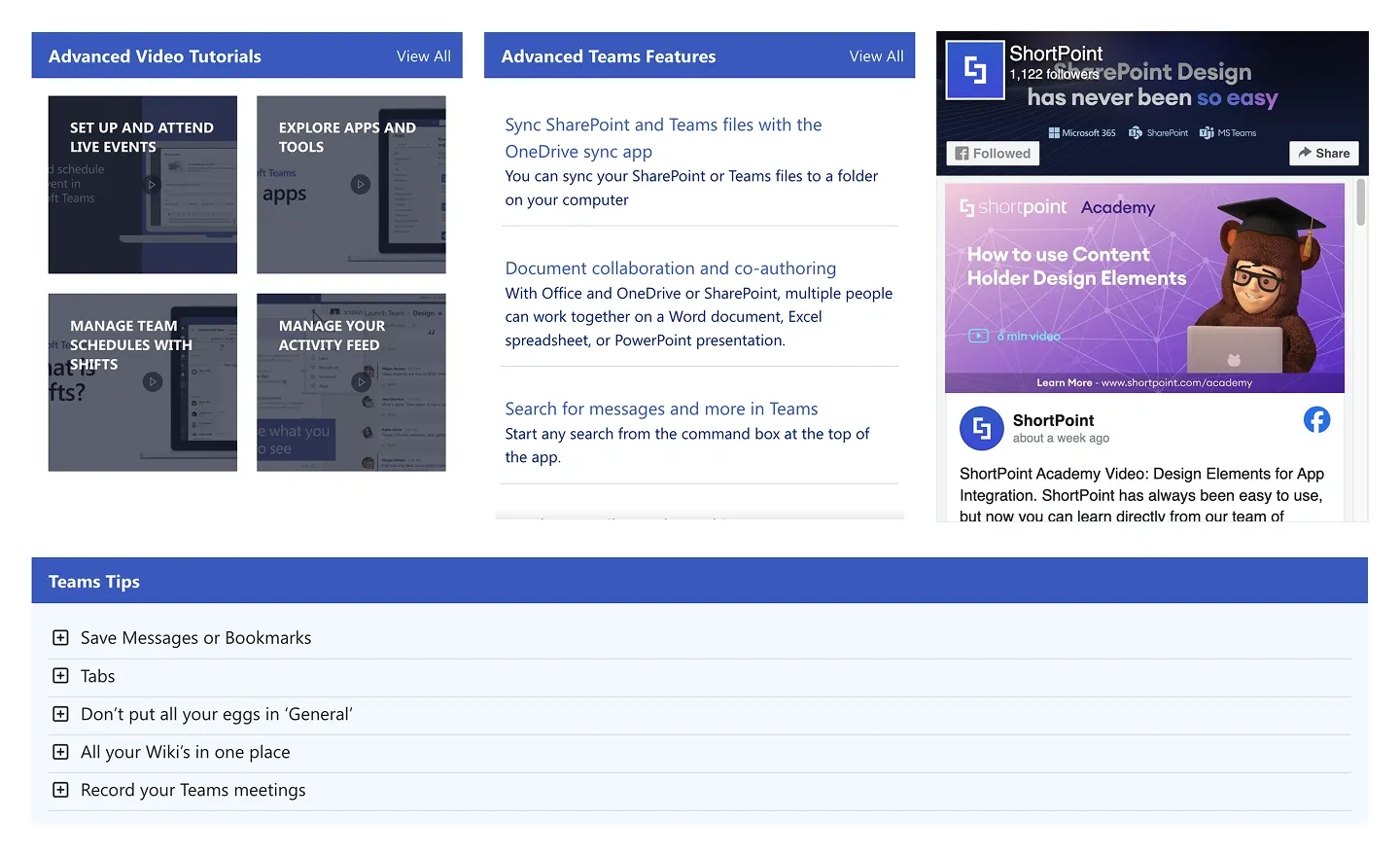
Resource hub with video tutorial tiles, a feature article list, an embedded social feed, and an expandable tips list. It's built for tool adoption pages.
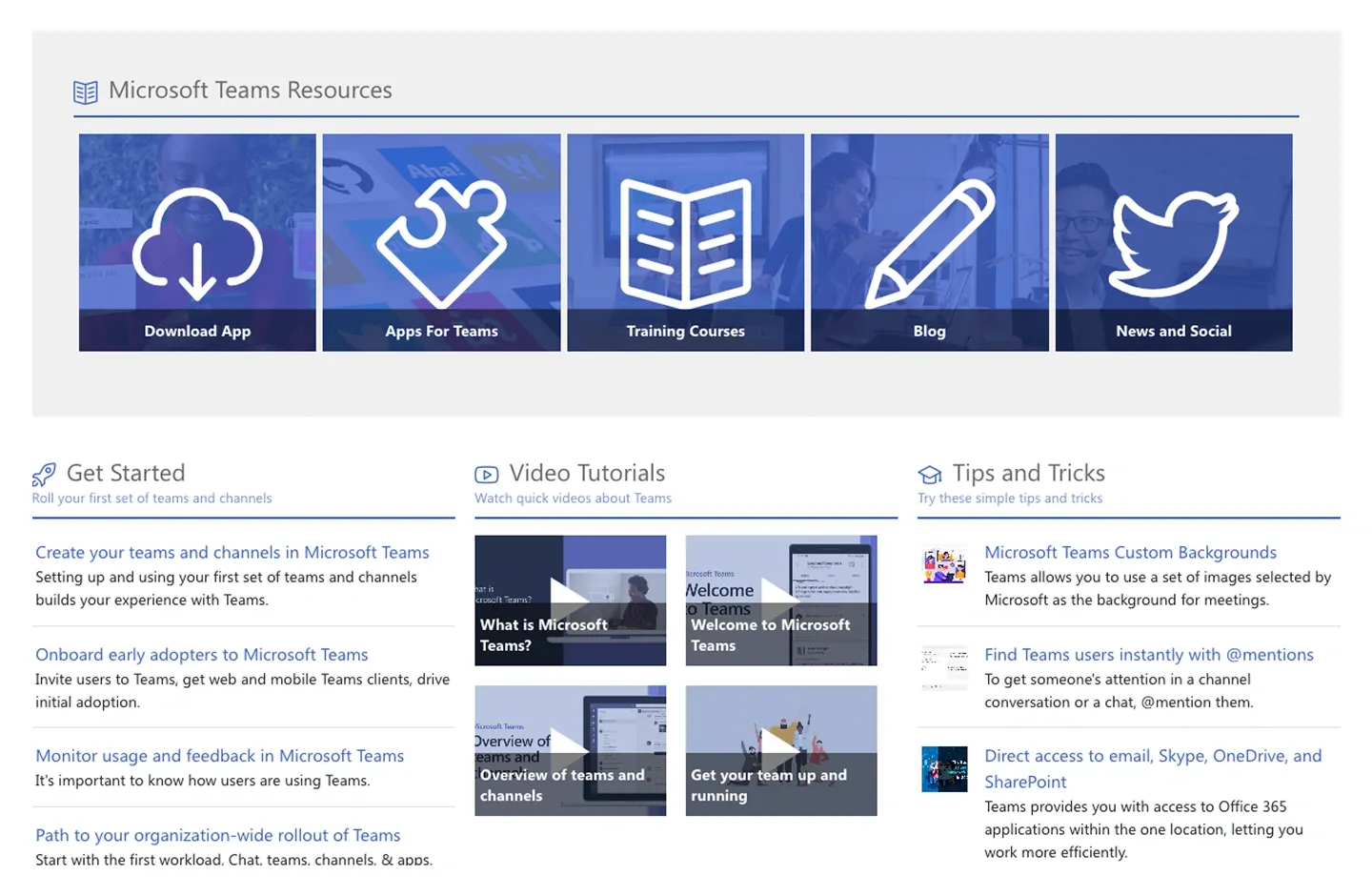
Starter hub with a row of image tiles, above three columns (getting-started links, video tutorials, and tips). It's built for introducing a tool or process.
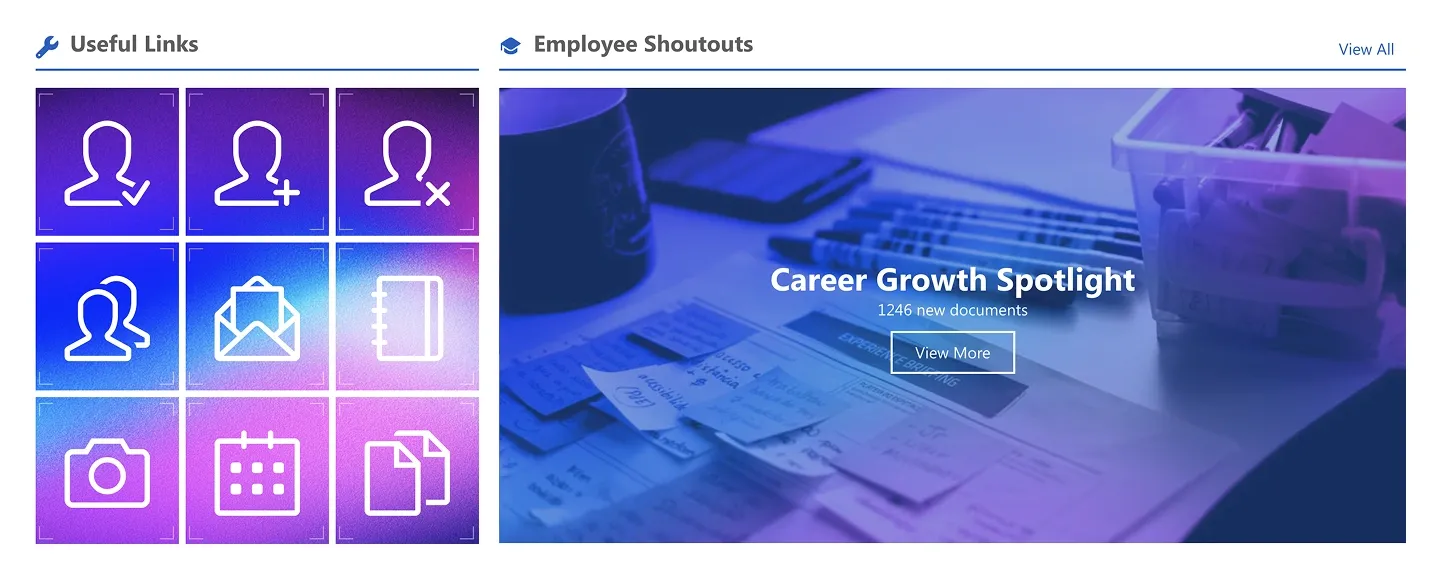
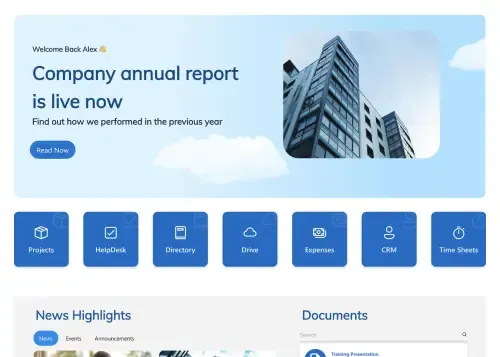
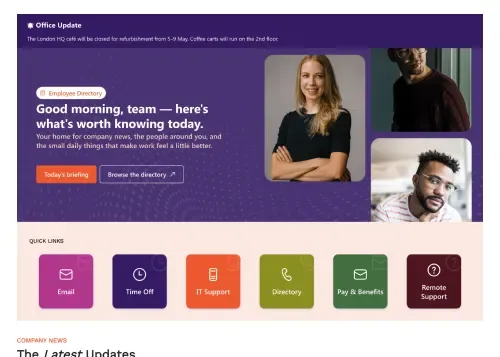
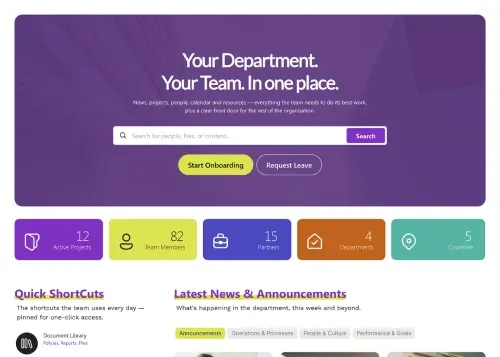
Grid of nine icon tiles beside a large image card with overlaid headline and button. It combines quick links with one featured item in a single block.
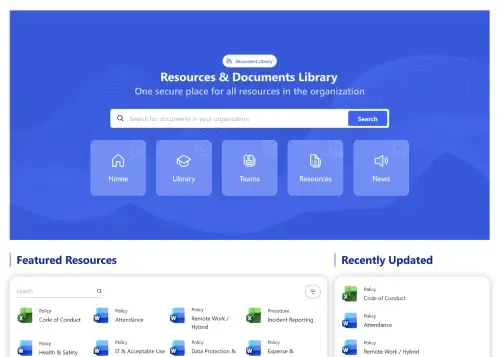
A corporate section is a pre-built block for the everyday content of a company intranet homepage: quick links to departments, apps and tools, current projects, upcoming events, company policies, onboarding roadmaps and Microsoft Teams guides. SharePoint's Quick links web part offers a set of fixed layouts in your site theme. ShortPoint corporate sections combine links with news, project lists, event cards or a step-by-step timeline in one designed block that connects to SharePoint lists and Microsoft 365. Compare every design in the carousel, from a simple grid of department links to multi-column blocks that pair projects with the people and documents behind them, and preview each one on a live SharePoint page.
Use ShortPoint to assemble a SharePoint intranet homepage from ready-made blocks: drop in a quick links grid, connect an events section to your calendar, pull in projects from a SharePoint list, and keep icons and colors on-brand with Theme Builder.
Describe the section you need and let AI Designer write and build the block.
Swap layouts, resize the block and edit every piece of content visually.
Apply your brand colors, typography and corner radius in one place.
Pull headlines, dates and items from SharePoint lists so the block updates itself.
Reuse the same section across every department page and site.
Proper labels, contrast and keyboard support for every reader.
Link straight to Microsoft Forms, Planner, Teams or any external tool.
Pre-styled variants that match the rest of your page.
Built from standard ShortPoint elements you can reuse anywhere else.
Everything stays readable and tappable when the block stacks on mobile.
Add branded quick links, events, and project blocks to your SharePoint homepage in under an hour. No coding required.
Start free trial & add ShortPoint to your site : Click "Start a Trial" and get access to ShortPoint instantly. No credit card needed. Sign in with your Microsoft 365 credentials to activate your trial instantly, or download the package manually and activate it from there.
Insert a Section : Edit your SharePoint page, insert the ShortPoint web part, and pick any corporate section (Apps & Tools, Departments Quick Links, Current Projects, Events) from the Sections tab of the Templates Library. It drops into your page as a ready-made block you can move, duplicate, or restyle.
Customize & Publish : Replace the placeholder content with your own, connect your SharePoint data sources, apply your company branding with Theme Builder, and publish the page for immediate use.
The built-in web part offers a handful of fixed layouts. ShortPoint quick links sections give you icon grids, tiles, and lists you can restyle freely and connect to any SharePoint list or Microsoft 365 app.
Yes, you can connect the events section to a SharePoint calendar or events list. Once connected, it pulls in new entries and updates automatically, so the section always reflects your latest schedule.
Yes, each quick link can point to any URL, including internal SharePoint pages, Microsoft 365 apps like Teams and Outlook, or third-party tools such as Workday.
Yes, these sections work with both Microsoft 365 and on-premises SharePoint. That includes SharePoint Online in Microsoft 365, as well as SharePoint Server Subscription Edition, 2019, 2016, and 2013.
Yes, you can copy a quick links block once and paste it on any page or site. Edit the links locally on each one, so department teams can point to their own resources while keeping the same layout.
Yes, choose from the built-in icon library or upload your own, and adjust colors, spacing, and columns directly or through Theme Builder.