Browse Docs by Category
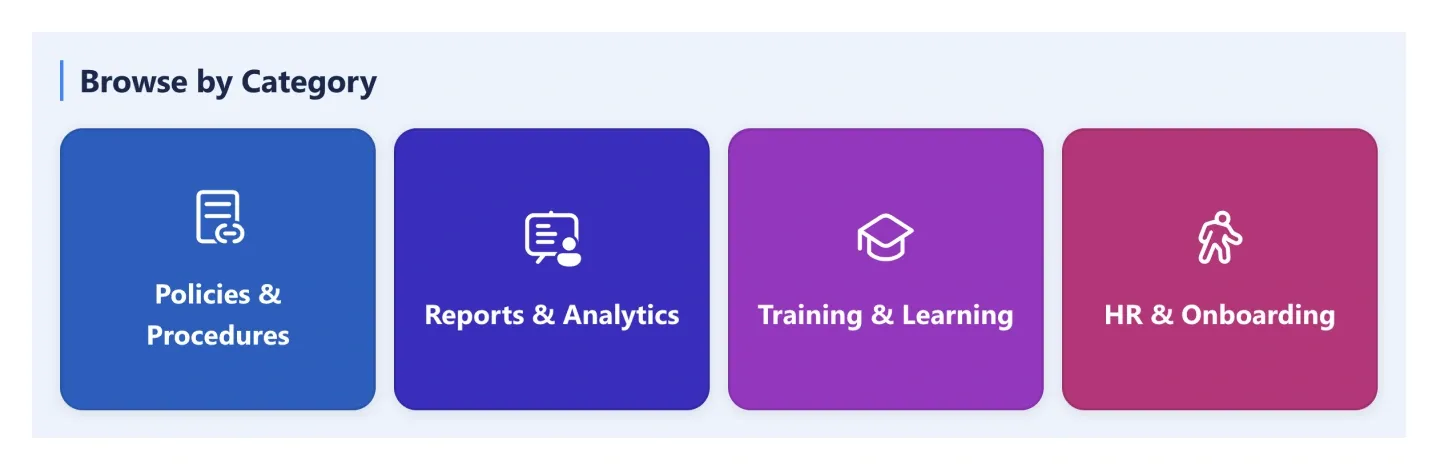
Four large icon tiles, one per document category, so people browse a library by topic instead of by folder. Each tile links to a filtered view.
Four large icon tiles, one per document category, so people browse a library by topic instead of by folder. Each tile links to a filtered view.
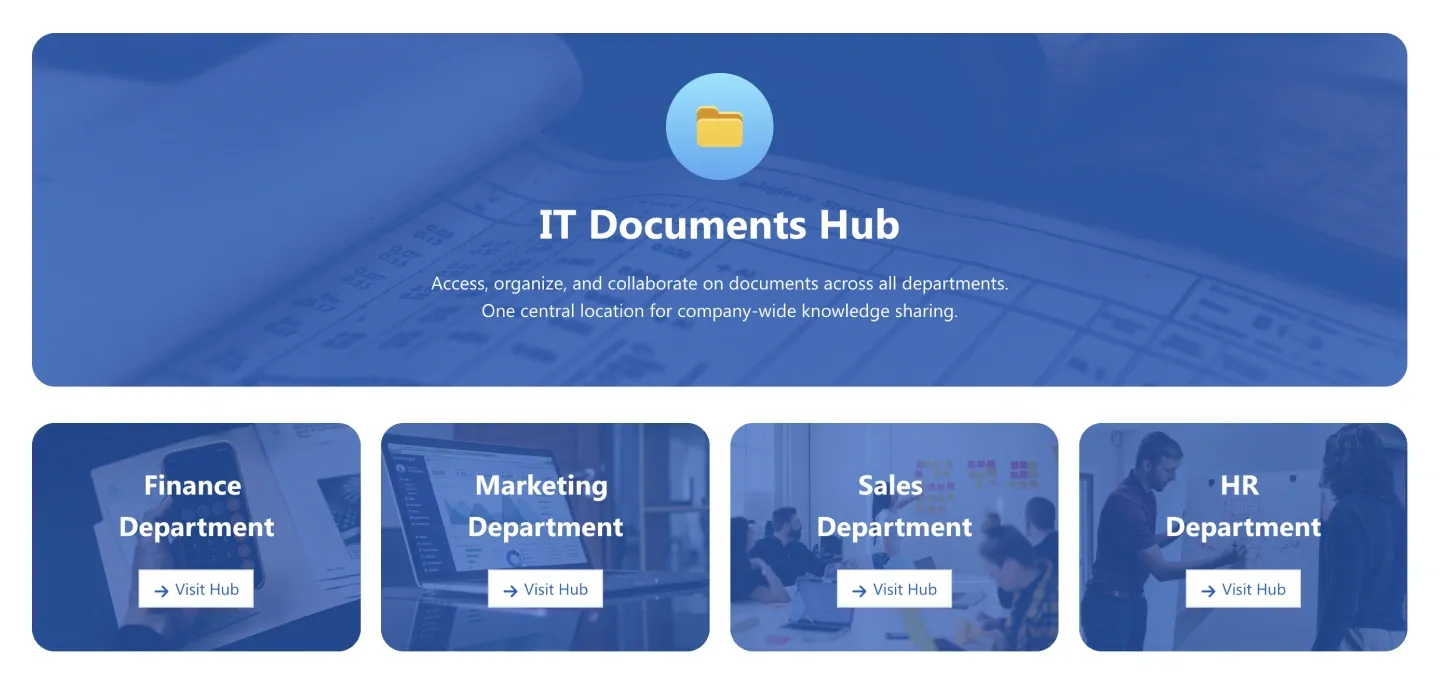
Documents hub banner with icon and tagline, above a row of department tiles with links. It's an entry point to several department libraries.
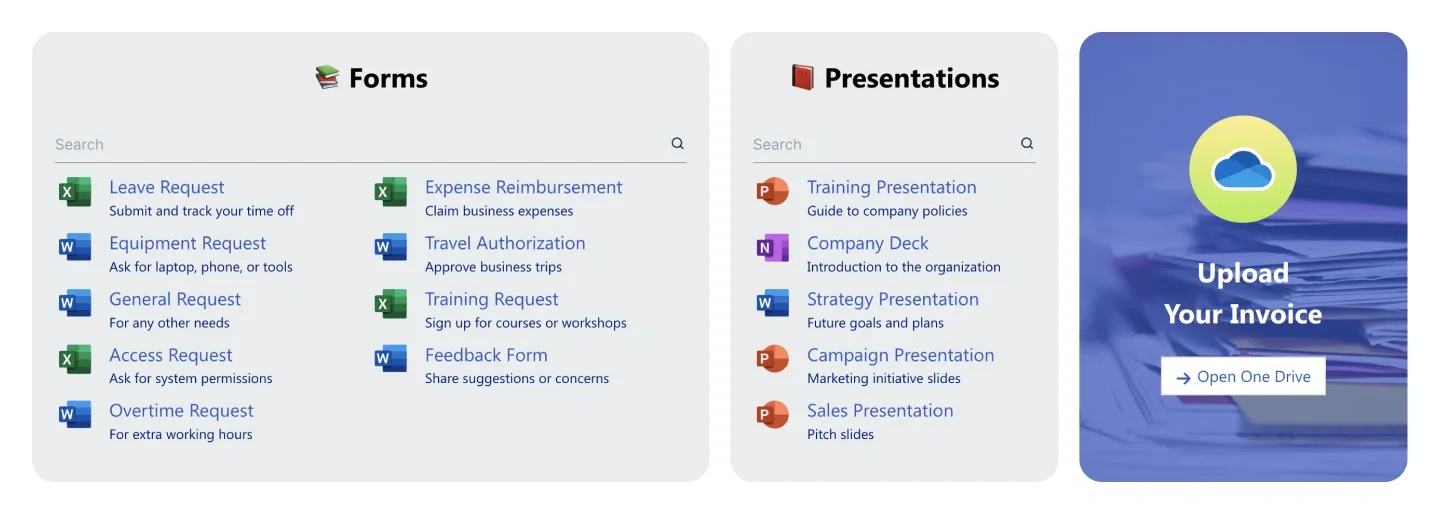
Two searchable document lists grouped by type, with file icons and descriptions, beside a call to action card for uploads or requests.
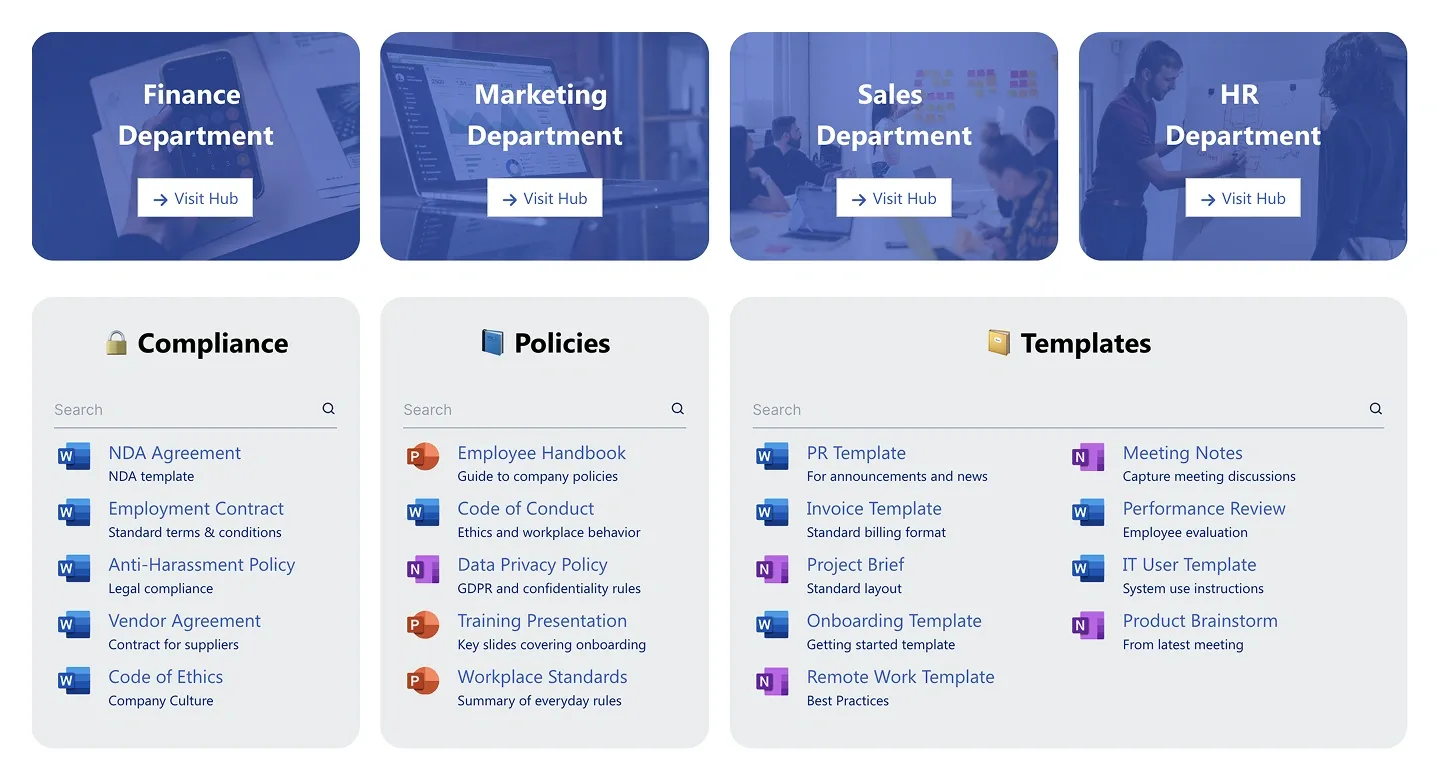
Department tiles on top with three searchable document lists underneath. The lists cover categories such as compliance, policies, and templates, each with file icons.
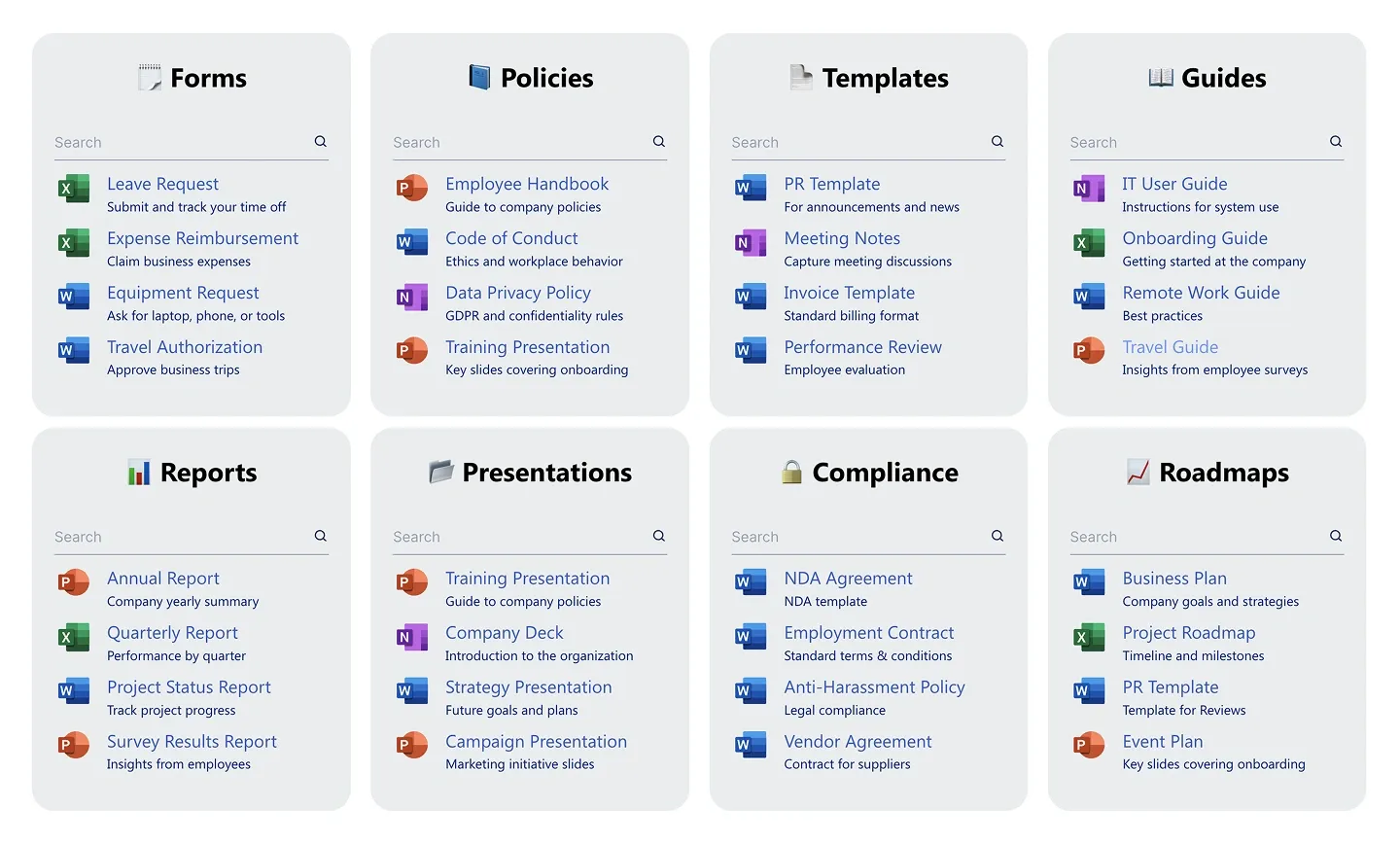
Two-row grid of eight searchable document lists, each a card with its own category and file-type icons. It covers a whole department library at a glance.
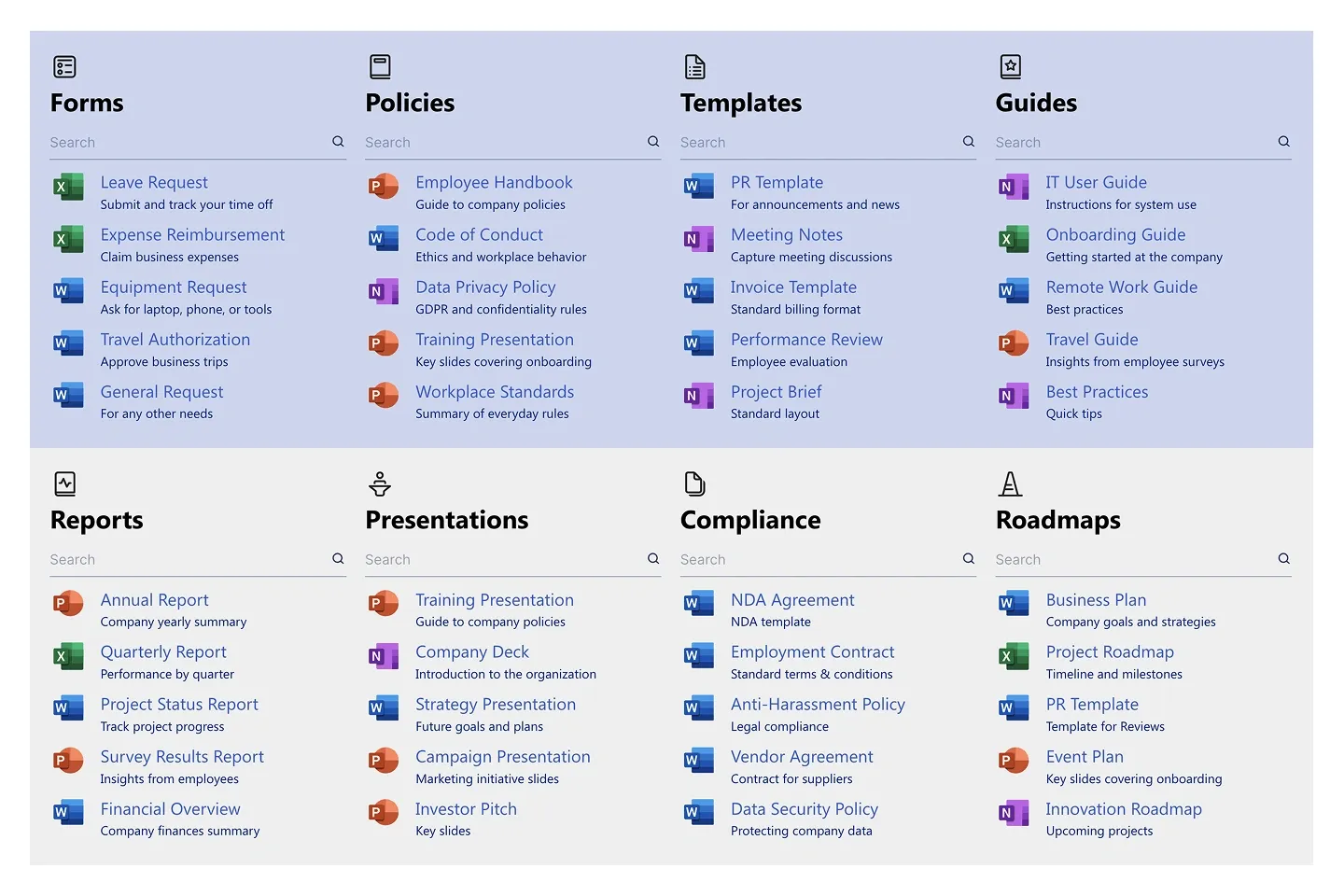
Eight document categories laid out as columns on a single panel, each with a search box and file list. It's a denser variant of the card grid.
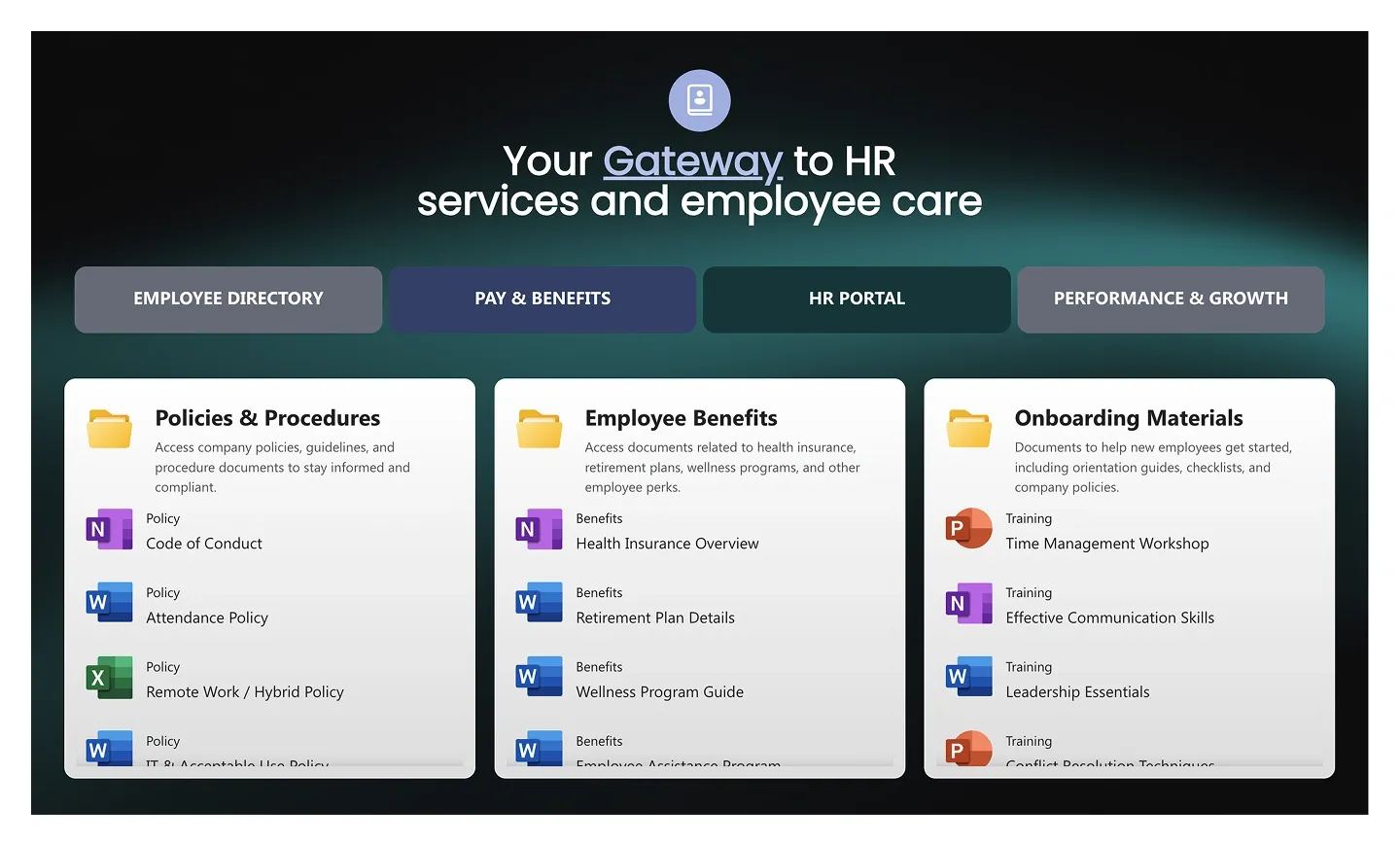
Image hero with headline and a row of navigation buttons, above three document cards grouped by topic with file icons. It's an HR-style documents landing block.
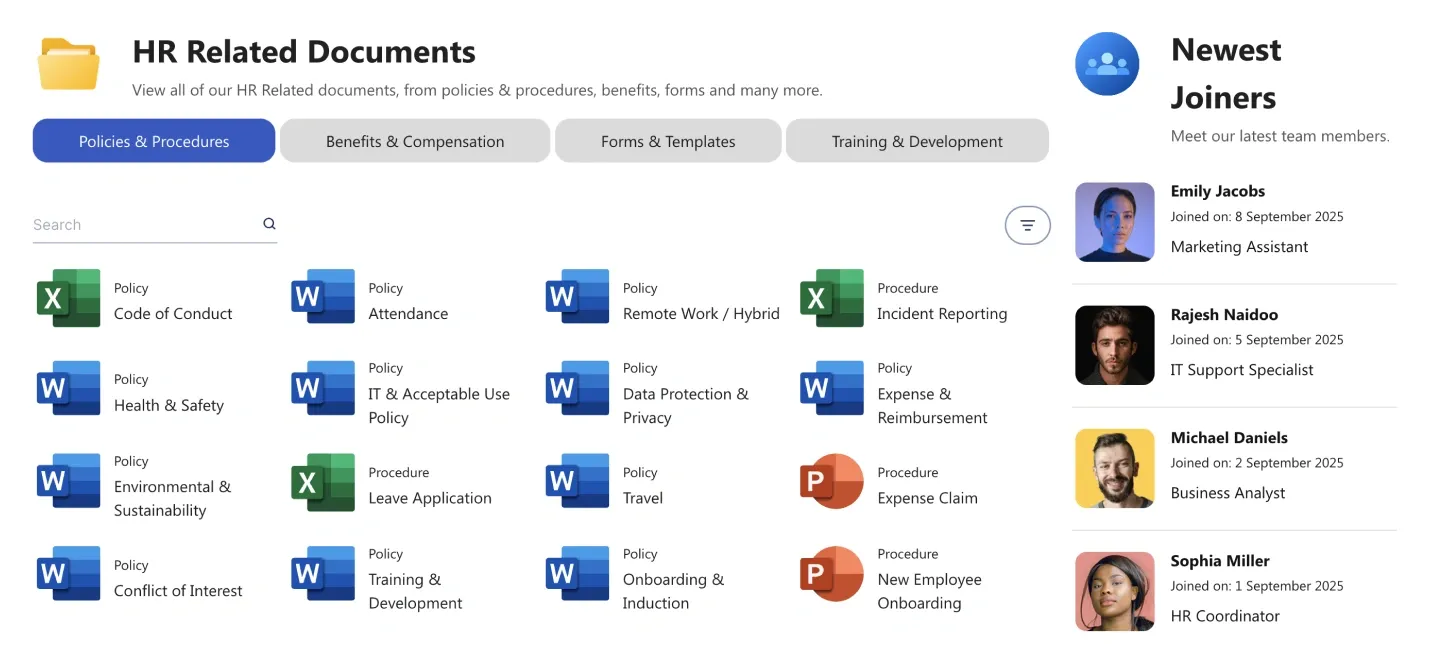
Tabbed document library with search and a multi-column file grid, beside a people list card. It pairs documents with new hires or owners.
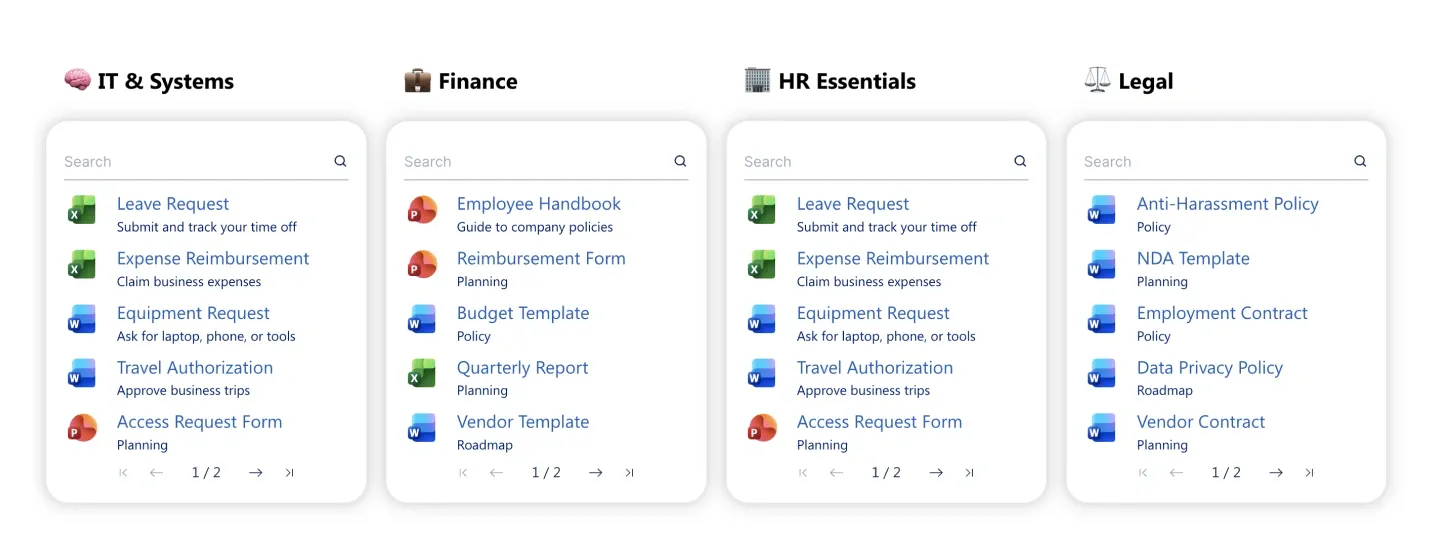
Four document cards side by side, one per department or topic, each with search, file icons, and pagination. Each list connects to its own library.
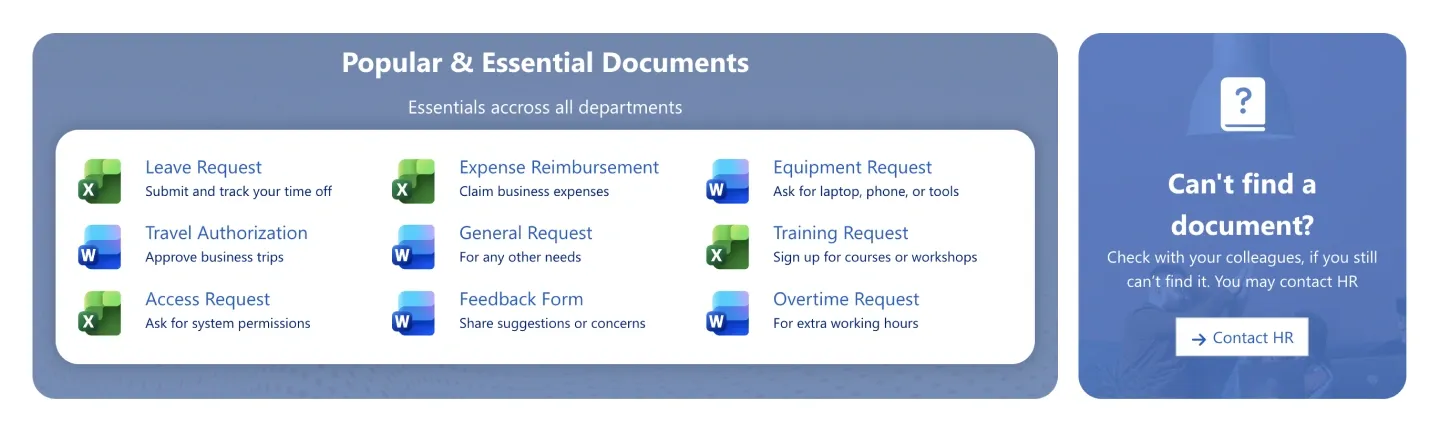
Three-column list of the most-used documents with file icons and descriptions, beside a "Can't find it?" support card with a contact button.
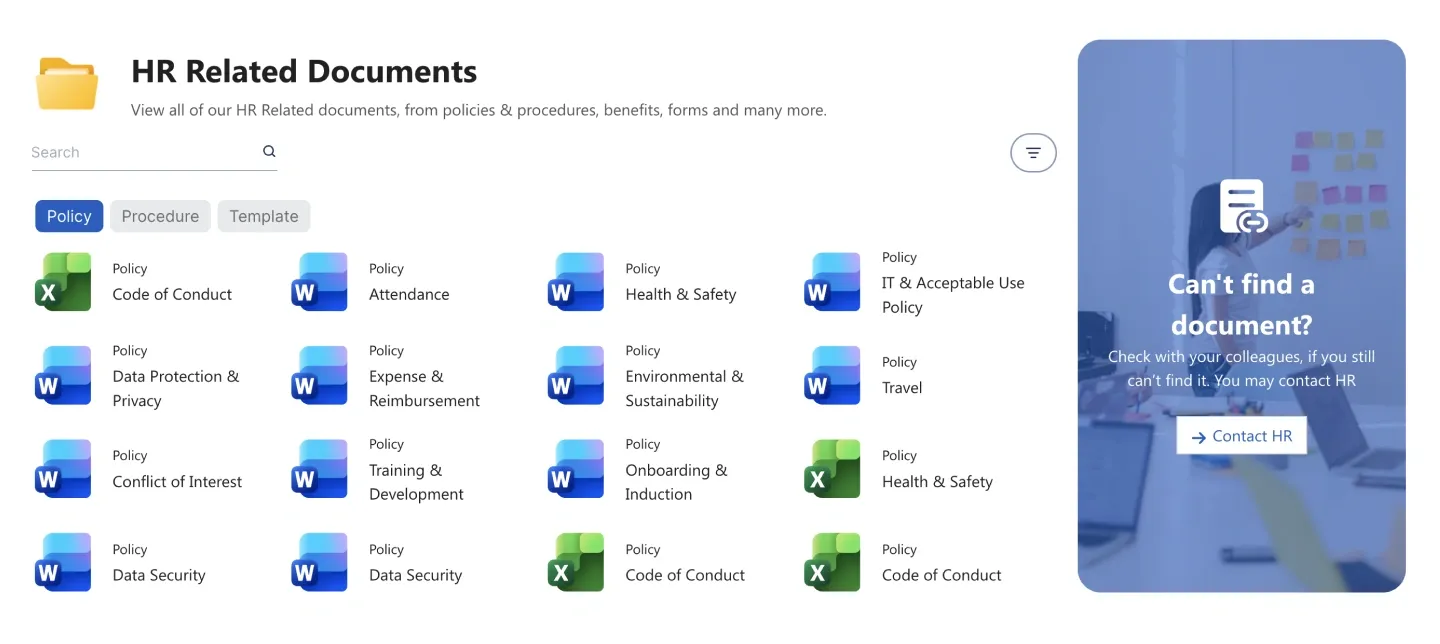
Document library with search, type filters, and a multi-column file grid, beside an image support card. It's suited to policy and procedure collections.
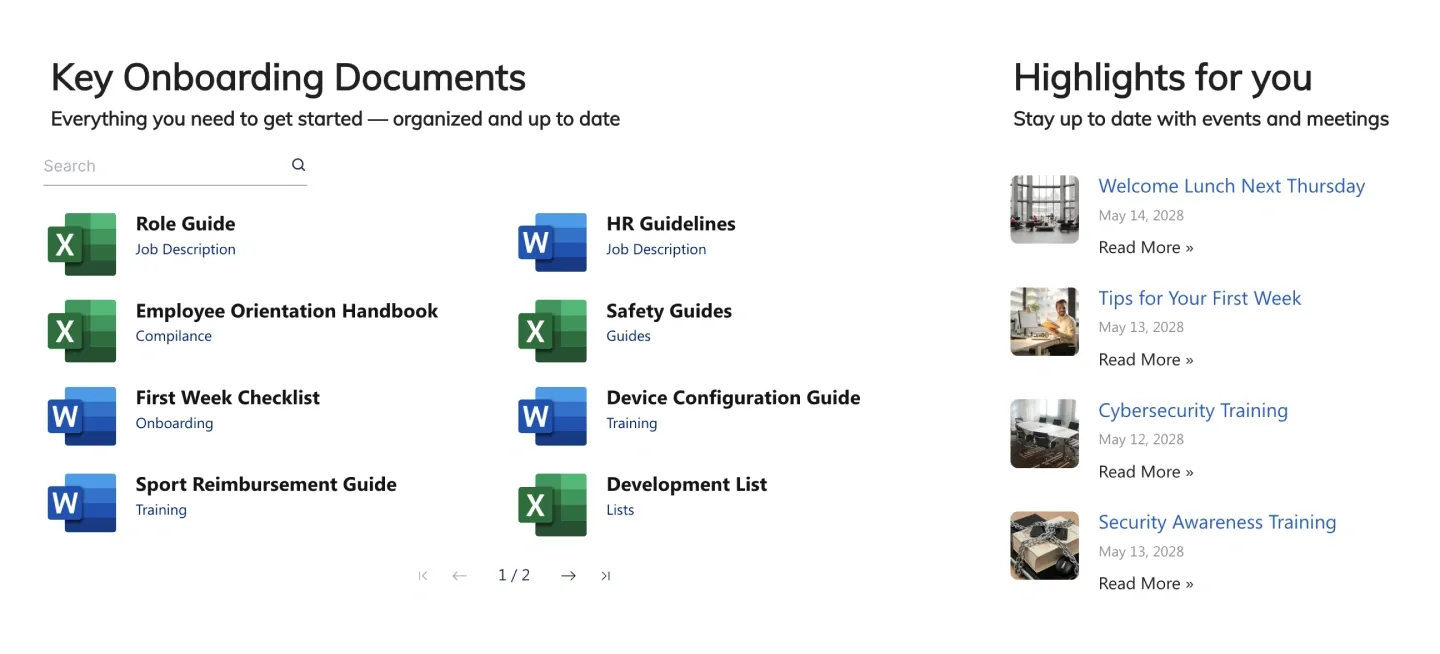
Searchable two-column document list with file icons, alongside a news or highlights list with thumbnails and dates. It displays documents and what's new.
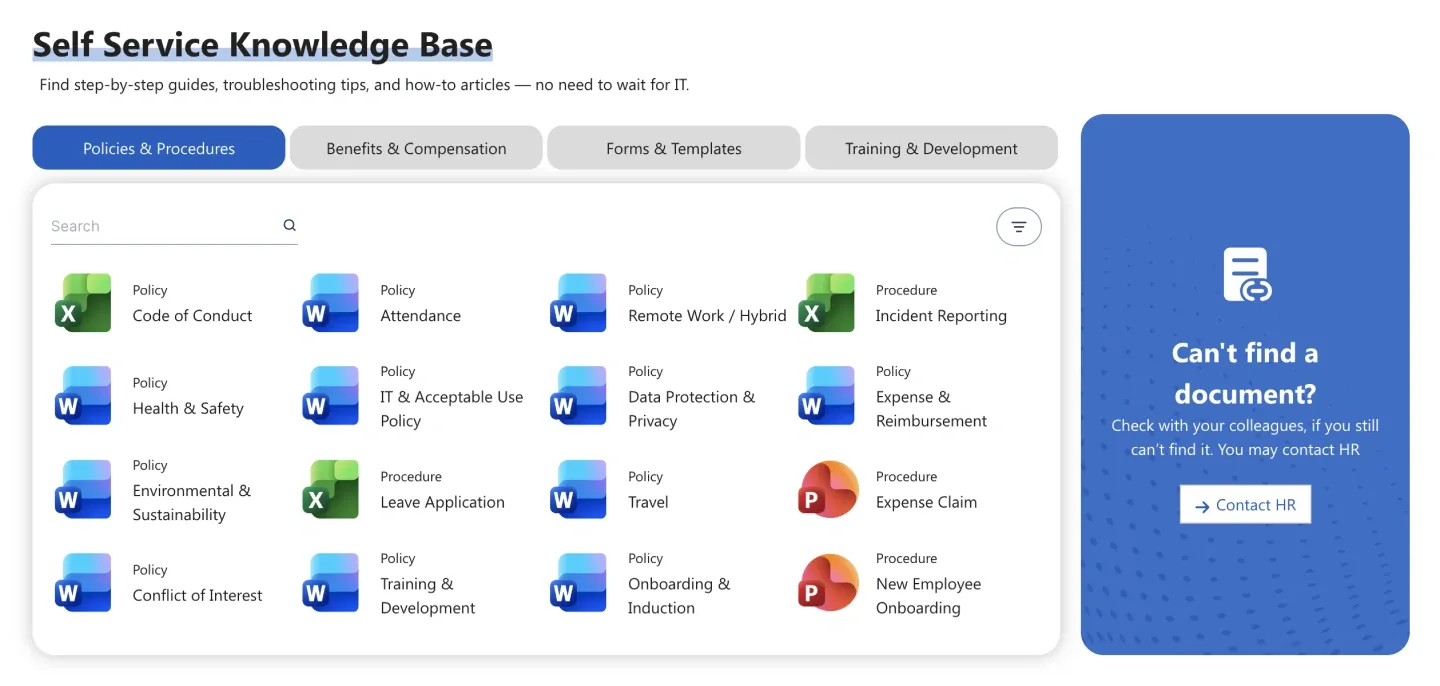
Self-service library with category tabs, search, a multi-column file grid, and a support card. It's built for knowledge base or policy collections.
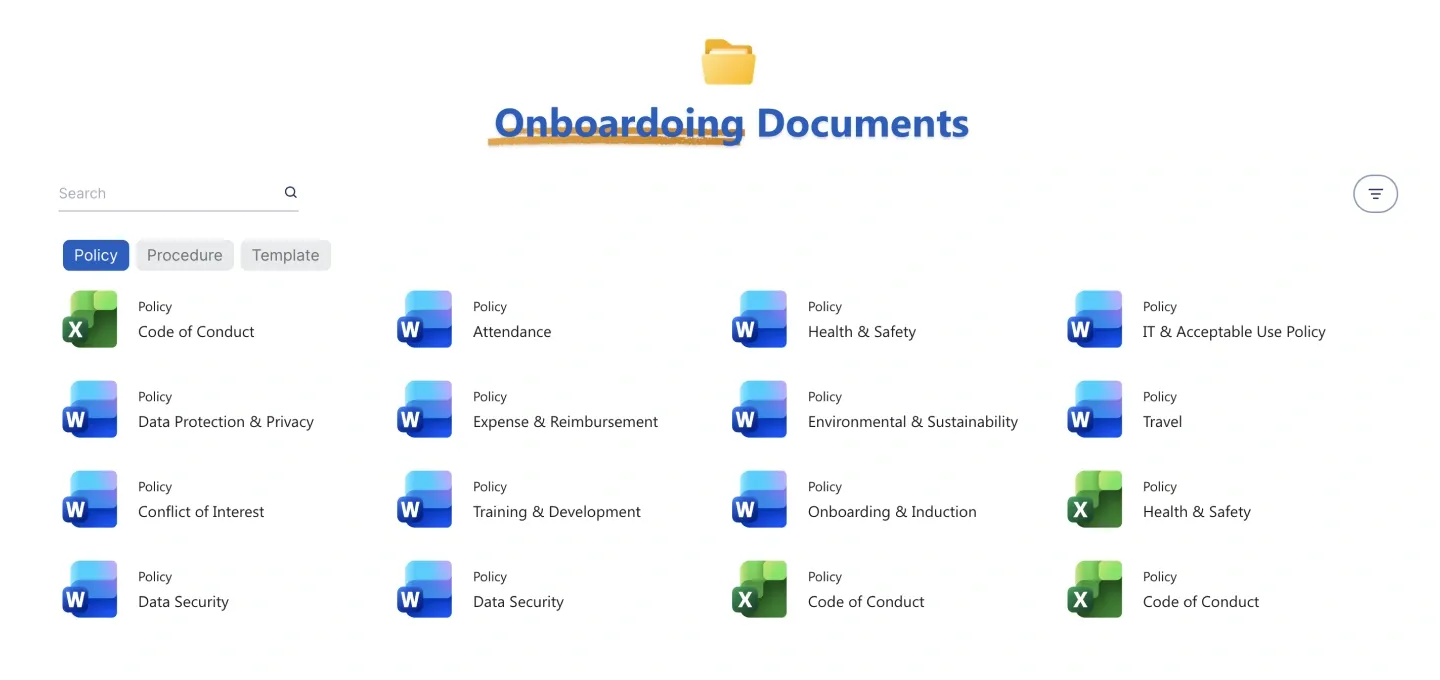
Centered title with icon, above search, filter chips, and a four-column file grid. It's a clean, full-width document browser.
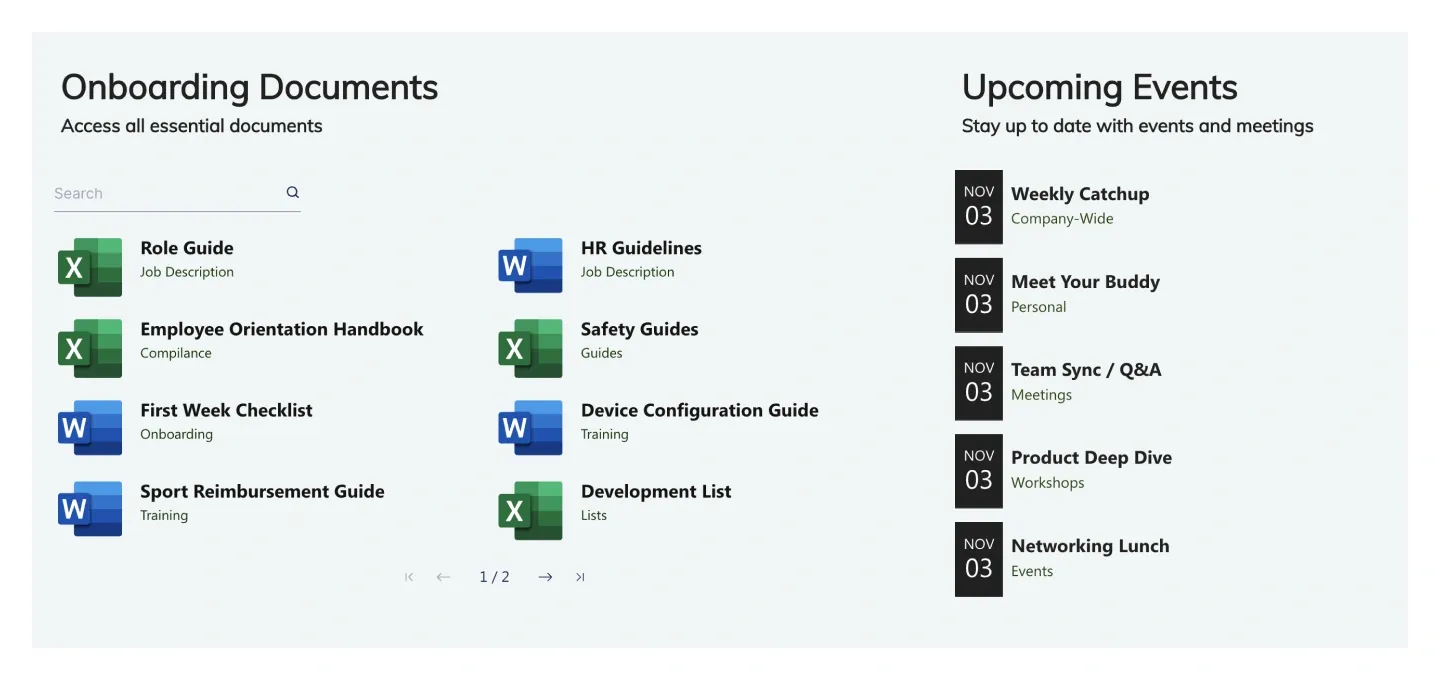
Two-column block pairing a searchable document list with an upcoming events list with date badges. It connects to a library and a calendar.
A document section is a pre-built block that presents files from your SharePoint document libraries in a cleaner interface than the default list view: browse-by-category tiles, department document hubs, tabbed libraries, and essential or onboarding document lists with search and file-type icons. SharePoint's Document library web part shows one library at a time in its standard view. ShortPoint document sections can group several lists by category or department on one page and pair them with a support card, news or upcoming events. Files stay in your existing libraries, so permissions and versioning stay in SharePoint while the page gets a modern, branded interface. Compare every SharePoint document library example in the carousel, from category tiles that send people to the right place to hubs with eight searchable document lists, and preview each one live.
Use ShortPoint to redesign how documents appear on SharePoint pages: connect a section to your libraries, group files by category or department, show Word, Excel, PowerPoint, and PDF icons, and keep everything on-brand with Theme Builder.
Describe the section you need and let AI Designer write and build the block.
Swap layouts, resize the block and edit every piece of content visually.
Apply your brand colors, typography and corner radius in one place.
Pull headlines, dates and items from SharePoint lists so the block updates itself.
Reuse the same section across every department page and site.
Proper labels, contrast and keyboard support for every reader.
Link straight to Microsoft Forms, Planner, Teams or any external tool.
Pre-styled variants that match the rest of your page.
Built from standard ShortPoint elements you can reuse anywhere else.
Everything stays readable and tappable when the block stacks on mobile.
Give your SharePoint document library a branded, easy-to-browse interface in under an hour. No coding required.
Start free trial & add ShortPoint to your site : Click "Start a Trial" and get access to ShortPoint instantly. No credit card needed. Sign in with your Microsoft 365 credentials to activate your trial instantly, or download the package manually and activate it from there.
Insert a Section : Edit your SharePoint page, insert the ShortPoint web part, and pick any document section (Browse Docs by Category, Department Documents Hub, Essential Documents) from the Sections tab of the Templates Library. It drops into your page as a ready-made block you can move, duplicate, or restyle.
Customize & Publish : Replace the placeholder content with your own, connect your SharePoint data sources, apply your company branding with Theme Builder, and publish the page for immediate use.
No, these sections don't replace your SharePoint document library. Files stay in your existing libraries with their permissions and version history, and the section acts as a new front end for browsing them.
Yes, a single document hub section can hold multiple file lists that pull from different libraries or folders. Search and Filter Toolbar can group the files by category or department, so people can browse everything from one place.
Yes, document sections always follow SharePoint permissions, so each person sees only the files they're allowed to open. If someone doesn't have access to a file, it won't appear in the section for them.
Yes, most document sections include Word, Excel, PowerPoint, and PDF file-type icons plus a search box, so people can spot the right file and find documents quickly.
Yes, document sections work with both Microsoft 365 and on-premises SharePoint. That includes SharePoint Online in Microsoft 365, as well as SharePoint Server Subscription Edition, 2019, 2016, and 2013.
Yes, you can copy a document hub to each department's page or site and connect each copy to that department's libraries. Every team gets the same layout, showing only its own files.