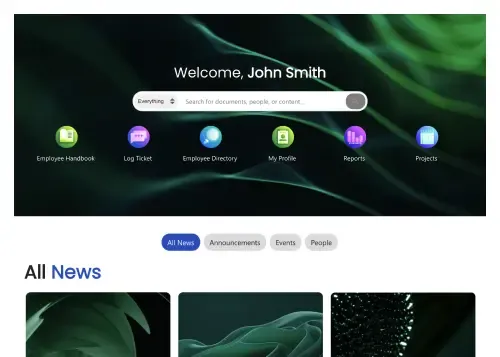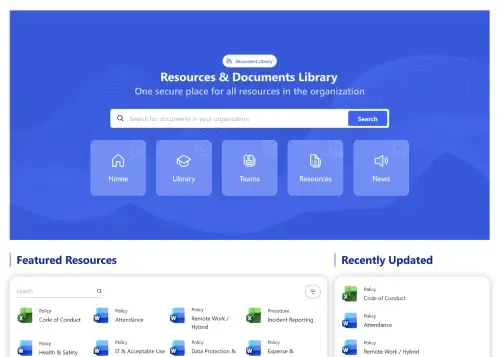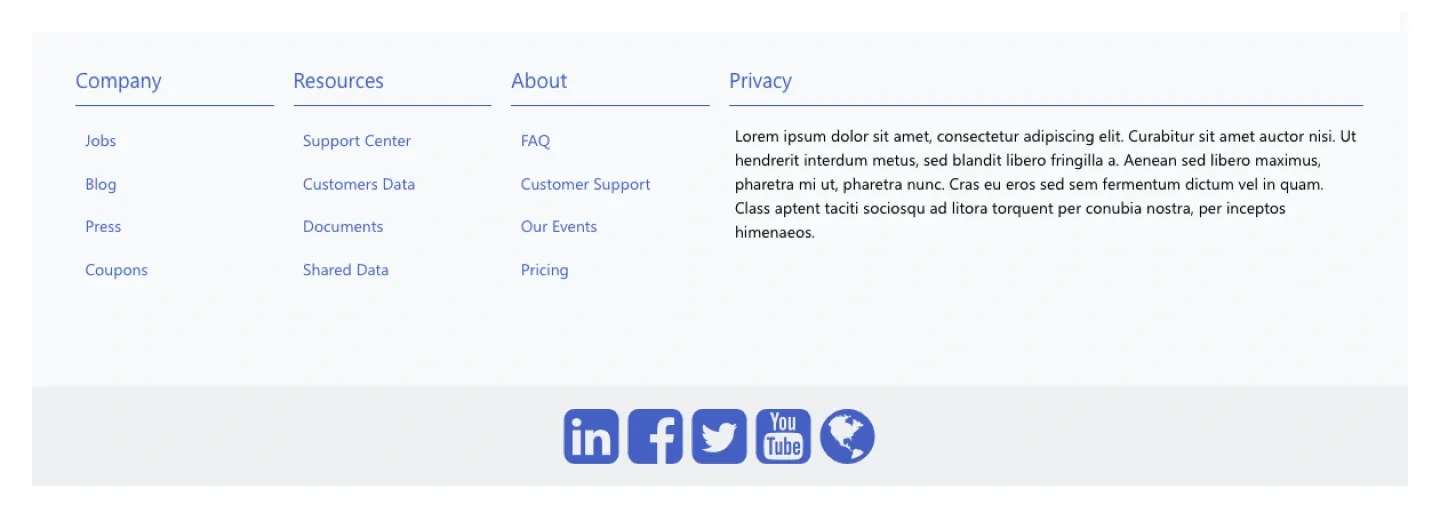
Footer 1
Footer with three link columns and one text column, plus a centered row of social icons. It's a light, general-purpose site footer.
Footer with three link columns and one text column, plus a centered row of social icons. It's a light, general-purpose site footer.
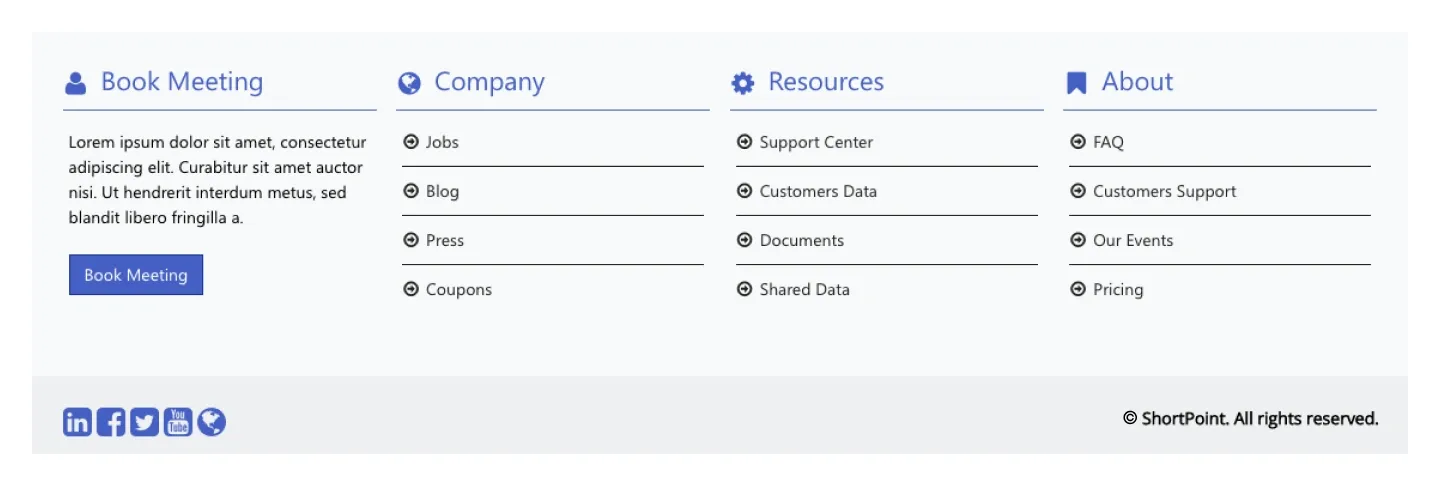
Footer with a text-and-button column beside three icon-labeled link columns, and a copyright bar with social icons.
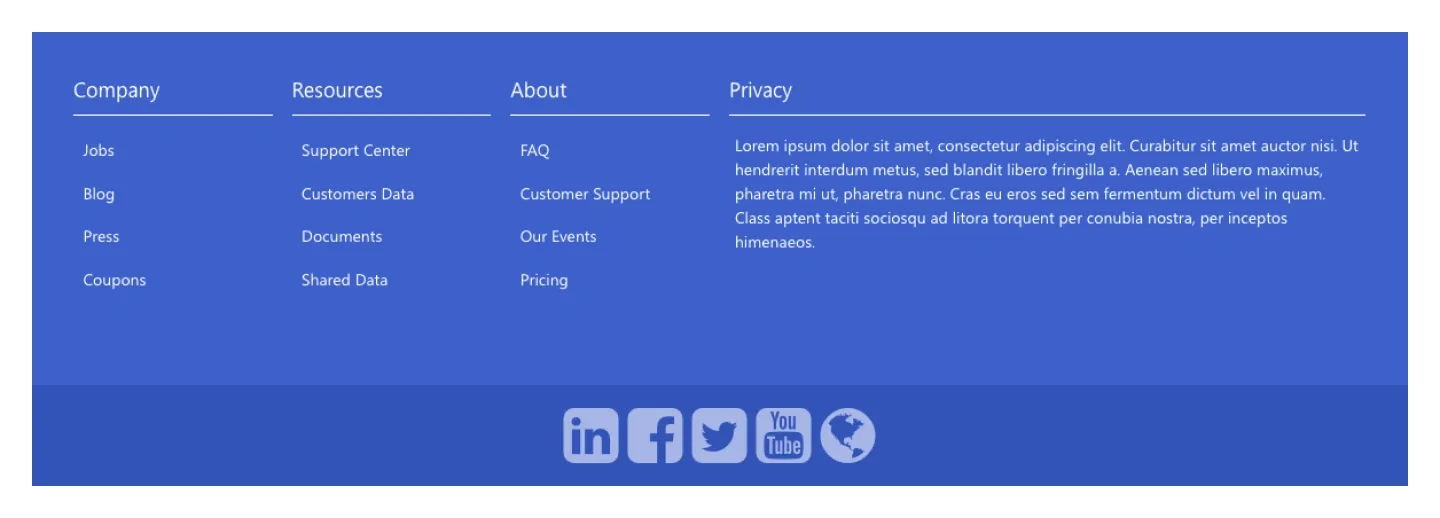
Solid-background version of Footer 1: three link columns, a text column, and a centered social icon row on a darker band.
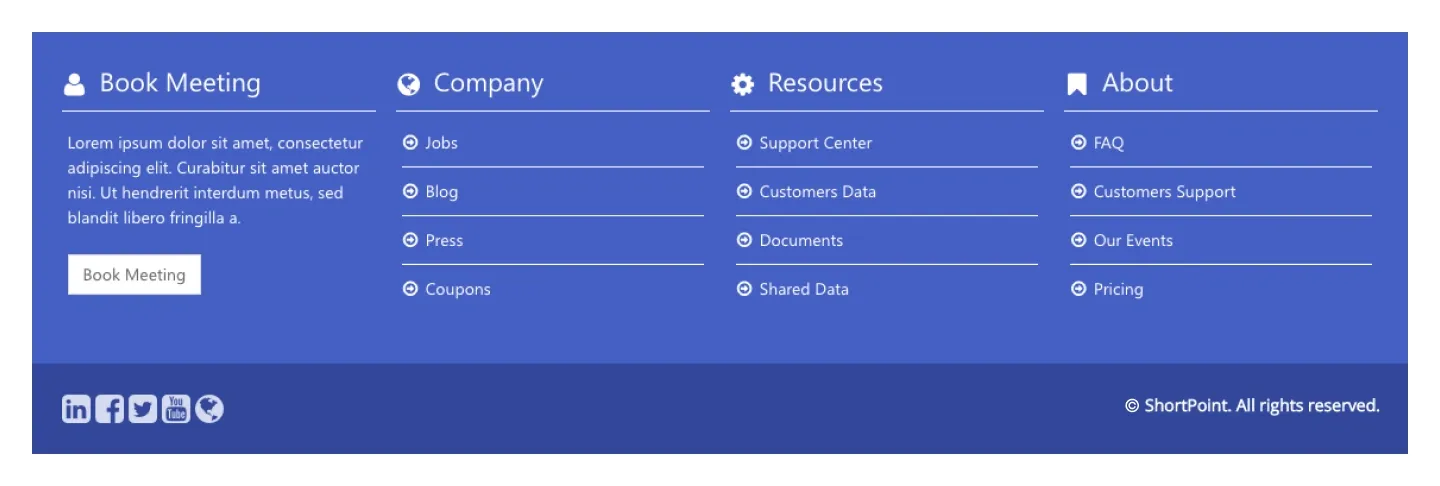
Solid-background version of Footer 2: action column with button, three link columns, and a copyright bar with social icons.
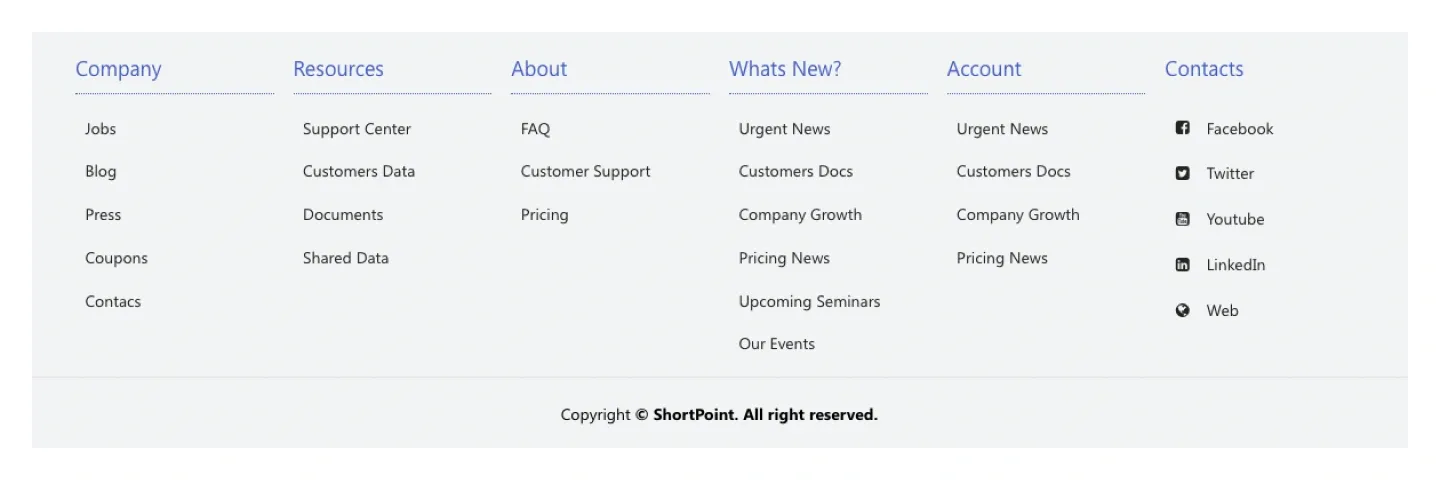
Six-column link footer with underlined headings and a centered copyright line. It's built for sites with a lot of navigation to expose.
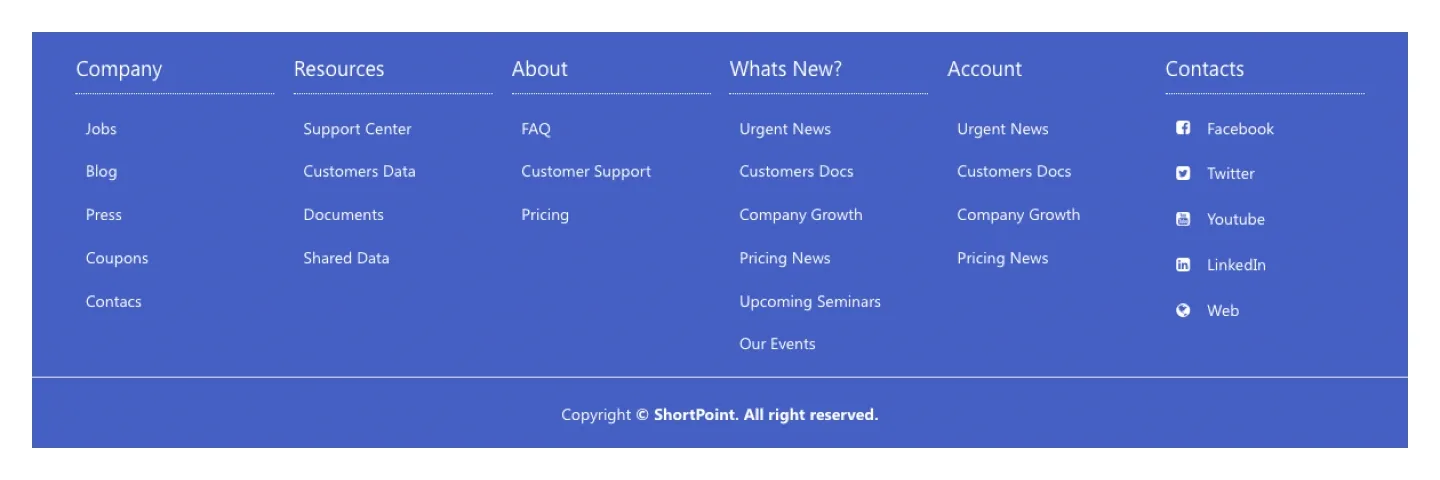
Solid-background version of Footer 5: six link columns and a centered copyright line, compact and link-dense.
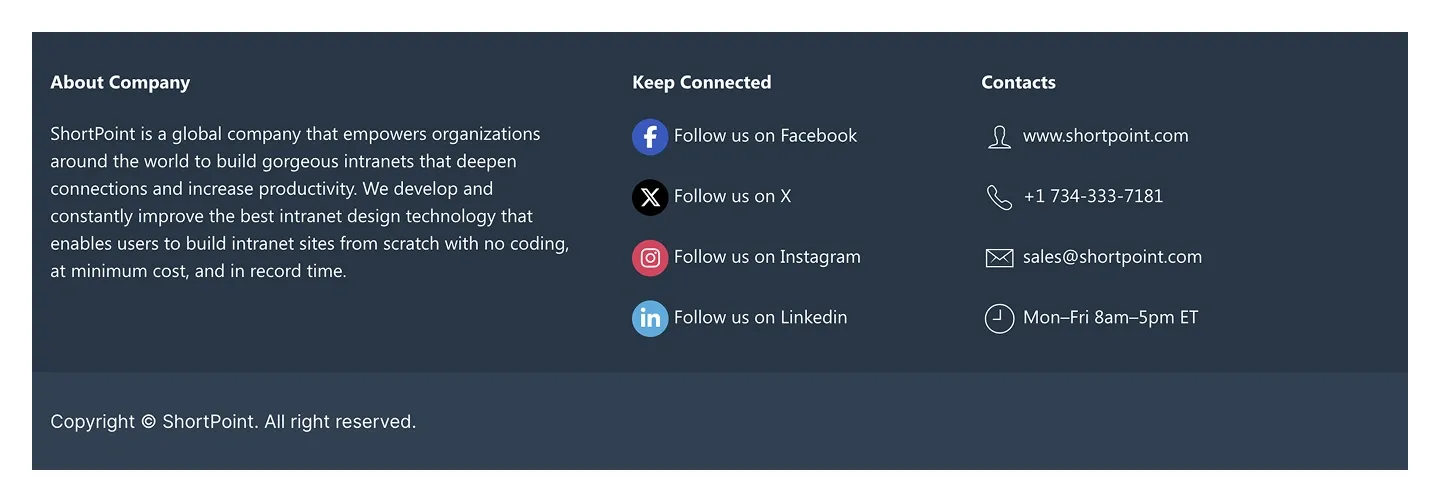
Three-column footer: an about paragraph, a "Keep connected" list of social links with icons, and contact details with icons.
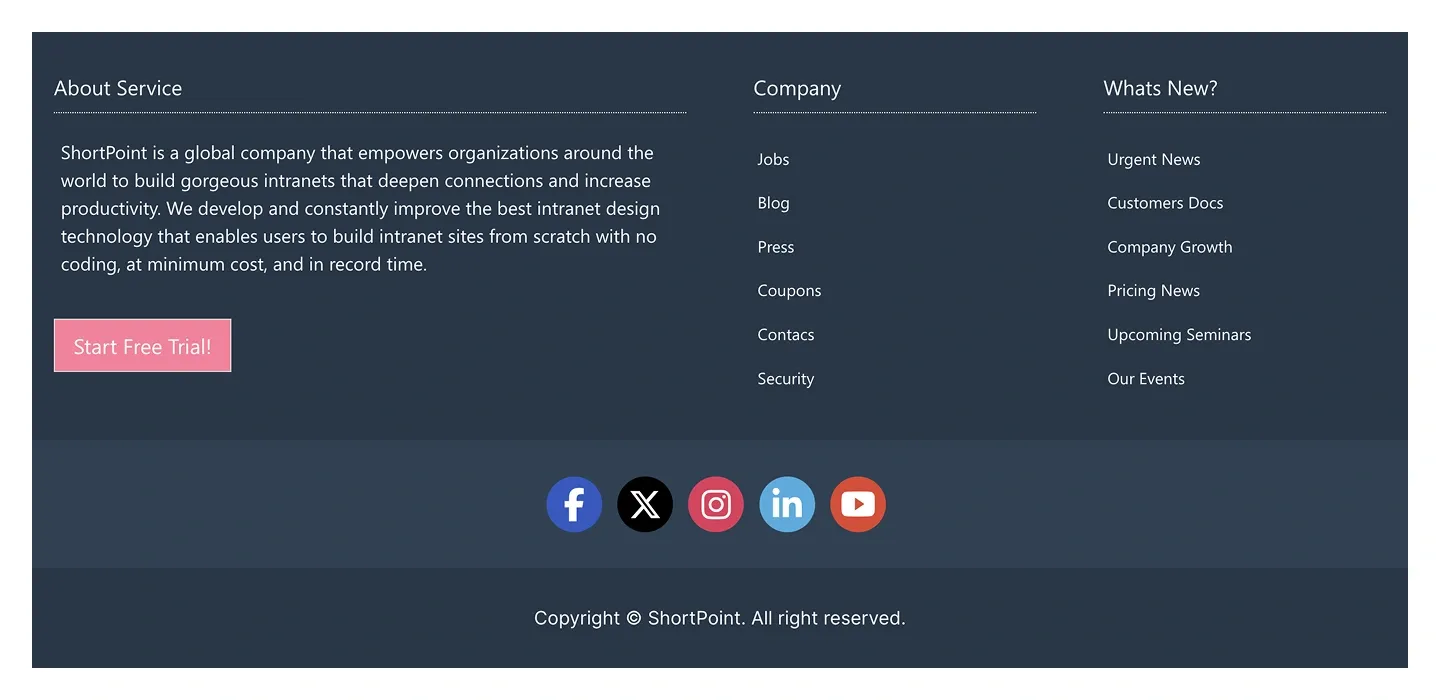
Footer with an about paragraph and call to action button, two link columns, a centered social icon row, and a copyright bar.
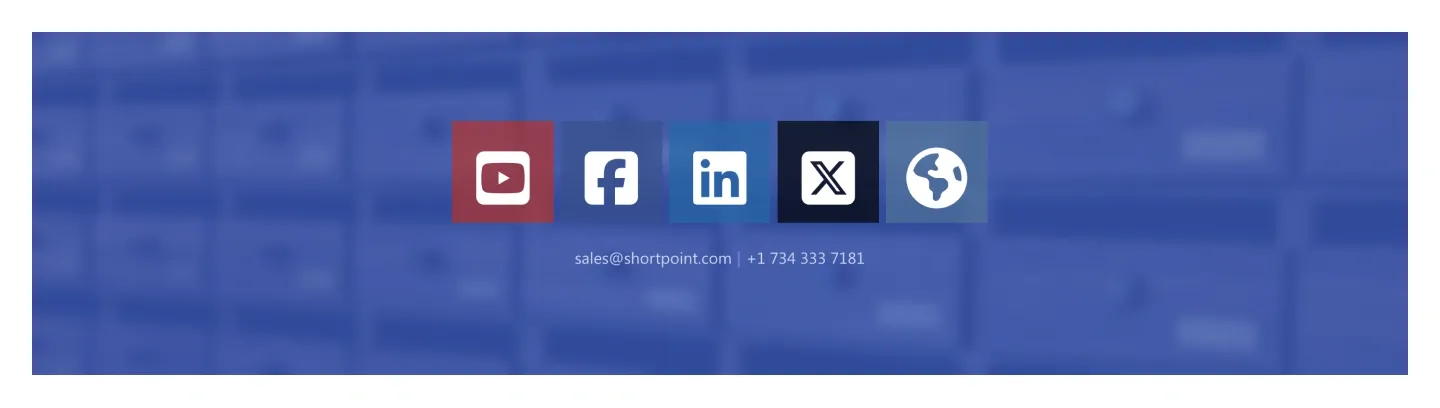
Minimal footer on a background image with five large social icon tiles and a single line of email and phone.
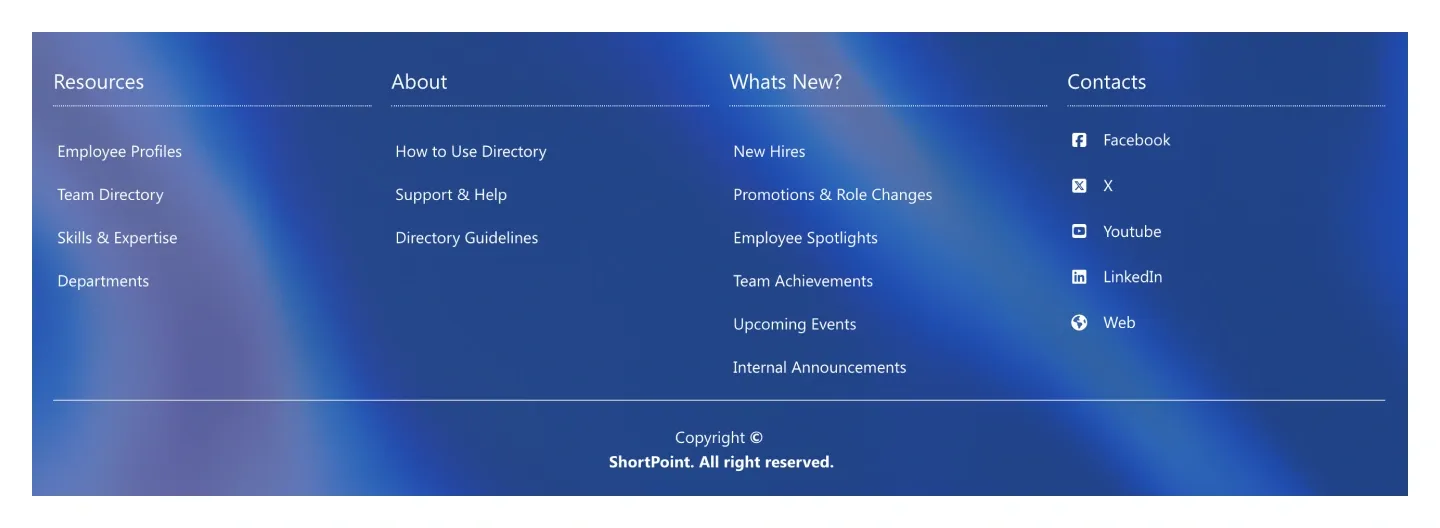
Four-column footer on a background image (three link columns plus a contacts column with icons) and a centered copyright line.
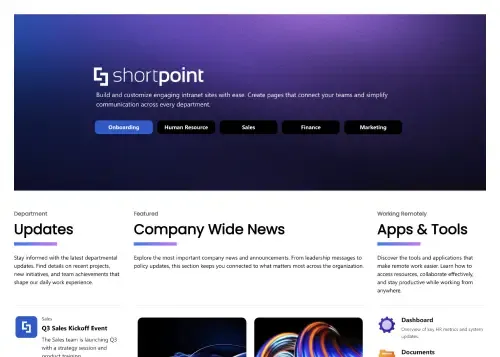
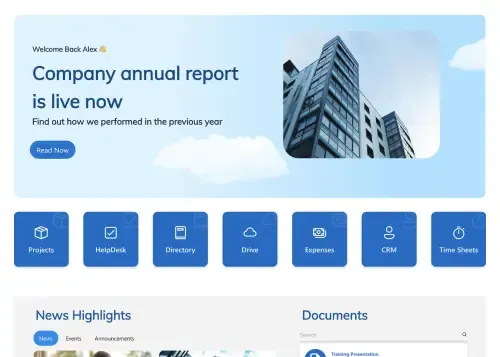
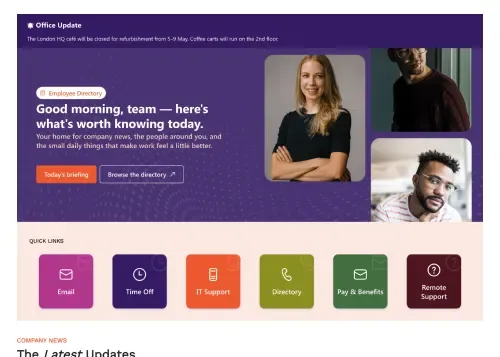
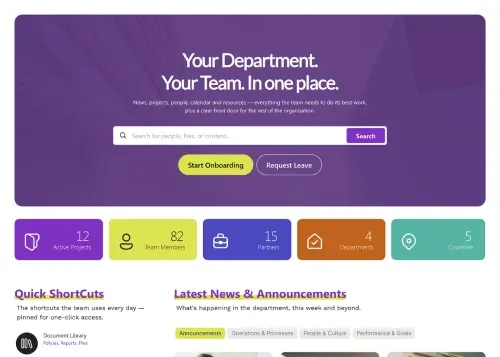
A footer section is a pre-built block for the bottom of a SharePoint page: link columns, contact details, a short about line, copyright text and social icons. SharePoint's built-in site footer holds a logo and a short set of links. ShortPoint footer sections give you multi-column layouts, action buttons, contact details and social tiles that match the rest of the intranet on any site type, and you brand them once with Theme Builder. Compare every design in the carousel, from a compact footer with link columns and social icons to image-backed footers with large social tiles and contact details, and preview each one live.
Use ShortPoint to add a consistent footer to every SharePoint page: pick a footer section, add your links and contacts, apply brand colors with Theme Builder, and paste it across sites so the whole intranet ends the same way.
Describe the section you need and let AI Designer write and build the block.
Swap layouts, resize the block and edit every piece of content visually.
Apply your brand colors, typography and corner radius in one place.
Pull headlines, dates and items from SharePoint lists so the block updates itself.
Reuse the same section across every department page and site.
Proper labels, contrast and keyboard support for every reader.
Link straight to Microsoft Forms, Planner, Teams or any external tool.
Pre-styled variants that match the rest of your page.
Built from standard ShortPoint elements you can reuse anywhere else.
Everything stays readable and tappable when the block stacks on mobile.
Add a branded footer to your SharePoint pages in minutes. No coding required.
Start free trial & add ShortPoint to your site : Click "Start a Trial" and get access to ShortPoint instantly. No credit card needed. Sign in with your Microsoft 365 credentials to activate your trial instantly, or download the package manually and activate it from there.
Insert a Section : Edit your SharePoint page, insert the ShortPoint web part, and pick any footer section (Footer 1, Footer 5, Footer 10) from the Sections tab of the Templates Library. It drops into your page as a ready-made block you can move, duplicate, or restyle.
Customize & Publish : Replace the placeholder content with your own, connect your SharePoint data sources, apply your company branding with Theme Builder, and publish the page for immediate use.
Yes, but only on communication sites. The built-in footer supports up to 8 links or labels, a logo, and a site name, and it doesn't appear on mobile devices. ShortPoint footer sections add multi-column layouts, contact blocks, and social icons on any site type, and they're fully responsive, so they appear on phones and tablets too.
Yes, you can add the same footer to every page. Copy & Paste the footer section onto individual pages, or use Generator and Theme Builder to add it to all pages within a site, so the whole site ends with the same branded footer.
Yes, footers can include social media and contact links. Footer sections support link columns, email and phone details, and social icons, so people can reach your team or follow company channels from any page.
Yes, footer sections work with both Microsoft 365 and on-premises SharePoint. That includes SharePoint Online in Microsoft 365, as well as SharePoint Server Subscription Edition, 2019, 2016, and 2013.
Yes, you can match the footer to your brand colors and fonts. Apply your theme once with Theme Builder, and every footer on the site follows it automatically.
Yes, every footer section is responsive. Link columns stack neatly on phones and tablets, so contact details and links stay easy to read and tap on smaller screens.