Calendar & Events
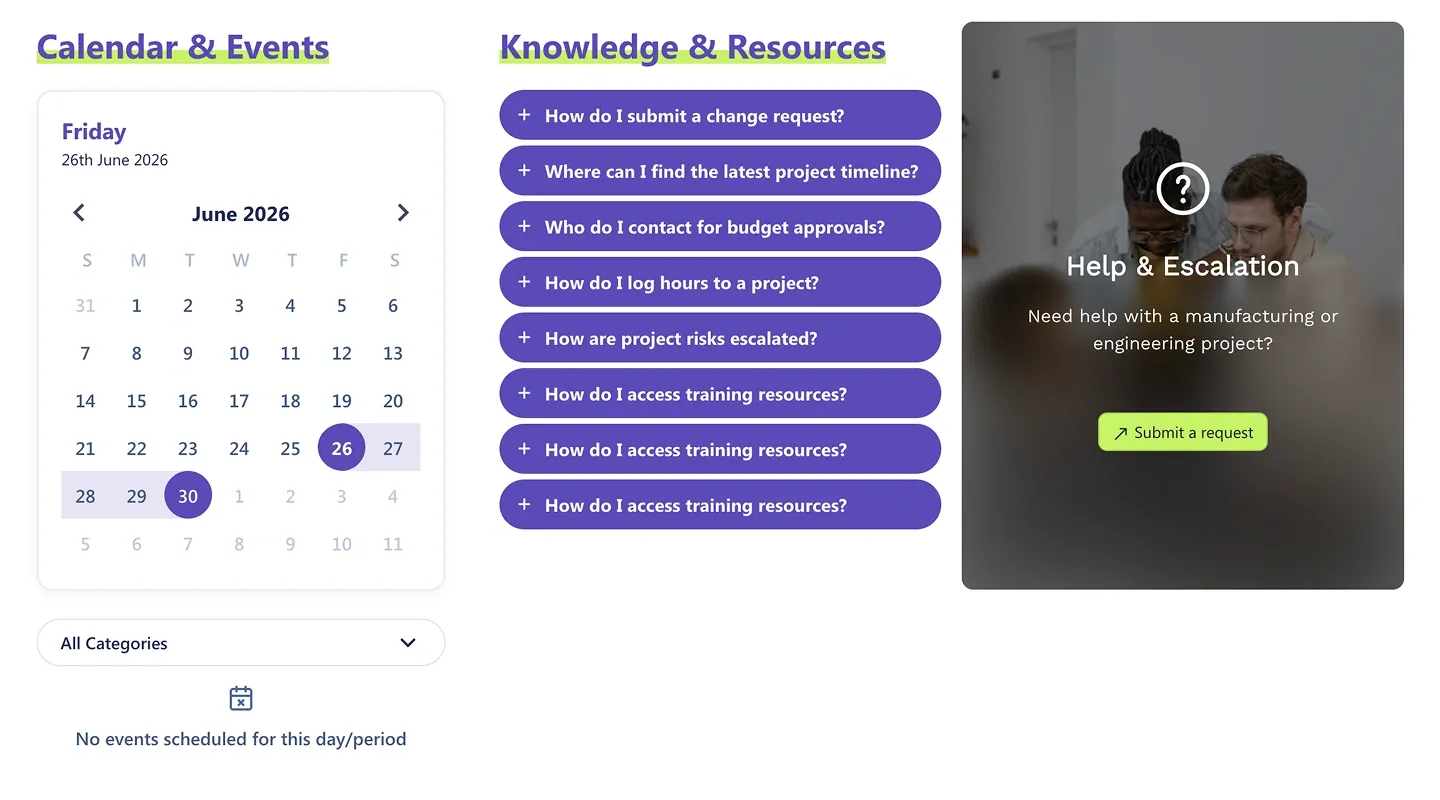
Three-column block: a monthly calendar with category filter, an expandable FAQ list, and an image help-and-escalation card with a button.
Three-column block: a monthly calendar with category filter, an expandable FAQ list, and an image help-and-escalation card with a button.
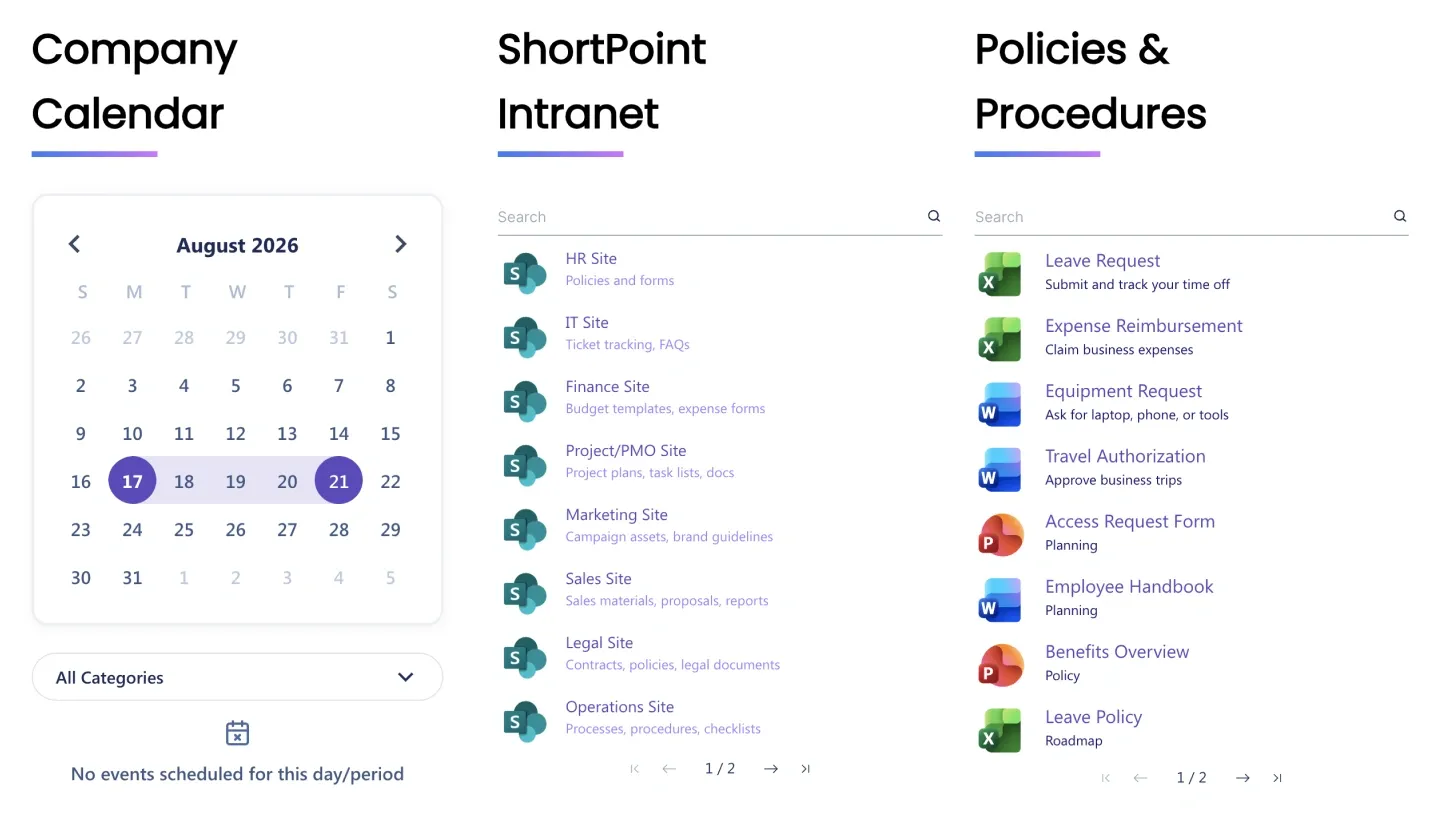
Monthly calendar with category filter beside two searchable lists (site links and documents). It connects to a calendar, a list, and a library.
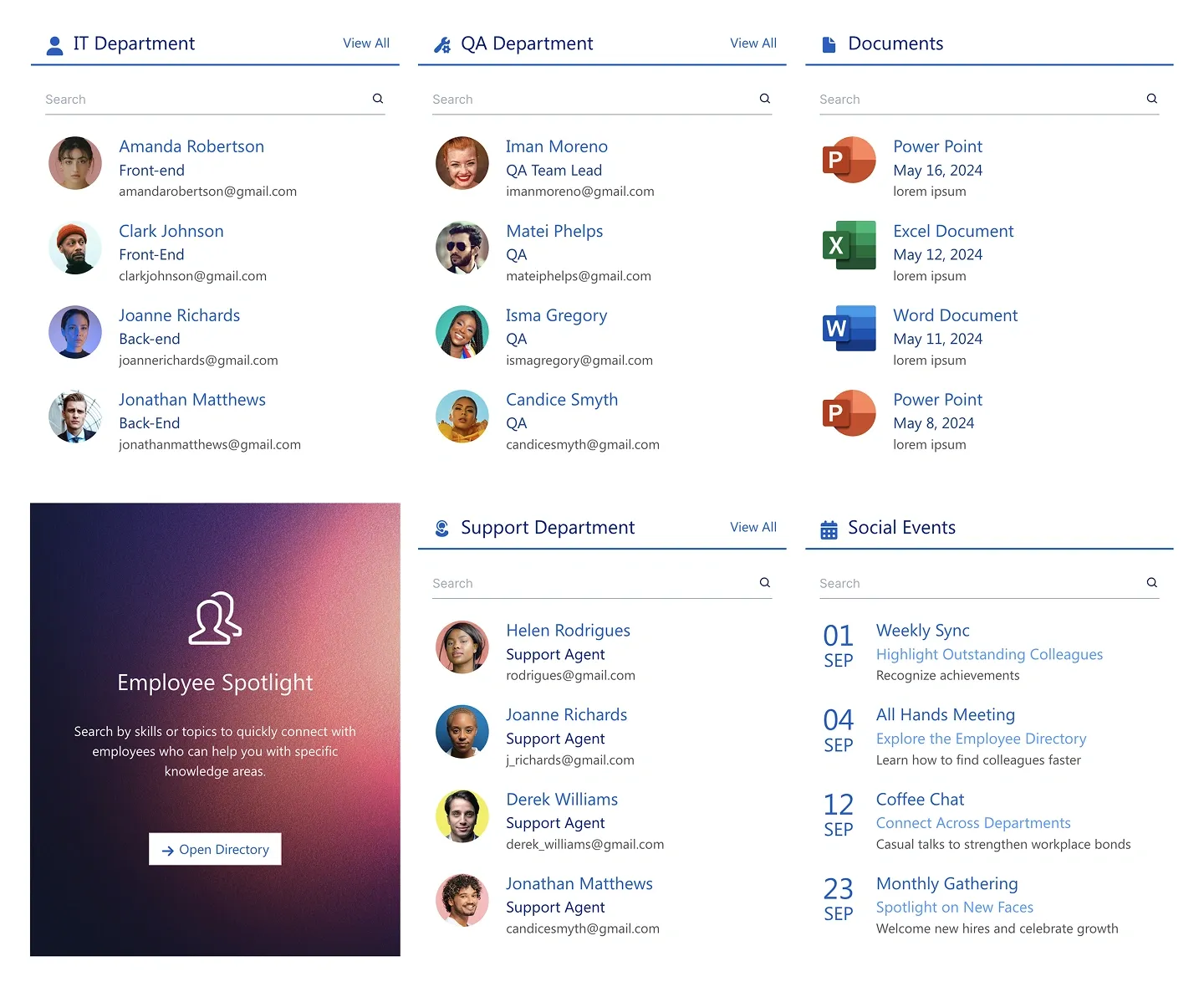
Six-panel dashboard combining searchable people lists, a documents list, a support team list, an events list, and a promo card.
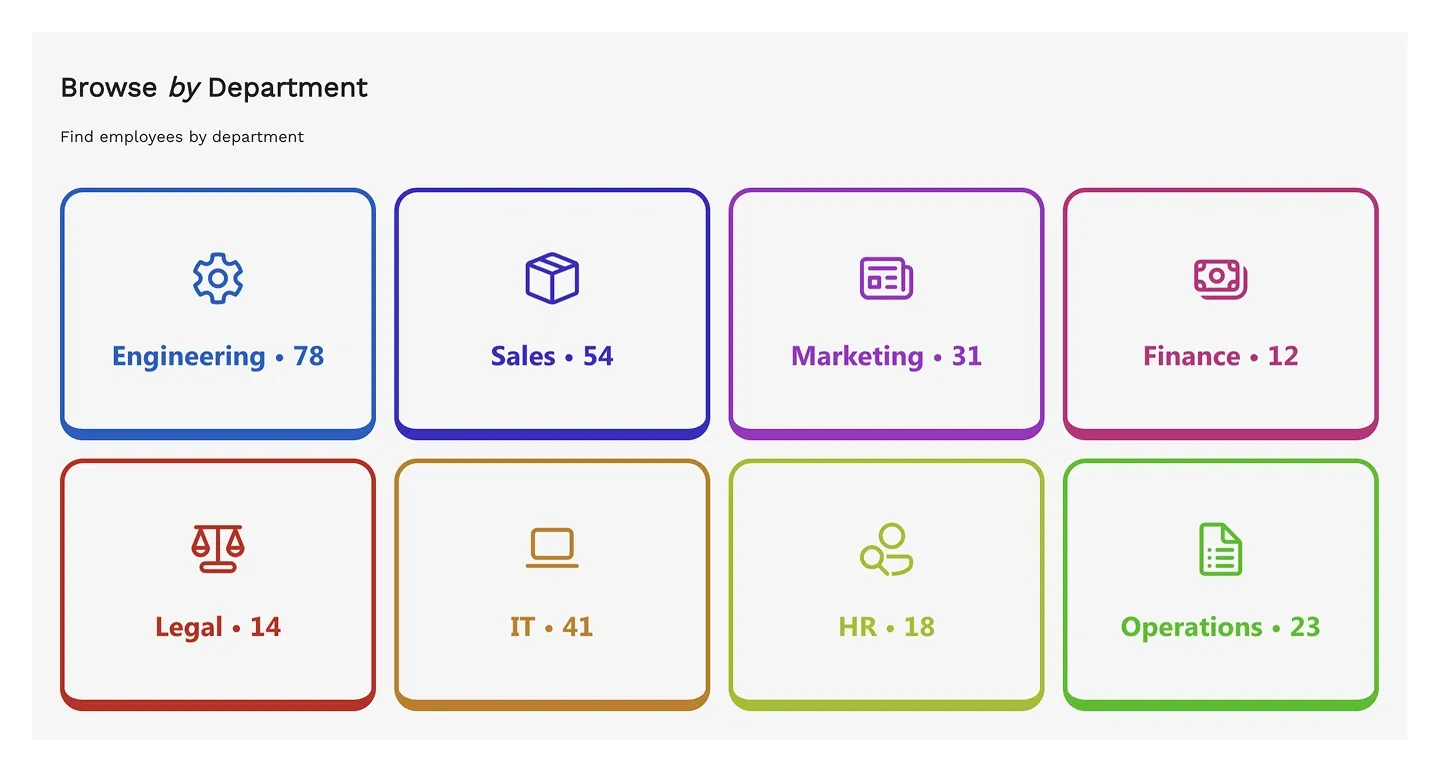
Grid of eight outlined department cards with icon, name, and headcount. Each links to a filtered directory view
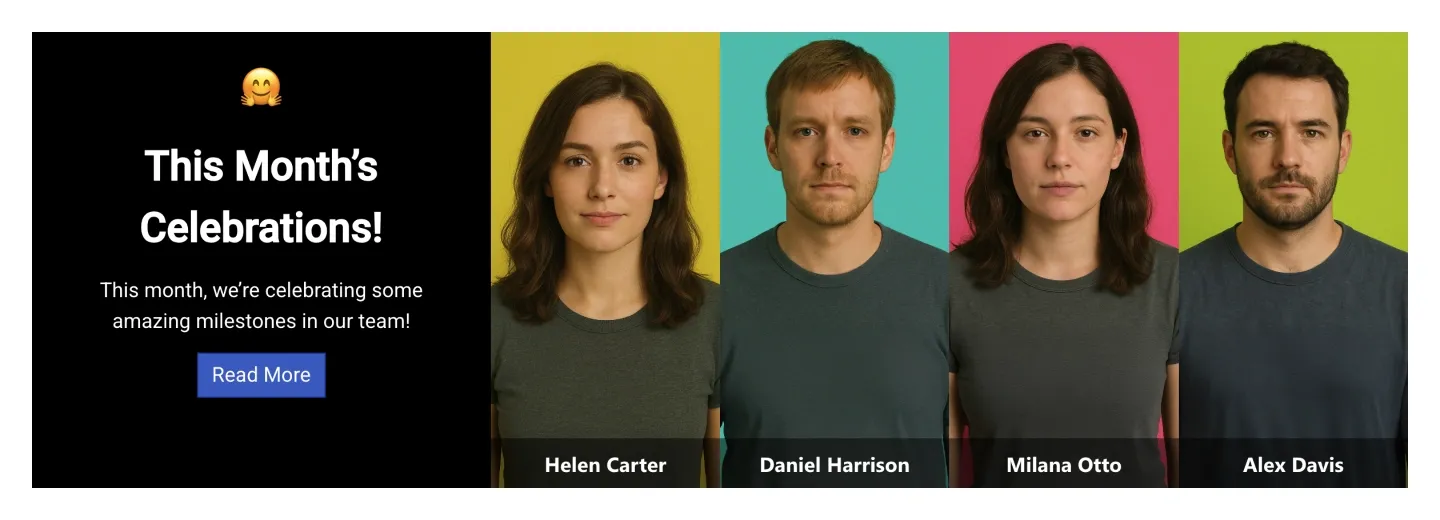
Text panel with headline, intro, and button, beside four full-height employee portraits with name captions. It's built for celebrations or recognition.
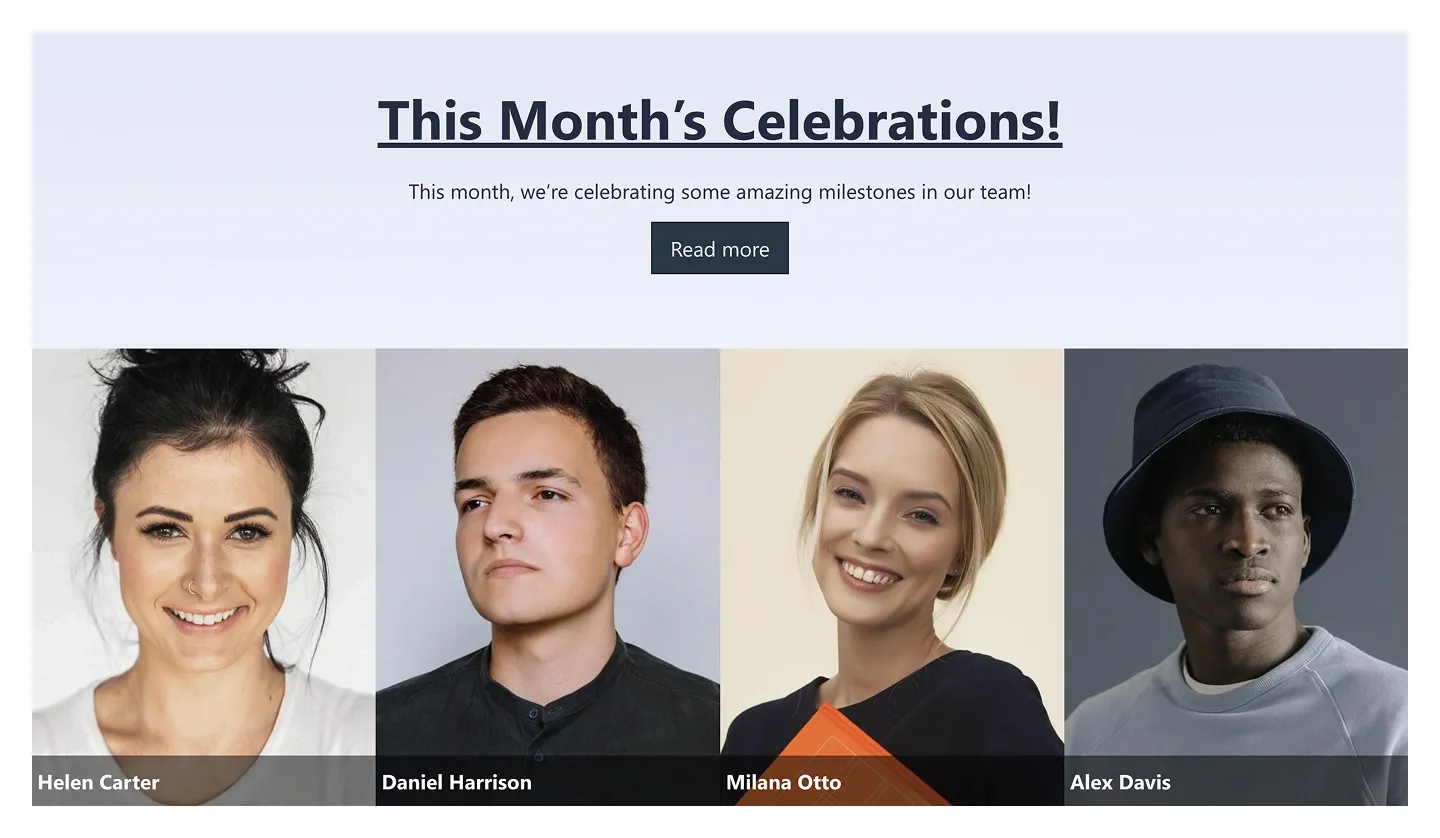
Centered headline, intro, and button, above a full-width strip of four employee photos with names. It's a stacked variant of Spotlight 1.
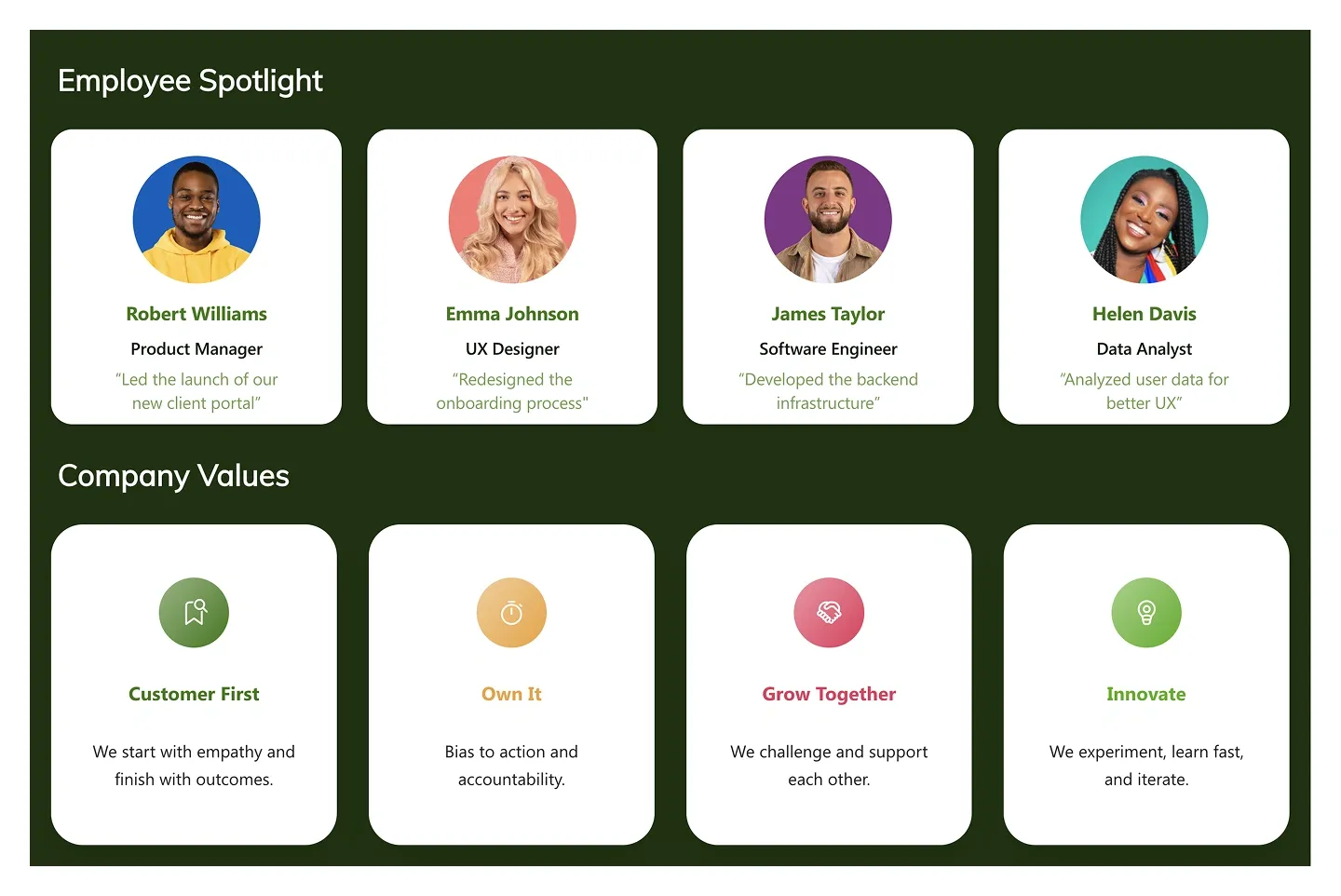
Four spotlight cards with round photo, name, role, and quote, above four values cards with icons. It pairs people with culture.
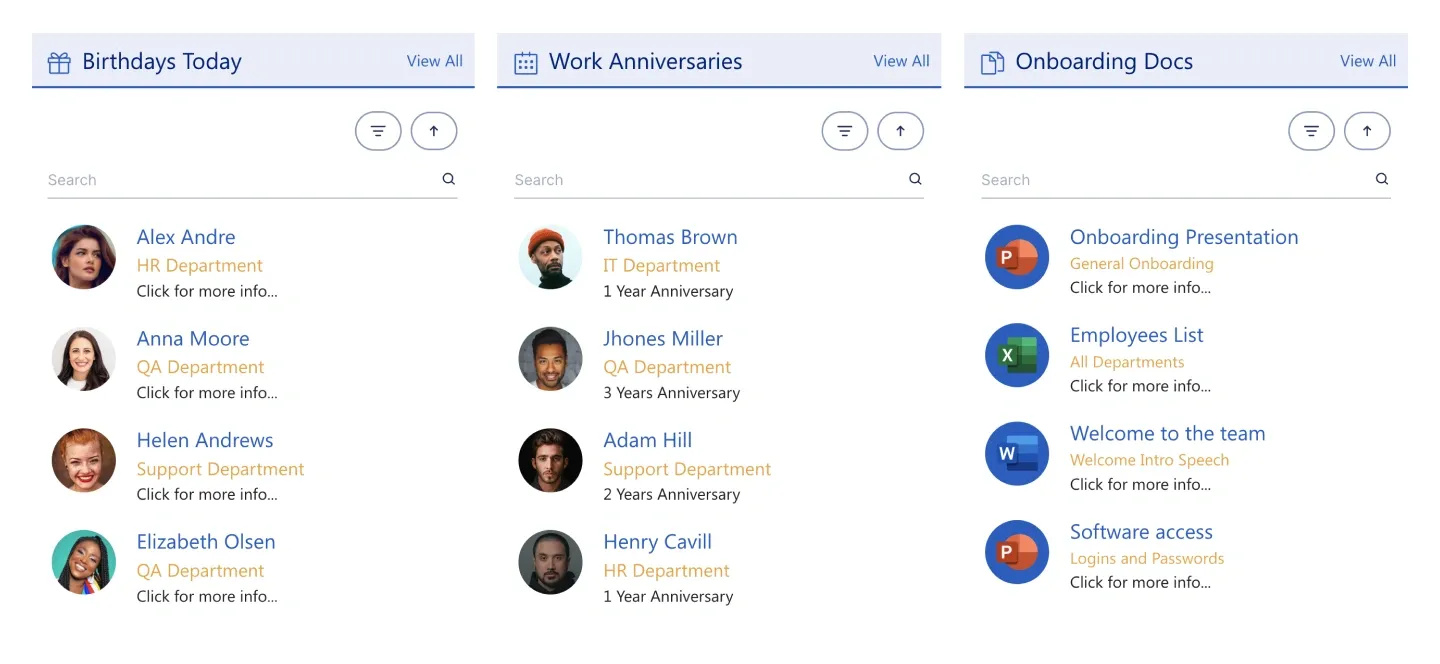
Three searchable lists side by side (birthdays, work anniversaries, and onboarding documents), each with filters and a view-all link.
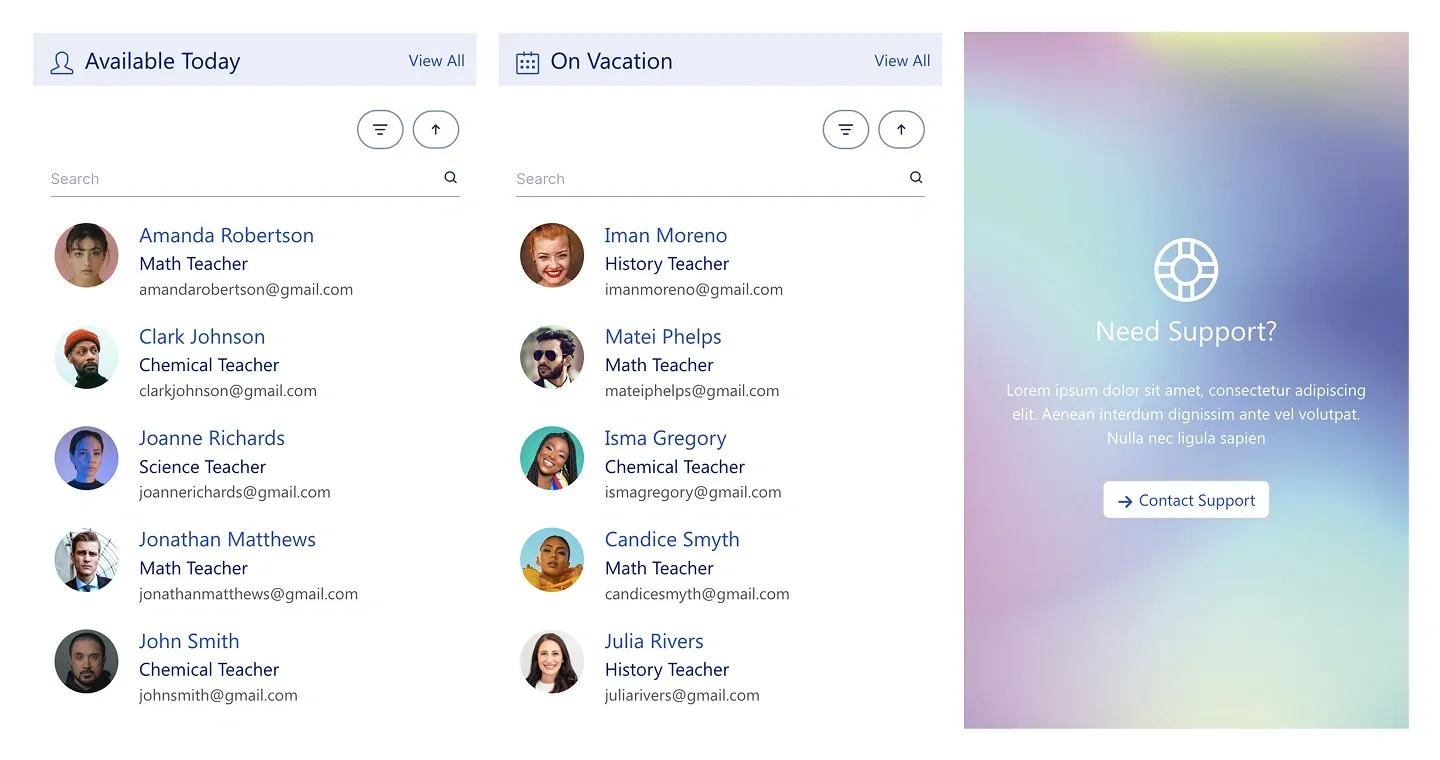
Two searchable people lists for availability status beside an image support card with a contact button. It connects to people data.
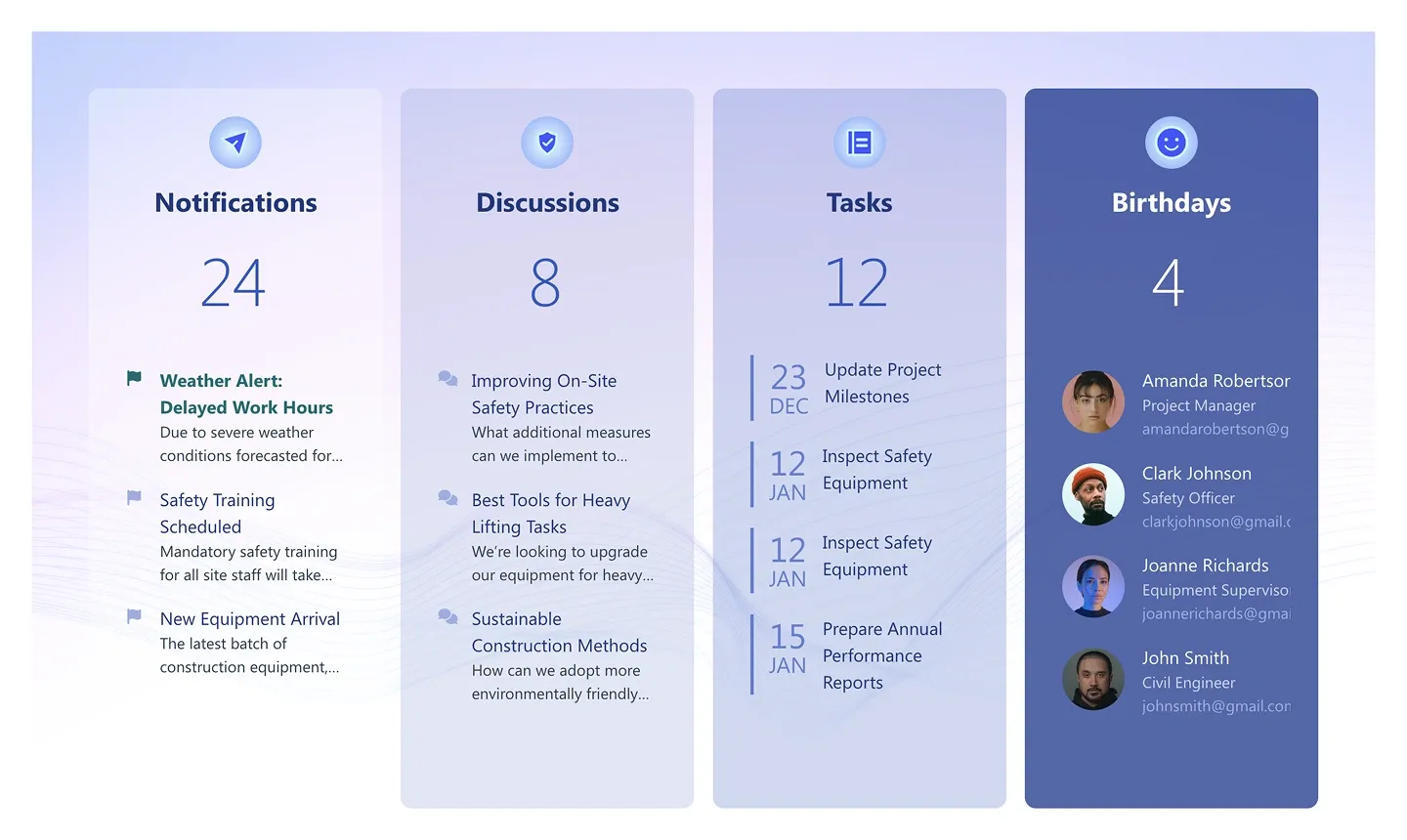
Four tall cards, each with a count and a short feed of recent items (notifications, discussions, tasks, and birthdays). They're built for an HR or team dashboard.
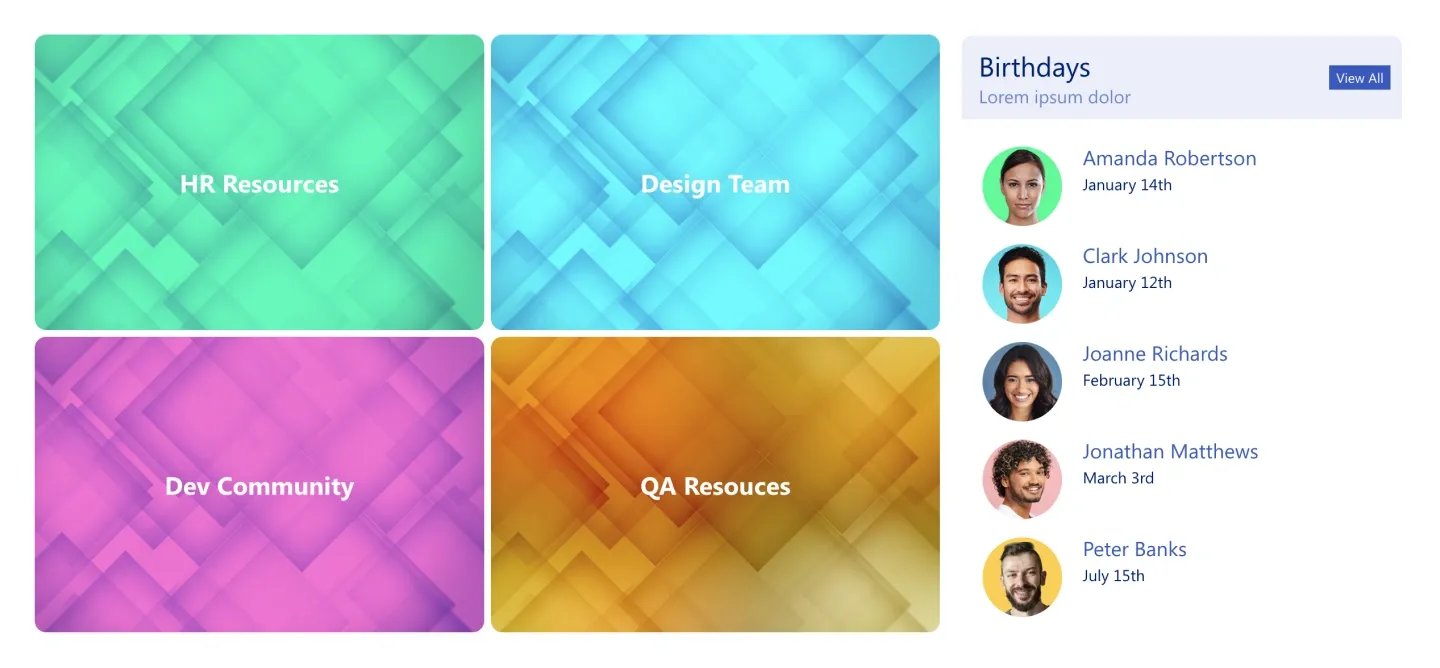
Four large tile links to resources or communities beside a birthdays list with photos and dates.
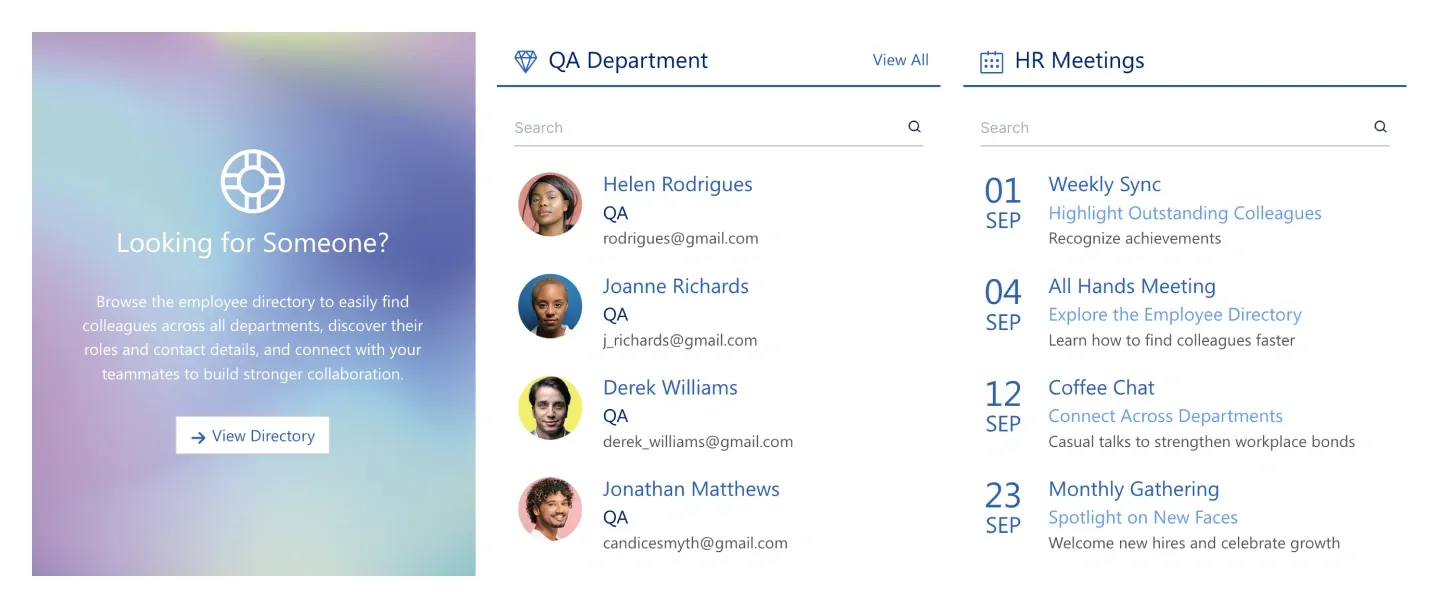
Three columns: an image promo card for the directory, a searchable department people list, and a dated meetings list. It connects to people and a calendar.
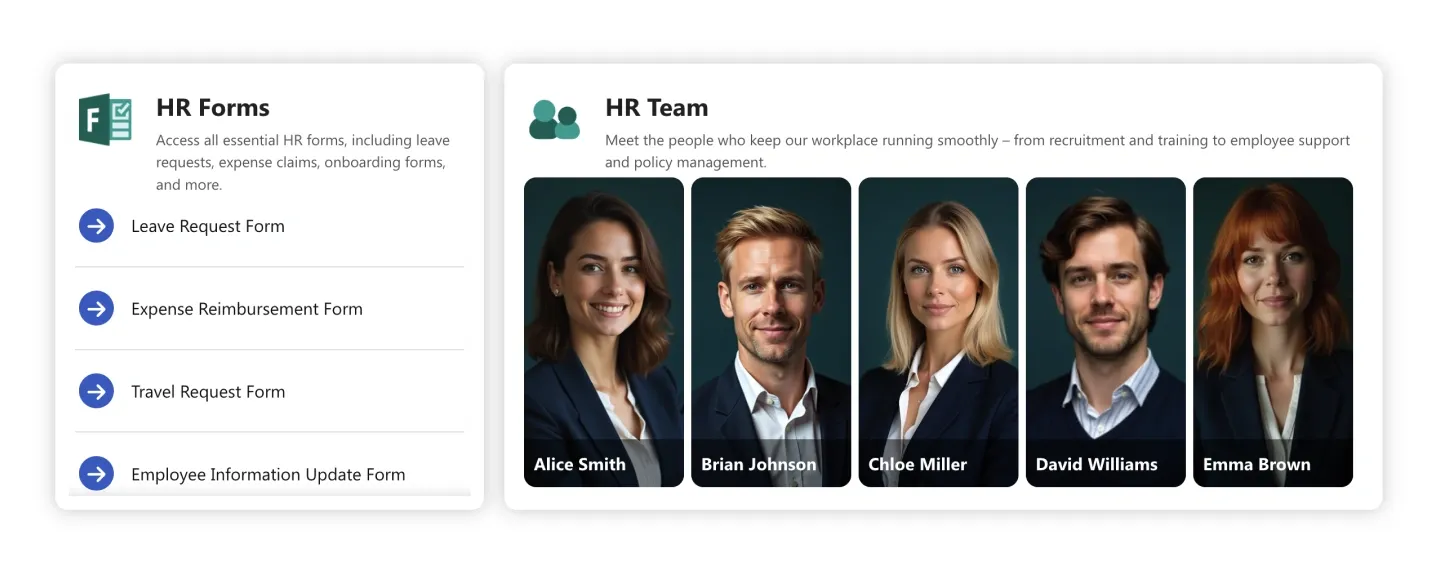
Forms list with linked items beside a team card introducing staff in a photo strip with names. It brings forms and the people behind them.
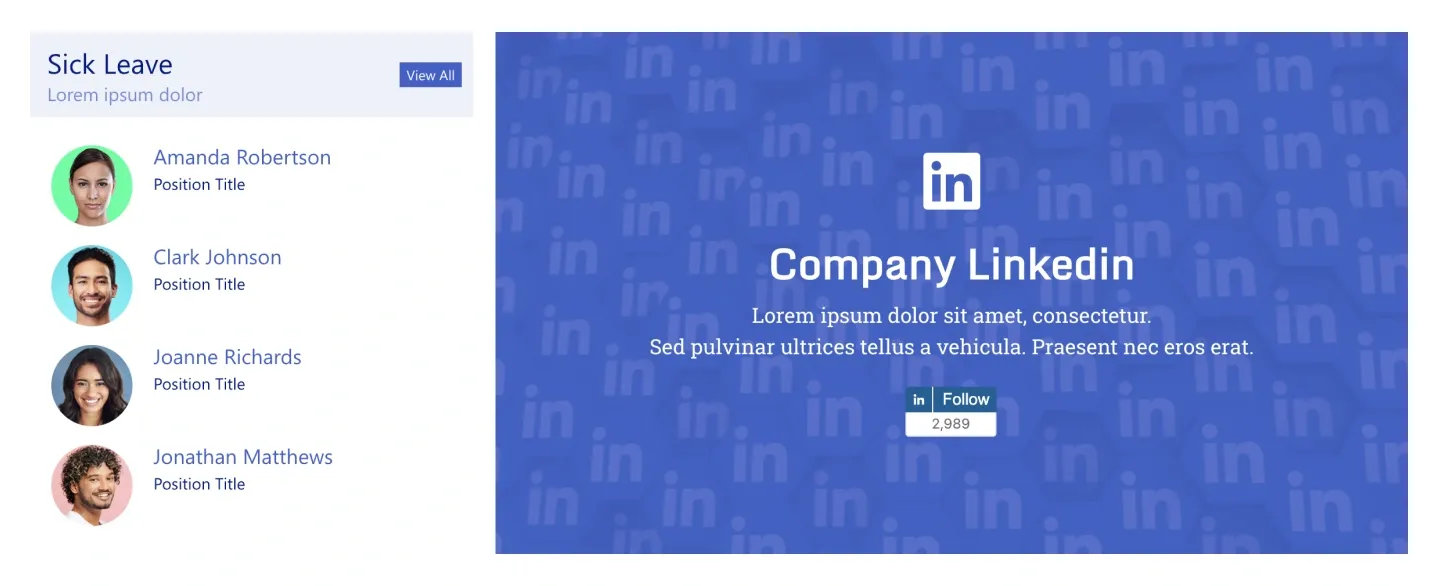
Searchable people list for a status, such as "Sick leave", beside a large social page banner with a follow button.
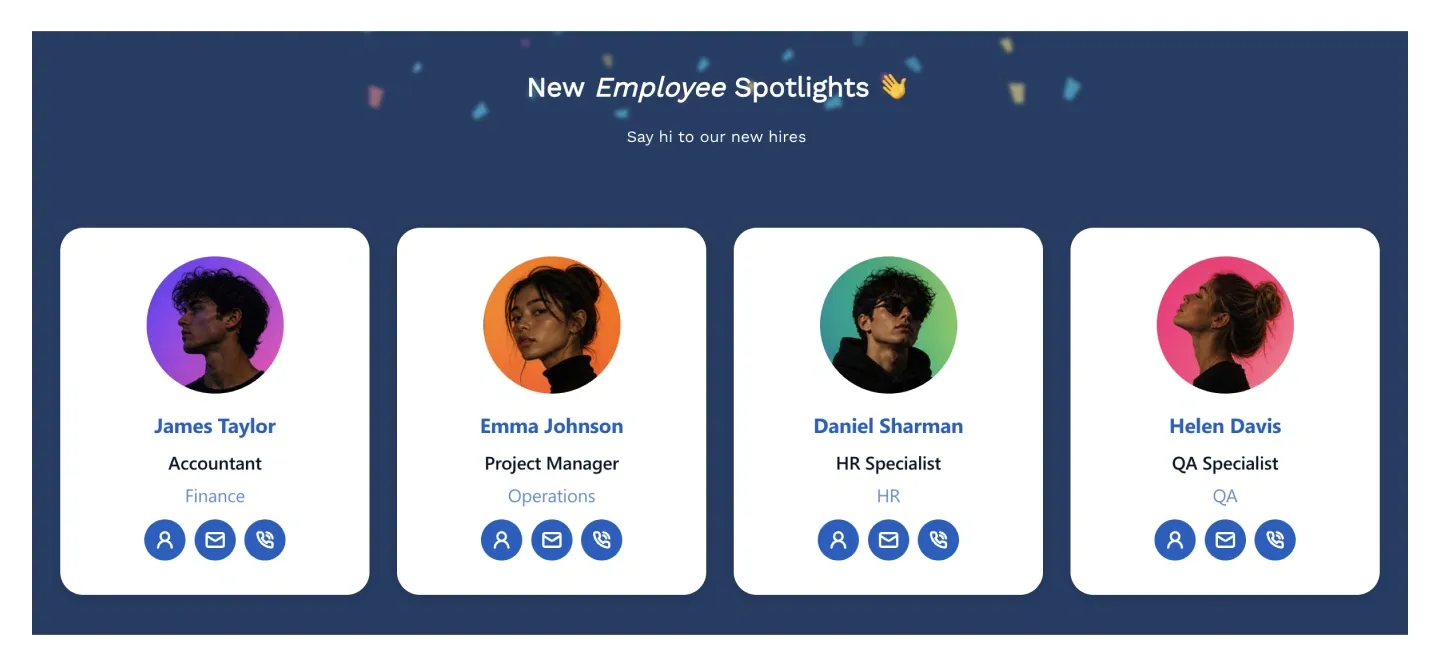
Panel with headline and four cards for new hires (round photo, name, role, department, and contact icons). It connects to people profiles.
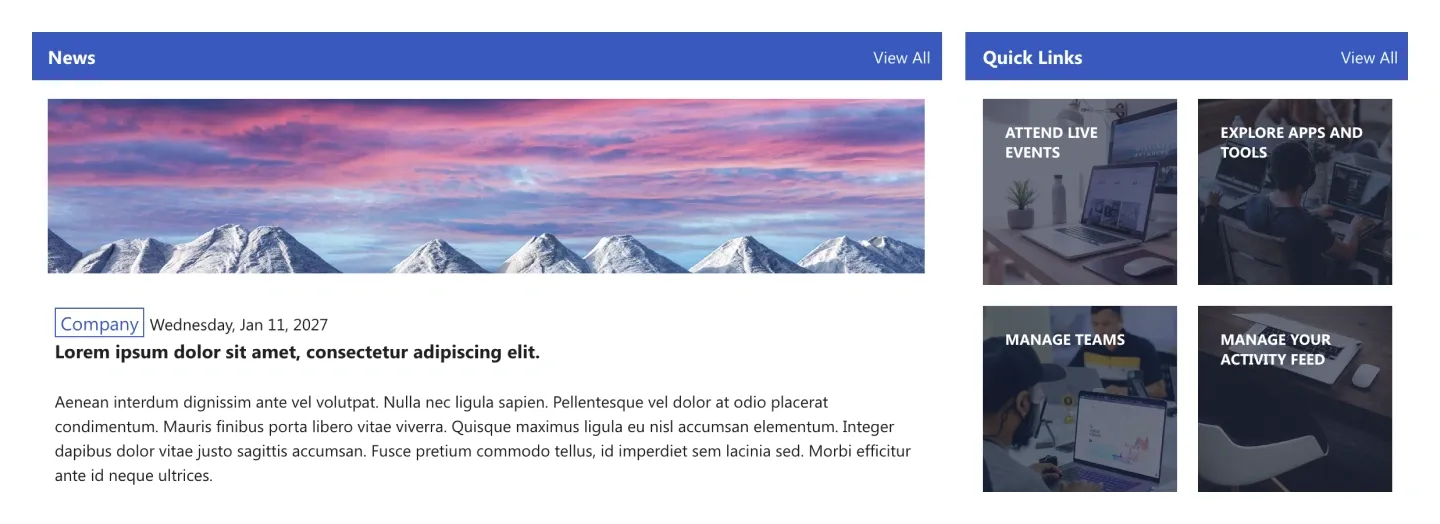
News panel with a large image and article excerpt beside a grid of four image quick-link tiles with overlaid labels.
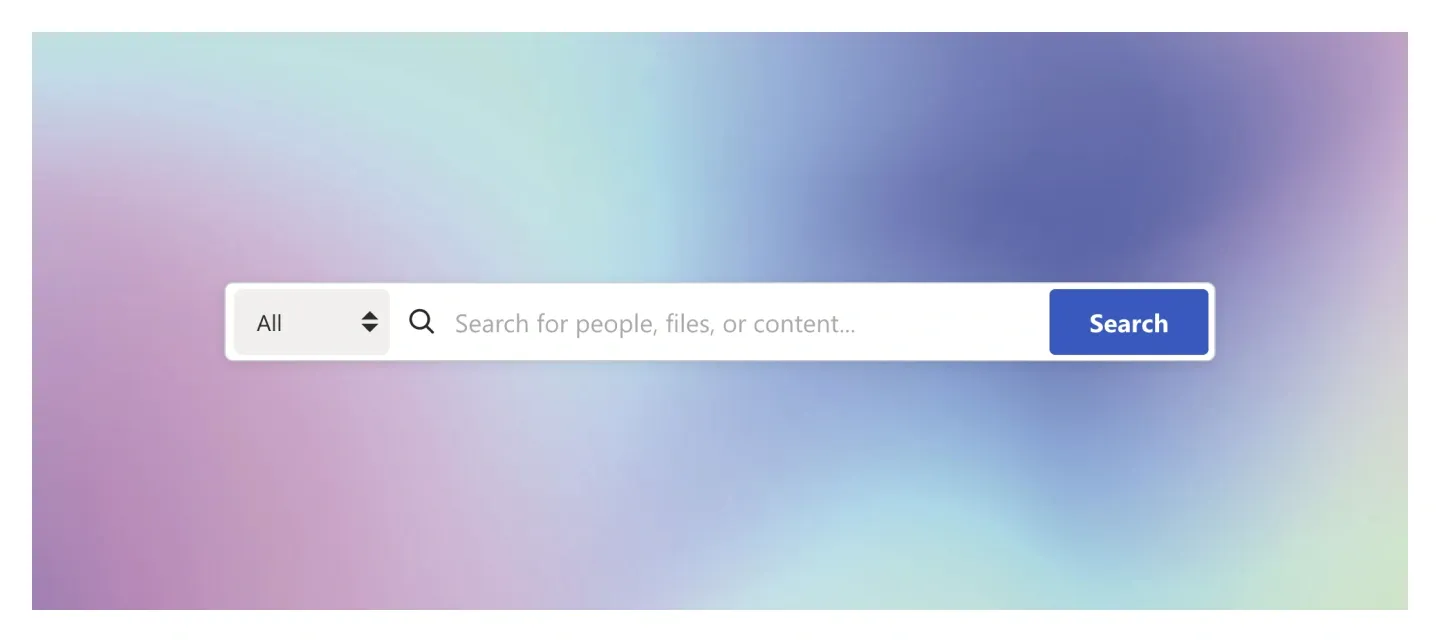
Full-width search bar with a scope dropdown and button on a background. Drop it at the top of any resource-heavy page.
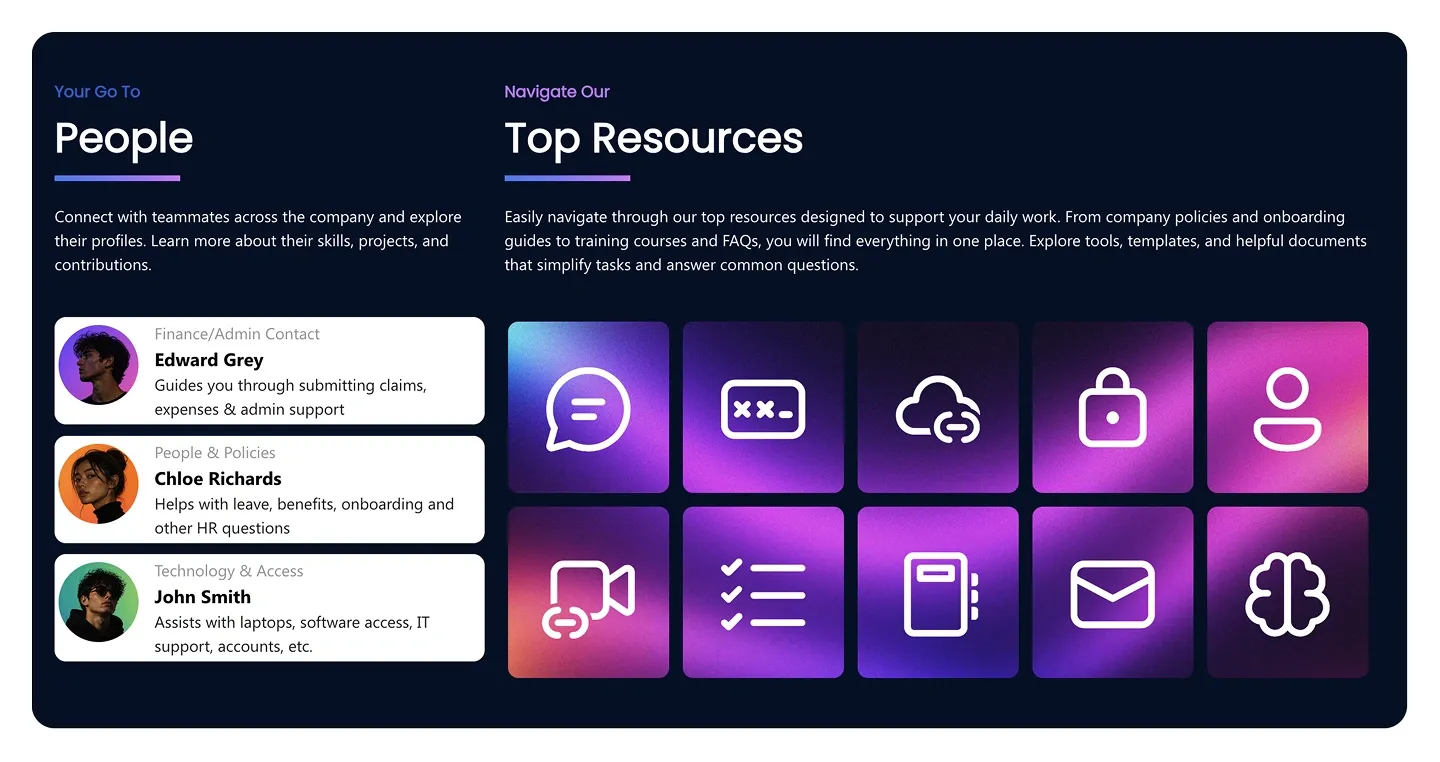
Two-column block: people contact cards with photo, role, and description, and a grid of ten icon tiles linking to top resources.
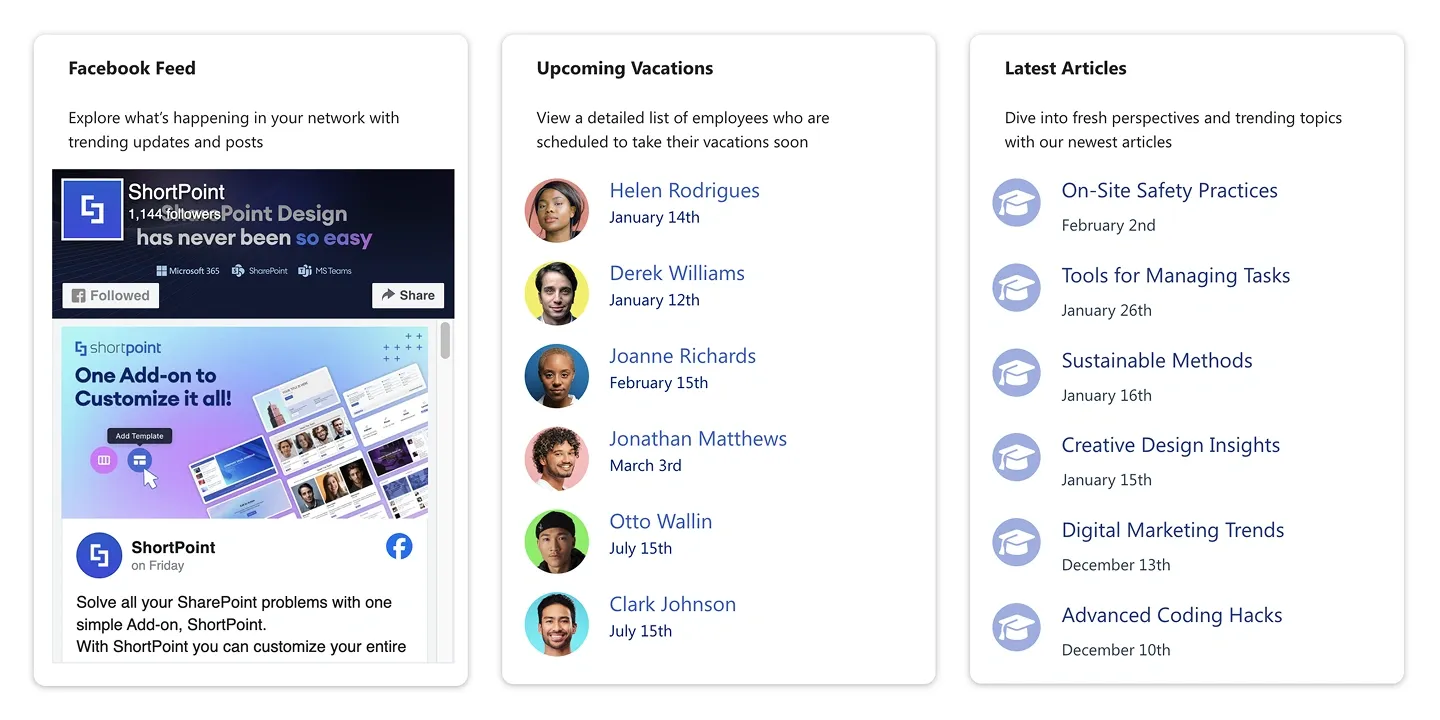
Three cards side by side: an embedded social feed, a dated people list, and a latest articles list. It mixes external and internal content.
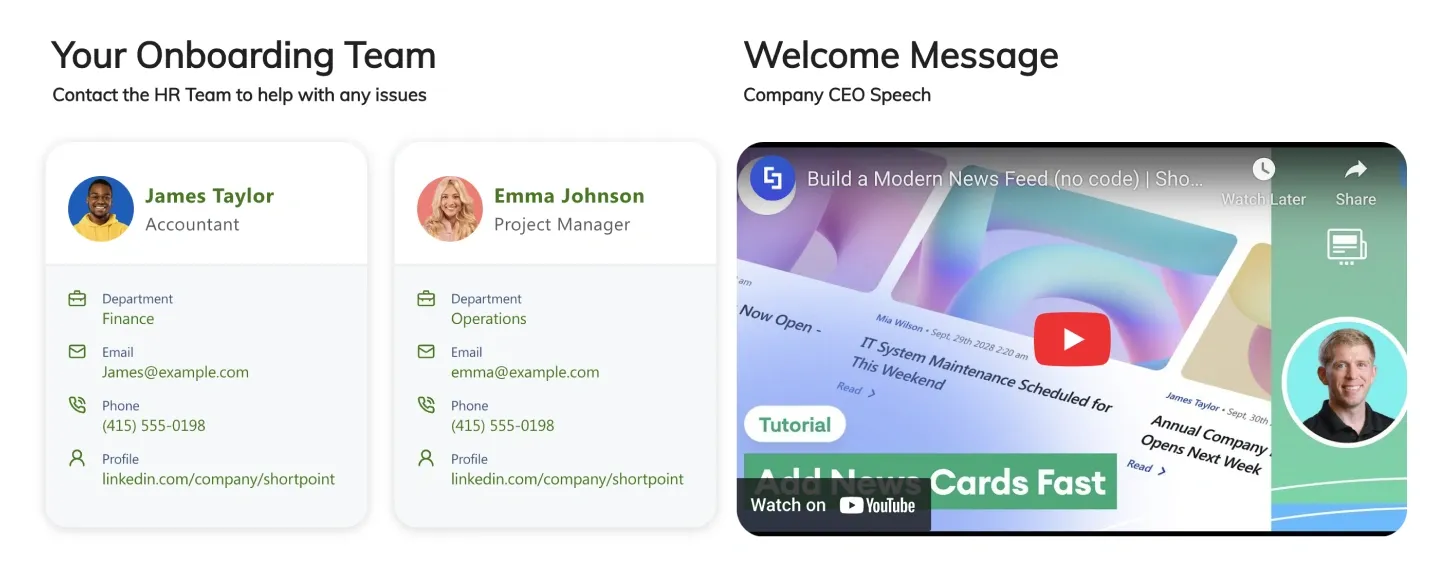
Two detailed contact cards with department, email, phone, and profile link, beside an embedded video with a heading. It's built for onboarding pages.
An HR section is a pre-built block for the content people look for on an HR intranet: HR contacts and top resources, company calendars, birthdays and work anniversaries, new employee spotlights, department directories and onboarding teams. With SharePoint's built-in web parts you build that page from separate people, events and quick links parts. ShortPoint HR sections combine them in one designed block, such as a calendar beside an FAQ, birthdays beside onboarding documents, or contact cards beside resource tiles. They connect to SharePoint lists, Microsoft 365 calendars and people profiles, so pages stay current. For ready-made HR intranet content ideas, compare every design in the carousel, from a full-width HR search bar to department dashboards with people, documents and events in one place, and preview each one live.
Use ShortPoint to add HR blocks to any existing SharePoint page: connect spotlights to people profiles, calendars to Microsoft 365, resources to your policy library, and keep every HR page on-brand with Theme Builder.
Describe the section you need and let AI Designer write and build the block.
Swap layouts, resize the block and edit every piece of content visually.
Apply your brand colors, typography and corner radius in one place.
Pull headlines, dates and items from SharePoint lists so the block updates itself.
Reuse the same section across every department page and site.
Proper labels, contrast and keyboard support for every reader.
Link straight to Microsoft Forms, Planner, Teams or any external tool.
Pre-styled variants that match the rest of your page.
Built from standard ShortPoint elements you can reuse anywhere else.
Everything stays readable and tappable when the block stacks on mobile.
Add branded HR blocks to your SharePoint intranet in under an hour. No coding required.
Start free trial & add ShortPoint to your site : Click "Start a Trial" and get access to ShortPoint instantly. No credit card needed. Sign in with your Microsoft 365 credentials to activate your trial instantly, or download the package manually and activate it from there.
Insert a Section : Edit your SharePoint page, insert the ShortPoint web part, and pick any HR section (Top Resources, New Employee Spotlights, Company Calendar, HR Team) from the Sections tab of the Templates Library. It drops into your page as a ready-made block you can move, duplicate, or restyle.
Customize & Publish : Replace the placeholder content with your own, connect your SharePoint data sources, apply your company branding with Theme Builder, and publish the page for immediate use.
The HR content that works best as intranet sections are short and frequently used blocks such as HR contacts, top resources and policy links, a company calendar, new-hire spotlights, and onboarding steps. This category has a ready-made section for each, so you can add them to any SharePoint HR page without building them from scratch.
Yes, spotlight and team sections can pull from Microsoft 365 profiles. Once connected, names, roles, and photos update automatically, so your spotlights stay accurate as people join, move, or change roles.
Yes, Calendar & Events sections can connect to a SharePoint calendar or a Microsoft 365 group calendar, the same group calendars your team sees in Outlook. Upcoming items appear automatically, with no manual updates needed.
Yes, HR sections work with both Microsoft 365 and on-premises SharePoint. That includes SharePoint Online in Microsoft 365, as well as SharePoint Server Subscription Edition, 2019, 2016, and 2013.
Yes, HR sections automatically follow SharePoint permissions, so a section connected to a restricted list or library shows each person only what they're allowed to see. For more control, you can also turn on Visibility Settings for any individual section and choose which people or groups see it on the page.
Yes, you can Copy & Paste the same HR section onto any regional or subsidiary site. Connect each copy to local data where needed, so every office shows its own contacts, calendars, and resources while keeping the same layout.