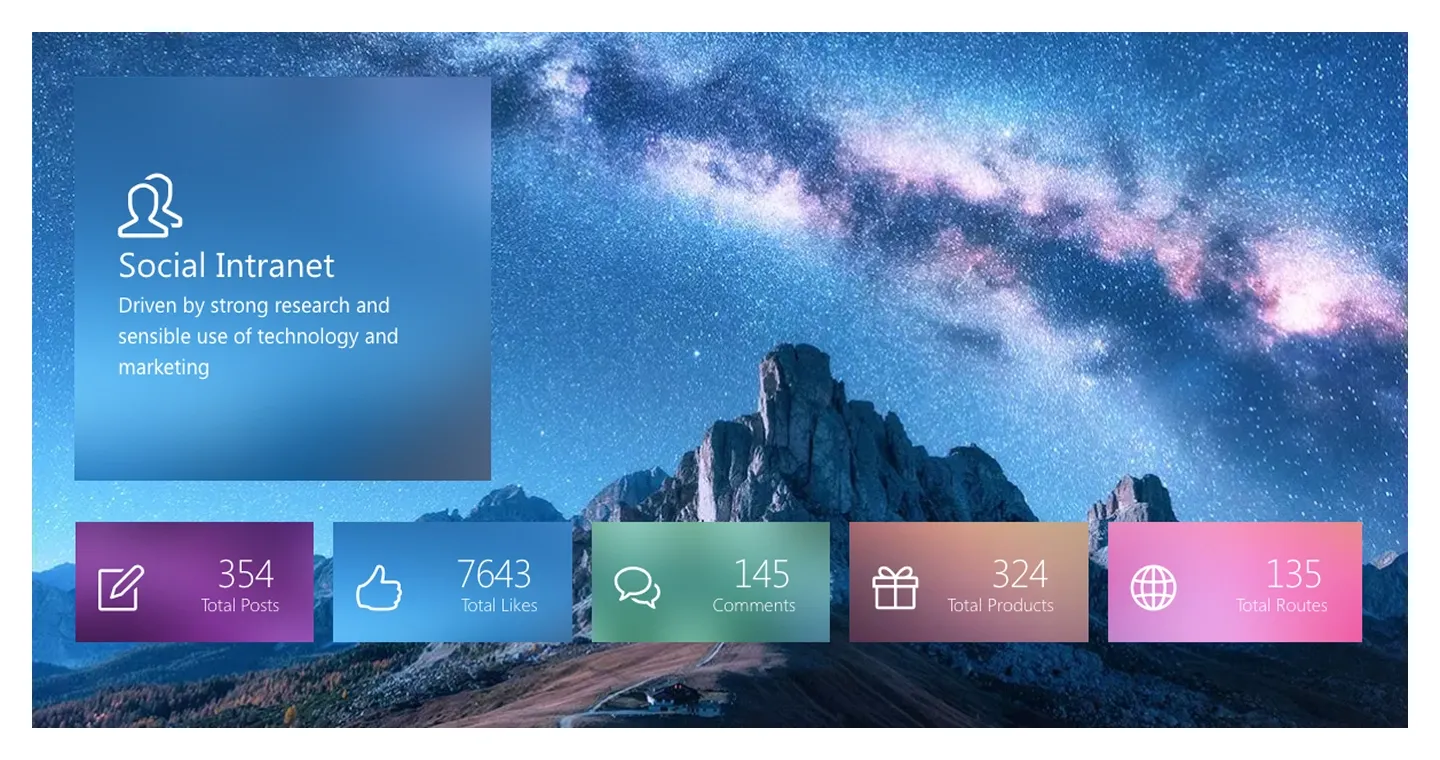
Social Intranet
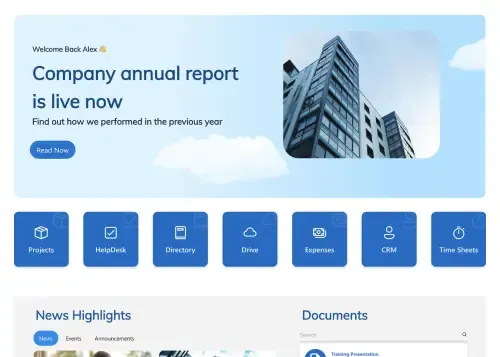
Image banner with a translucent title card and five stat tiles for posts, likes, comments, and more. It connects to social or engagement data.
Image banner with a translucent title card and five stat tiles for posts, likes, comments, and more. It connects to social or engagement data.
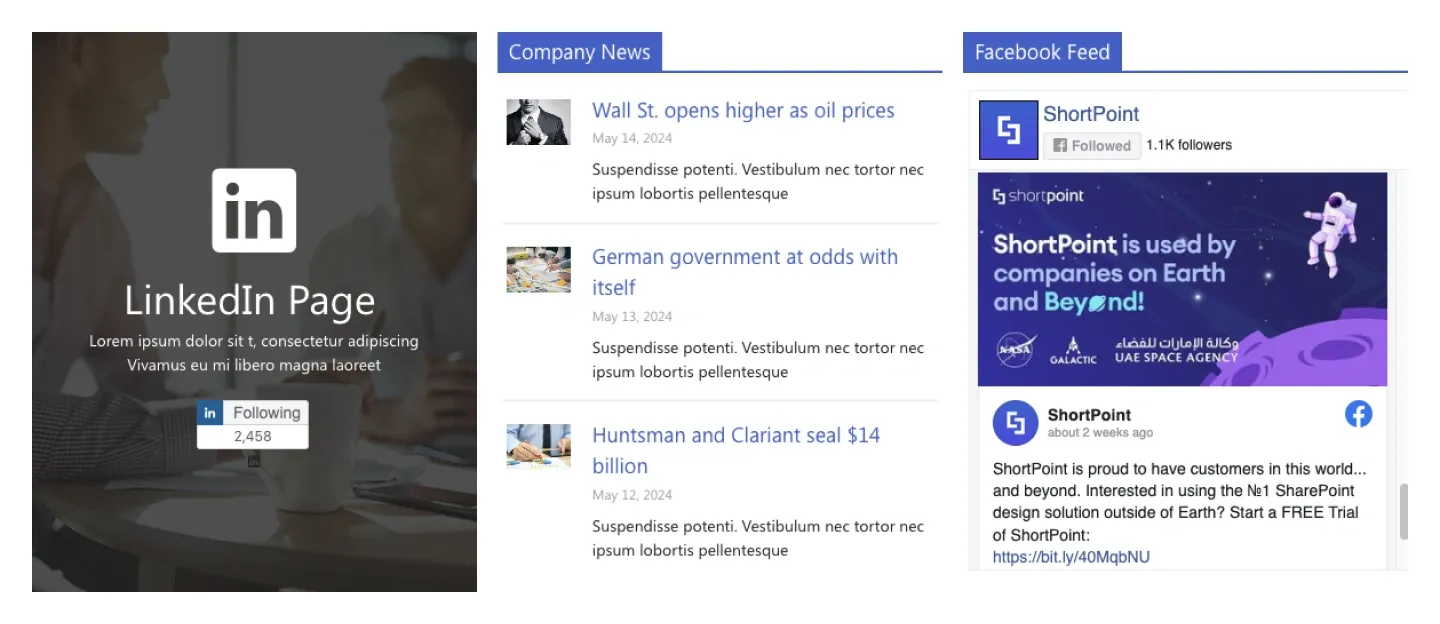
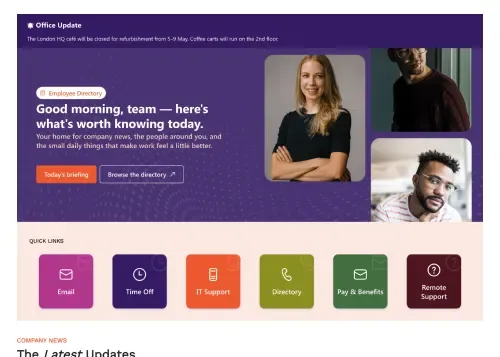
Three columns: a social page card with follow button, a company news list with thumbnails, and an embedded social feed.
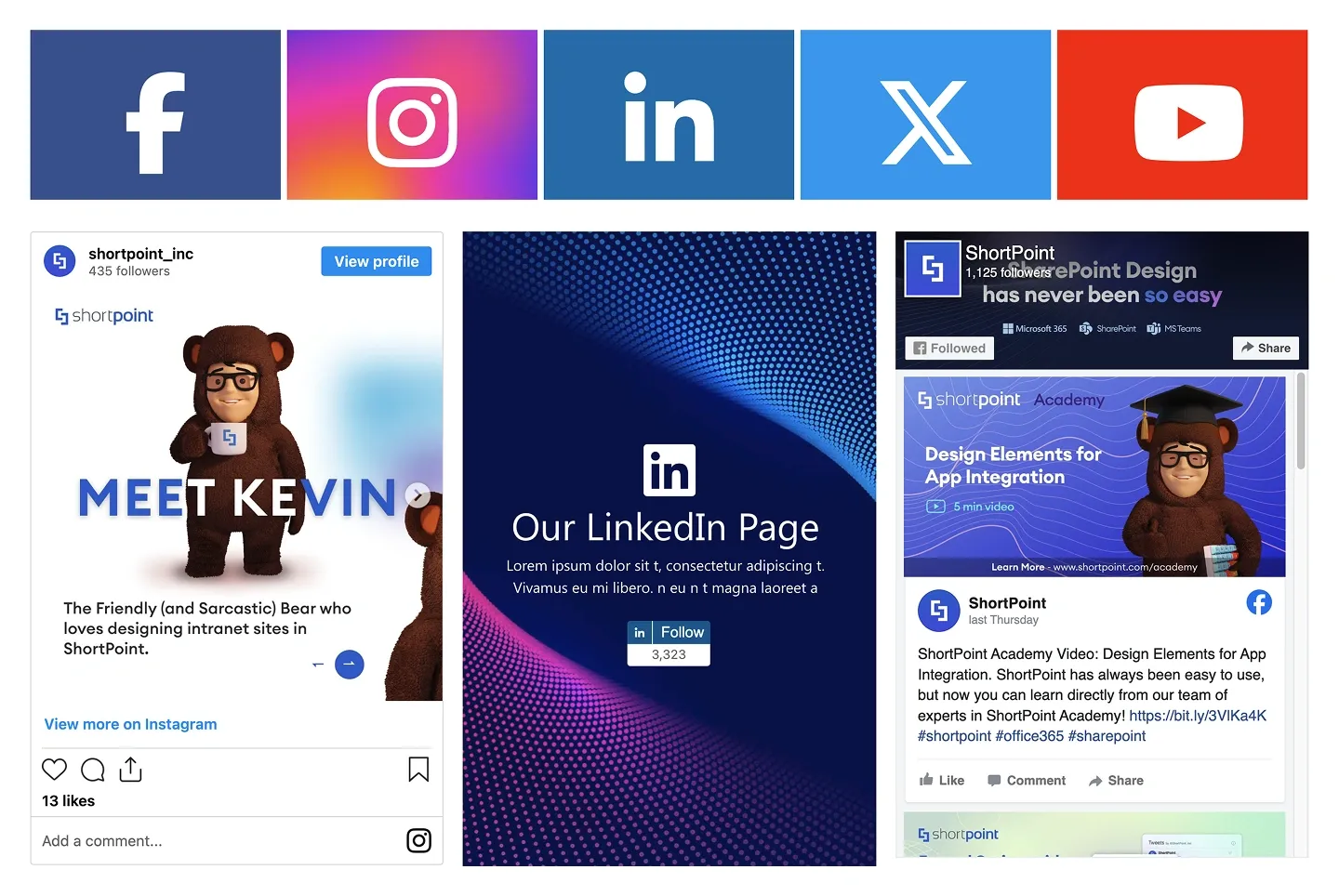
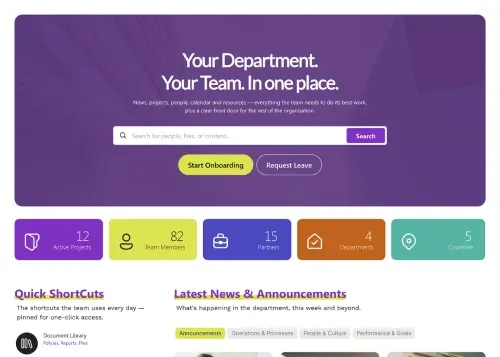
Row of social network icon tiles above embedded feed cards from your company accounts. It brings external social activity onto the intranet.
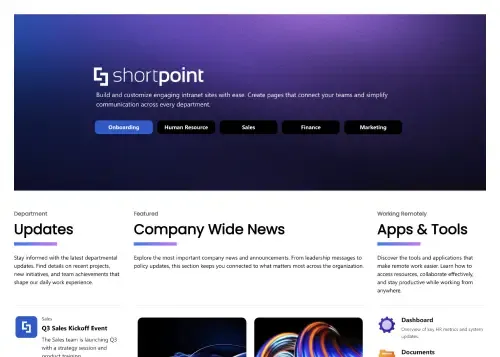
A social section is a pre-built block that adds a social layer to a SharePoint intranet: your company's social media feeds and links to its social channels, shown alongside intranet news. SharePoint's Viva Engage web parts bring in internal conversations, but there's no designed block for showing your company's public channels on the intranet. ShortPoint social sections let you add a social media feed to SharePoint without custom development, styled to your brand with Theme Builder. Compare every design in the carousel, from an image banner with stat tiles to blocks that pair embedded feeds with company news, and preview each one live.
Use ShortPoint to build a social intranet on SharePoint: connect a social section to your company feeds or a SharePoint list, style it to match your brand with Theme Builder, and place it on the homepage or department pages.
Describe the section you need and let AI Designer write and build the block.
Swap layouts, resize the block and edit every piece of content visually.
Apply your brand colors, typography and corner radius in one place.
Pull headlines, dates and items from SharePoint lists so the block updates itself.
Reuse the same section across every department page and site.
Proper labels, contrast and keyboard support for every reader.
Link straight to Microsoft Forms, Planner, Teams or any external tool.
Pre-styled variants that match the rest of your page.
Built from standard ShortPoint elements you can reuse anywhere else.
Everything stays readable and tappable when the block stacks on mobile.
Add a social feed or community block to your SharePoint intranet in minutes. No coding required.
Start free trial & add ShortPoint to your site : Click "Start a Trial" and get access to ShortPoint instantly. No credit card needed. Sign in with your Microsoft 365 credentials to activate your trial instantly, or download the package manually and activate it from there.
Insert a Section : Edit your SharePoint page, insert the ShortPoint web part, and pick any social section (Social Intranet, Social News, Social) from the Sections tab of the Templates Library. It drops into your page as a ready-made block you can move, duplicate, or restyle.
Customize & Publish : Replace the placeholder content with your own, connect your SharePoint data sources, apply your company branding with Theme Builder, and publish the page for immediate use.
A social intranet adds two-way community features (feeds, shout-outs, comments, and recognition) to the traditional top-down intranet, so employees contribute as well as read. On SharePoint, social sections bring that community content onto the pages people already visit.
To add a social media feed to SharePoint, insert a ShortPoint social section and connect it to your company's LinkedIn, X, or other social feed, or to a SharePoint list of posts. The feed then appears on your page in a branded layout.
No, employees can't post or react directly in the section. Social sections display and link to content, while posting and reactions happen in the connected platform, such as Viva Engage or your company's social network, so people can click through to join the conversation.
Yes, social sections work with both Microsoft 365 and on-premises SharePoint. That includes SharePoint Online in Microsoft 365, as well as SharePoint Server Subscription Edition, 2019, 2016, and 2013.
You can style how the feed is presented and the elements around it. Theme Builder controls the colors, typography, and layout of the surrounding elements, so the section matches your intranet.
Yes, every social section is mobile-friendly. Feeds and cards adapt cleanly on phones and tablets, so people can keep up with company updates on any device.