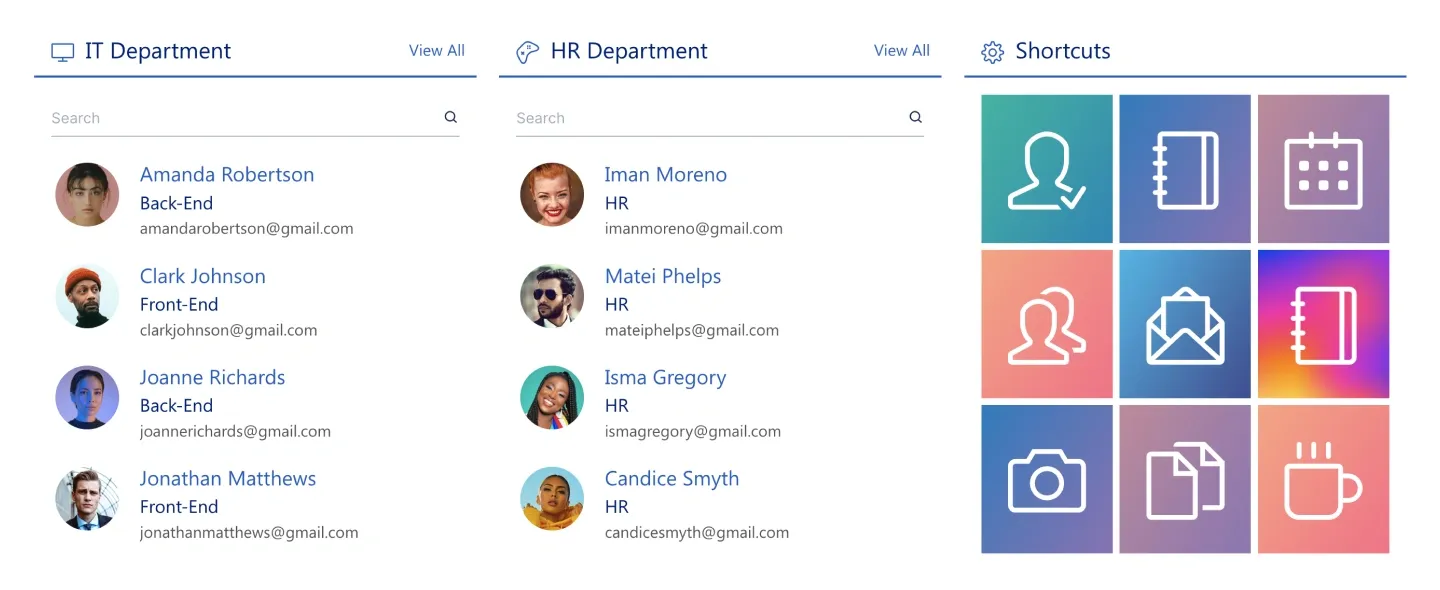
Department Shortcuts
Two searchable department people lists with photos and emails beside a grid of nine icon shortcuts.
Two searchable department people lists with photos and emails beside a grid of nine icon shortcuts.
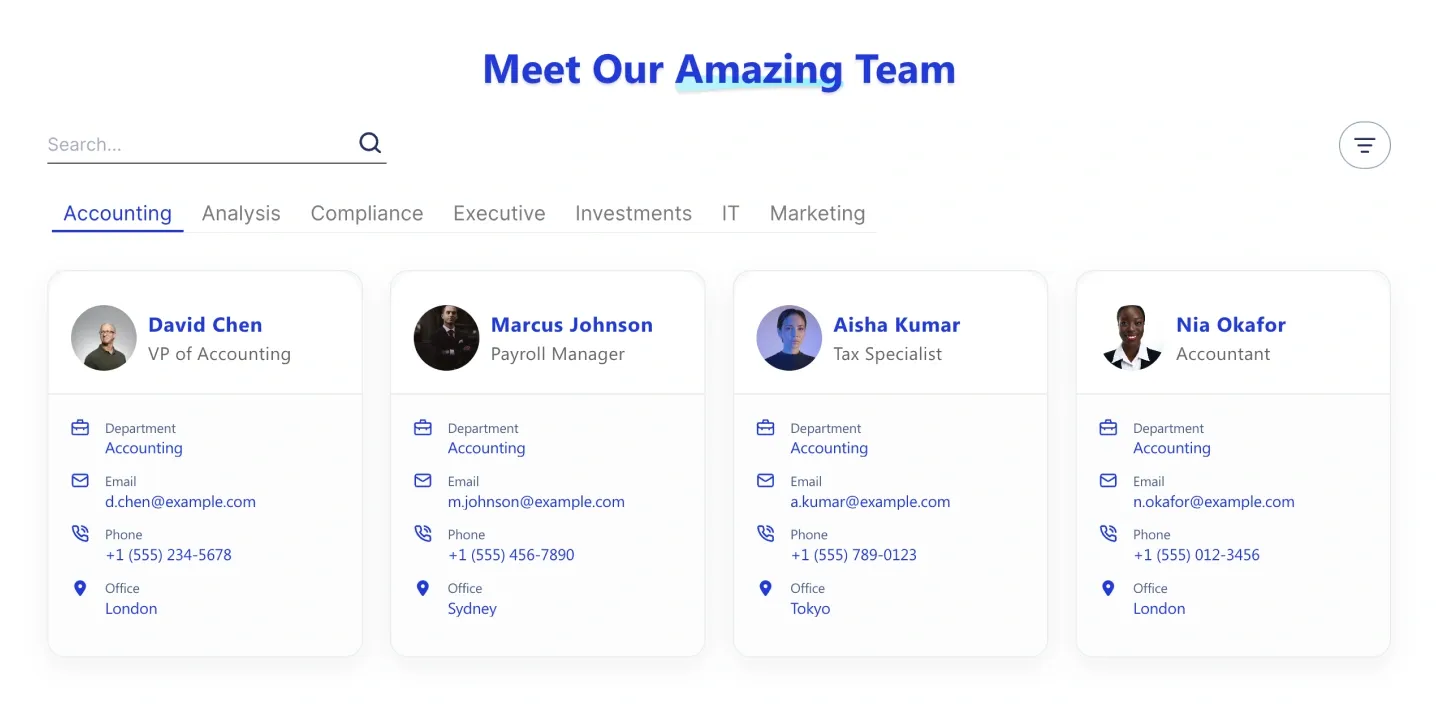
Directory with search, department tabs, and people cards showing department, email, phone, and office. It connects to people profiles.
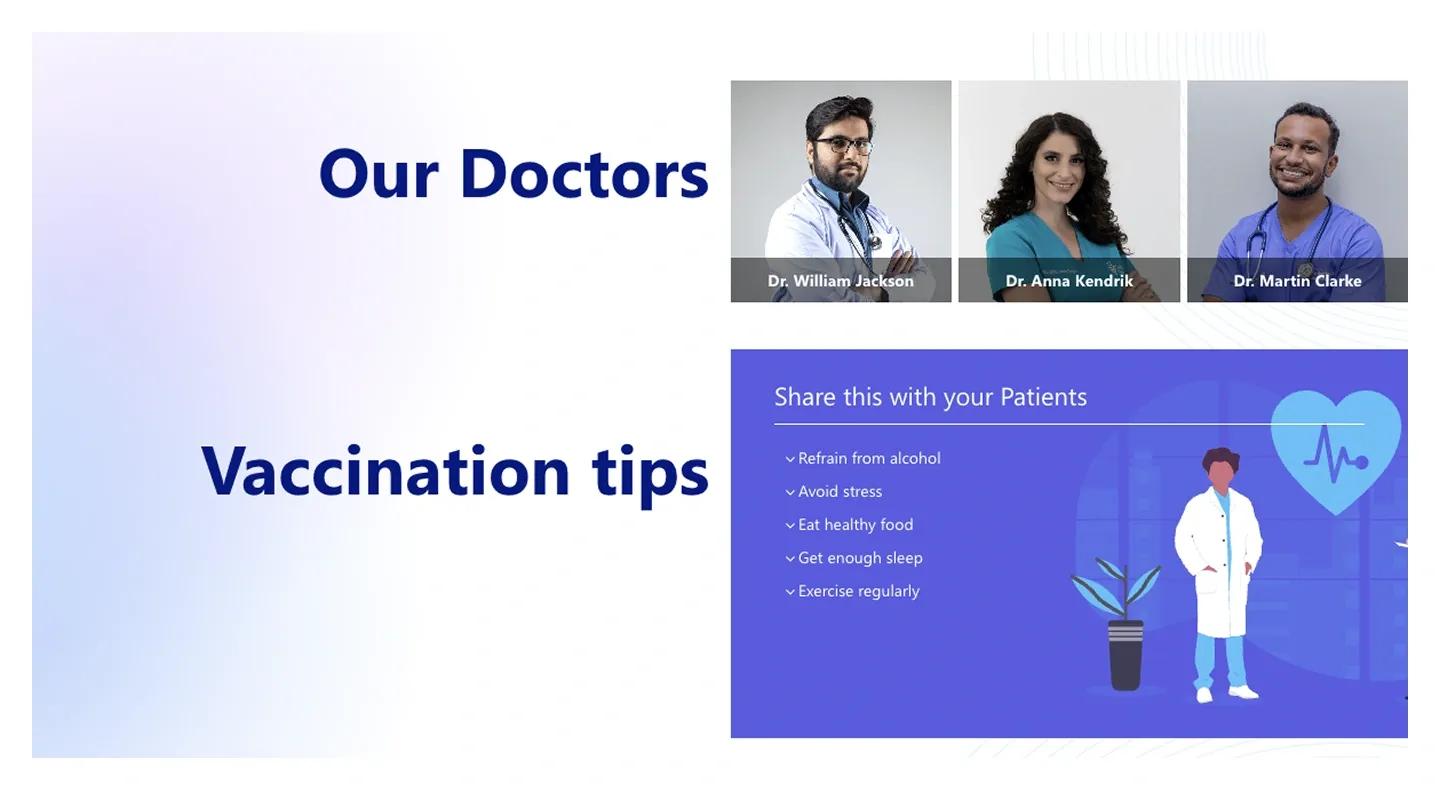
Team photo strip with names and roles beside a checklist card with illustration. It's built for clinical or specialist teams.
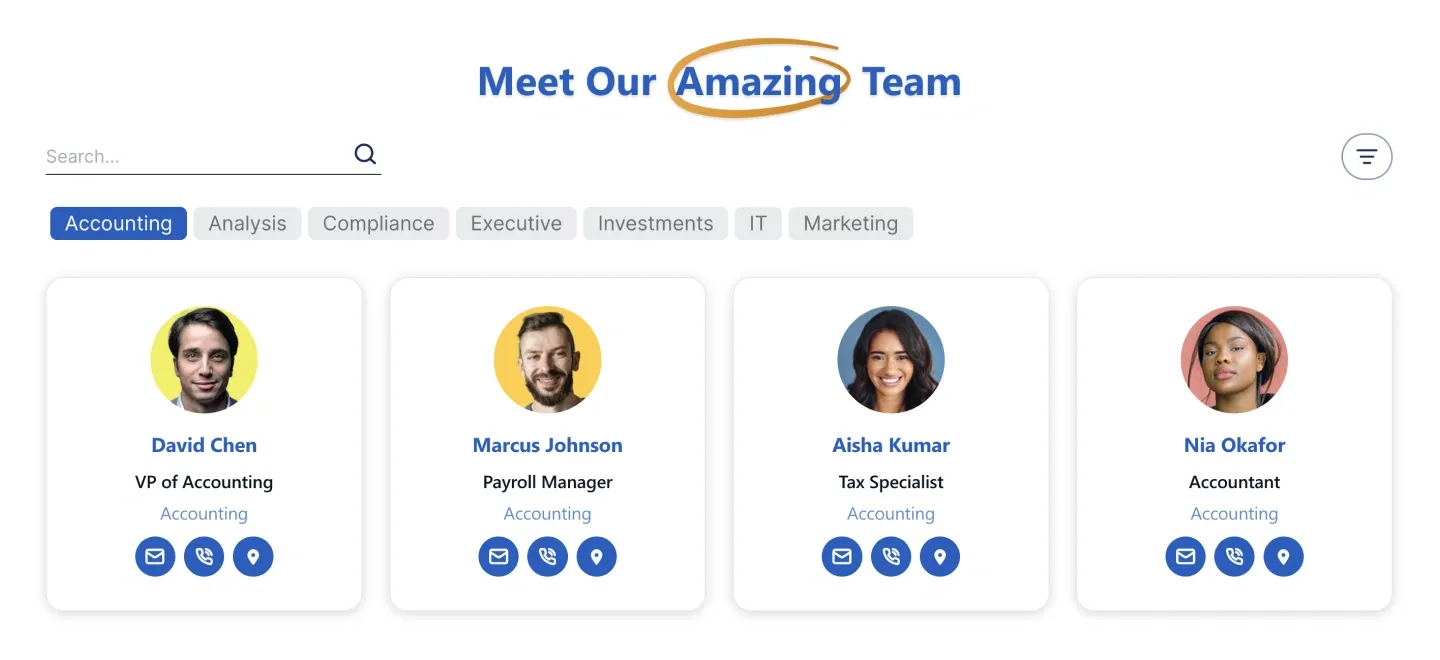
Searchable team grid with department tabs and cards showing round photo, name, role, and contact icons.
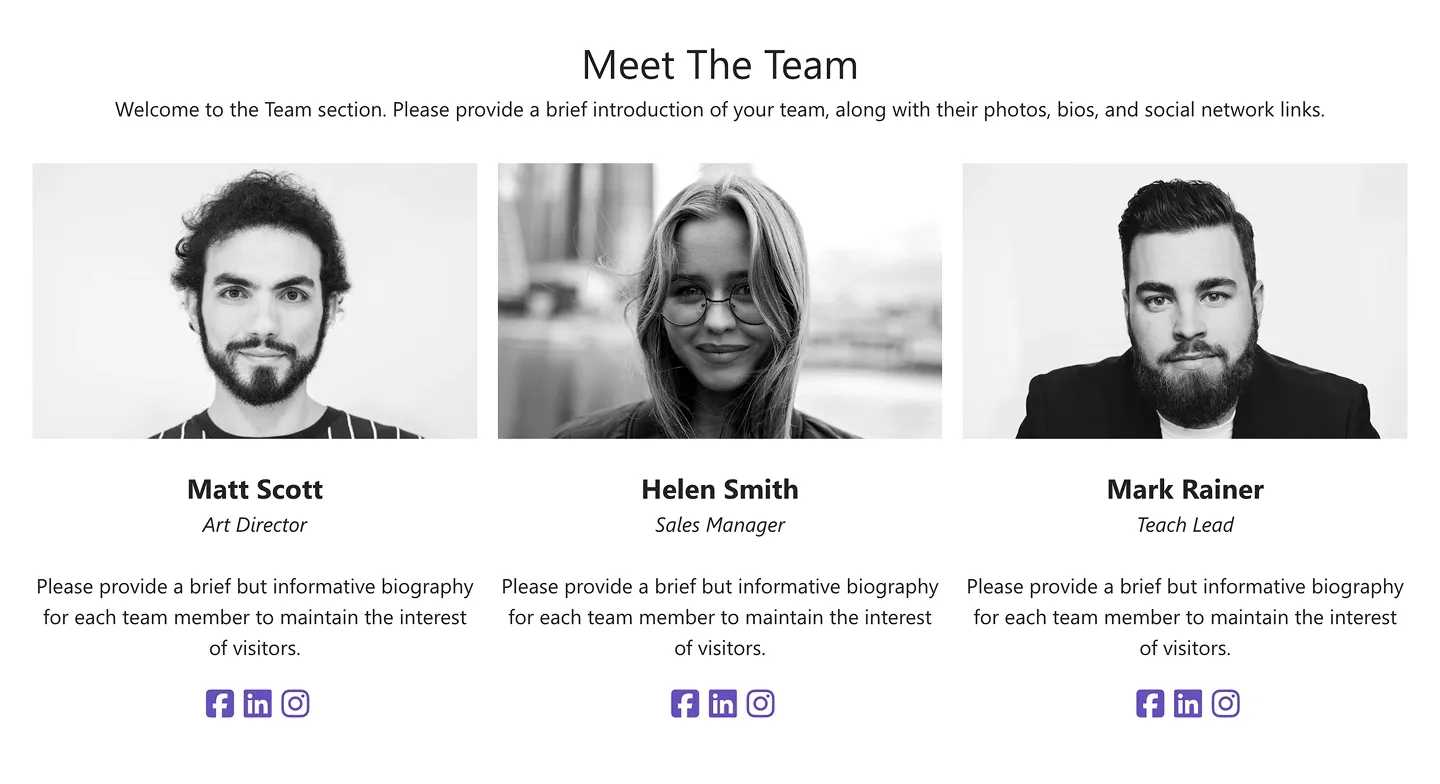
Three-up team layout with portrait, name, role, short bio, and social icons. It's built for leadership or small teams.
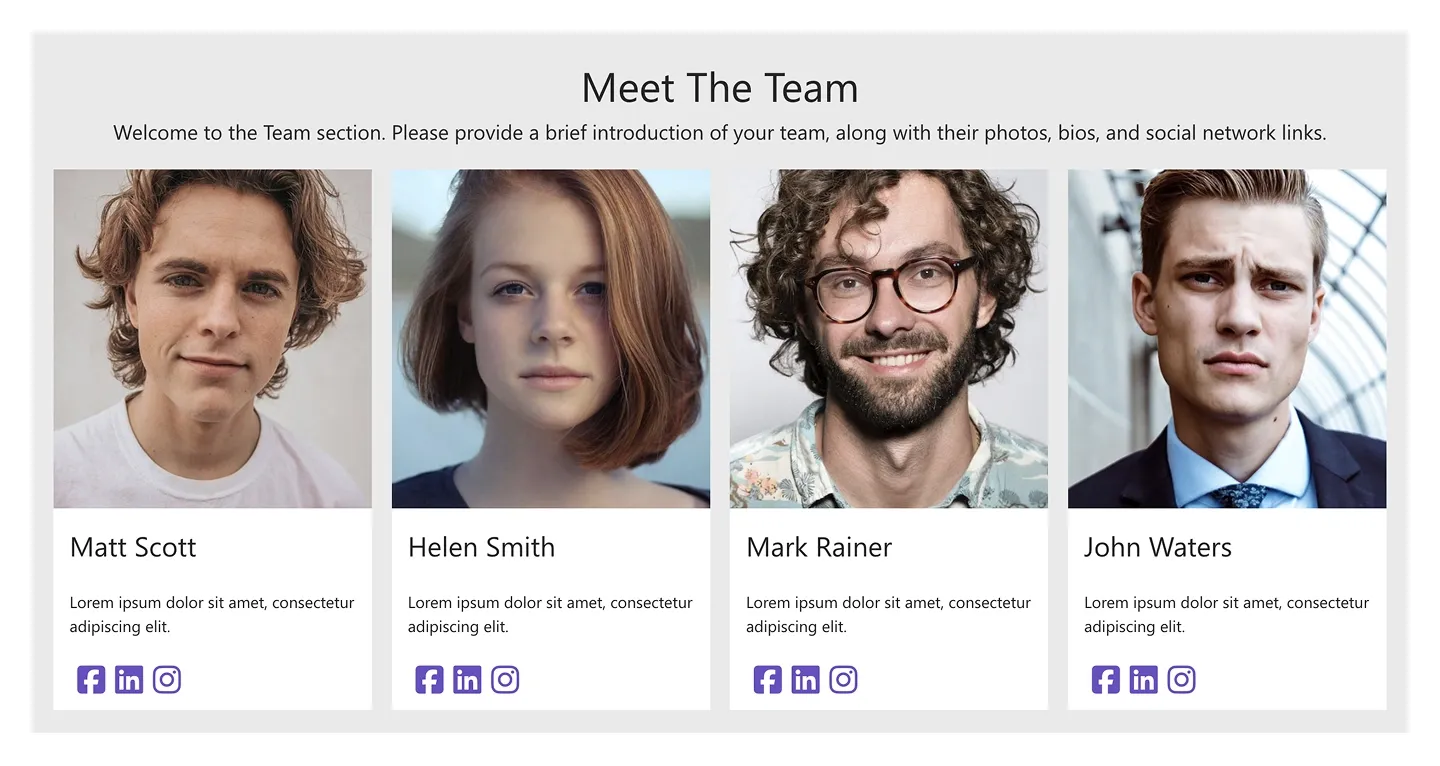
Four-up team row with portrait cards showing name, one-line bio, and social icons.
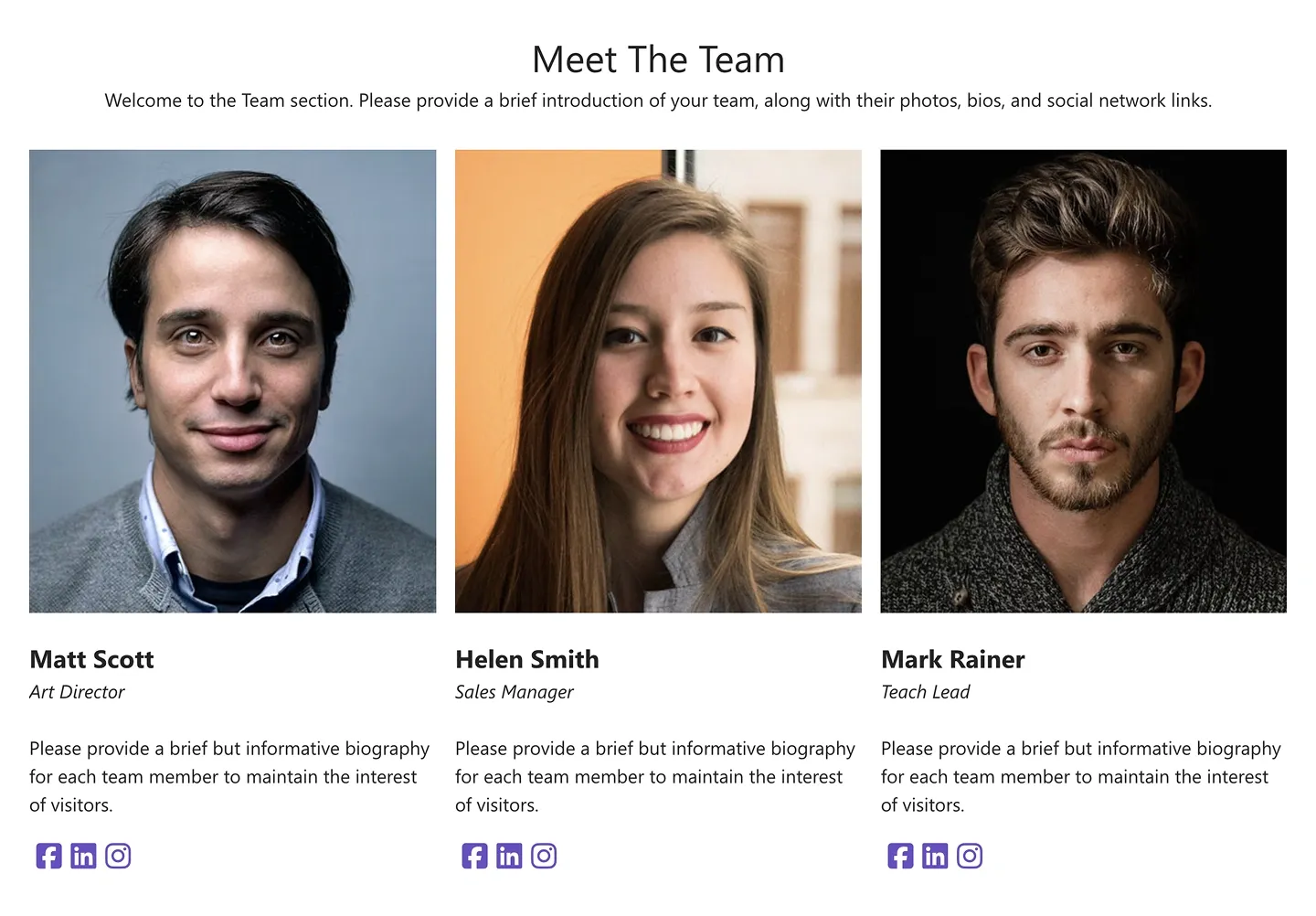
Classic three-up team grid: portrait, name, role, bio paragraph, and social icons per person.
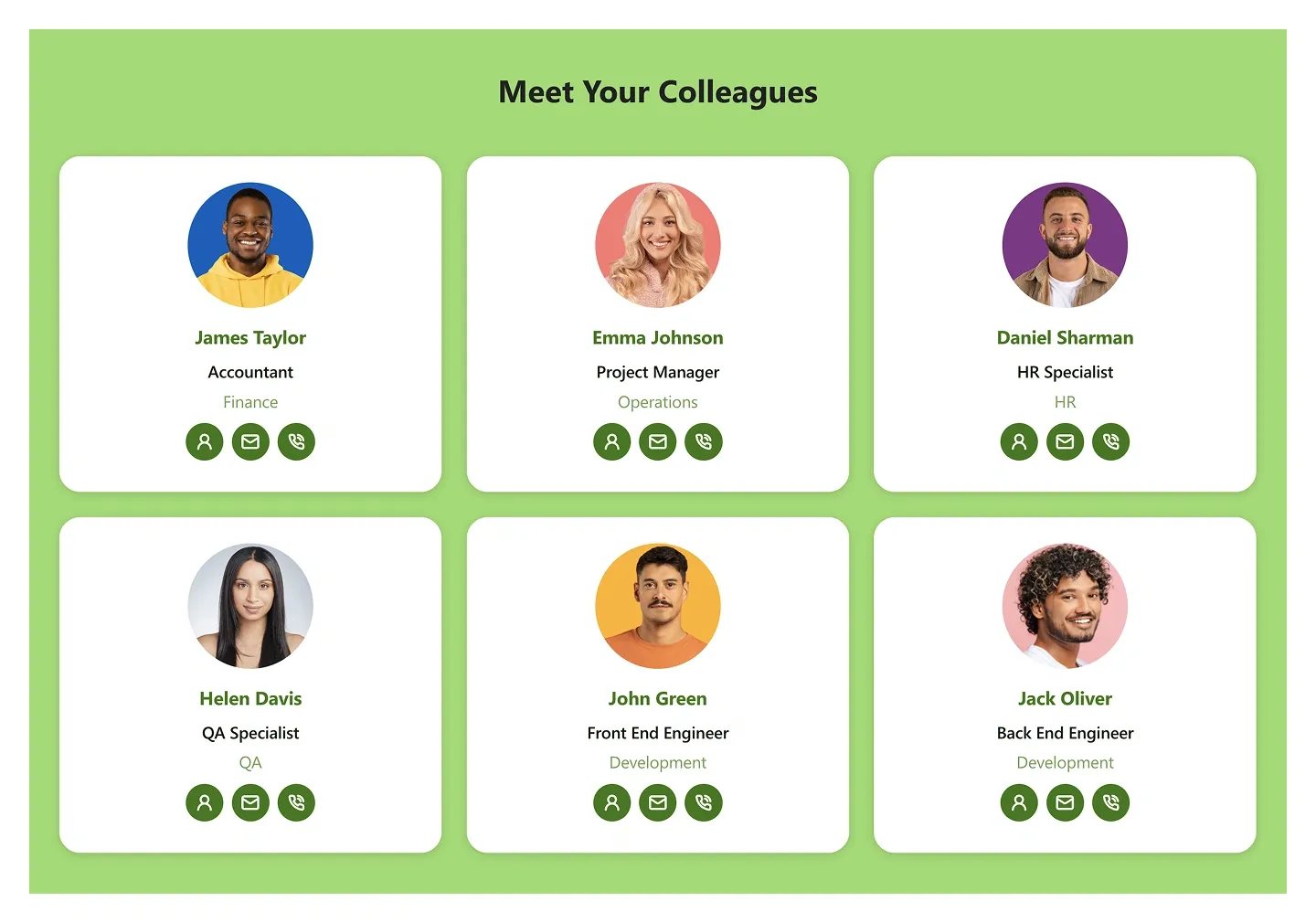
Panel with six cards in two rows, each with a round photo, name, role, department, and contact icons. It connects to people profiles.
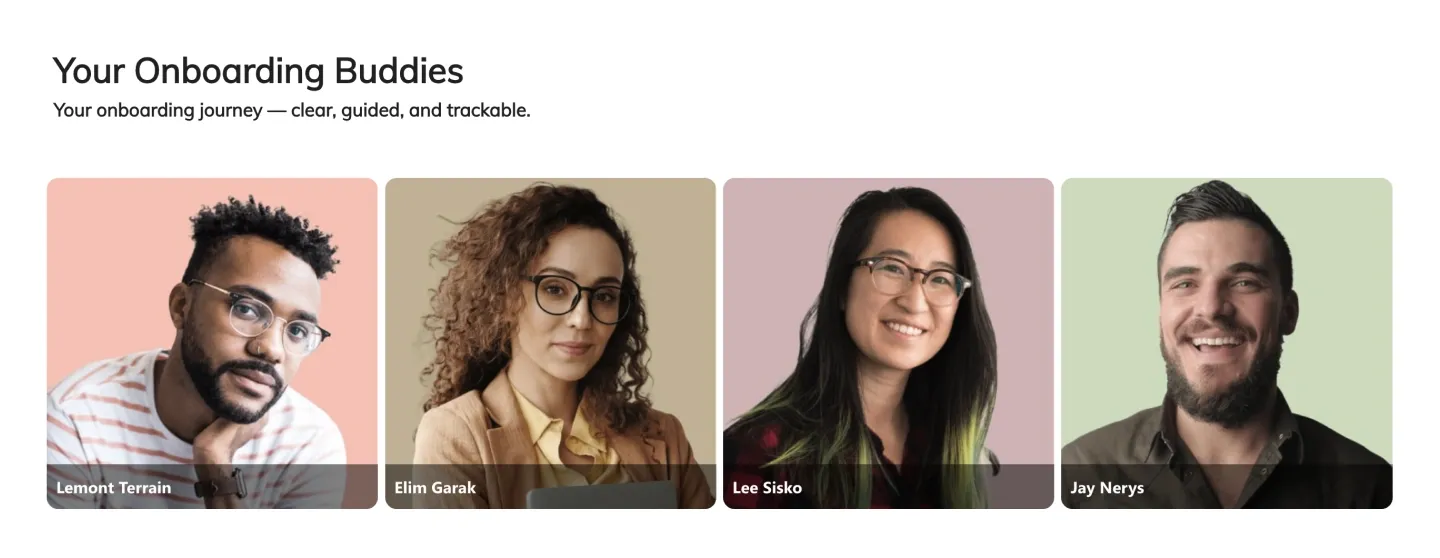
Headline and tagline above four full-bleed portraits with name labels. It introduces a small group without extra detail.
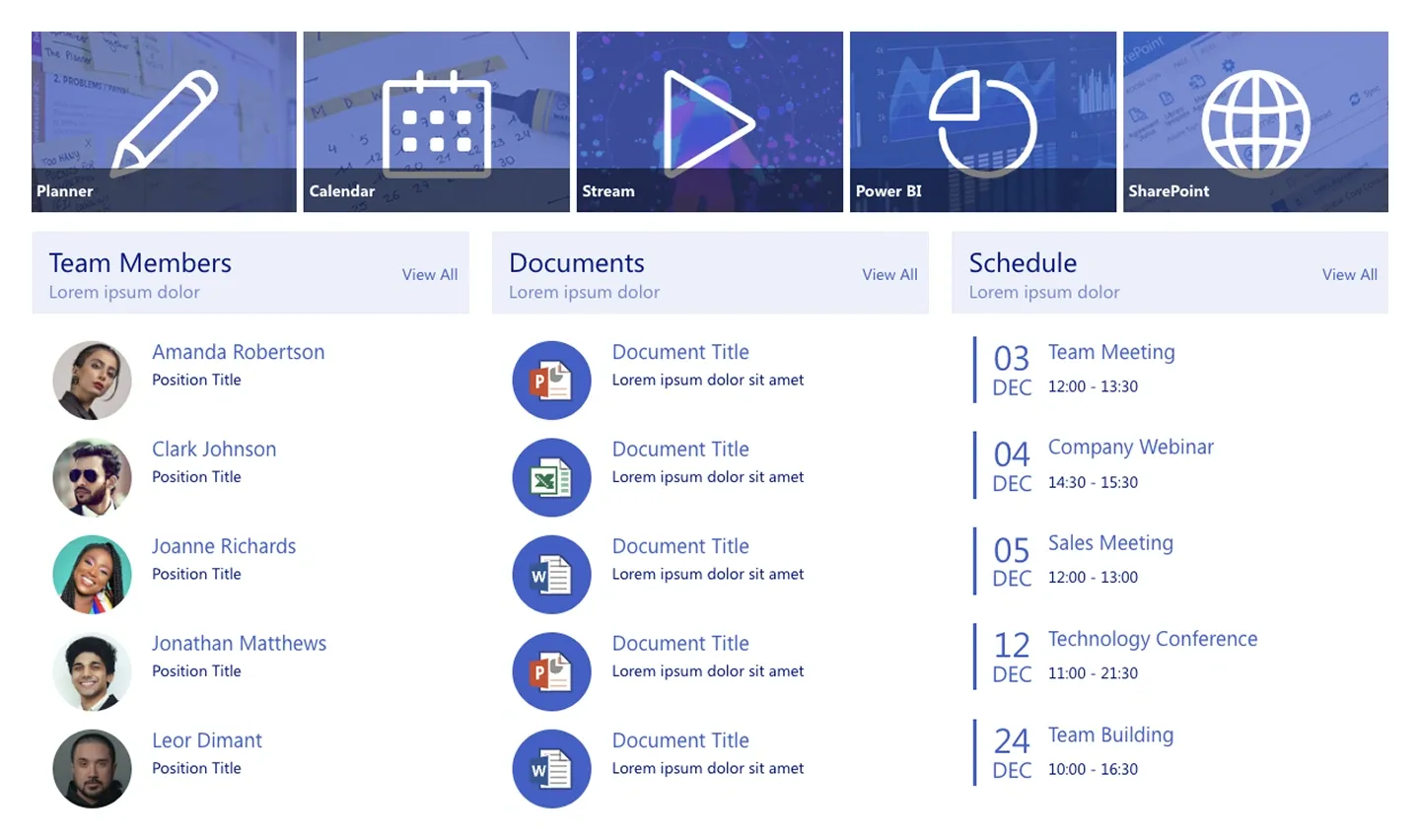
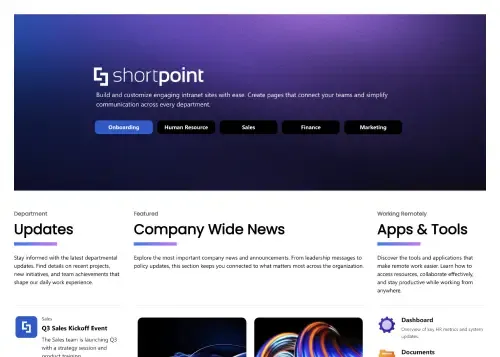
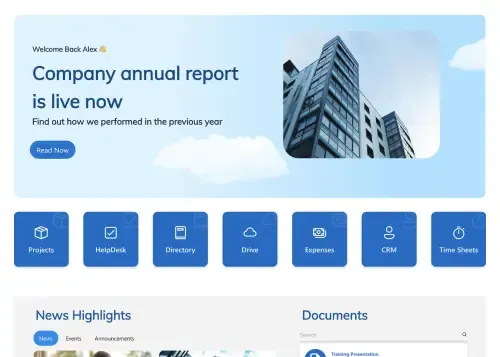
Five image app tiles above three columns: team members with photos, documents with file icons, and a schedule with dates.
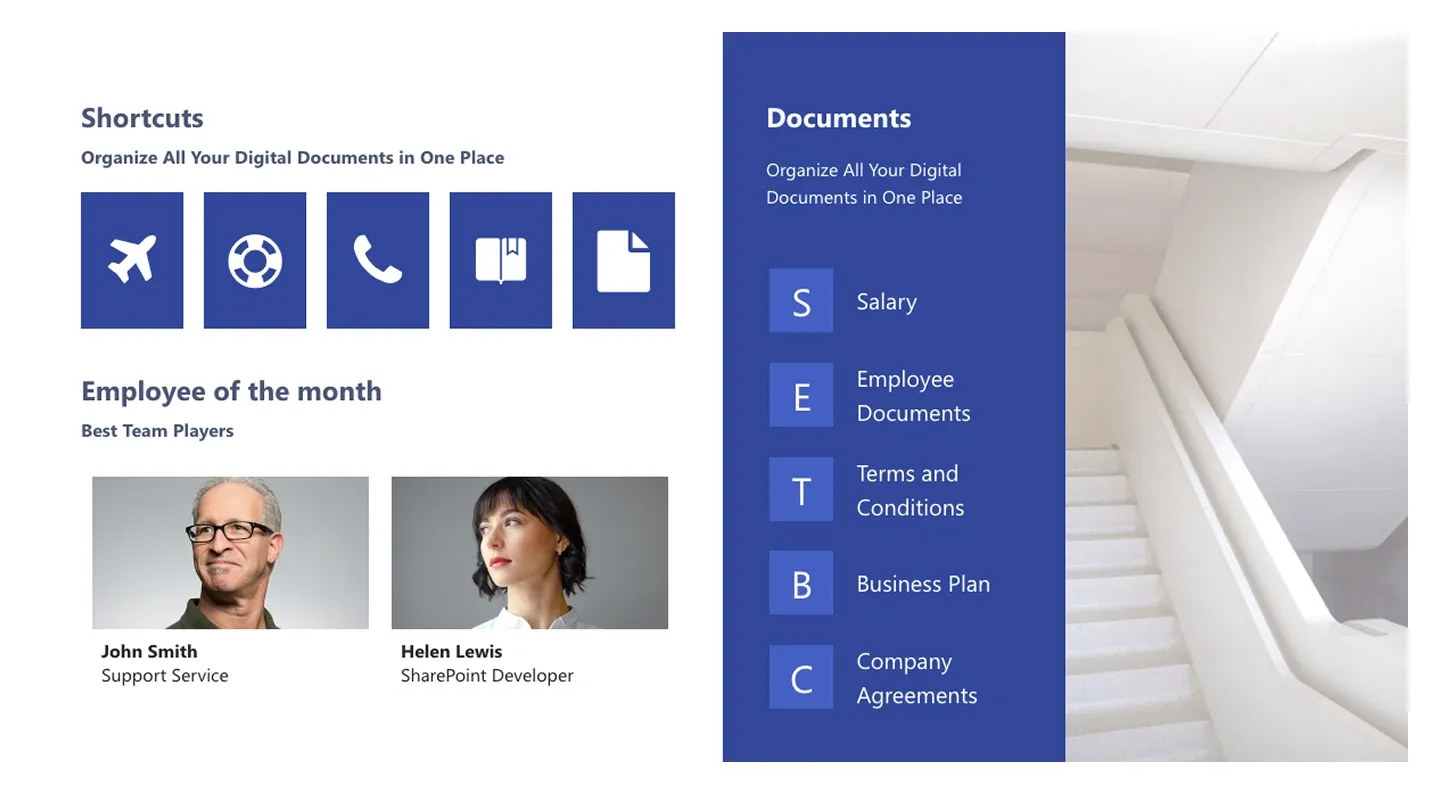
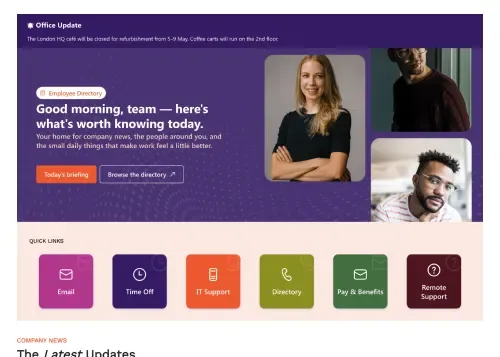
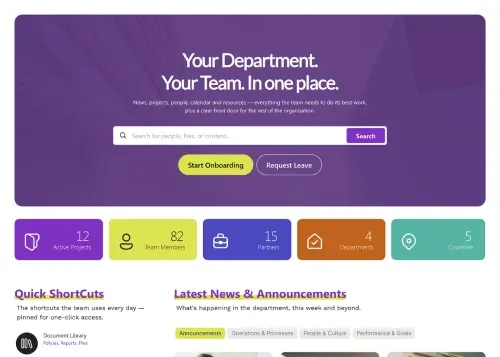
Icon shortcut grid and featured people photos beside a documents list and an image panel. It's a compact team landing block.
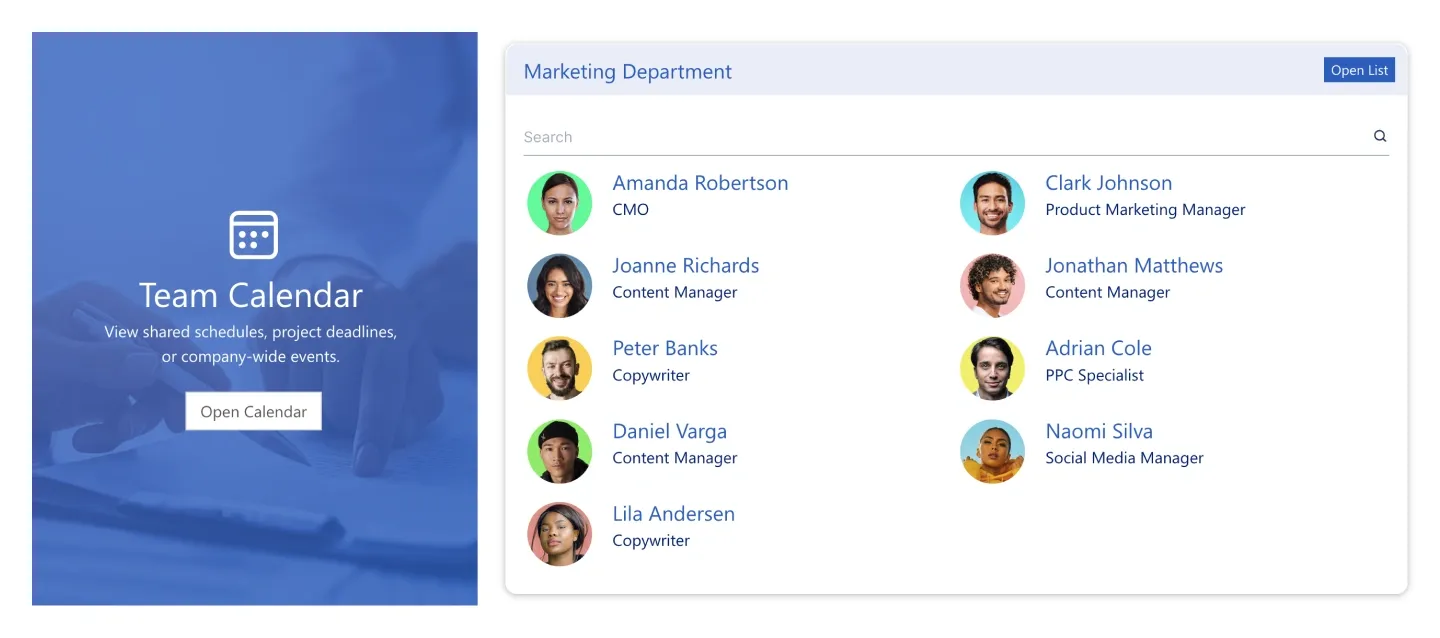
Image promo card with headline and button beside a searchable department people list with photos and roles.
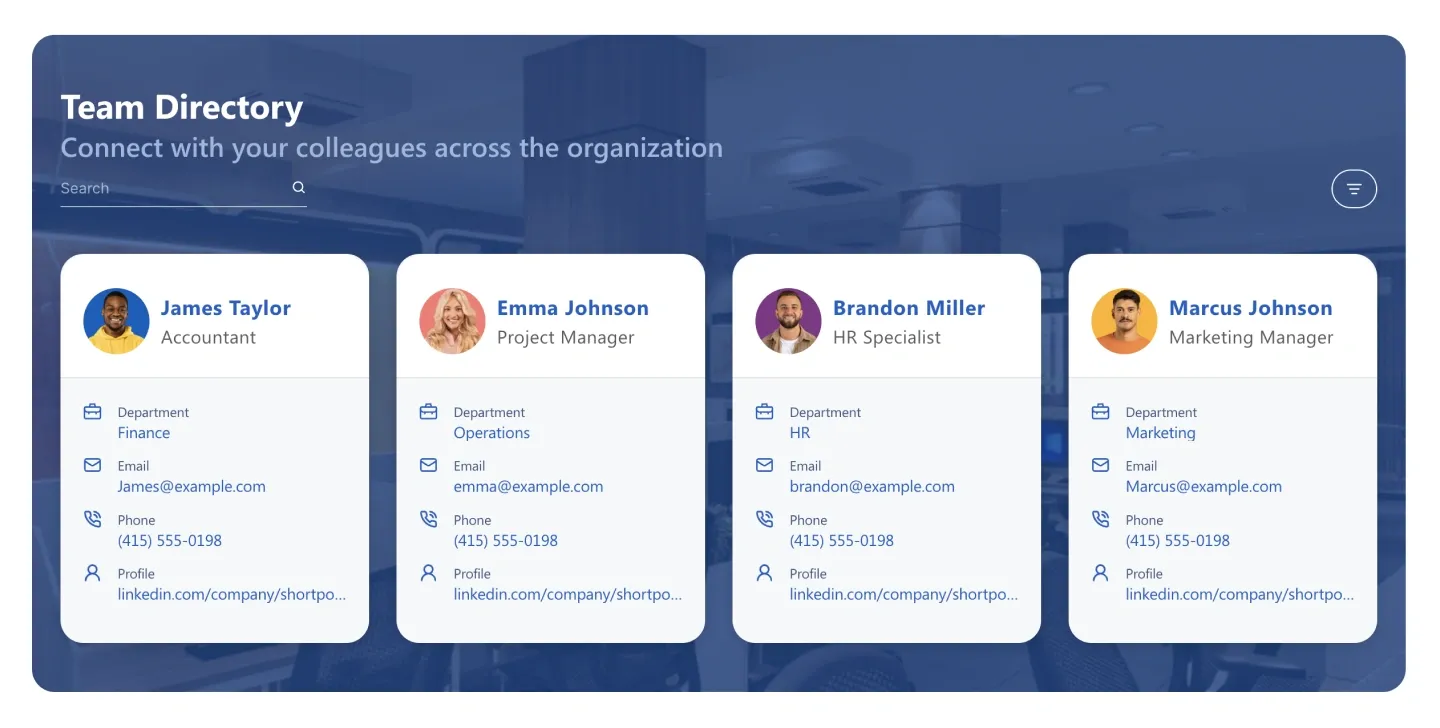
Directory banner with search and people cards showing department, email, phone, and profile link. It connects to people profiles.
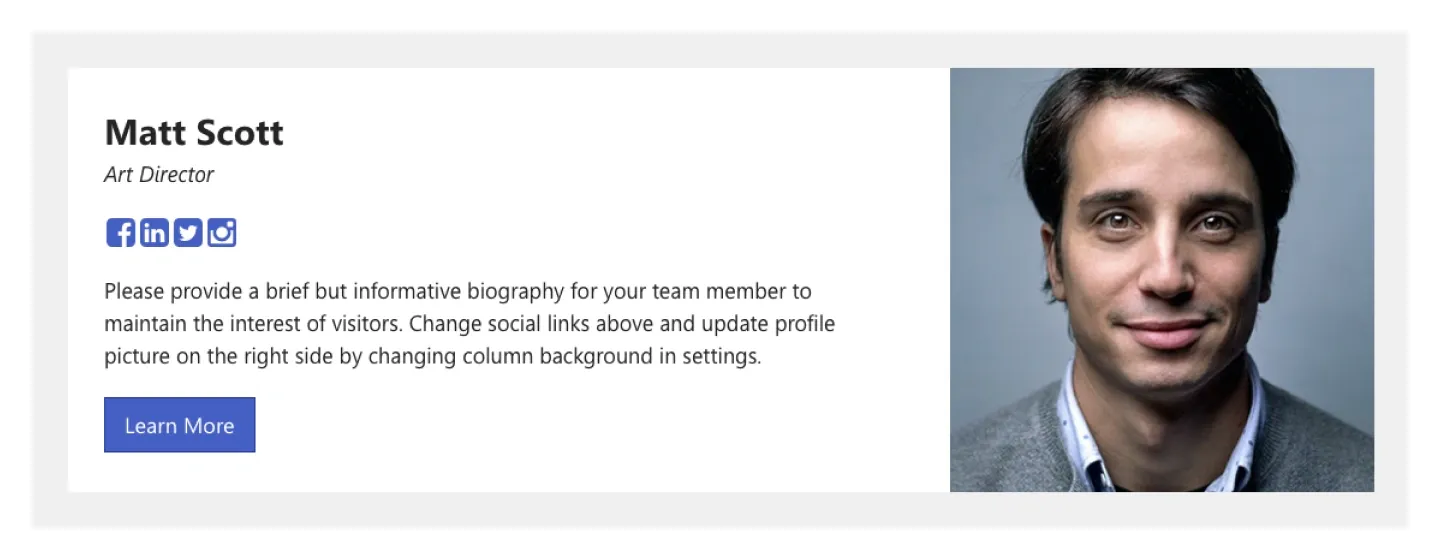
Single-person profile with name, role, social icons, bio, and button on one side, and a large portrait on the other.
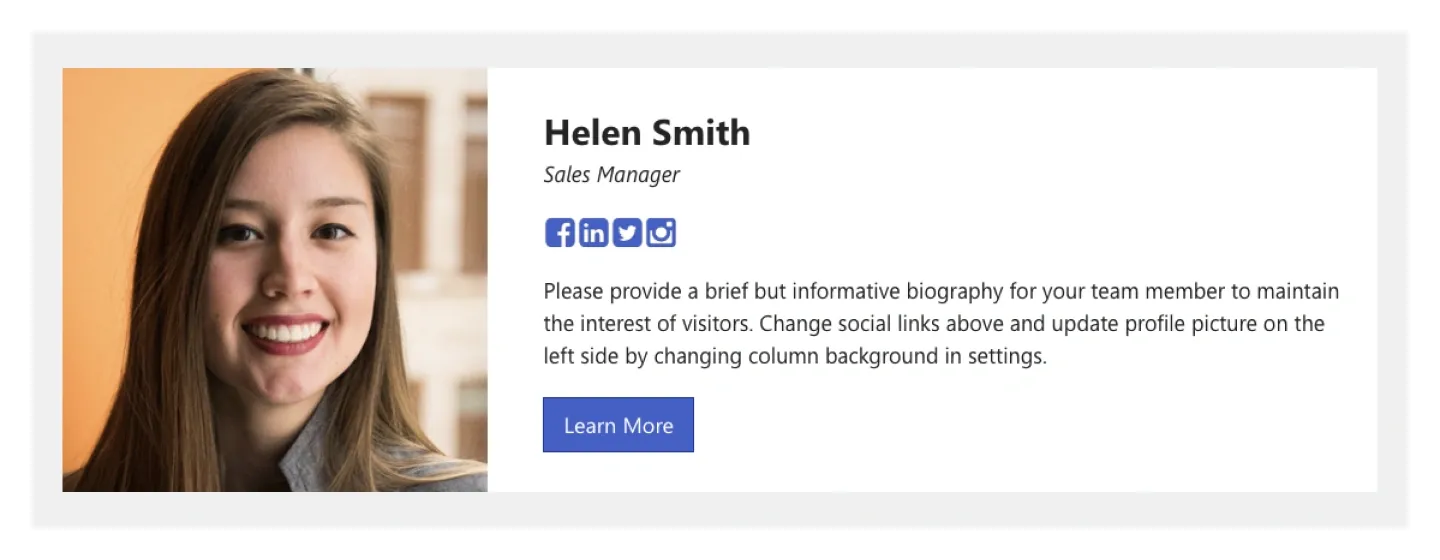
Mirror of Teammate 1: portrait first, then name, role, social icons, bio, and button.
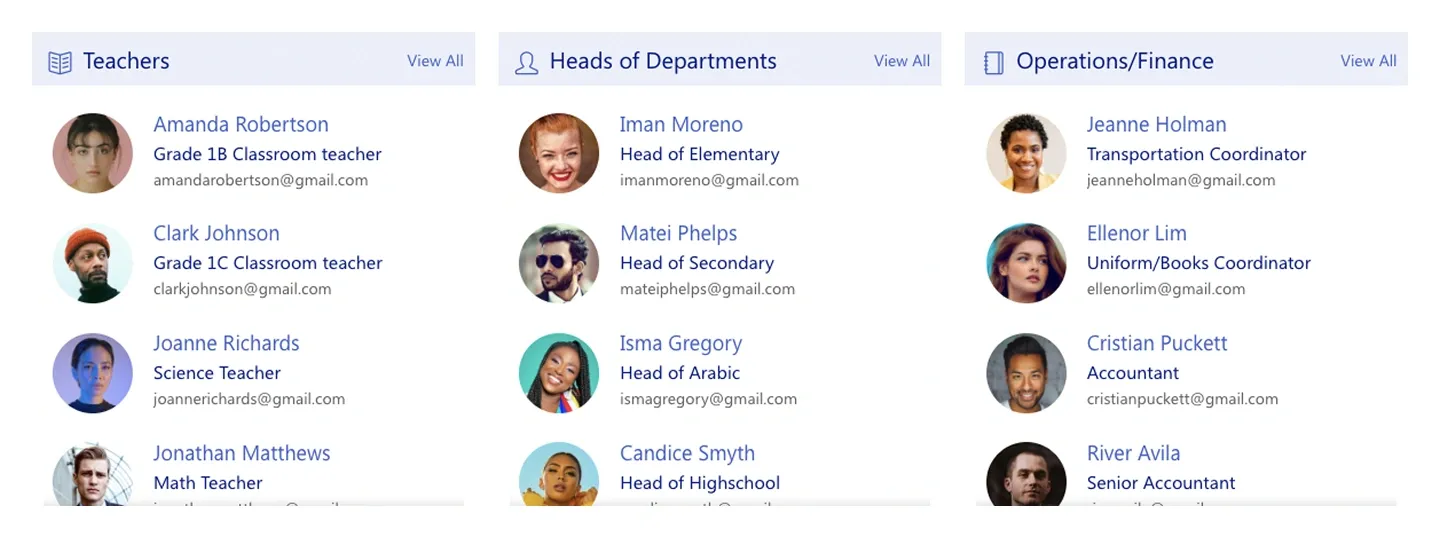
Three people lists side by side, each with photos, titles, emails, and a view-all link. Each list covers one team or group.
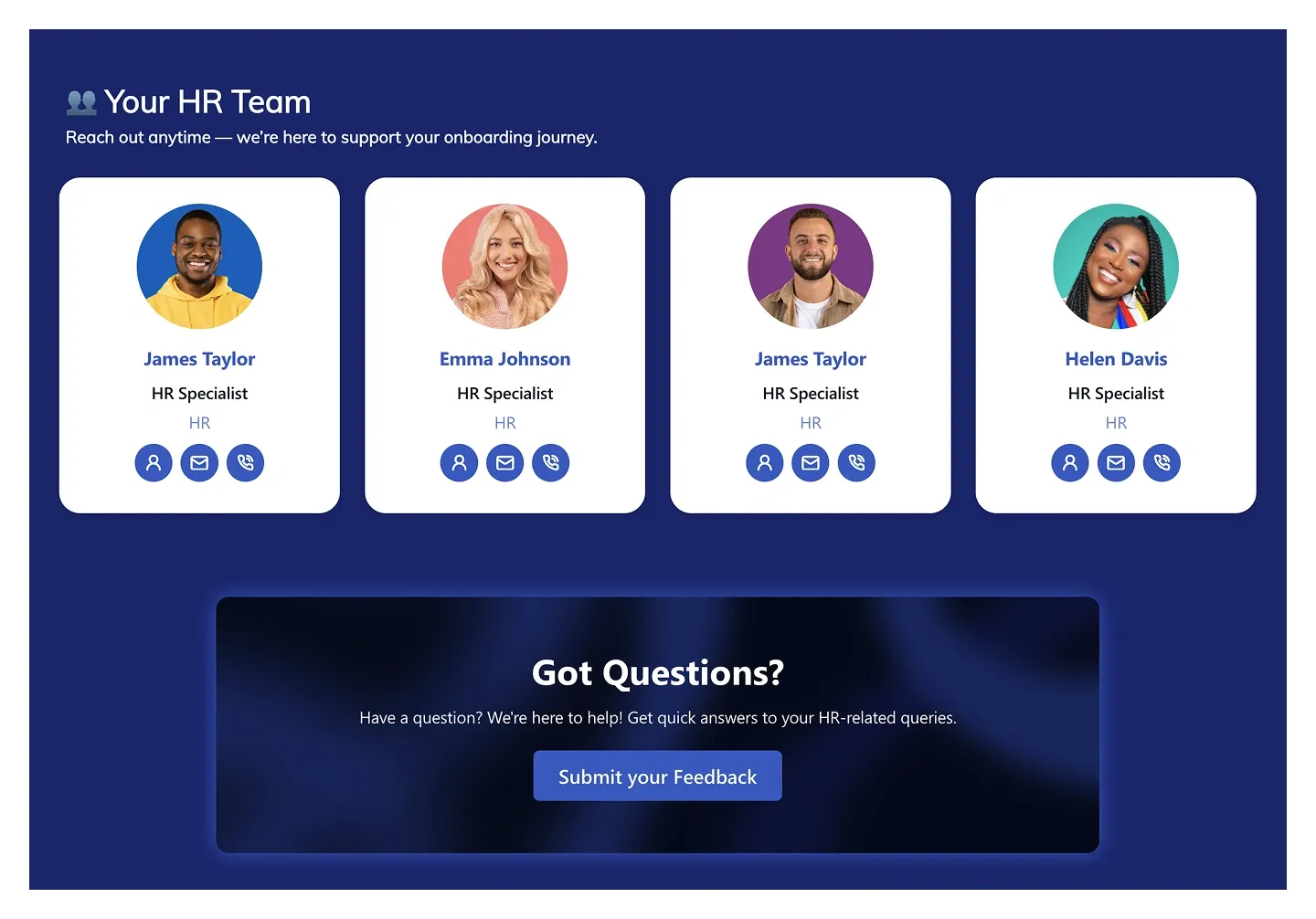
Panel with four people cards with round photos and contact icons, above a "Got questions?" banner with a button.
A team section is a pre-built block that shows the people behind a site: meet-the-team grids, single teammate profiles, staff directory blocks, department dashboards, onboarding buddies and HR contact cards. SharePoint's People web part shows hand-picked profiles in a compact or descriptive layout. ShortPoint team sections add designed grids, tabs, search and contact buttons, and they can connect to Microsoft 365 people profiles so names, roles and photos stay current, with no more hand-maintained staff directory pages. Compare every design in the carousel, from a single teammate profile to searchable directories with tabs and detailed people cards, and preview each one on a live page.
Use ShortPoint to put people on any SharePoint page without custom development: pick a team section, connect it to people profiles or a SharePoint list, add search and department filters, and keep cards on-brand with Theme Builder.
Describe the section you need and let AI Designer write and build the block.
Swap layouts, resize the block and edit every piece of content visually.
Apply your brand colors, typography and corner radius in one place.
Pull headlines, dates and items from SharePoint lists so the block updates itself.
Reuse the same section across every department page and site.
Proper labels, contrast and keyboard support for every reader.
Link straight to Microsoft Forms, Planner, Teams or any external tool.
Pre-styled variants that match the rest of your page.
Built from standard ShortPoint elements you can reuse anywhere else.
Everything stays readable and tappable when the block stacks on mobile.
Add a branded meet-the-team or staff directory block to a SharePoint page in under an hour. No coding required.
Start free trial & add ShortPoint to your site : Click "Start a Trial" and get access to ShortPoint instantly. No credit card needed. Sign in with your Microsoft 365 credentials to activate your trial instantly, or download the package manually and activate it from there.
Insert a Section : Edit your SharePoint page, insert the ShortPoint web part, and pick any team section (Team Directory, Meet Our Team, Employees Directory, Department Shortcuts) from the Sections tab of the Templates Library. It drops into your page as a ready-made block you can move, duplicate, or restyle.
Customize & Publish : Replace the placeholder content with your own, connect your SharePoint data sources, apply your company branding with Theme Builder, and publish the page for immediate use.
Yes, a team section can replace the SharePoint people web part. It shows the same profile data in designed layouts (grids, cards, and department strips) and adds search and filters, which the standard people web part doesn't offer.
Yes, the directory can show profile photos, job titles, and departments for each person, along with click-to-email or Teams buttons so people can reach a colleague in one click.
Yes, SharePoint employee directory sections include search and can filter by department, location, or any list column, so people can find the right colleague quickly.
Not as a traditional tree-style org chart, but you can show your organization by team. Team Dashboard and Department sections give a visual structure by team, and you can connect them to your people data to group people by manager or department.
Yes, team sections work with both Microsoft 365 and on-premises SharePoint. That includes SharePoint Online in Microsoft 365, as well as SharePoint Server Subscription Edition, 2019, 2016, and 2013.
Yes, each department can have its own team page. Copy the section to each department's page or site and connect it to that team's SharePoint group, so every department shows its own people in the same layout.