What Is SharePoint? (And What Is It Actually Used For)
If your company uses Microsoft 365, you already have SharePoint. Most people have no idea it is there — or what it does.
It shows up as a tab in Teams. It appears in the background when someone shares a file. IT departments mention it in onboarding decks and then move on. And for most employees, it remains a mystery: something the company apparently uses, but no one has ever properly explained.
This guide exists to fix that. No jargon, no assumed knowledge. By the end, you will know exactly what SharePoint is, what it is used for, and whether it could be doing more for your organisation than it currently is.
By Luisa Silva, Growth Manager at ShortPoint • Last Updated: June 15, 2026
What Is SharePoint Used For?
This is the question most people actually want answered. SharePoint is a platform, not a single product — which means different teams use it for very different things. Here are the five main use cases.
-
1. Document management and file storage
This is how most organisations start with SharePoint. Instead of storing files on a local server or in someone's email inbox, SharePoint gives teams a structured, searchable, permission-controlled place to keep documents. Version history means you can see every previous draft. Co-authoring means multiple people can edit the same document at the same time without overwriting each other's work.
-
2. Company intranet and internal communications
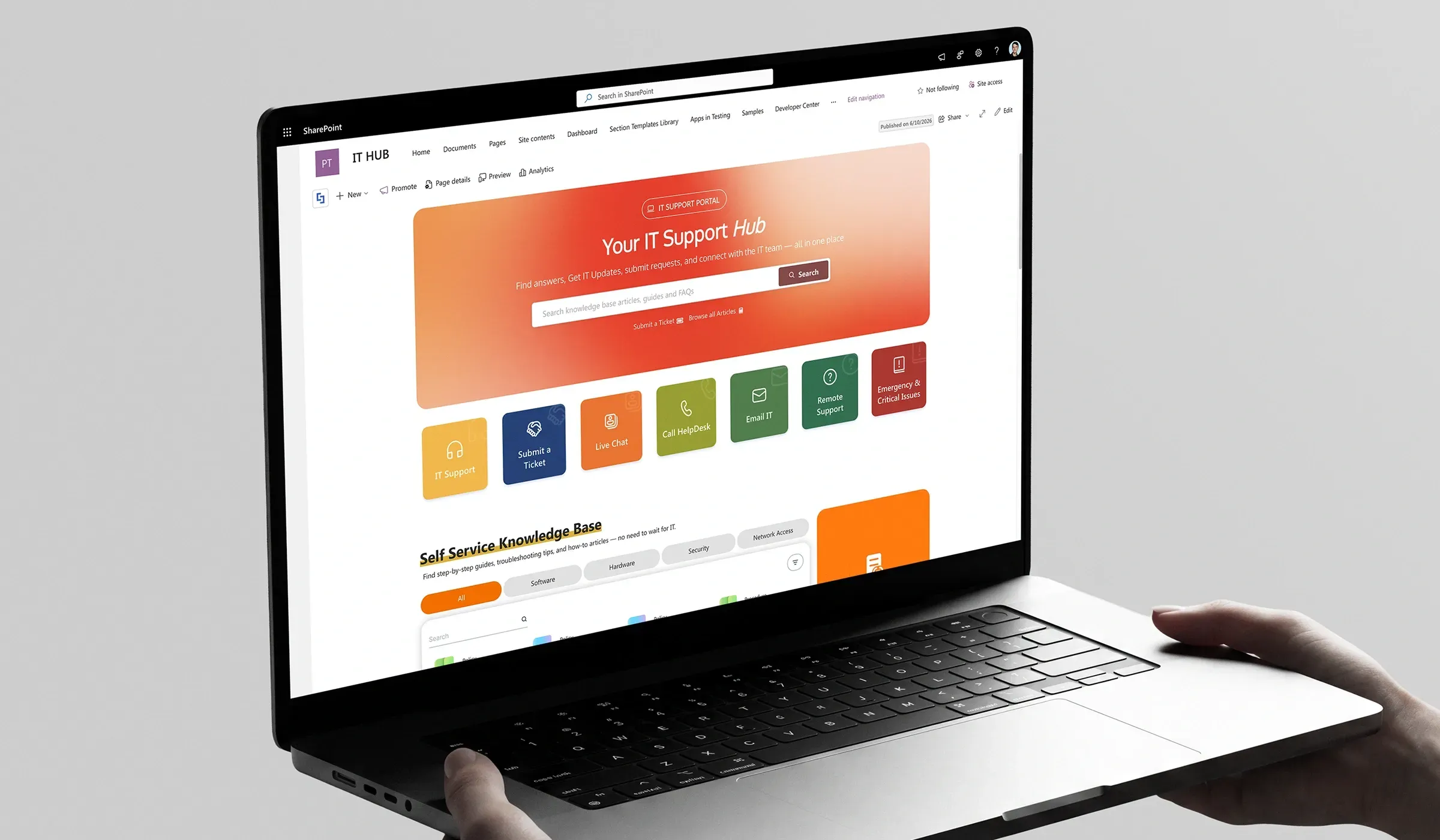
SharePoint is the most widely used platform for building employee intranets. Organisations use it to publish company news, leadership updates, HR policies, onboarding materials, and department pages — all accessible from a single internal homepage. A well-built SharePoint intranet replaces the chaos of emails, pinned Teams messages, and forgotten shared drives.
-
3. Team collaboration sites
Every team or project can have its own SharePoint site — a dedicated space with shared files, task lists, calendars, and pages. When you create a Team in Microsoft Teams, a SharePoint site is created automatically in the background to store all the files. Most Teams users are using SharePoint without knowing it.
-
4. Business process automation
SharePoint integrates natively with Power Automate (formerly Microsoft Flow), which allows organisations to automate repetitive processes — approval workflows, document routing, notifications, and more. A contract submitted to a SharePoint library can automatically trigger an approval email, route to a manager, and update a tracking list, all without anyone touching it manually.
-
5. Content management and publishing
Larger organisations use SharePoint as a content management system for internal publishing — managing who can create and publish pages, scheduling news updates, and maintaining a consistent look and feel across hundreds of internal sites. SharePoint's permissions architecture means granular control over who sees what.
SharePoint Online vs. SharePoint Server — What Is the Difference?
If you have ever Googled SharePoint and come away confused by the different versions, here is the short answer.
| SharePoint Online | SharePoint Server | |
|---|---|---|
| Hosting | Microsoft Cloud (M365) | Your own servers |
| Cost | Included in M365 plans | Separate licence + infrastructure |
| Updates | Automatic, always current | Manual, version-based |
| Best for | Almost every organisation starting today | Legacy environments with on-prem requirements |
For any organisation starting fresh or already on Microsoft 365, SharePoint Online is the answer. SharePoint Server still exists but is primarily a legacy option for organisations with specific on-premises requirements — regulated industries with strict data residency rules, for example. If your organisation does not already have a specific reason to run SharePoint on your own infrastructure, SharePoint Online is the correct choice.
Key SharePoint Features Explained
These are the building blocks of SharePoint. You do not need to use all of them — but knowing what exists helps you understand what SharePoint can do for your specific situation.
Sites
A SharePoint site is the basic container — think of it as a mini website inside your organisation. You might have one site for the whole company (the intranet homepage), separate sites for each department, and project-specific sites for cross-functional teams. Each site has its own pages, files, permissions, and navigation.
Document libraries
A document library is a structured folder for storing files — but smarter than a regular folder. Libraries support metadata tagging (so you can filter by project, status, or date), version history, check-in/check-out, and fine-grained permissions. When someone shares a file in Teams, it lands in a SharePoint document library.
Lists
SharePoint lists are structured tables of information — similar to a spreadsheet but with much richer functionality. Common uses: tracking project tasks, logging IT support tickets, managing an event calendar, and maintaining a staff directory. Lists integrate with Power Automate for automation and with Power BI for reporting.
Pages
SharePoint pages are the web pages that make up your intranet. You can add text, images, video, embedded documents, news feeds, quick links, and more. Pages are built using a block-based editor — no HTML required for basic authoring. The design flexibility, however, varies considerably depending on what tools you are using.
Permissions
SharePoint has a granular permissions system. You can control access at the site level, the library level, the folder level, or even the individual file level. Members can read but not edit. Guests can access specific documents without seeing the rest of the site. This level of control is one of SharePoint's most important enterprise features — and one of its most complex to manage correctly.
Search
Microsoft Search is integrated across SharePoint and Microsoft 365. It indexes files, pages, lists, and people — making content findable across the organisation. For large organisations with thousands of documents, good search is what makes an intranet actually usable rather than a place where content goes to be forgotten.
Power Automate integration
Power Automate connects SharePoint to hundreds of other applications and allows organisations to build no-code workflows. Approval processes, automated notifications, data synchronisation between systems — all of this can be built without writing a line of code.
Who Uses SharePoint — and for What
SharePoint is used across nearly every type of organisation, but different teams use it differently. Here is what that looks like in practice.
- HR teams — Store and publish policies, onboarding documents, benefits information, and employee handbooks. SharePoint replaces the endless email chains of "here is the latest version of the handbook, please ignore the previous one."
- IT departments — Manage file governance, permissions architecture, and technical documentation. IT often owns SharePoint administration and is responsible for the structure everyone else works within.
- Communications and marketing teams — Build and manage the company intranet, publish news and announcements, and manage the overall look and feel of internal sites. This team is typically the one that cares most about intranet design quality.
- Operations teams — Track tasks, manage process documentation, automate approval workflows, and maintain operational checklists using SharePoint lists and Power Automate.
- Small and medium businesses — Often use SharePoint primarily as a shared drive and simple team collaboration hub. As they grow, SharePoint typically evolves into a proper intranet.
- Enterprise organisations — Use SharePoint for complex multi-site intranets, sophisticated governance, compliance workflows, and integration with line-of-business systems.
What SharePoint Is NOT Good At (and What to Do About It)
SharePoint is a powerful platform. It is also honest to acknowledge where it falls short — because understanding its limitations is what helps you get the most from it.
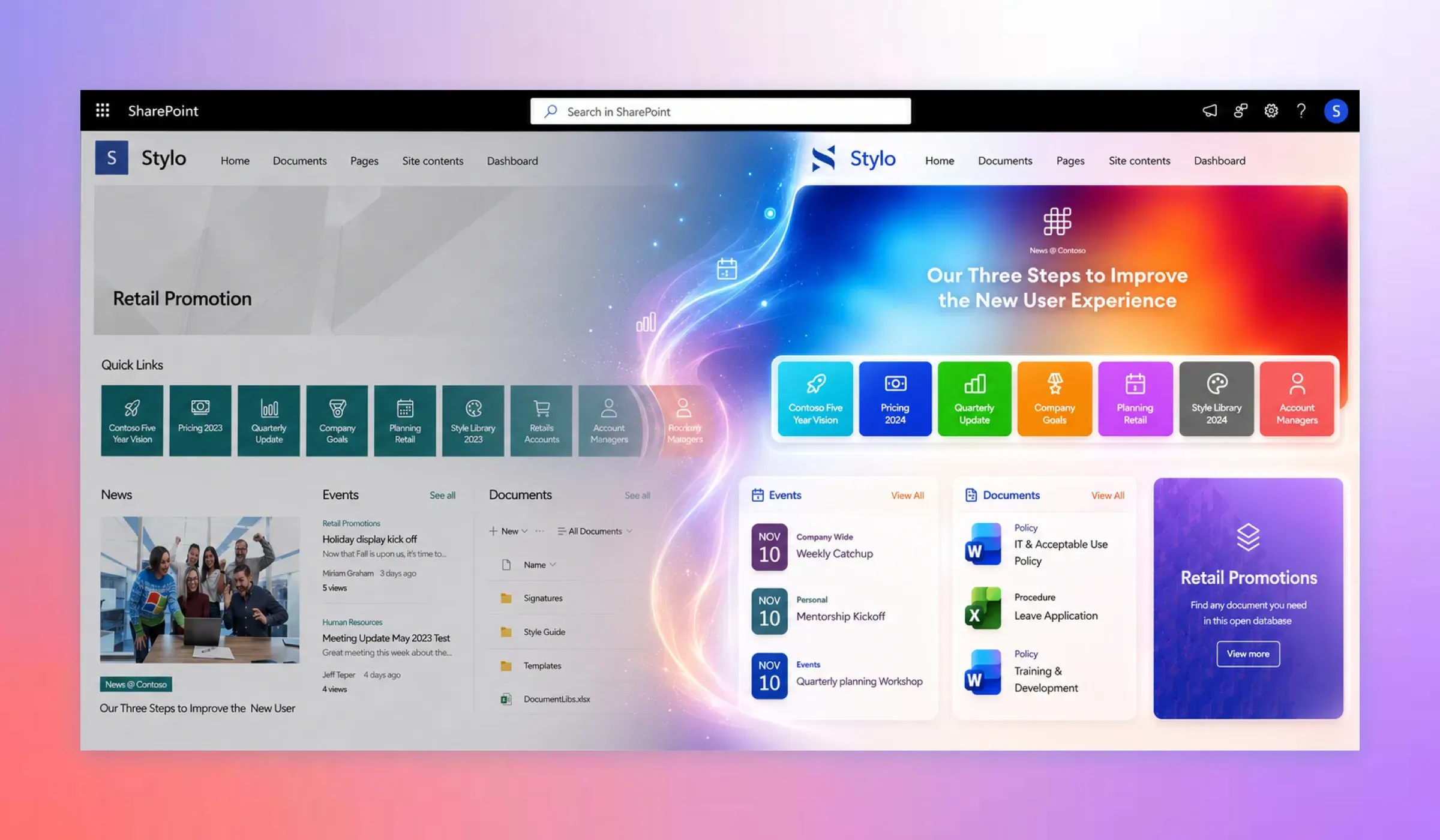
Out-of-the-box design is generic
SharePoint's default pages look like SharePoint. The standard web part layout, the default fonts, the uninspired colour scheme — left uncustomised, a SharePoint intranet tells employees nothing about their organisation's identity or culture. This is one of the most consistent complaints from organisations that have tried to build intranets on SharePoint without additional tooling.
Building a well-designed intranet requires significant effort
To create an intranet that actually looks professional — custom layouts, branded components, rich visual design — organisations typically face one of three paths: hire a developer to build custom web parts (expensive, slow), engage a SharePoint consulting firm (project-based cost, long timeline), or find a no-code design layer that sits on top of SharePoint and handles the design problem directly.
The third option is exactly the gap ShortPoint was built to fill. ShortPoint is a no-code intranet design platform for SharePoint and Microsoft 365 — it gives communications teams, IT generalists, and non-technical admins the tools to build professionally designed intranet pages without custom development. Over 200 ready-made templates, a drag-and-drop editor, and an AI Designer that generates page layouts from a plain-text prompt mean you can go from blank SharePoint site to polished intranet in days rather than months.
Governance complexity
SharePoint's permissions system is powerful but complex. Without a clear governance strategy from the start — who can create sites, how content is structured, who owns what — SharePoint environments tend to sprawl. Old sites, orphaned content, inconsistent permissions, and duplicate document libraries accumulate over time. Getting governance right at the start is critical, and it often requires specialist input.
Adoption is not automatic
The most technically sophisticated SharePoint intranet is worthless if employees do not use it. Adoption is a change management challenge as much as a technical one — and it is one that most organisations underestimate. An intranet that looks good, is easy to navigate, and has content employees actually need is one they will return to. An intranet that looks like a default SharePoint site from 2015 is one they will ignore.
How to Get Started with SharePoint
If you are approaching SharePoint for the first time, here is the practical sequence that works for most organisations.
Step 1: Access SharePoint via your M365 account
Navigate to office.com, sign in with your work account, and look for SharePoint in the app launcher. If your organisation has M365, it is already there.
Step 2: Decide your primary use case
Are you building a company intranet? Setting up a team collaboration site? Managing a document library? Your use case determines your starting point. Do not try to build everything at once.
Step 3: If building an intranet — skip the blank canvas problem
The most common mistake is starting from scratch with an empty SharePoint site and trying to design something from zero. It takes far longer than expected, and the result rarely looks professional. ShortPoint's template library gives you a professionally designed starting point — choose a template, customise it to your brand, and you have a real intranet instead of a blank page.
If you want to move even faster, ShortPoint AI Designer lets you describe what you need in plain text — your department, your content structure, your brand — and generates a page layout in minutes.
Step 4: If you need implementation help — find the right partner
Complex SharePoint projects — governance architecture, M365 integrations, large-scale migrations — often benefit from specialist input. See our guide to choosing a SharePoint consulting company for what to look for and how much it should cost.
Ready to build your SharePoint intranet without starting from scratch?
ShortPoint gives you 100+ professionally designed templates built for SharePoint — ready to customise in minutes.
Explore ShortPoint templates →What Is SharePoint: Frequently Asked Questions

Luisa Silva
Growth Manager, ShortPoint
Luisa is the Growth Manager at ShortPoint. She translates customer insights and ShortPoint solutions into practical, no-code guides for SharePoint and Microsoft 365 intranets. Focusing on intranet design, HR, knowledge hubs, and internal comms, her work is all about helping you achieve faster launches and higher adoption rates.

Ignite your vision. Install ShortPoint directly on your site, or play in sandbox mode. No credit card required.