March 2026 Snapshot
This month's Snapshot is filled to the brim with
exciting news and updates.

What's New?
ShortPoint Is About to Change How You Design Intranet Pages
You thought building stunning intranet pages with ShortPoint was already fast? We're about to make it even faster.
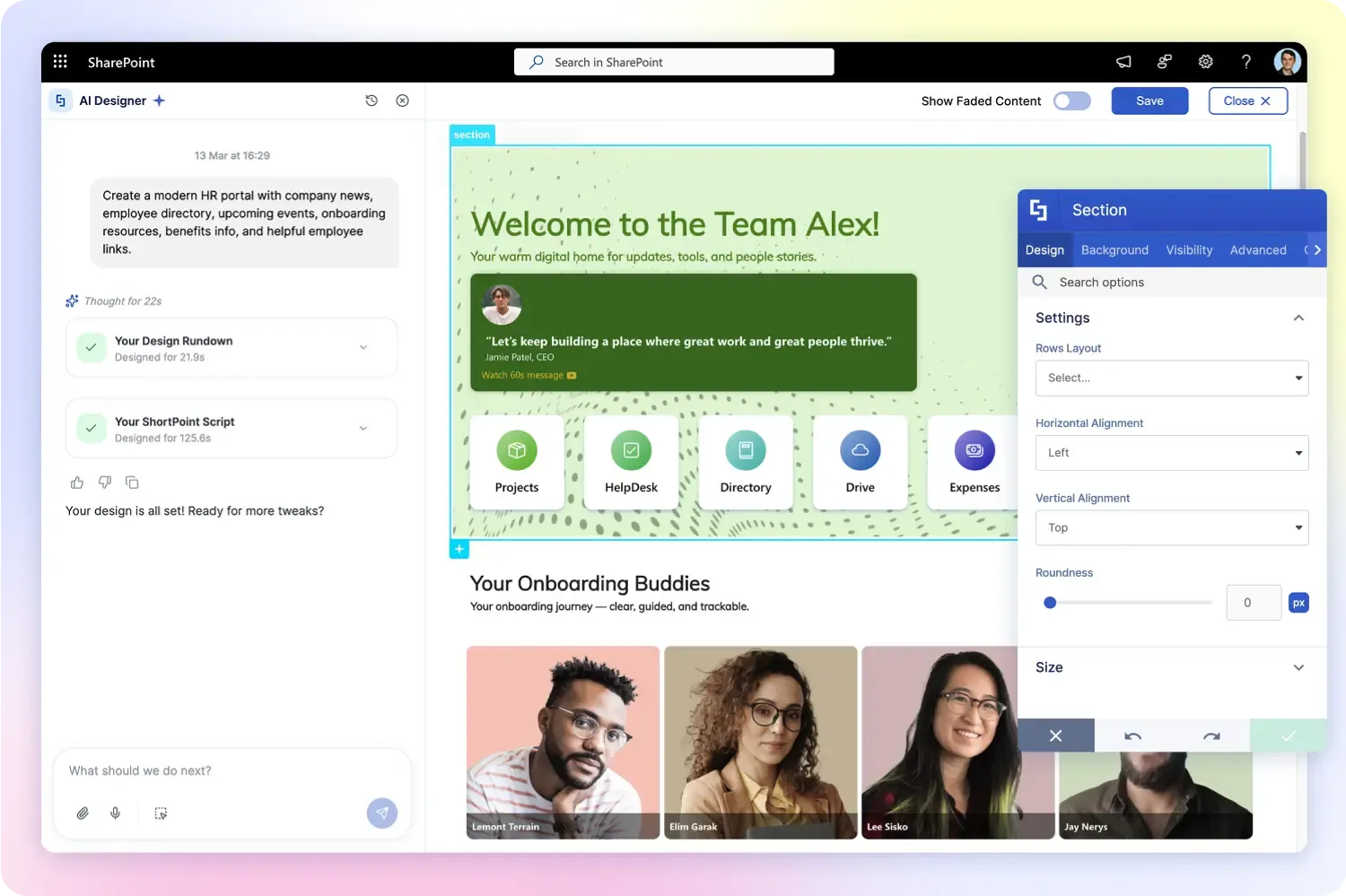
We've been busy building something amazing: the ShortPoint AI Designer. It's a brand-new tool that will change the way you build SharePoint intranet pages. Imagine describing the page you need and getting a complete, on-brand result in seconds. Just tell AI Designer what you need, and it builds it for you.
Type a prompt, speak it out loud, paste a screenshot: you are free to choose how you prefer to express your vision. Our AI Designer takes your input and generates a fully structured SharePoint page, complete with layouts, design elements, and your brand styling already applied. And because it's built right into ShortPoint's Page Builder, everything it creates is 100% customizable. You stay in control.
This isn't a content writer or a chatbot bolted onto SharePoint. ShortPoint AI Designer is a full-page design engine. One that understands our entire 80+ design element library, your Theme Builder settings, and your data sources.
Want a closer look at what's coming? Read the full introduction on our blog and get a head start on everything ShortPoint AI Designer will bring to your intranet design workflow.
Stay tuned. We'll be sharing more details on availability very soon. In the meantime, keep an eye on your inbox and our announcements channels. You won't want to miss this one.

Seven More New Design Elements Just Dropped
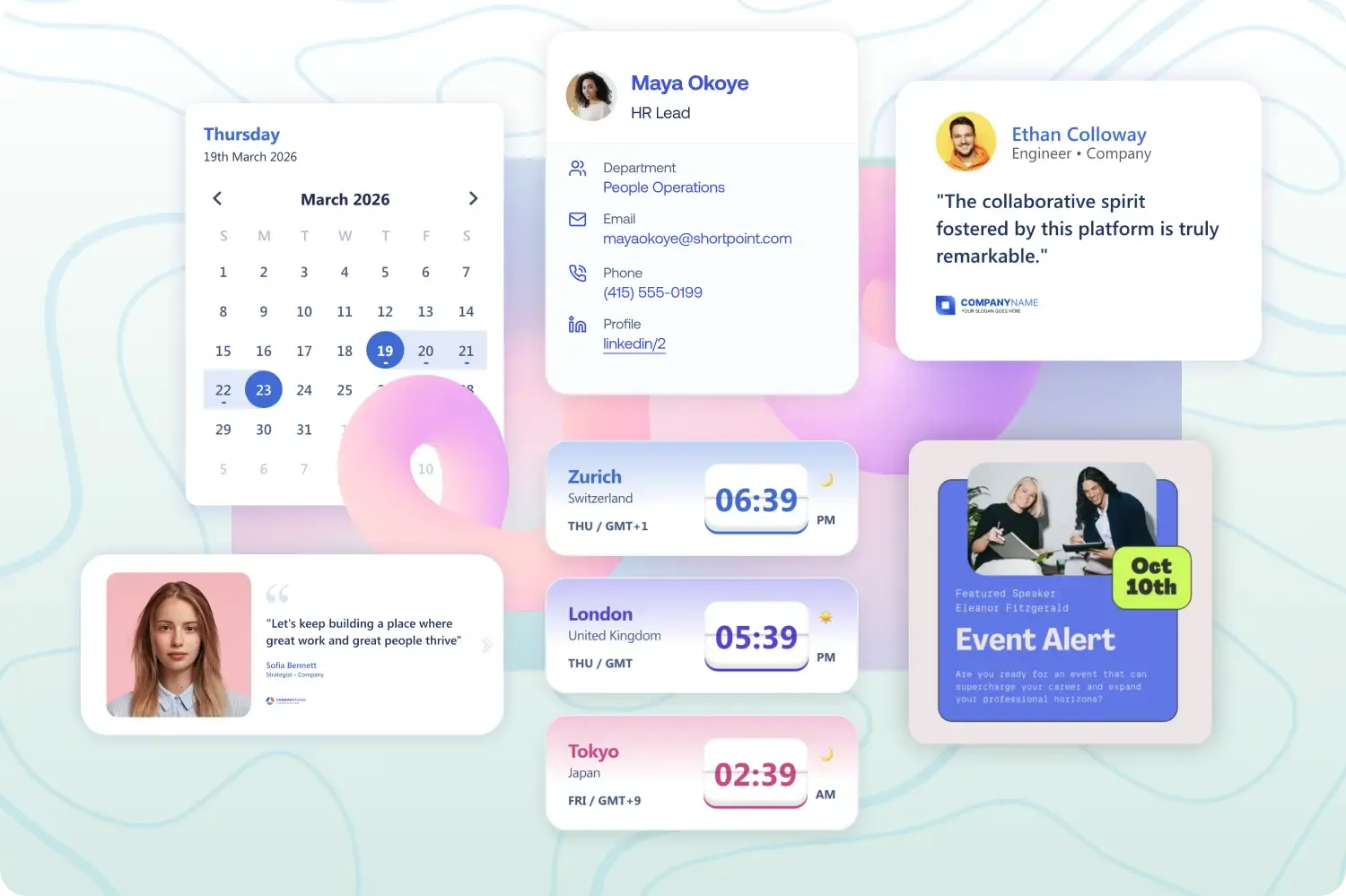
The momentum continues! Following last month's exciting release, we are thrilled to bring you the next batch of brand-new ShortPoint Design Elements. Your intranet design toolkit is expanding faster than ever, and this month, we are introducing seven highly requested features to make your SharePoint intranet more functional, beautiful, and engaging.
For organizations working across different regions, keeping everyone connected just got easier. Our new World Clock element allows you to display multiple time zones right on your page, eliminating the mental math of global scheduling. When you need to ensure critical news reaches those global teams, the bold new Announcement element provides an attention-grabbing, fully customizable way to broadcast updates and alerts so nothing slips through the cracks.
We are also rolling out powerful new ways to elevate your site's visual experience. The FlipBoxes element adds an elegant layer of interactivity, allowing cards to flip on hover to reveal extra details without cluttering your layout. Additionally, if your team relies on external design tools, our seamless Canva integration lets you embed your graphics directly into SharePoint, upgrading your intranet with the beautiful designs you've already created.
To drastically improve daily usability and organization, we've introduced the much-anticipated Breadcrumb and Calendar elements. Breadcrumbs automatically generate intuitive navigation trails, preventing employees from getting lost in deep site content. Meanwhile, the beautifully designed Calendar makes it easy to showcase upcoming company events, departmental deadlines, and important milestones to keep everyone perfectly aligned.
Finally, celebrating your company culture is simpler than ever with the new Testimonials element, which gives you an elegant layout to highlight employee shoutouts and success stories.
We invite you to dive into the details of these new additions. Click on any of the features above to read their dedicated guides and start building even better pages today!

Search and Filter Toolbar Hits Your Favorite Design Elements
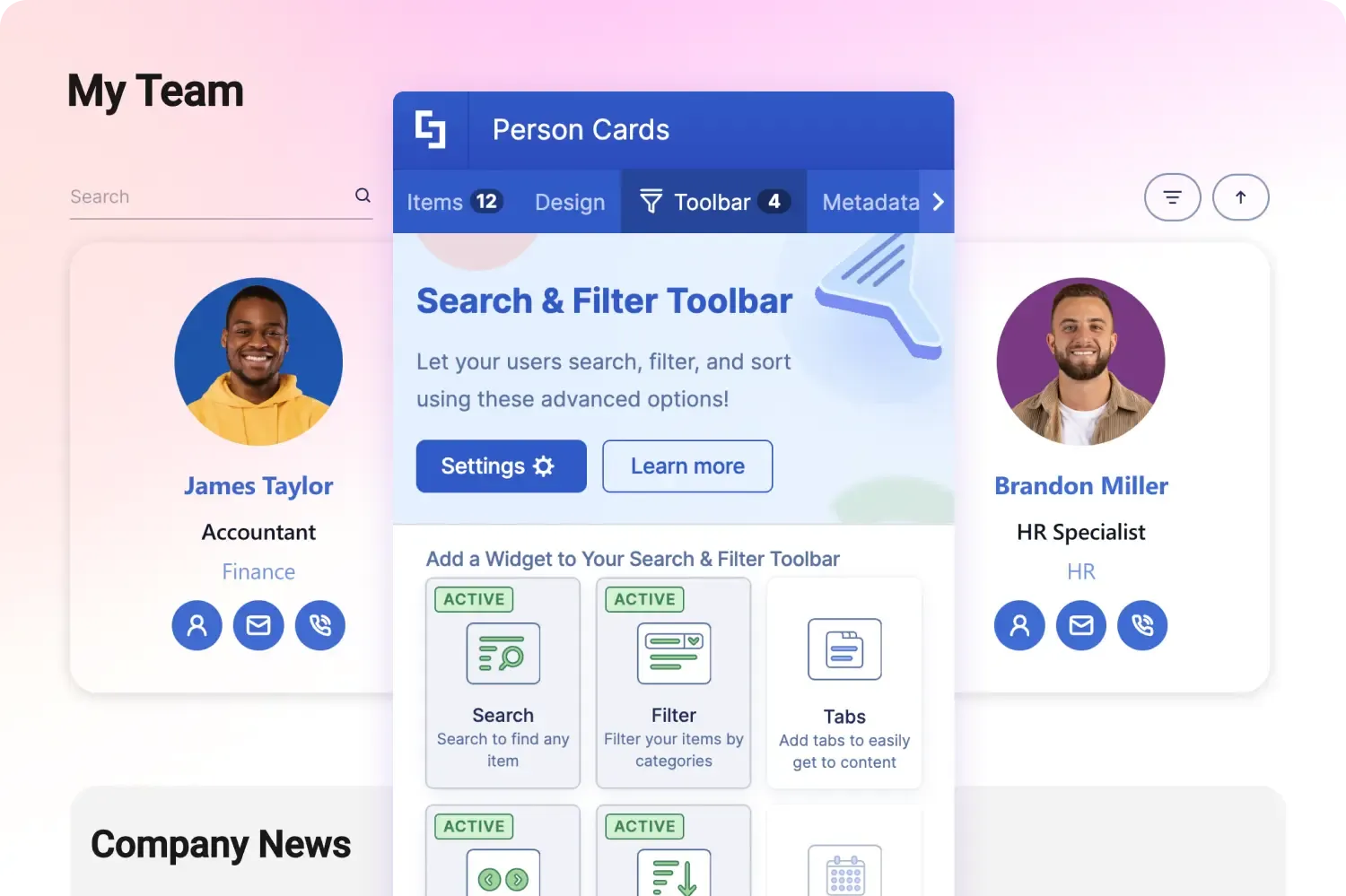
You already use the Search & Filter Toolbar to manage large Lists and Grids. Now, you can apply that same organizational power to eight more of your favorite Design Elements. If you are running ShortPoint SPFx version 8.8.2.0 or higher, you can attach Search Bars, Dropdown Filters, Tabs, and Pagination directly to your FAQs, Accordions, Toggles, Tabs, Person Cards, News Cards, Icon Boxes, and Quick Links.
This expansion unlocks completely new ways to structure your intranet. For instance, you can now build the ultimate employee directory by connecting your Person Cards to your Azure AD or SharePoint list, and then adding a Search Bar and Department Filter. Your users can look up a colleague's email or phone number in seconds without clicking through endless organizational charts. You can apply this same logic to create clutter-free policy hubs. If you have a massive list of HR guidelines inside an Accordion or FAQ element, add a live Search bar. An employee looking for the maternity leave policy can type "leave," and the exact accordion will drop down instantly.
Managing company updates is also much easier. If you have a high volume of company news, you can hook up your News Cards, add a Date Filter, and let your employees easily browse past announcements without leaving the homepage.
To get started, open the settings of any of these newly supported elements, navigate to the Toolbar tab, and start adding your widgets. You can even use the Metadata tab to create custom tags for more precise filtering.

Articles
New Articles
- New Design Elements Articles
- Discover 7 New ShortPoint Design Elements for your SharePoint Site
- World Clock Design Element
- Announcement Design Element
- FlipBoxes Design Element
- Canva Design Element
- Breadcrumb Design Element
- Calendar Design Element
- Testimonials Design Element
- How to Get Your Canva Smart Embed Link
- How to Add SharePoint Icon Images to ShortPoint Design Elements
- Known Issue: Image with Negative Margin Values Gets Hidden When the Roundness Feature is Applied
Updated Articles

Tech Tip
Level Up Your Project Tracking with Tabs and Filters
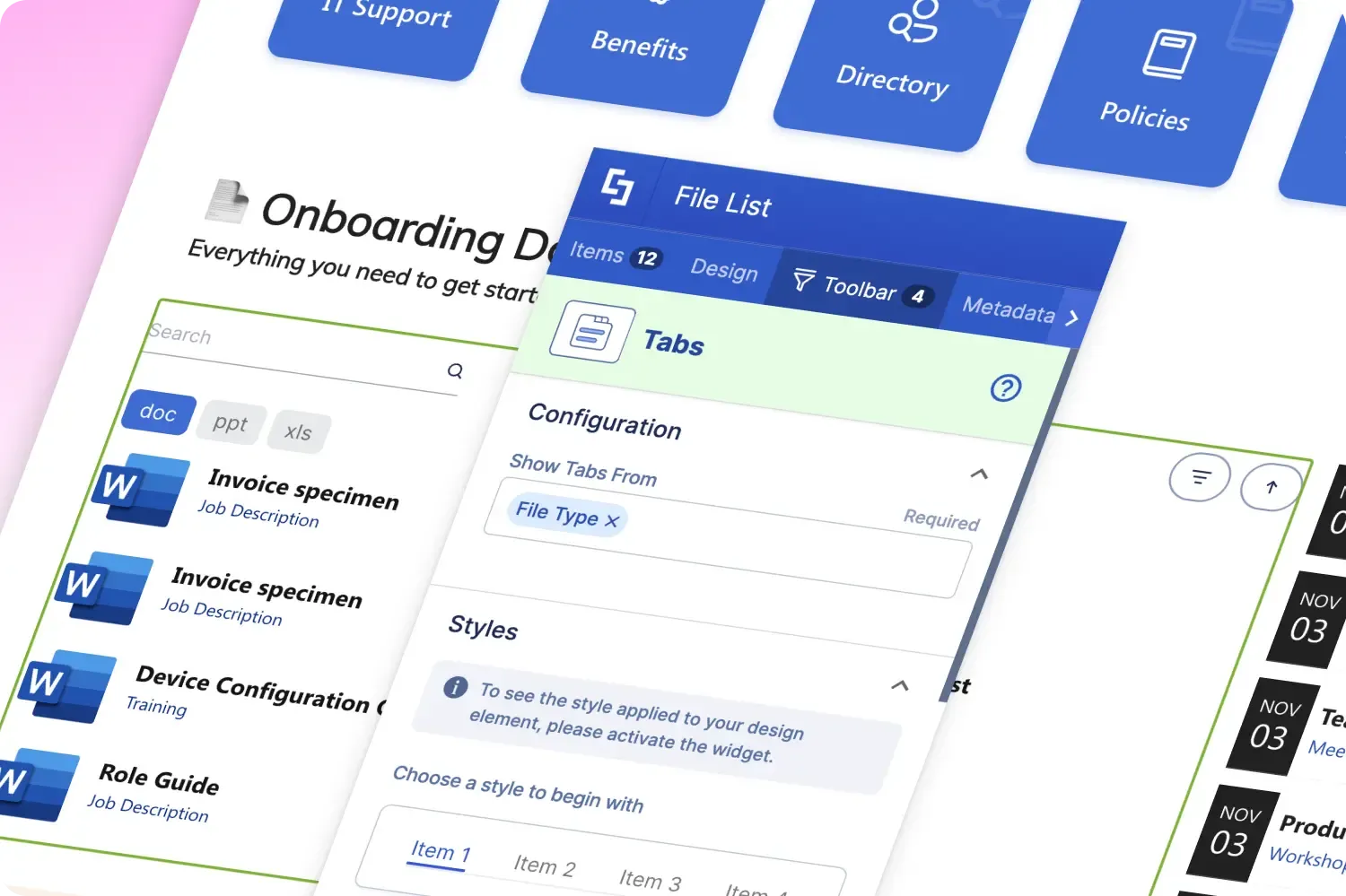
Tracking projects in SharePoint usually means staring at a massive, overwhelming list of rows and columns. But what if you could give your team a clean, app-like dashboard that lets them switch contexts instantly without reloading the page?
The secret is the "Quick View" combo: pairing the Tabs widget with a Filter in your Search & Filters Toolbar. It is the perfect setup for a Project Progress list.
How to build it:
- Insert a Design Element (like News Cards or a Simple List) and connect it to your SharePoint Project List.
- Open the Design Element Settings, go to the Toolbar tab, and activate the Tabs widget.
- Map it to your "Project Status" column (e.g., Not Started, In Progress, Completed).
- Now activate the Filter widget and map it to your "Department" or "Assigned To" column.
What you get:
Instead of doom scrolling, a manager can click the "In Progress" tab and use the dropdown filter to select "Marketing." Instantly, the page transitions to show only the active marketing projects. You've just built a highly organized, professional dashboard in under five minutes.
Working with massive project lists:
Managing hundreds of active projects? You can easily scale this dashboard so it never feels overwhelming. Just jump back into the settings Toolbar tab and activate the Search and Pagination widgets. Now, your team can instantly hunt down a specific project by name, and your dashboard remains lightning-fast by breaking huge lists into neat, bite-sized pages.
And this setup isn't just for projects! Try applying this same combination to build an Employee Directory, a clean IT Ticketing portal, or a highly organized Corporate Policy hub. Explore the possibilities now!