June 2026 Snapshot
This month's Snapshot is filled to the brim with
exciting news and updates.

What's New?
4 Game-Changing ShortPoint Features You Don't Want To Miss
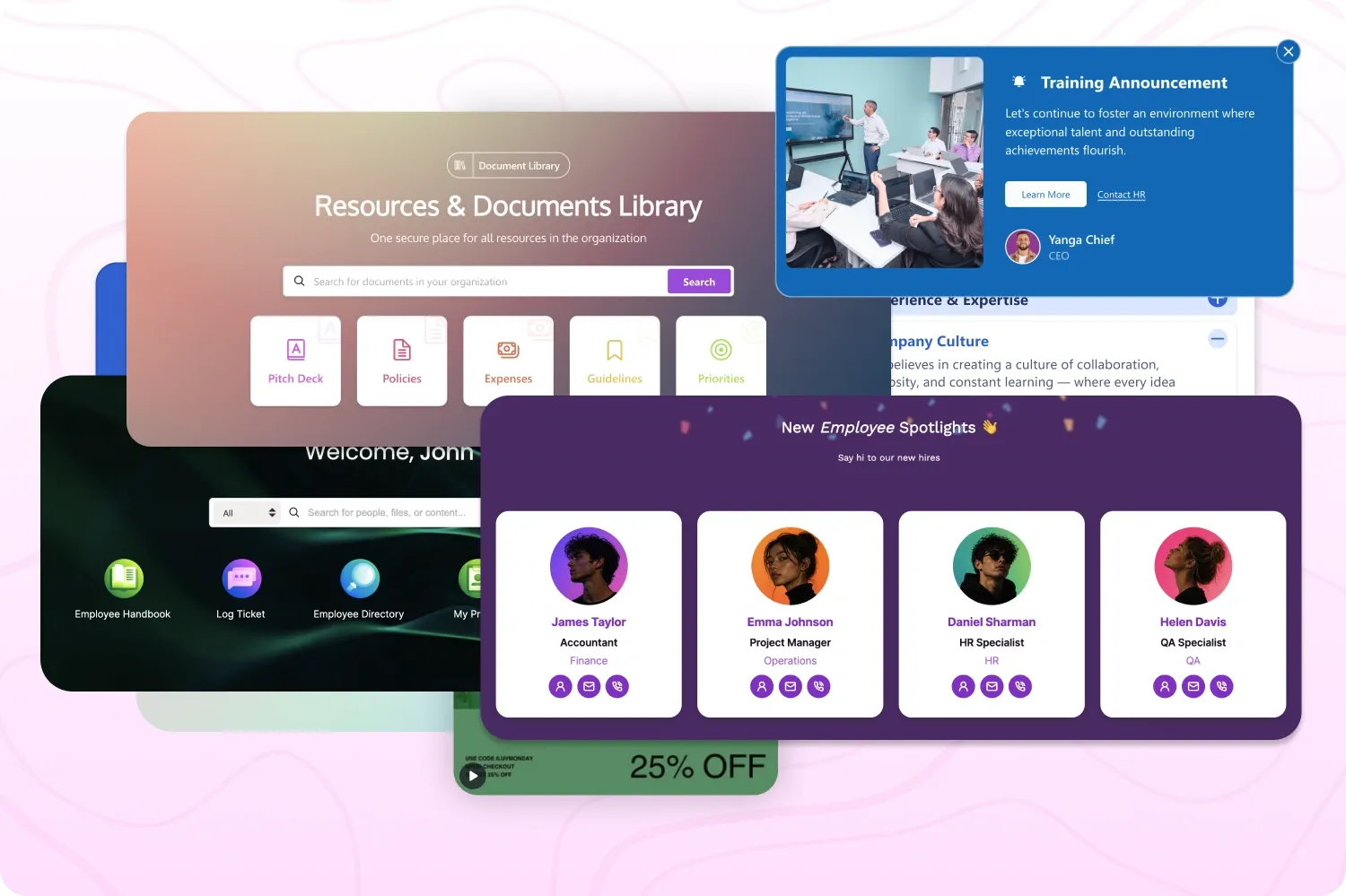
To help you unlock the full potential of your SharePoint site, ShortPoint continues to create features that make page design smooth, highly customizable, and intuitive.
In this round-up, we have compiled four new features from our minor releases that you may have missed. While small in nature, these powerful features are sure to make a big splash on user navigation, team communication, and the overall aesthetic appeal of your SharePoint pages.
Let's dive into each one below:
Fine-Tune Your Search Scope
Finding information quickly is the backbone of any great intranet. With the Search Box Design Element, you don't have to settle for a basic, one-size-fits-all search function. Instead, you can modify the search scope to control exactly where queries look for information.
By navigating to the element's configuration panel, you can choose from six flexible coverage levels:
- Whole SharePoint Tenant: Scan every single site, library, and list across your entire organization.
- Current Site: Keep searches hyper-focused strictly within the boundaries of the page your users are currently visiting.
- Specific SharePoint Site: Target one exact destination, like a designated project area or team archive.
- Specific Sites Only: Restrict the boundaries exclusively to selected hubs.
- All Sites Excluding: Run a comprehensive search while safely leaving out background, sensitive, or archived locations.
- External Site: Bridge internal and external worlds by pointing the search box toward vital partner portals or knowledge bases outside your tenant.
Want to give this a try? Check out How to Modify the Search Scope of the Search Box Design Element .
Add Custom Properties to Person Cards
The Person Cards Design Element is a beautiful out-of-the-box solution for showcasing your team members with standard fields like Name, Department, and Email. But what if your organization needs to showcase details unique to your culture?
ShortPoint allows you to do exactly that! You can add up to three custom properties to your Person Cards. Simply head to the Advanced tab, expand Custom Properties, and define your custom title and visual icon. For a detailed guide, go to How to Add Custom Properties to the Person Cards Design Element .
Bring Custom Icon Images to SharePoint
While ShortPoint comes packed with an expansive icon library, your branding guidelines might require something highly specific. If you want to use custom brand symbols or custom vector art within your Tiles, Image Lists, or Quick Links, ShortPoint gives you convenient ways to introduce custom icon images to your layouts. Simply upload or paste the icon image URL into the image field and you're ready to go.
Ready to give this feature a spin? Head on over to How to Add SharePoint Icon Images to ShortPoint Design Elements .
Create Pop-Up Announcements
Important corporate notices, IT alerts, or celebration banners can easily get lost when they sit flatly on a busy homepage. The Announcements Design Element solves this problem with an interactive twist: the PopUp feature.
Instead of keeping news confined to a static section, turning on the PopUp option instantly shifts your announcement into a prominent lightbox modal when a user loads the page. Want to create Pop-ups? Check out How to Create Pop-Up Announcements in SharePoint .
Ready to Build?
Whether you're narrowing down search paths or making your company newsletters pop, these features give you the flexibility to build an intranet your team will love using. Jump into your SharePoint Page Builder today to try these enhancements out yourself!
Stay on the loop: Be sure to check our Release roadmap, so you don't miss out on any new features. We're always keeping it fresh and updated with any major or minor releases.

AI Designer
Is Your Data Safe with ShortPoint AI Designer?
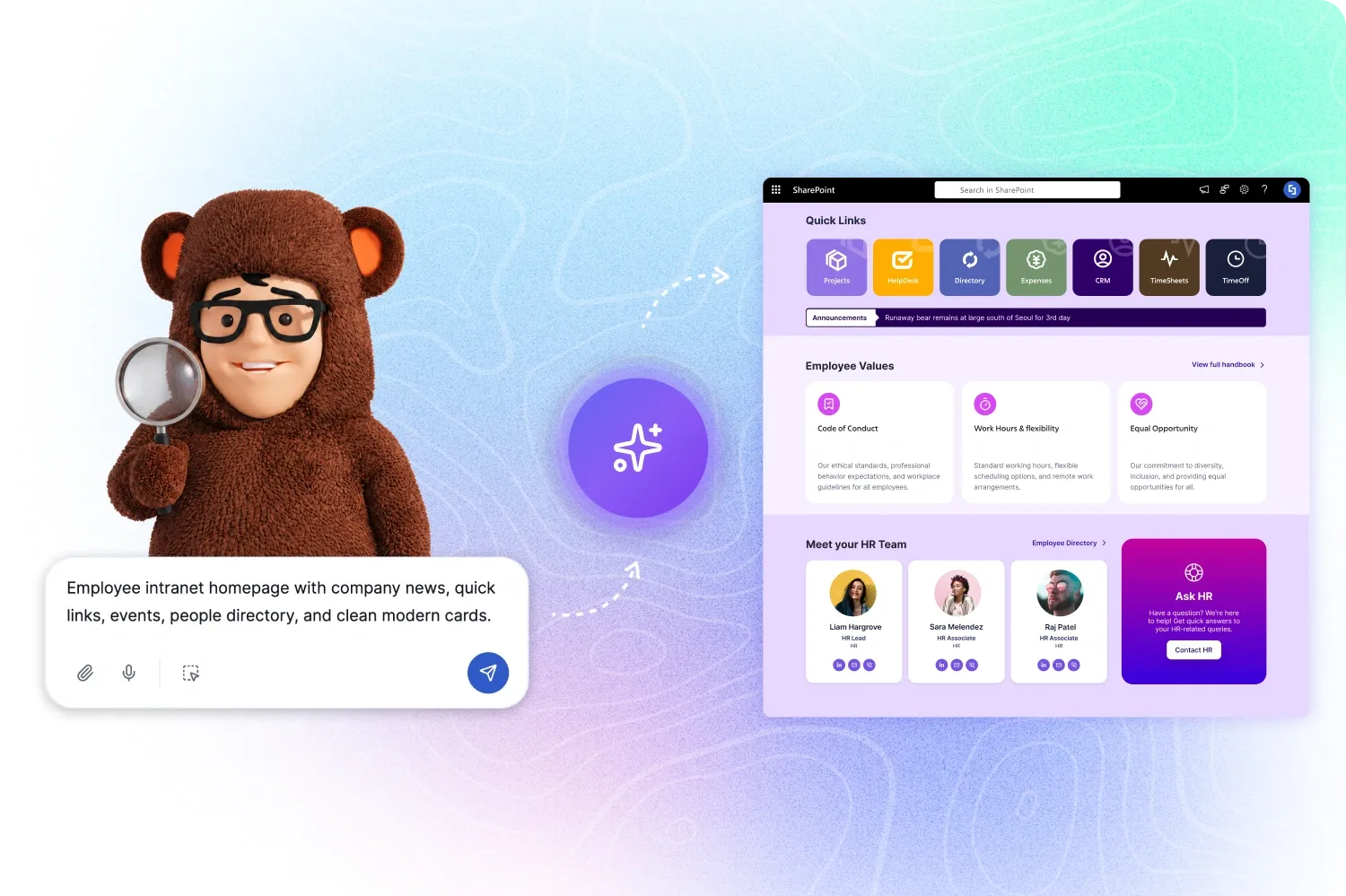
The short answer is yes and that was the plan from day one. ShortPoint AI Designer never reads, saves, or learns from the actual content of your SharePoint sites, files, or documents. The AI can't go wandering through your environment on its own to pull information it wasn't asked for. When it does need something, like a list of your document folders to set up a page, it works through your own logged-in session, so it only ever sees what you can already see. The only things it works with are the instructions you type and the design it hands back, plus a few basic usage counts. And it's never trained on any of it: neither ShortPoint nor the technology provider behind the AI uses your instructions or designs to teach their systems.
You also decide whether your typed instructions and the AI's replies are kept at all. Your ShortPoint Admin manages a single on/off setting (called Data Collection) that applies to everyone in your organization. Leave it on and ShortPoint keeps a history of your AI conversations, which makes it easy to revisit past designs and lets the support team help if something doesn't come out right. Switch it off and none of that wording is stored. Your prompts are used in the moment and then dropped. It's one switch, set once, so you can match how AI Designer handles information to whatever your organization's policies require.
That's privacy by design: your content stays where it belongs, and you stay in control of the rest. Whatever you choose, your information is encrypted every step of the way, both while it's moving between systems and while it's stored. We've just refreshed the ShortPoint Privacy Policy with a section dedicated to AI Designer, and we have a detailed article ( How ShortPoint AI Designer handles data privacy and security ) if your security or compliance team wants the full picture. Our team will be happy to walk anyone through the details. Just reach out at privacy@shortpoint.com or visit the Trust Center.

Articles
New Articles
- How to Filter Outlook Emails Using a Search Term in SharePoint
- How to Show Shared Items in SharePoint
- How to Create a Modern Picture Library in SharePoint Online
- How to Show Outlook Emails of a Specific User in SharePoint
- How to List SharePoint Sites of Users Using the REST API Connection
- How to Show Teams Channel Info in Your SharePoint Site
- How to List Direct Reports of a Specific User in SharePoint
- How to Get the Teams Channel ID
- How to Find the Microsoft Teams ID
- How to Get the OneDrive File ID
Updated Articles
- Drop Cap Design Element: How to Create a Drop Cap Letter in SharePoint
- Note Design Element: How to Create a SharePoint Note
- Toggles Design Element: How to Add Toggle Control in SharePoint
- Popover Design Element: How to Apply Online Text Formatting in SharePoint
- Getting Started with ShortPoint Footer for SharePoint
- How to Connect a SharePoint Image Library to a ShortPoint Design Element

Tech Tip
How To Fix An AI-generated Page Without Breaking It
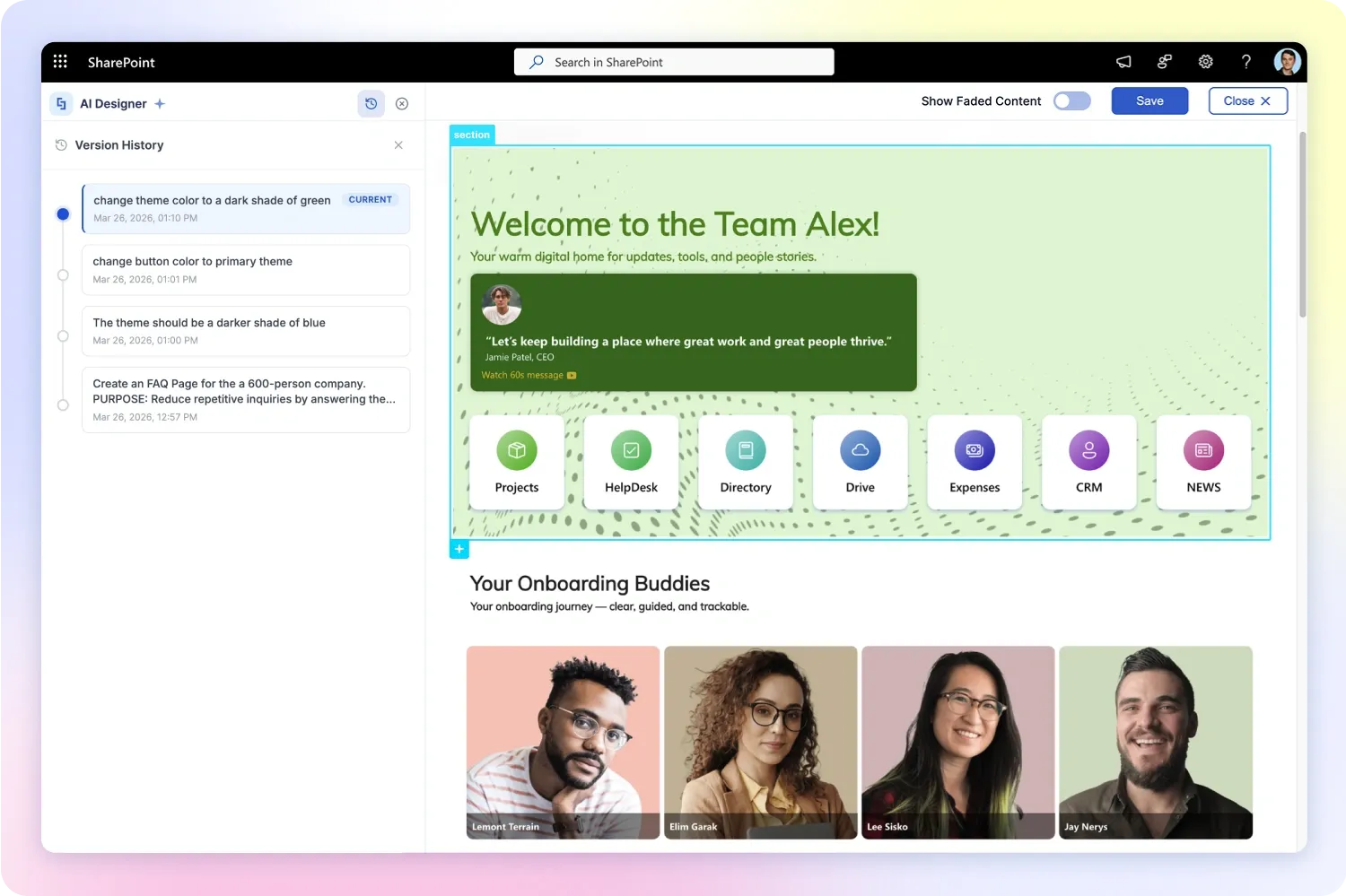
We've all had that moment: AI Designer builds your page, you look it over, and it's so close. Just a couple of things you'd tweak. Good news! You don't have to redo the whole thing. Two AI Designer features have your back here. Select and Edit lets you change one piece exactly the way you want, and Version History lets you undo anything you change your mind about. Think of them as your safety net for happy experimenting.
Before you start: make sure you're on the latest version of ShortPoint with AI Designer enabled and an active Pro or Enterprise license. Not set up yet? You can start a free trial and be building with AI Designer in minutes. You'll also want a page open and ready in Page Builder to play with — an AI-generated page that's almost there, or any existing ShortPoint page you'd like to fine-tune. Got that? Let's tidy it up.
Change one thing at a time with Select and Edit . When a page is 90% there, you don't need to start over to fix the last 10%. Just click the Select and Edit icon, click the one element you want to change, a section, a card grid, a banner, and tell it what you'd like. Only that piece updates, and everything else stays exactly where it is. Also, Select and Edit isn't only for AI-built pages. You can use it on any ShortPoint page, including ones you designed from a template or from scratch. Just open the page, select an element, and tell AI Designer how to change it. Here are three handy ways to use it:
- Reshape a single section. Say your quick-links row came back with three tiles but you need four. Select it and try: "Add a 'Support' tile with a headset icon." Your hero, news feed, and directory tiles won't budge.
- Plug in your live data. Got a document area still showing placeholders? Select it and try: "Connect this list to our HR Policies library." AI Designer wires up that connection for just that element.
- Make it feel like yours. A card grid looks close but a touch off? Select it and try: "Round the card corners, use our brand color for the buttons, and tighten the spacing." The rest of the page keeps its look.
Changed your mind? Roll it back with Version History . This is the part that lets you relax. Every time AI Designer builds or updates a page, it quietly saves that version right alongside the page in SharePoint. You can browse your past versions, peek at how each one looked, and pop back to any of them with a single click. So if a round of edits wanders somewhere you don't love, you're never stuck. Just hop back to the version you liked and keep going. And because your history rides along with the page, it'll still be waiting for you tomorrow, next week, or whenever you return to it.
Note: Version history depends on your AI conversations being saved. If your organization has the Data Collection setting turned off, past versions aren't stored, so the rollback step above may not be available to you. Not sure which setting you're on? Your ShortPoint Admin can let you know.
Put together, these two make editing feel low-stakes and a little fun: make a precise change with Select and Edit, and if it's not quite right, Version History brings back exactly what you had. No regeneration roulette, no lost work, no starting from scratch.
Want to go deeper? Browse the complete AI Designer knowledge base for step-by-step guides on Select and Edit, Version History, and connecting elements to live data.