Browse news and announcement templates
news and announcement templates
 Monthly Digest News & Announcement
Viewing
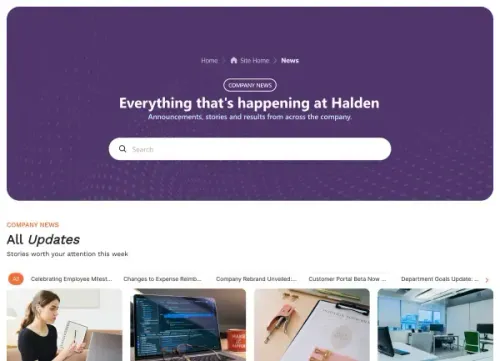 Event Updates News & Announcement
Viewing
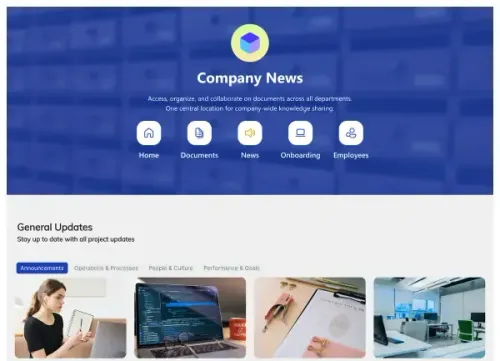 Newsroom Hub News & Announcement
Viewing
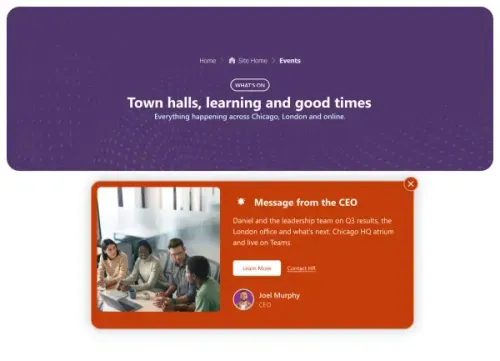 Events Center News & Announcement
Viewing
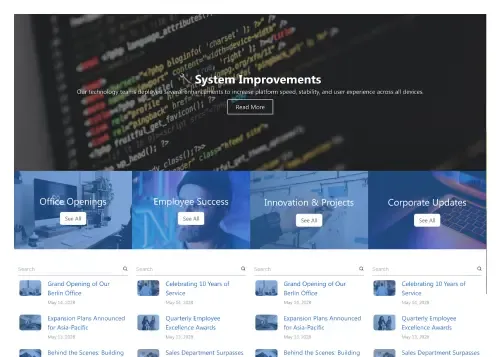 Workplace News News & Announcement
Viewing
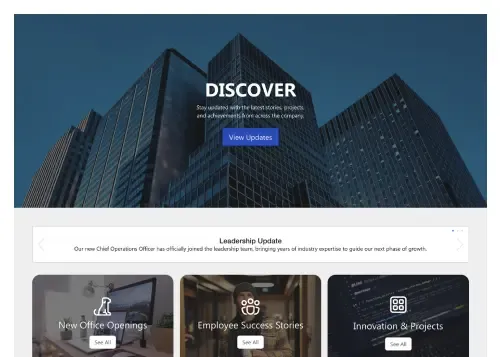 Internal Wire News & Announcement
Viewing
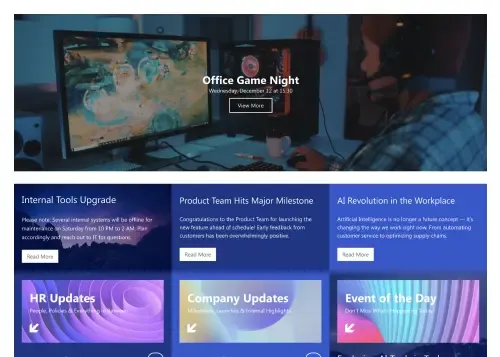 Headlines Hub News & Announcement
Viewing
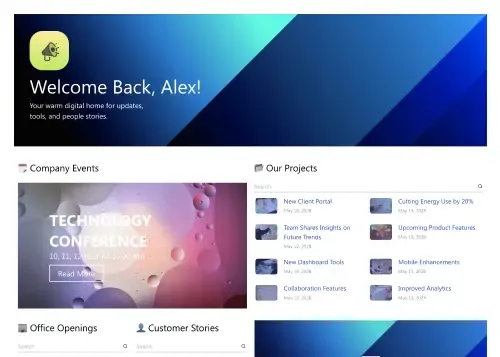 Bulletin Board News & Announcement
Viewing
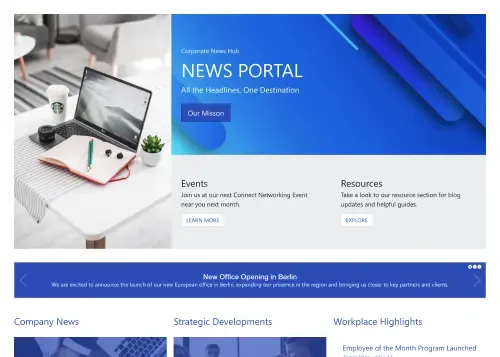 News Desk News & Announcement
Viewing
 Daily Brief News & Announcement
Viewing
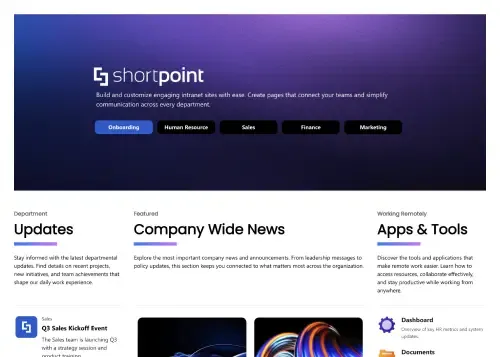
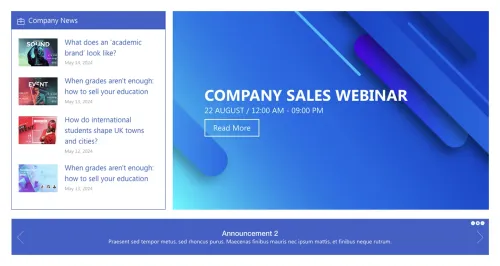
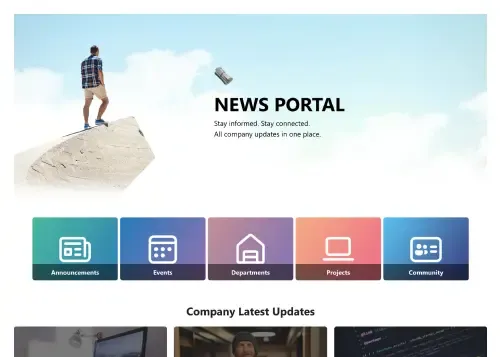
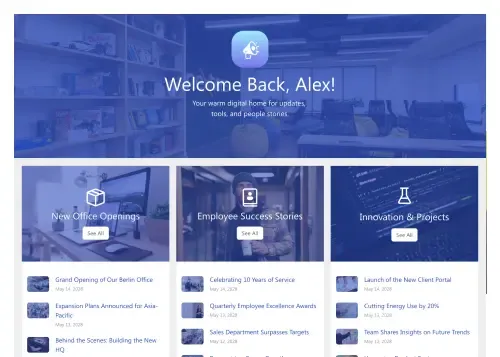
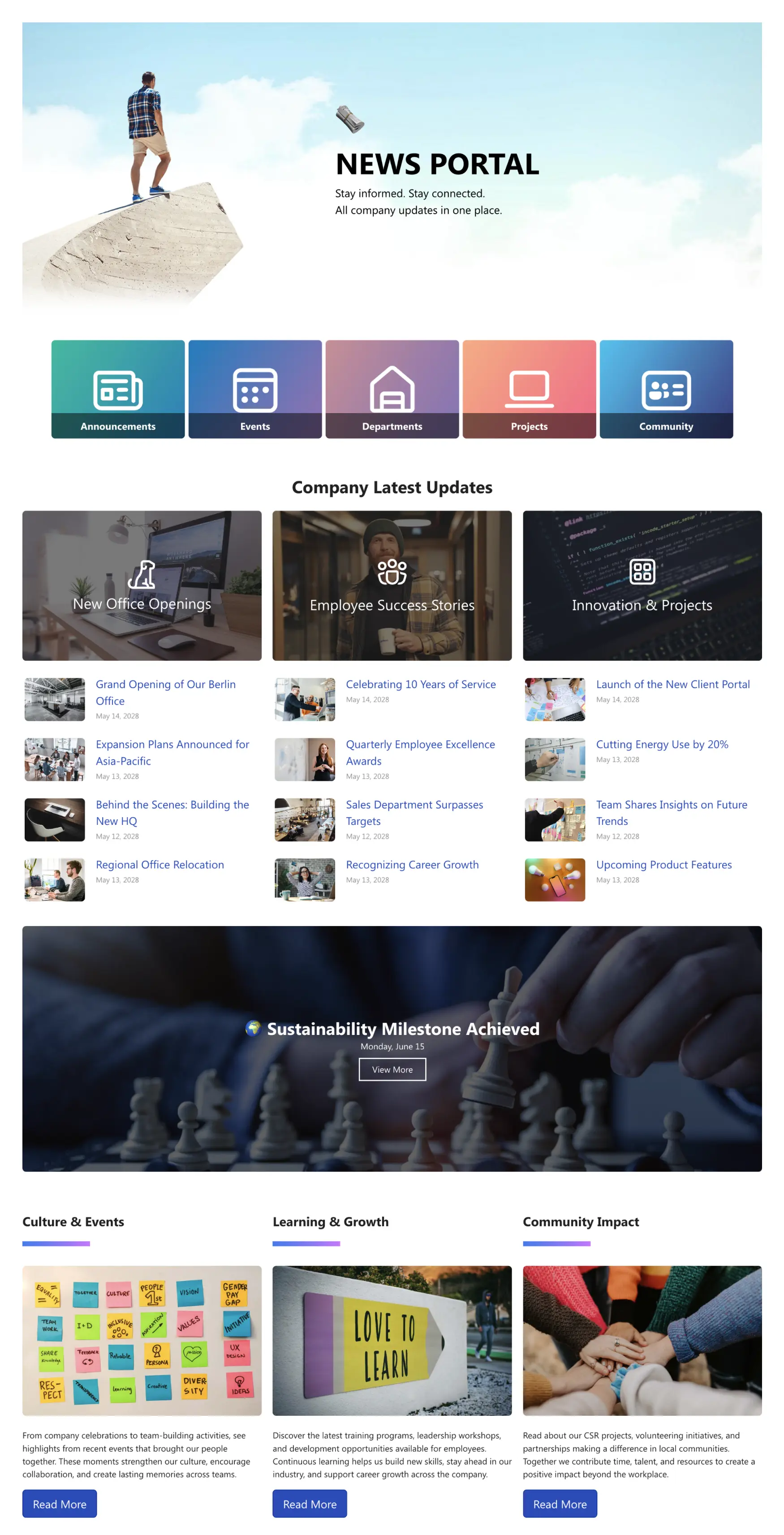
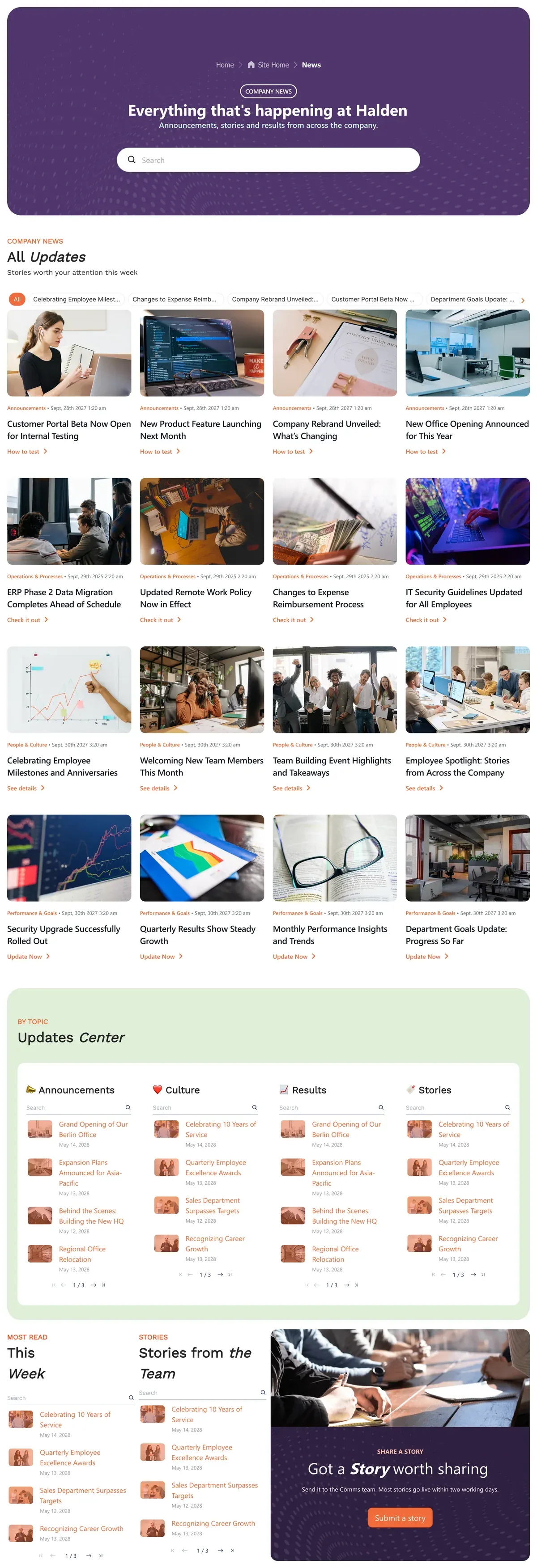
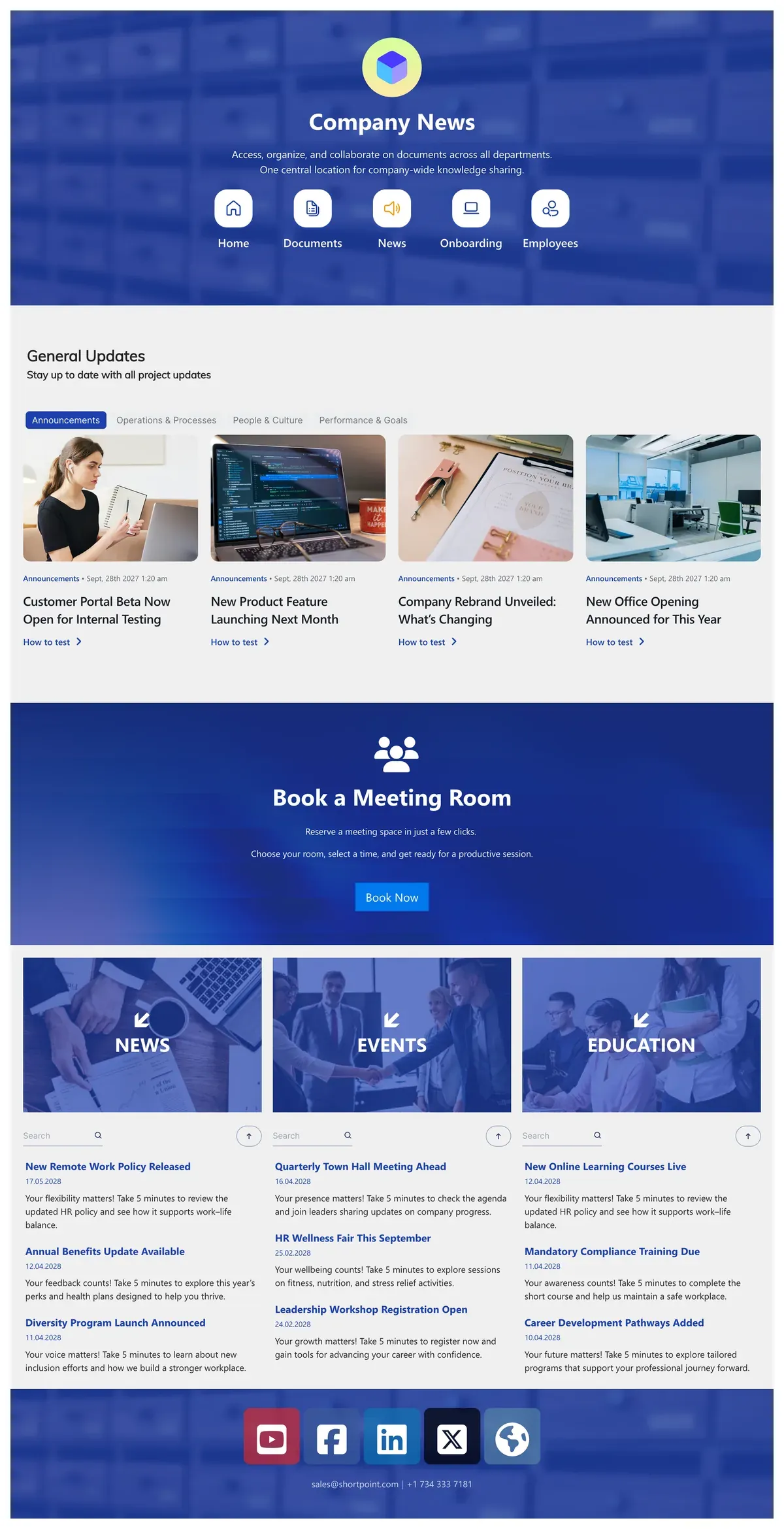
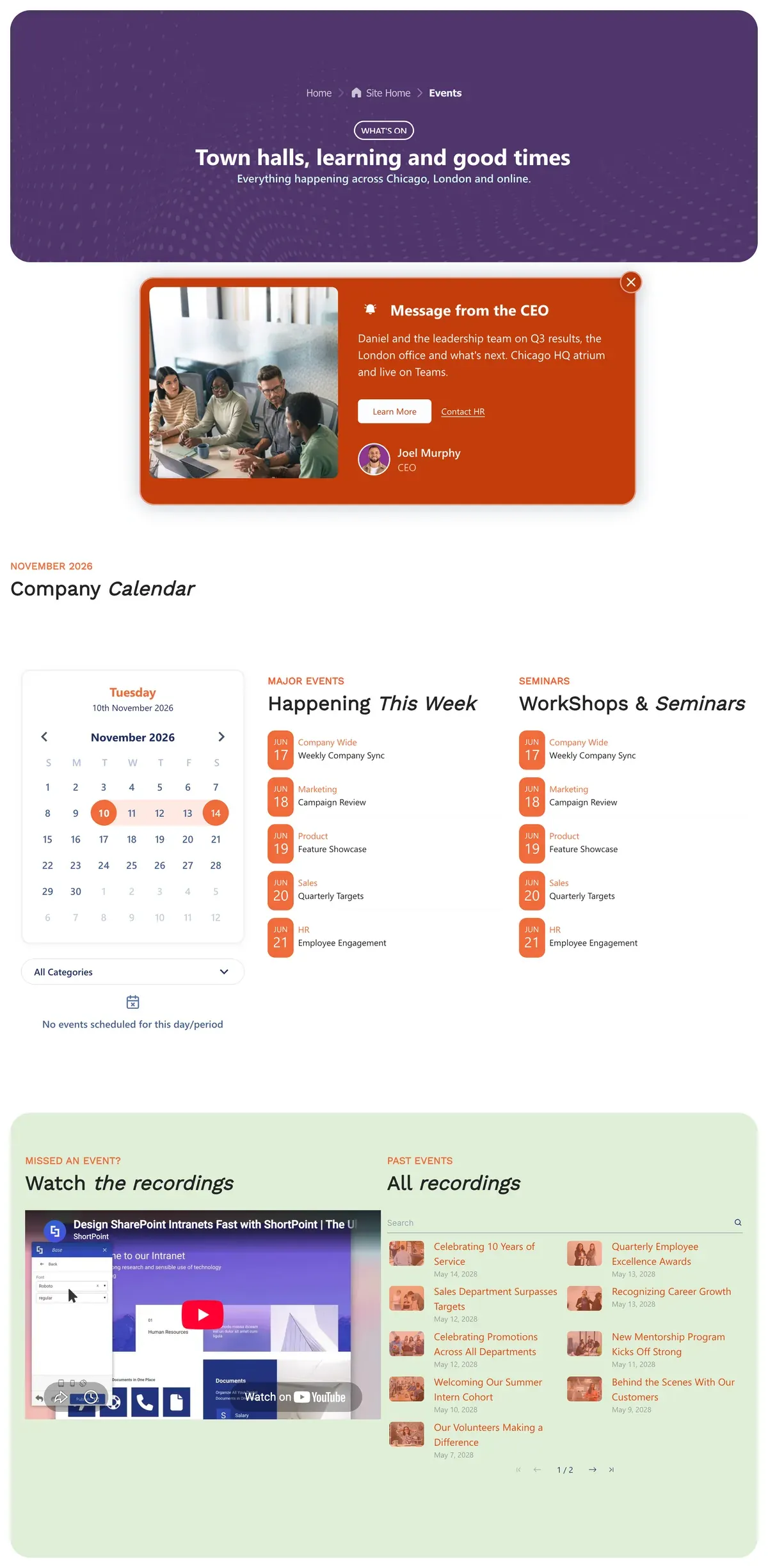
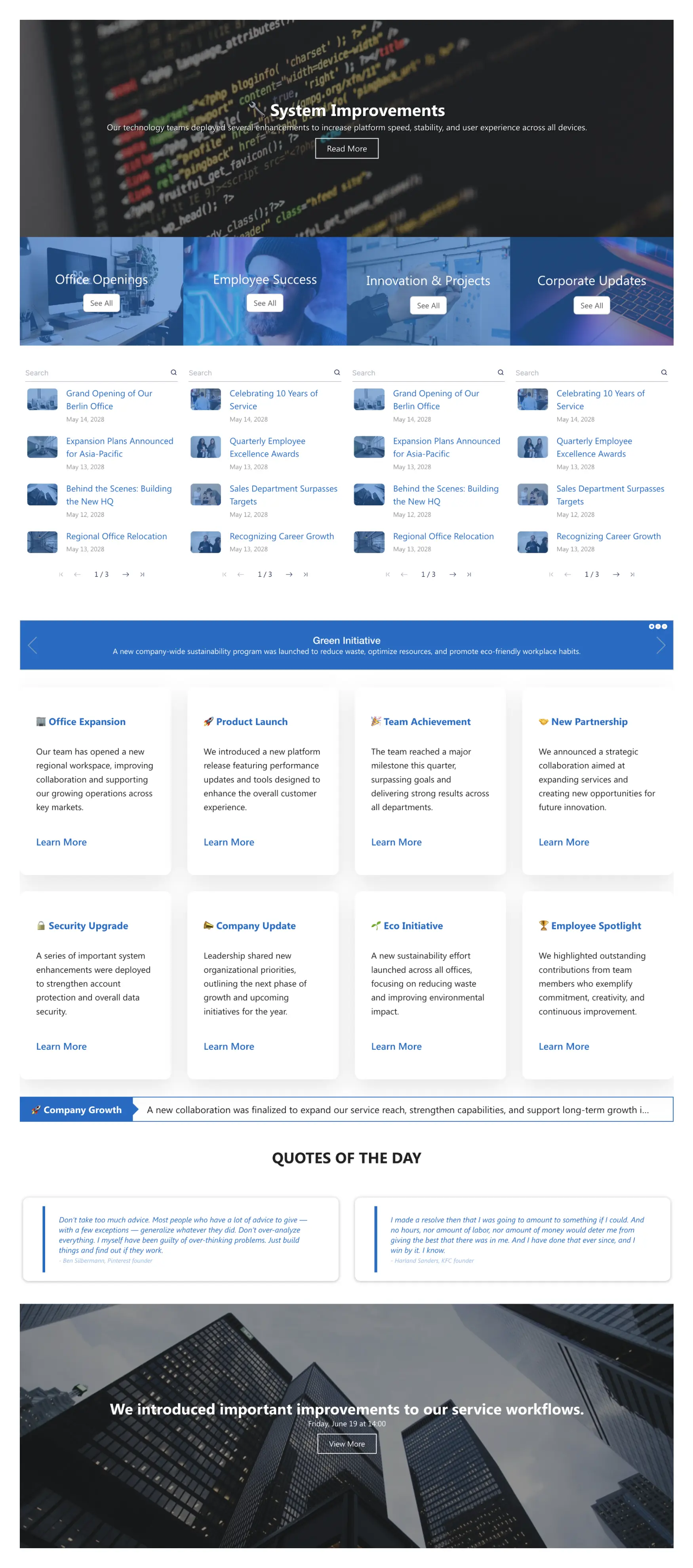
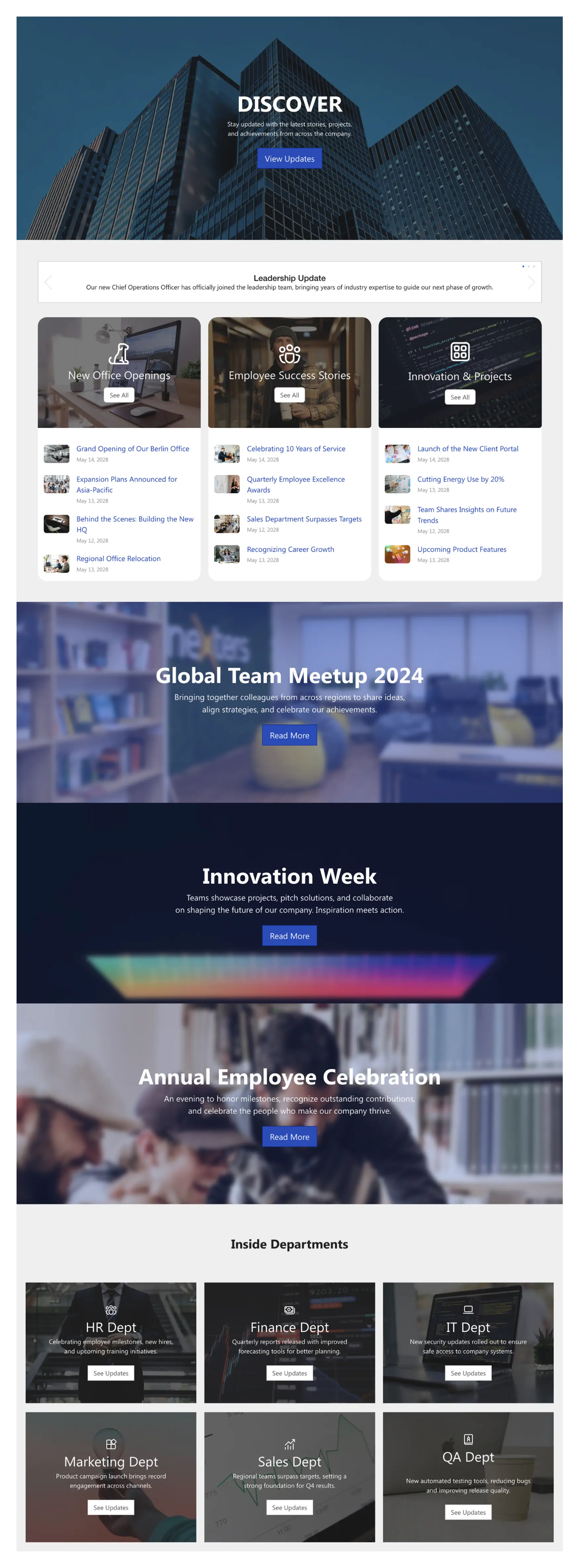
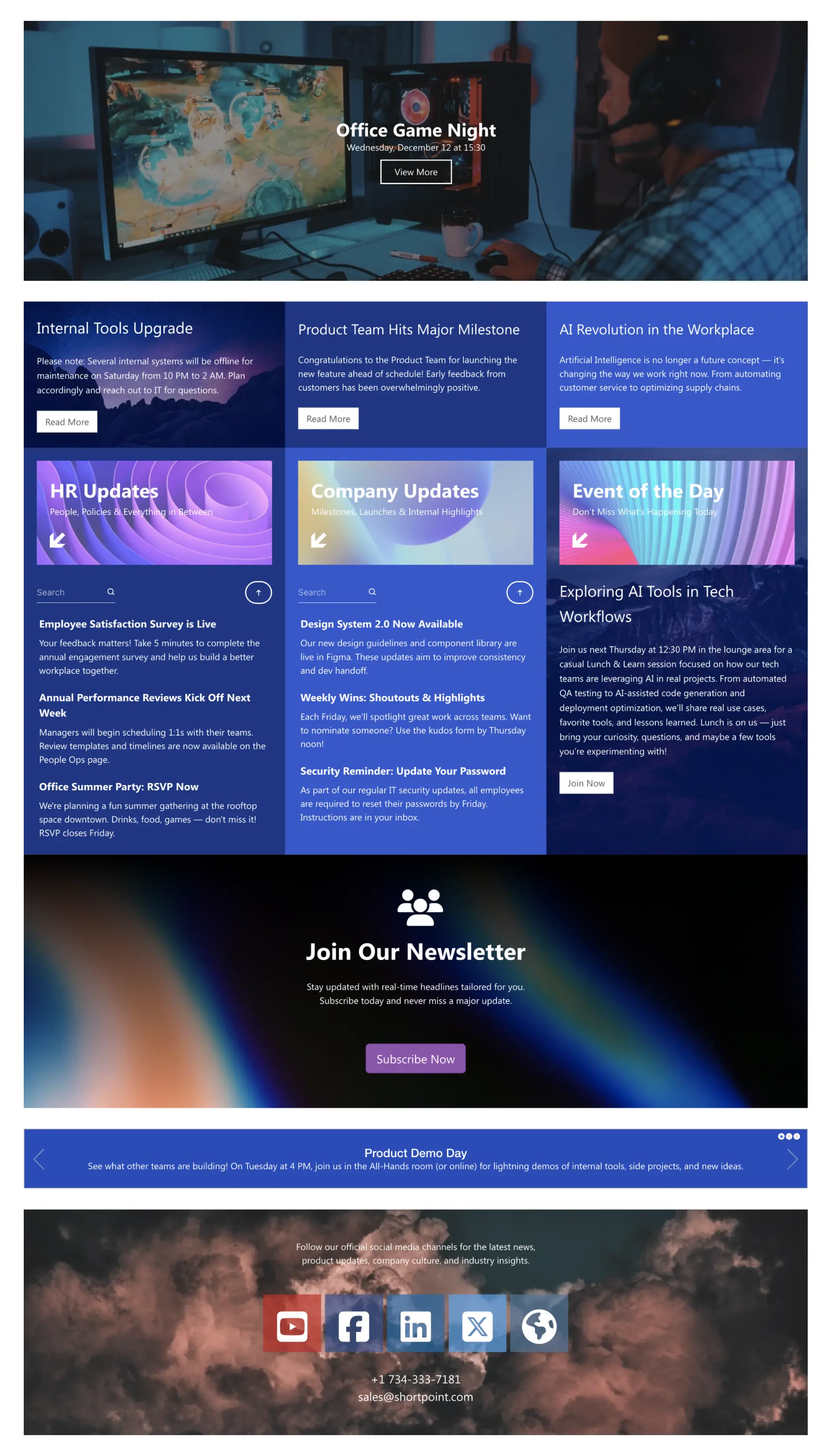
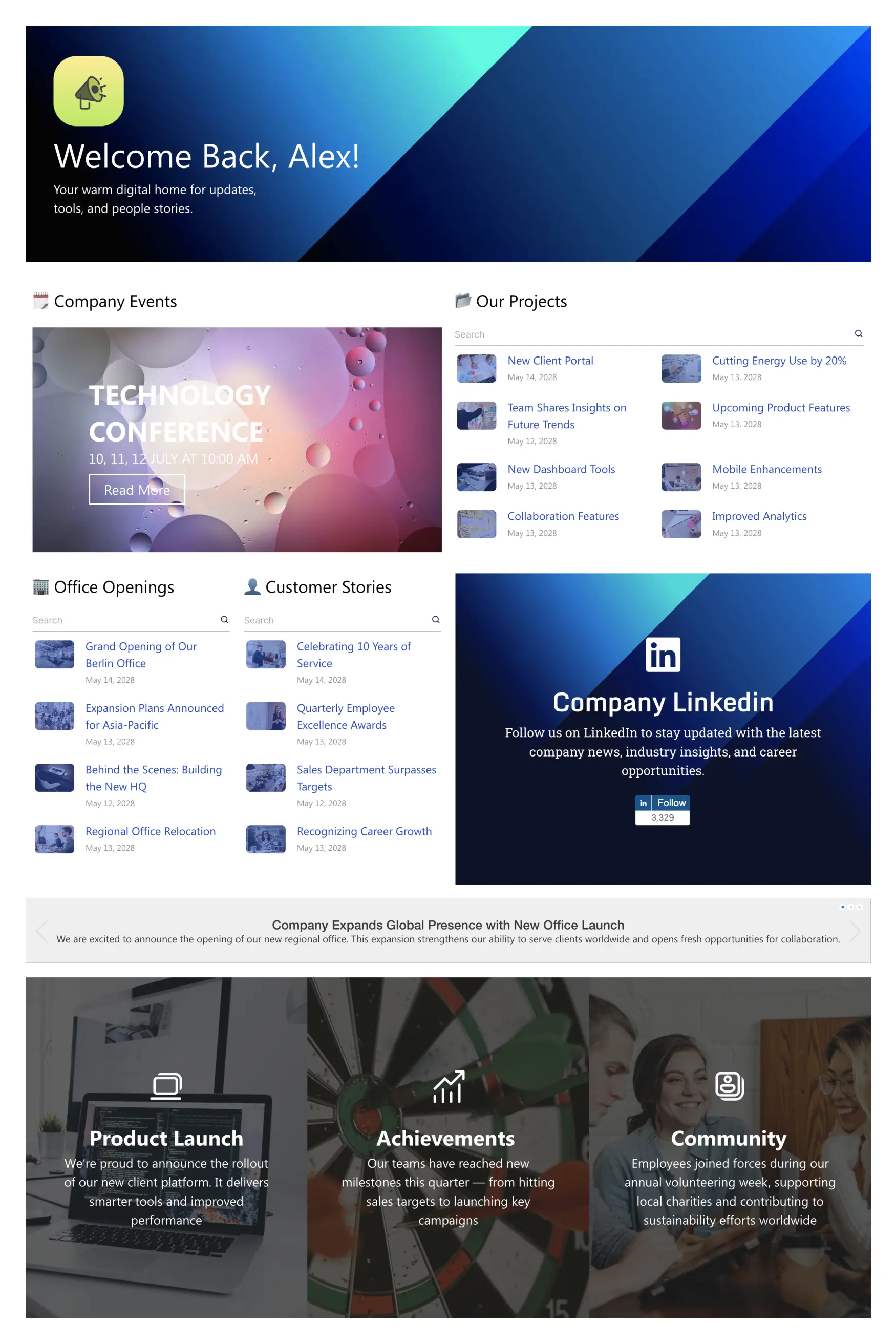
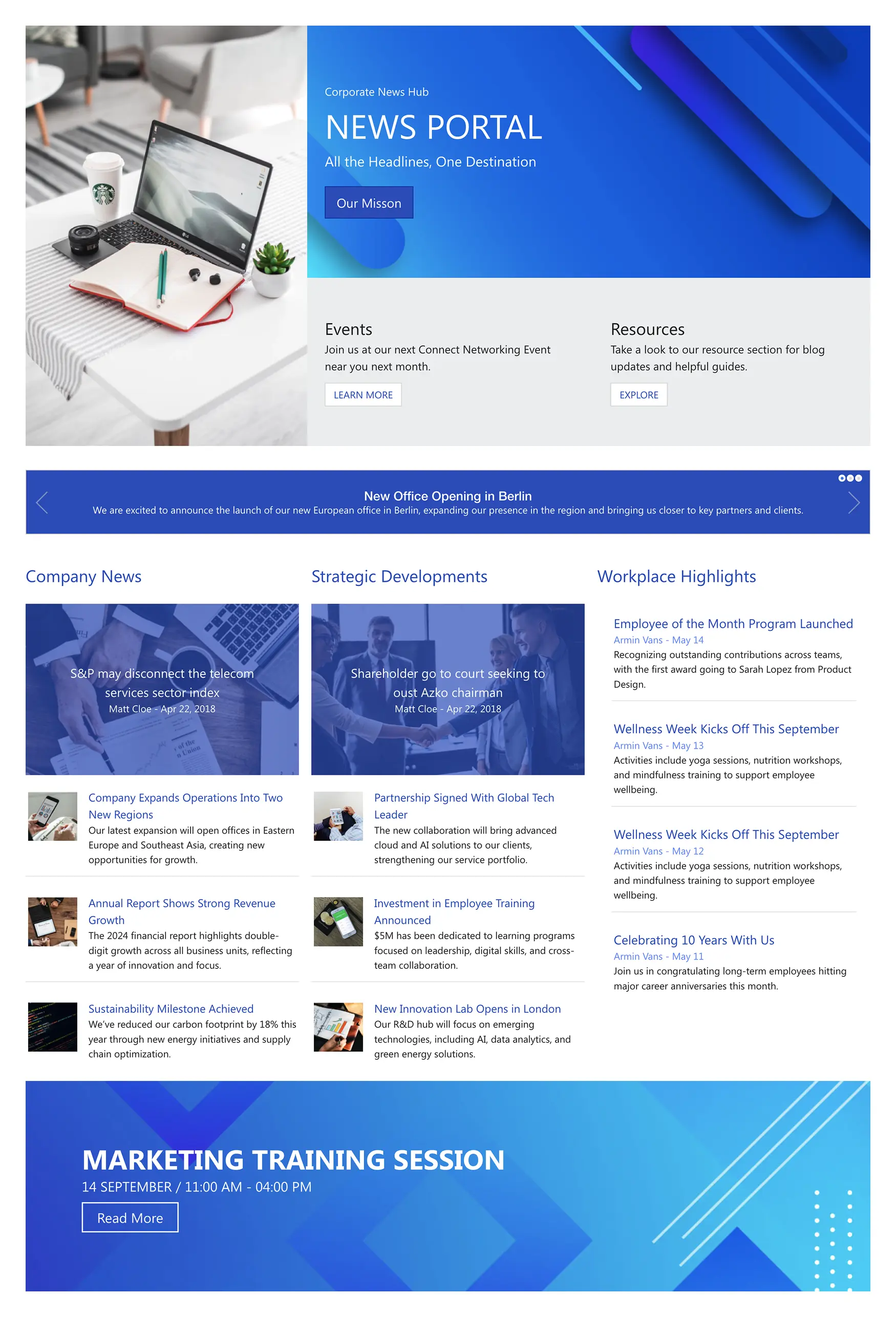
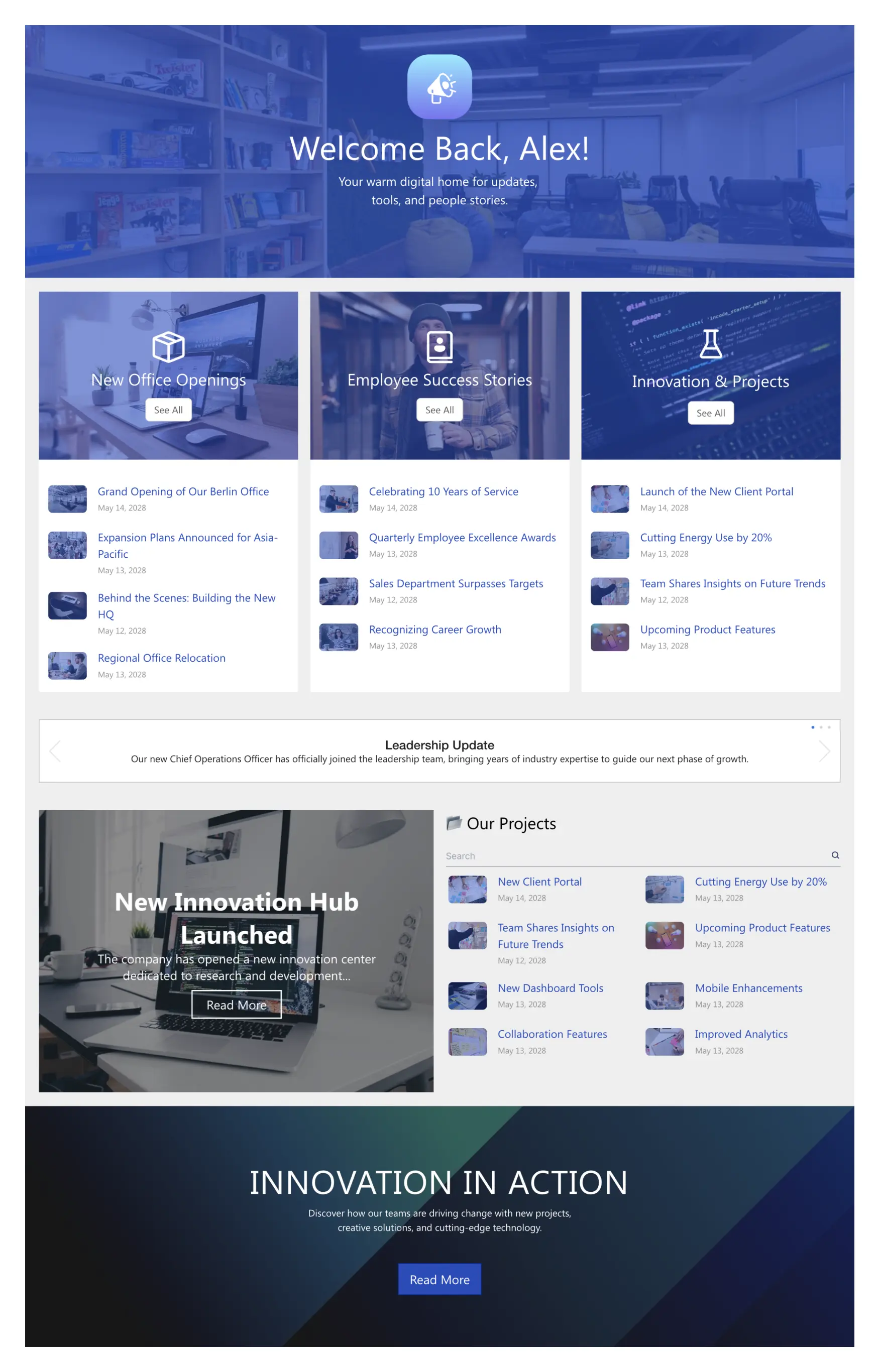
Monthly Digest Category tiles, three news streams and impact stories. Event Updates Searchable newsroom with filters and most-read stories. Newsroom Hub News by topic, plus news, events and learning feeds. Events Center Town halls, a filterable calendar and event recordings. Workplace News Four news streams, update cards and quotes of the day.
About SharePoint news and newsletter templates
A SharePoint news template is a ready-made page for company news: the latest stories, announcements, a newsletter archive and messages from leadership. Story cards, tickers and the archive are ShortPoint sections, so communicators can rearrange them without code.
News published once in SharePoint appears on both this page and the home page, so communicators don’t post twice.
The news pages most intranets need
- Company news hub Every story, filterable by topic.
- Announcements Time-sensitive updates and alerts.
- Newsletter A monthly or weekly issue with an archive.
- Leadership messages Updates from the CEO and leadership team.
The sections a news page is built from
News sections cover story cards, tickers and archives; Corporate sections add events and leadership messages.
Layout order for a news page
People open a news page to see what’s new, so the latest stories and any urgent announcement go first. Below them, news by topic, the newsletter archive and leadership messages. On a phone, the newest story and any urgent announcement come first.
- 1 Page title and news search search past stories
- 2 Urgent announcement when there is one
- 3 Latest stories newest first
- 4 News by topic filters or tabs
- 5 Newsletter archive past issues
- 6 Leadership messages updates from leadership
- 7 Footer subscribe and archive links
Keeping news fresh
Connect the page to SharePoint news so new posts appear automatically. Retire announcements once they expire, and keep a regular rhythm so the page never looks abandoned.
- Expired announcements An old alert at the top makes the page look neglected.
- No topics Readers can’t find the news that matters to them.
- Posting twice Publish once in SharePoint and show it everywhere.
- No archive Past newsletters disappear.
Why ShortPoint for news pages
SharePoint’s default news web part offers a handful of preset layouts. ShortPoint news templates present the same SharePoint news in a designed page, with topics, tickers, newsletters and leadership messages. A busy news week doesn’t bury the story that matters.
Every template here is a starting point. With ShortPoint you can connect any section to live data from SharePoint lists and Microsoft 365, such as people, calendars, news and files, using Connect. You can add or swap any of the design elements without code, and apply your brand to every page at once with Theme Builder. AI Designer can then help you adjust a layout or create a page that isn’t in the library.
Get started with a news page in three steps
- Start your free trial
Start a 15-day trial with no credit card, and sign in with your Microsoft 365 account to add ShortPoint to your SharePoint.
- Pick your starting point
Open the Templates Library inside SharePoint and choose the template you previewed here.
- Make it yours and publish
Replace the sample content, connect your data, apply your brand with Theme Builder, and publish.