Browse home page templates
home page templates
 Essentials Page Home Pages
Viewing
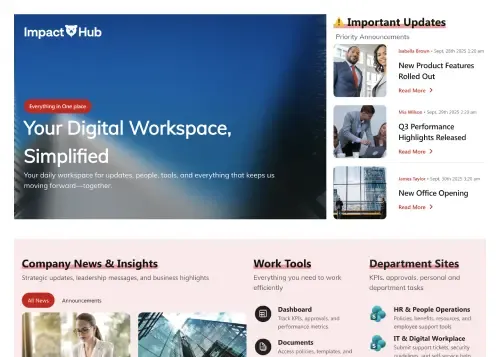 Digital Lobby Home Pages
Viewing
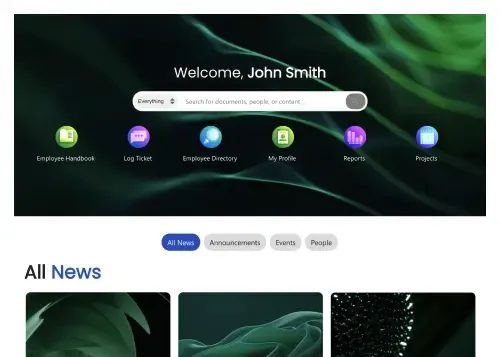 My Workplace Home Pages
Viewing
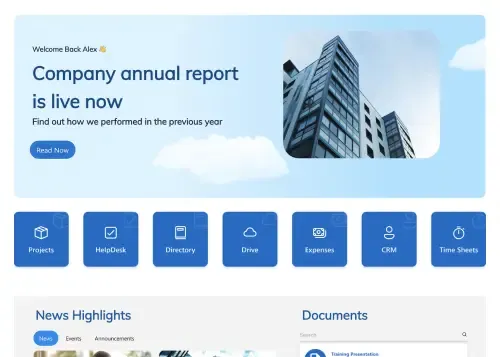 Annual Report Home Pages
Viewing
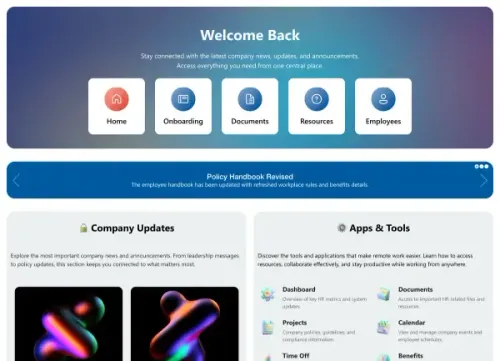 Team Connect Home Pages
Viewing
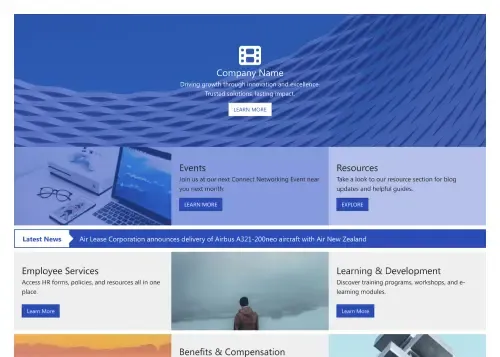 Services Home Home Pages
Viewing
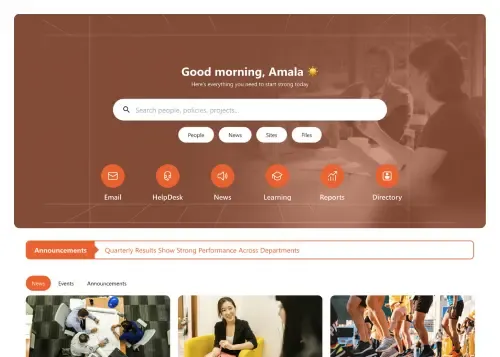 Everyday Home Home Pages
Viewing
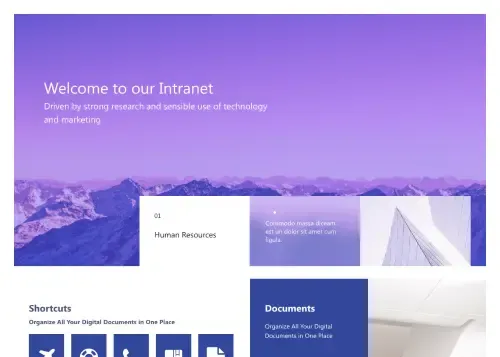 Enterprise Home Pages
Viewing
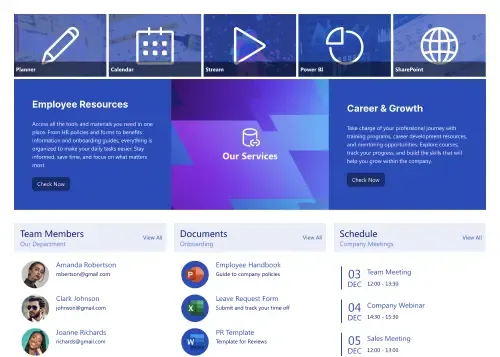 Productivity Hub Home Pages
Viewing
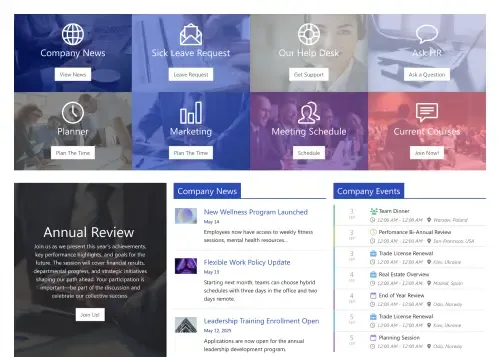 Tools Center Home Pages
Viewing
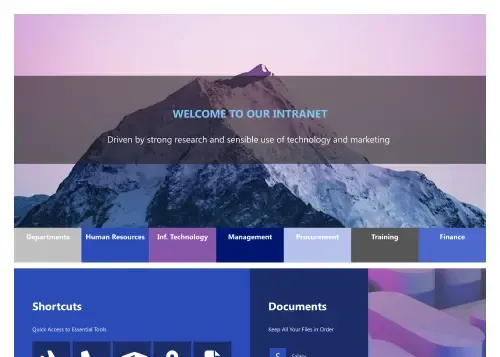 Together Home Pages
Viewing
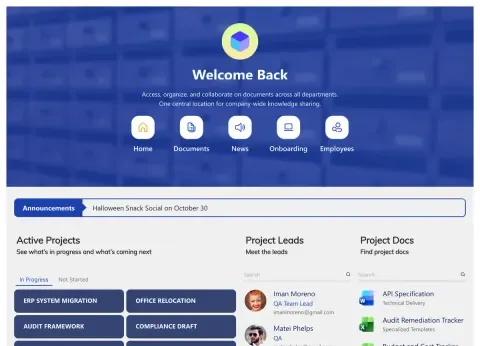
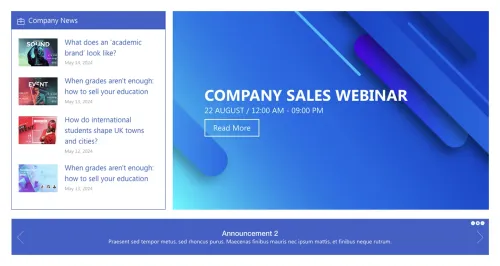
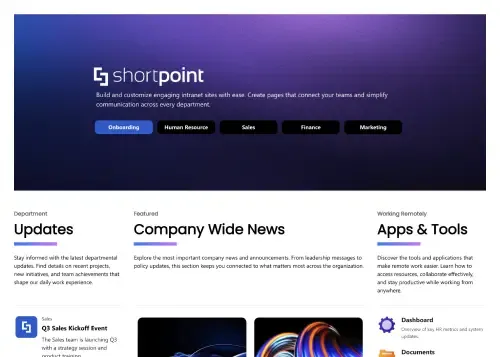
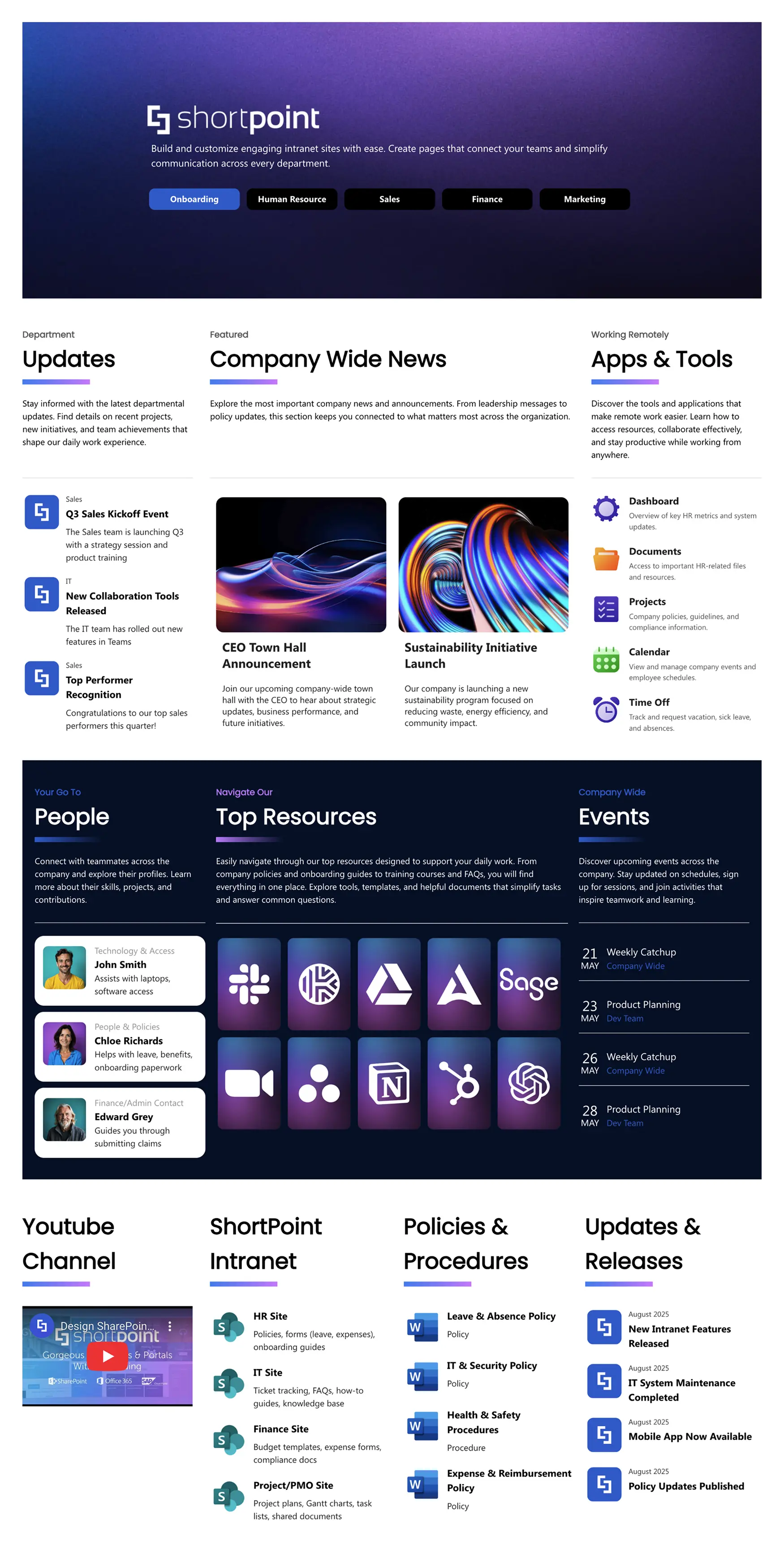
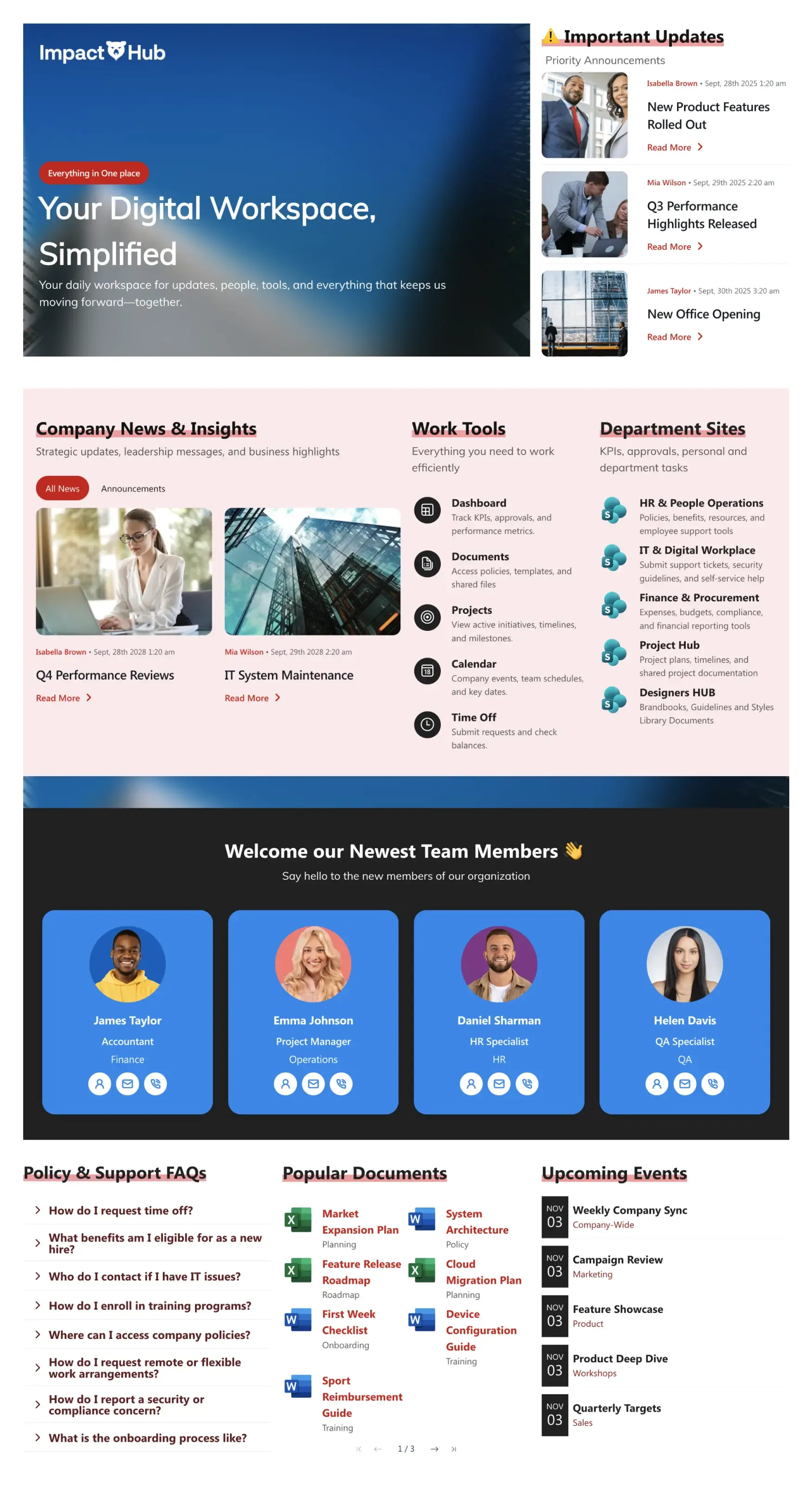
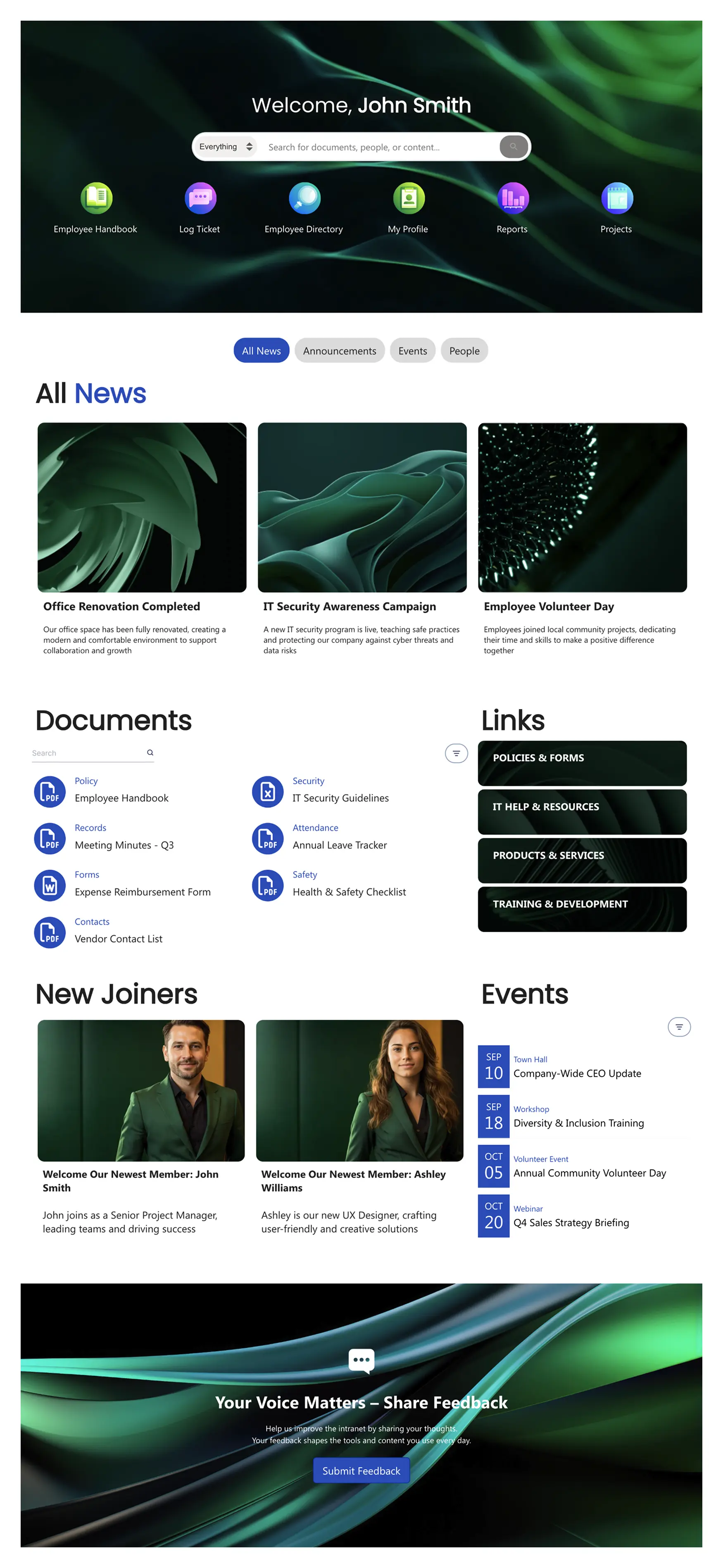
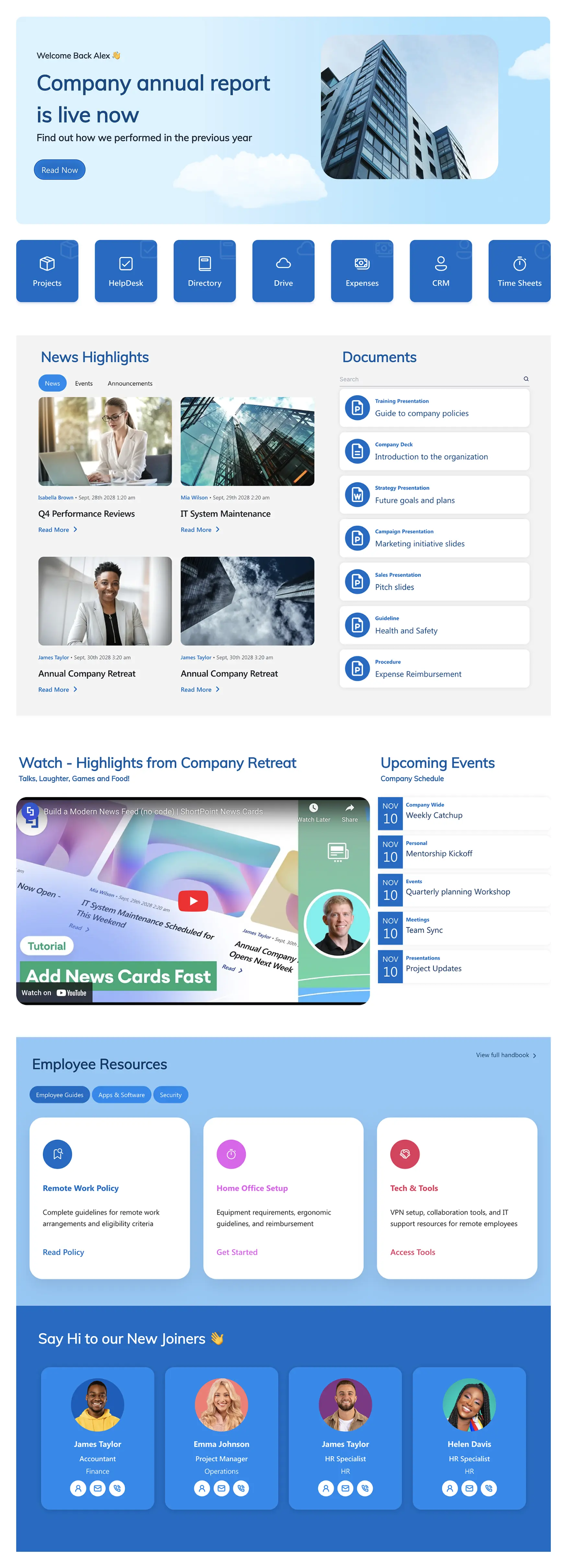
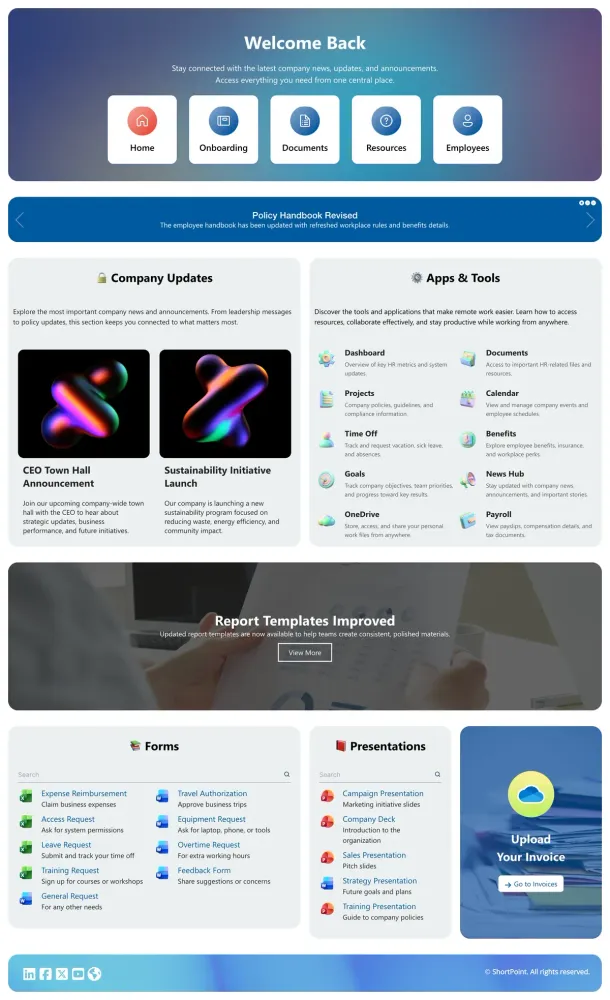
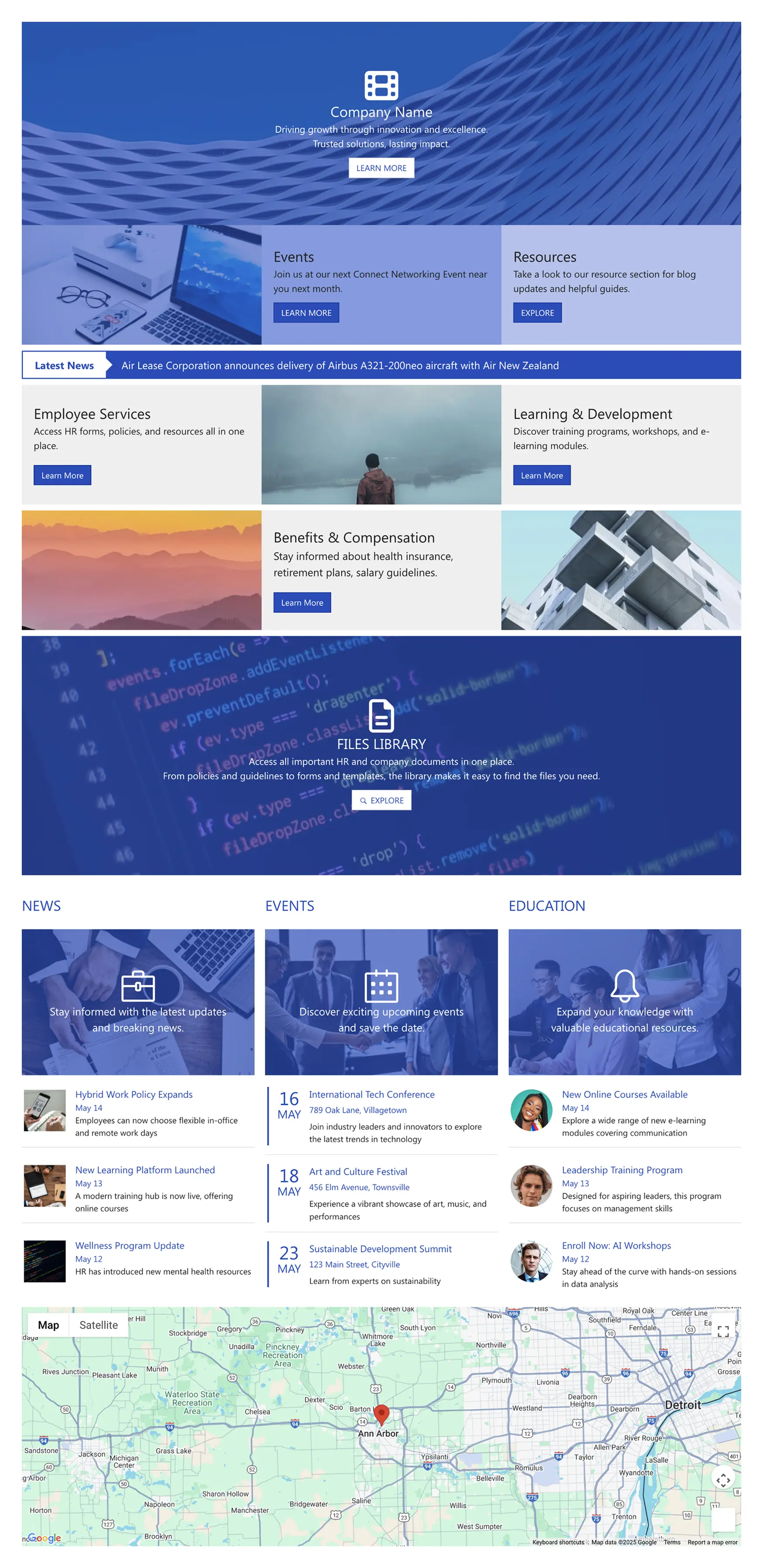
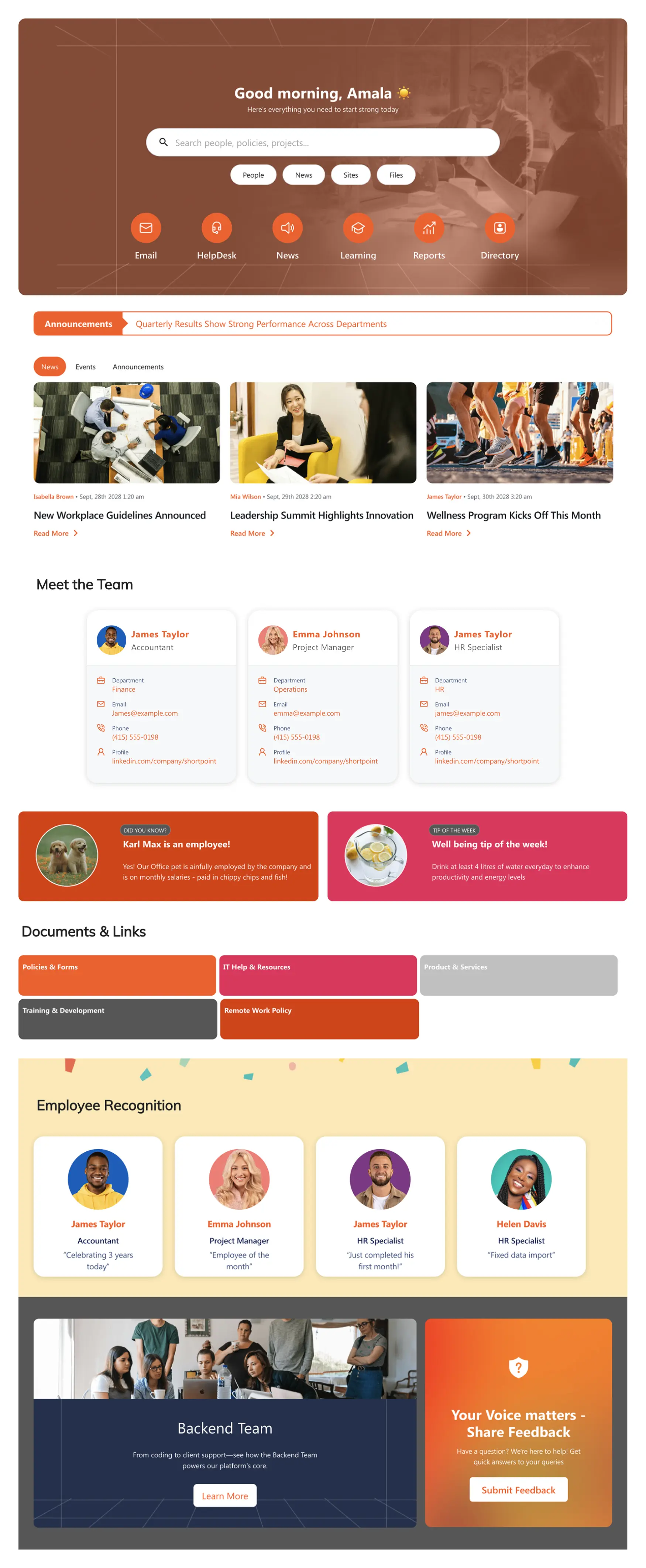
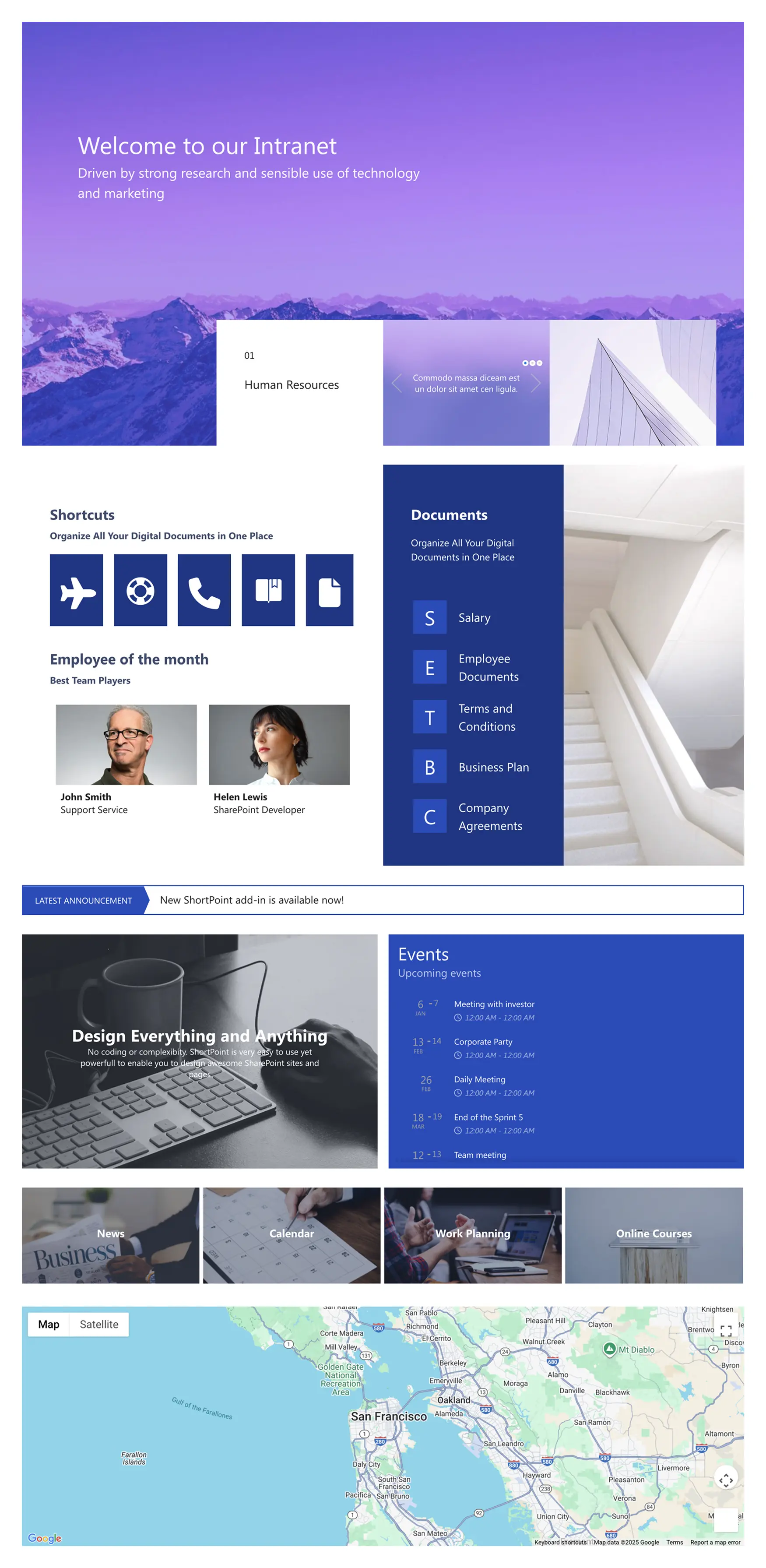
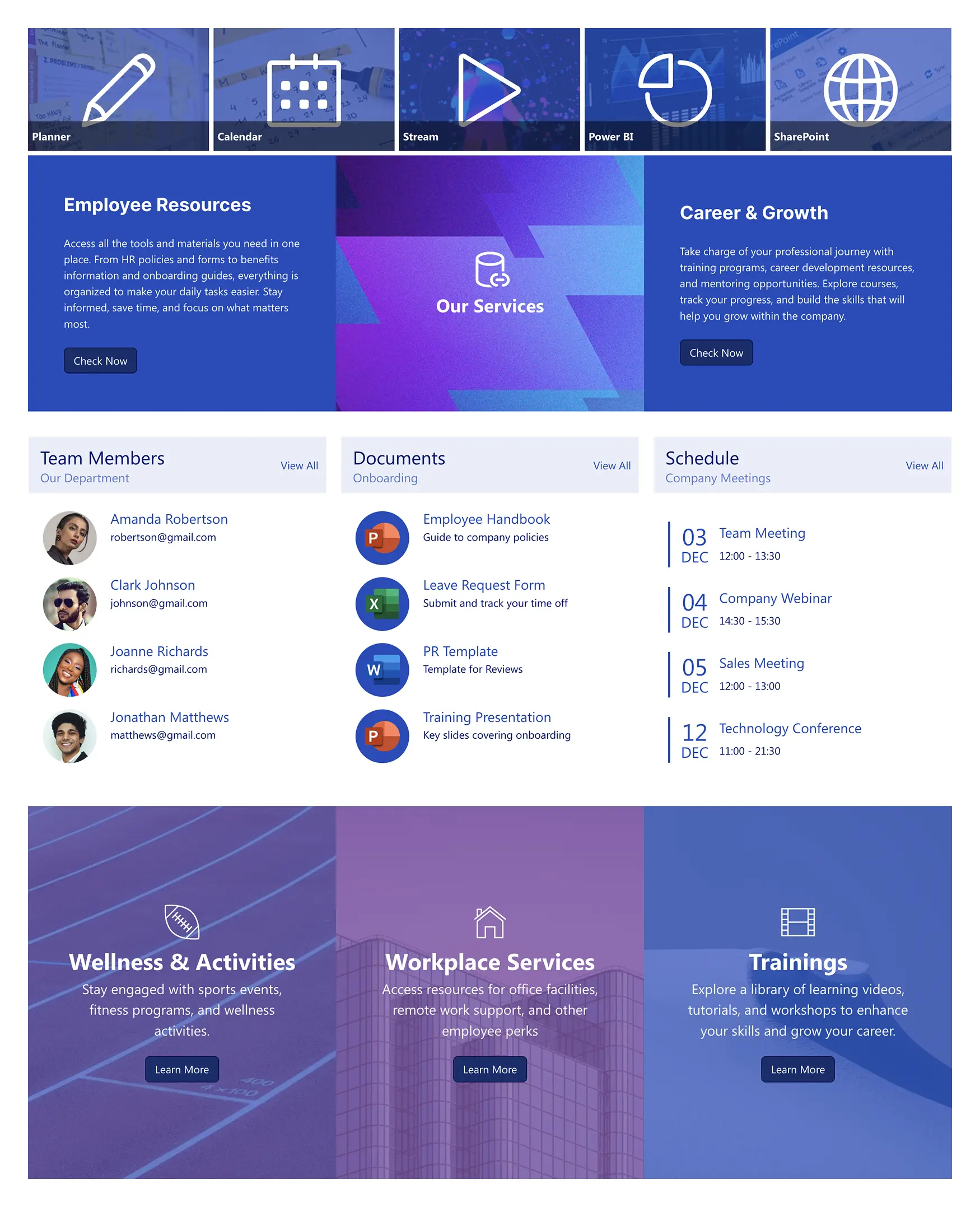
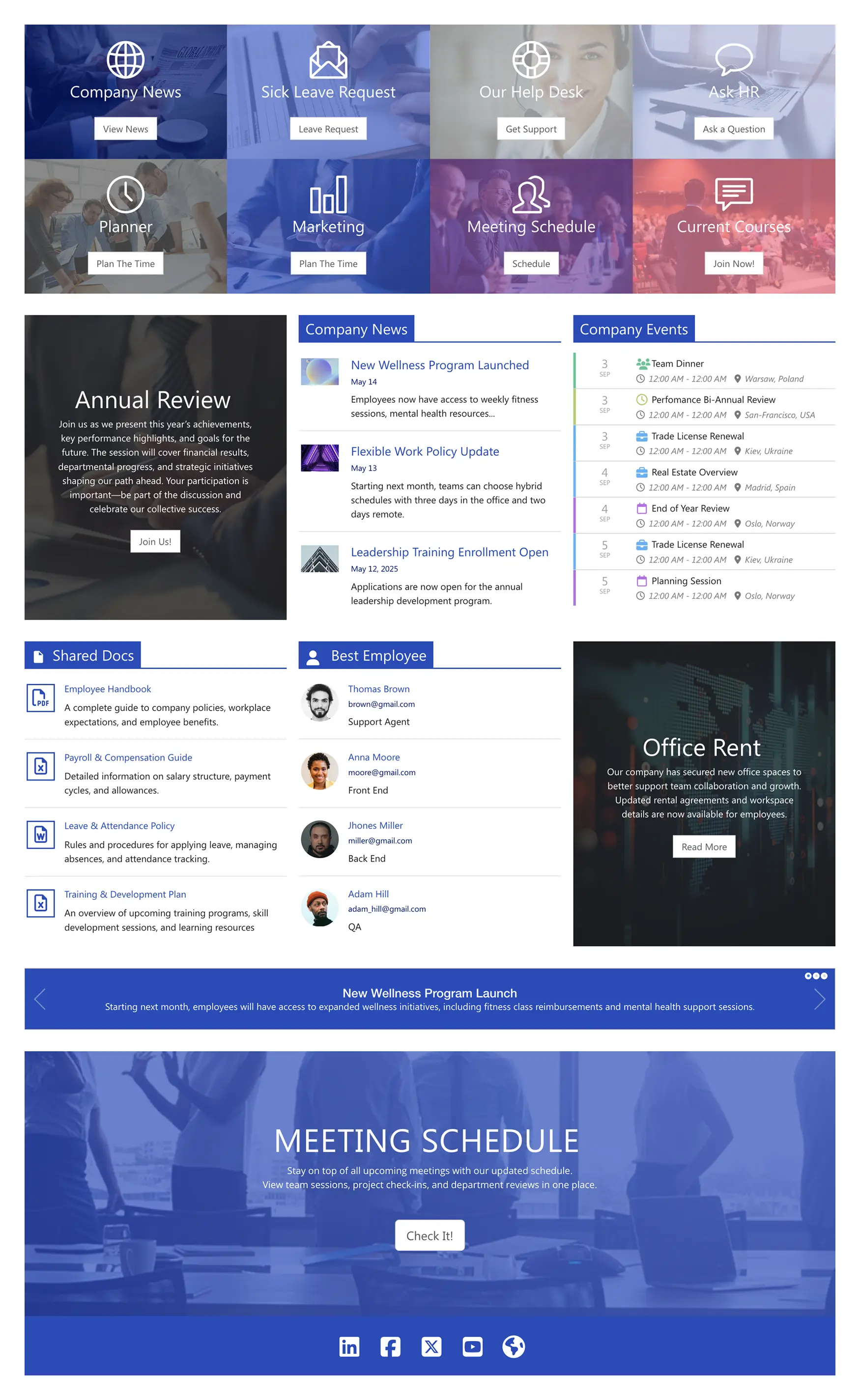
Essentials Page Department buttons, company news, apps and events. Digital Lobby Workspace hero, priority updates, tools and dept sites. My Workplace Personal search, six quick actions, news and documents. Annual Report One feature banner, app tiles, news, video and events. Team Connect Welcome page with updates, apps, forms and presentations.
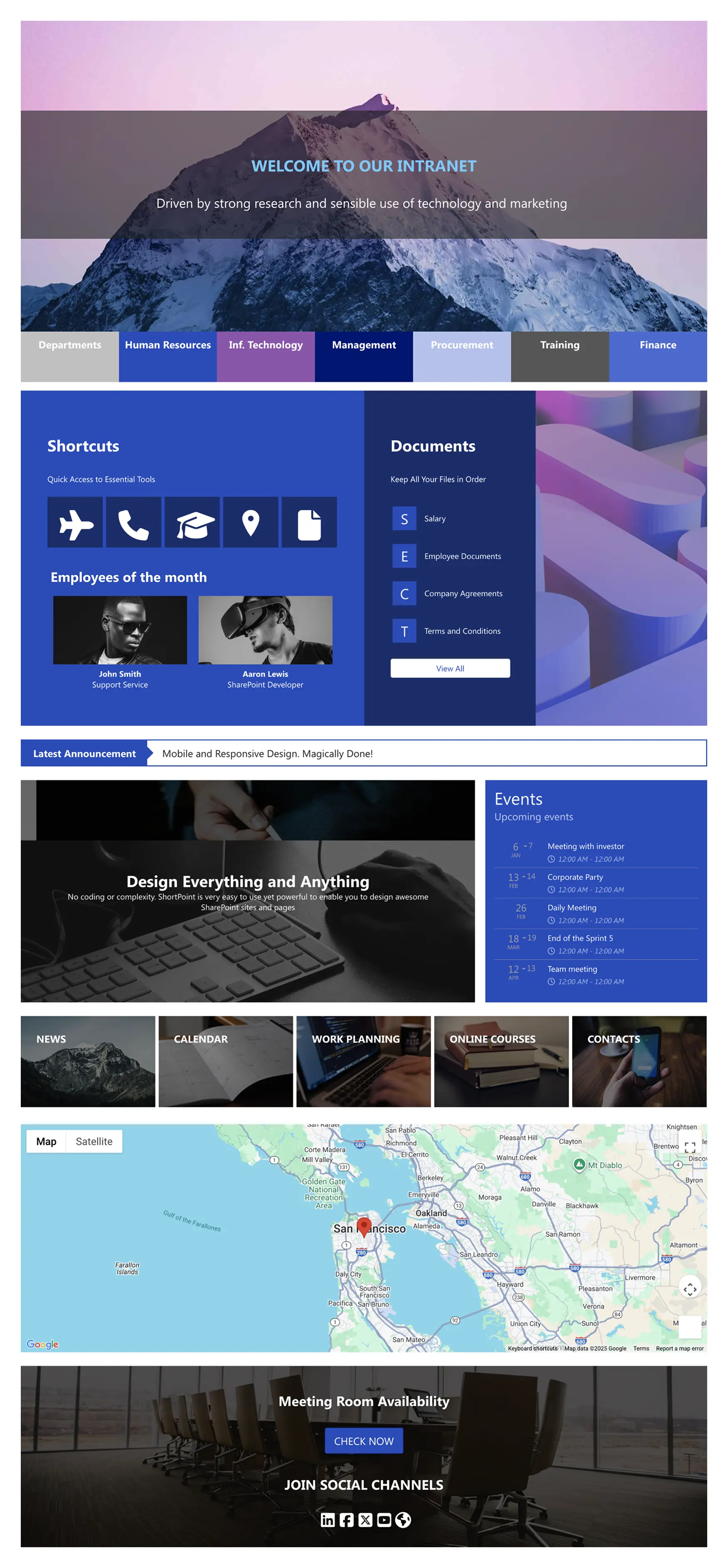
About SharePoint home page templates
A SharePoint home page template is a ready-made layout for the page employees see first: company news, quick links, upcoming events, search and a way into every team. Each template here is built from ShortPoint sections, so you can swap, reorder or restyle any part without code.
Looking for more SharePoint home page ideas and examples? Compare every layout above and preview each one live. For a complete set of pages in one design, see the company-wide site templates.
The sections a home page needs
- Header with search Branding, navigation and search in one place. See Header sections.
- News The latest three to five stories, with a link to the full archive. See News sections.
- Quick links The tools people open every day.
- Events What’s coming up this week. See Corporate sections.
- People spotlight New joiners, anniversaries and recognition.
- Department entry points One tile per team.
- Footer Contacts, policies and help. See Footer sections.
Layout order
Put what people read or use every day on the first screen: search, the latest news and quick links. Below the fold, order the rest by how often it changes, from weekly events down to department tiles and the footer. On mobile, the page stacks in the same order, so the first screen still shows search and news.
- 1 Header, navigation and search used on every visit
- 2 News, 3–5 stories changes daily, read first
- 3 Quick links used daily
- 4 Events this week changes weekly
- 5 People spotlight changes weekly
- 6 Department tiles changes rarely
- 7 Footer changes rarely
Keeping it current, and common mistakes
Give the home page one owner, usually internal communications, and review the quick links every quarter. If the news section shows the same story for two weeks, something upstream has stopped publishing.
- Too many quick links Nothing stands out. Keep the six to eight tools people open daily.
- No search above the fold People leave to find things elsewhere.
- One page for every audience Regions and departments need their own news.
- Typed-in content Content typed straight into the page goes stale. Connect it to its source instead.
Why ShortPoint for your home page
A standard SharePoint home page is built from out-of-the-box web parts with limited design options, so pages often look generic or uneven. ShortPoint home page templates are designed as one page, and every section follows the same design system. Changing the layout, colors or a section is a no-code edit, not a rebuild.
Every template here is a starting point. With ShortPoint you can connect any section to live data from SharePoint lists and Microsoft 365, such as people, calendars, news and files, using Connect. You can add or swap any of the design elements without code, and apply your brand to every page at once with Theme Builder. AI Designer can then help you adjust a layout or create a page that isn’t in the library.
Get started with a home page in three steps
- Start your free trial
Start a 15-day trial with no credit card, and sign in with your Microsoft 365 account to add ShortPoint to your SharePoint.
- Pick your starting point
Open the Templates Library inside SharePoint and choose the template you previewed here.
- Make it yours and publish
Replace the sample content, connect your data, apply your brand with Theme Builder, and publish.