
ShortPoint Theme Builder Basics
Apply brand colors
When it comes to intranet design, colors play a vital role. They greatly impact how users perceive your site's content and your company's branding as a whole. In this lesson, you will learn how to update your site collection's color palette, how to save color themes, and how to apply brand colors to individual Design Element settings.

Updating the site's color palette
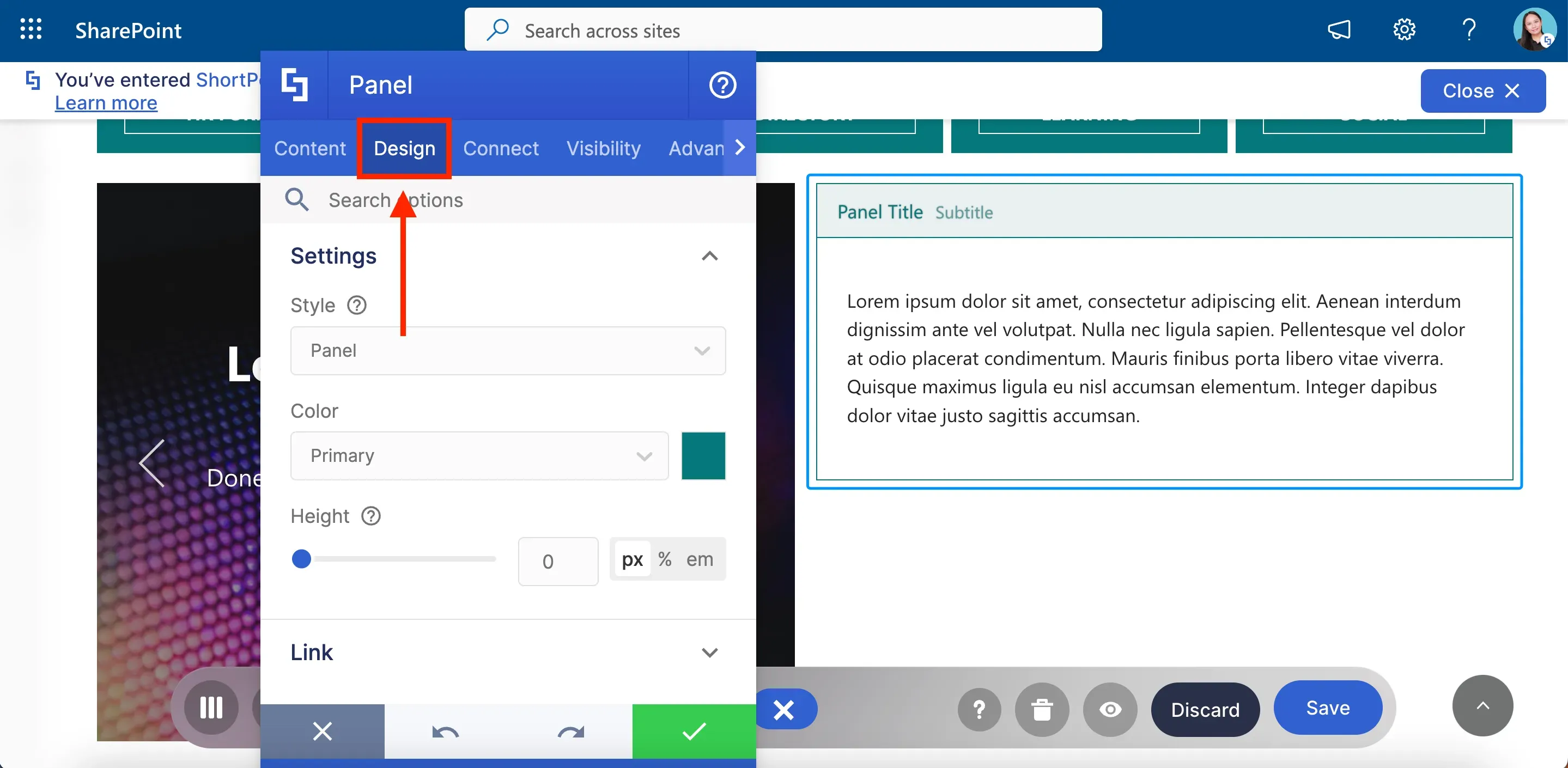
ShortPoint gives designers the flexibility to select colors for every Design Element and their components. For example, when you add a Panel Design Element to your page, you will be able to select the color you prefer in the Design tab.
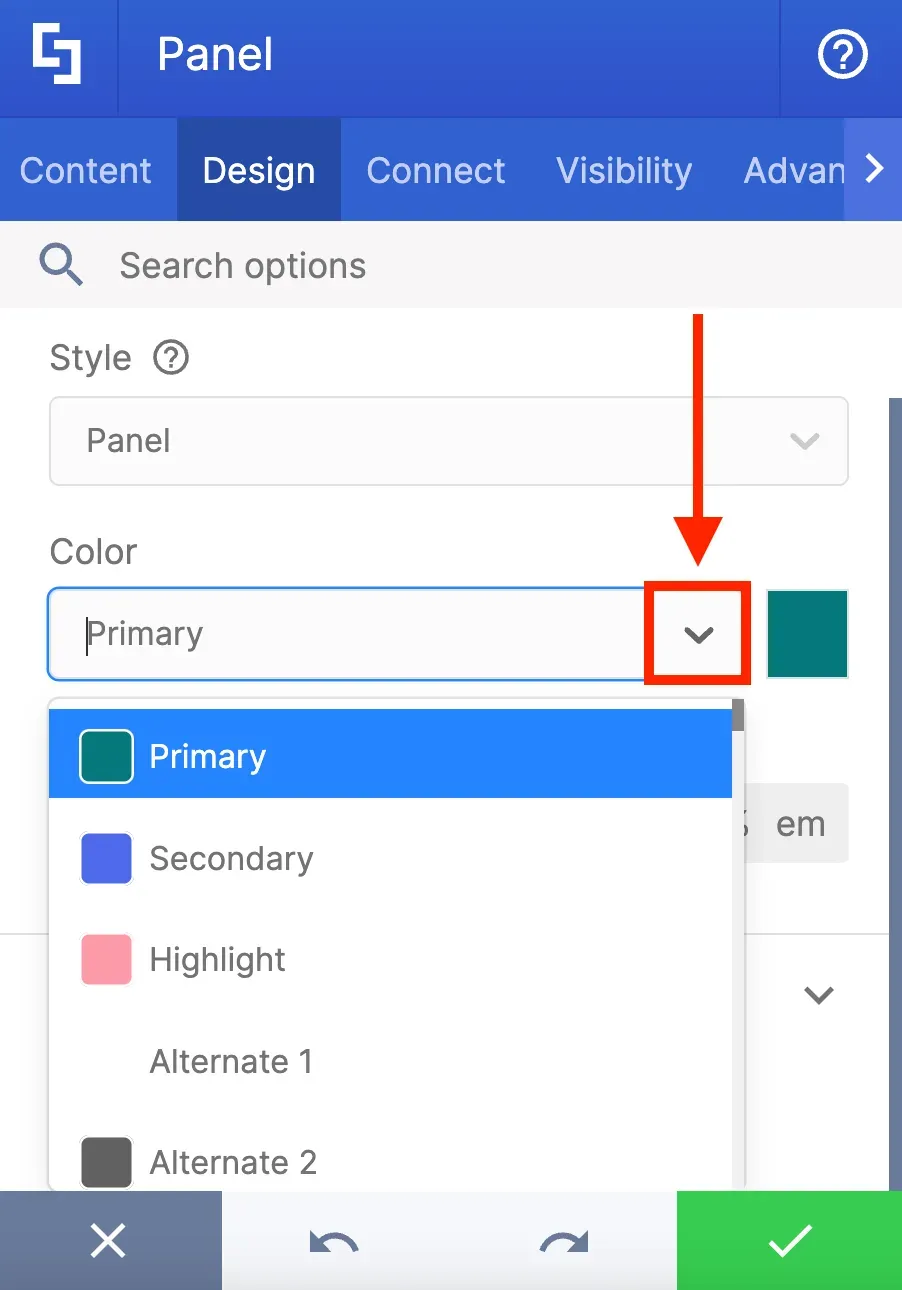
You have several ways to customize the color. One way is to select a color from a dropdown menu.
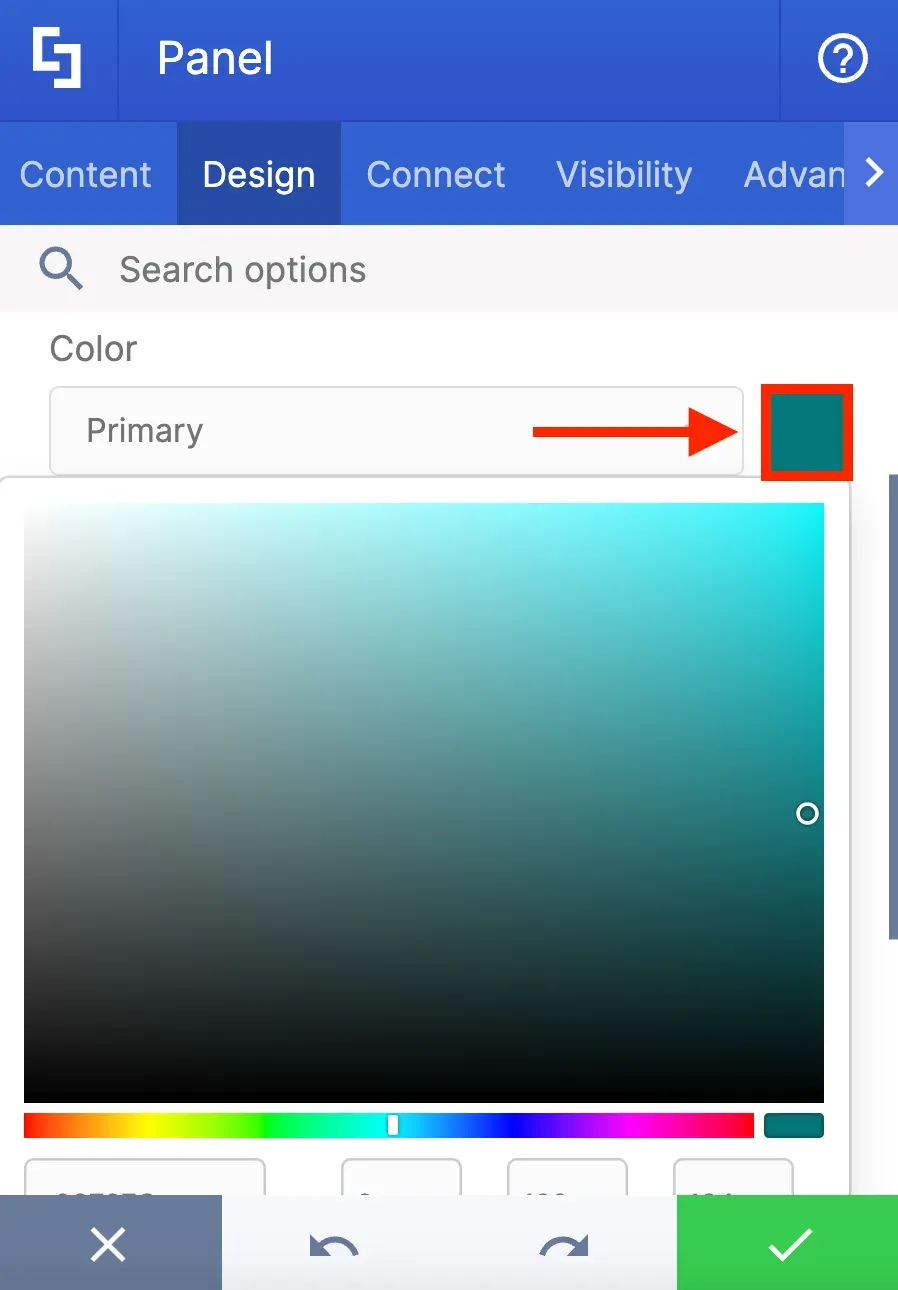
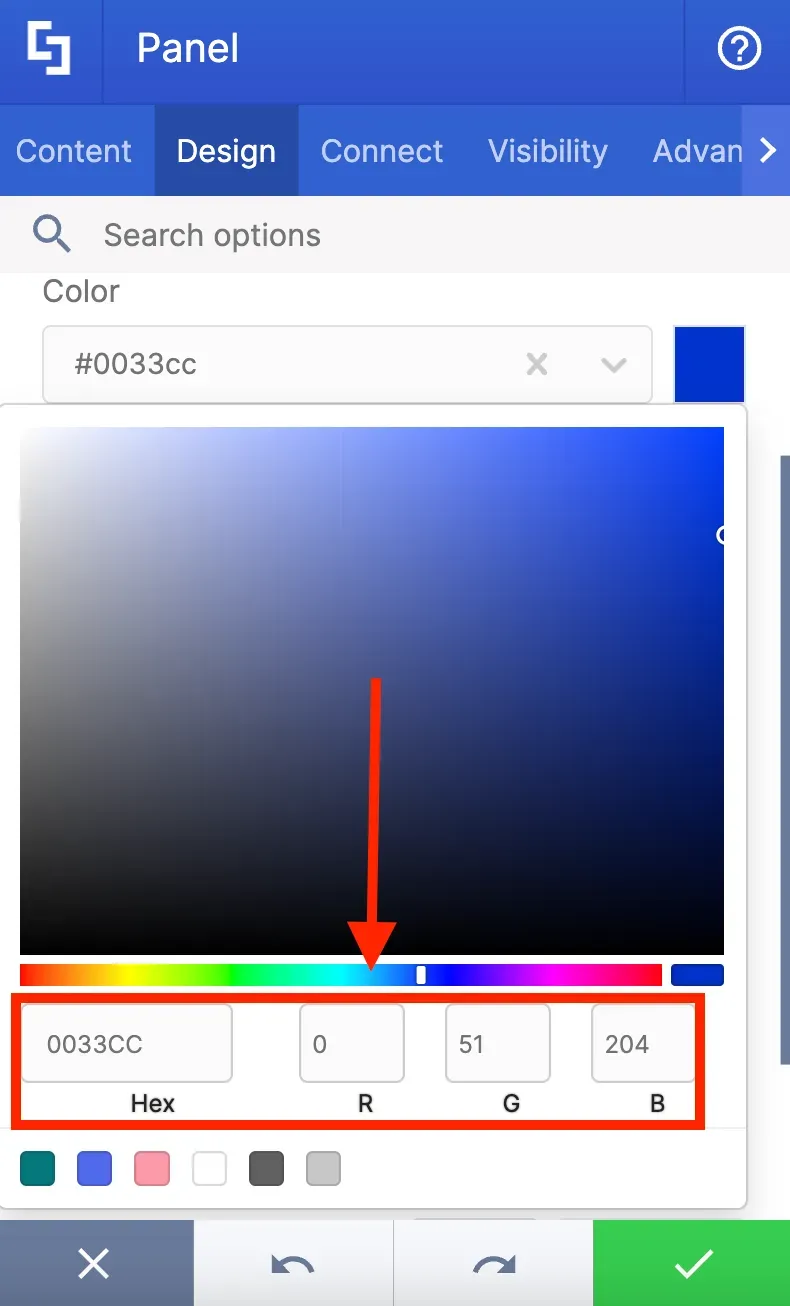
Another is to use the color picker to choose a specific shade.
Or you can directly paste a hex code or an RGB code.
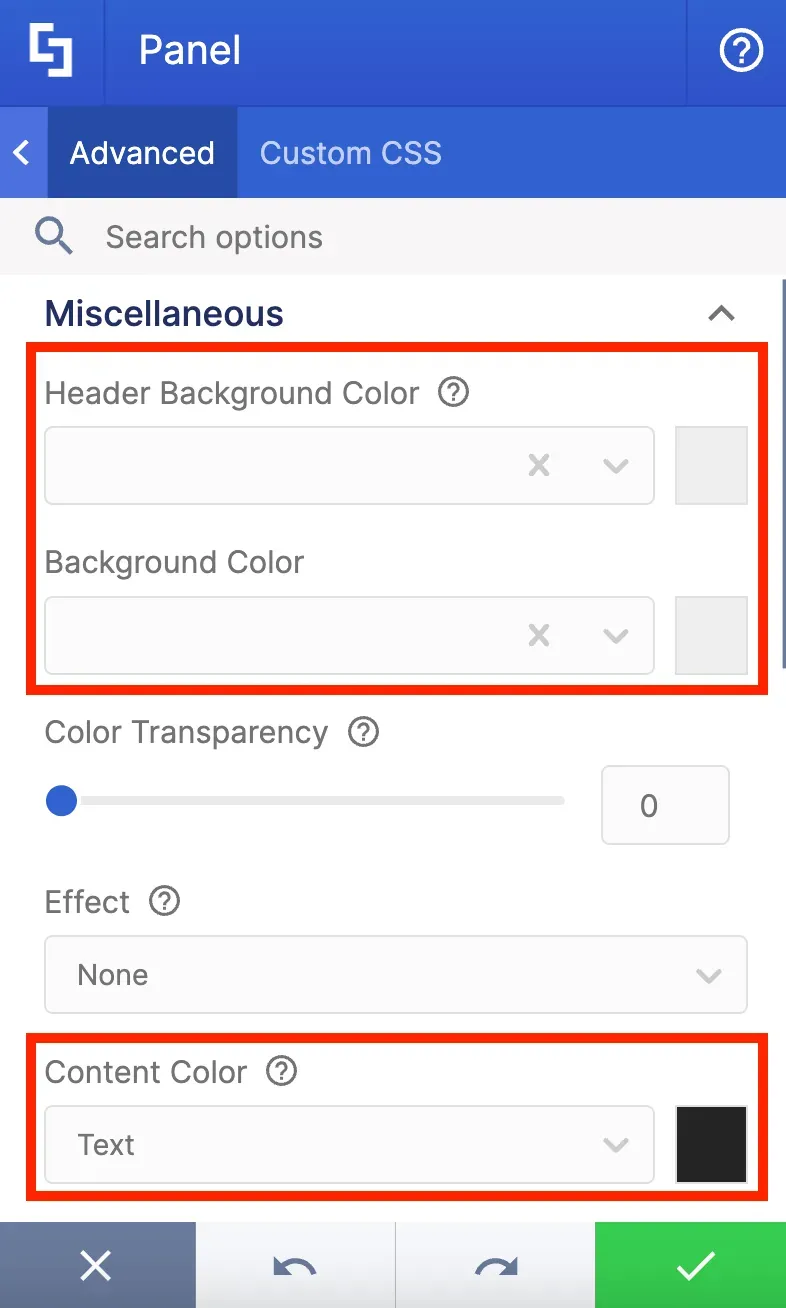
Furthermore, if you navigate to the Advanced tab, you can customize the color of each individual component within the Panel. For example, you can change the header background color, background color, content color, and many more.
However, if you're aiming for a consistent appearance throughout your site, it can be time-consuming to manually input the appropriate branding color for each Design Element. That's where the ShortPoint Theme Builder comes in handy. You can set your company's brand colors as the default color theme of your site in just a few clicks.
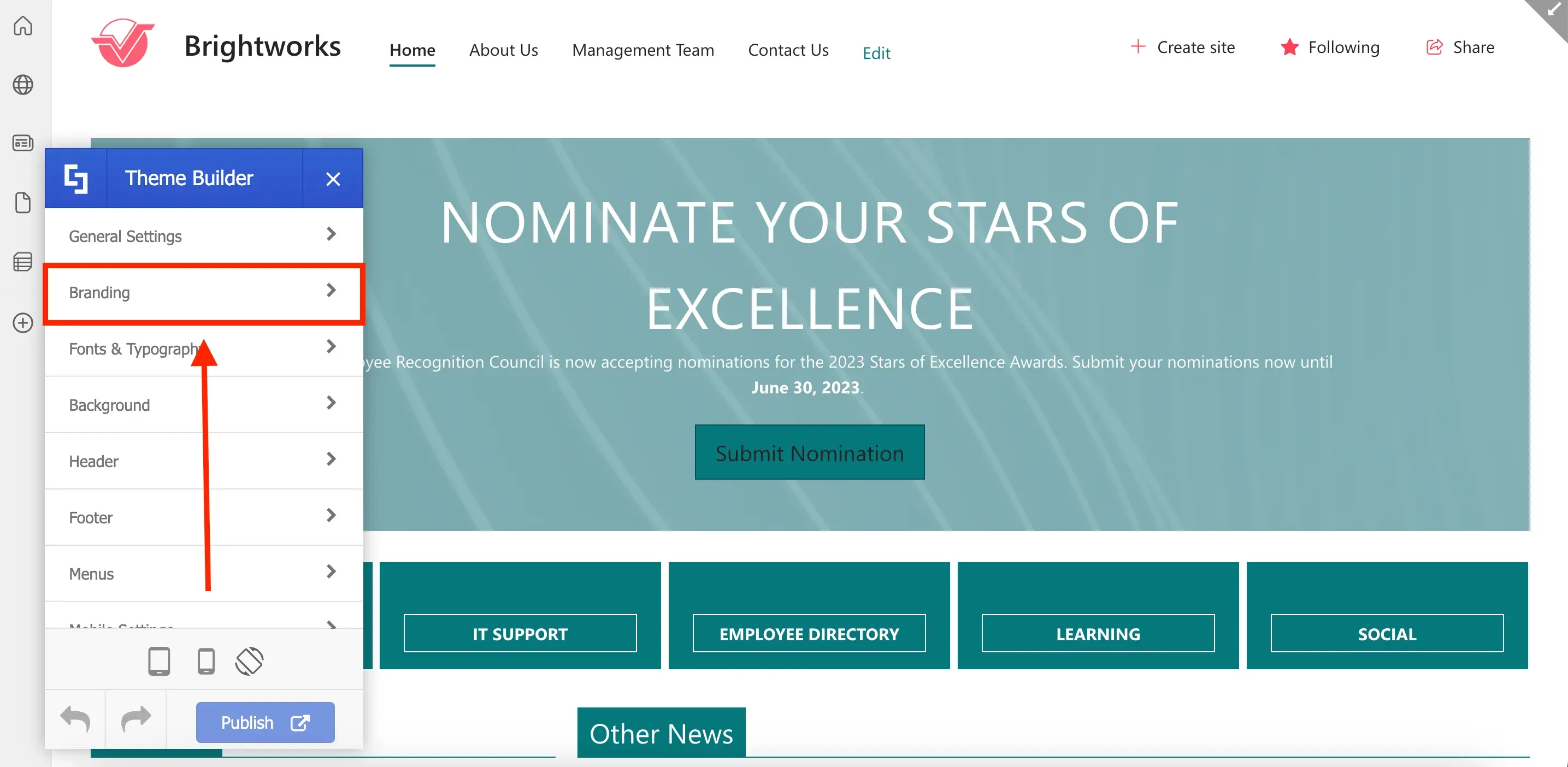
To change your site's color scheme, launch Theme Builder and select Branding.
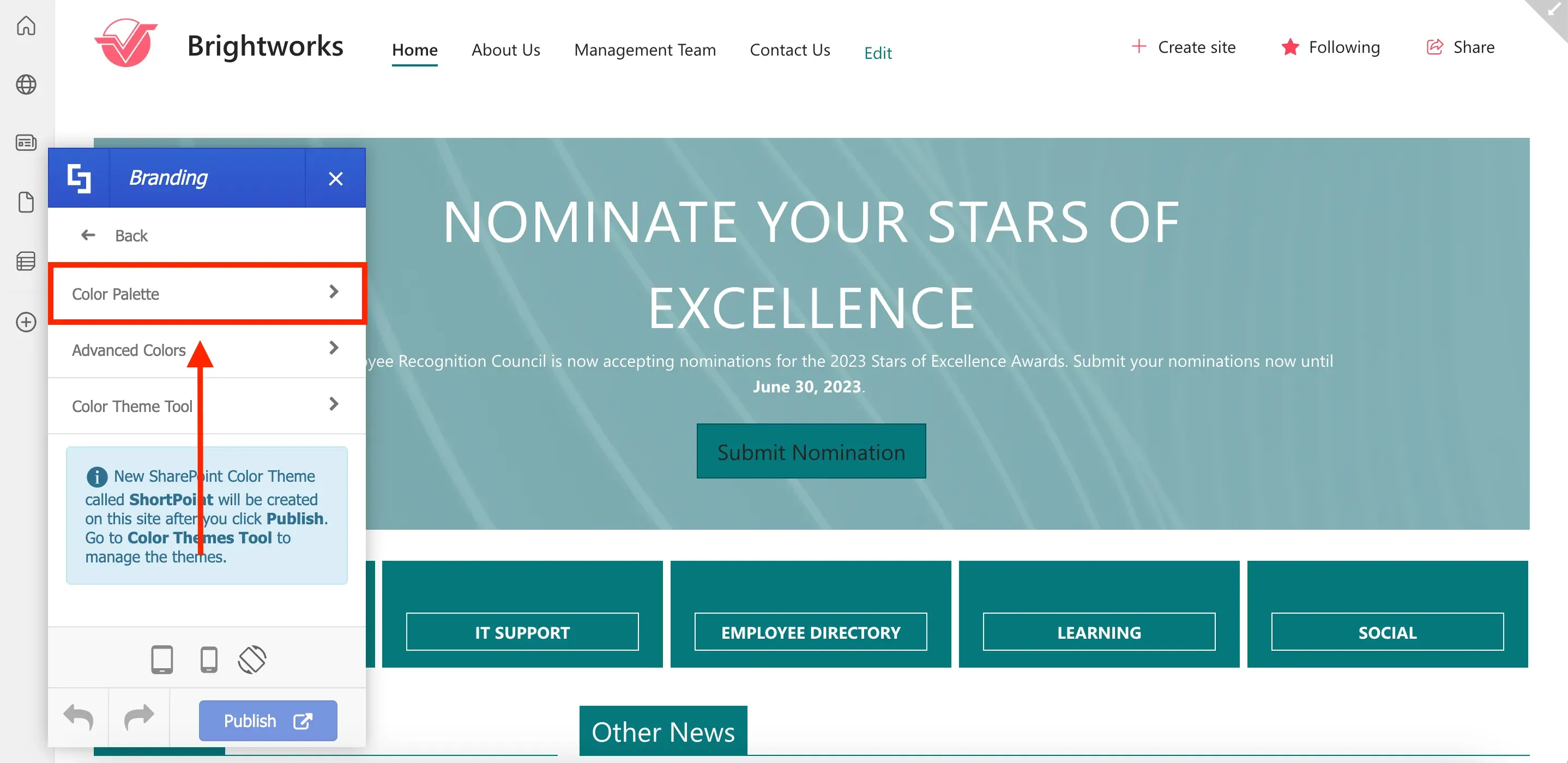
From there, select Color Palette.
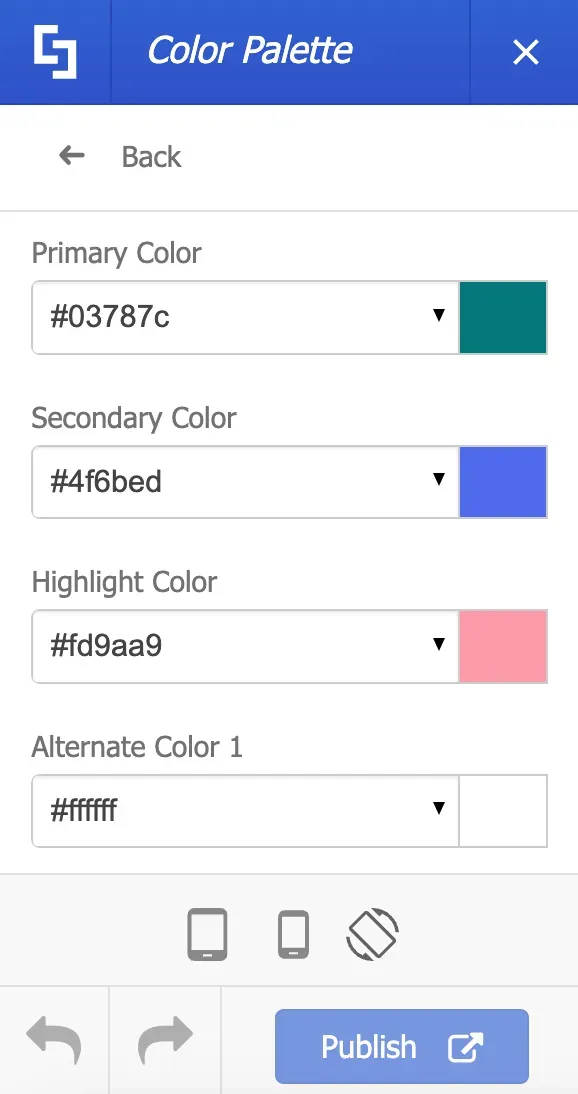
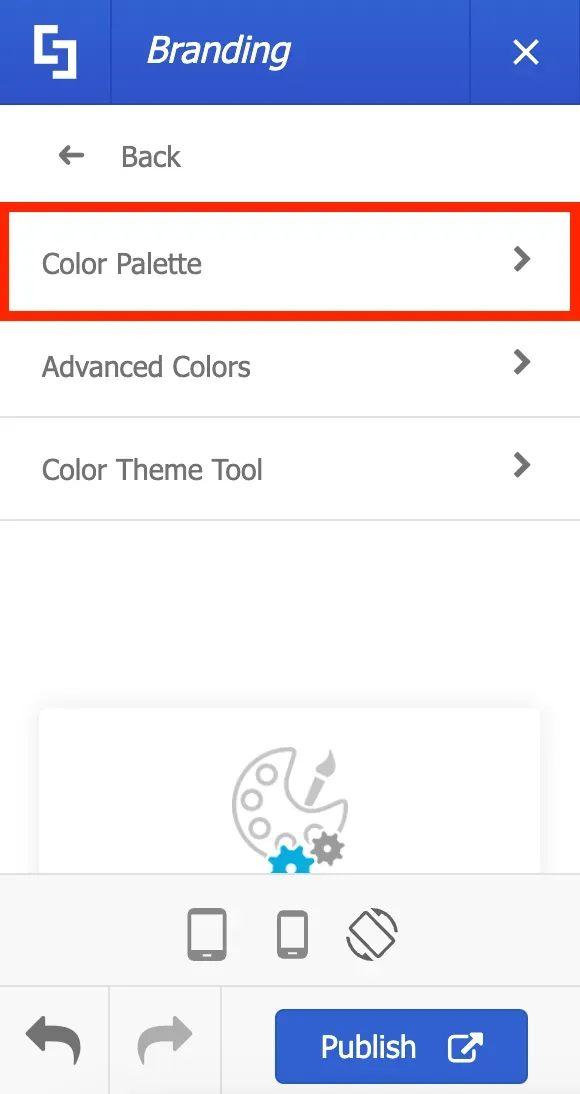
Here, you'll find six fields where you can enter the specific colors for your company's brand.
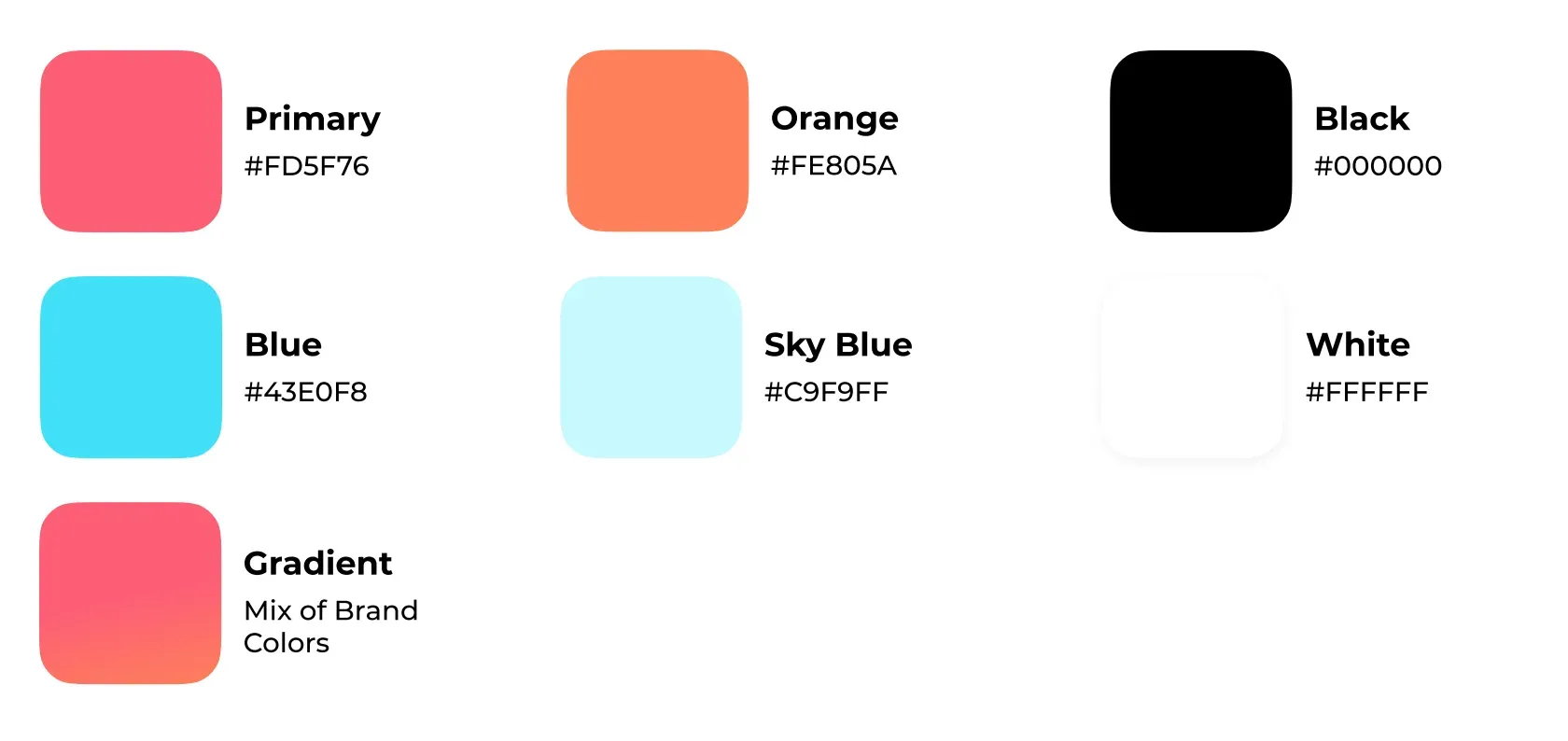
Let's take Brightwork's brand guidelines as an example and assign the prescribed color scheme to our site.
Customizing Design Element colors
To add your desired color, simply paste the HEX code in the appropriate field.
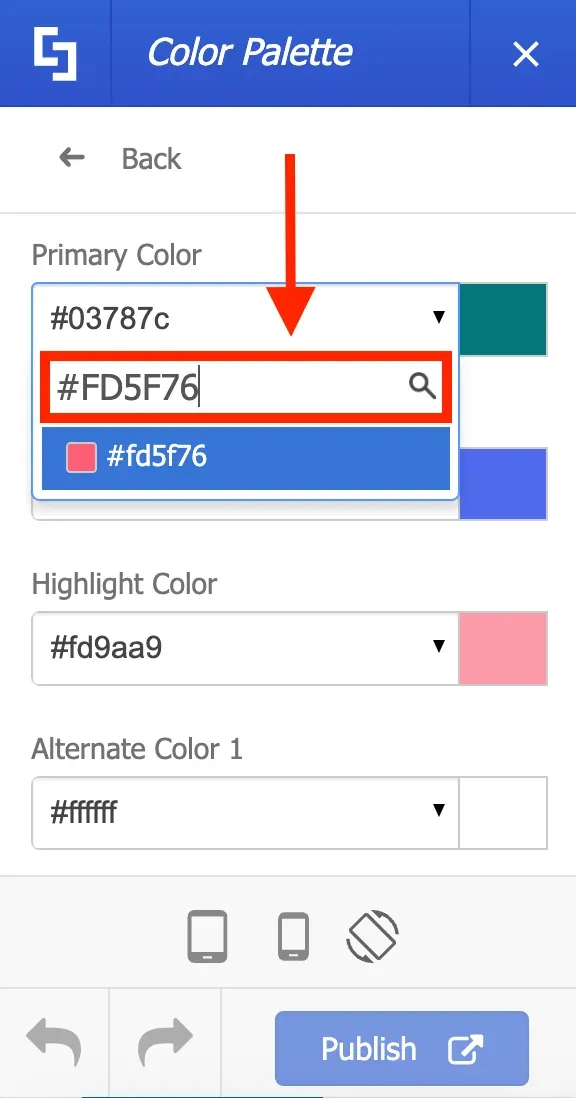
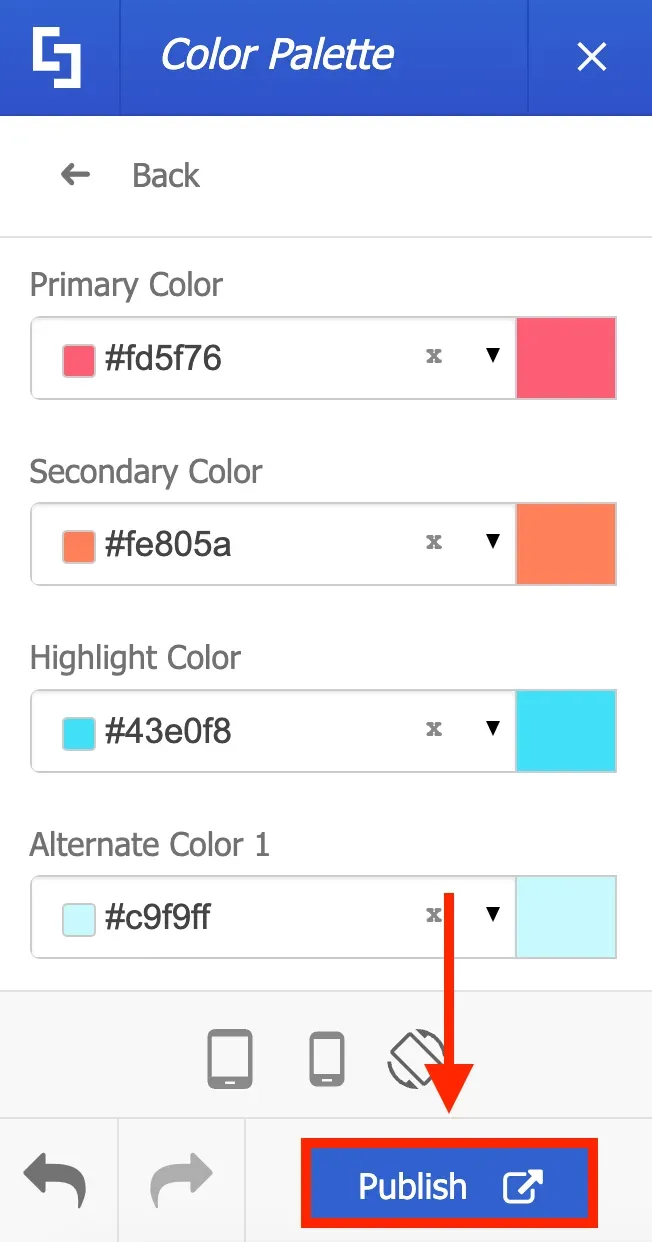
You will notice that whenever you make a change in the Color Palette, it will be instantly applied to the page you're currently viewing. It's important to note that these modifications won't be visible to other users until you hit the Publish button.
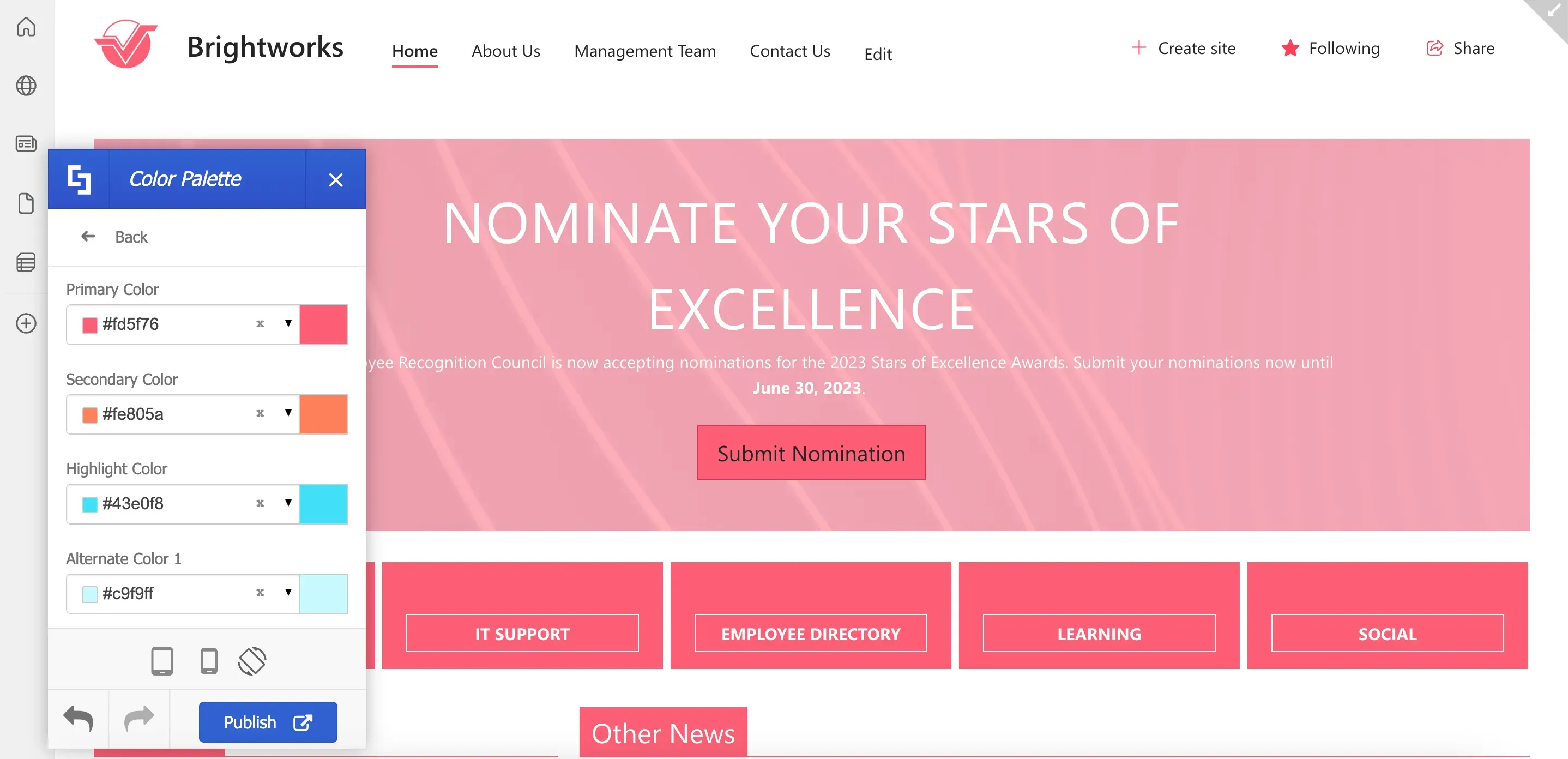
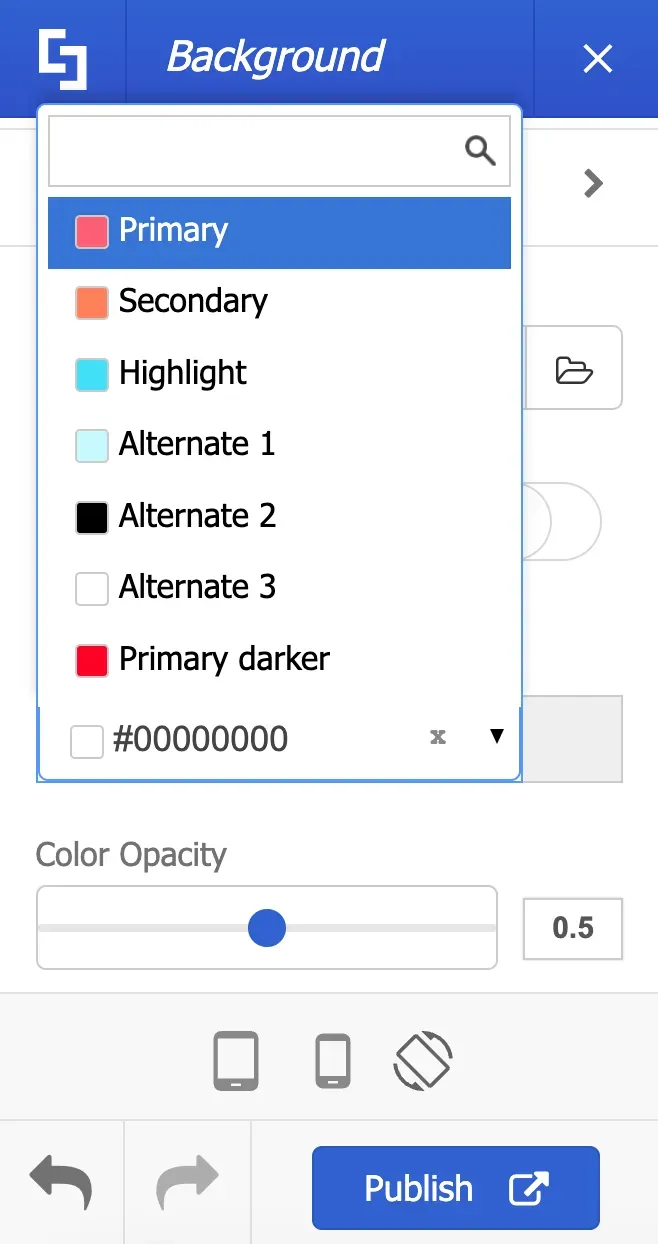
You will also notice that all other color fields within the Theme Builder will now display your brand colors as convenient options in dropdown menus. For example, in the background color drop-down, you can now see the colors we have set up in the Color Palette.
Once you are satisfied with your changes to the Color Palette, click Publish.
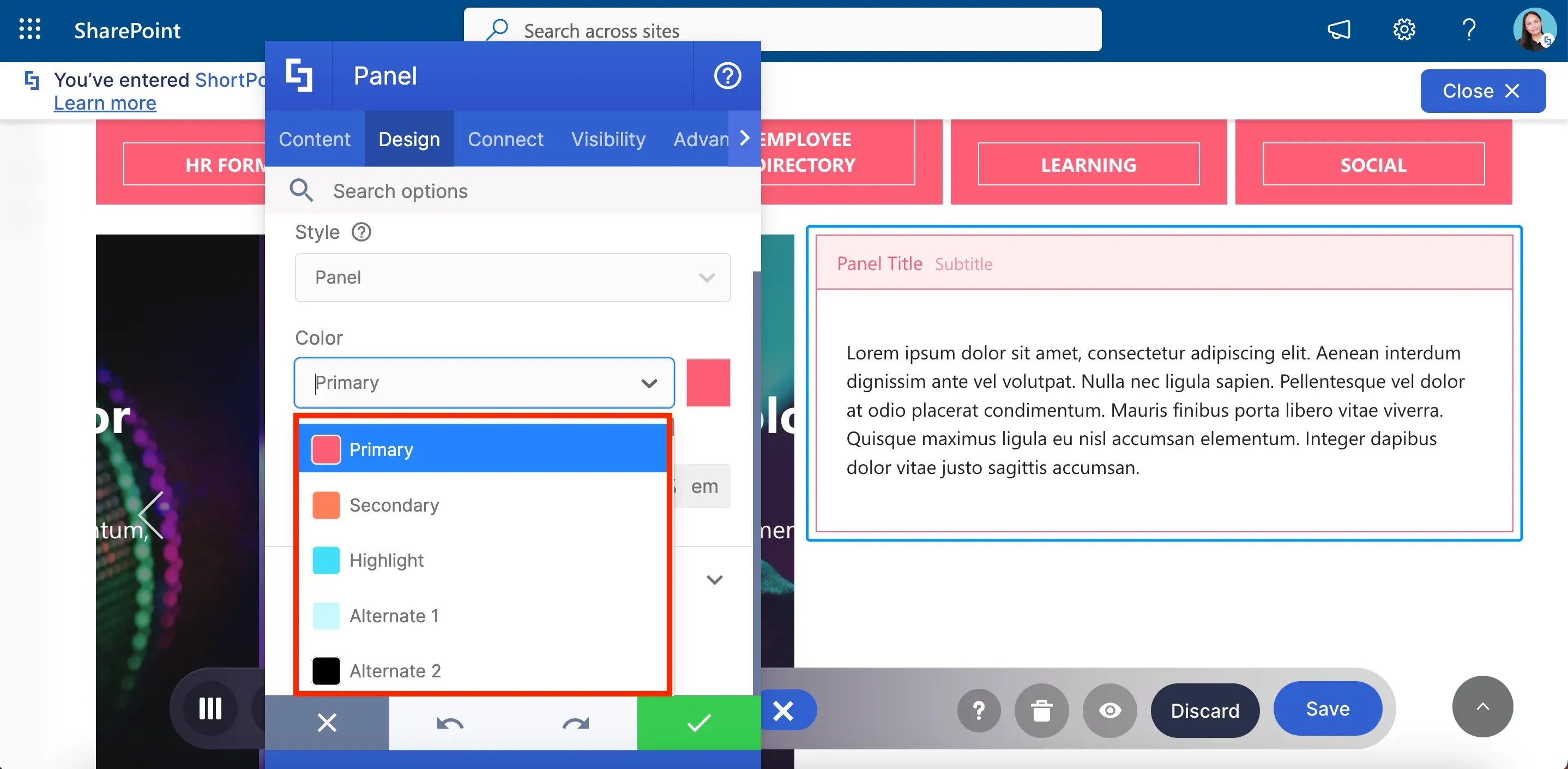
Now, let's go back to the Panel Design Element we used at the start of this lesson. You will notice that the colors you've set up in the Color Palette will now appear in the Panel's color drop-down menu. You can now conveniently use these colors to customize all the Design Elements you add to your page.
Additionally, when you add a Design Element, its default color will match your new color scheme.
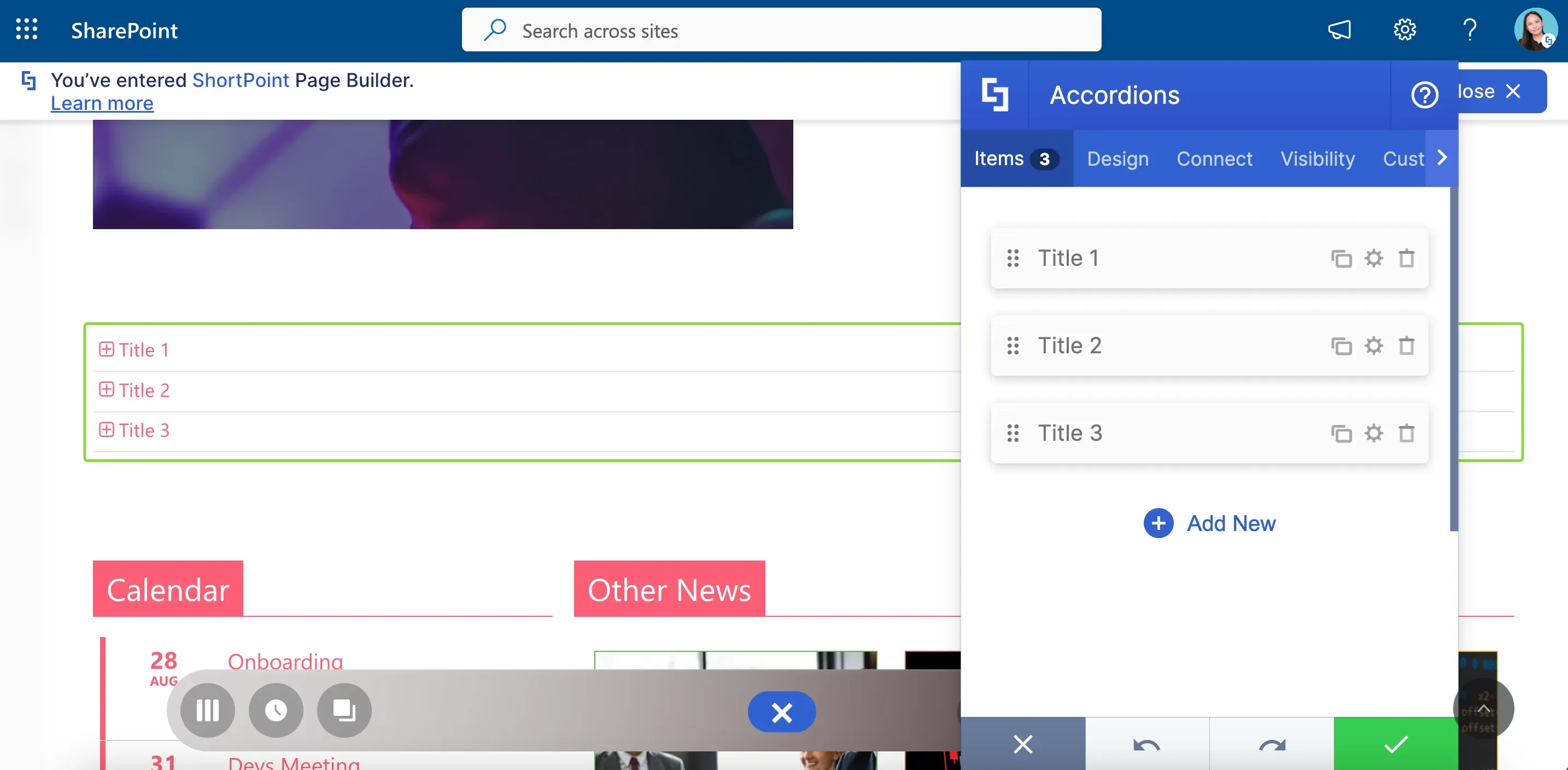
You'll also notice that when you add any of the Section and Page templates from the Templates Library, their colors will automatically match the color theme you've already set up.
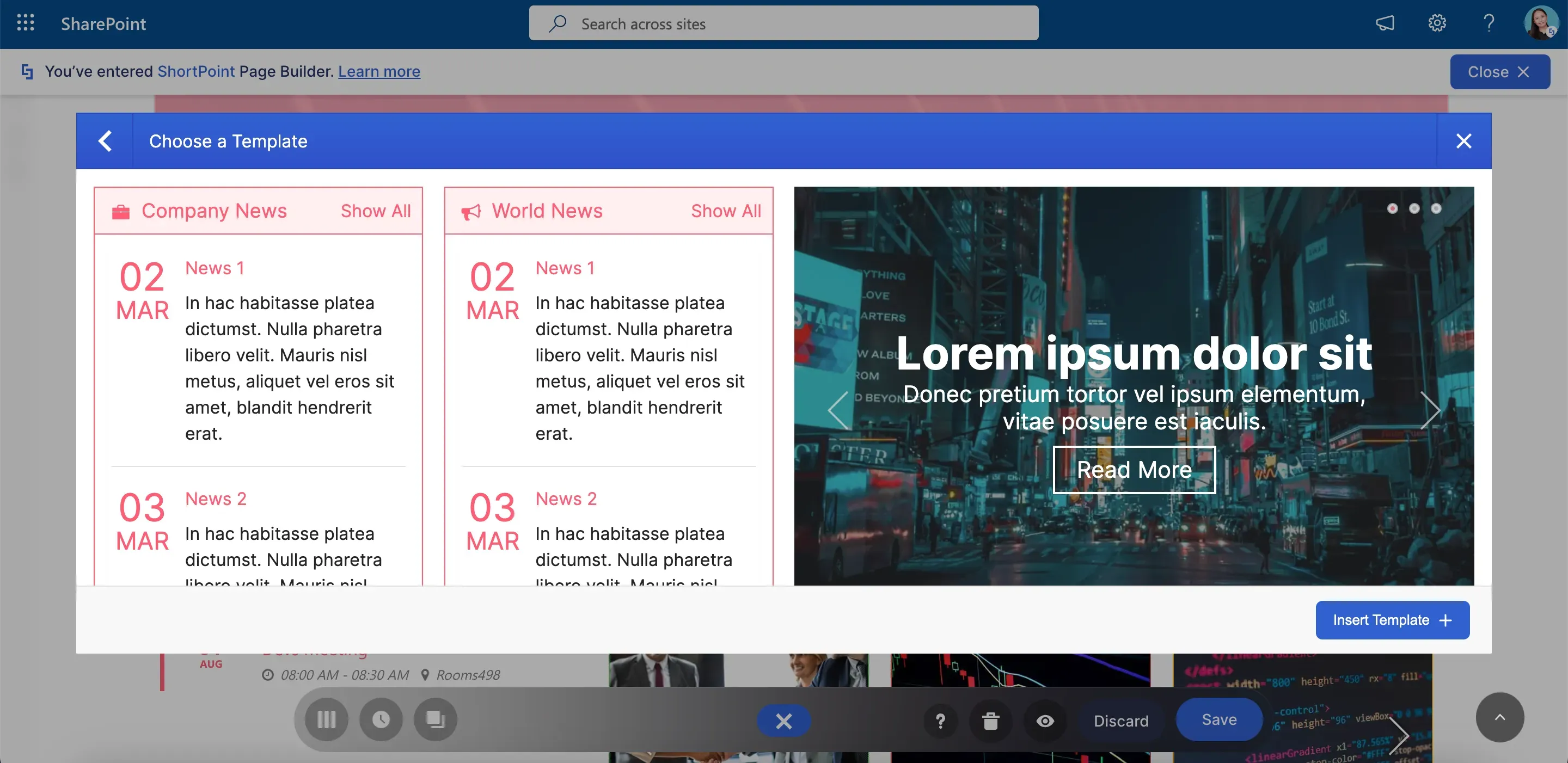
Now, let's explore creating and saving color themes. In SharePoint, you can change the theme of your site by clicking Change the look.
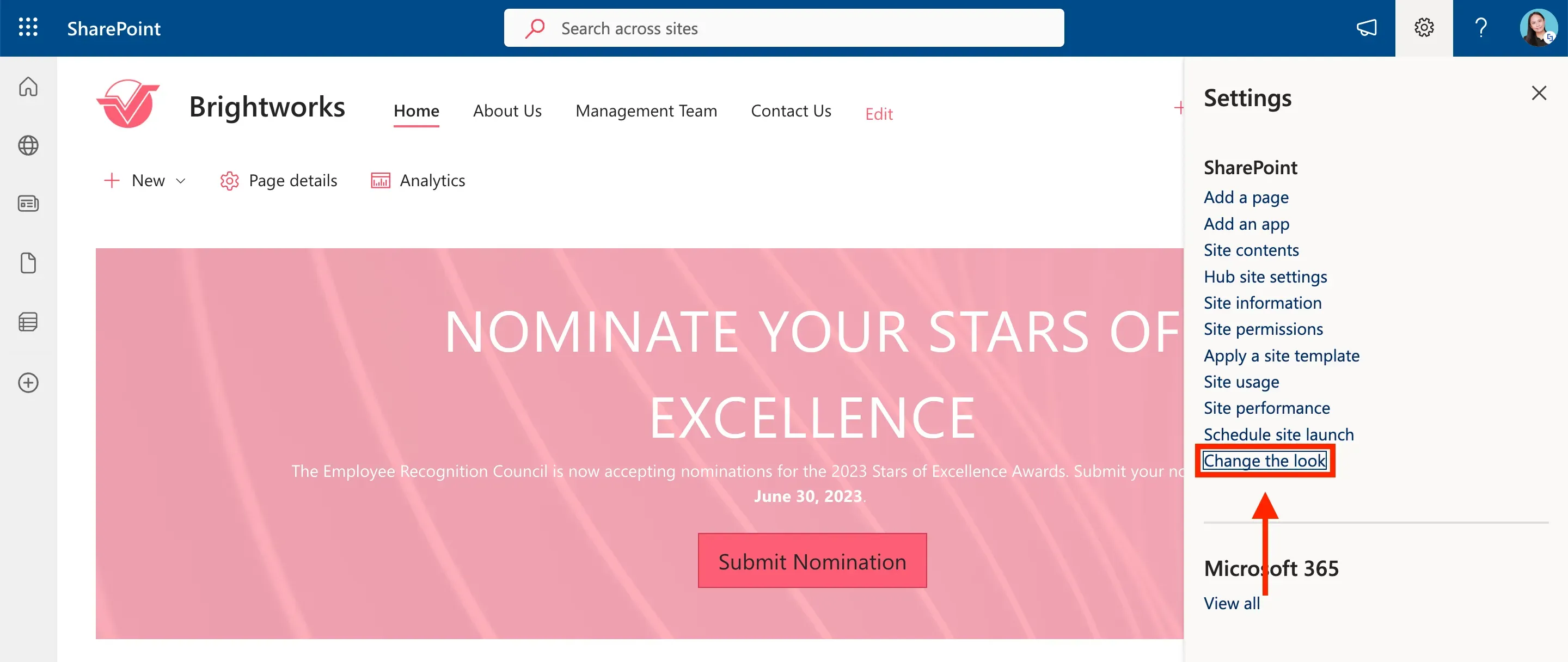
Then, select Theme.
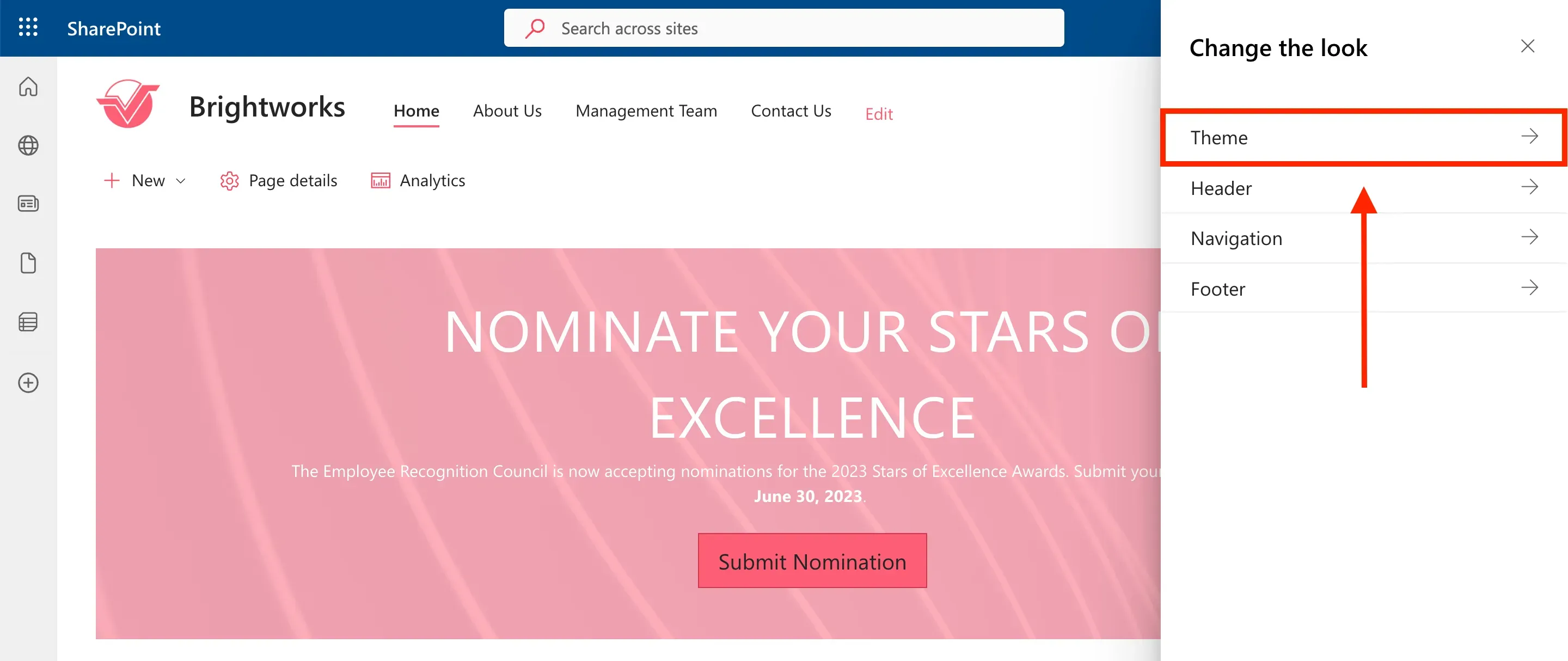
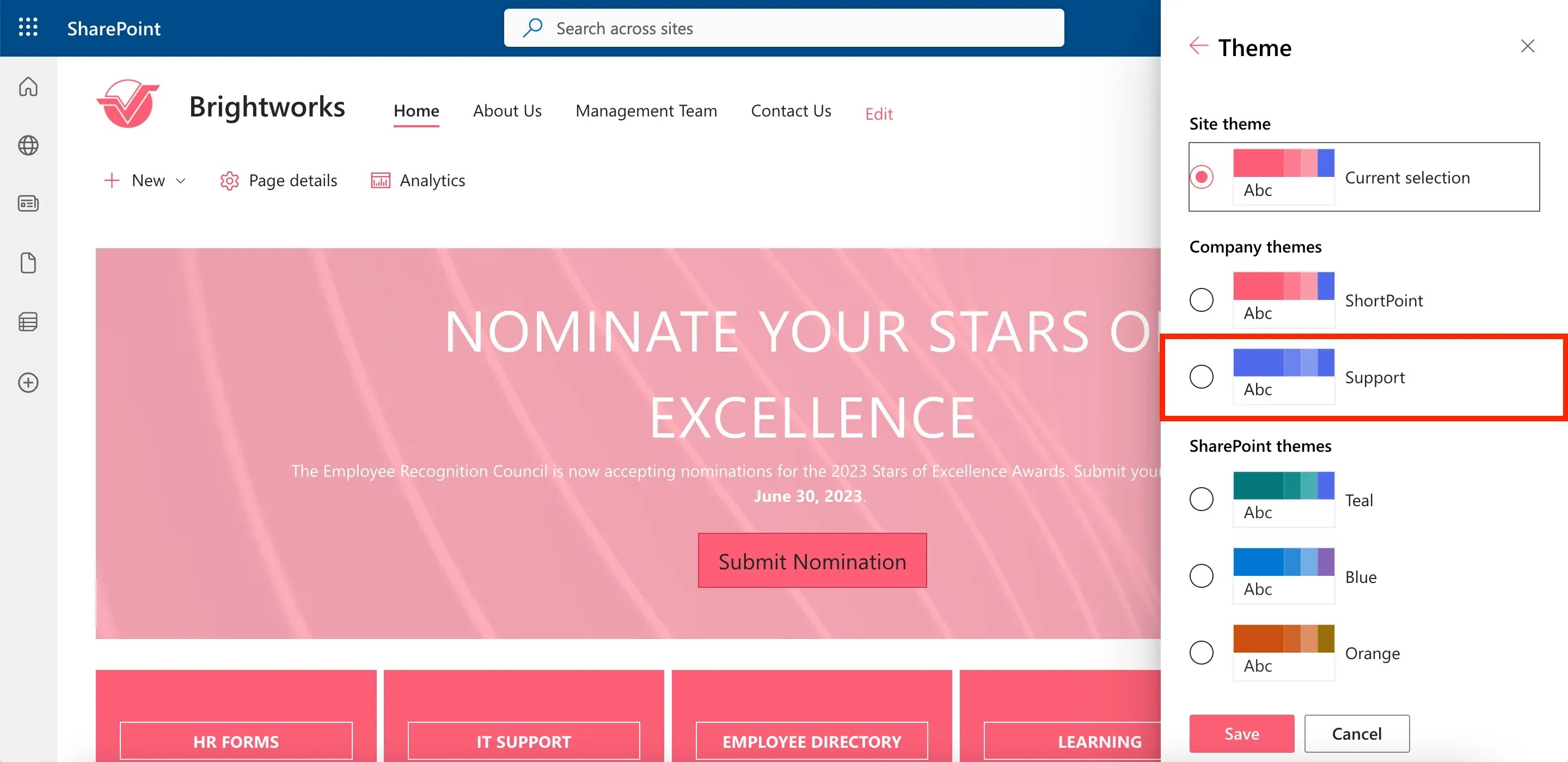
You will notice that ShortPoint Theme Builder automatically created a theme called "ShortPoint" from the colors you added to the Color Palette. ShortPoint Theme Builder allows you to create and save color themes. Once you save your color themes, you will also see them in this side panel.
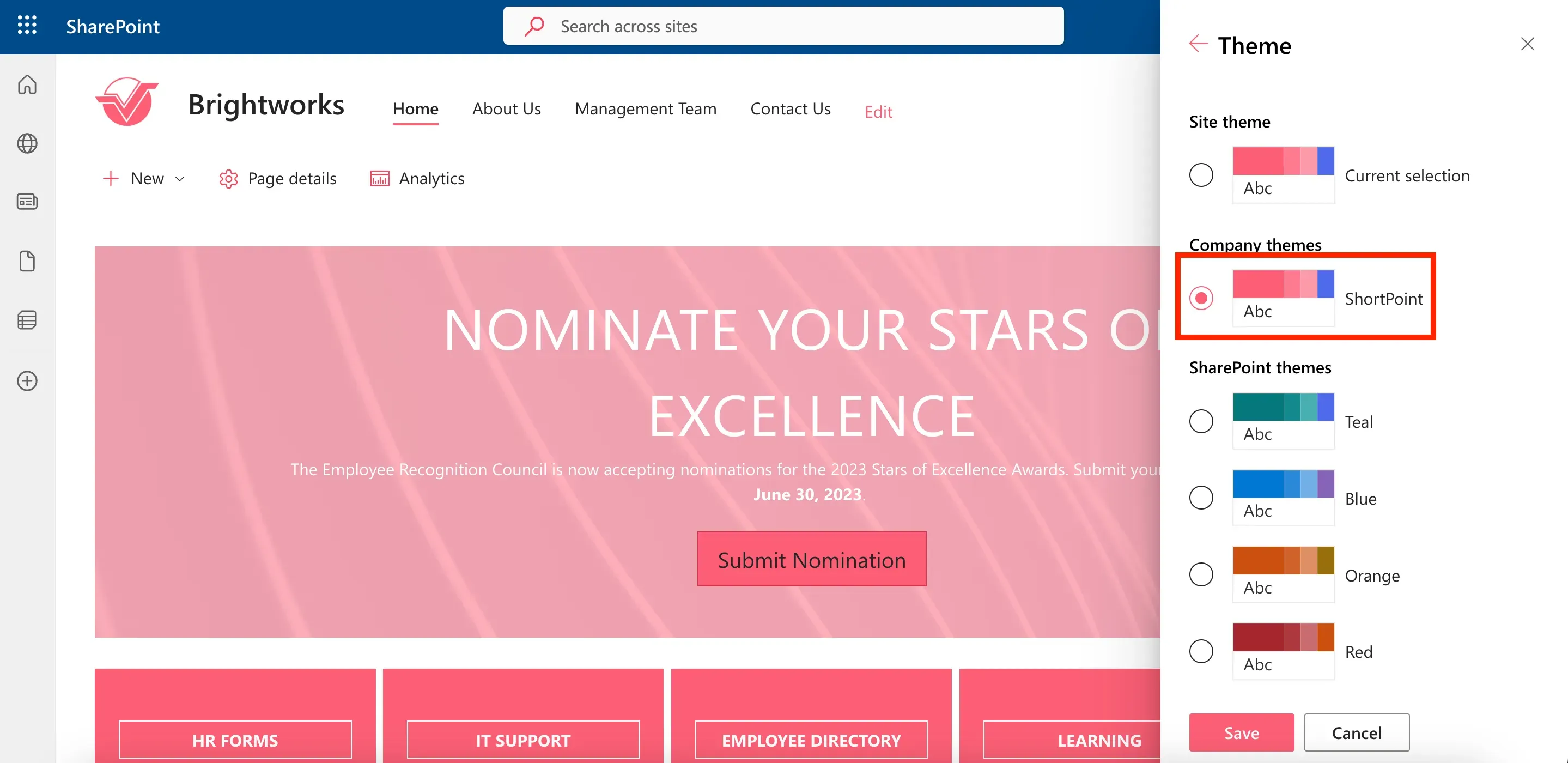
To do this, launch the Theme Builder of the page you want to use to create a color theme.
Saving color themes
Then, select Branding.
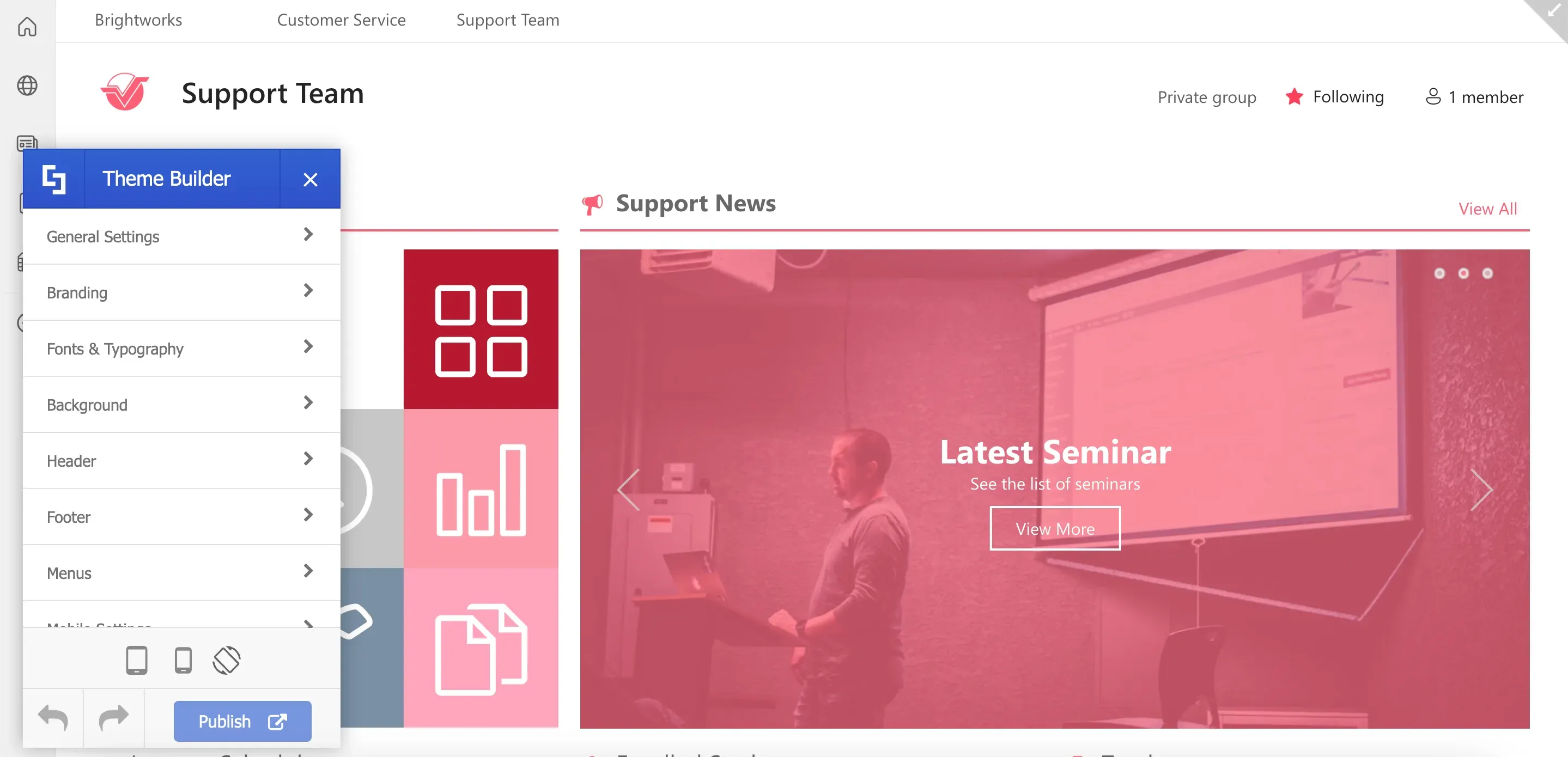
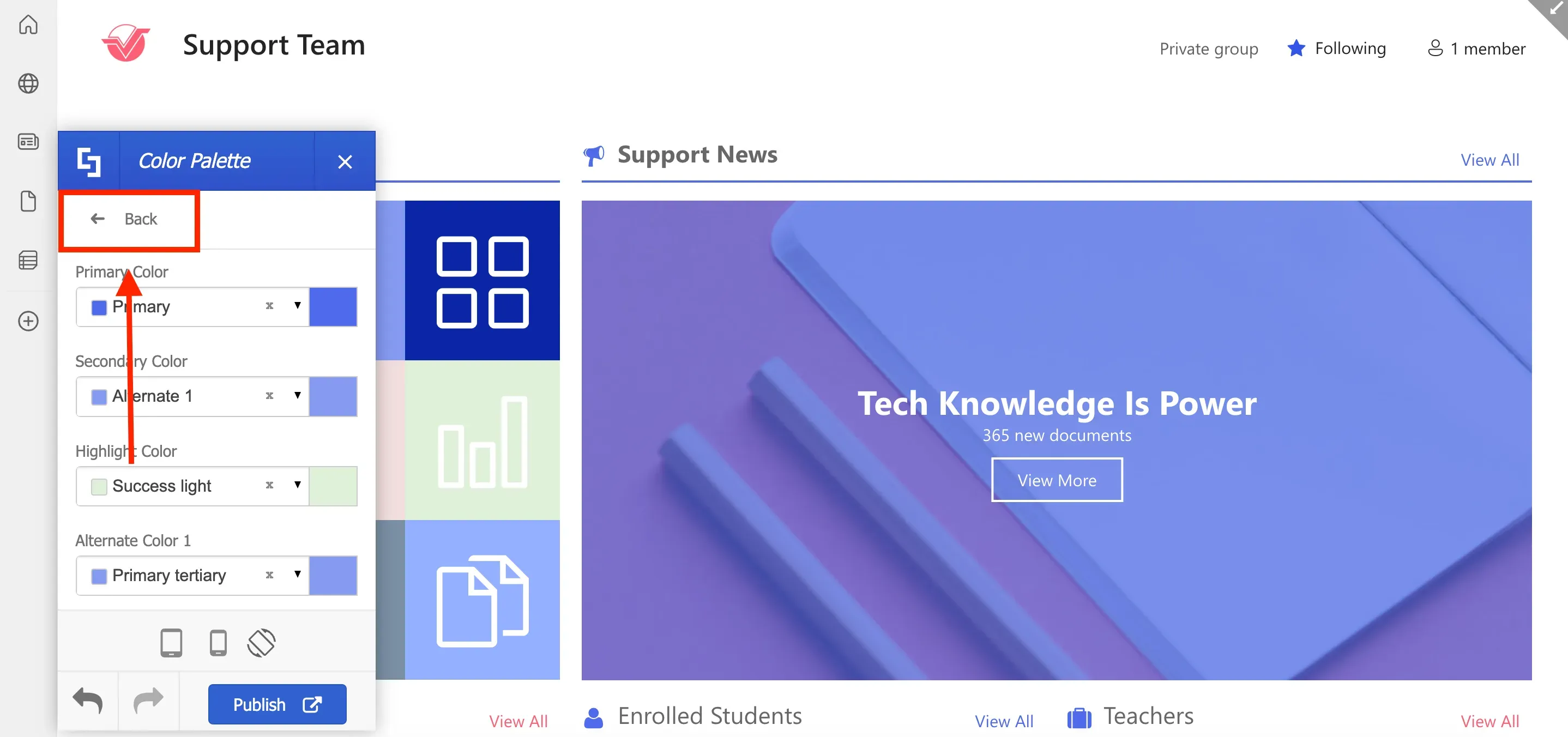
Click Color Palette.
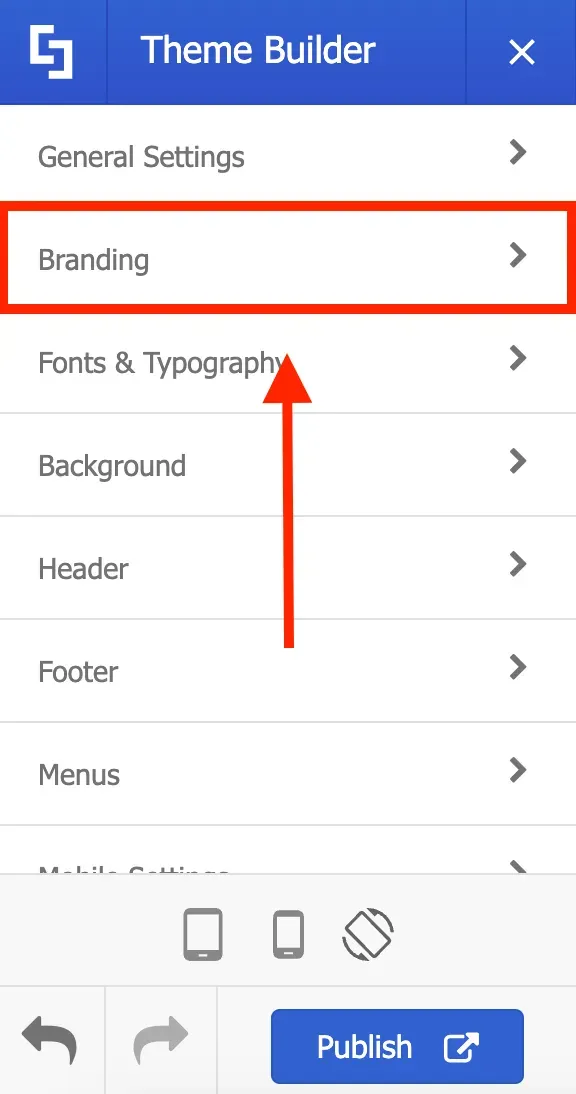
And update the colors you want to use.
Then, click Back.
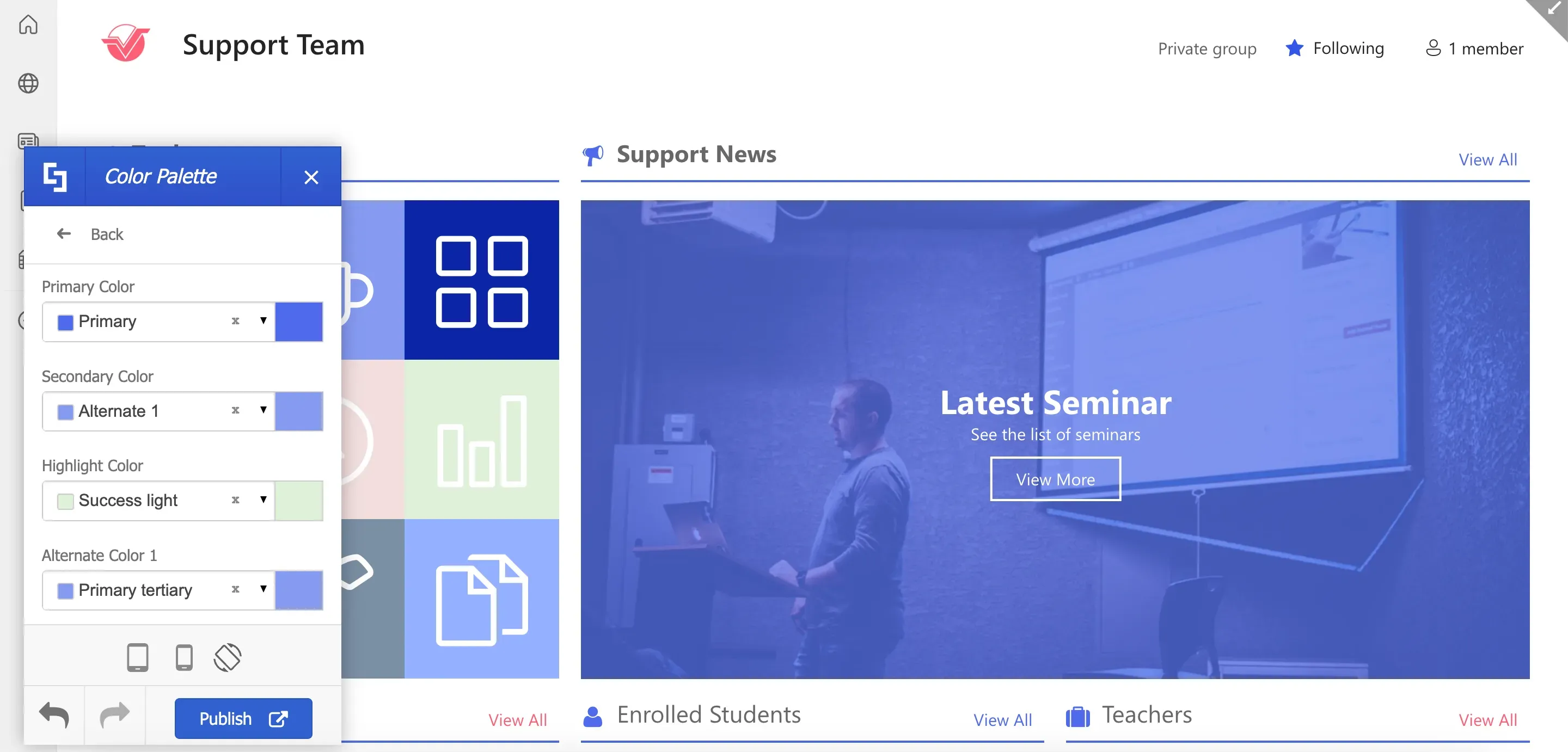
Select Color Theme Tool.
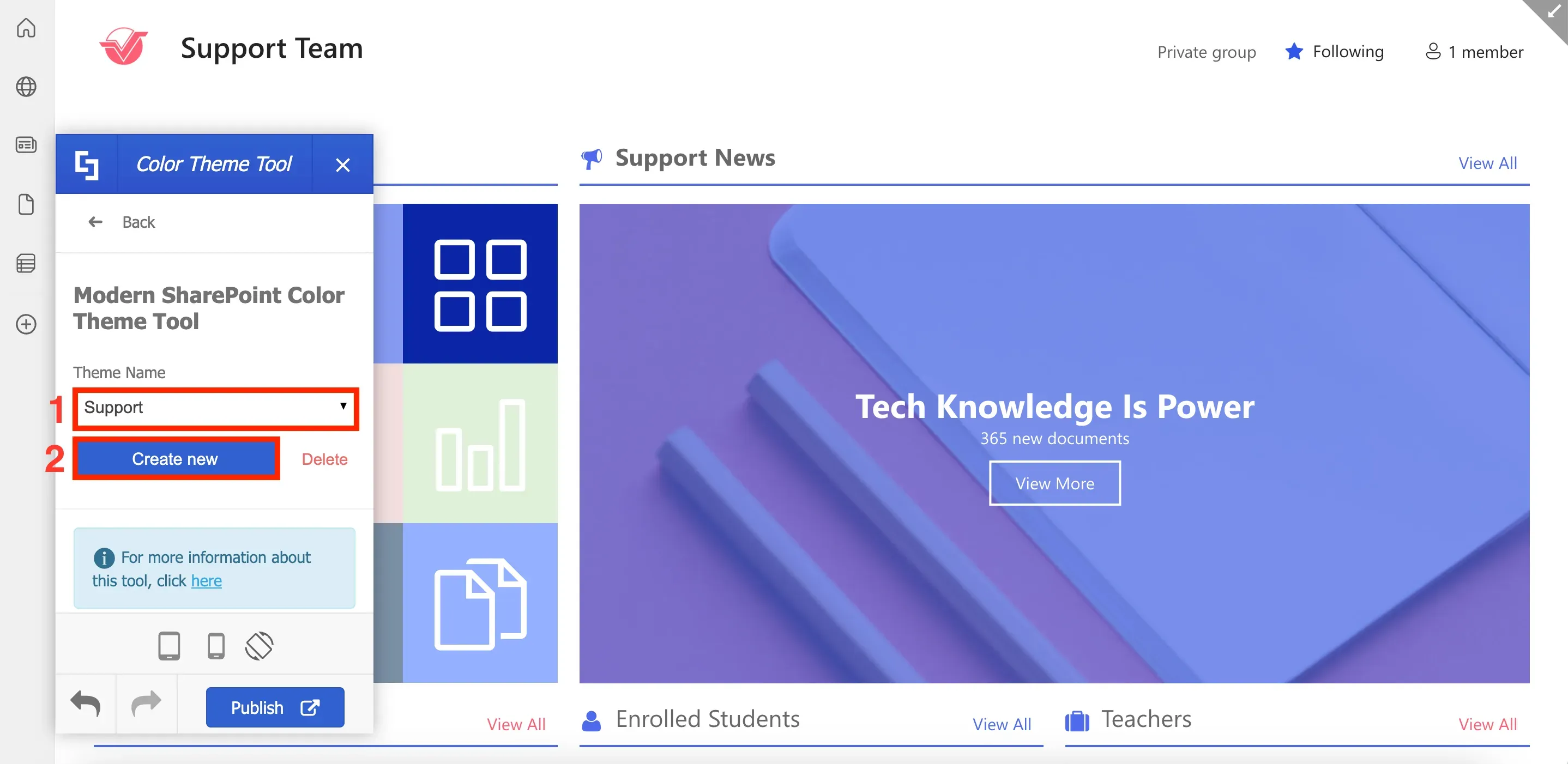
Give your color theme a [1] Theme Name and click [2] Create New.
![Give your color theme a [1] Theme Name and click [2] Create New.](https://d2zzvnmppezkx.cloudfront.net/jam/25_d74efaf771.webp)
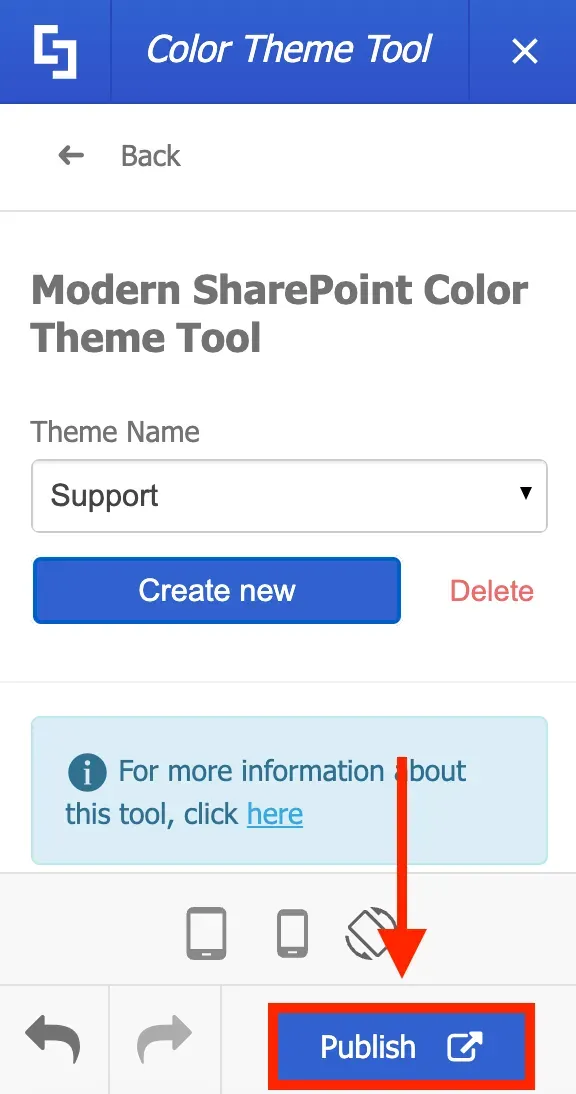
Then, click Publish to save all changes.
These newly created company themes will be available to you and other editors across multiple sites within your SharePoint tenancy.
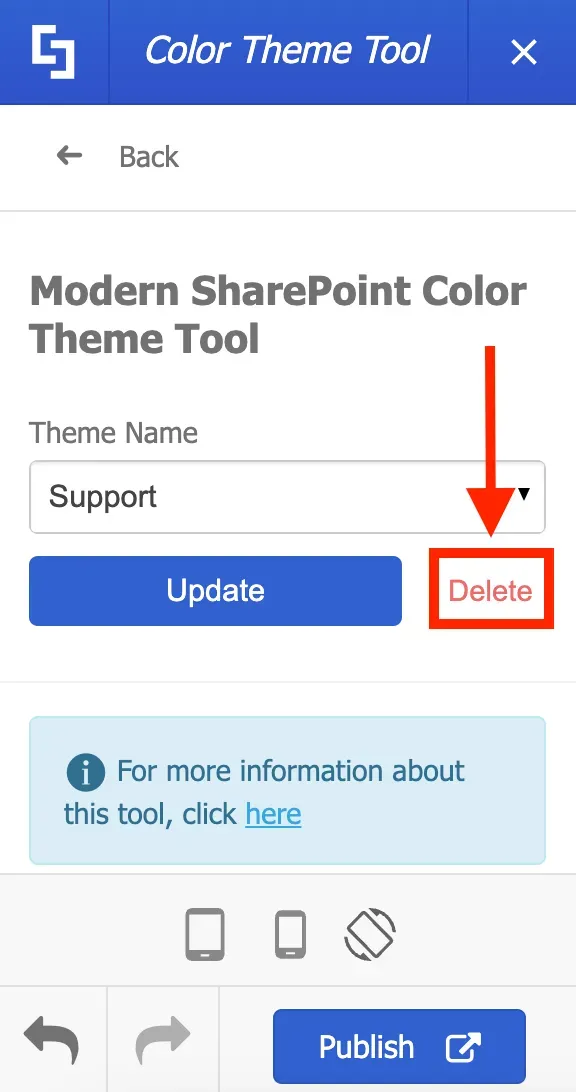
If you want to delete any ShortPoint-created color themes, go back to the Color Theme Tool, look for the theme you want to remove, and click Delete.
That's how simple it is to apply your company's brand colors using ShortPoint Theme Builder! Now, you can concentrate on how your colors can enhance the user's experience while they engage with your content.