
ShortPoint Theme Builder Basics
Export and import custom site themes
Redoing the same design for multiple sites is overwhelming and time-consuming. Fortunately, ShortPoint Theme Builder has the perfect solution. In this lesson, you will learn how to export an existing site theme into a new Site Collection. This will allow you to apply a uniform look and feel across all sites within your SharePoint tenancy.
Exporting site customization
To begin, open ShortPoint Theme Builder on the site from where you have already implemented your custom site design.
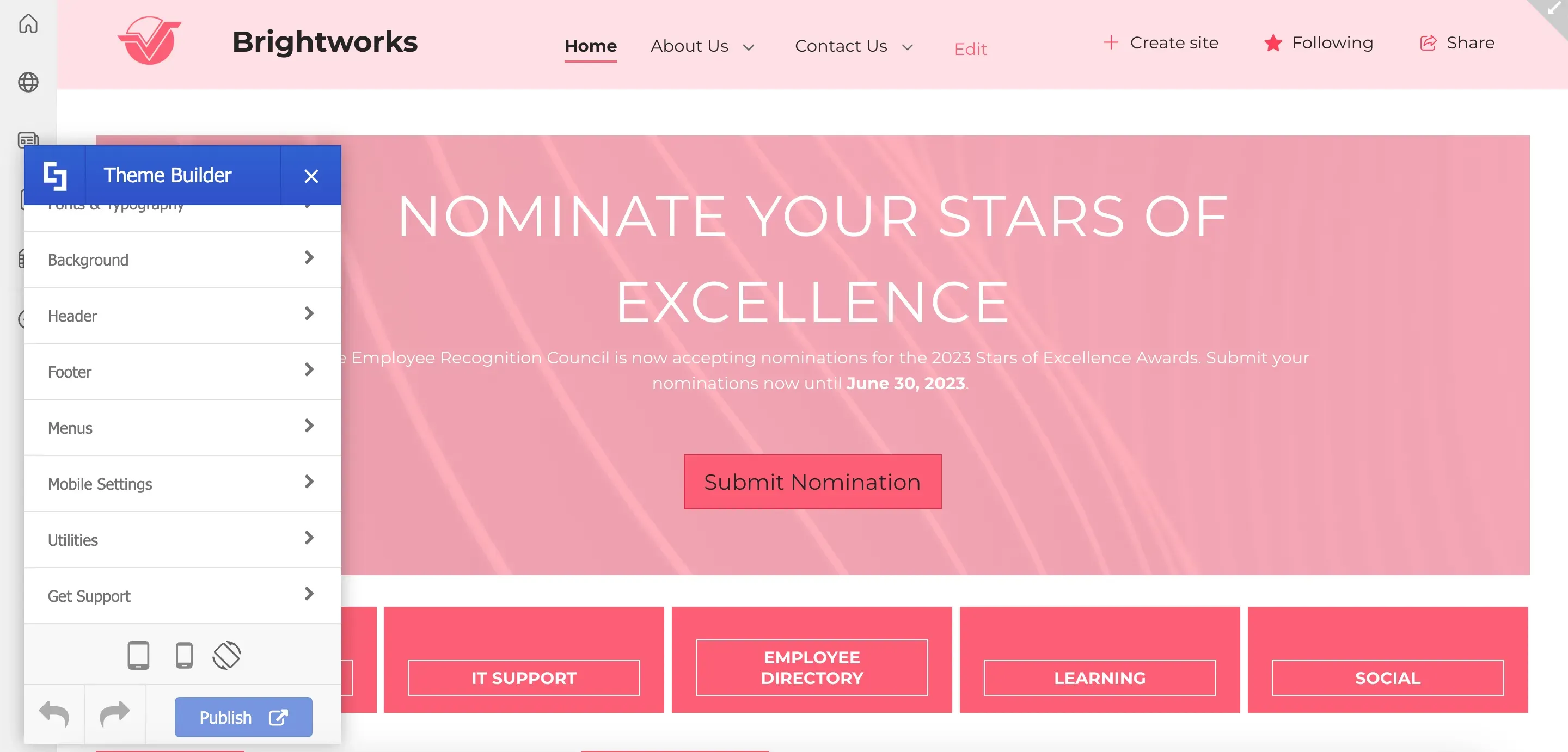
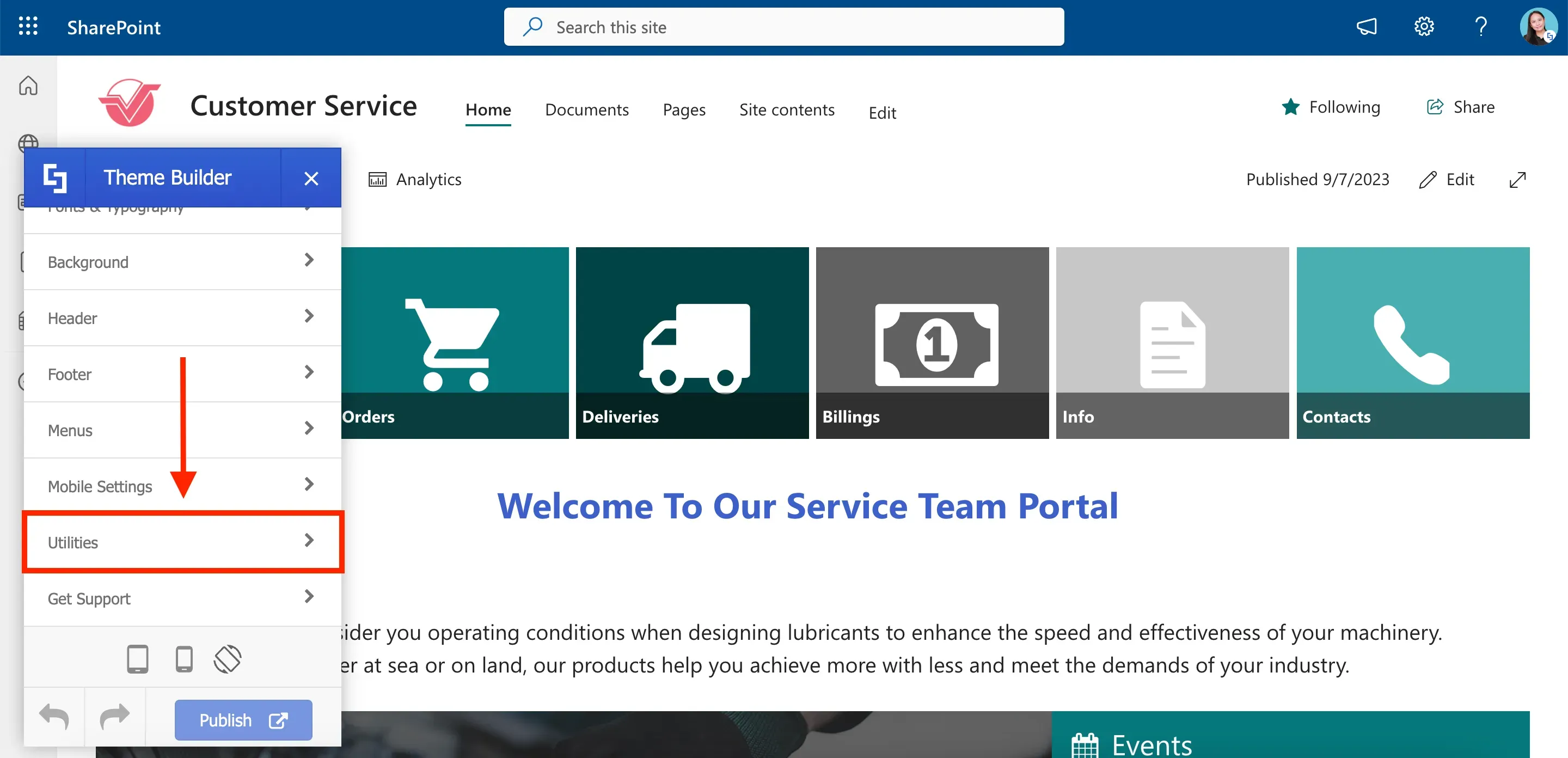
In the Theme Builder menu, scroll down and select Utilities.
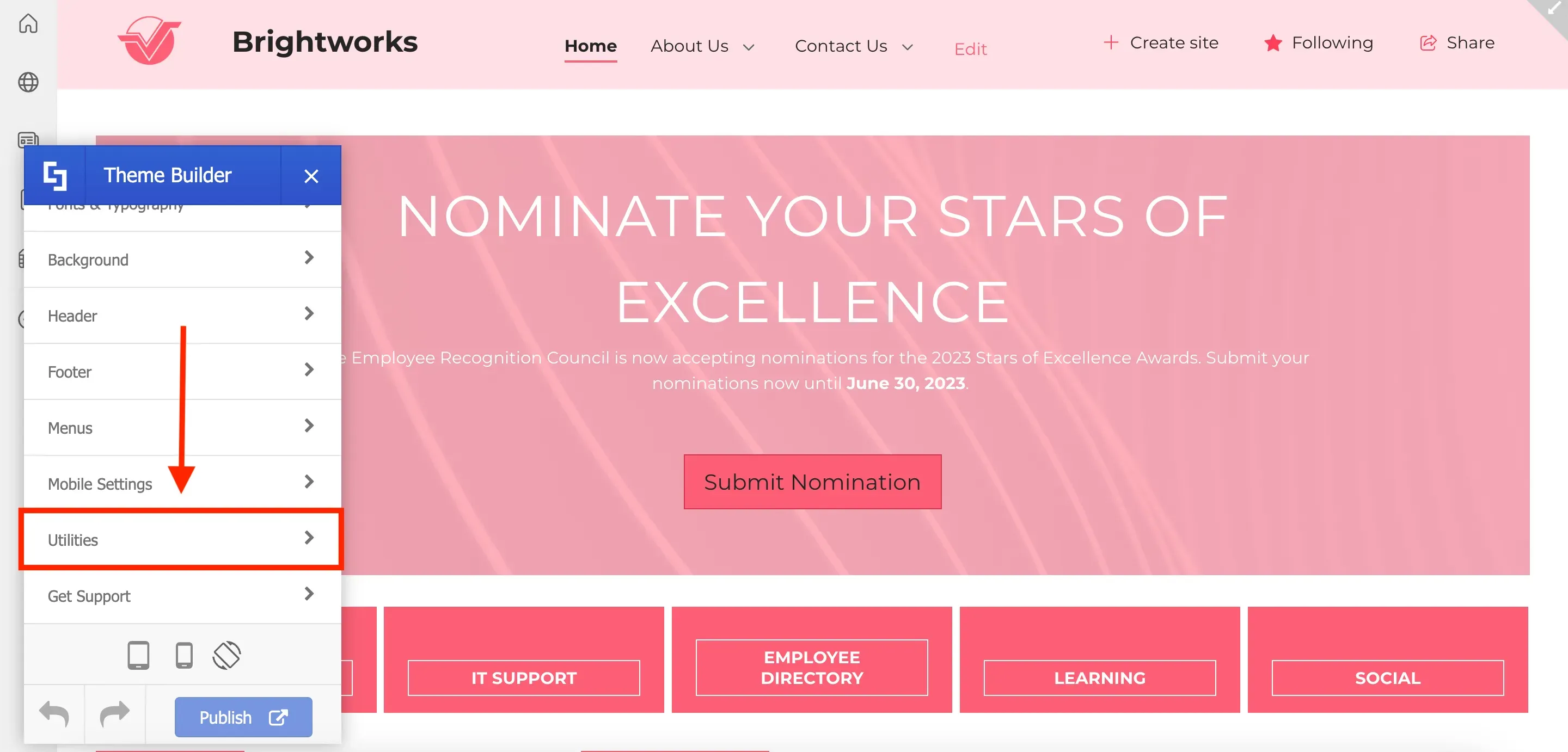
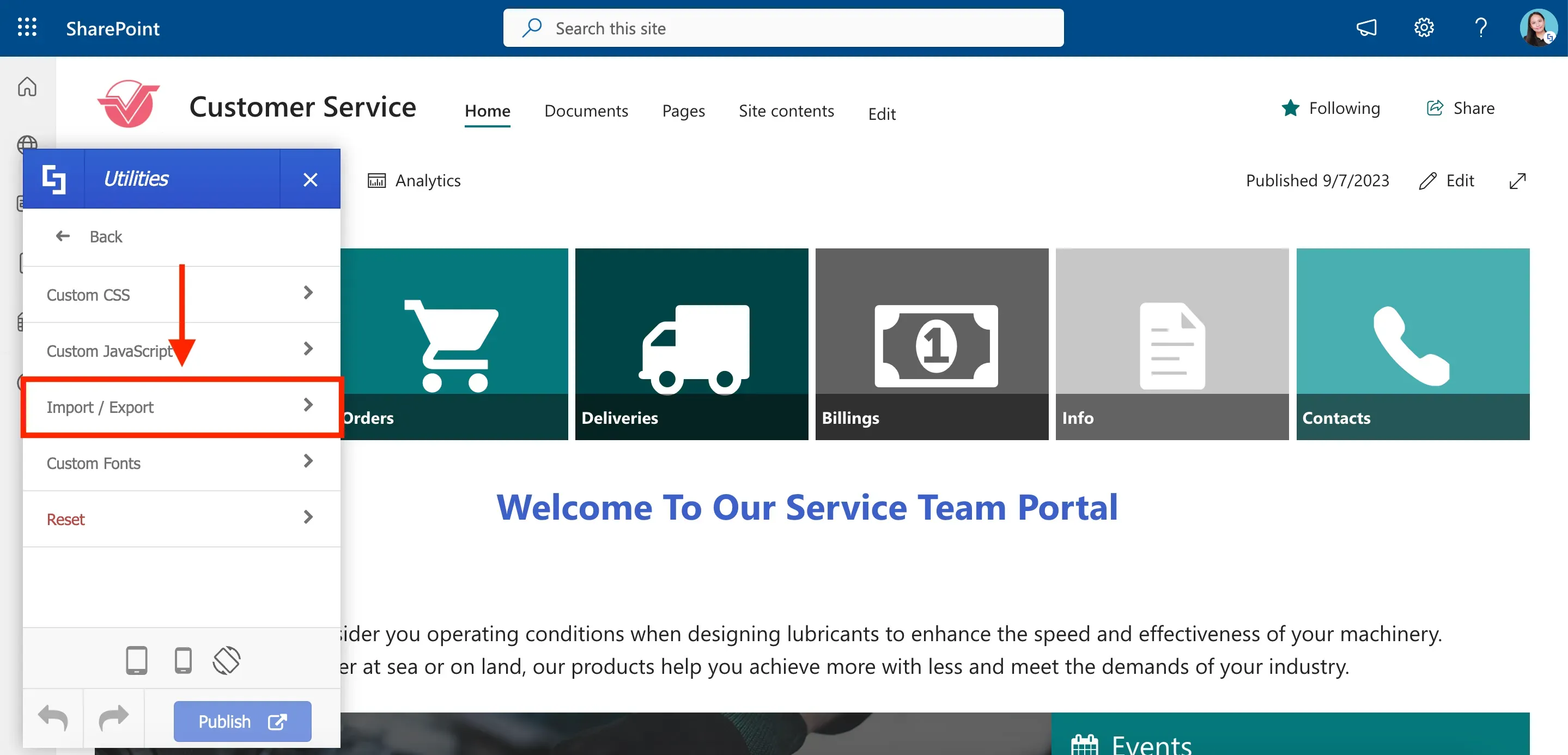
Then, select Import / Export.
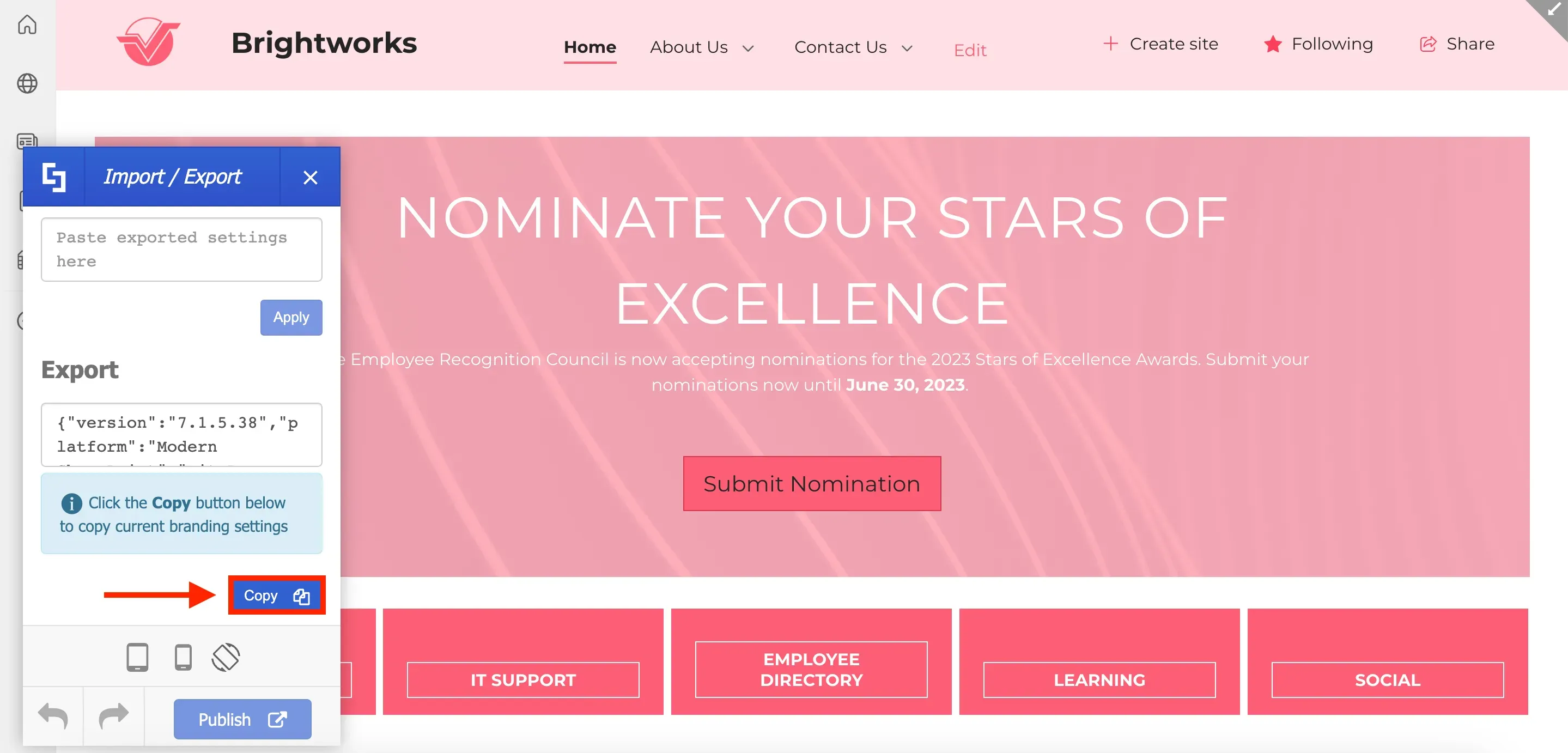
In the Export field, you will see a copy of the ShortPoint code that is currently applied to the site. To export this code, simply click Copy.
After copying the code, open the Site Collection where you want to apply your custom site design and launch ShortPoint Theme Builder.
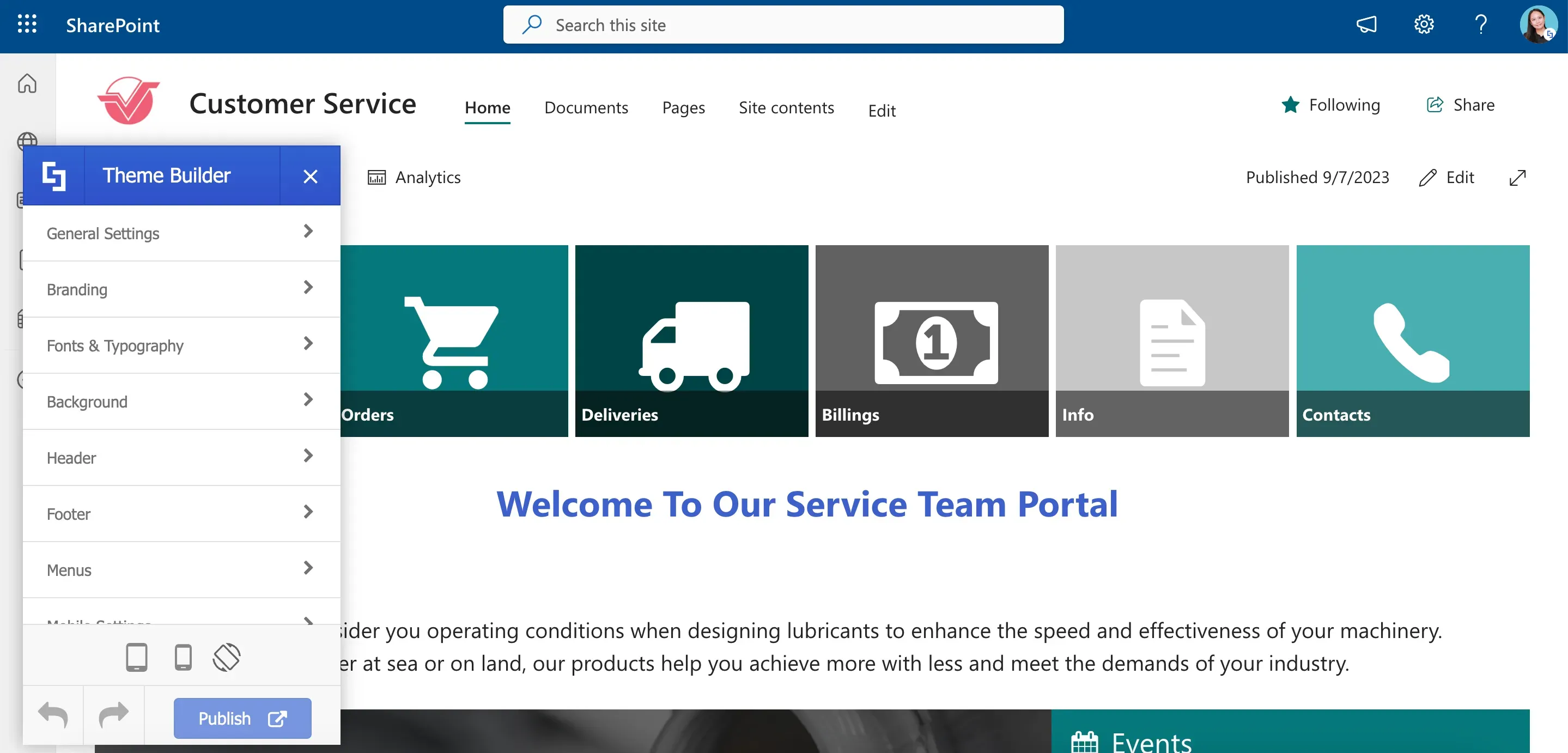
Once inside Theme Builder, we will repeat the same steps from the previous Site Collection and select Utilities.
Then, click Import / Export.
Importing to a new site collection
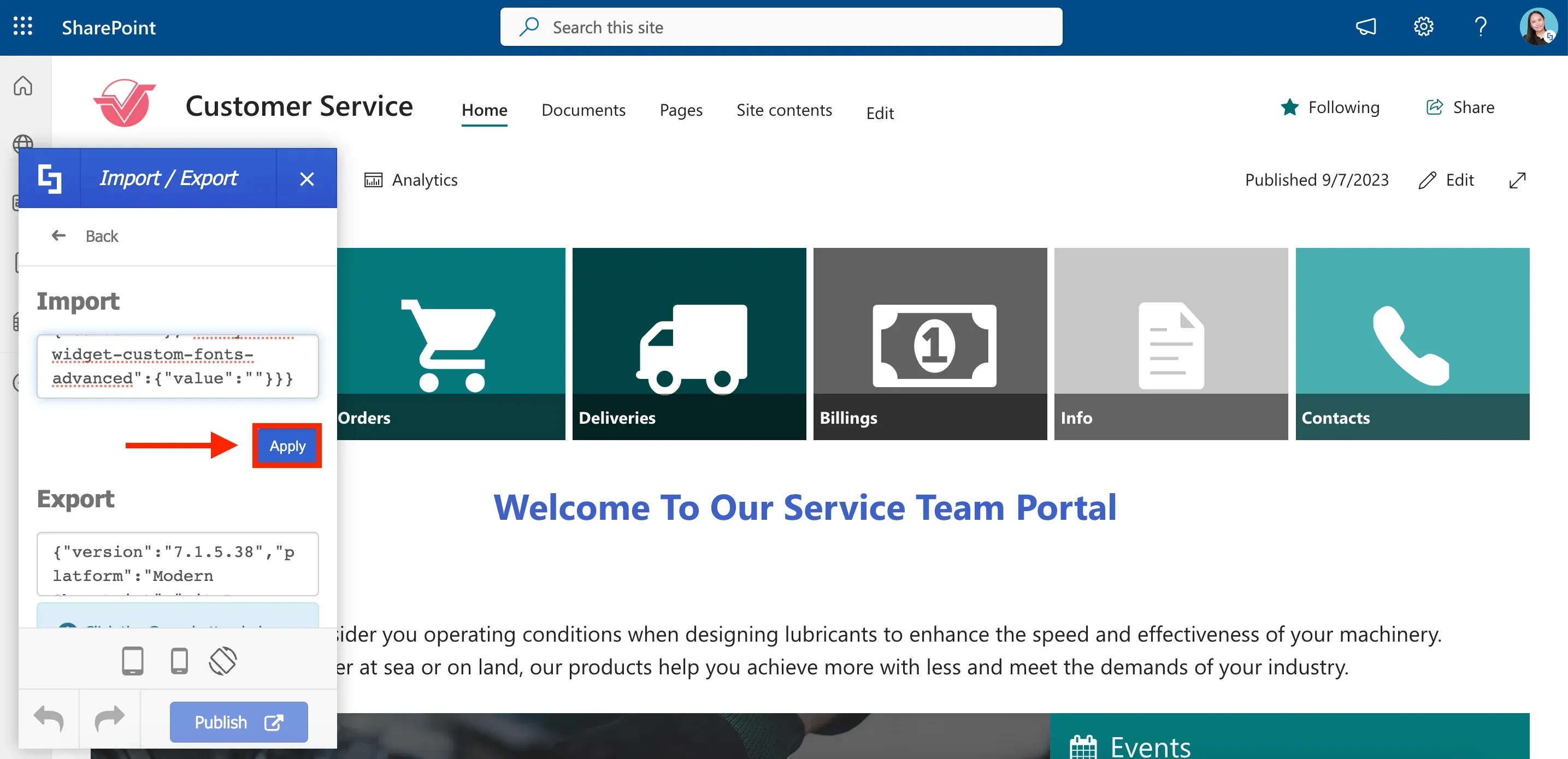
This time, we will use the Import field. Paste the ShortPoint code that you copied from the previous site and click Apply.
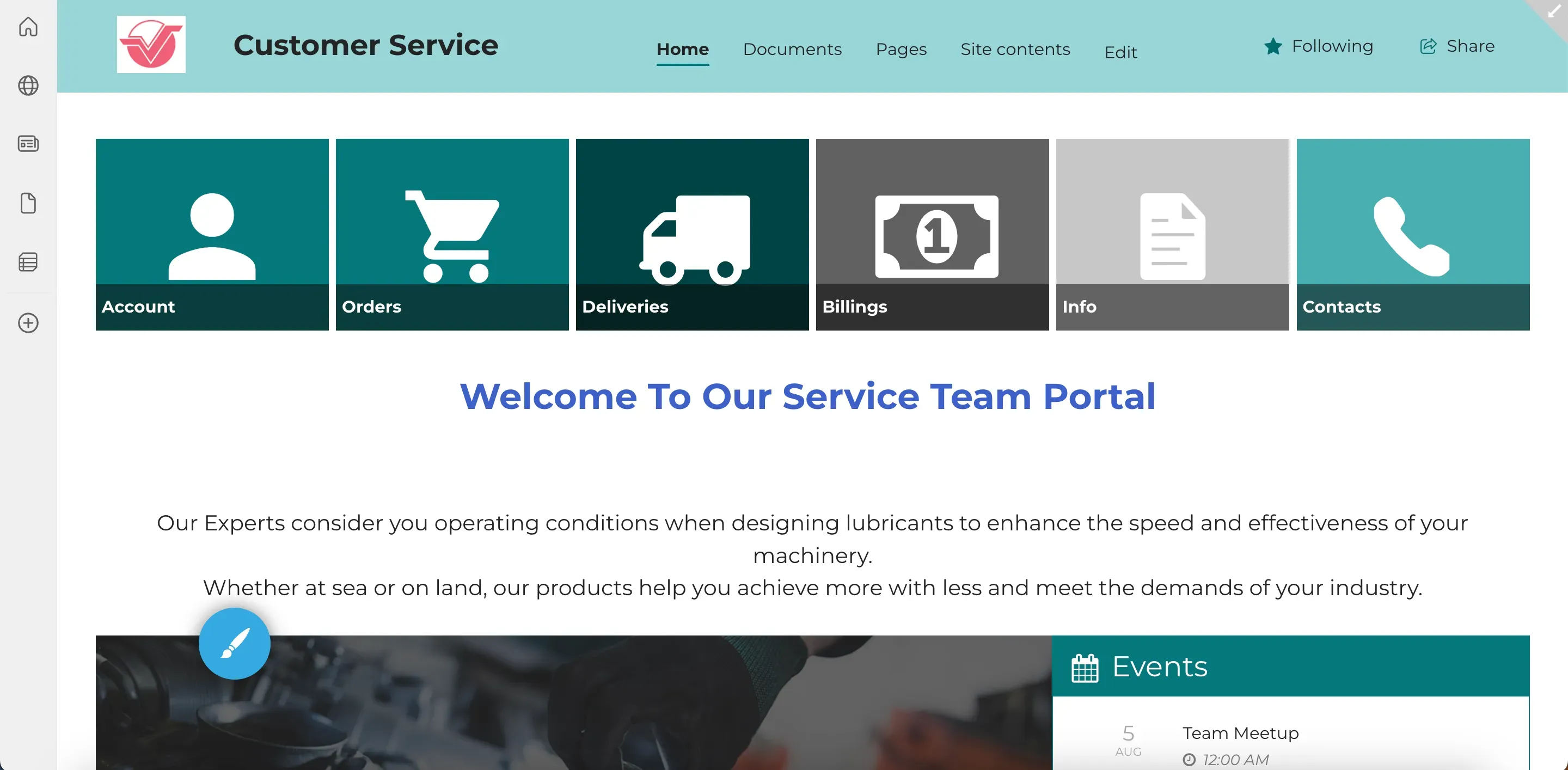
As soon as you click Apply, ShortPoint Theme Builder will work its magic, and you'll notice the changes from your custom design being automatically applied to the new site.
You will notice that the branding colors are not automatically copied over from the previous site. This means you'll need to set your branding colors separately.
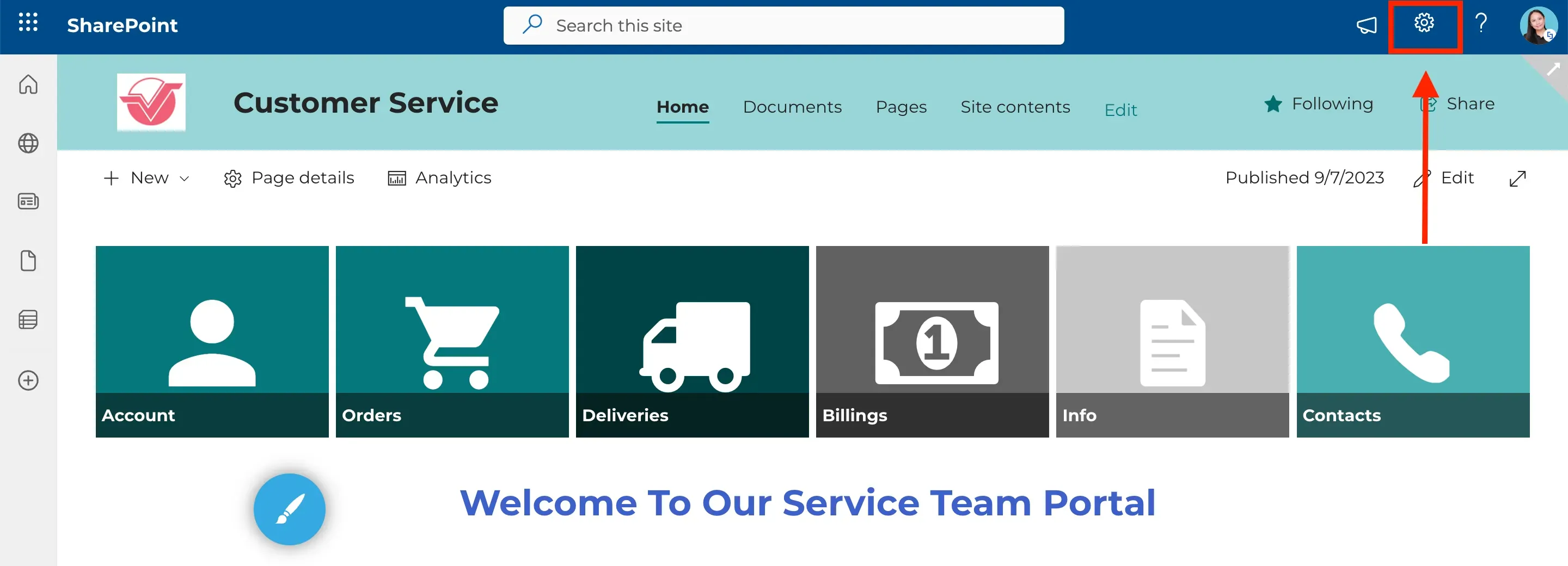
You can easily do this by using our saved company theme. Simply select the cogwheel icon in the upper-right corner of the screen.
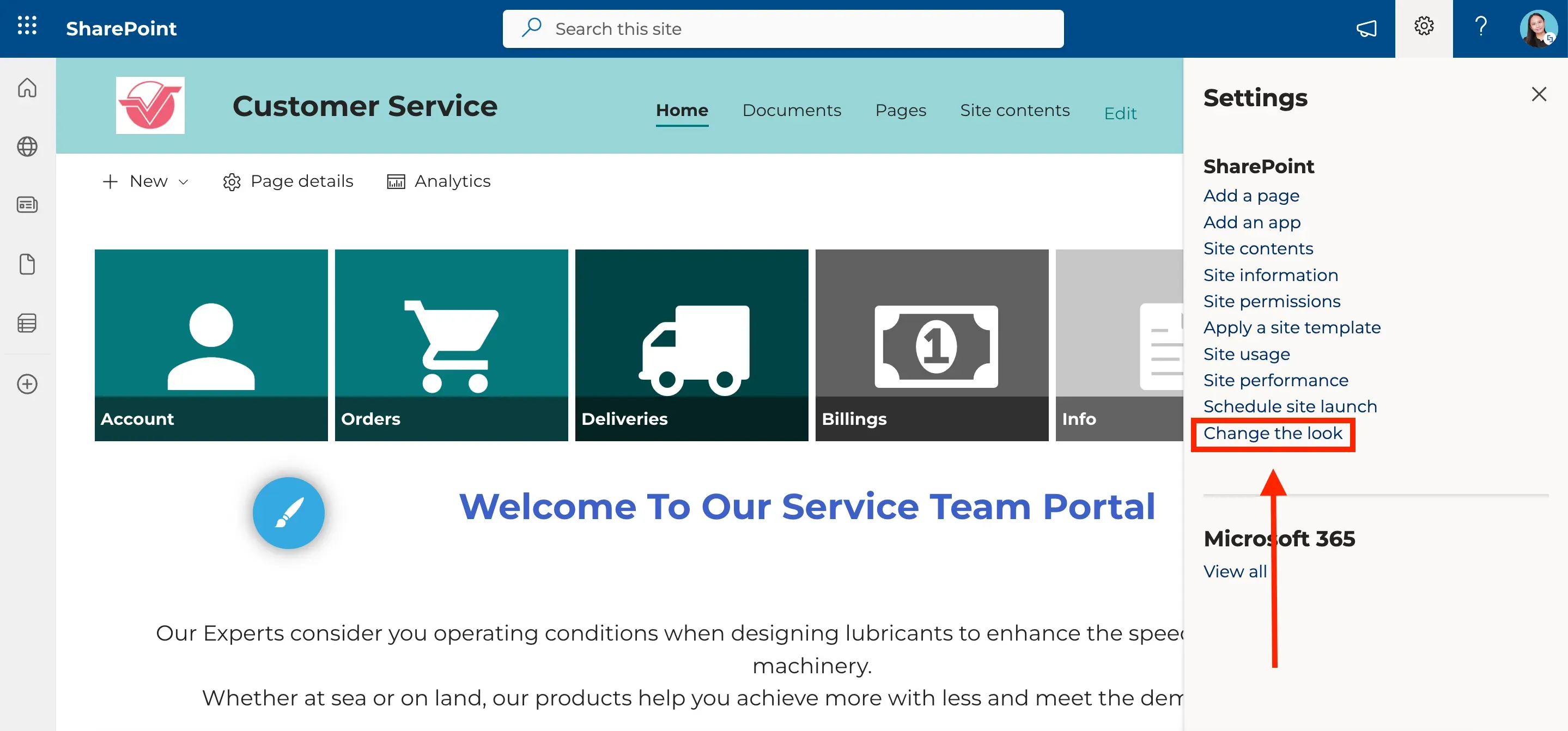
Then, select Change the look.
Navigate to Theme.
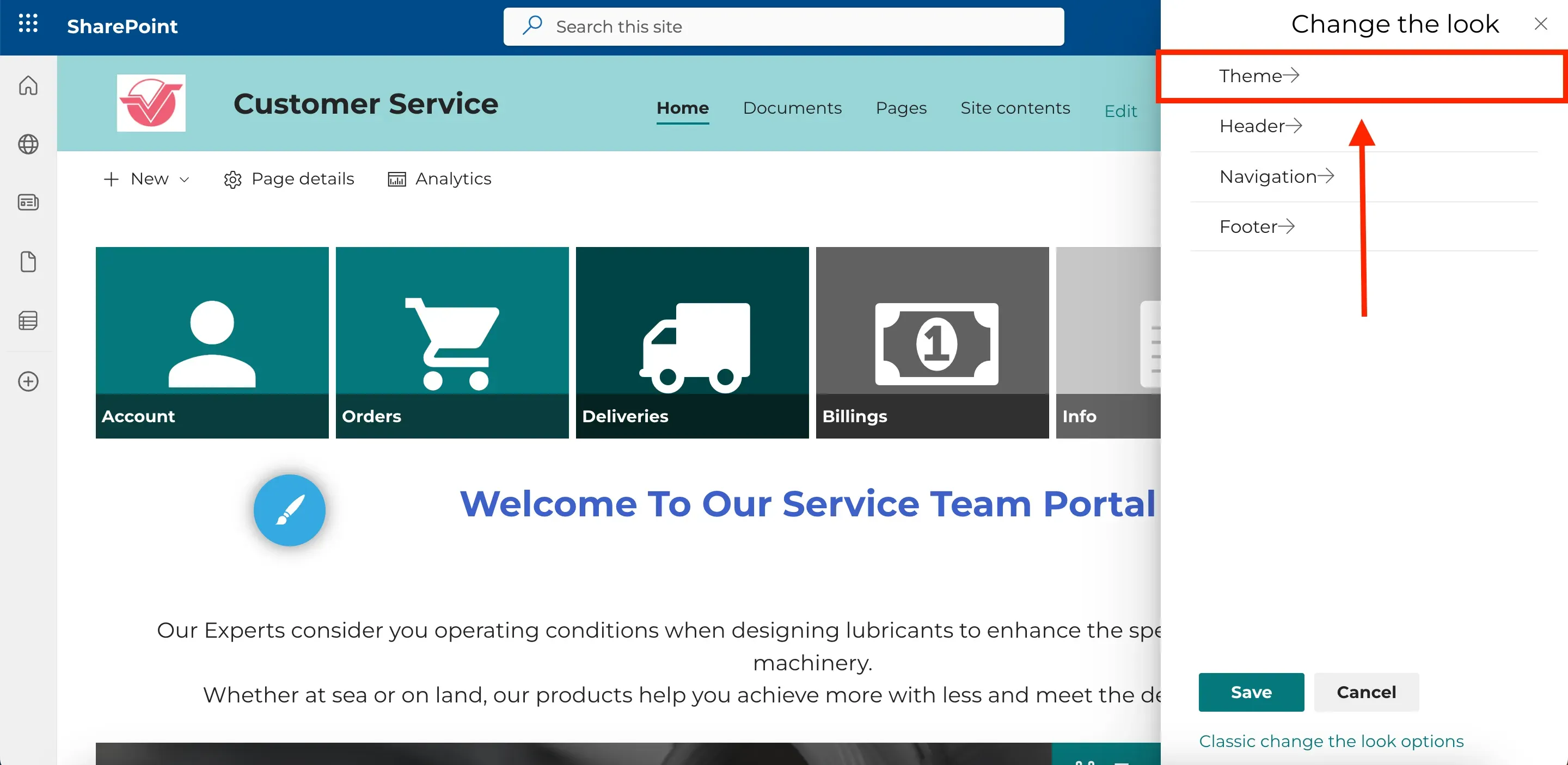
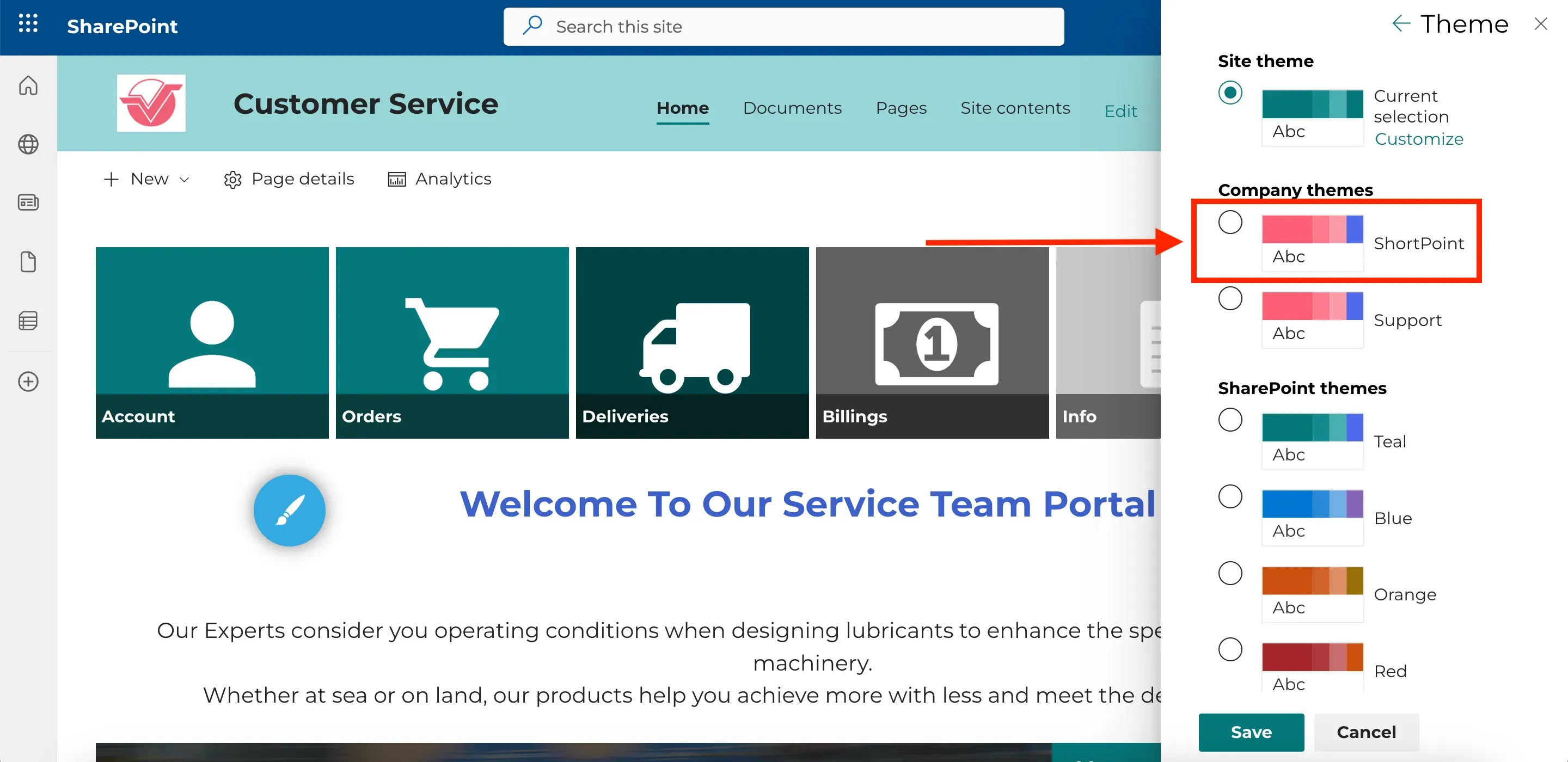
Select the company theme you used on the previous site.
Applying finishing touches
Click Save.
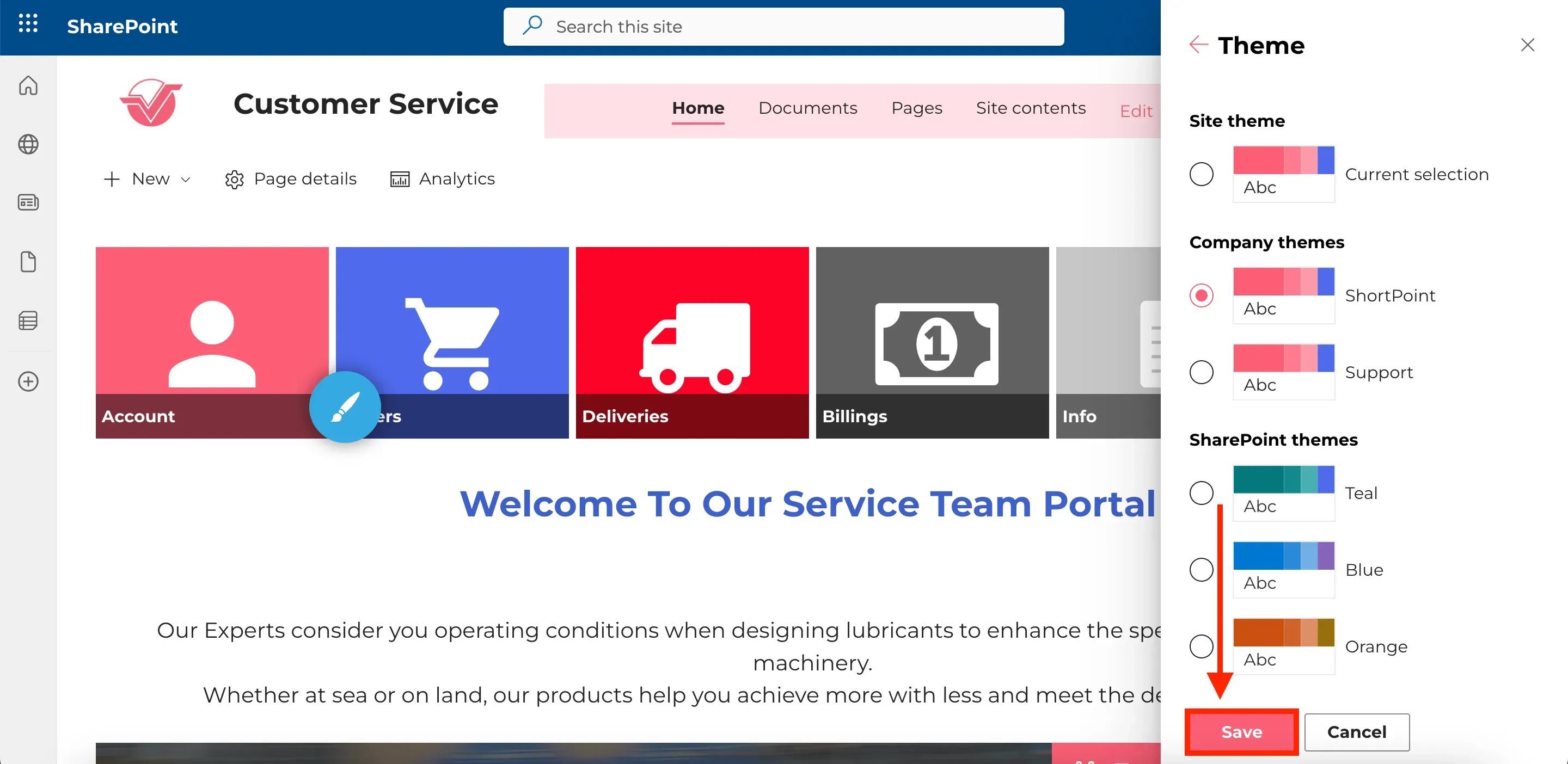
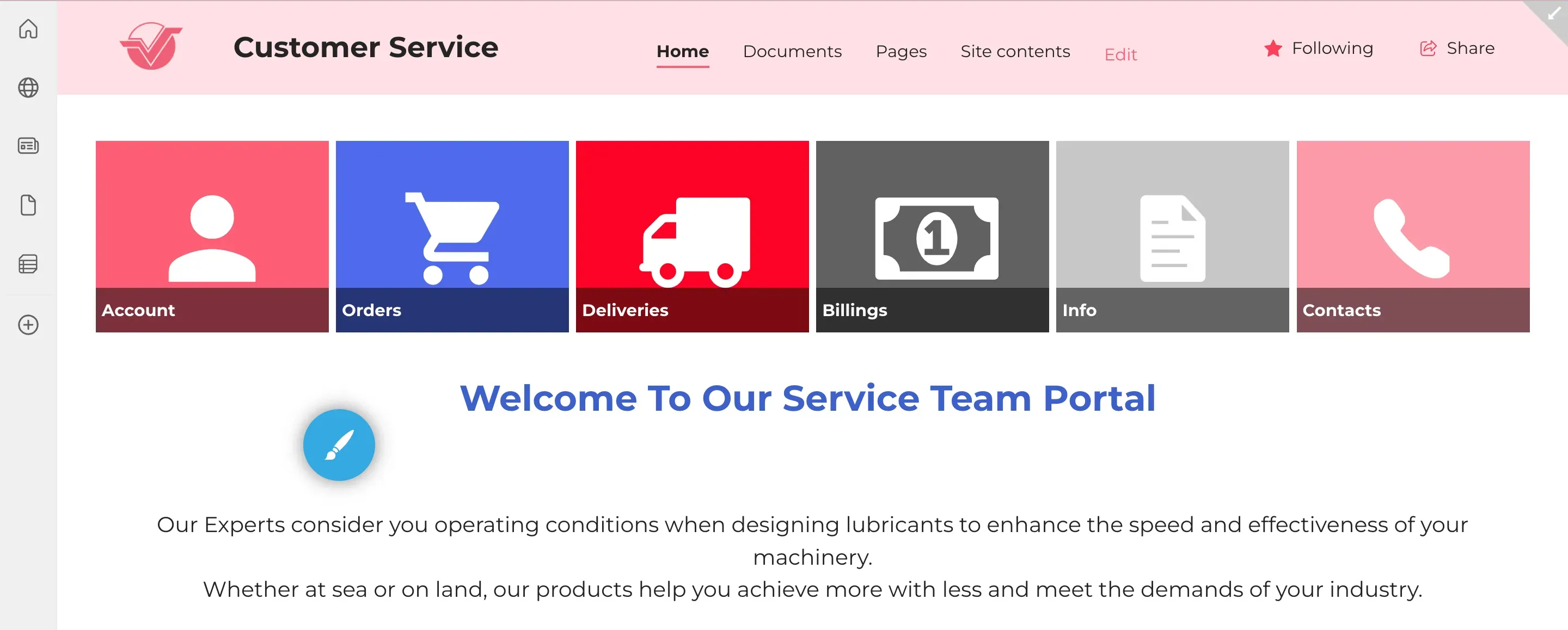
You will now see the brand colors you applied on the previous site on your current site.
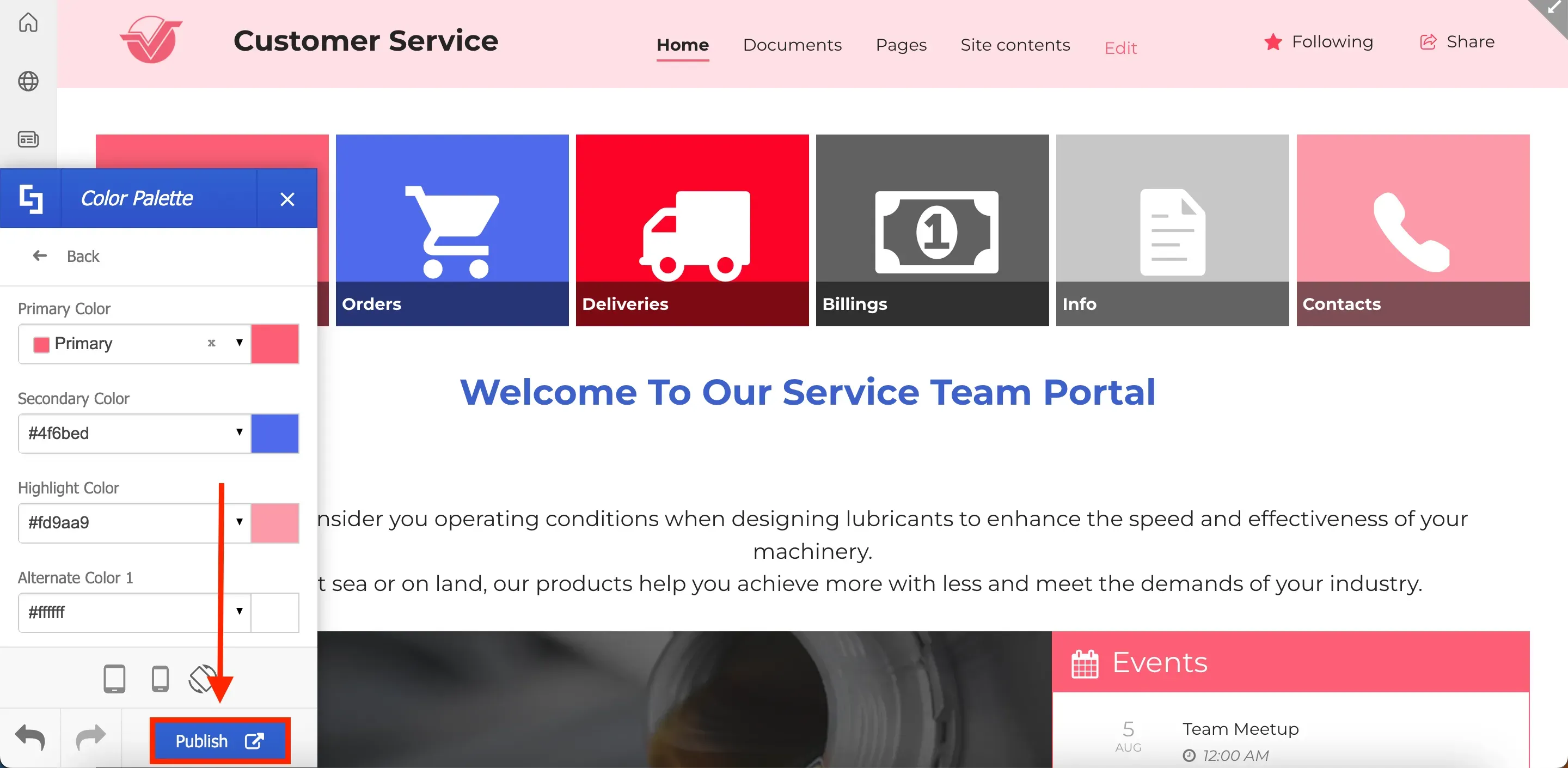
Alternatively, if you want to apply a new color theme go to the Theme Builder's main menu and select Branding.
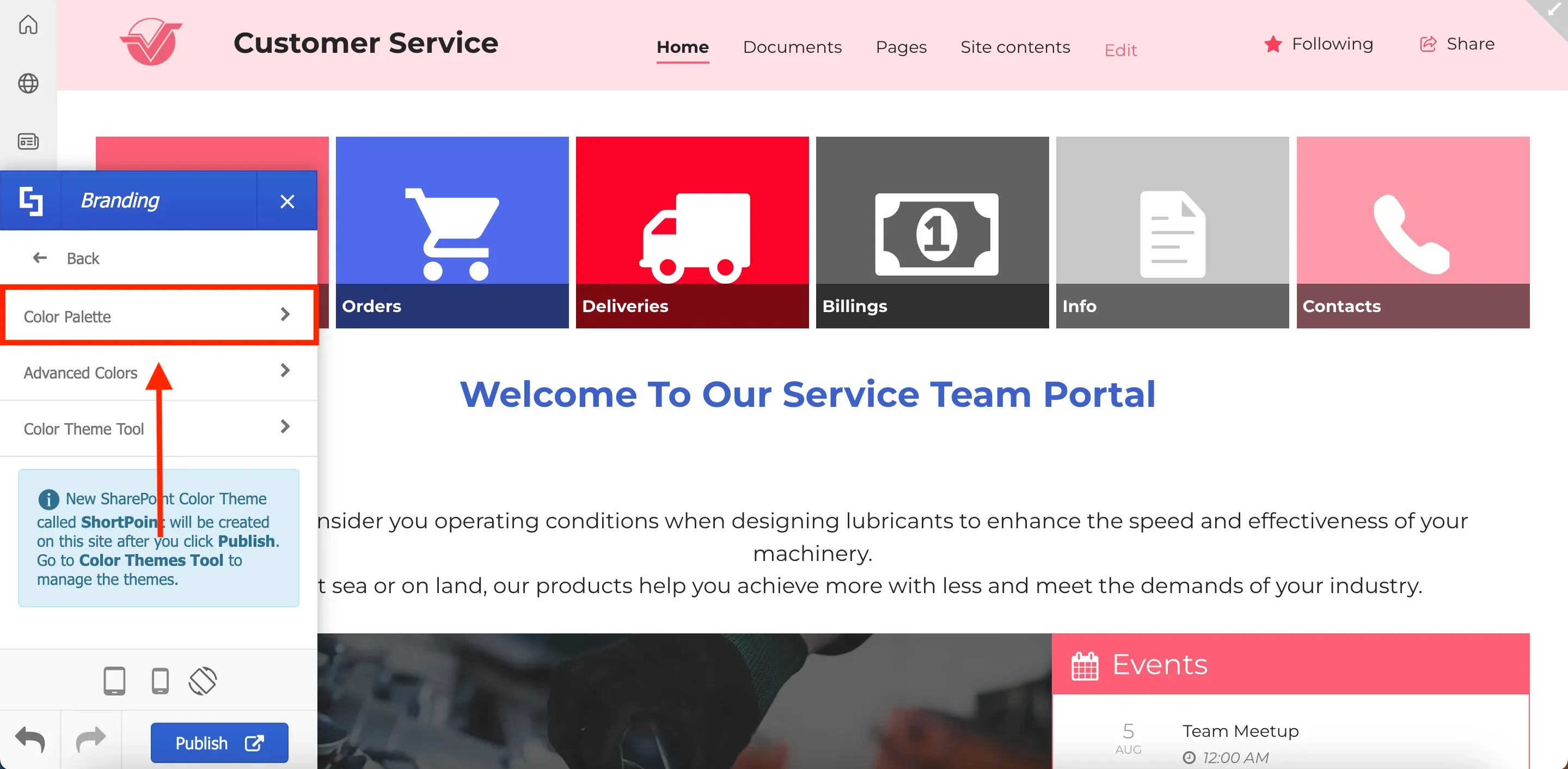
Select Color Palette.
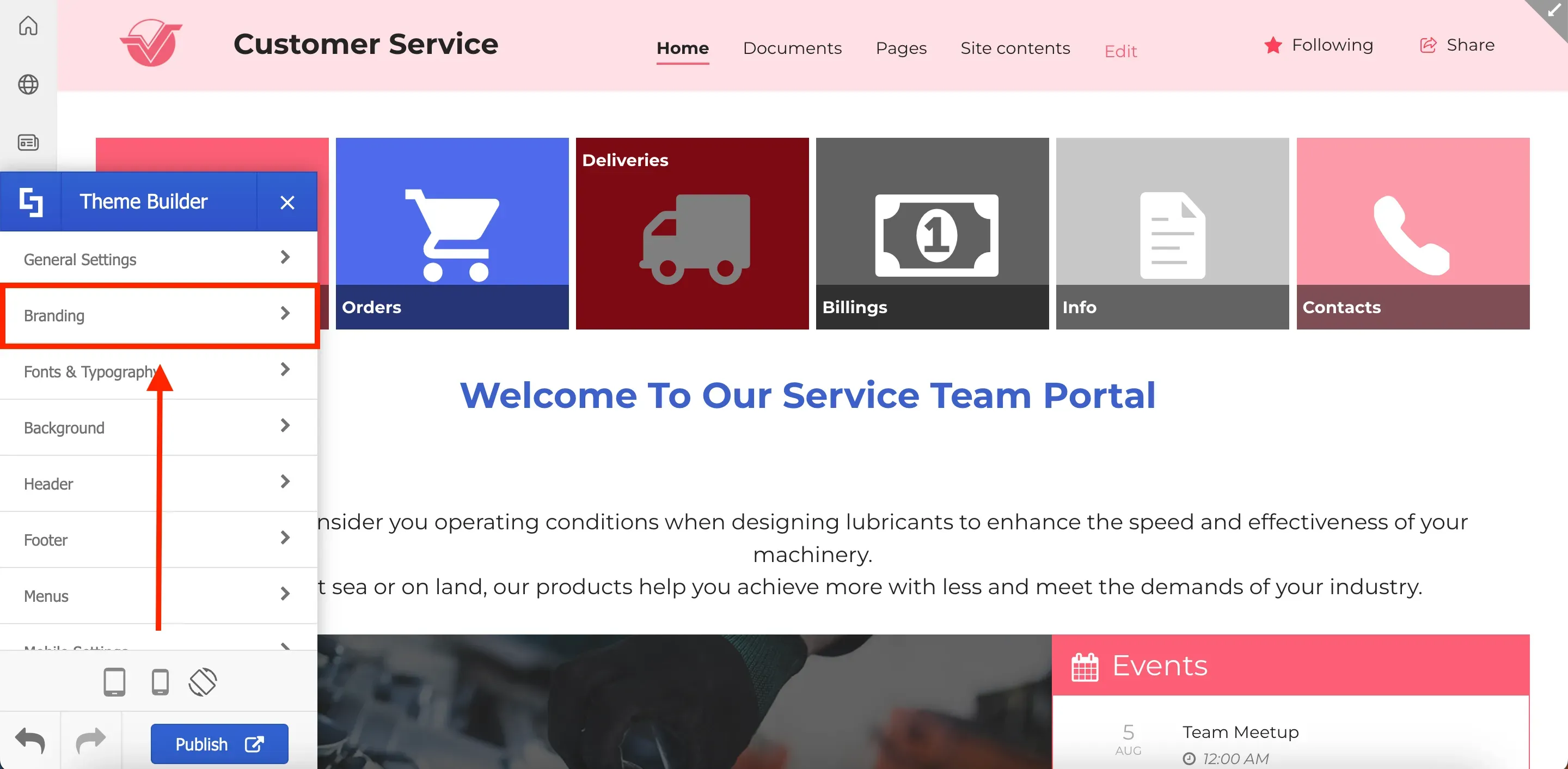
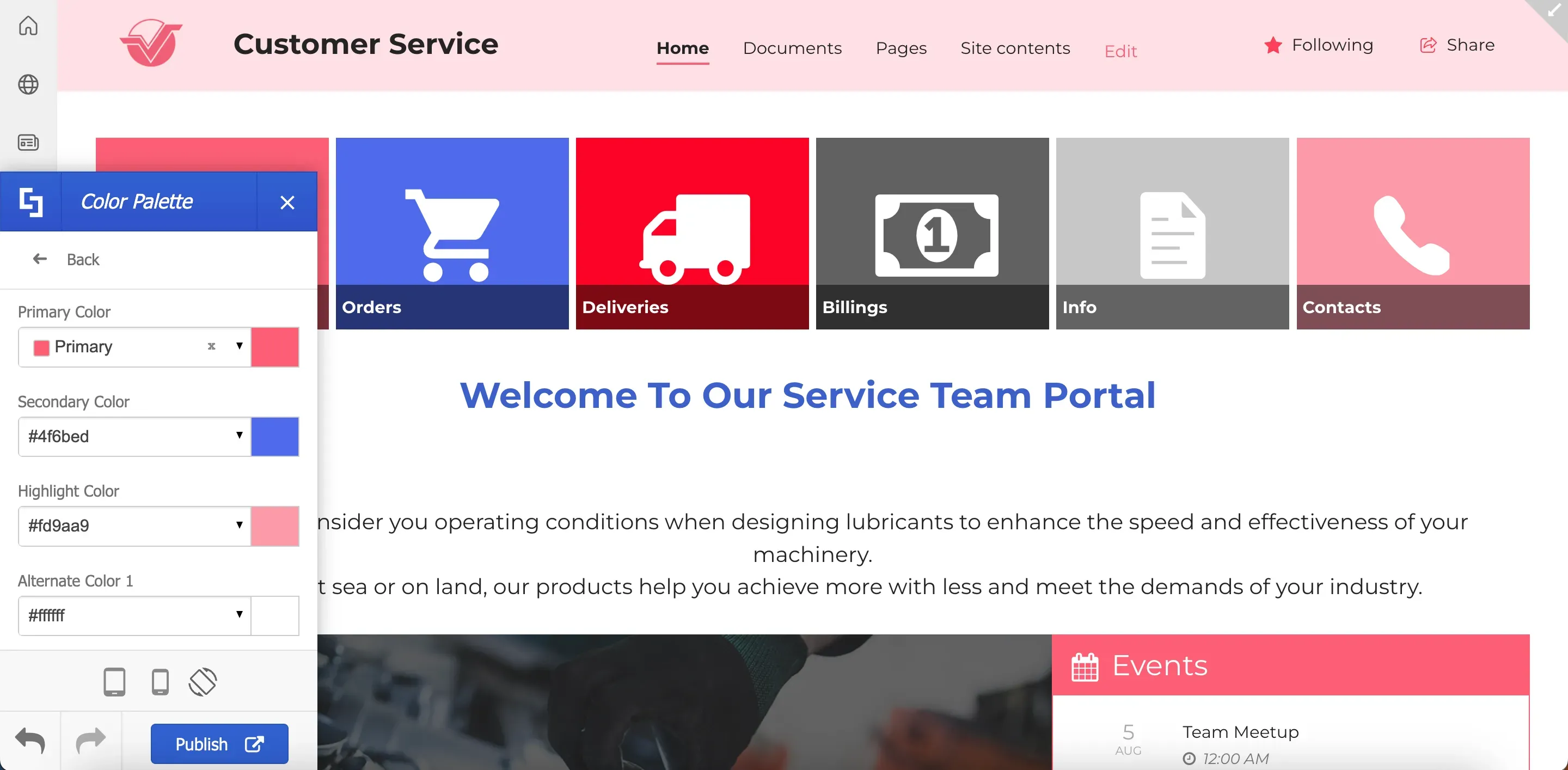
Then, specify your desired branding colors.
You can also make further adjustments using the ShortPoint Theme Builder to match the requirements of your current site. Once you are satisfied with the changes, hit Publish. This action will save all the modifications and officially apply your custom design to the site collection.
That's it! You have just completed the process of exporting and importing your site customizations using ShortPoint Theme Builder. With this seamless and efficient approach, you can now save time and effort in implementing your design across multiple sites, allowing you to concentrate on building your intranets and achieving your goals.