
ShortPoint Theme Builder Basics
Customize menus and headers
Headers and menus are essential components of any intranet site. ShortPoint Theme Builder gives you the freedom to customize the design of your headers and menus to reflect your brand identity. In this lesson, you will learn how to customize your primary menu, hub, and side menus, as well as your site's header. You'll also learn how to modify the site title and the favicon that appears on browser tabs.

Modifying menus
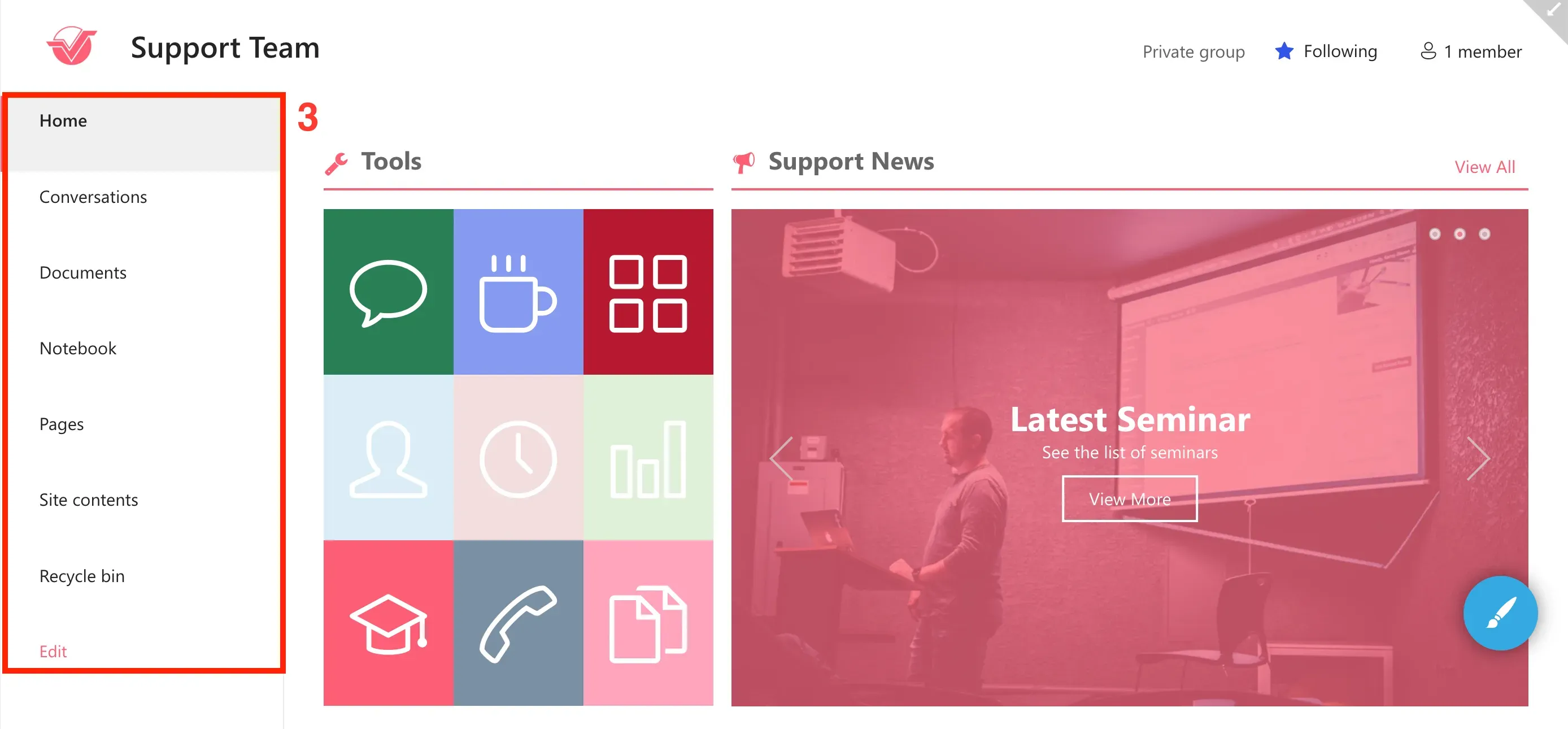
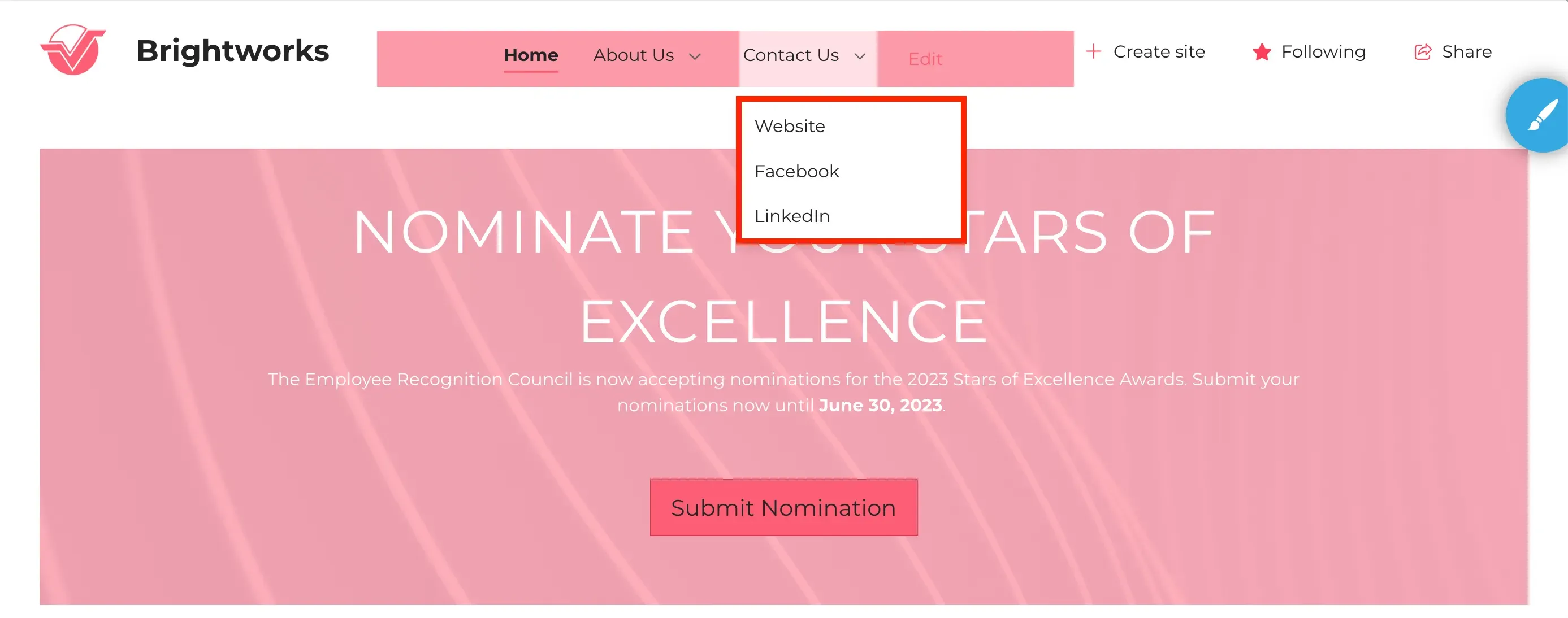
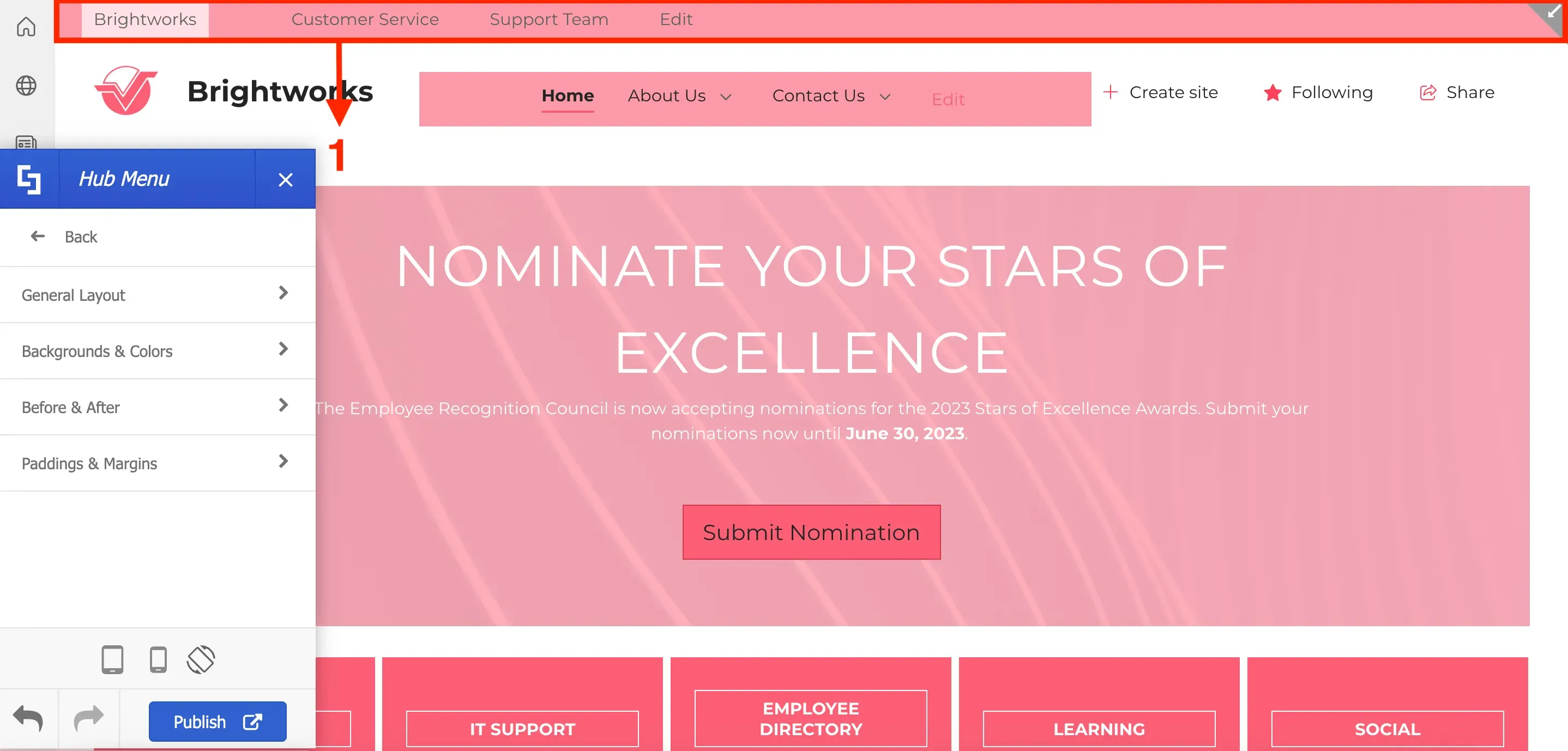
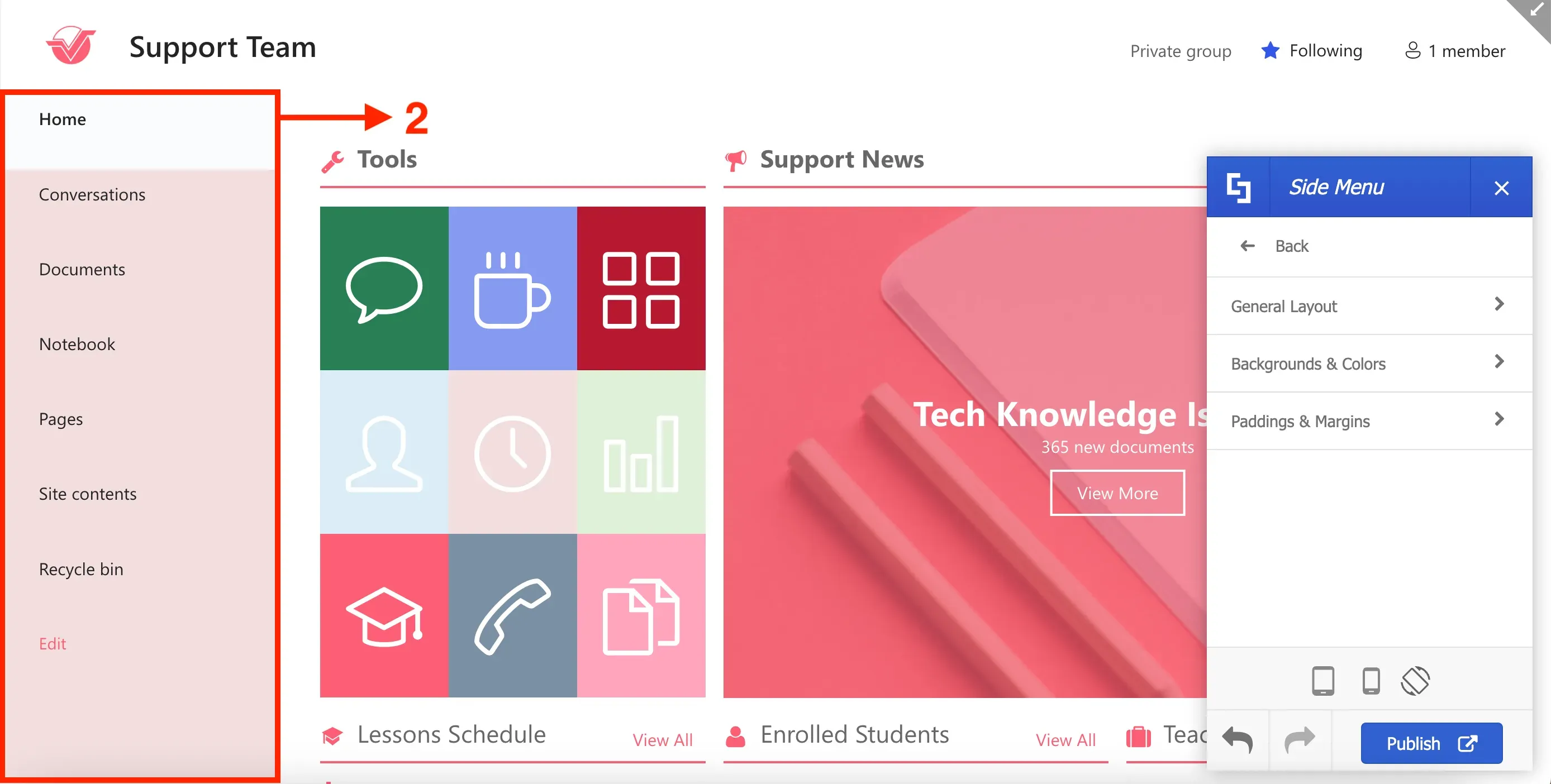
ShortPoint Theme Builder can help you customize the style of your [1] primary menu, [2] hub menu, and [3] side menu.
![ShortPoint Theme Builder can help you customize the style of your [1] primary menu, [2] hub menu, and [3] side menu.](https://d2zzvnmppezkx.cloudfront.net/jam/1_1fe3e967c3.webp)
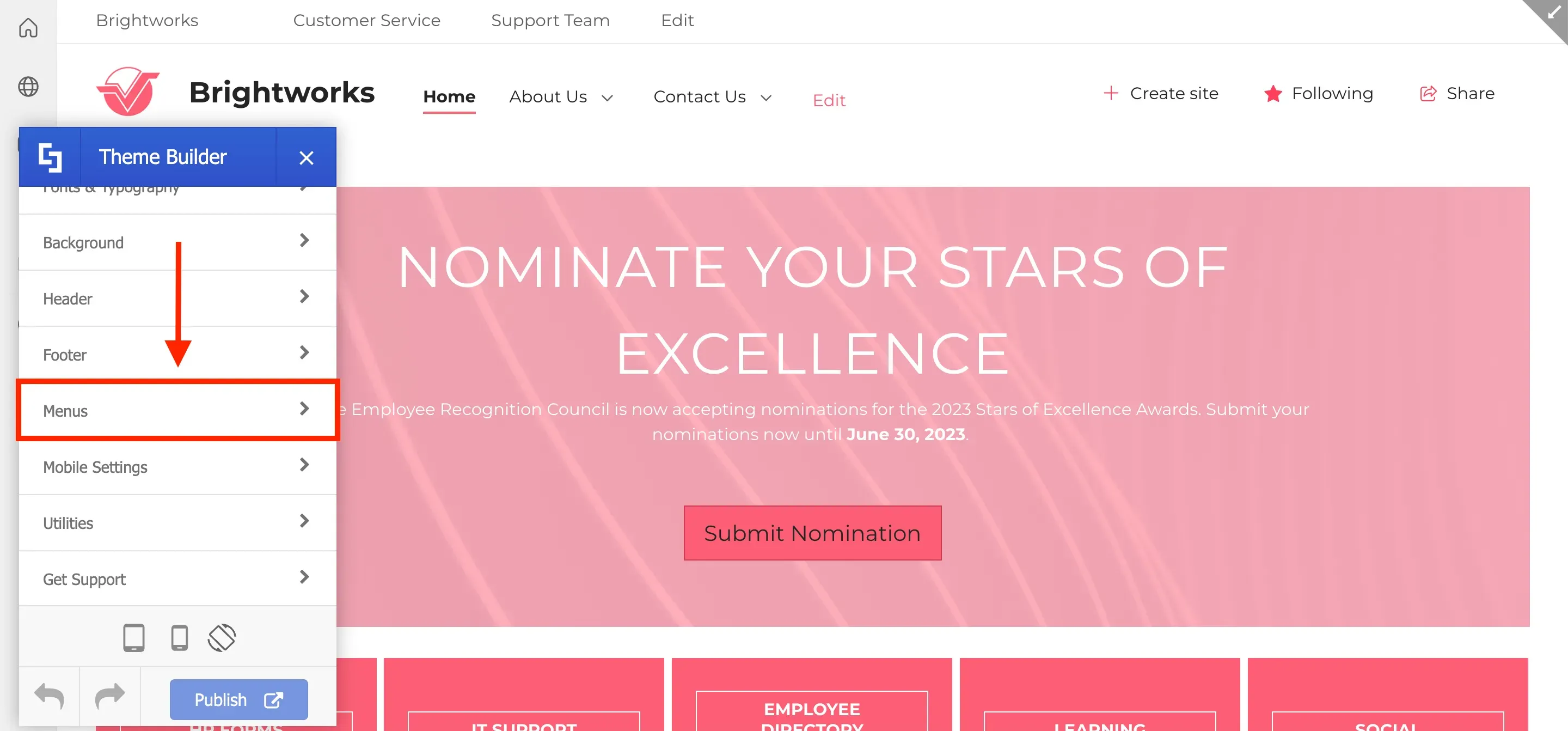
To do this, launch Theme Builder and select Menus.
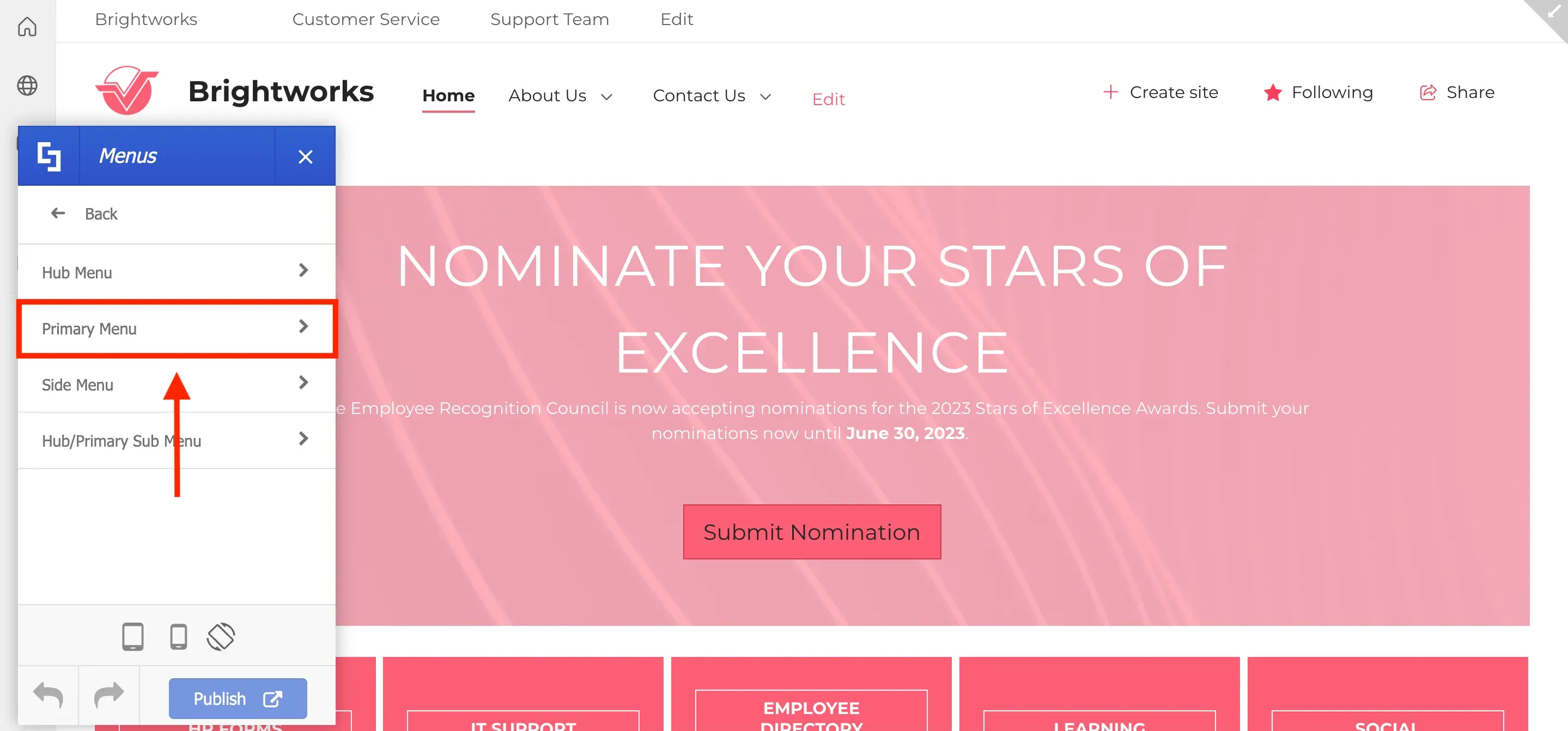
Here, you can choose which menu to modify and it will display various settings for customization. For this guide, let's customize the Primary Menu.
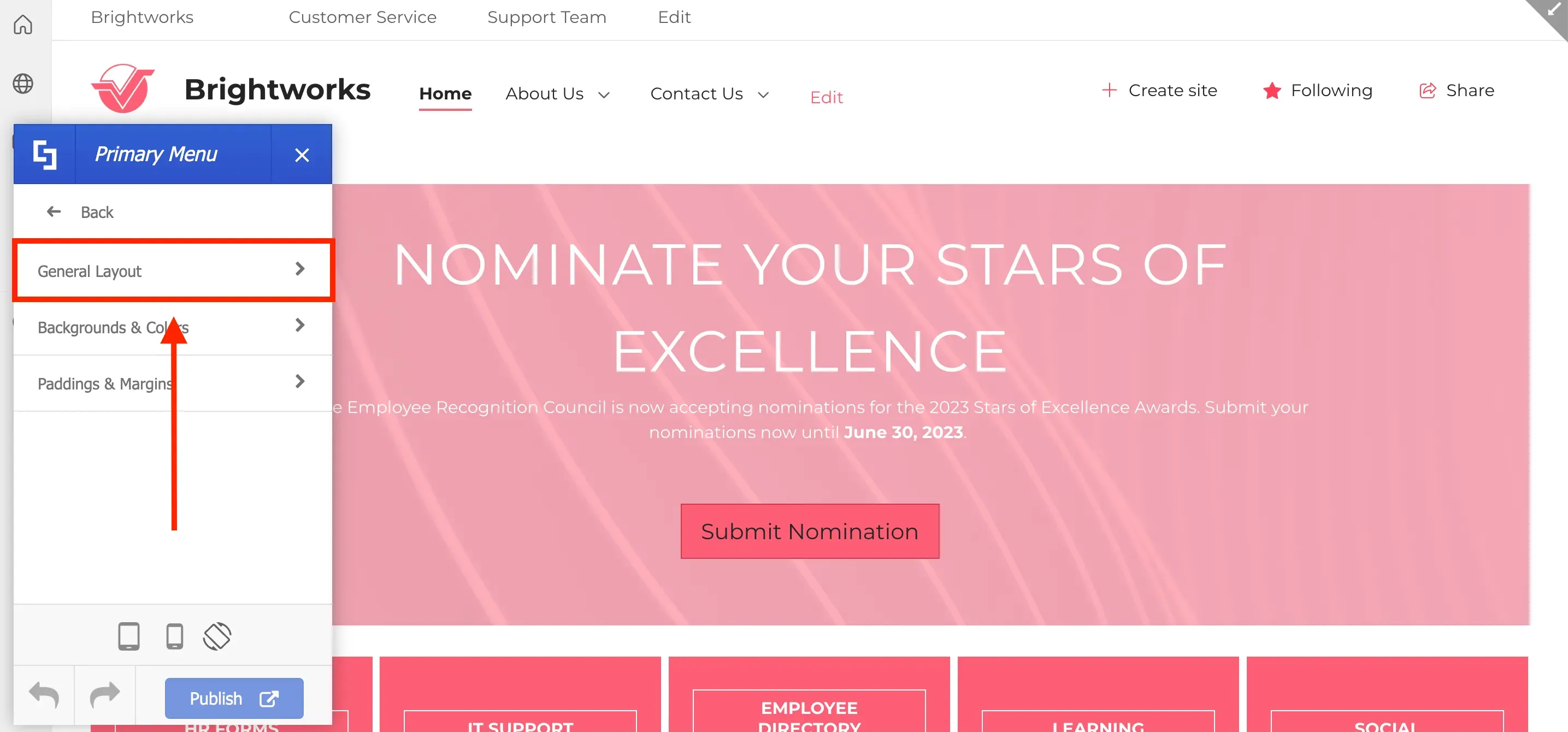
You will have the option to change the menu alignment, add a background color, and modify the padding & margins of the primary menu. Let's change the menu alignment first. To do this, select General Layout.
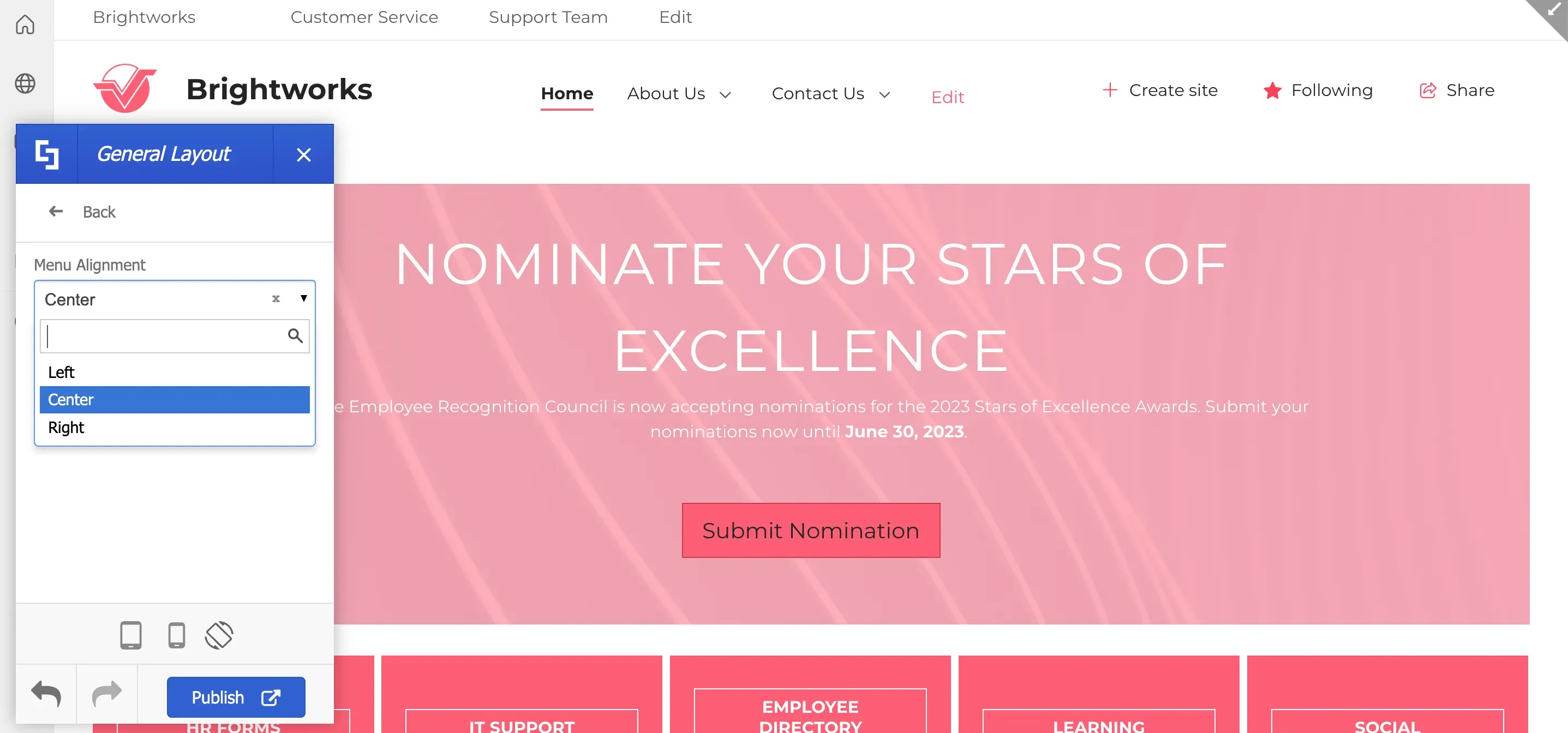
Then, choose the menu alignment you prefer from the drop-down.
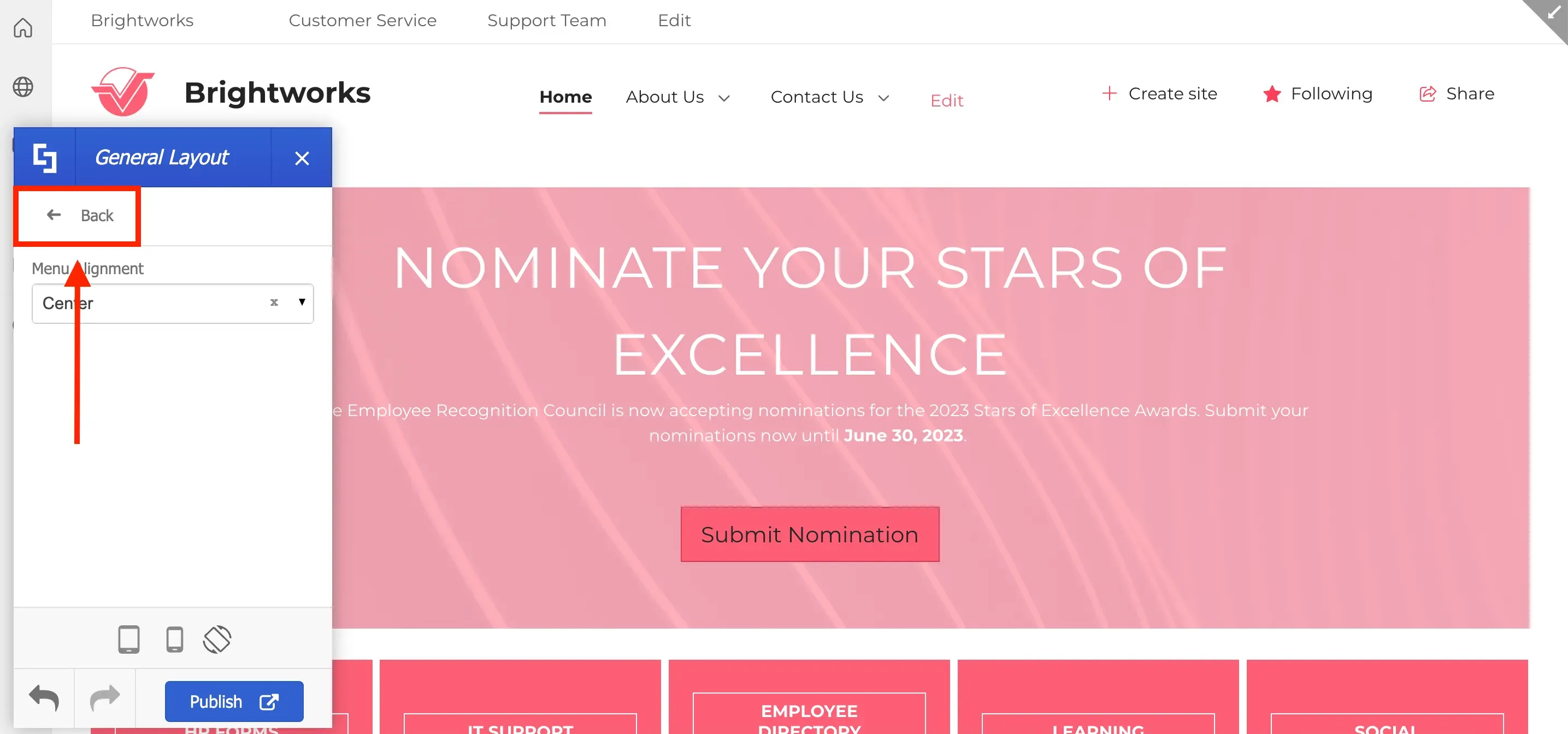
Now, let's change the color of the menu. Click Back to see the options for the Primary Menu again.
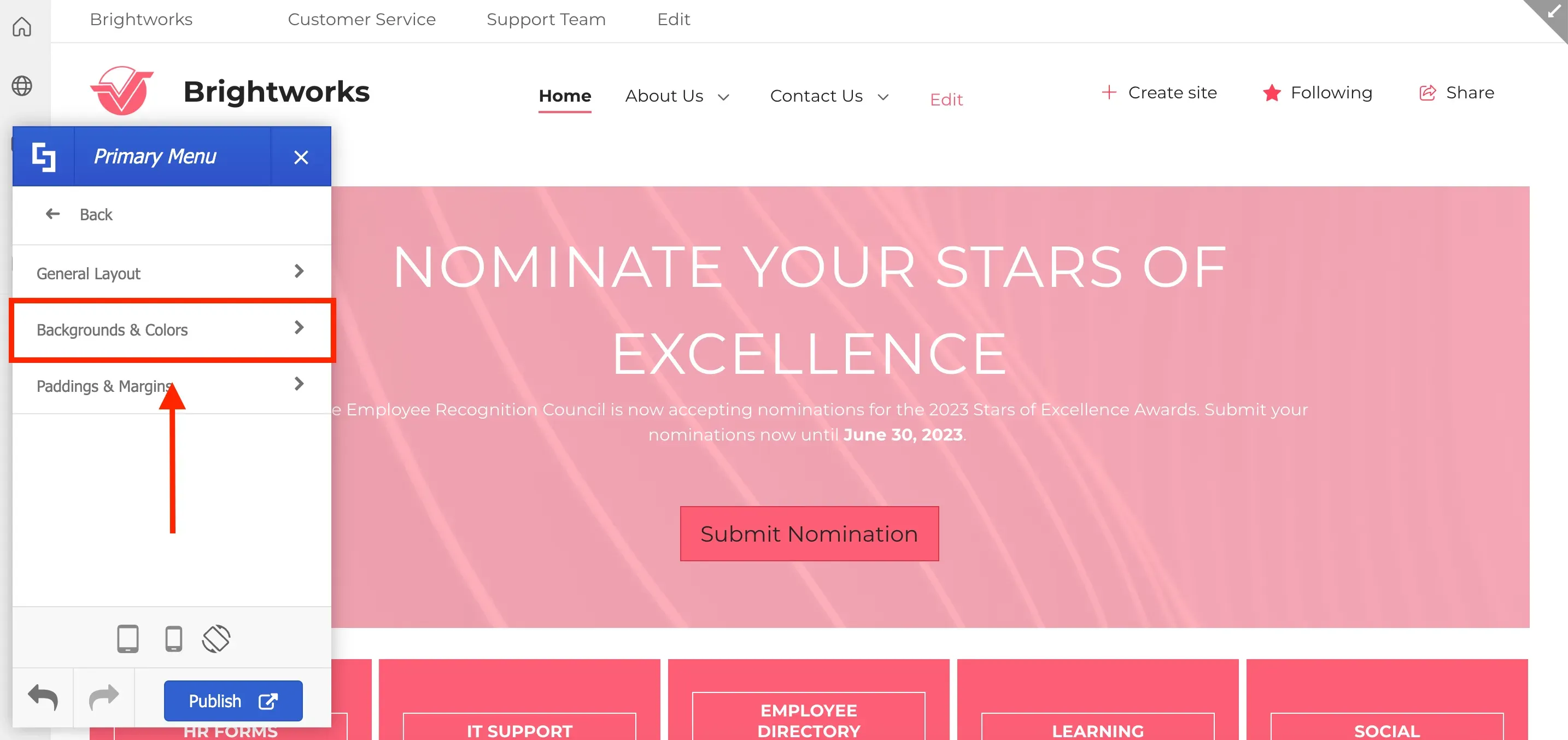
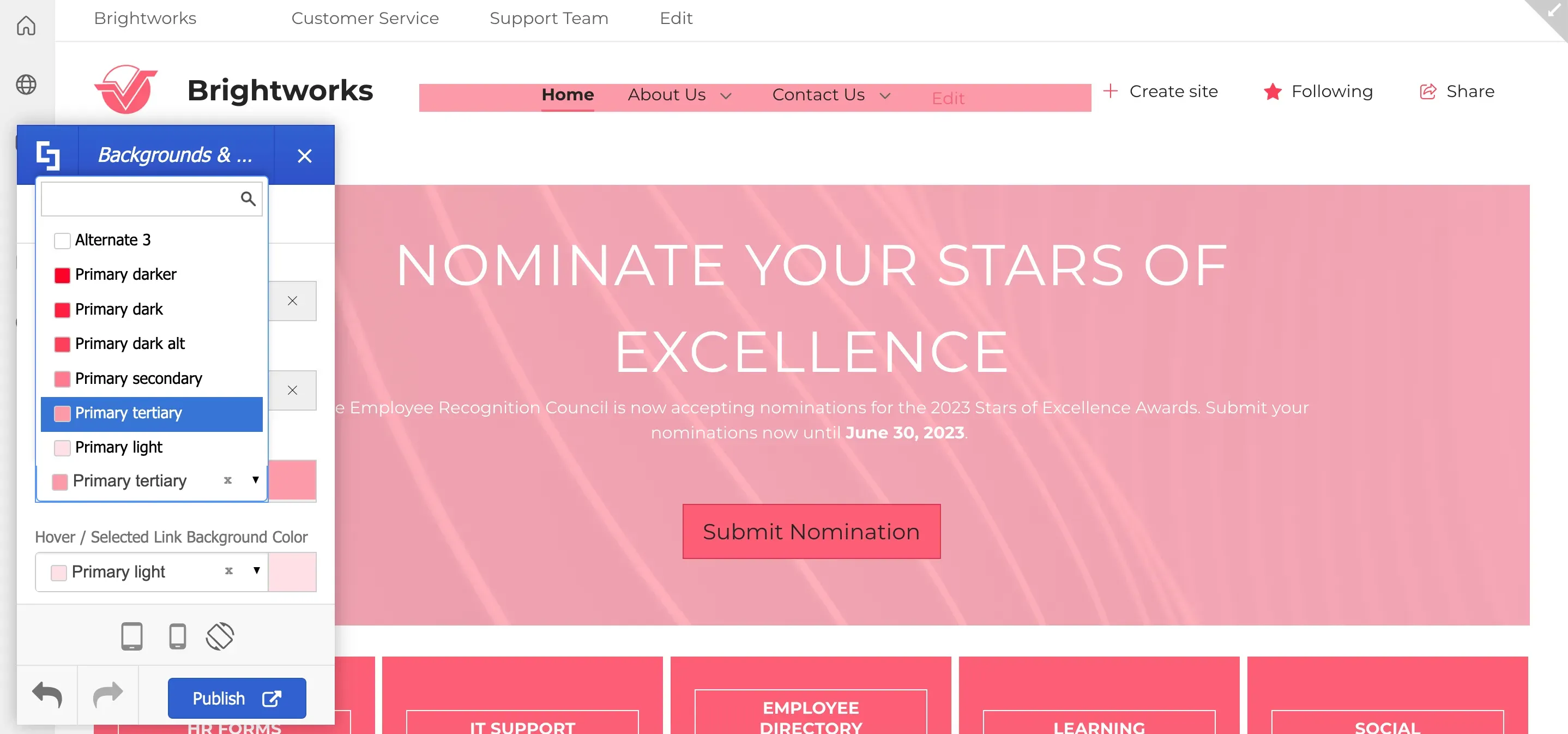
Select Backgrounds & Color.
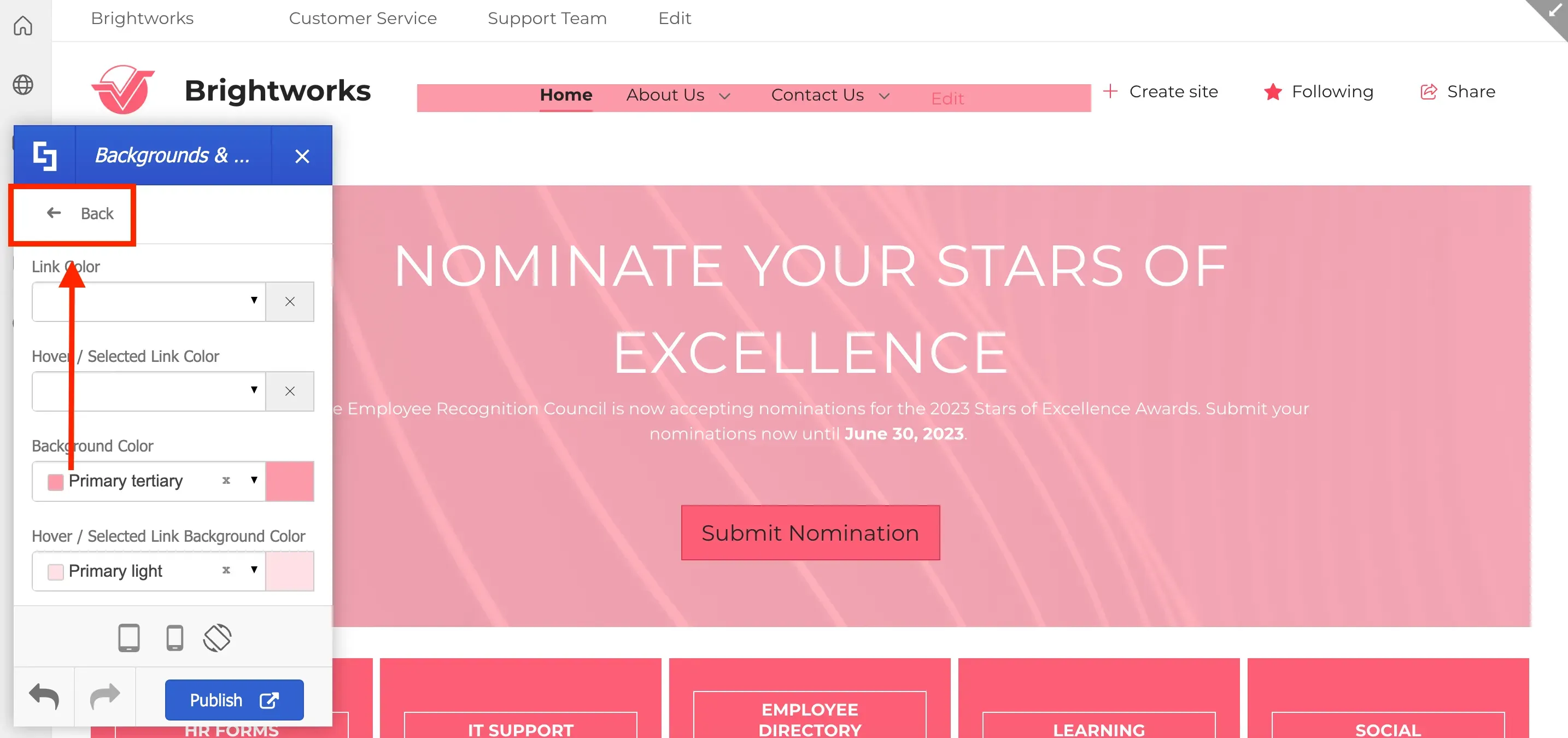
Here, you can assign a link color, a background color, and a hover color. Simply use the drop-down and select the color you prefer to start customizing.
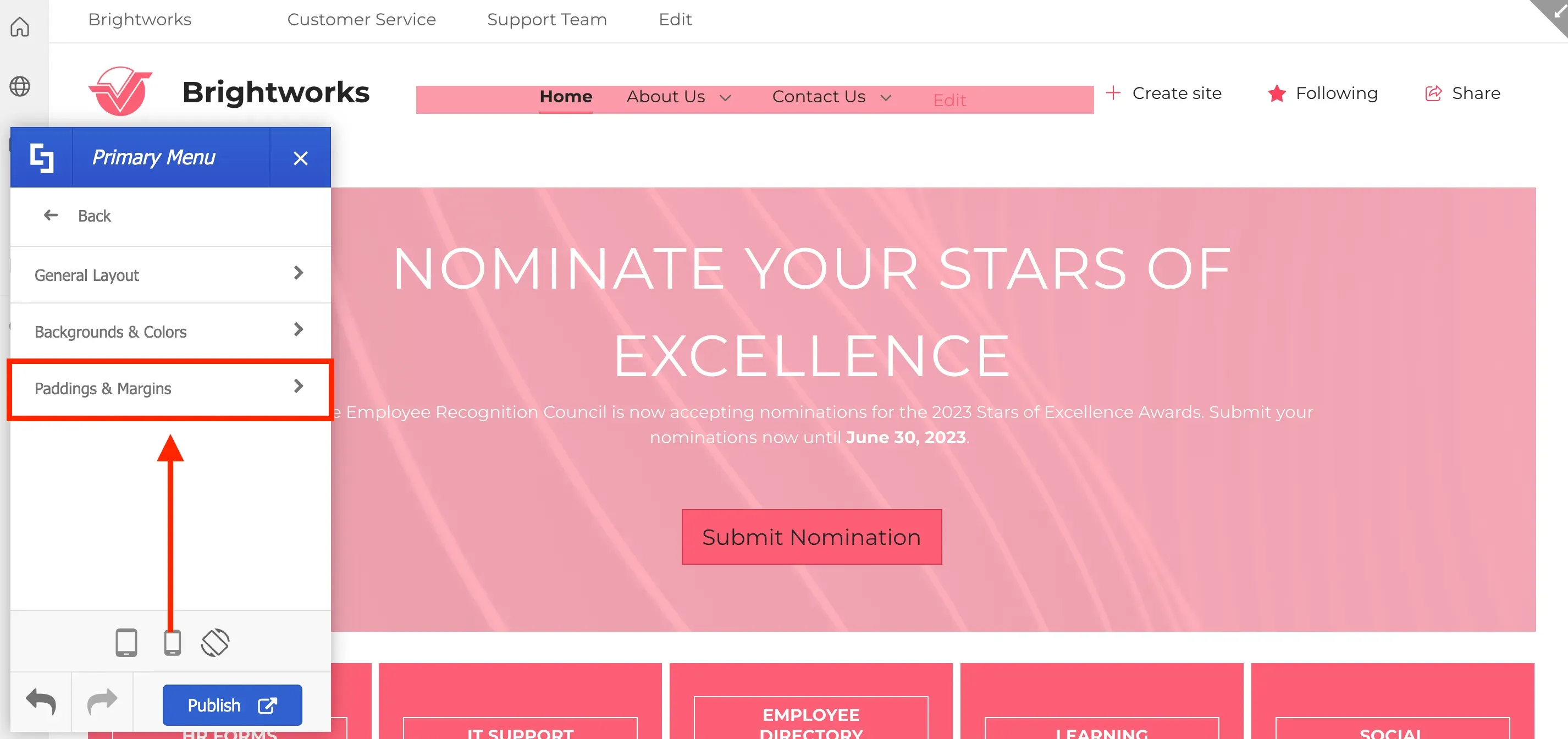
Finally, let's customize the paddings and margins of the primary menu. Click Back.
Select Paddings & Margins.
Customizing headers
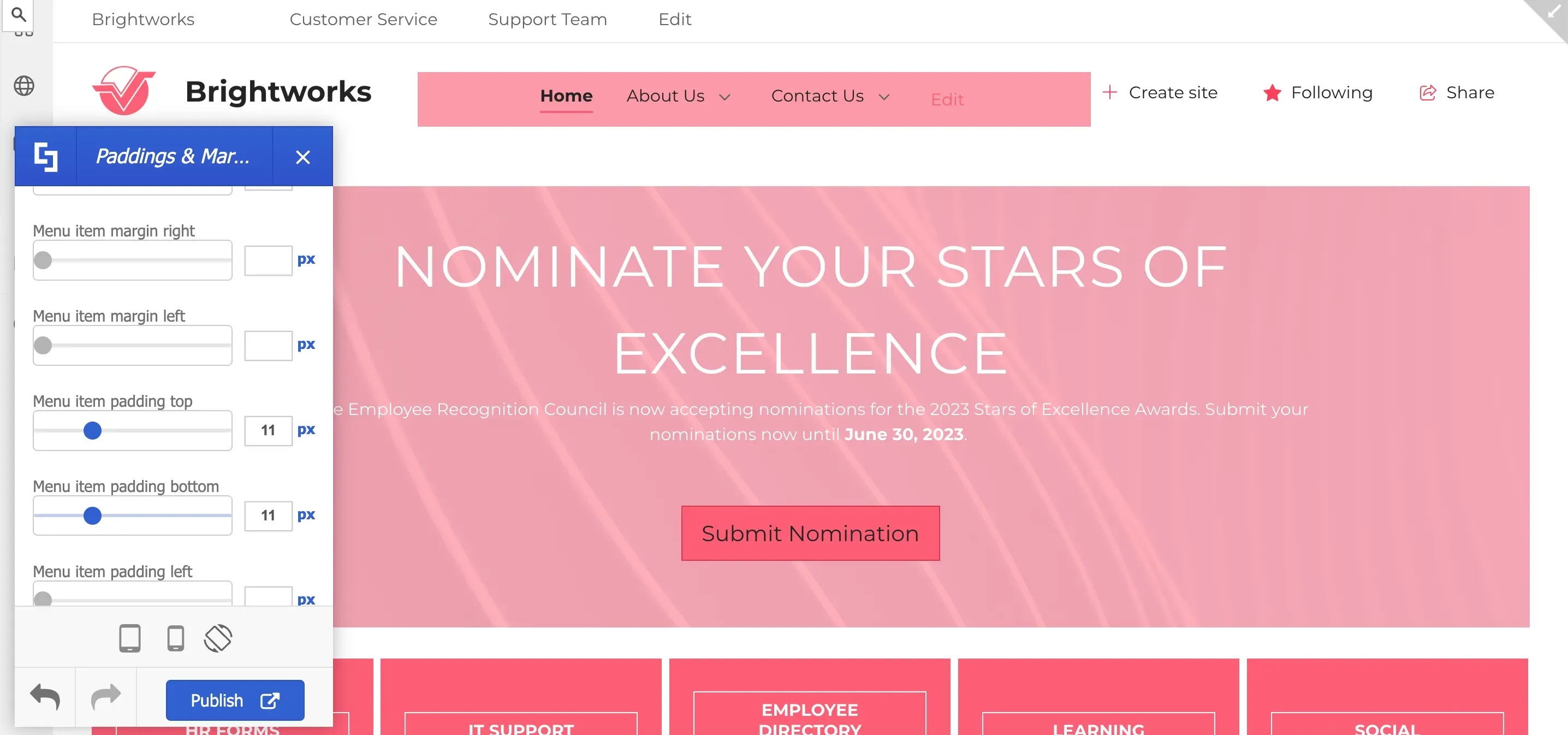
Here, you will see padding and margin size options. Simply use the blue slider to adjust the size of the paddings and the margins according to your preference.
Additionally, you can also customize the color of your primary sub-menu.
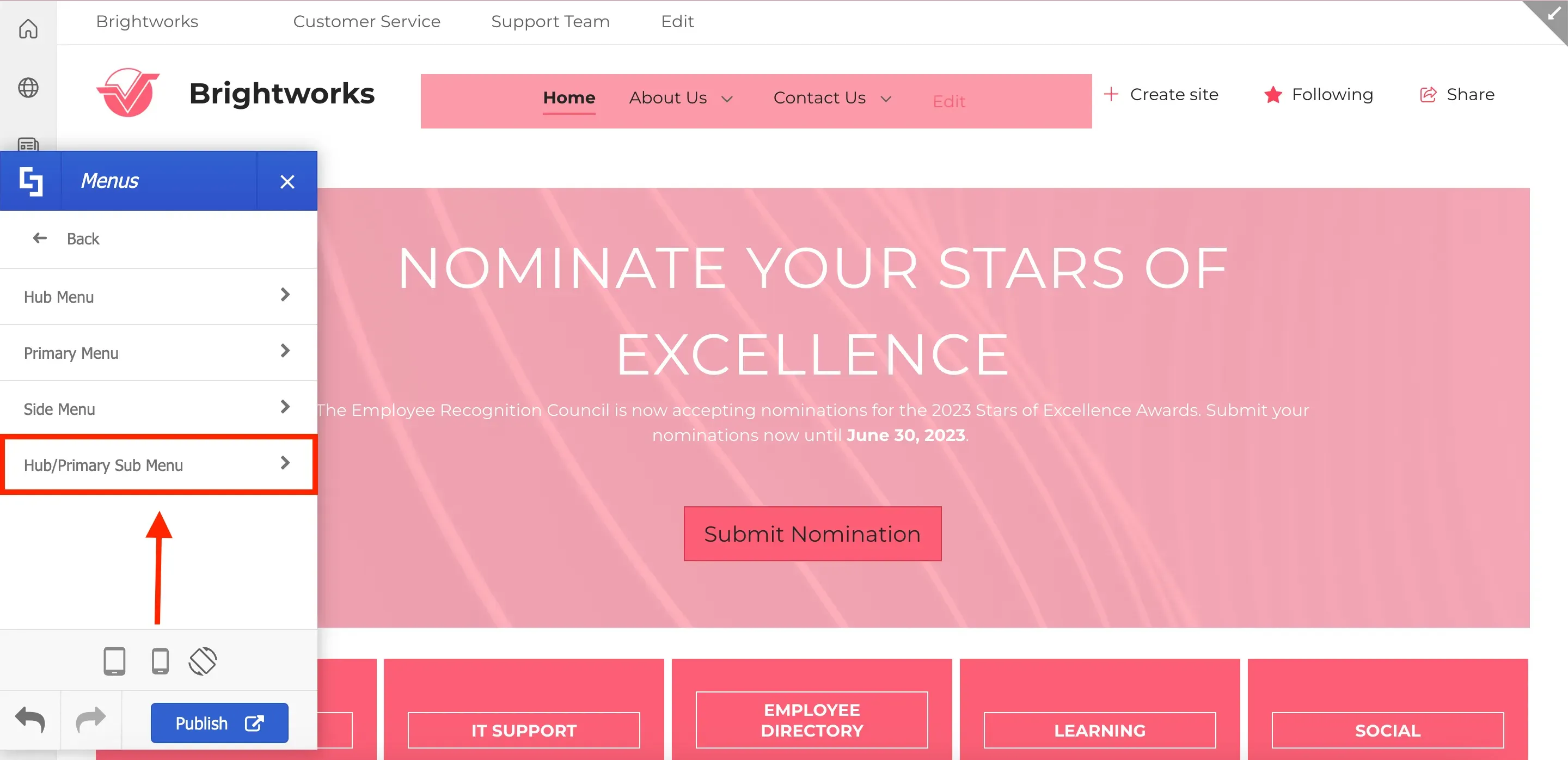
To do this, go back to the Menus section and select Hub/Primary Sub Menu.
Here, you will find different color customizations for your primary sub-menu. Simply use the drop-down to select the color you want to use.
Similar customization choices are also available for [1] hub menus and [2] side menus.
![Similar customization choices are also available for [1] hub menus and [2] side menus.](https://d2zzvnmppezkx.cloudfront.net/jam/15_558e3e87c5.webp)
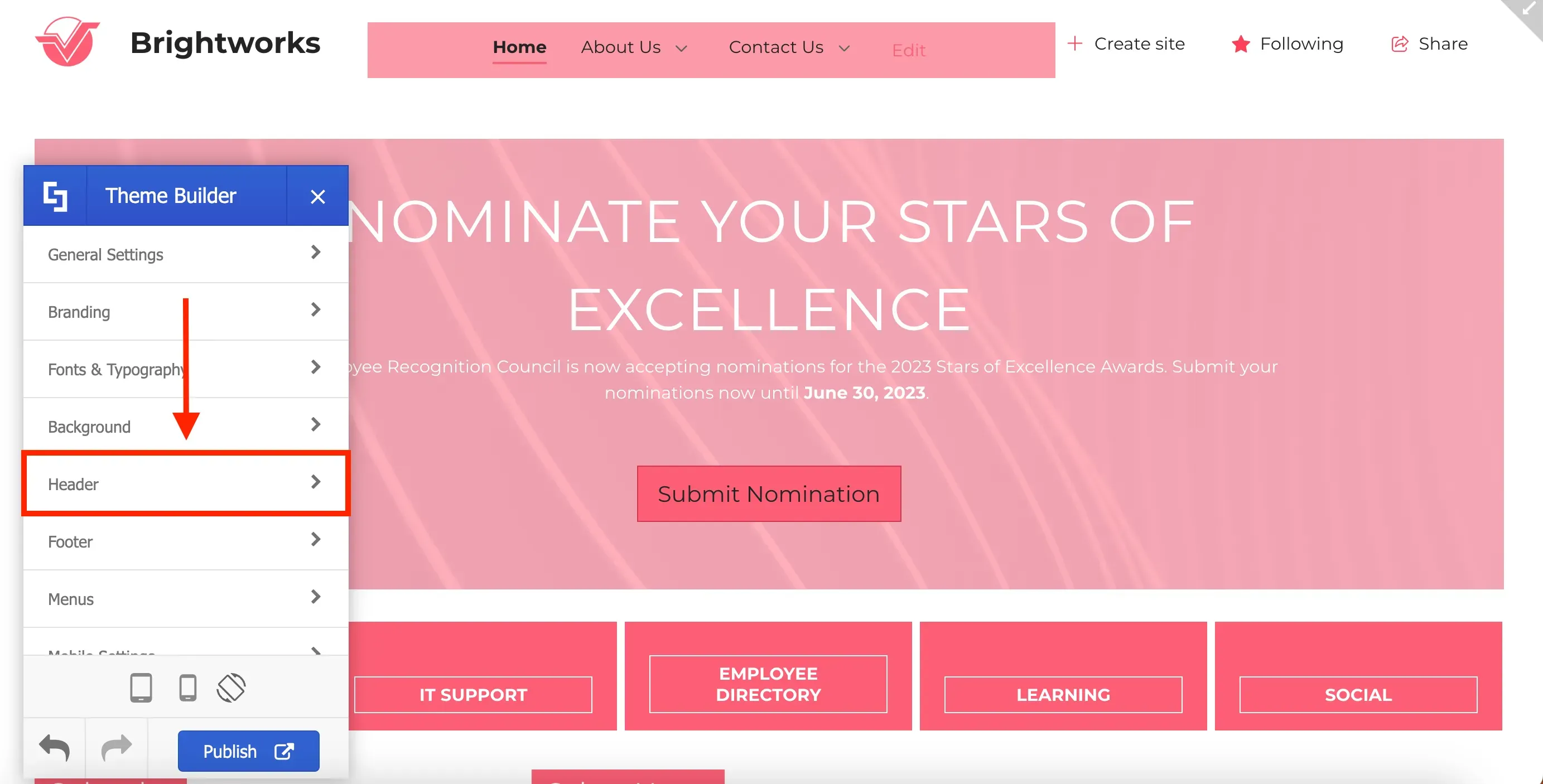
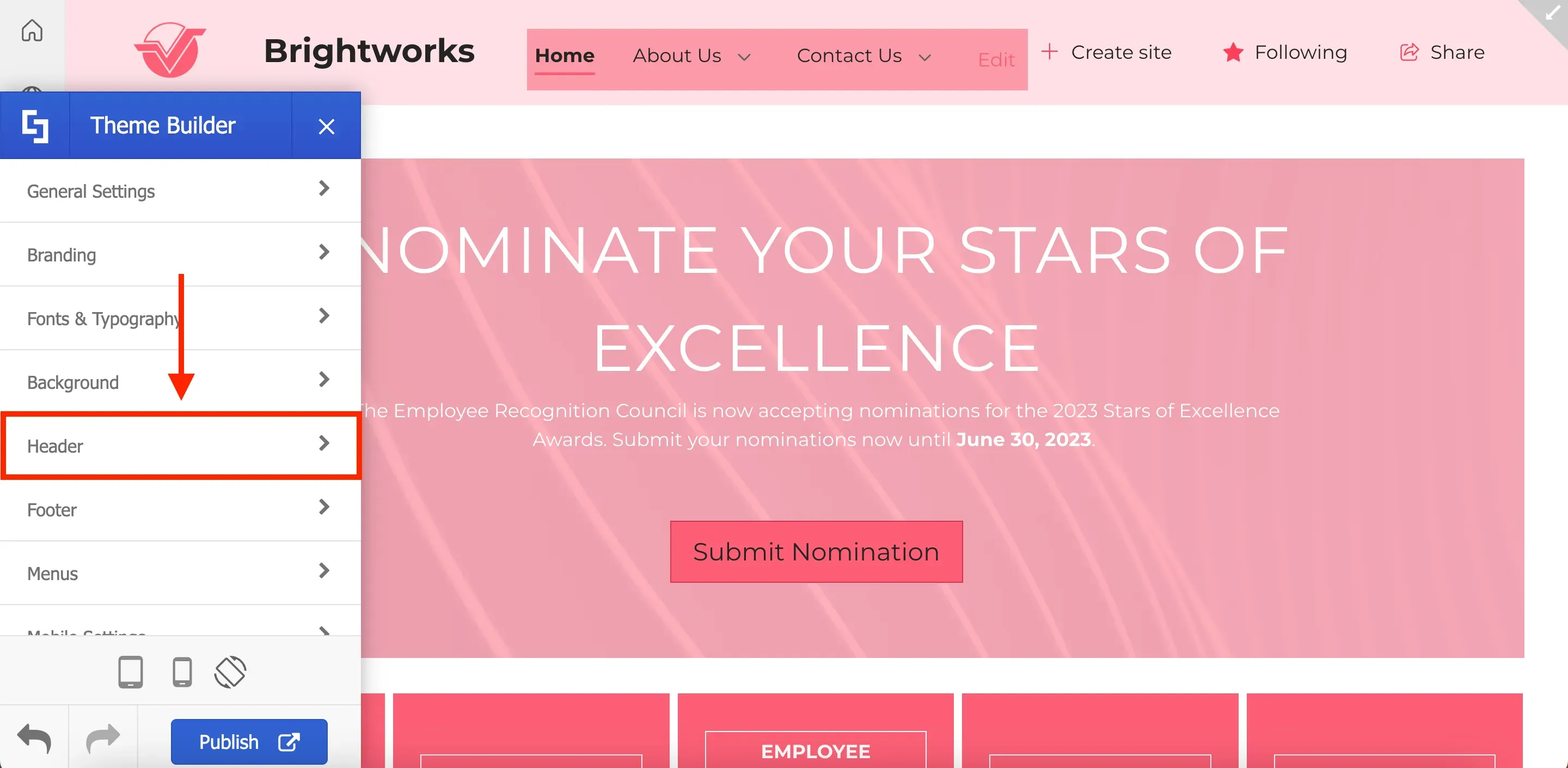
Now, let's talk about headers. To update your site header, return to the main Theme Builder menu and select Header.
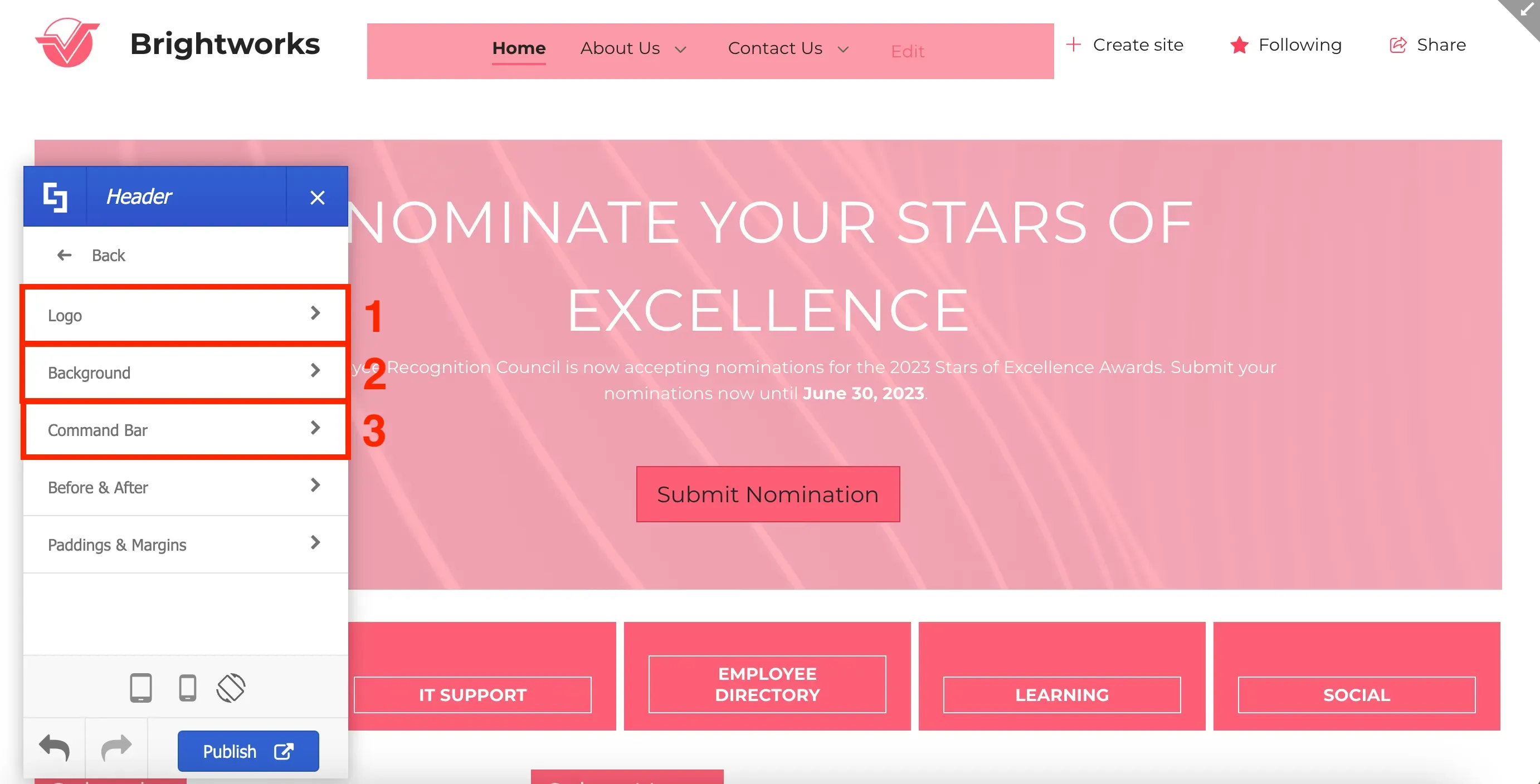
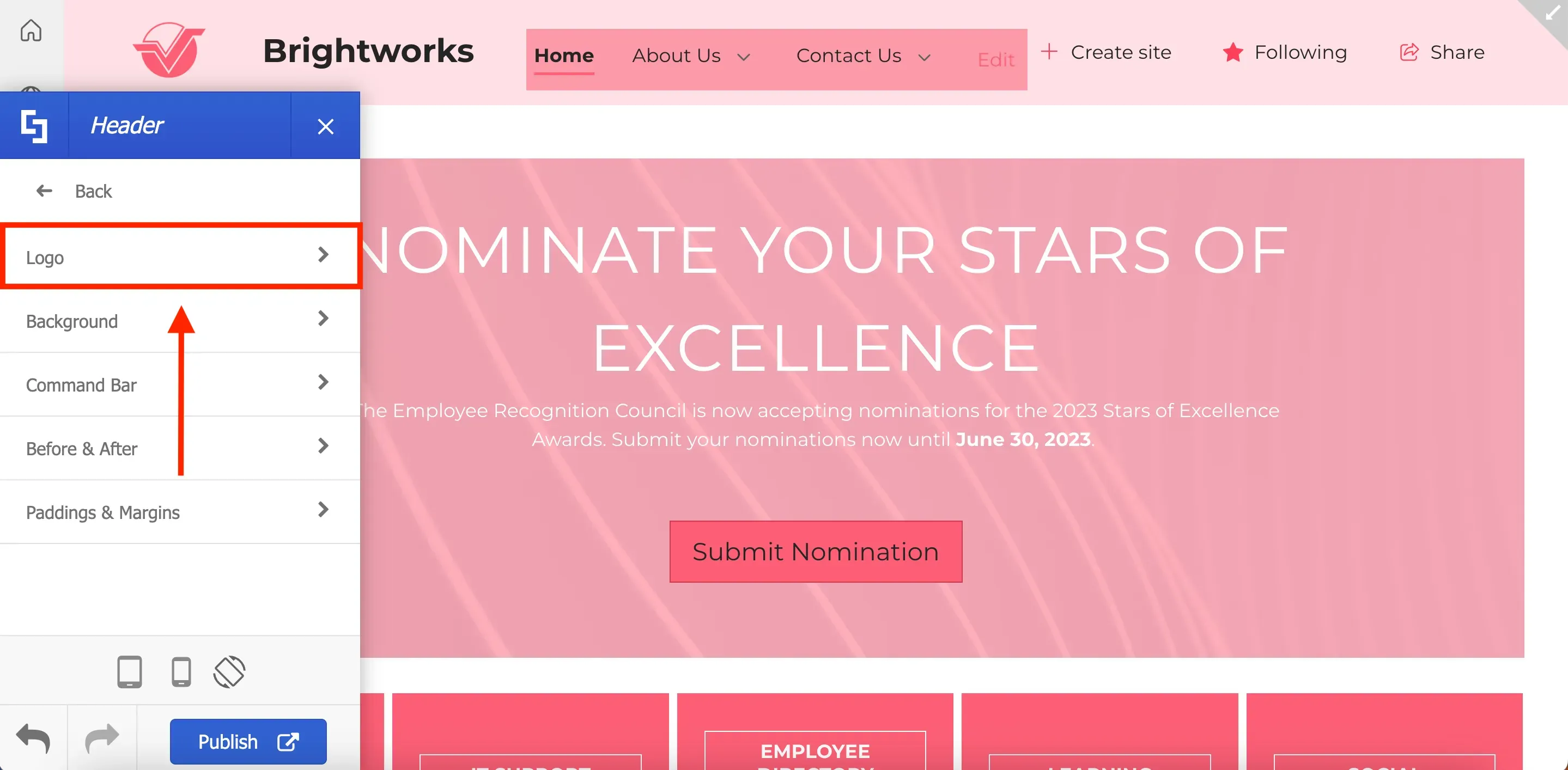
Here, you'll find a range of options for customization. For this guide, we will explore [1] Logo and [2] Background, and [3] Command Bar.
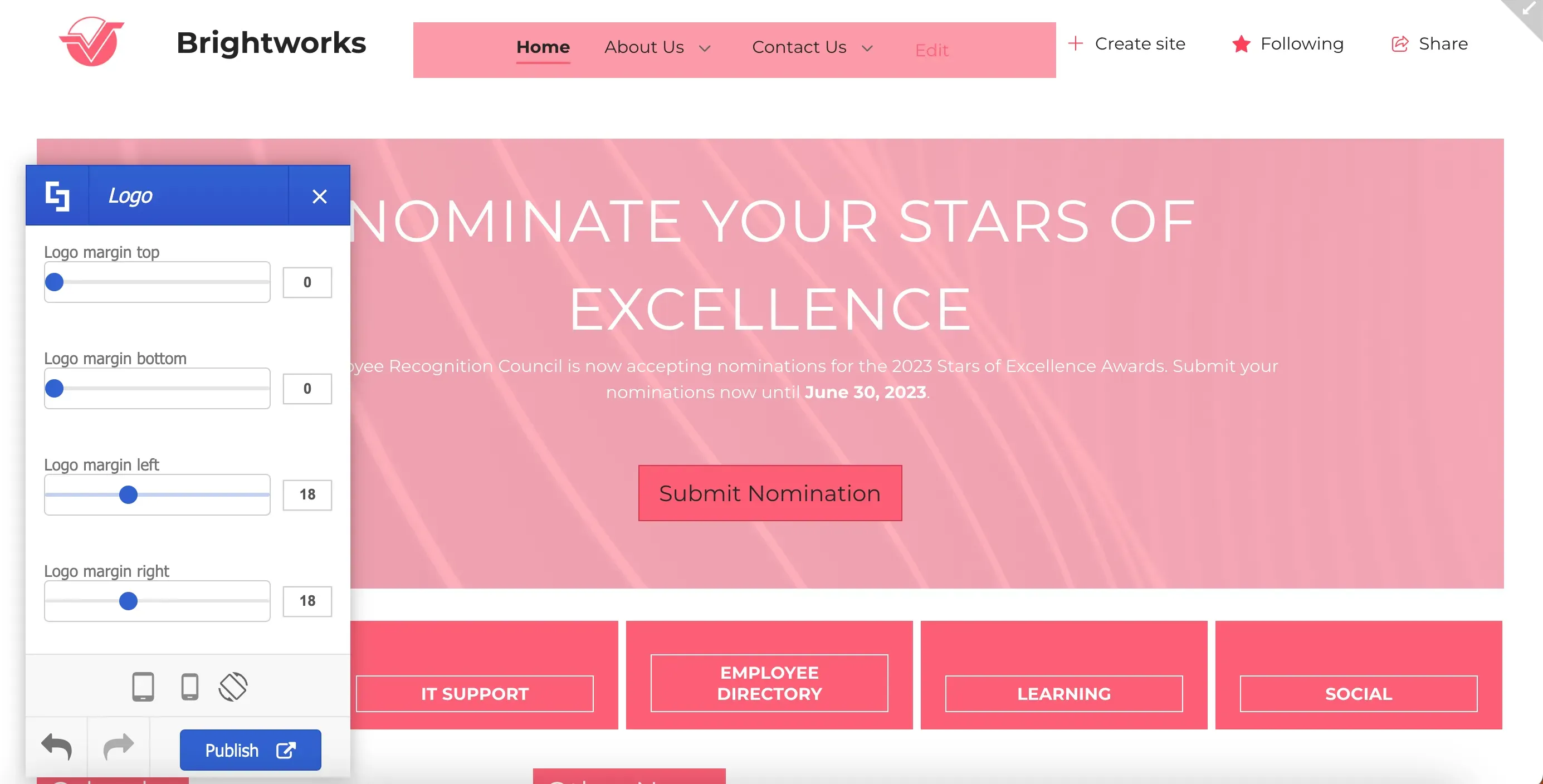
The Logo option allows you to make changes to its appearance, adjust its size by altering the height and width, and customize its margins to add spaces around it.
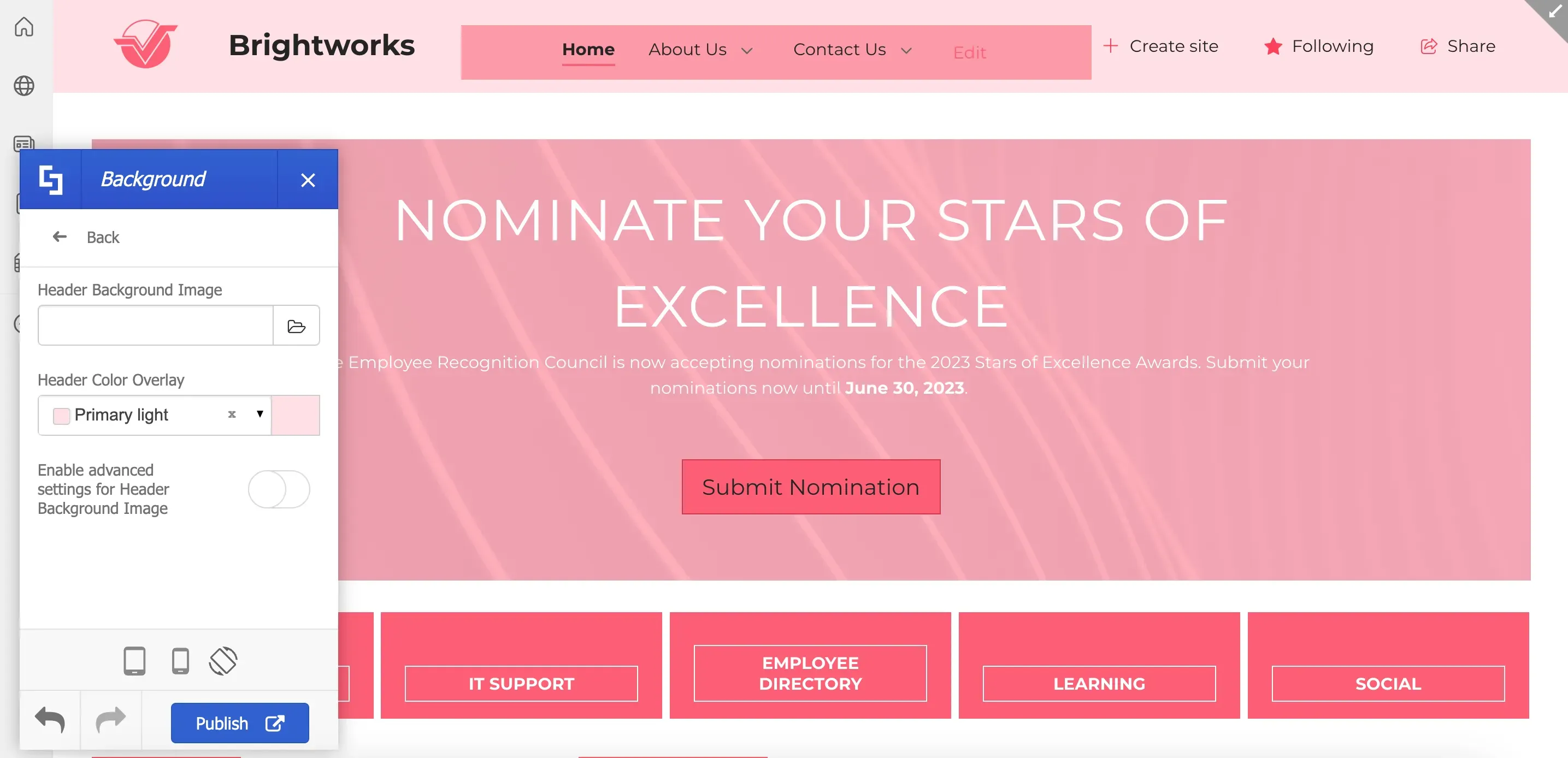
The Background option allows you to add a Header Background Image and a Header Color.
Lastly, the Command Bar option allows you to customize the colors of the different elements in the command bar.
Updating the site title and adding a favicon
These are only some of the Header options you can explore. You can also adjust the paddings & margins of the headers, as well as, enable dividers before and after headers.
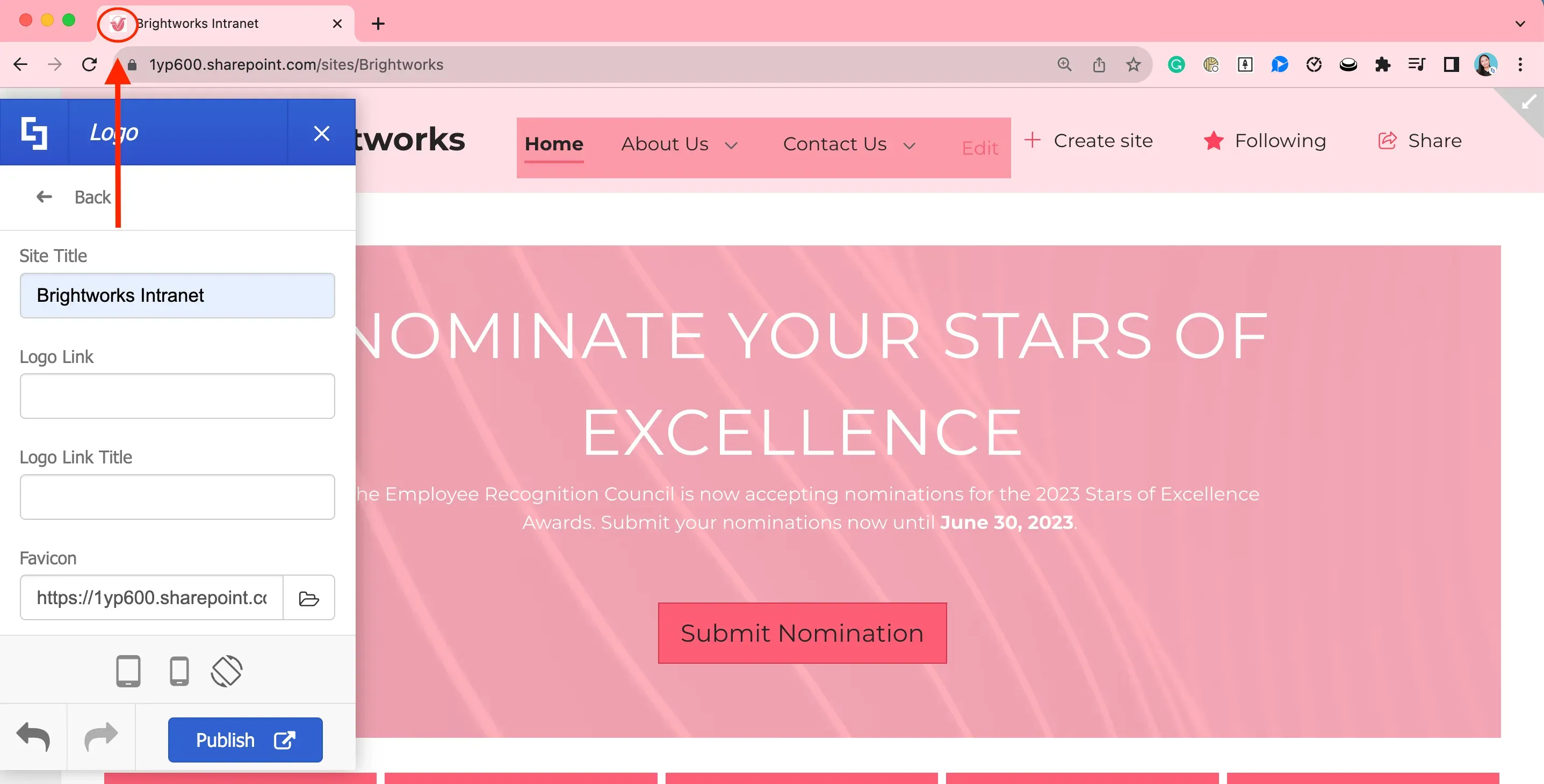
Another important aspect of your page that you might want to customize is the [1] favicon and [2] site title visible on your browser's page tab. By default, the favicon will be SharePoint's logo and the site title will be the name of your page.
![Another important aspect of your page that you might want to customize is the [1] favicon and [2] site title visible on your browser's page tab.](https://d2zzvnmppezkx.cloudfront.net/jam/22_099199b196.webp)
To add a site title and a favicon, go back to the main menu of the Theme Builder and select Header.

Then, select Logo.
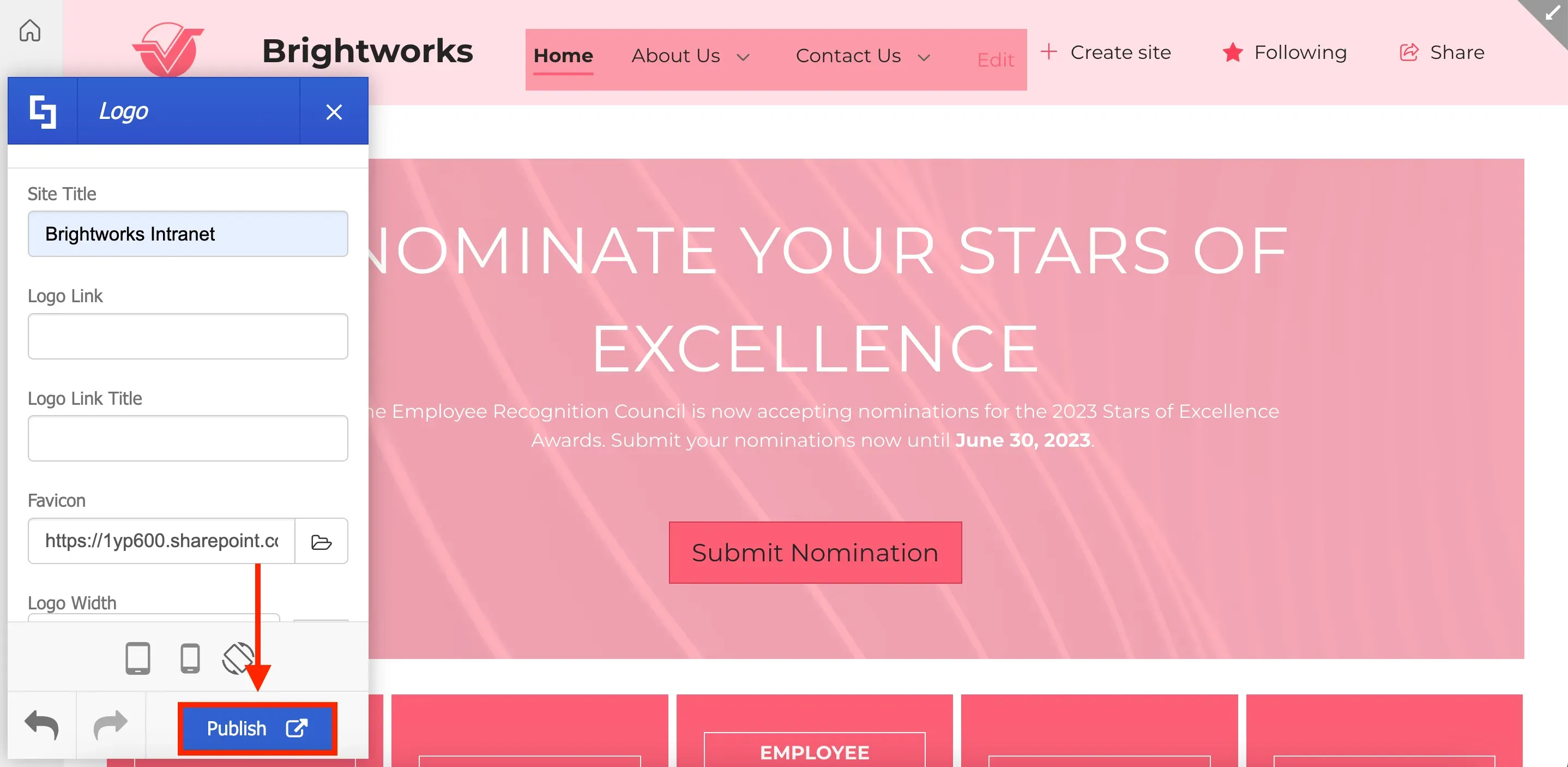
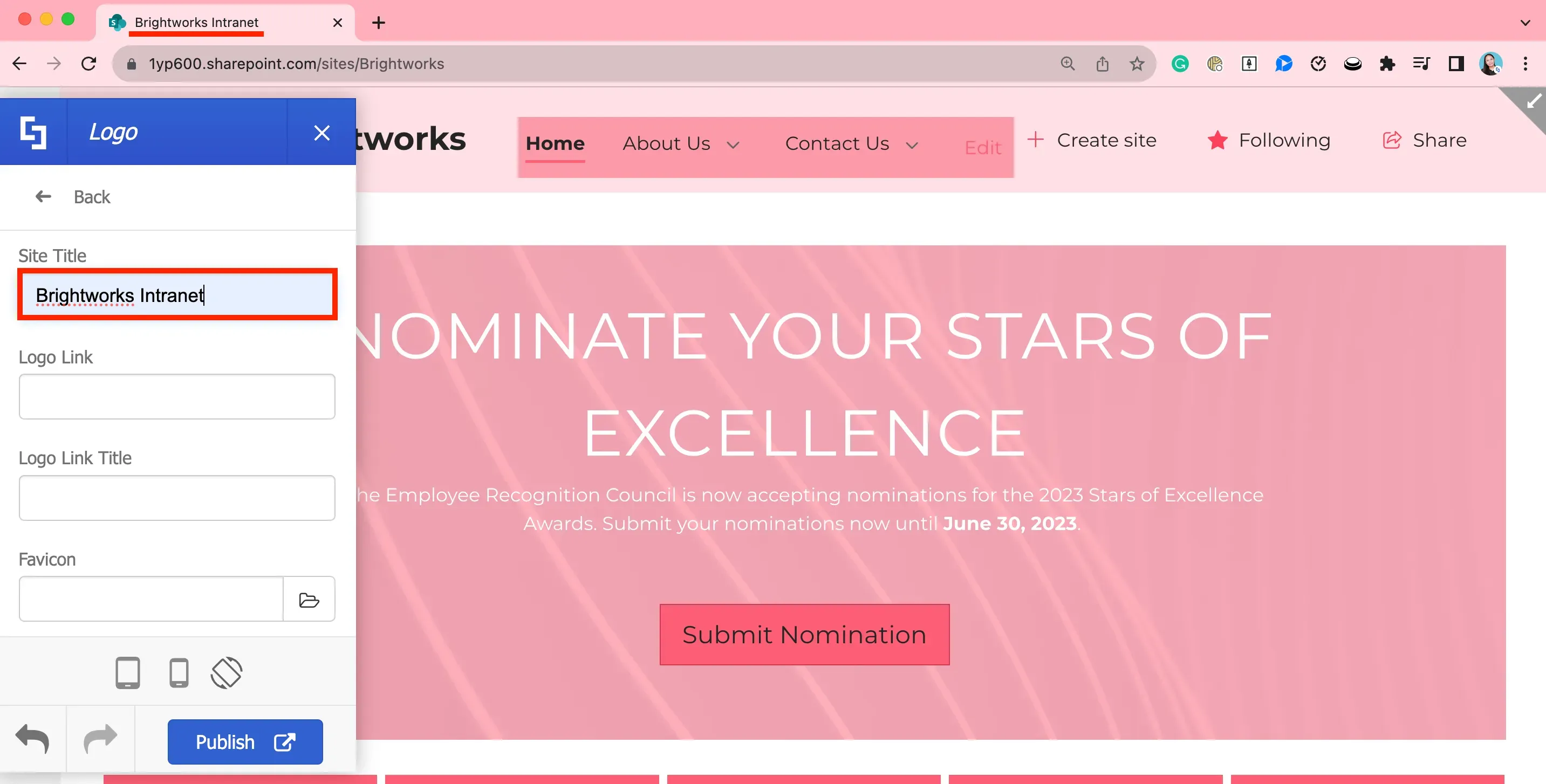
Add a Site Title. You will now see your new site title on your browser's page tab.
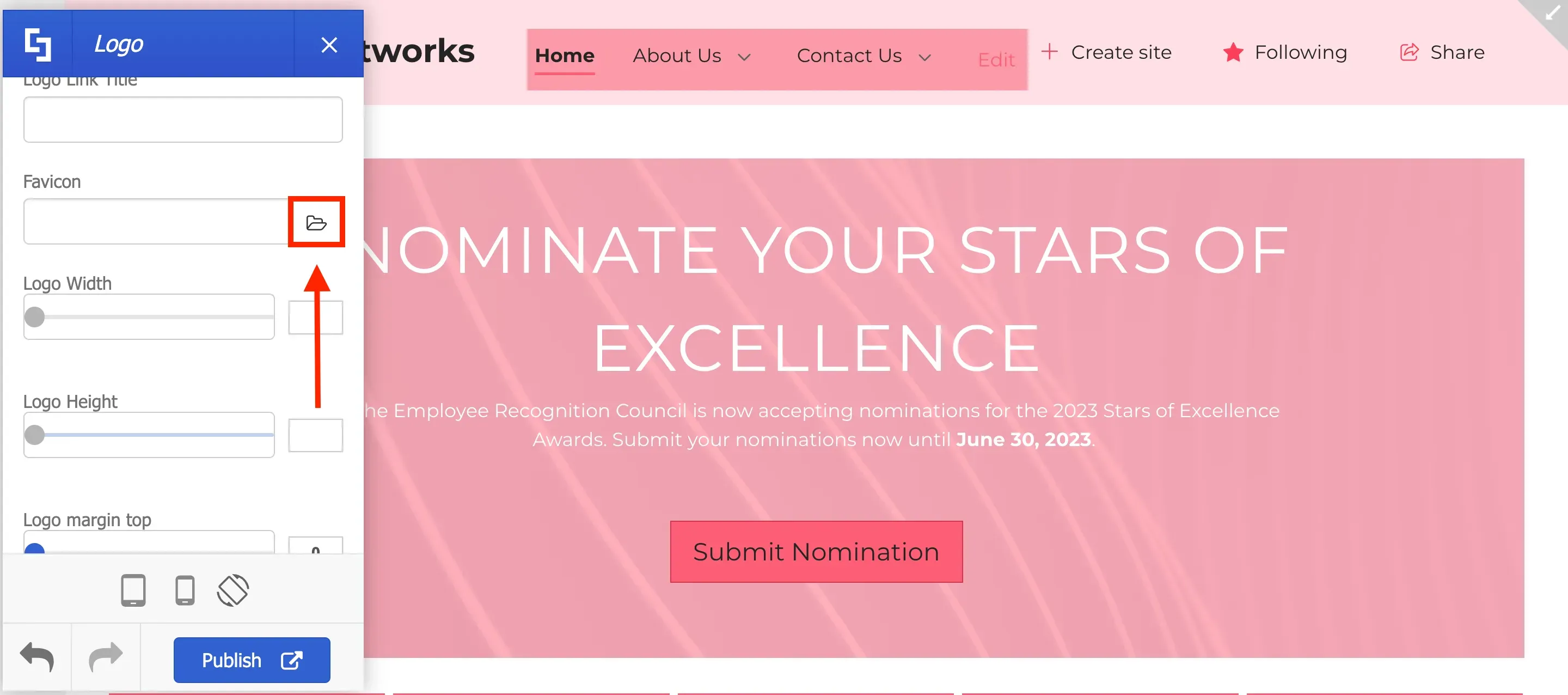
Then, click the folder icon to add a new favicon.
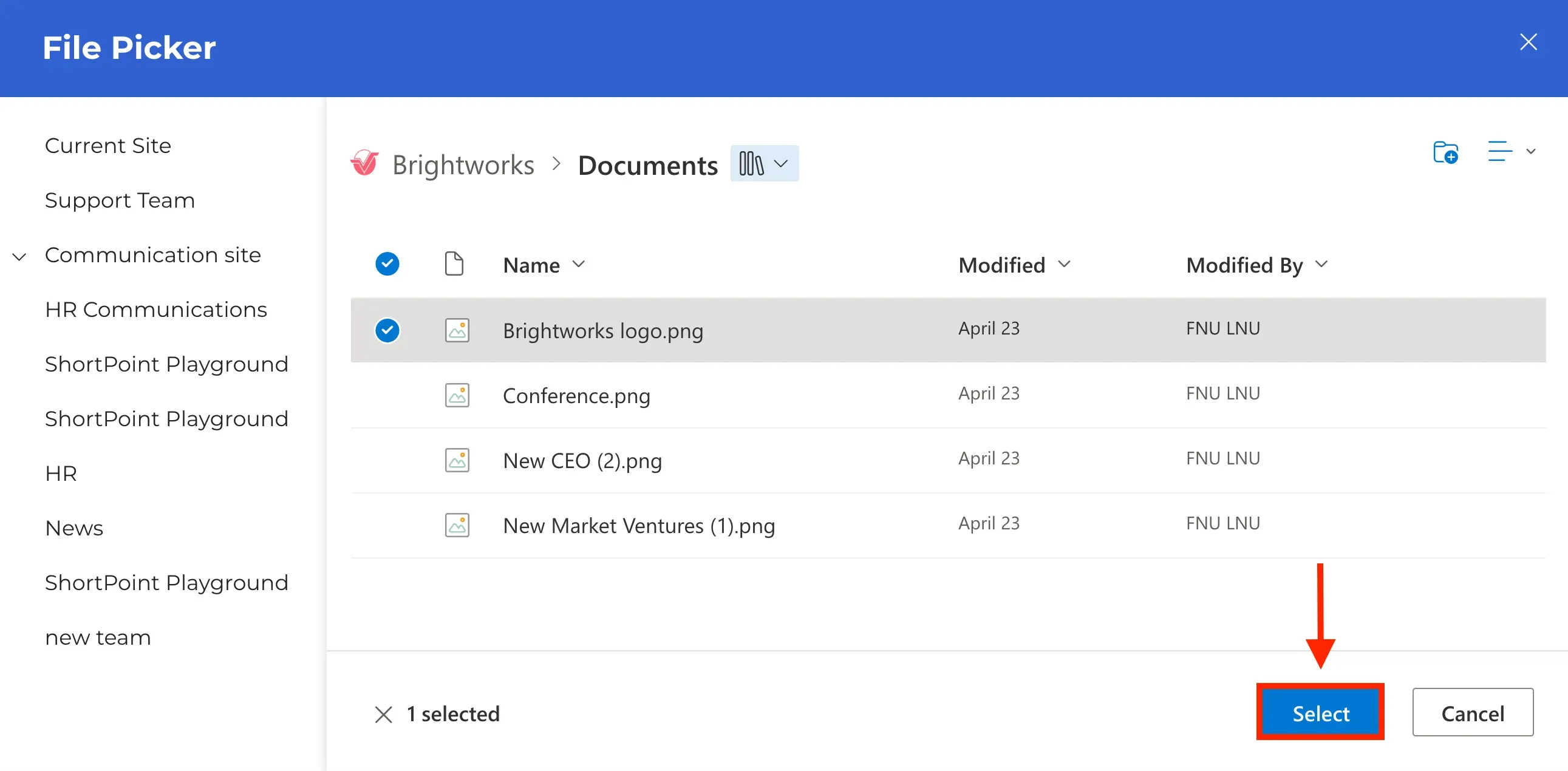
Select the image you prefer from the file picker.
You will now see your new favicon on your browser's page tab.
After making all your modifications, remember to click Publish to apply them to your site.
That's it! You now know how to customize menus and headers using ShortPoint Theme Builder. With just a few clicks, your intranet now boasts a fresh, modern, and practical look. Leverage these features to craft a well-designed and visually appealing intranet site that leaves a positive impact on your users.