SharePoint Tips and Tricks: 20 Best Practices to Get More From SharePoint
Most people use about 20% of what SharePoint can actually do.
That is not a criticism — it is just how enterprise software works. SharePoint is vast, the documentation is scattered, and nobody ever sits you down and explains what it can do. So you learn the basics, you get the job done, and the more powerful features stay hidden.
This guide is about the other 80%. Twenty practical SharePoint tips and tricks — for everyday users, not IT administrators — that make SharePoint faster, less frustrating, and genuinely useful. Whether you are managing documents, collaborating with a team, or trying to build an intranet that people actually visit, there is something in here for you.
New to SharePoint? Start with our plain-English guide: What is SharePoint and what is it used for →
Jump to the tips you need
The 20 tips are grouped into five areas. Jump straight to whichever problem you are trying to solve:
- Document Management: metadata, file naming, version history, co-authoring, and approval workflows
- SharePoint Search: exact phrases, scoped search, keyword combinations, and full-text indexing
- Permissions & Sharing: inheritance, file-level sharing, link expiry, and access audits
- Productivity & Navigation: Teams pinning, desktop sync, quick links, and following content
- Intranet Design: information architecture, hub sites, and never starting from a blank page
By Luisa Silva, Growth Manager at ShortPoint • Last Updated: June 15, 2026
Document Management Tips
SharePoint lives or dies on how you organise documents. These five SharePoint best practices fix the everyday friction — files you cannot find, versions you cannot trust, and approvals stuck in someone's inbox.
-
Document Management
Tip 1: Use metadata instead of folders
Folders feel intuitive — until a document belongs in three places at once. Metadata solves this. Instead of putting a contract in
HR > Legal > 2026, you tag it with Department: Legal, Year: 2026, Status: Active. Now it is findable from any direction — by department, by year, by status — without duplicating files.Why it matters: SharePoint search indexes metadata. Files tagged correctly surface in search instantly. Files buried in folders often do not.
-
Document Management
Tip 2: Name files consistently from day one
Filenames like
Contract_FINAL_v2_USE THIS ONE.docxare a failure of organisation, not a quirk of it. Set a naming convention before your team starts uploading and enforce it. A simple format —ClientName_DocumentType_YYYY-MM-DD— takes three seconds per file and saves hours of searching later.Key rule: No spaces in filenames (use hyphens or underscores), no special characters, and never the word FINAL. If a document is final, the date is your version indicator.
-
Document Management
Tip 3: Enable version history on every library
Version history is one of SharePoint's most underused features. Every edit to a document is automatically saved as a numbered version — you can browse the full history, compare versions, and restore any previous one in seconds.
The practical payoff: when a colleague overwrites something by mistake — and they will — you recover it in under a minute instead of asking everyone if they have a copy saved locally.
How to enable: Library settings > Versioning settings > turn on major version tracking. Set a sensible limit (50 versions is plenty for most libraries).
-
Document Management
Tip 4: Co-author instead of emailing attachments
If your team still sends documents as email attachments, you have a version control problem waiting to happen. SharePoint co-authoring lets multiple people edit the same document at the same time — changes appear in real time, no merging required.
The co-authoring experience is identical to working locally — except there is no "who has the file open?" problem, ever.
How to start: Open any Word, Excel, or PowerPoint file stored in SharePoint directly in the browser or desktop app. Share the link (not the file). Everyone edits the same version.
-
Document Management
Tip 5: Automate approval workflows with Power Automate
If you have a process where someone submits a document and someone else needs to approve it — a purchase request, a policy update, a contract draft — you can automate the entire thing without writing a line of code.
Power Automate (included in Microsoft 365) connects directly to SharePoint. A document uploaded to a library can trigger an automatic approval email, route to the right person, log the outcome, and notify the submitter — all without anyone touching it manually.
Start simple: Power Automate has a pre-built template for SharePoint document approval. Use it as a starting point before building anything custom.
SharePoint Search Tips
When search fails, trust in the whole platform disappears. These tips make SharePoint search behave like a real search engine — so people stop asking "where is that file?" and start finding it themselves.
-
SharePoint Search
Tip 6: Use quotation marks for exact phrase search
Searching for
quarterly reportreturns everything with either "quarterly" or "report" anywhere in the document. Searching for"quarterly report"(with quotes) returns only documents containing that exact phrase. This alone eliminates most irrelevant results from large document libraries. -
SharePoint Search
Tip 7: Search within a site, not across everything
SharePoint's global search covers your entire Microsoft 365 environment — which is useful when you do not know where something lives, and overwhelming when you do. If you know which site or library a document is in, navigate there first and search from within that context. Results are scoped to that location and are far more relevant.
-
SharePoint Search
Tip 8: Combine keywords to eliminate generic results
One keyword returns thousands of results. Two specific keywords combined — say,
onboarding checklist 2026— narrow it to exactly what you need. Treat SharePoint search like a search engine, not a file browser: the more specific your query, the better the results. -
SharePoint Search
Tip 9: SharePoint indexes document contents, not just filenames
This surprises most people. SharePoint does not just search file names — it searches inside documents. The full text of Word files, PDFs, and even text inside scanned images is indexed and searchable. This means a keyword that appears only in the body of a document will still surface in search results.
Practical use: If you remember a phrase from a document but not what it was called, search for the phrase. SharePoint will find it even if the filename gives no clue.
Permissions & Sharing Tips
Permissions are where most SharePoint environments quietly go wrong. Follow these SharePoint permissions best practices to keep access clean, auditable, and safe — without locking people out of what they need.
-
Permissions & Sharing
Tip 10: Understand how permission inheritance works
By default, everything in SharePoint inherits permissions from its parent. A file inherits from its folder, which inherits from its library, which inherits from its site. This is a good thing — it means you set permissions once at the right level and everything below follows automatically.
The problem: When you break inheritance on a specific file or folder (to share it differently), you create a permissions exception that is hard to audit and easy to forget. Only break inheritance when you genuinely need to.
-
Permissions & Sharing
Tip 11: Share a specific file, not the whole library
When someone asks for a document, share a direct link to that file — not access to the library it lives in. Use the Share button on the file itself, choose "People with the link" or a specific person, and send the link. The recipient sees only that file, not everything else in the library.
-
Permissions & Sharing
Tip 12: Set expiry dates on external sharing links
If you share a file with an external partner, contractor, or client, set a link expiration date. Microsoft 365 allows this natively when generating sharing links — the link stops working automatically after the date you choose. This removes the risk of forgetting to revoke access when a project ends.
-
Permissions & Sharing
Tip 13: Audit who has access before it becomes a problem
SharePoint sites accumulate permissions over time. People change roles, projects end, contractors leave — but their access often stays. Every few months, open
Site Settings > Site Permissionsand review who has access at the site level. Remove anyone who no longer needs it.Pro tip: For document libraries with sensitive content, run a permission report from the library settings to see all unique permissions — including any that have broken inheritance from the site default.
Productivity & Navigation Tips
These tips are about removing friction from your day — bringing SharePoint to where you already work and cutting out the repetitive "send me the latest version" emails entirely.
-
Productivity & Navigation
Tip 14: Pin SharePoint sites to your Teams sidebar
If you use Microsoft Teams daily, you can add any SharePoint site as a tab inside a Teams channel, or pin the SharePoint app to your sidebar for one-click access. This removes the friction of opening a browser, navigating to SharePoint, and finding the right site — the content is right where you already work.
-
Productivity & Navigation
Tip 15: Sync a document library to your desktop
OneDrive Sync lets you map any SharePoint document library to your local file system — it appears as a folder in Windows Explorer or macOS Finder, works exactly like a local drive, and syncs changes automatically. You can open, edit, and save files without touching a browser.
How to set up: Navigate to any document library in SharePoint, click Sync in the top menu bar, and follow the prompts. The library appears in your file explorer within a minute.
-
Productivity & Navigation
Tip 16: Put quick links at the top of every intranet page
The primary reason employees visit an intranet page is to find something — a policy, a form, a tool. If they have to scroll to find it, most will give up. Keep your most-accessed links in a Quick Links web part near the top of the page, visible without scrolling, grouped by what people are actually looking for.
Good quick link candidates: HR forms, expense reports, IT help desk, company directory, benefits portal, shared calendars. If you hear the same question more than twice, the answer should be a quick link.
-
Productivity & Navigation
Tip 17: Follow sites and files to stay updated
Instead of asking colleagues to tell you when a document changes, follow it. Navigate to any site or document, click the ellipsis (...) menu, and choose Follow. SharePoint will notify you when the content is updated. You can manage everything you follow from the SharePoint home page.
This replaces the dreaded "can someone send me the latest version?" email entirely.
Intranet Design Tips
These final tips cover SharePoint intranet best practices — the structural decisions that determine whether your intranet becomes a daily habit or a digital ghost town.
-
Intranet Design
Tip 18: Plan your information architecture before you build anything
The most expensive mistake in any SharePoint intranet project is building first and planning later. Decisions about site structure, navigation, and content organisation made in week one ripple through everything that follows. If you reorganise later, you are rebuilding — not refining.
Before you create a single site, answer three questions: What are the main sections? Who owns each section? How will users navigate between them? Whiteboard it, get stakeholder sign-off, then build.
-
Intranet Design
Tip 19: Use hub sites to connect related team sites
A hub site is a SharePoint site that other sites can associate with. When sites are joined to a hub, they share navigation, branding, and search scope — meaning a search from any site in the hub returns results from all of them.
For most organisations, the structure looks like: one hub site (the company intranet homepage) with department sites connected to it (HR, IT, Finance, Comms). Employees navigate from the hub into any department, and search works across the whole environment.
-
Intranet Design
Tip 20: Do not start your intranet from a blank page
This is the tip most intranet projects ignore — and the one that costs the most time. Starting from a blank SharePoint site and designing everything from scratch is slow, expensive, and rarely produces a result that looks professional. It is also completely unnecessary.
ShortPoint gives you a library of over 200 professionally designed intranet templates built specifically for SharePoint and Microsoft 365. Choose a template that fits your structure, customise it to your brand, and you have a real intranet — not a blank white page with a company logo pasted in.
If you want to move even faster, ShortPoint AI Designer generates intranet page layouts from a plain-text description. Describe your department, your content structure, your brand colours — and get a working page design in minutes, not weeks.
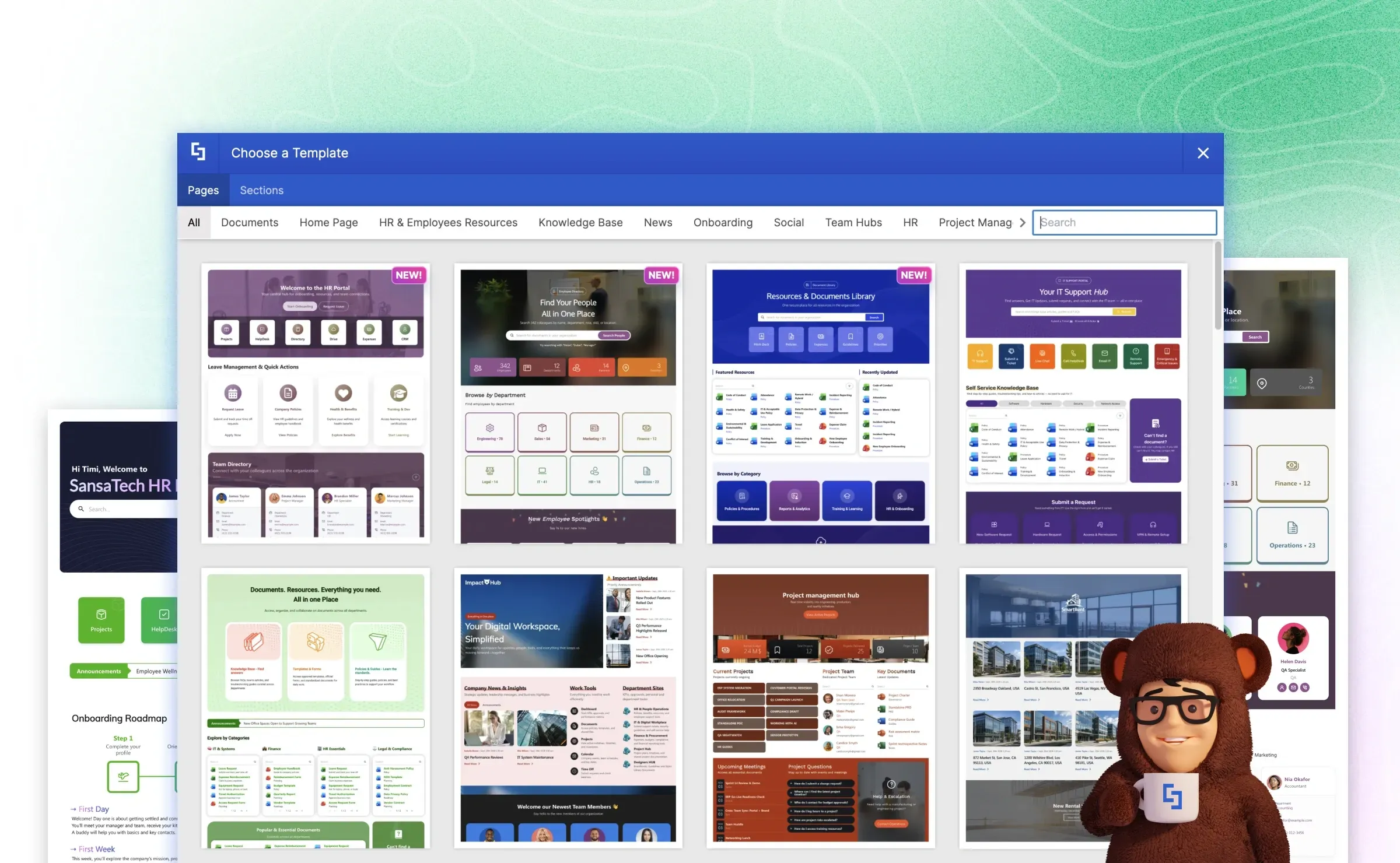
Tired of your SharePoint intranet looking like it was built in 2015?
ShortPoint gives you 100+ professionally designed templates — no developer needed.
Continue Reading
- New to SharePoint? What is SharePoint? Definition, uses, and key features →
- Need implementation help? What to know before hiring a SharePoint consulting company →
SharePoint Tips and Tricks: Frequently Asked Questions

Luisa Silva
Growth Manager, ShortPoint
Luisa is the Growth Manager at ShortPoint. She translates customer insights and ShortPoint solutions into practical, no-code guides for SharePoint and Microsoft 365 intranets. Focusing on intranet design, HR, knowledge hubs, and internal comms, her work is all about helping you achieve faster launches and higher adoption rates.


Ignite your vision. Install ShortPoint directly on your site, or play in sandbox mode. No credit card required.