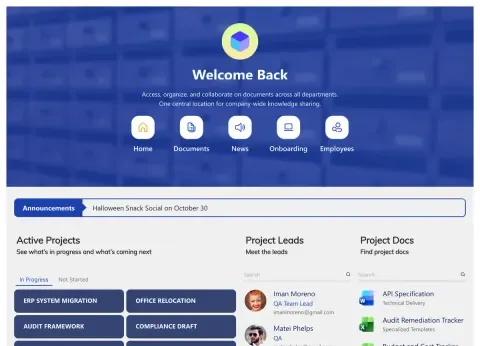
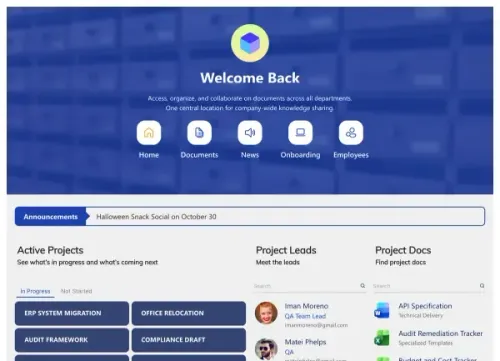
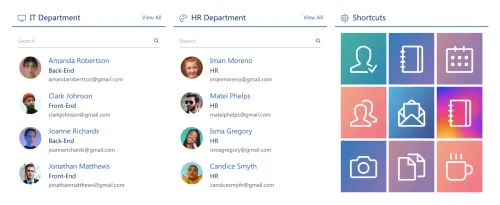
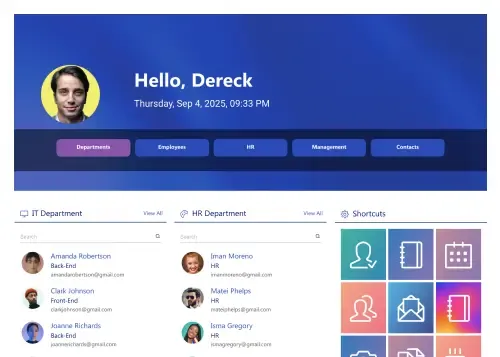
Browse team page templates
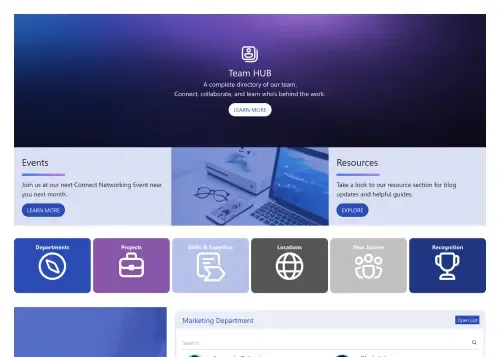
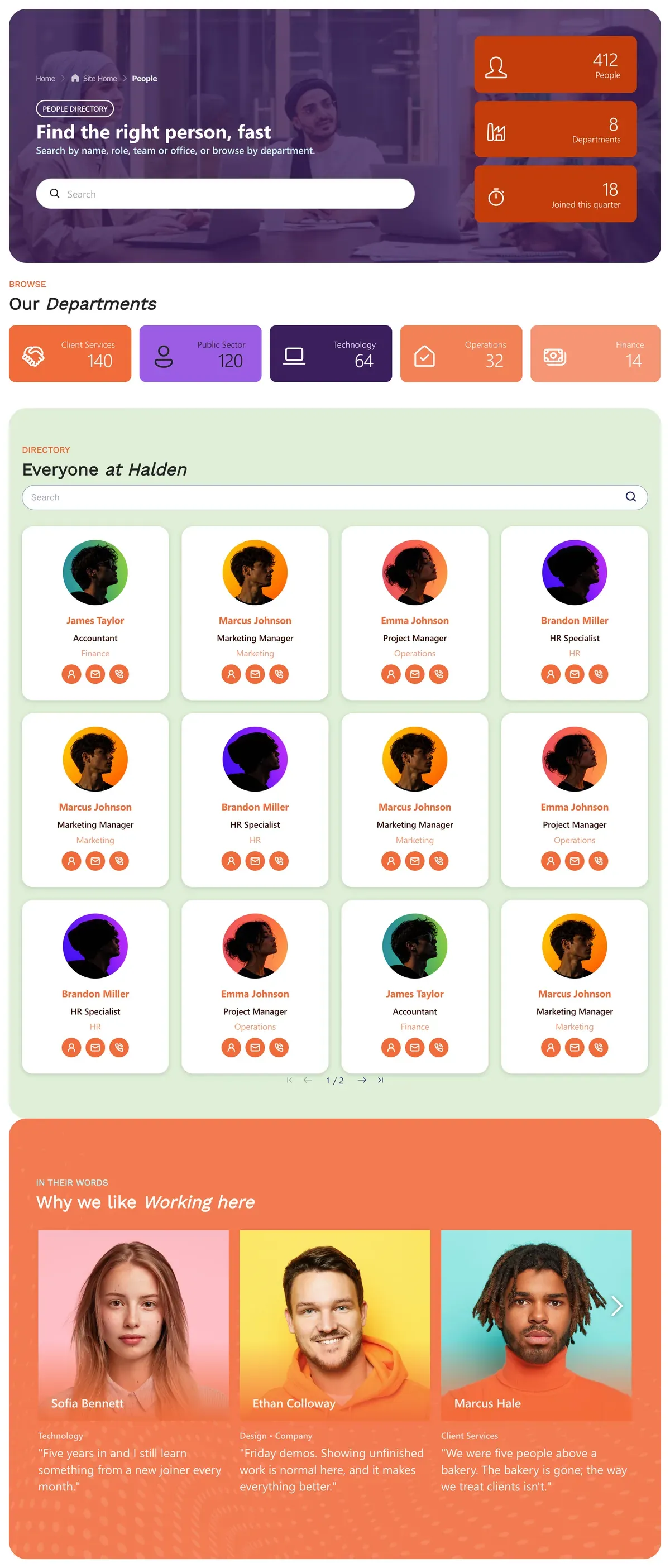
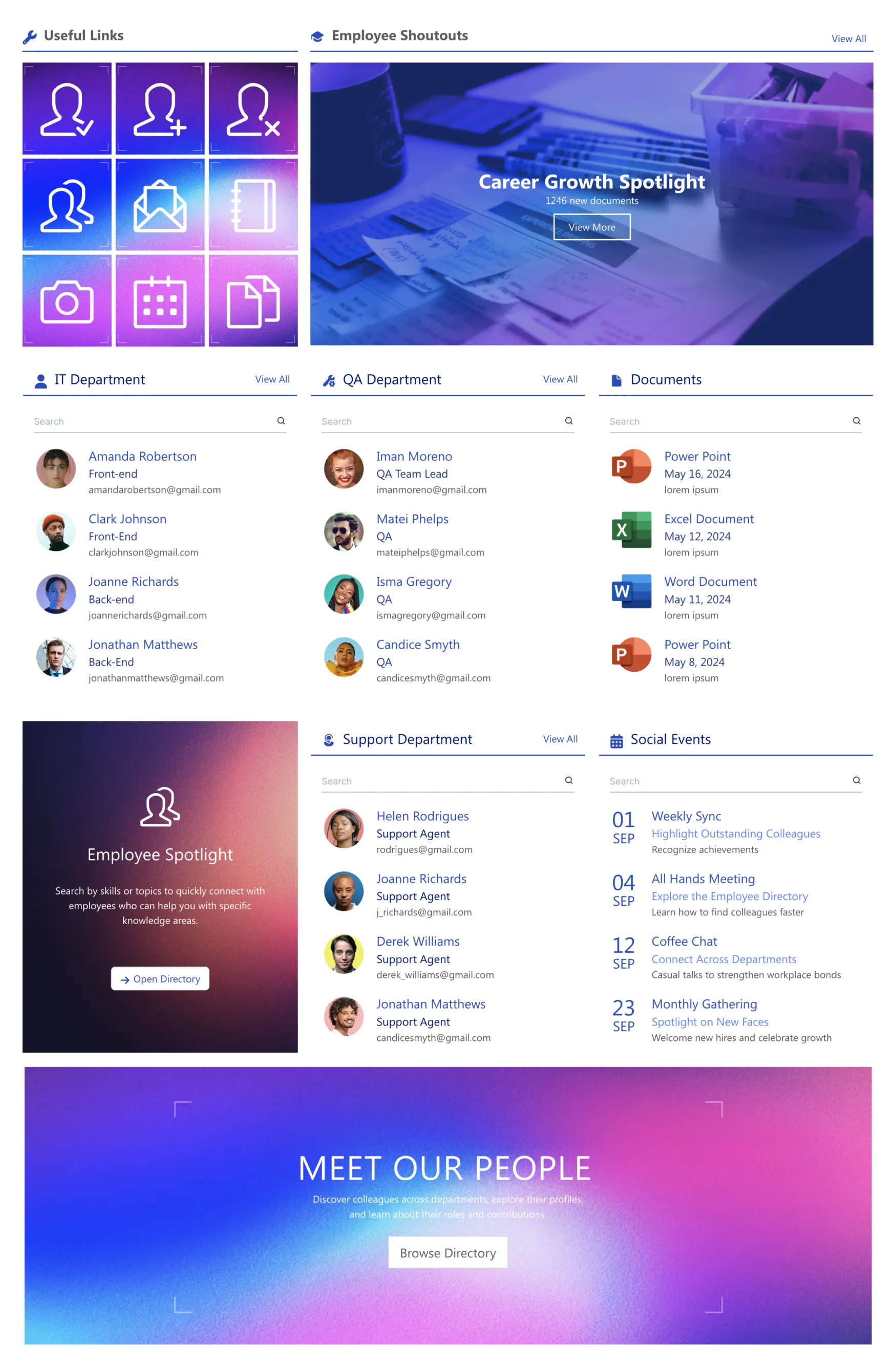
 Colleague Hub People search with team sizes and employee quotes.
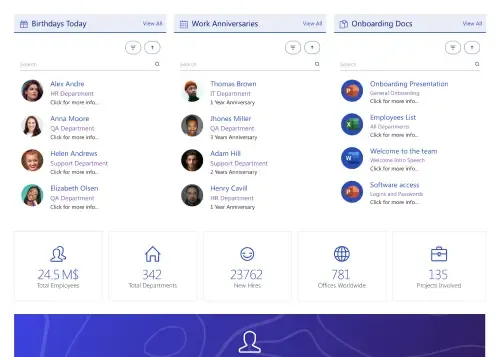
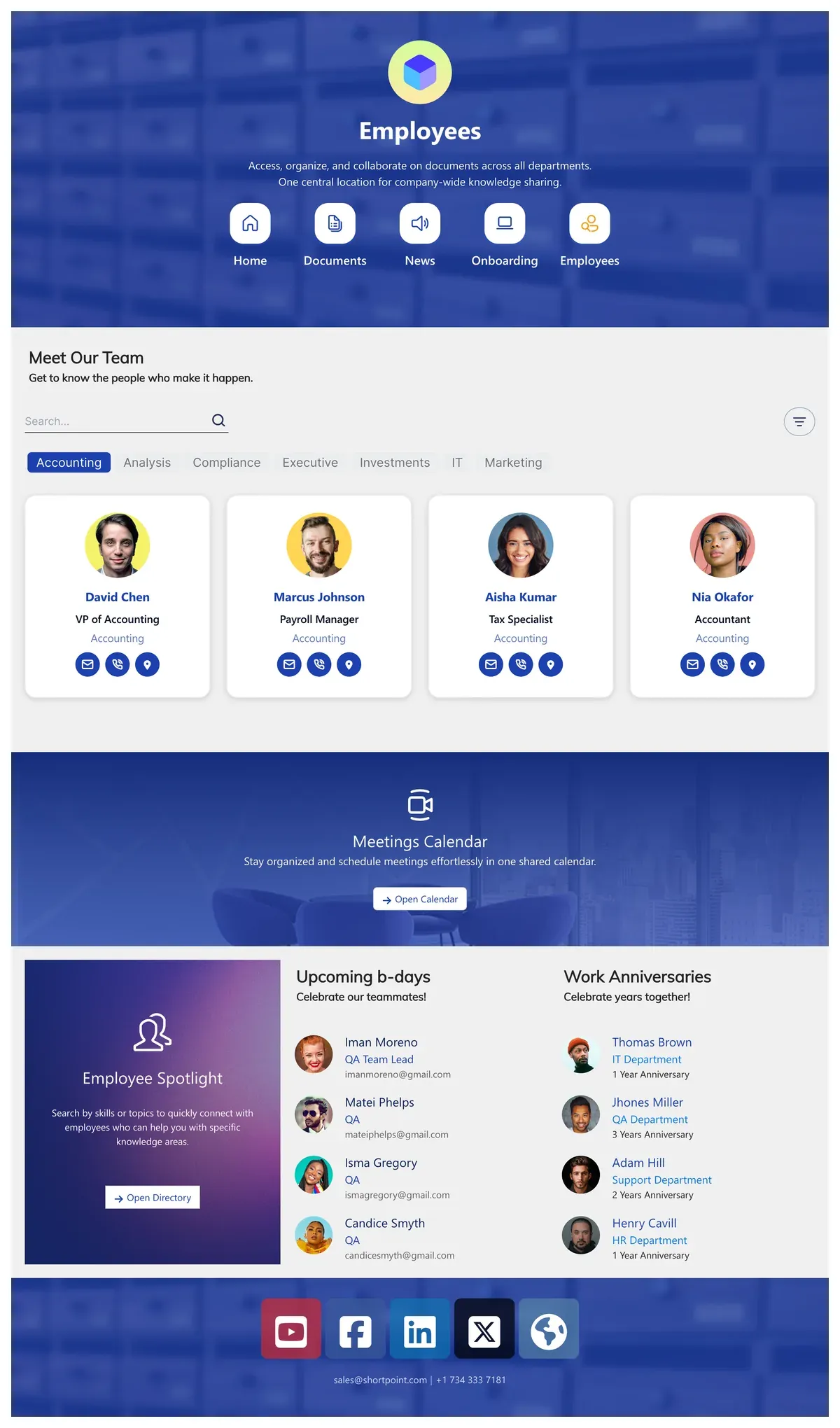
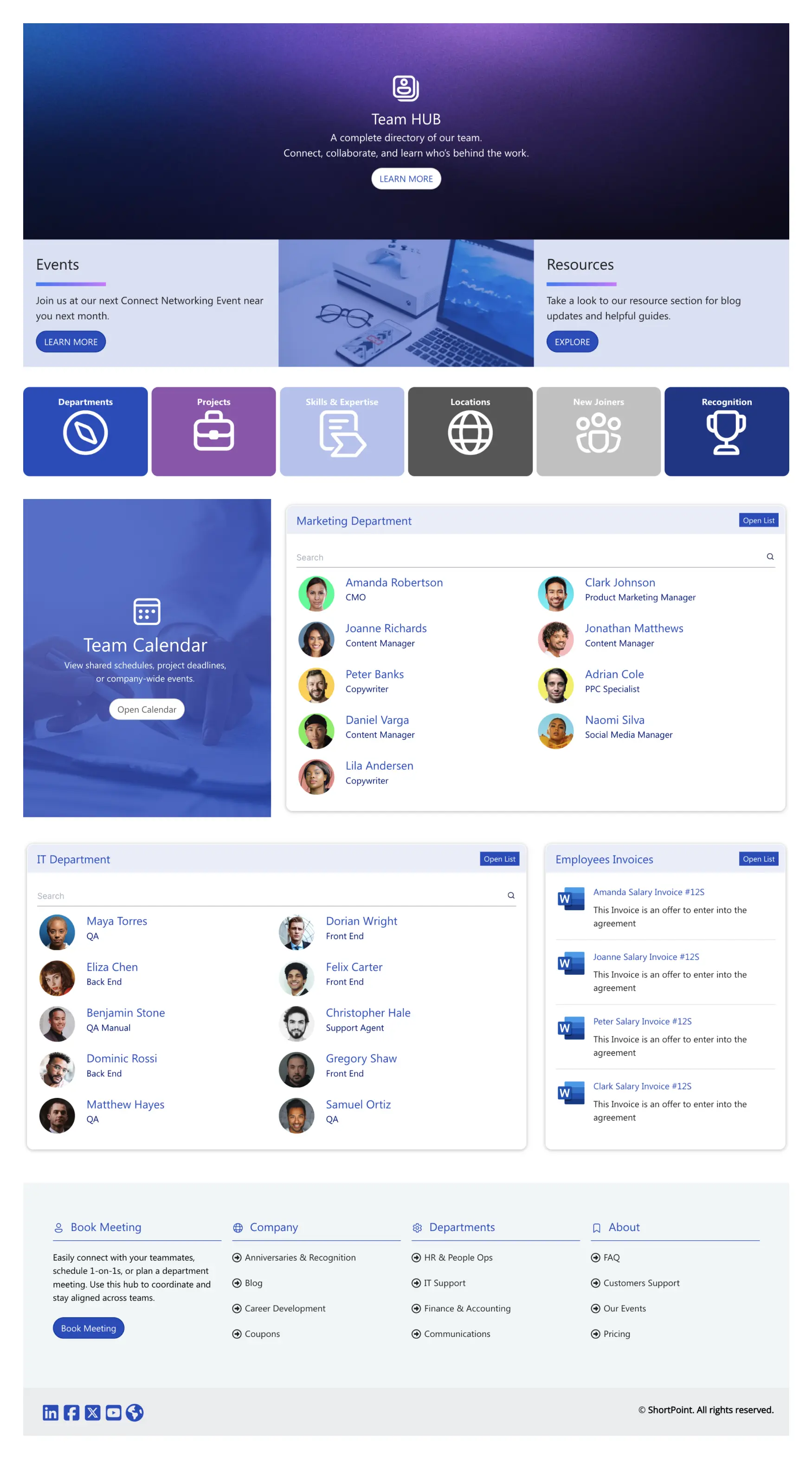
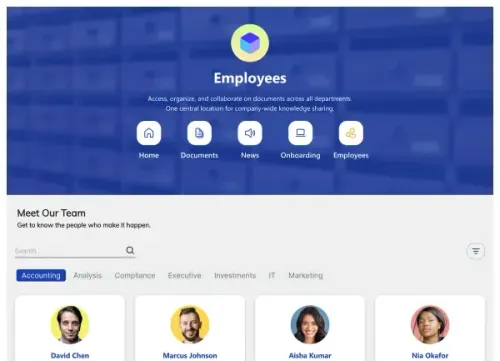 People Grid Team directory with department tabs and celebrations.
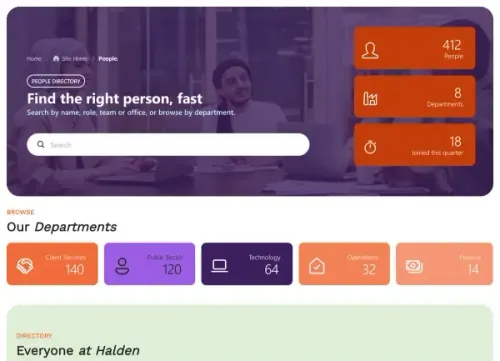
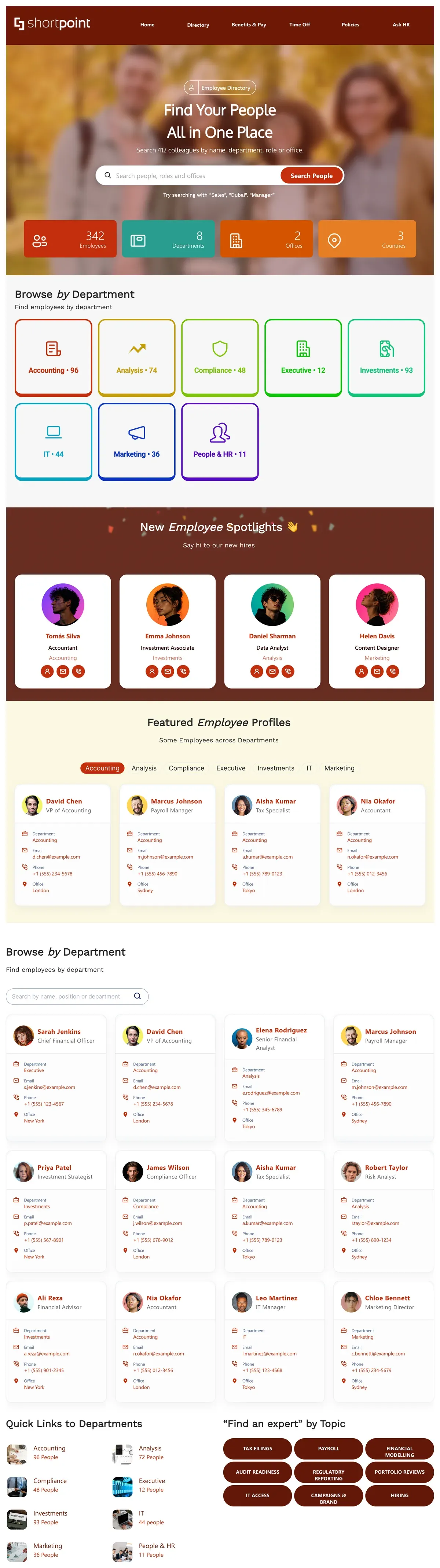
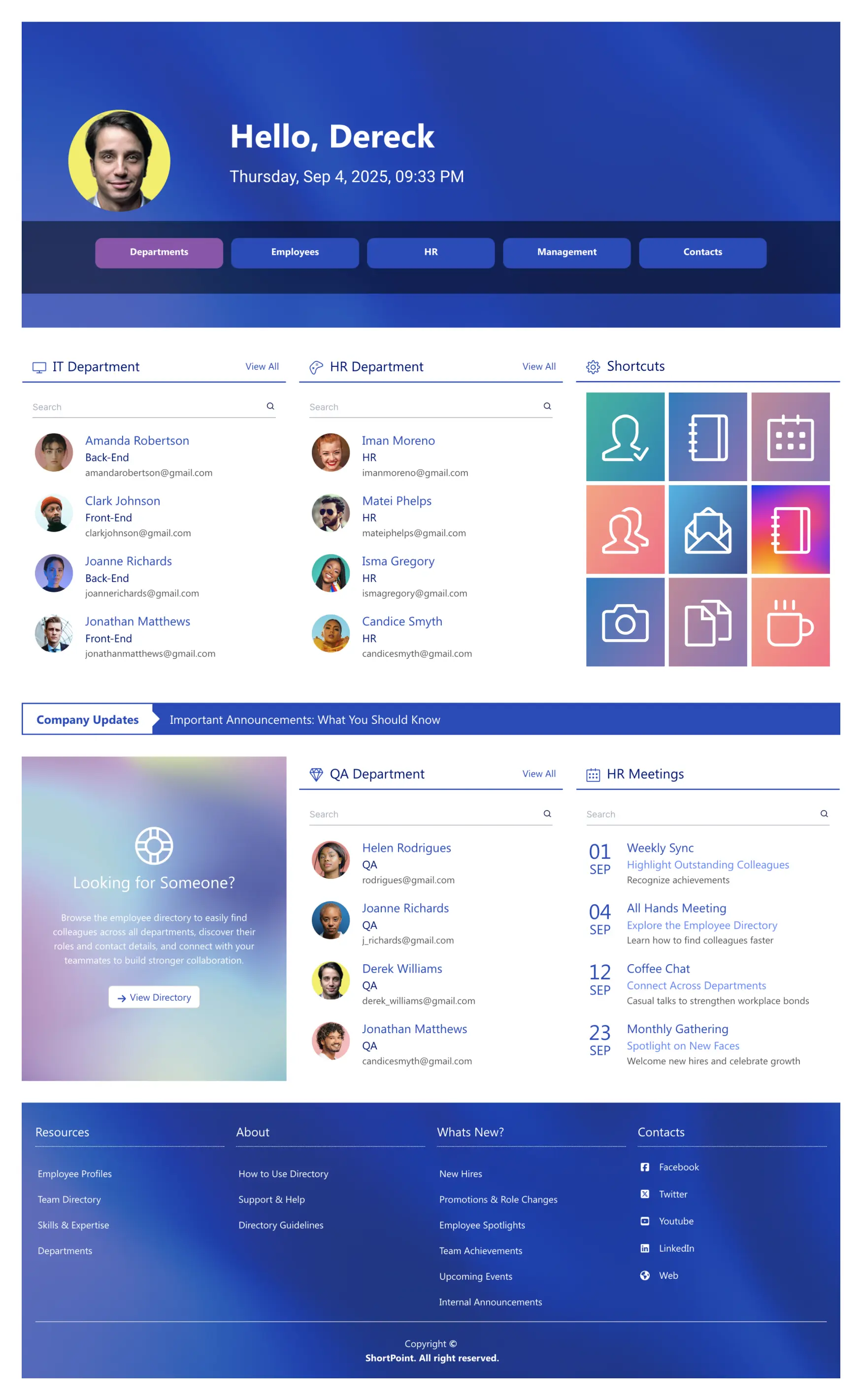
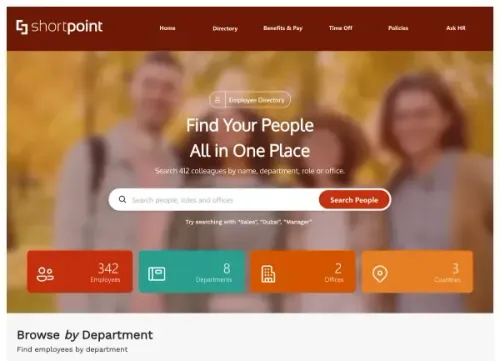 Team Directory People search, department browsing and an expert finder.
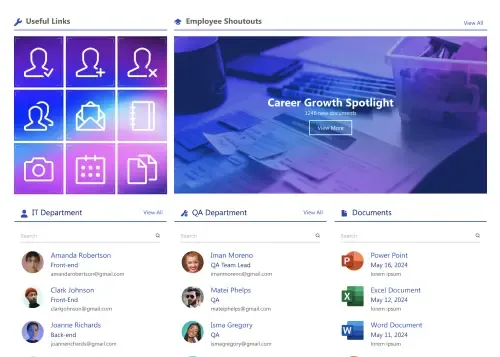
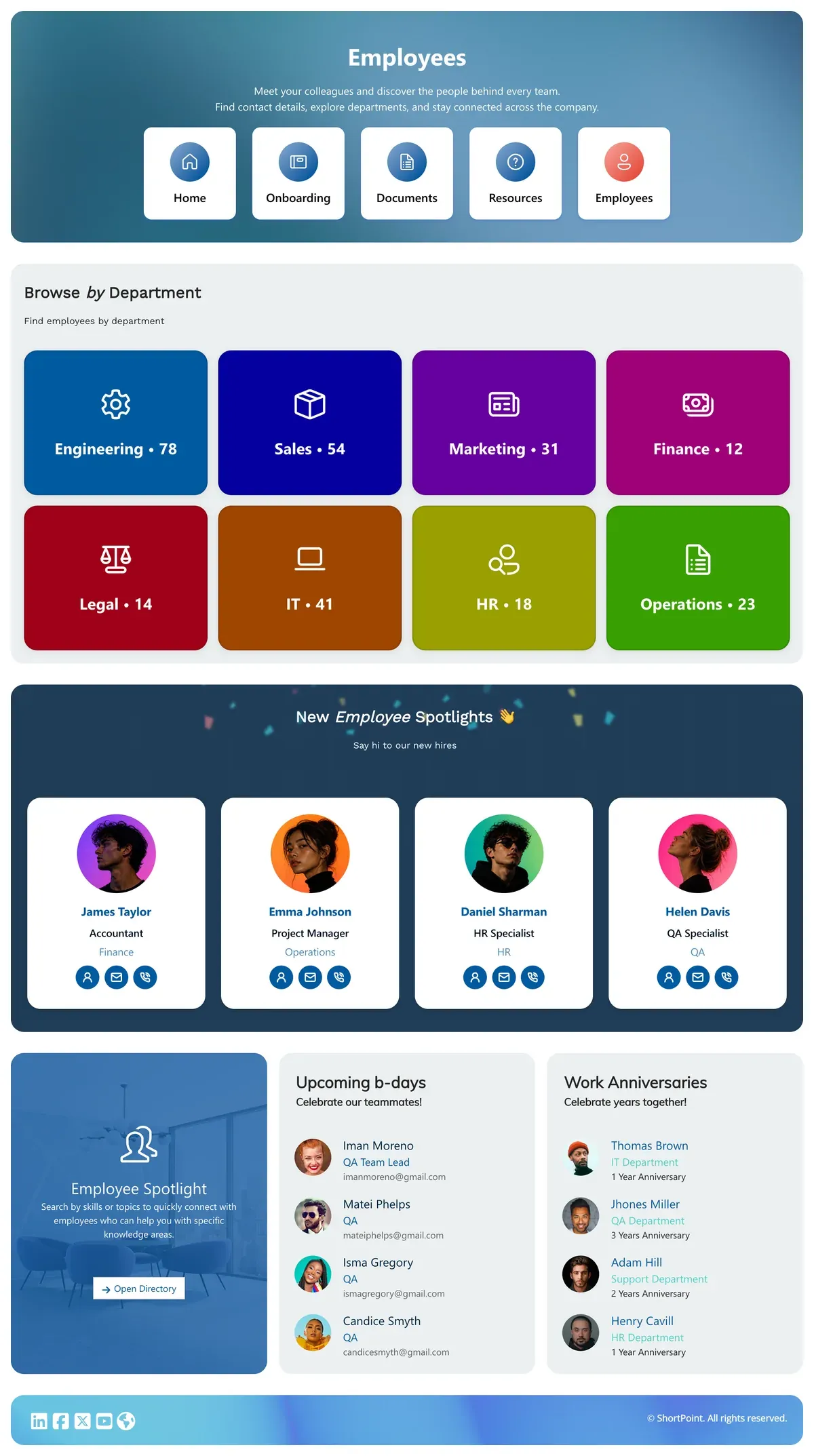
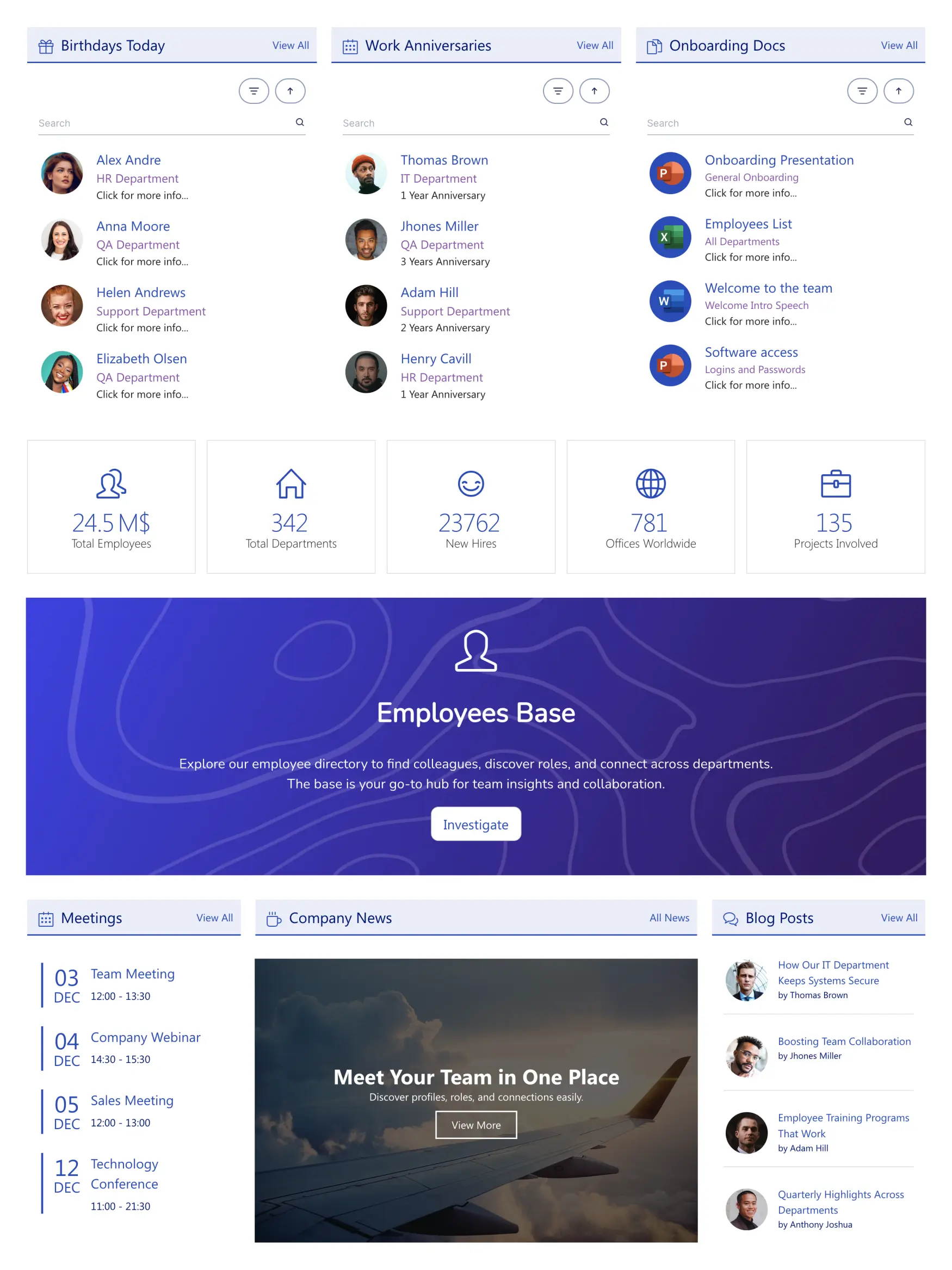
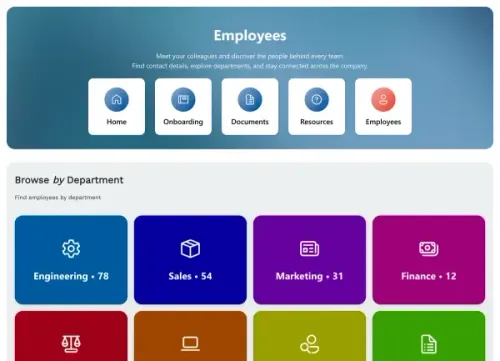 Team Center Employees by department, new hires and milestones.
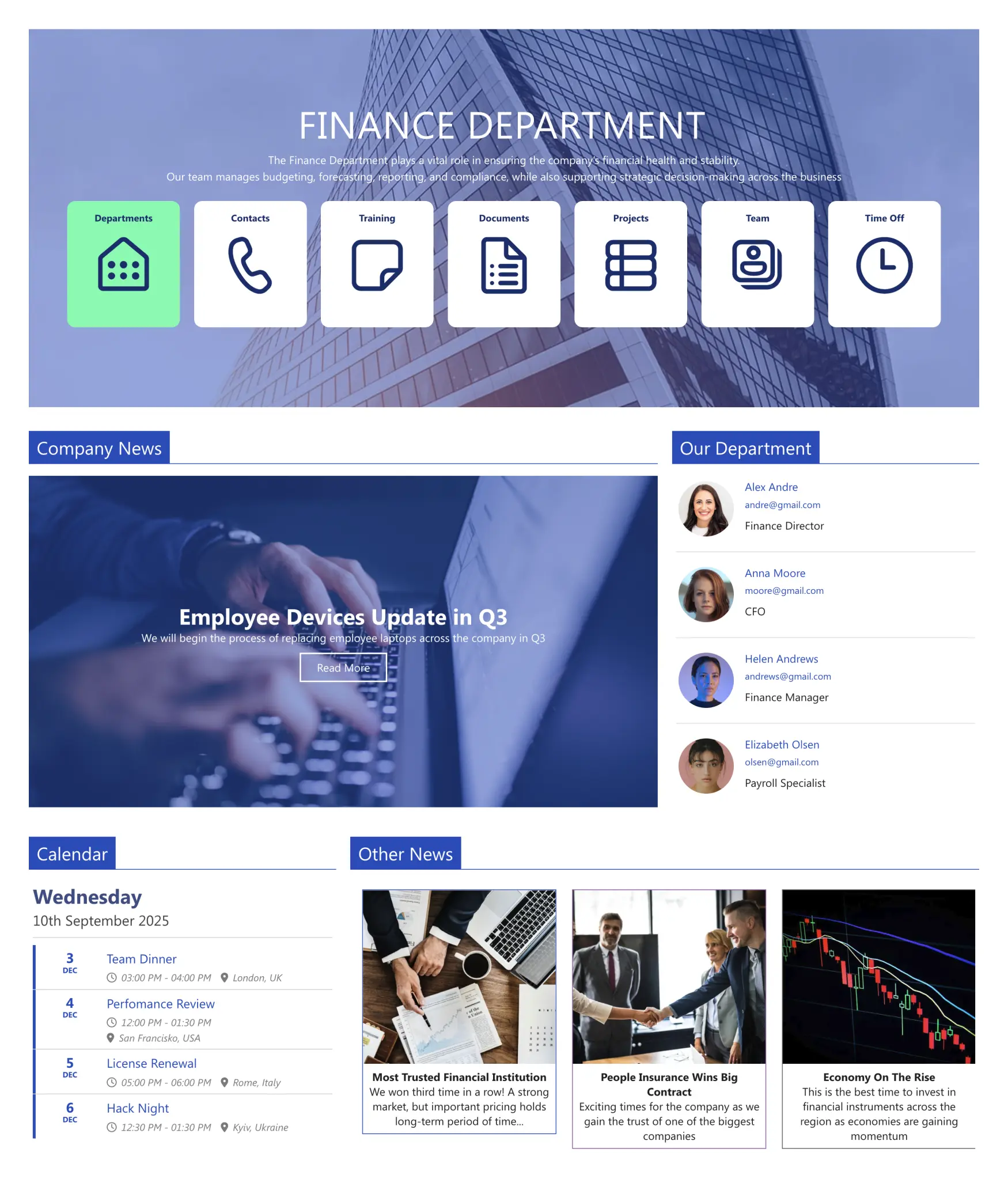
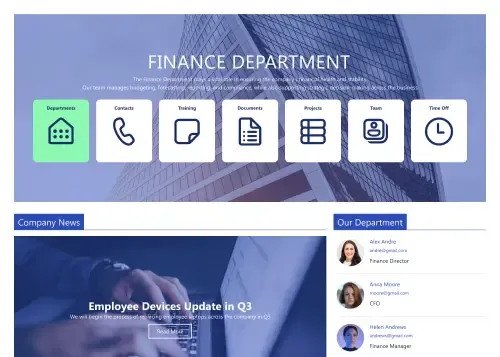 Department Home Department hero, team list, calendar and news.
About SharePoint team page templates
A SharePoint team page template is a ready-made home page for one team or department: what the team does and how to reach it, its news, its people, current work, shared documents and the team calendar. Every block, from the team intro to the people cards, is a ShortPoint section you can change without code.
Building pages for the whole company instead of one team? See the company-wide site templates.
The team pages most intranets need
- Department home What the department does, its news and how to reach it.
- Team workspace Current work, files and calendar for the team.
- People directory Who’s on the team, with roles and contacts. Several templates here work as a full employee directory, with search by department, role or skill.
- Team requests How other teams ask this team for help.
The sections a team page is built from
Team sections carry most of a team page with people cards and directories; News sections add team updates, and Documents sections add shared files.
Layout order for a team page
Visitors from other teams want to know who the team is and how to reach it; team members want their work and files. Put the team intro and requests first, then news and people, then work, files and calendar. On a phone, the team intro and how to reach the team come first.
- 1 Team title and search say which team this is
- 2 What we do and how to reach us for visitors from other teams
- 3 Team news updates and wins
- 4 People roles and contacts
- 5 Current work projects and priorities
- 6 Files and calendar shared documents and meetings
- 7 Footer team contacts
Keeping team pages current
Name one owner per team page and connect people cards to Microsoft 365 profiles, so joiners and leavers update automatically. Review the “how to reach us” block whenever the team’s process changes.
- No way to reach the team Visitors leave without knowing who to ask.
- Stale people list Typed-in names go out of date. Connect to profiles.
- Every team different Use one template so people know where things are on every team page.
- Files in many places Link to one team library.
Why ShortPoint for team pages
Default SharePoint pages look different from one team to the next. ShortPoint team templates give every team page the same design, so people find news, contacts and files in the same place on every team page. A new team gets a finished page on day one instead of starting from a blank one.
Every template here is a starting point. With ShortPoint you can connect any section to live data from SharePoint lists and Microsoft 365, such as people, calendars, news and files, using Connect. You can add or swap any of the design elements without code, and apply your brand to every page at once with Theme Builder. AI Designer can then help you adjust a layout or create a page that isn’t in the library.
Get started with a team page in three steps
- Start your free trial
Start a 15-day trial with no credit card, and sign in with your Microsoft 365 account to add ShortPoint to your SharePoint.
- Pick your starting point
Open the Templates Library inside SharePoint and choose the template you previewed here.
- Make it yours and publish
Replace the sample content, connect your data, apply your brand with Theme Builder, and publish.