Browse project management templates
About SharePoint project management templates
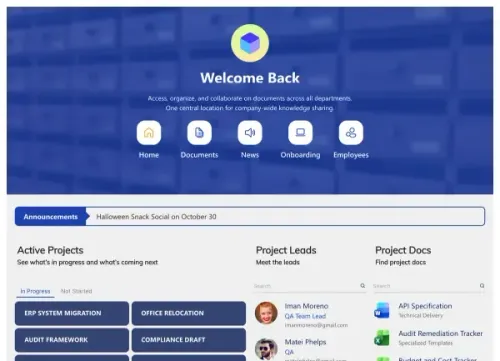
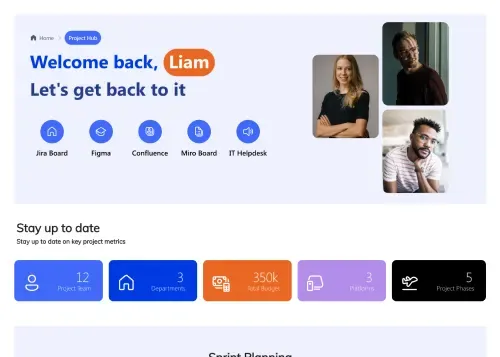
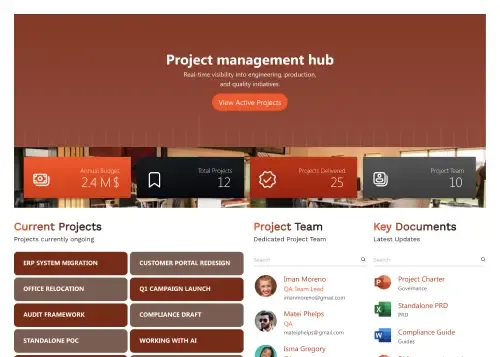
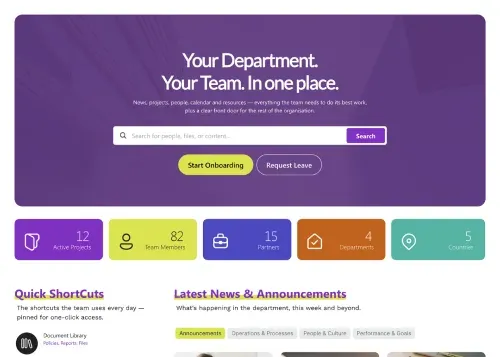
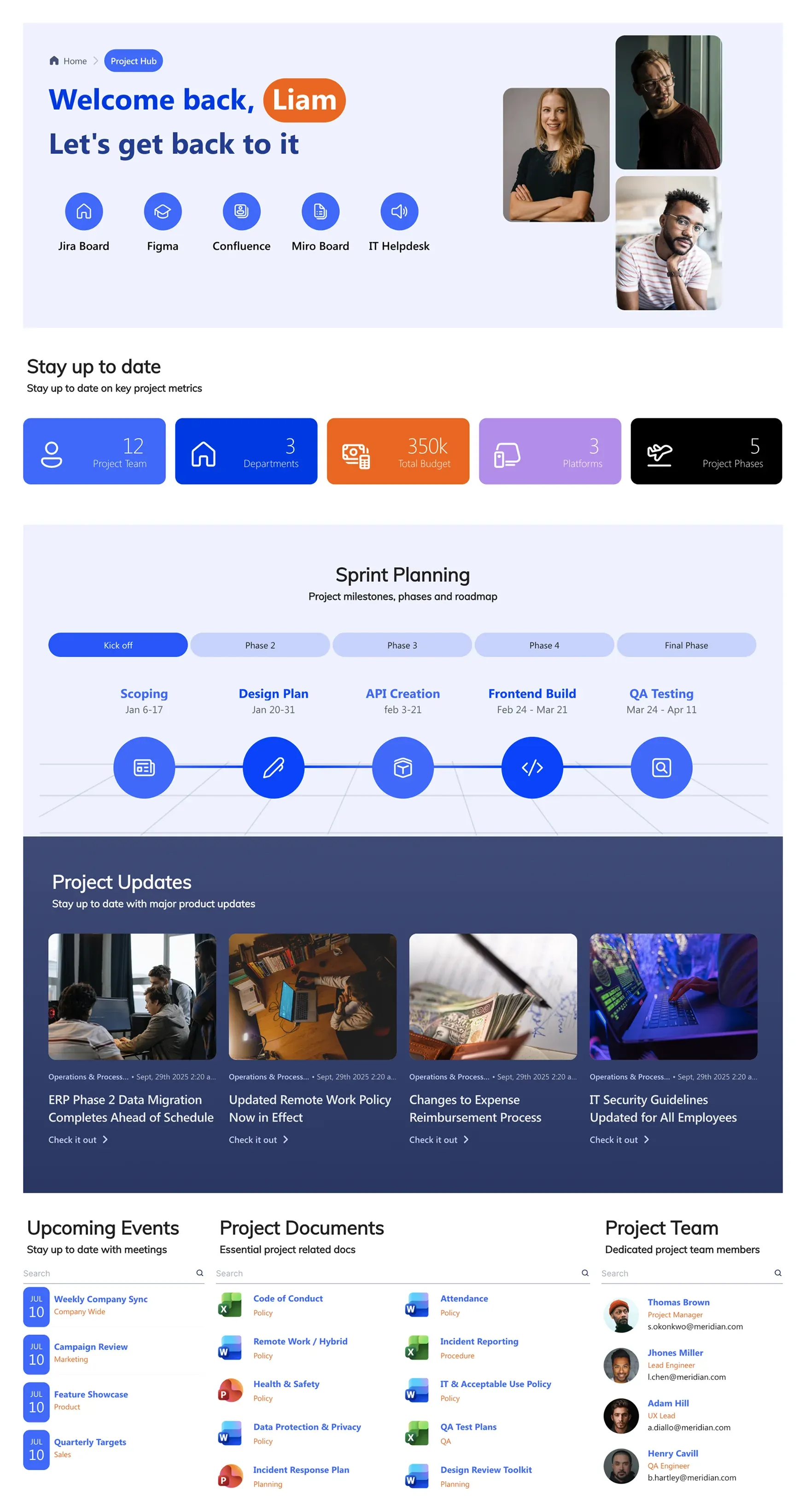
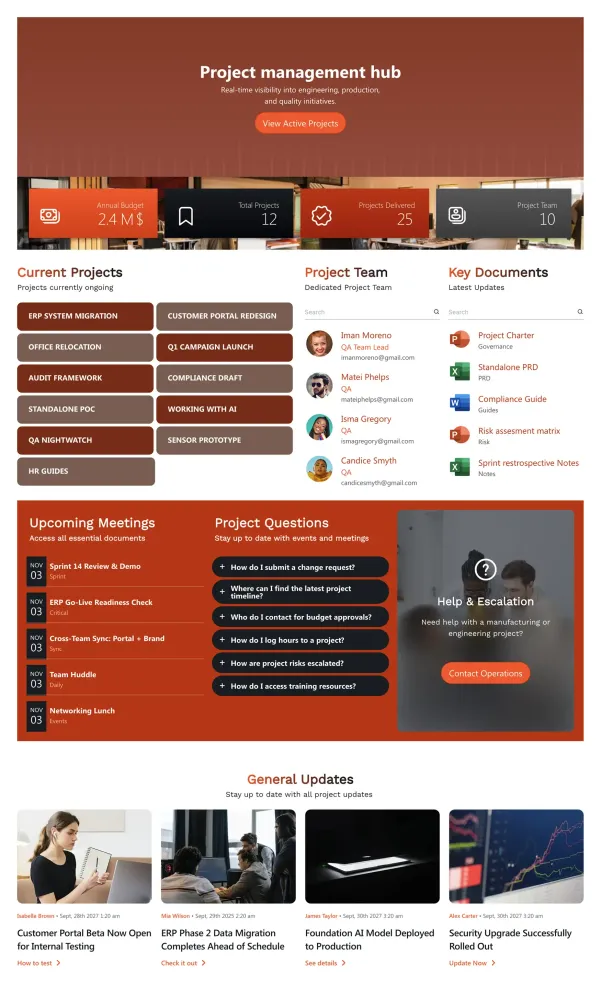
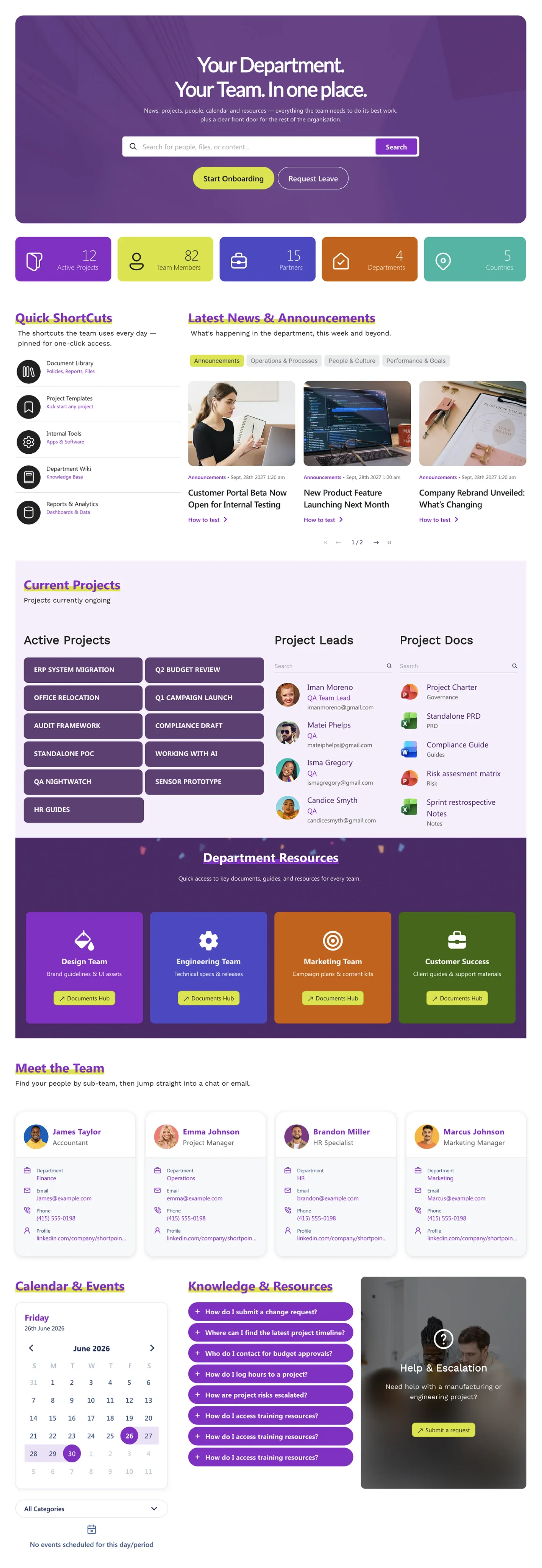
A SharePoint project management template is a ready-made page for running a project in SharePoint: what’s in progress, who owns it, the next milestones, the project documents and the team calendar. Status, milestone and team blocks are ShortPoint sections, so project managers can rearrange them without code.
SharePoint lists, libraries, Planner plans and Microsoft 365 calendars hold the project data. These pages show it in one designed view, so the team and stakeholders don’t have to open each tool.
The project pages most intranets need
- Project portfolio Every active project with its status and owner.
- Single project home Goals, milestones, team and documents for one project.
- PMO page Templates, standards and reporting for project managers.
- Team workspace Tasks, calendar and files for a delivery team.
The sections a project page is built from
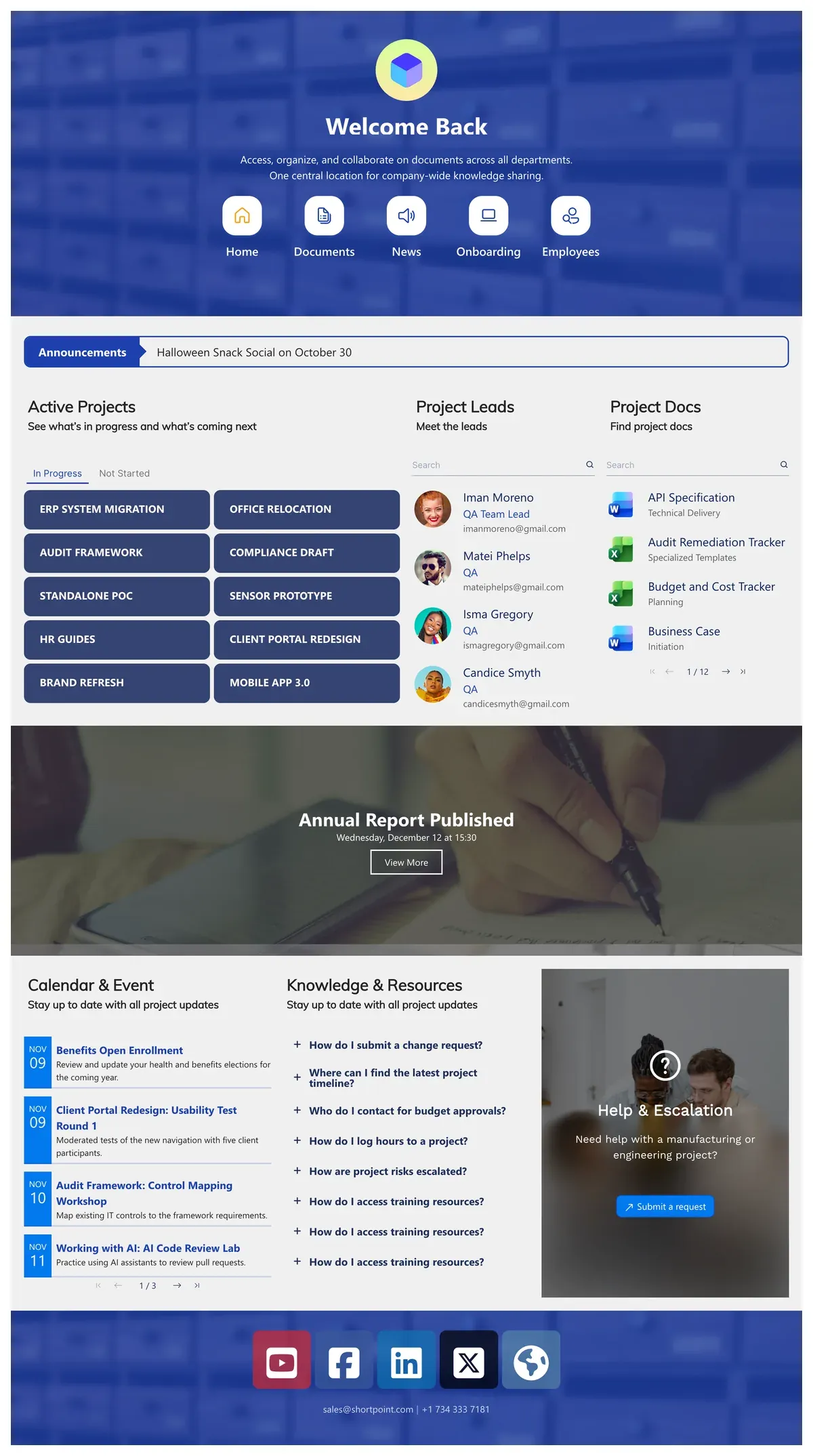
A project page combines Team sections for leads and members, Documents sections for project files, and Corporate sections for calendars and milestones.
Layout order for a project page
Stakeholders open a project page to check status, so status and milestones go first. Below them, owners and the team, then documents, calendar and risks. On a phone, the status overview stays first, so stakeholders get their answer without scrolling.
- 1 Project title and search find the project fast
- 2 Status overview what’s on track, at risk or late
- 3 Next milestones dates and owners
- 4 Project team leads and members
- 5 Project documents charter, plans, reports
- 6 Calendar and meetings what’s coming up
- 7 Footer project contacts
Keeping project pages accurate
A status page is only useful if it’s current. Connect status and milestones to the SharePoint list the team already updates, rather than typing them into the page. Give each project page one owner.
- Manual status A typed-in status goes out of date in a week. Connect it to the list.
- No owners Every milestone needs a name next to it.
- Files in many places Link to one project library.
- No risks or blockers Stakeholders need to see what’s at risk, not only what’s done.
Why ShortPoint for project pages
SharePoint and Microsoft 365 already hold your project lists, plans and files, but each sits in its own tool. ShortPoint project templates bring them onto one designed page that stakeholders can read at a glance, so nobody has to ask the project manager for a status update.
Every template here is a starting point. With ShortPoint you can connect any section to live data from SharePoint lists and Microsoft 365, such as people, calendars, news and files, using Connect. You can add or swap any of the design elements without code, and apply your brand to every page at once with Theme Builder. AI Designer can then help you adjust a layout or create a page that isn’t in the library.
Get started with a project page in three steps
- Start your free trial
Start a 15-day trial with no credit card, and sign in with your Microsoft 365 account to add ShortPoint to your SharePoint.
- Pick your starting point
Open the Templates Library inside SharePoint and choose the template you previewed here.
- Make it yours and publish
Replace the sample content, connect your data, apply your brand with Theme Builder, and publish.