October 2026 Snapshot
This month's Snapshot is filled to the brim with
exciting news and updates.

What's New?
Three Releases, One Goal: A Faster, Smarter ShortPoint
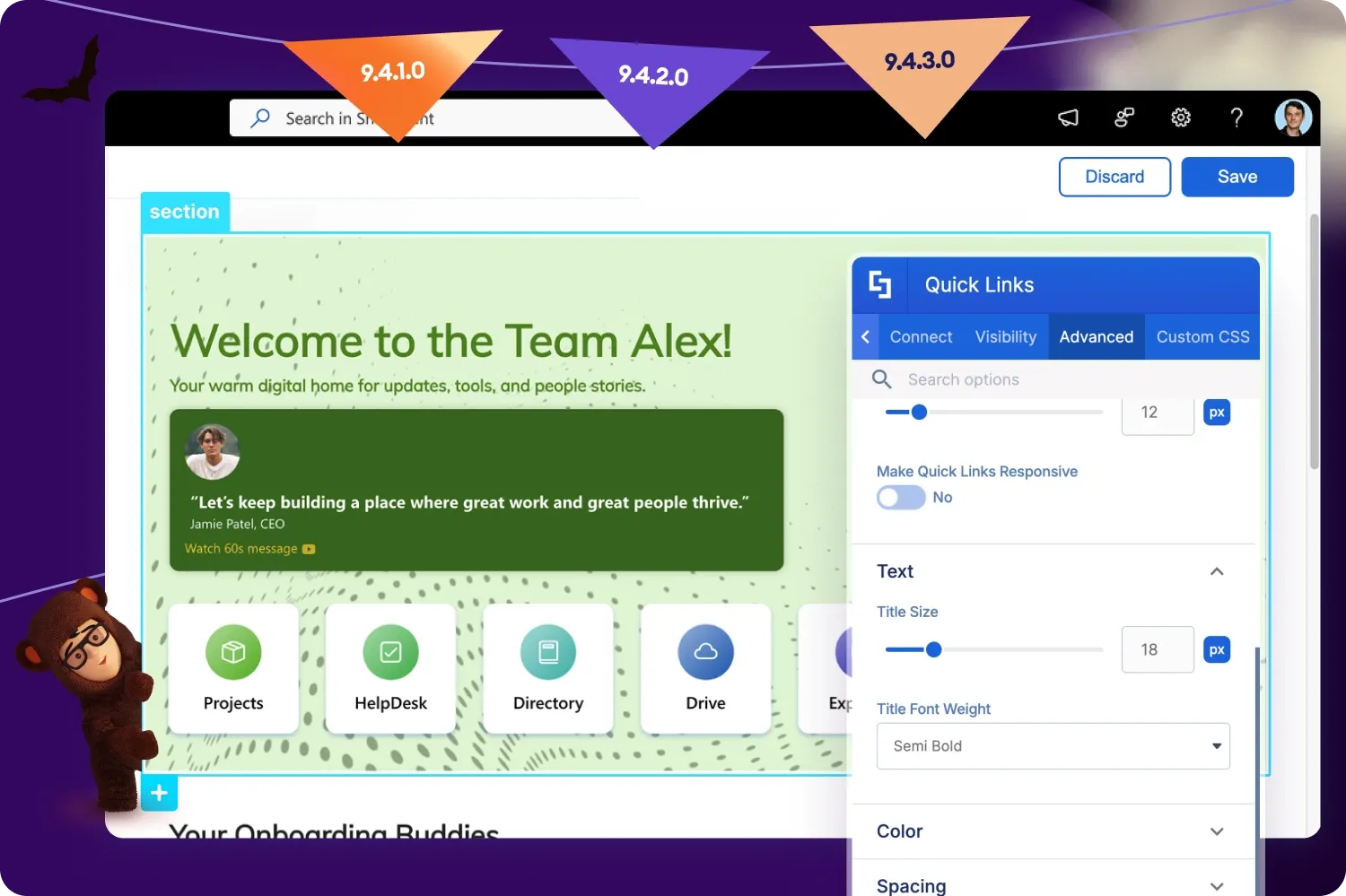
Nobody likes waiting on a half-loaded homepage. Our three latest releases make ShortPoint quicker for the people who visit your pages, smoother for the people who build them, and smarter all around.
Release Highlights
Here are the updates you'll notice most:
- Pages that load faster. Published pages now show sections as they load instead of waiting for the whole page. They also download less code, because editing tools only load when you start editing. You'll notice it most on large, content-heavy pages like your intranet homepage.
- A more responsive editor. Hover effects and element outlines in Live Mode react faster and stay aligned as elements resize. Co-authoring is more reliable too, so teams working on the same page are less likely to lose their place.
- Less happening behind the scenes. Timers, ticker animations, and AI Designer now stay idle until they're needed. That means fewer requests and less strain on your visitors' browsers.
- Save and Discard in a new spot. Both buttons now sit in the Page Builder's top bar, so they're always in the same easy-to-reach place.
- More control over Quick Links. You can now adjust font size and weight right in Quick Links, with no custom CSS needed.
- Complete org charts for large organizations. If your dynamic Organization Chart pulls from Microsoft Graph, a new optional setting loads every page of results. Your full directory shows up, not just the first batch.
- Add events to Outlook in one click. Events and Calendar elements can now show an optional button that opens Outlook with the event details already filled in, at the correct time for every viewer. Available in SharePoint on Microsoft 365.
- Show the right item to the right people. Set visibility on individual items, like a single tile, so one element can serve different audiences without building separate sections.
Fewer Interruptions While You Work
We also tightened up the editing experience, so your changes stay safe. Web part content no longer disappears when you refresh unpublished changes, and dragging elements into Sections no longer duplicates them or makes content vanish. A few design elements got some extra polish as well. Icon Boxes now respect the icon color you choose, Mega Menu subitems stay right where they belong, and a handful of Live Mode display issues are sorted, including FAQ text fields and Column settings on connected elements.
This roundup covers versions 9.4.1.0, 9.4.2.0, and 9.4.3.0. Already a ShortPoint Designer? Make sure you're on the latest version to see these changes. Browse the full list of updates in our roadmap .

Try ShortPoint Without Installing a Thing
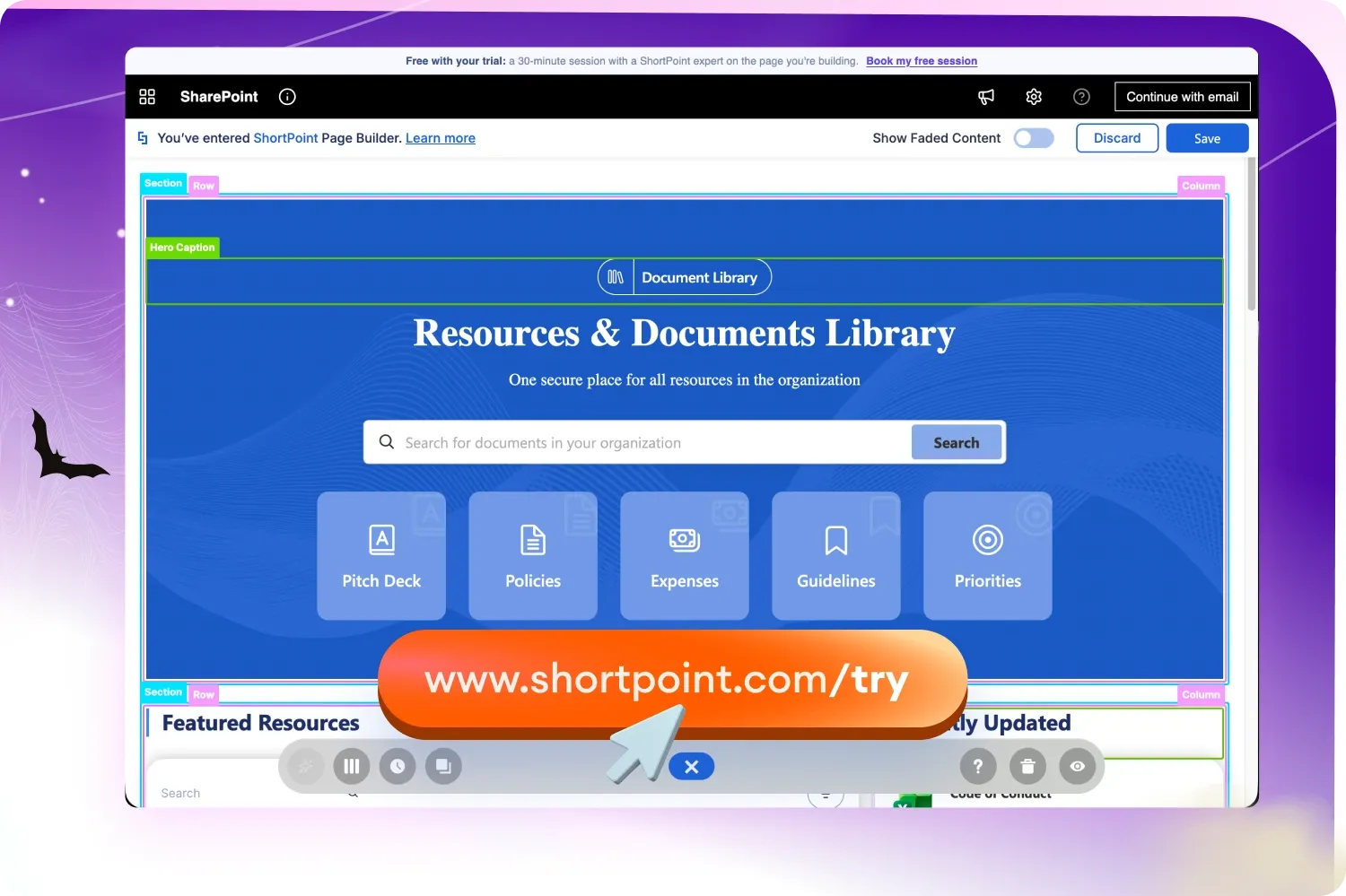
Getting started with a new tool shouldn't depend on who holds the admin keys. Until now, trying ShortPoint meant signing in with Microsoft 365 and installing it on your tenant. If you weren't a SharePoint admin, that's often where the trial ended.
Try ShortPoint changes that. It's a ready-to-use site we host for you, built to look and feel like SharePoint. Anyone can start designing intranet pages right away, with no installation and no admin permissions.
What You Can Do
- Start from a template. Choose from ready-made pages and sections for HR, onboarding, news, knowledge bases, and more, then make them your own in Page Builder.
- Keep everything you build. Your work is saved on your trial site, so you can come back and pick up where you left off.
- Design together. Invite colleagues by their work email, and they'll join your site as editors.
- Make it feel like yours. Add your logo and pick a color to preview templates in your organization's own brand. Your color carries through to the design elements on your page.
- Move it when you're ready. When you're happy with your page, install ShortPoint on your own tenant and bring your design over in a few quick steps. It takes about five minutes, and your page comes across exactly as you built it.
- Get expert help, free. Book a 30-minute session with a ShortPoint expert to work on the page you're building.
Getting Started
All it takes is a few minutes. Start your free trial, and if you're not a SharePoint admin, choose to try ShortPoint in a site we host for you. From there, pick a template and start designing your first page.
Already using ShortPoint? Share Try ShortPoint with a colleague, another department, or a stakeholder waiting on IT approval, so they can see it in action before rollout.

Articles
New Articles

Tech Tip
Fix a Mismatched Page in One Prompt
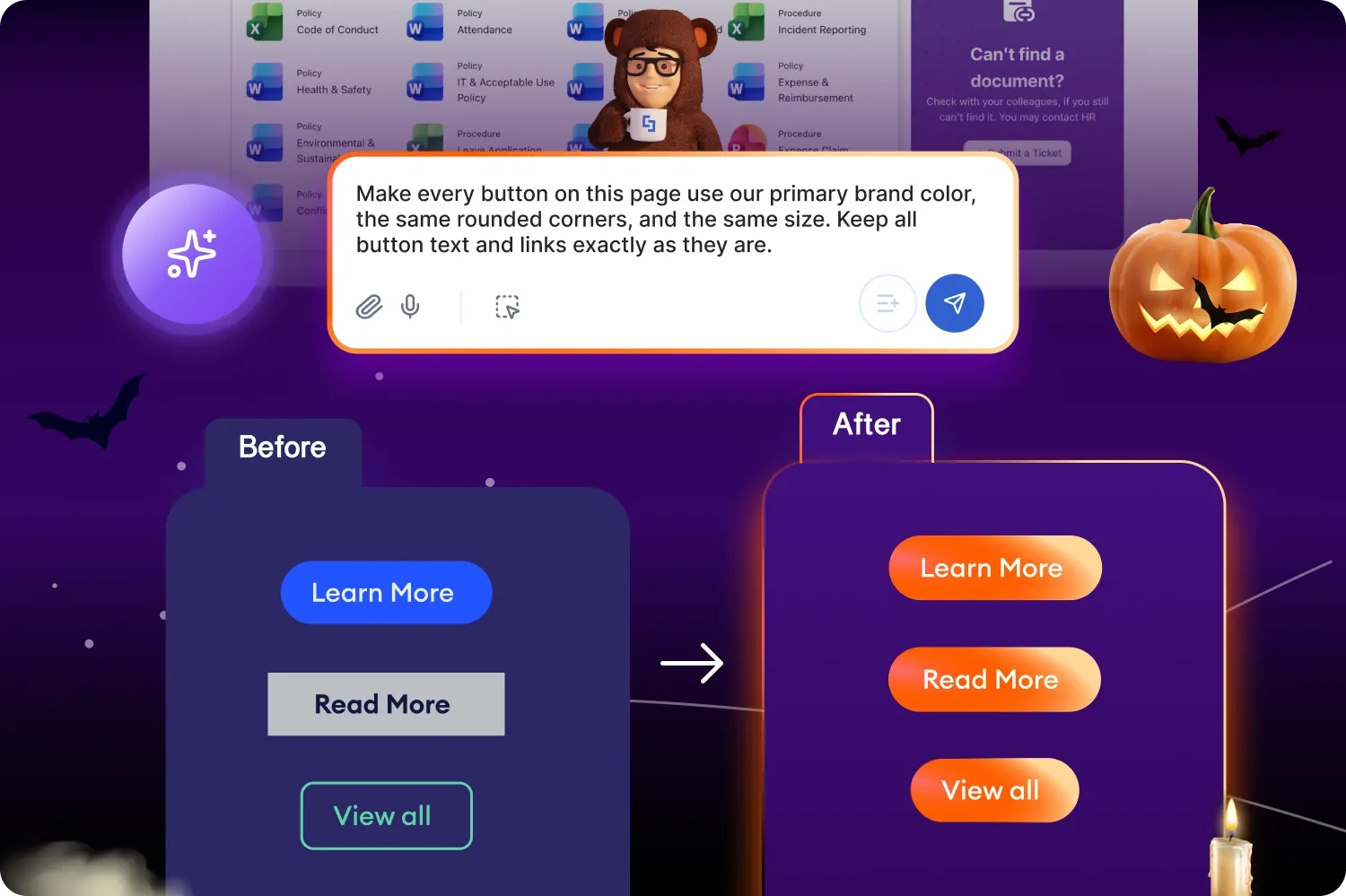
You open your homepage, and something feels off. The buttons in the hero are rounded and blue, the ones further down are square and gray, and the card headings don't quite match anything. Pages built by different people, at different times, tend to drift, and mismatched buttons are one of the most common styling questions we hear from customers.
The good news is that AI Designer is brand-aware. It pulls your colors, typography, and component styling straight from Theme Builder, so you can bring a mismatched page back in line with a single prompt, even if you built it by hand.
Before You Start
Make sure you have the following in place:
- The latest version of ShortPoint SPFx installed
- A ShortPoint Designer account with a Pro or Enterprise license
- AI Designer enabled in the ShortPoint Admin page, with AI credits available ( How to Enable/Disable the ShortPoint AI Designer )
How to Fix It
Three steps get your whole page speaking the same visual language: set your brand once, ask AI Designer to apply it, then save and publish.
1. Set your brand in Theme Builder. AI Designer reads your Theme Builder settings every time it designs, including your primary, secondary, and accent colors, your brand fonts, and component styling like links and title spacing. If Theme Builder isn't set up, AI Designer falls back to your site's SharePoint theme, so this step makes the biggest difference. ShortPoint templates pick up your brand colors automatically too, so new pages start out consistent.
Learn more: How Brand-Aware Design Works in ShortPoint AI Designer
2. Ask AI Designer to bring your page in line. Open AI Designer on the page and describe exactly what should match. This works on any ShortPoint design element, including the ones you added manually. Be specific about the elements and tell it what to leave alone:
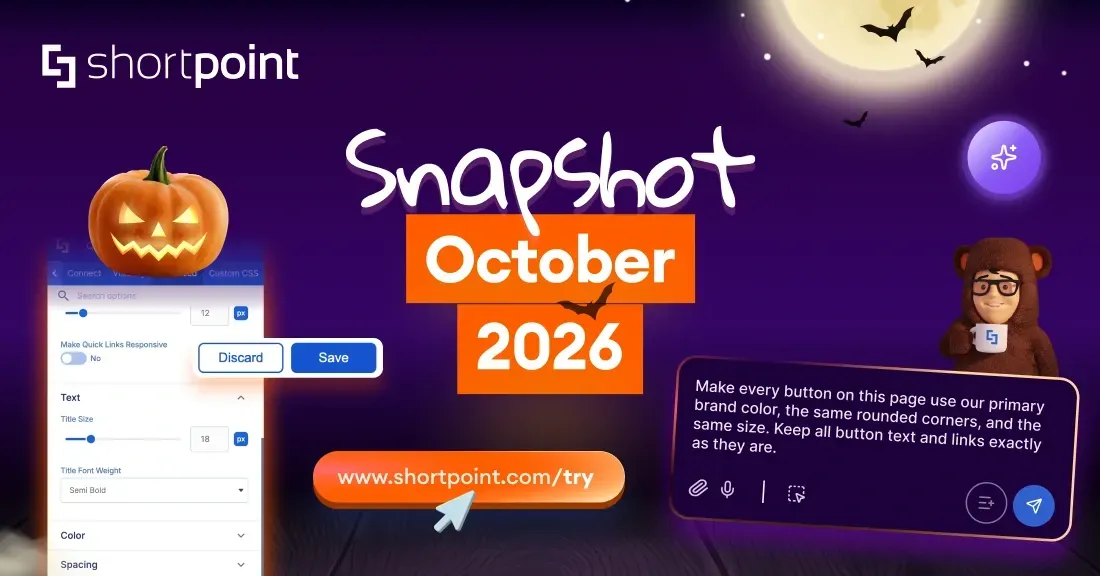
"Make every button on this page use our primary brand color, the same rounded corners, and the same size. Keep all button text and links exactly as they are."
Then follow up with the next thing that's off:
"Make all section headings use the same font, size, and color as the heading in the top banner."
Only one element out of place? Use Select & Edit to point AI Designer at that single element and describe the fix. It's the quickest way to correct one stray button without touching the rest of the page.
Learn more: How to Write Effective AI Prompts and How to Modify Specific Page Elements Using AI Designer
3. Save and publish. Review the result, make any final touches, then save your changes and publish the page so everyone sees the update.
Consistent from Top to Bottom
Every button, heading, and card on your page shares the same colors, fonts, and style. The page looks intentional, not pieced together, and any new section you add with AI Designer picks up your brand automatically.
Style drift happens to every intranet that more than one person touches. Set your brand once, let AI Designer do the matching, and spend your time on the content instead of chasing hex codes.