

ShortPoint Design Elements
Best Design Elements for Lists
Lists, lists, lists…that's probably all you see when you start working. You just can't avoid it—list of documents, list of events, list of employees, and, the most dreaded of all, list of tasks.

Simple List Design Element
Lists, especially the list of tasks, love to follow you everywhere, even on your SharePoint intranet! This is because (unfortunately) most work processes involve the use of these lists. As your manager says, "You just need a daily reminder of all your backlogs."Scary no? But it doesn't always have to be! You can also make them fun, creative, and engaging. How?! With ShortPoint, of course! We will show you the different ShortPoint Design Elements you can use to creatively display lists on your page. Let's check them out!
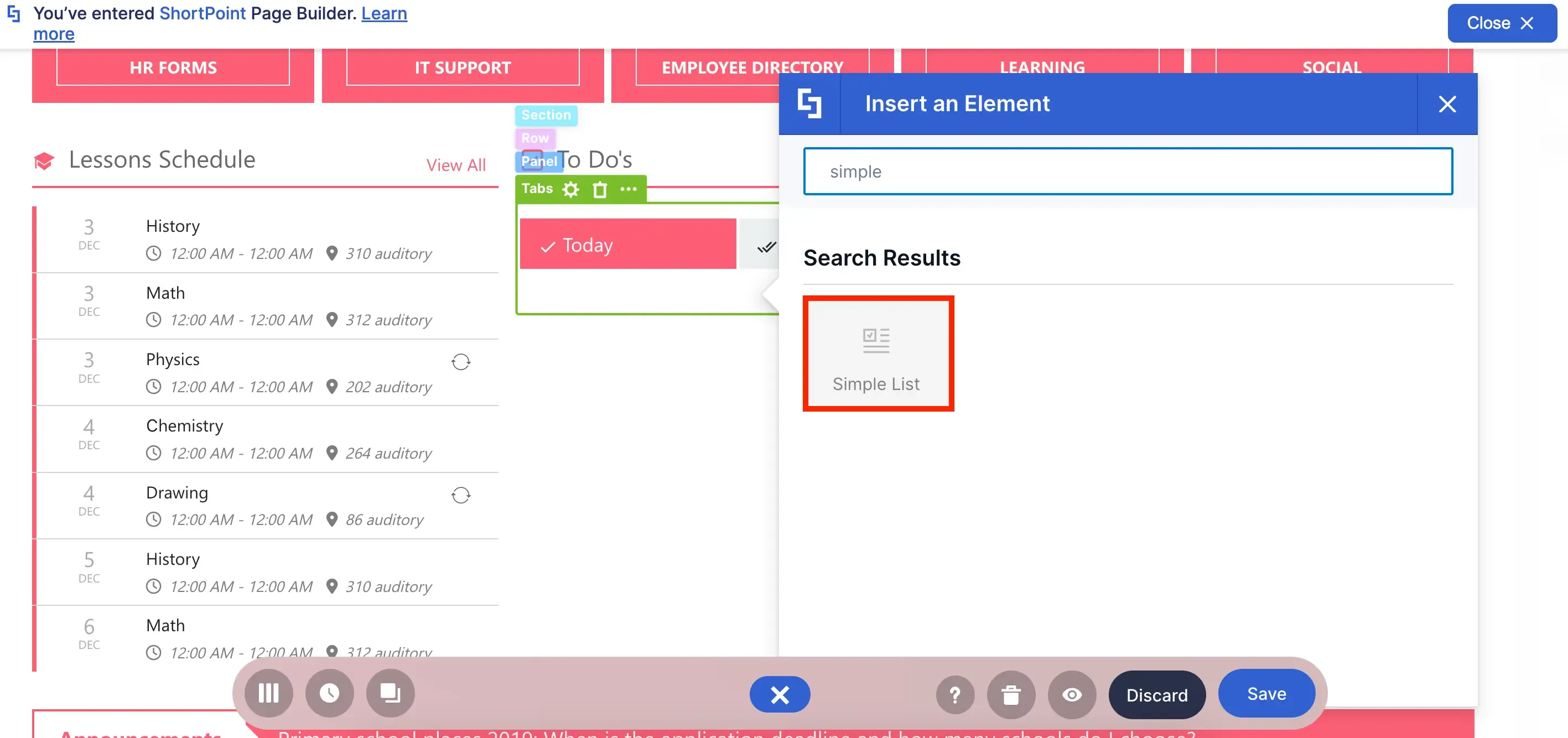
As the name suggests, the simplest form of list you can use in ShortPoint is the Simple List Design Element.
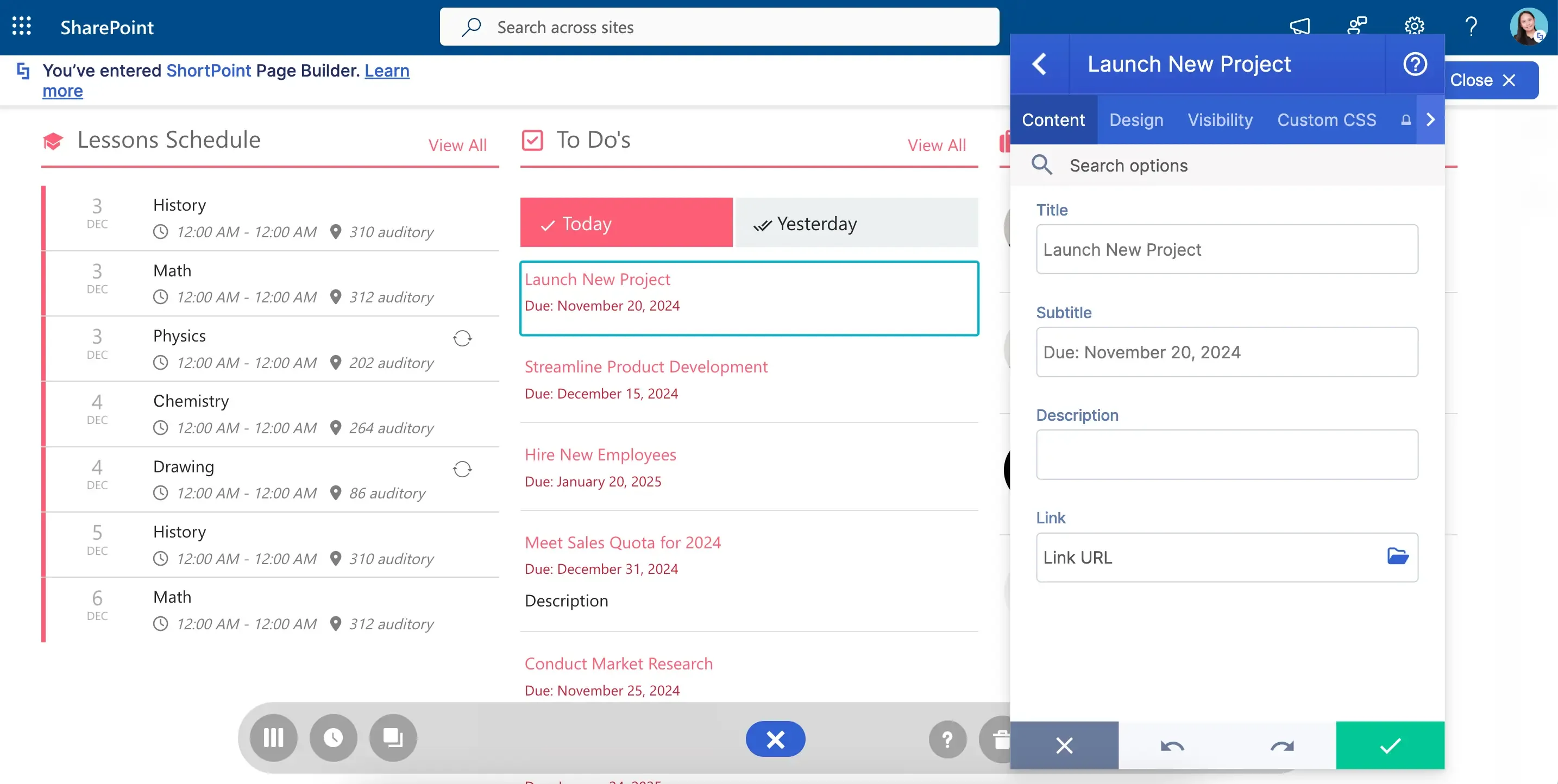
With it, you can easily create any kind of list you want—employee list, special events list, and, of course, your dreaded task list.
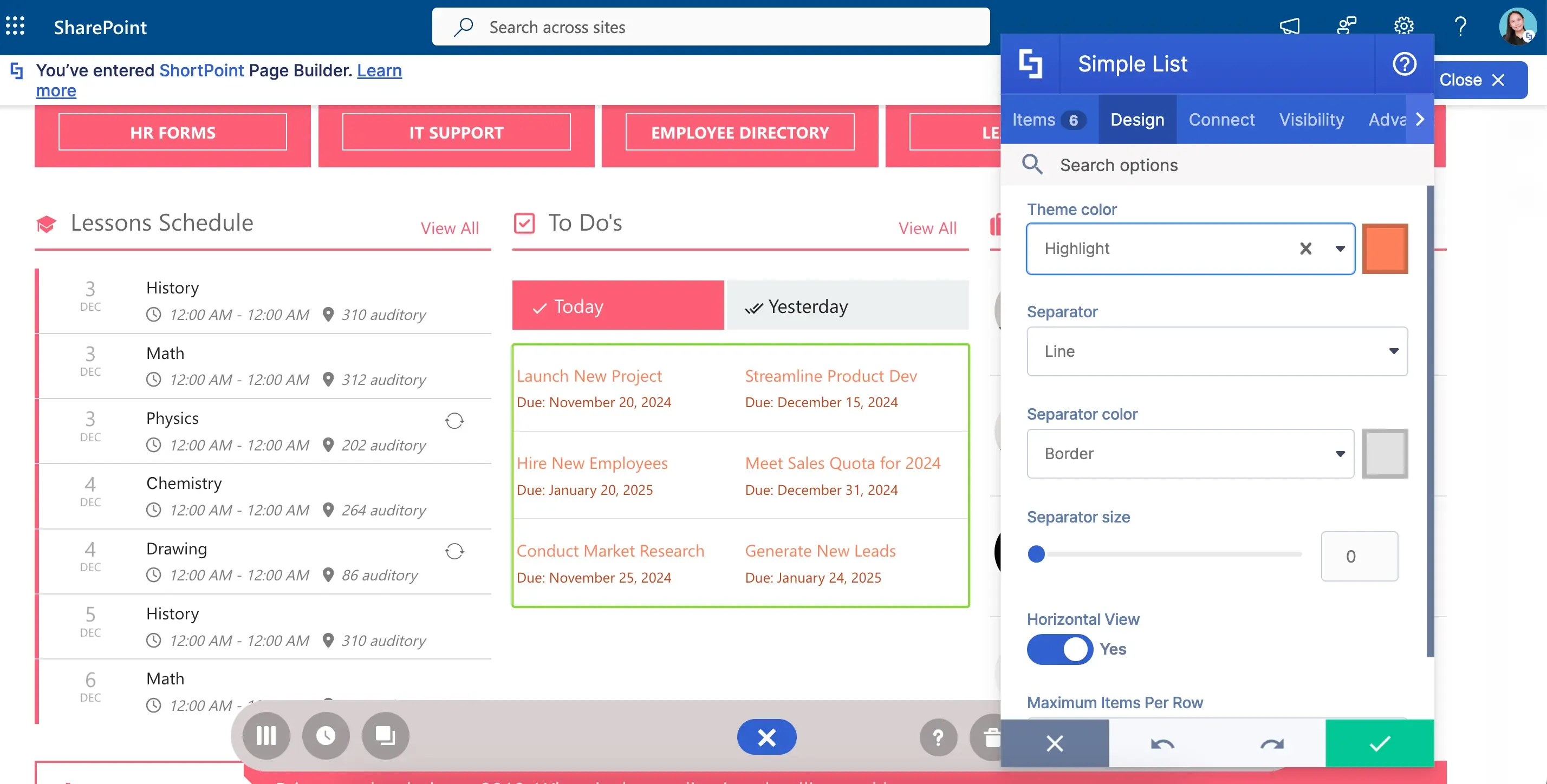
But lists don't always have to be imposing and scary. It can be colorful too! The Simple List allows you to experiment with its colors and style. Now, even if it's a headache to finish all those tasks, it's at least pretty to look at your backlog.
File List Design Element
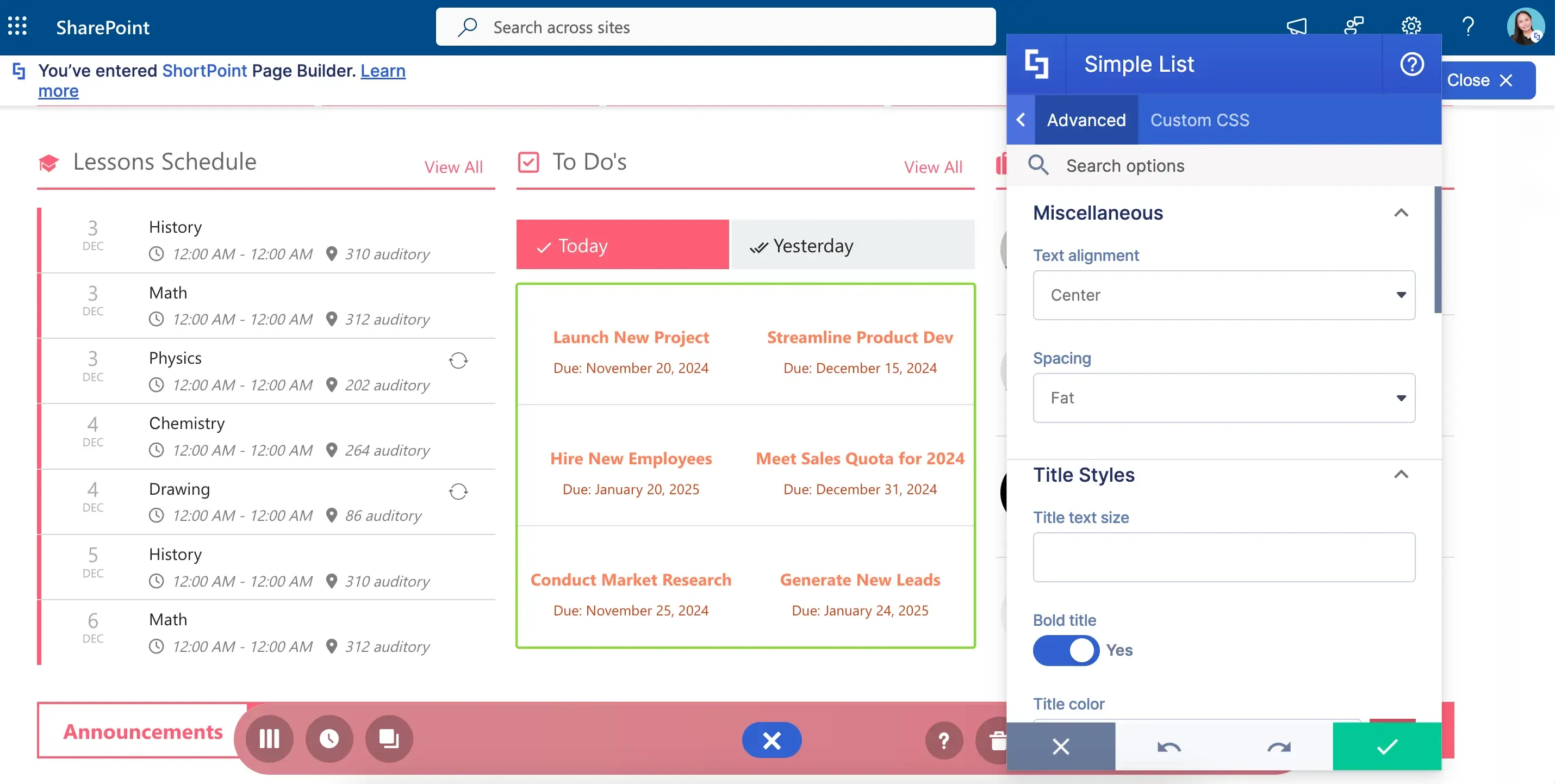
And to top it off, there are more ways to keep your designs fresh like changing the text alignment, adjusting space, and even adding a bold font style.
Want to give it a try? Go to How to Customize the Simple List Design Element to learn how to add it to your SharePoint page.
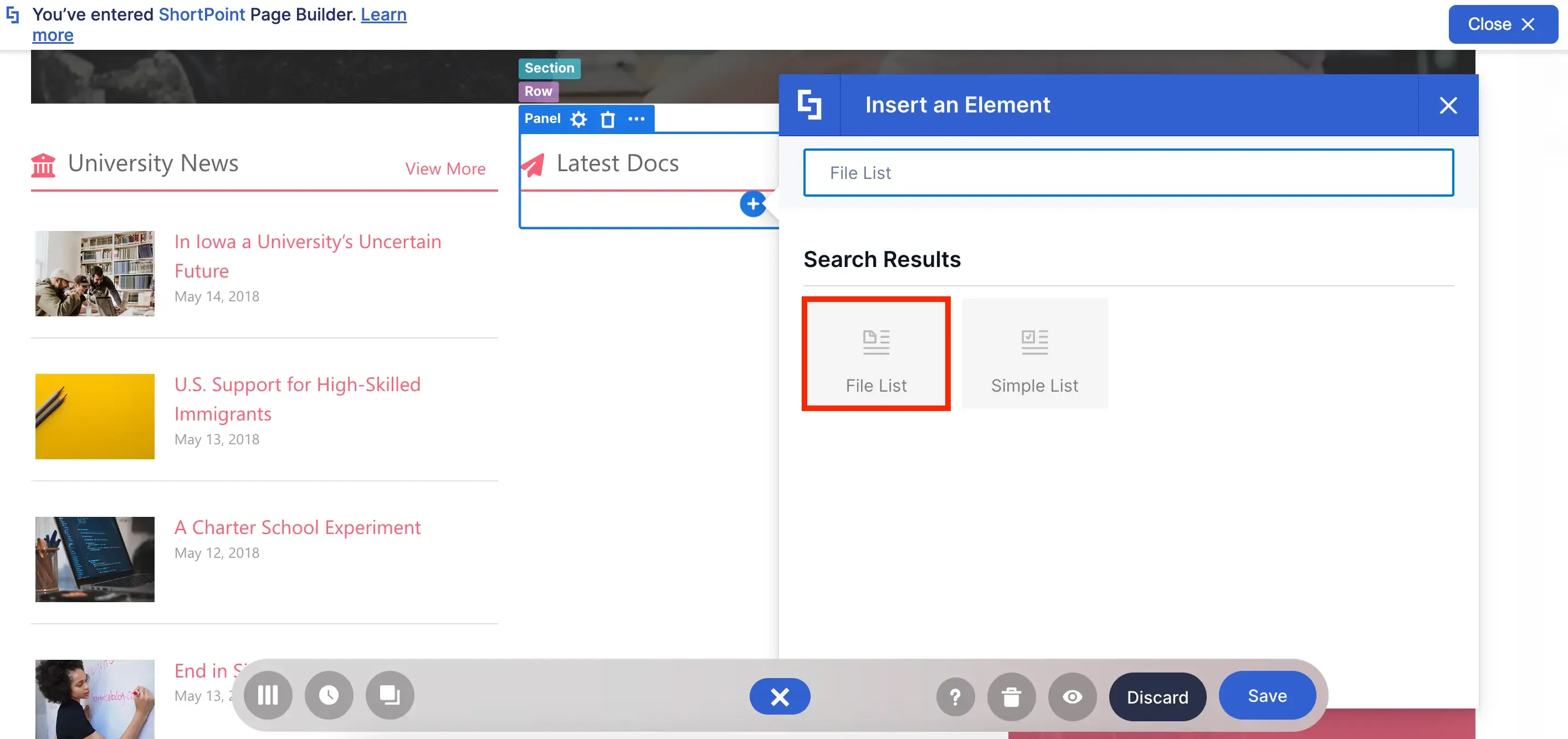
Have lots of documents to show? Why not display your files in a list using the File List Design Element?!
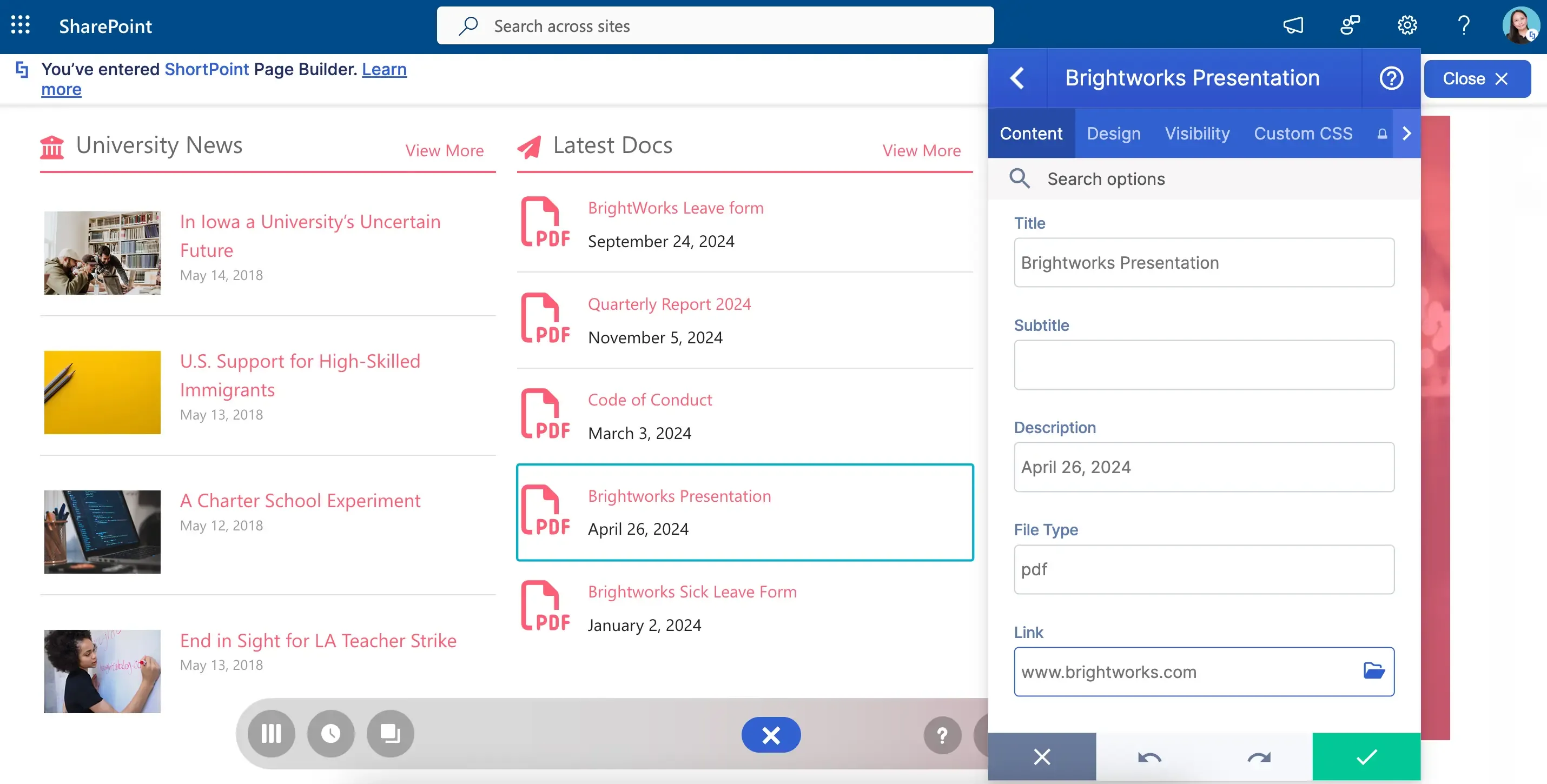
Like the Simple List, you can add a Title, subtitle, description, and attach a link to each file.
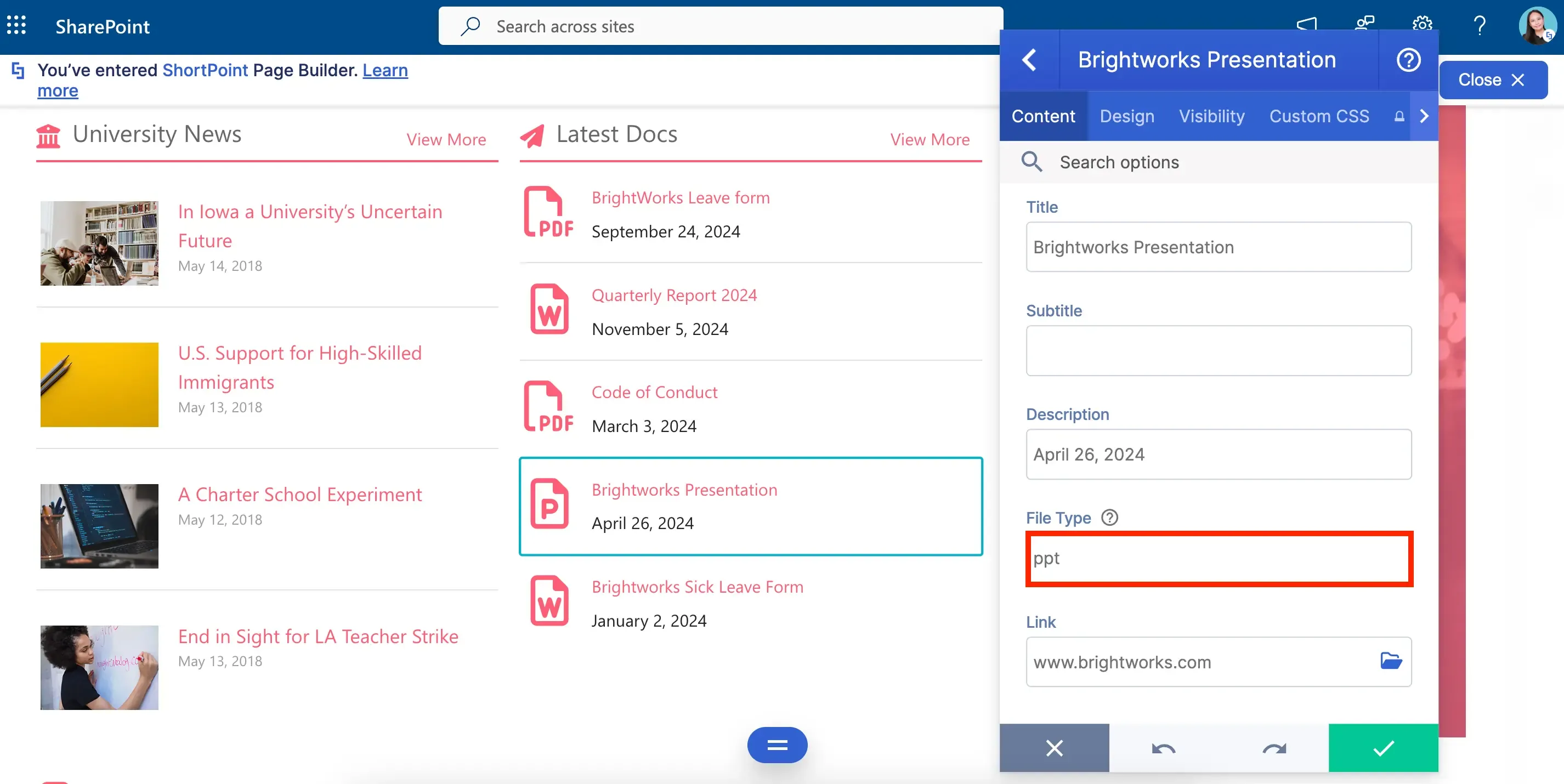
But what makes the File List AMAZING is how you can customize the file type icons. Because of this, you can immediately tell if a file is a PDF, a PPT, or a Doc.
Icon List Design Element
You can also give its design its unique twist! You can choose a one-of-a-kind file icon style that can bring its look to a whole new level.
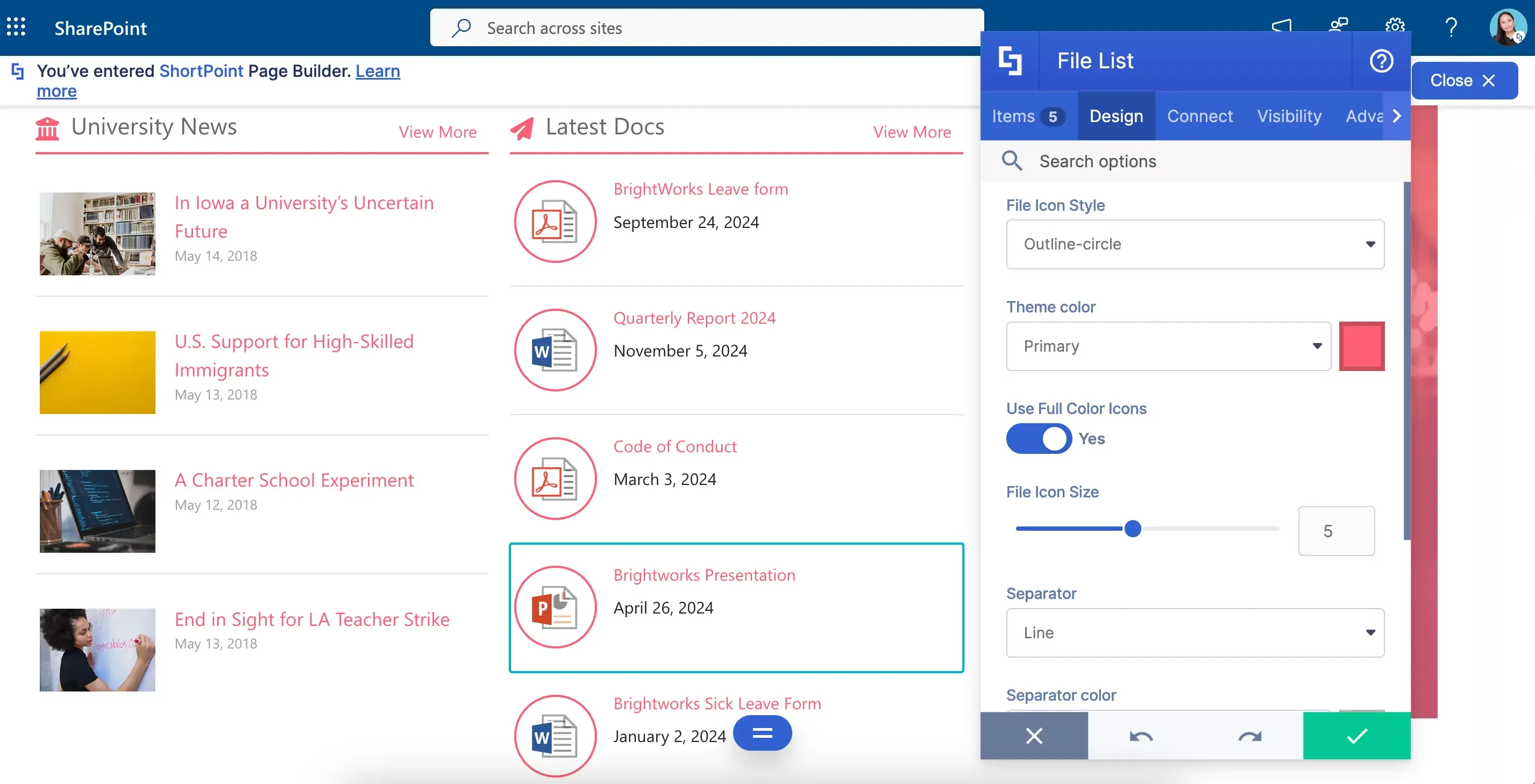
Up for some File List on your SharePoint pages? Check out How to Customize the File List Design Element.
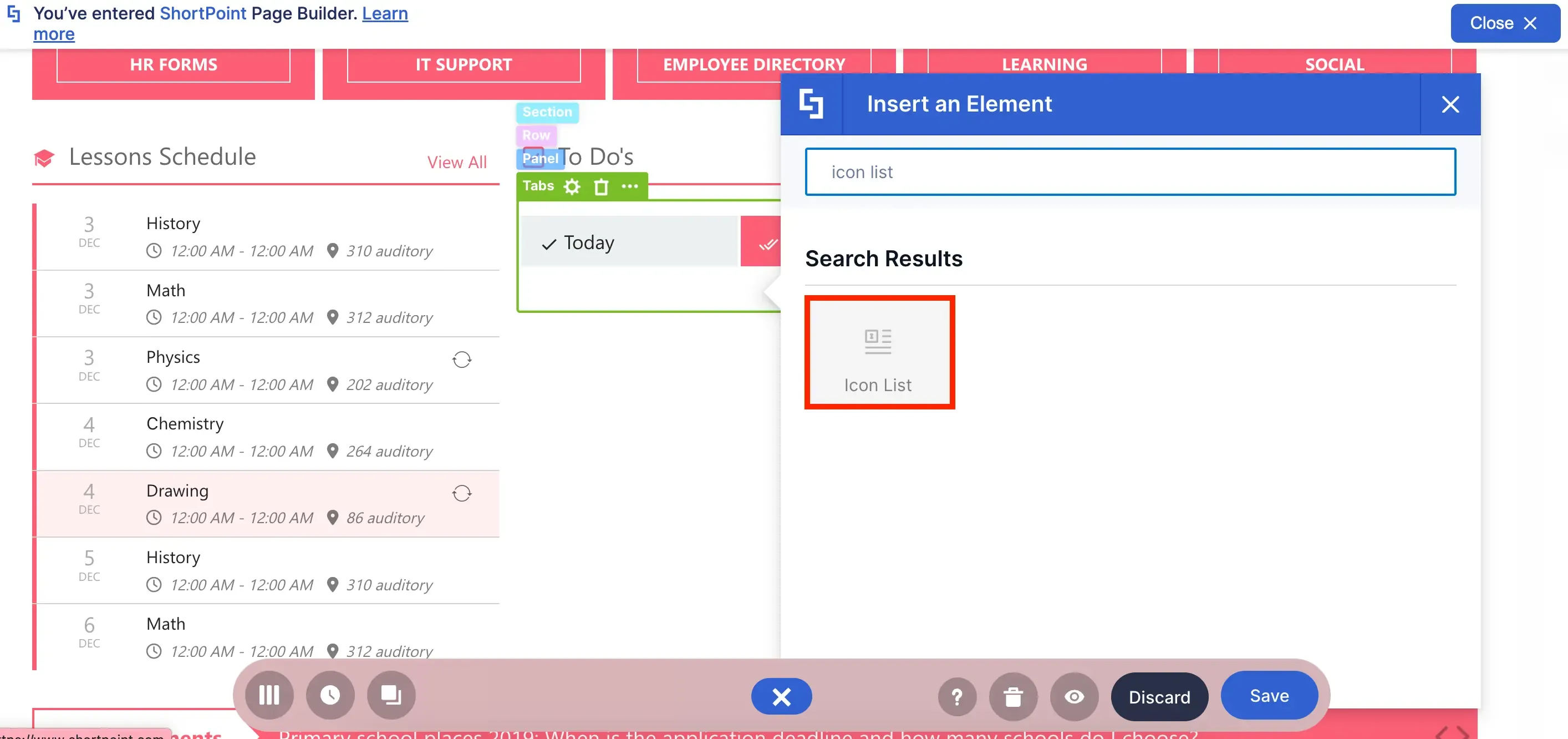
Love the Simple List Design Element but need something a little EXTRA? Try the Icon List Design Element!
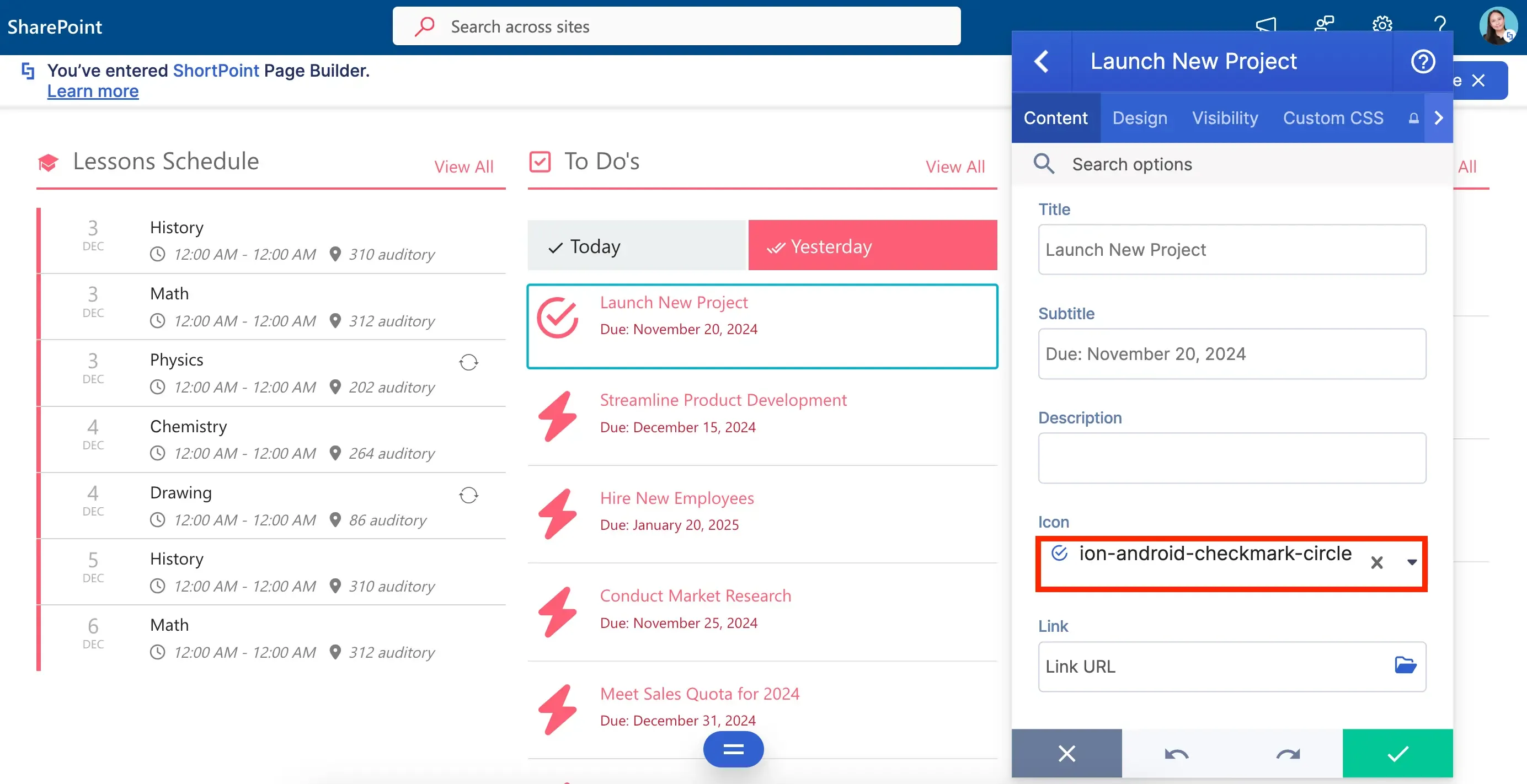
It has all the same options as a Simple List EXCEPT you can choose from hundreds of icons, which adds an eye-catching element to your usually dreary task list.
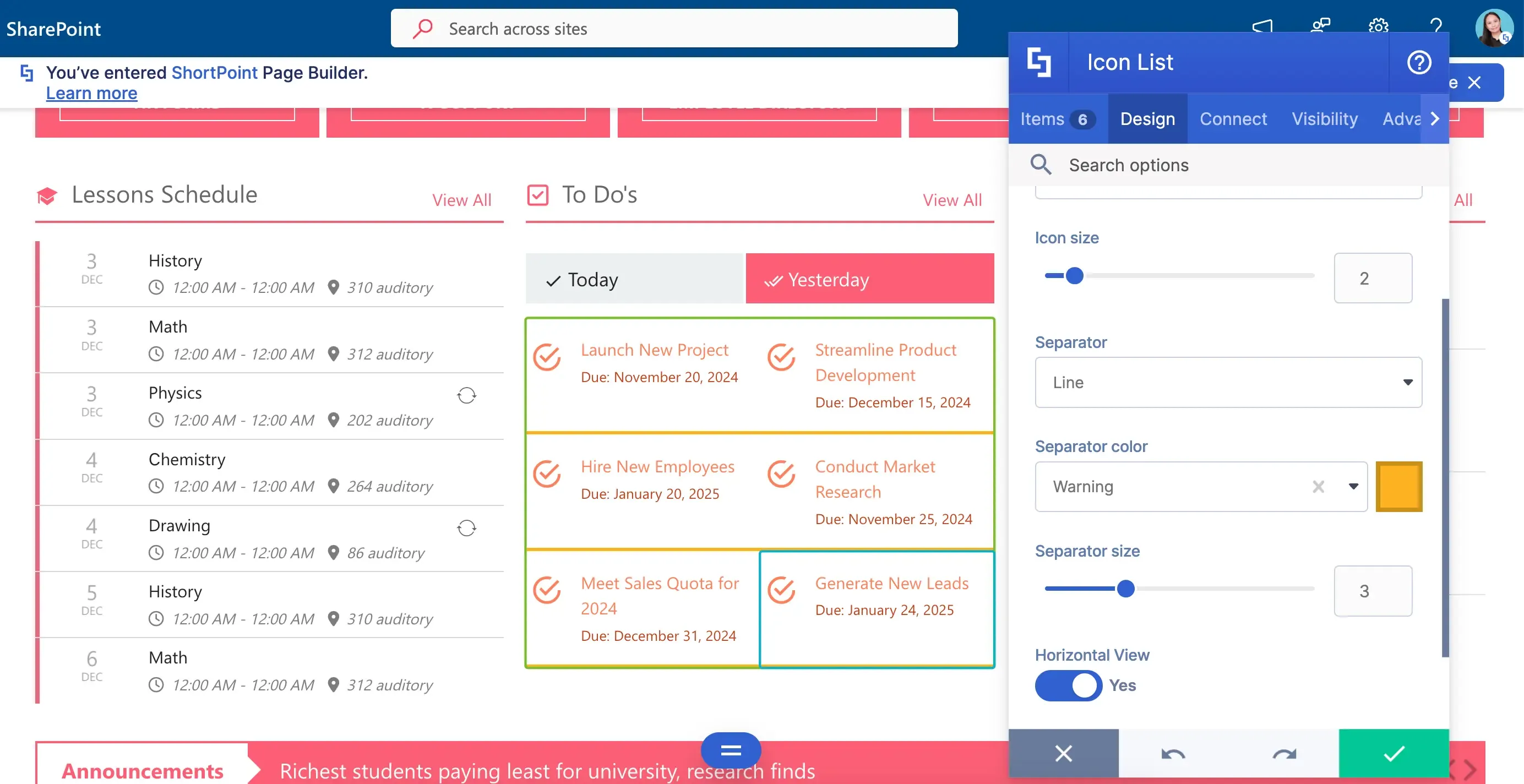
And of course, you can play with its design as much as you want! Change the color? Check. Resize the icons? Check. Customize the style? Check. It has everything you need to turn your scary list into something you and your co-workers will actually LOVE to look at.
Events Design Element
Ready to give your list a new look? Check out How to Customize the Icon List Design Element.
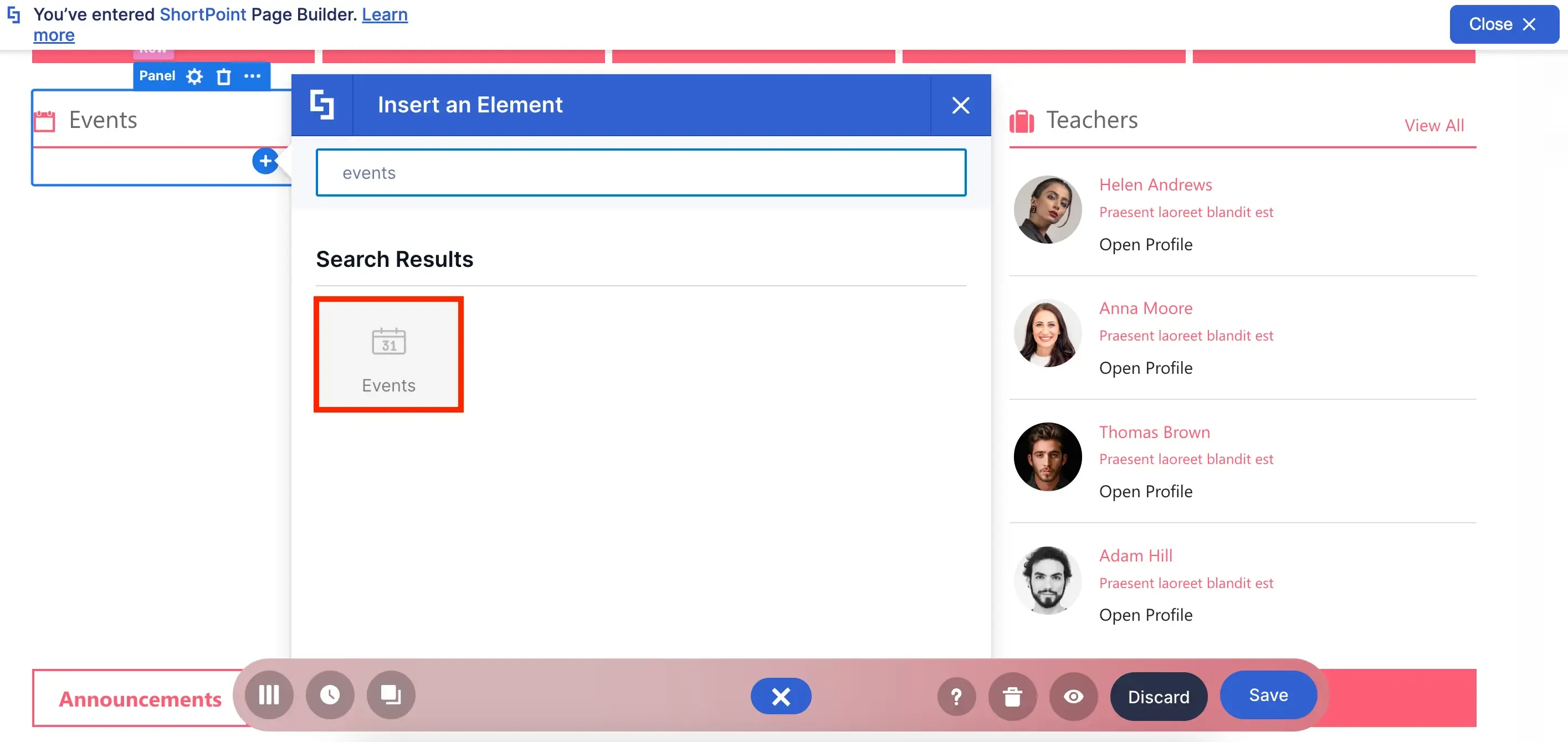
Want to show off exciting company events and milestones? The Events Design Element is perfect for you!
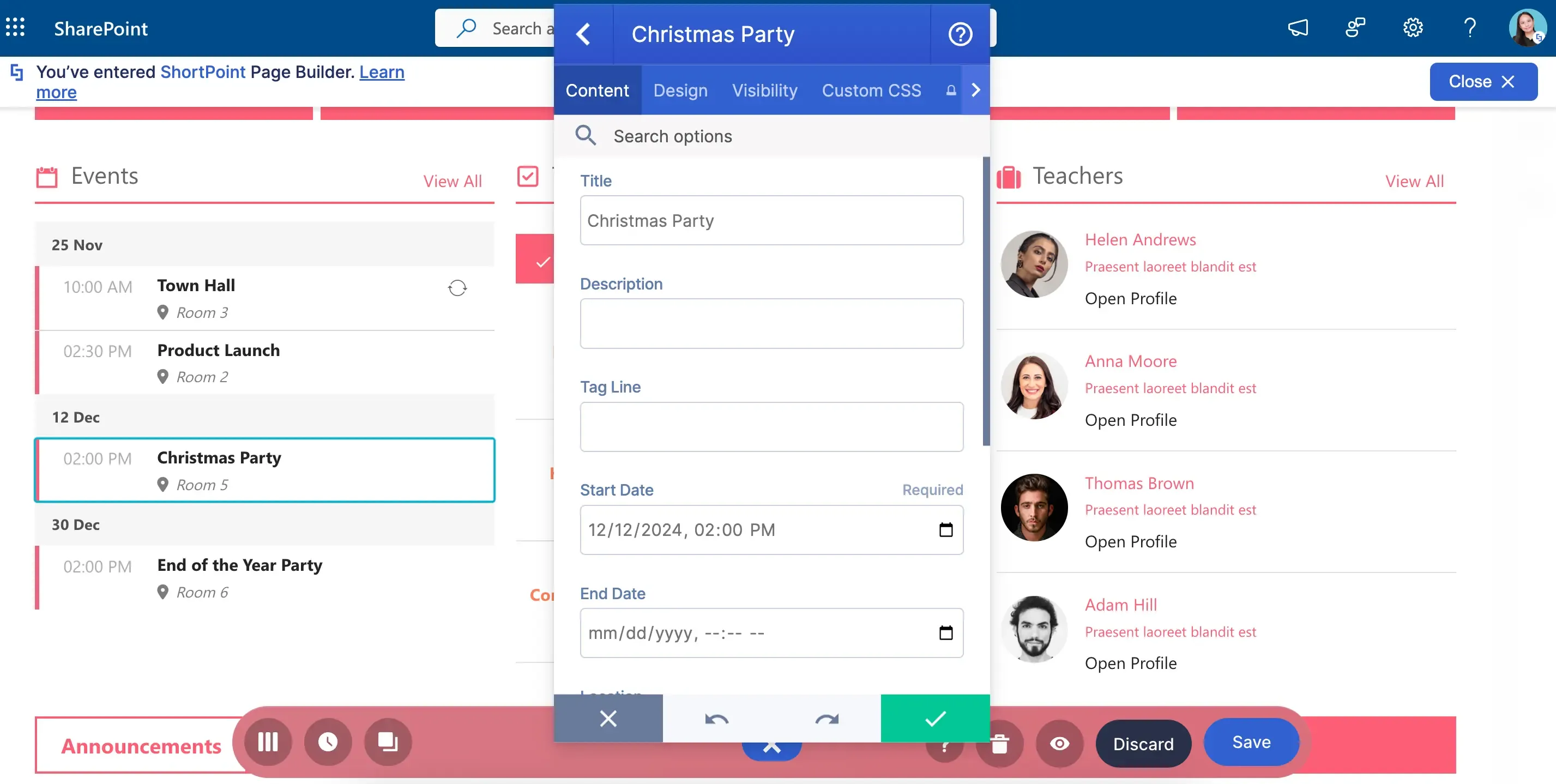
You can add details of your events like you usually do on a regular calendar. Super easy and convenient!
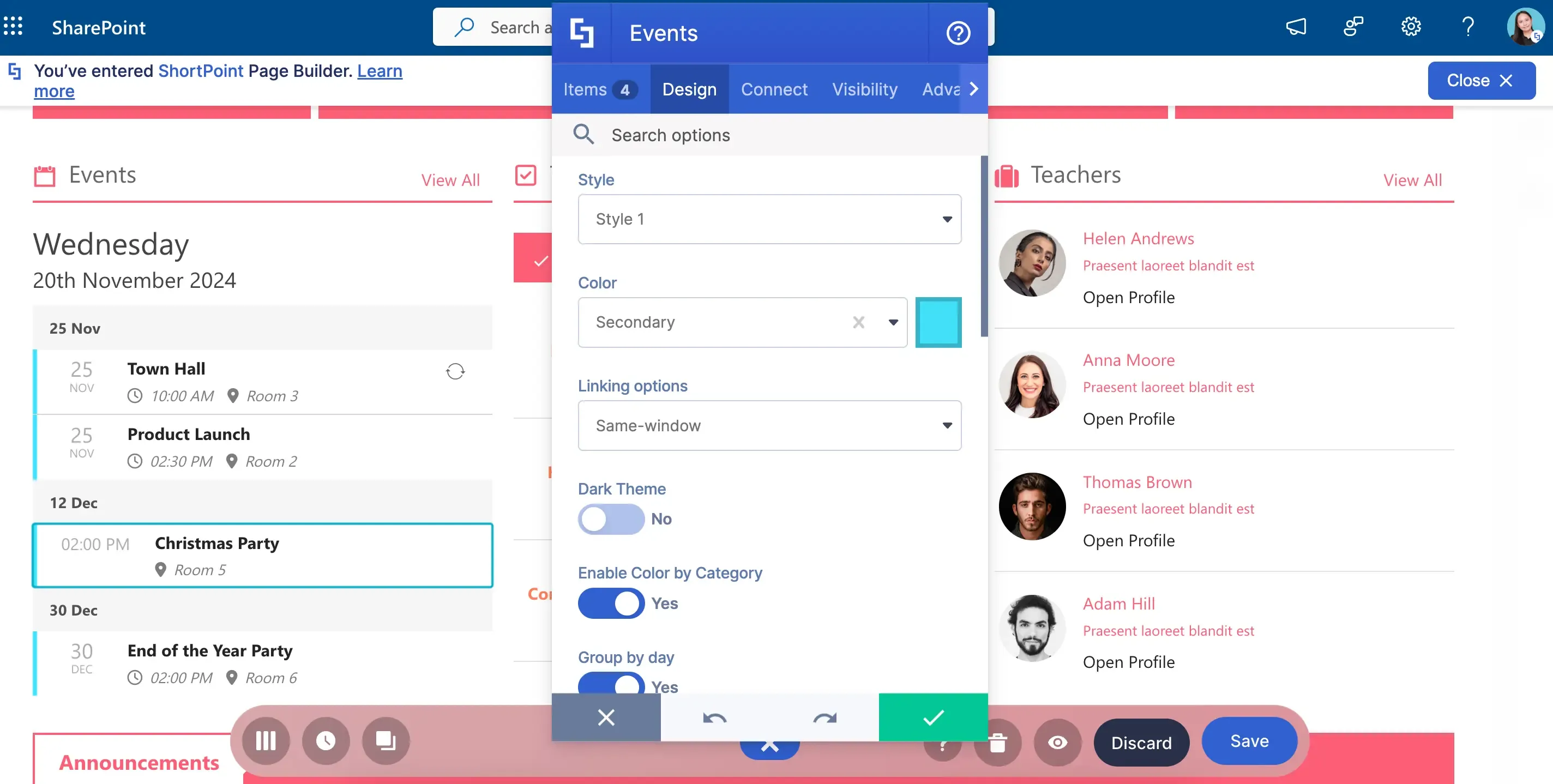
To make things EVEN MORE amazing, you have many design options—from customizing colors and styles to adding new elements like the date today!
Date List Design Element
Excited to add Events to your page? Check out How to Customize the Events Design Element.
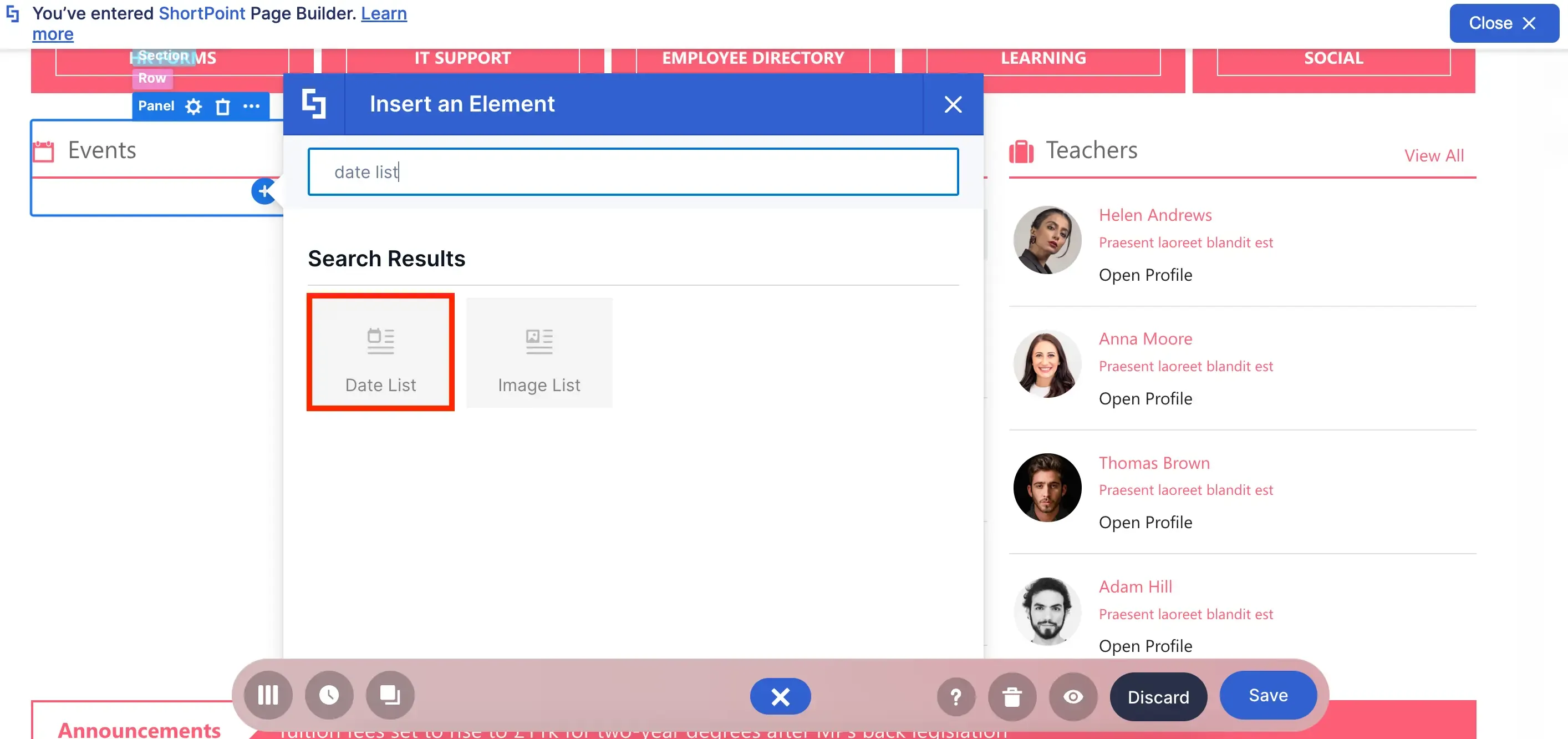
Looking for another design for your special events? We got you covered with the Date List Design Element!
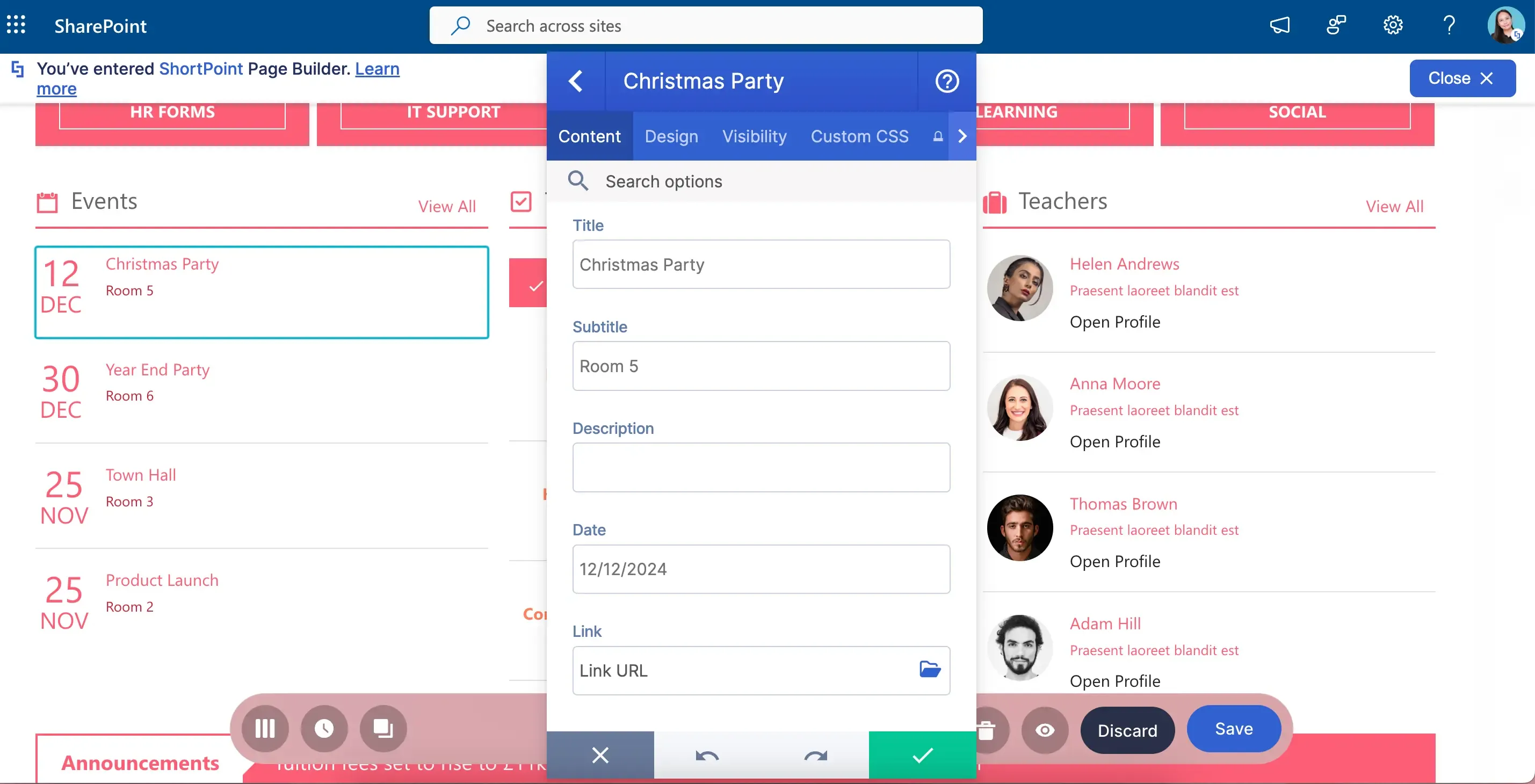
You can include the same details as in the Events Design Element. The key difference is the fresh look it offers!
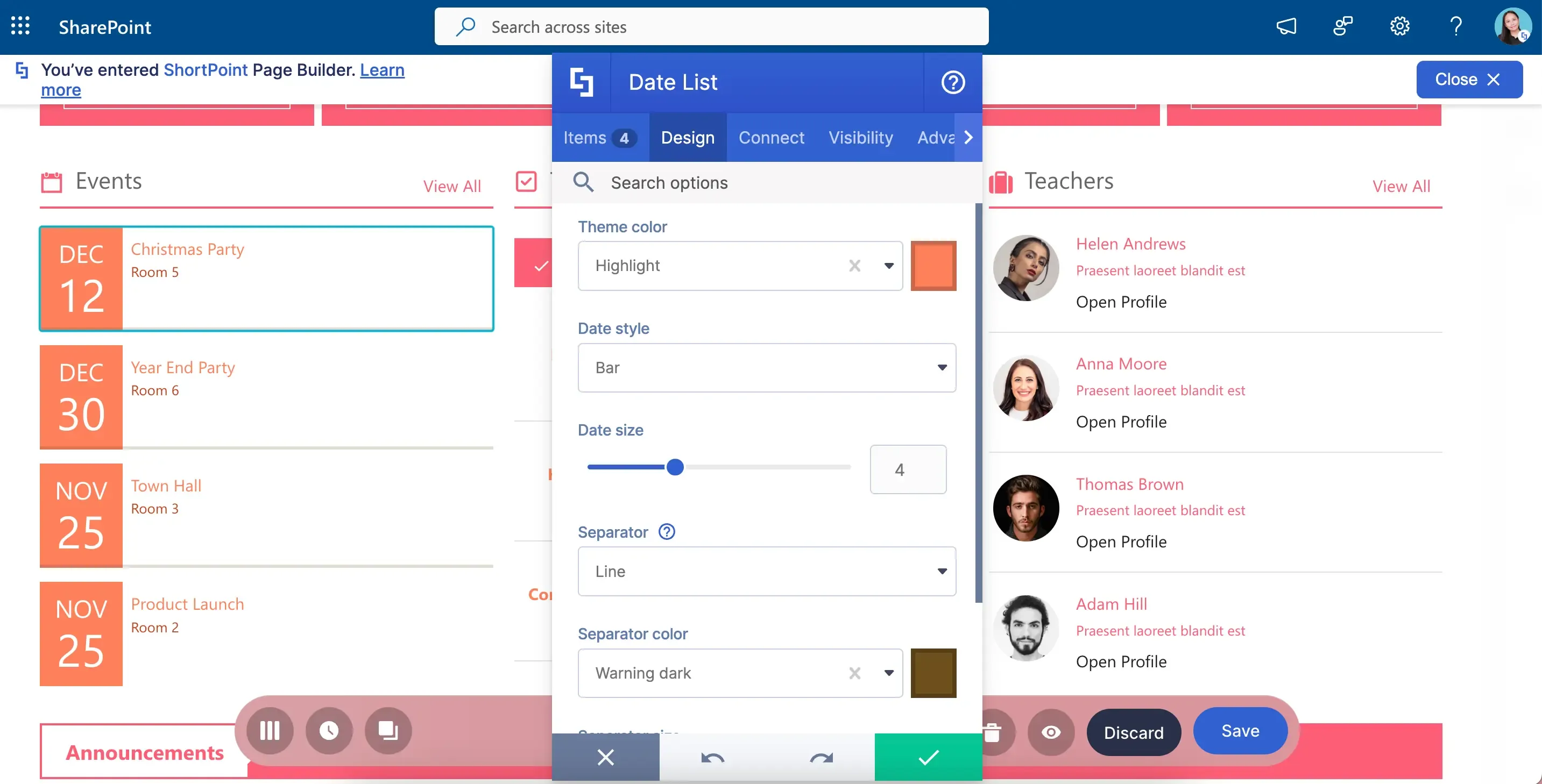
You have three new styles to try, combined with other design options that can make your Date List REALLY stand out.
Image List Design Element
Need a Date List? Check out How to Customize the Date List Design Element to learn how to add it to your page.
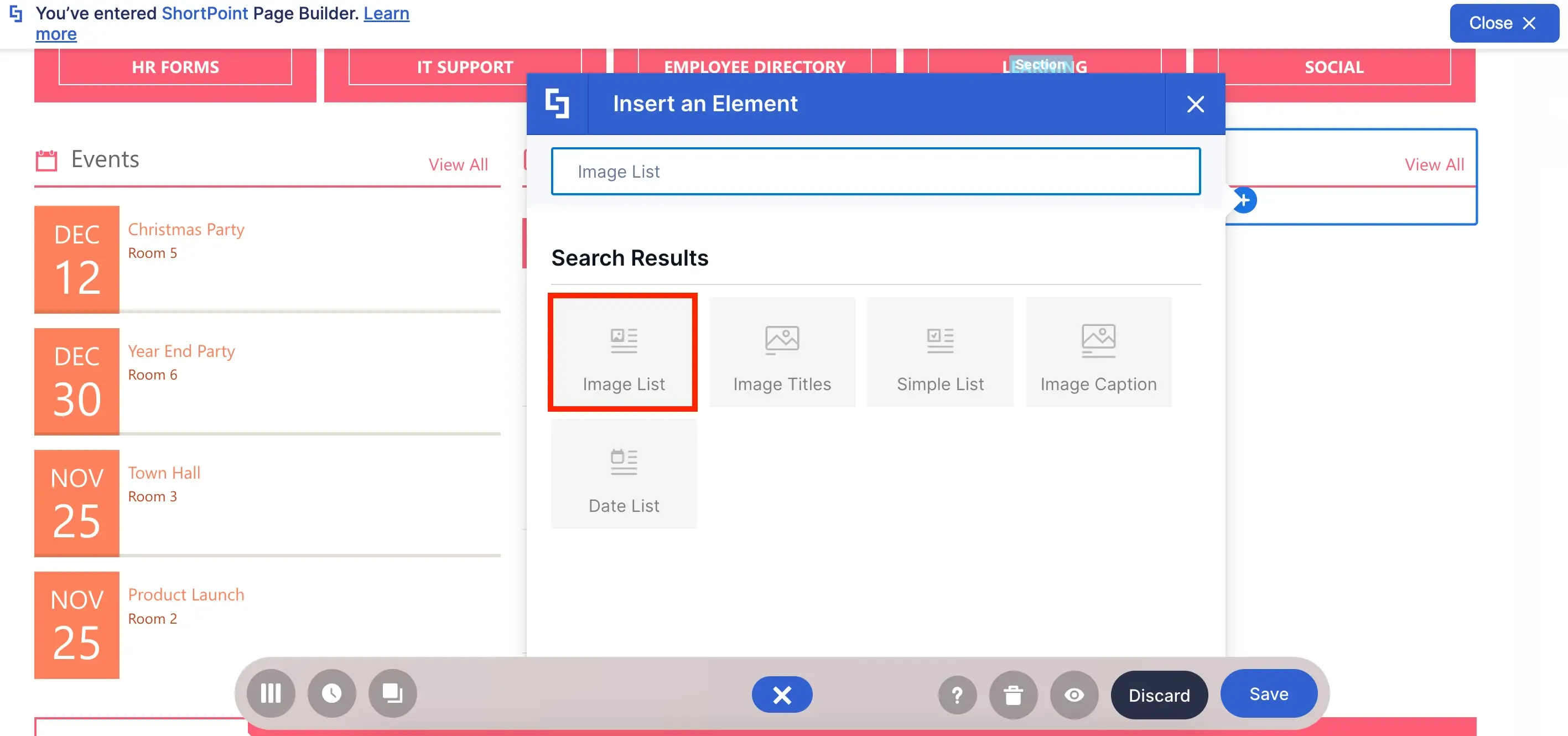
Looking for the best way to showcase your employees? Or maybe you have a list of announcements you want to feature? Try the Image List Design Element
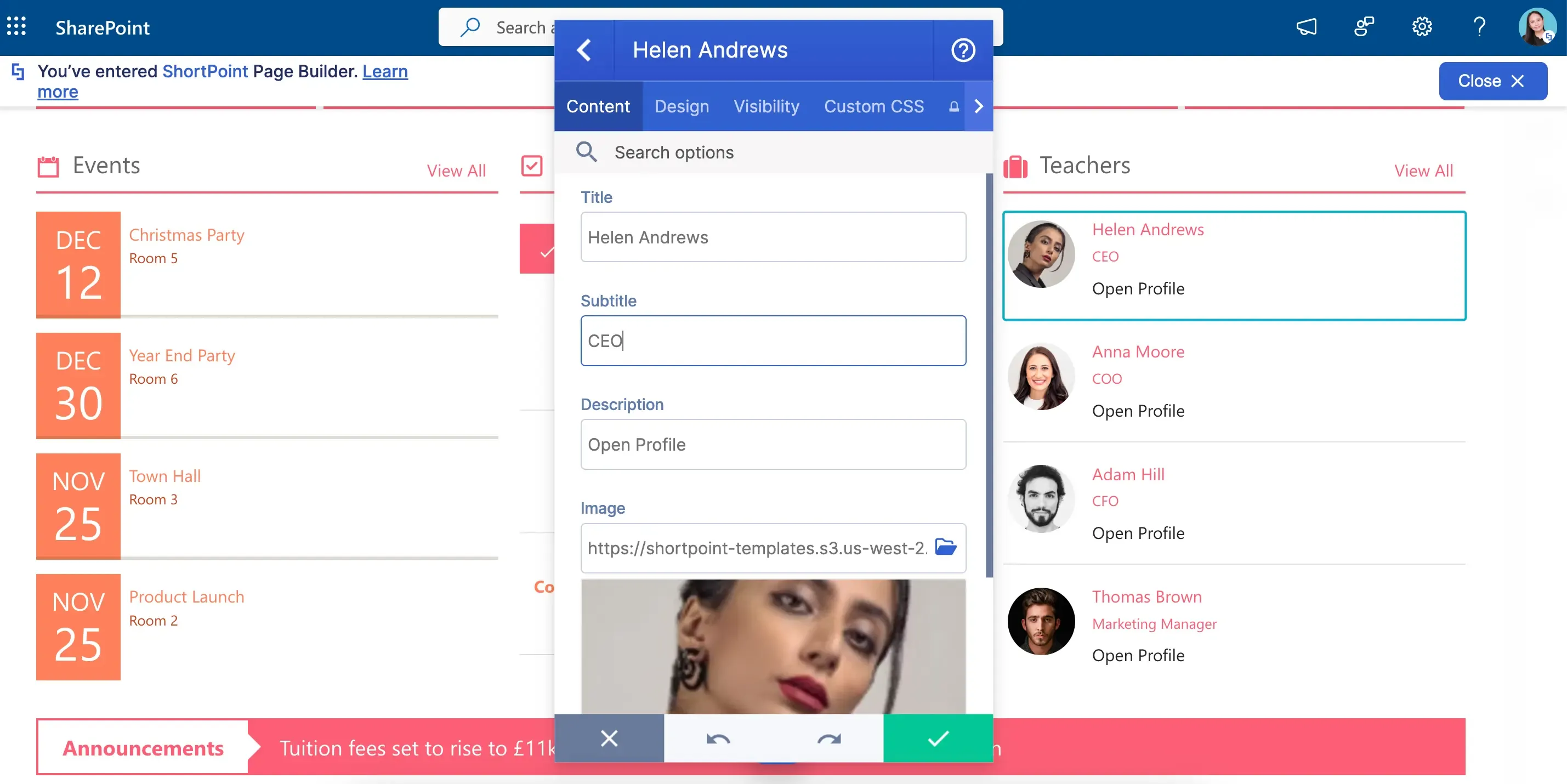
Here, you can add images to your usual list, making it a great way to show off your employees.
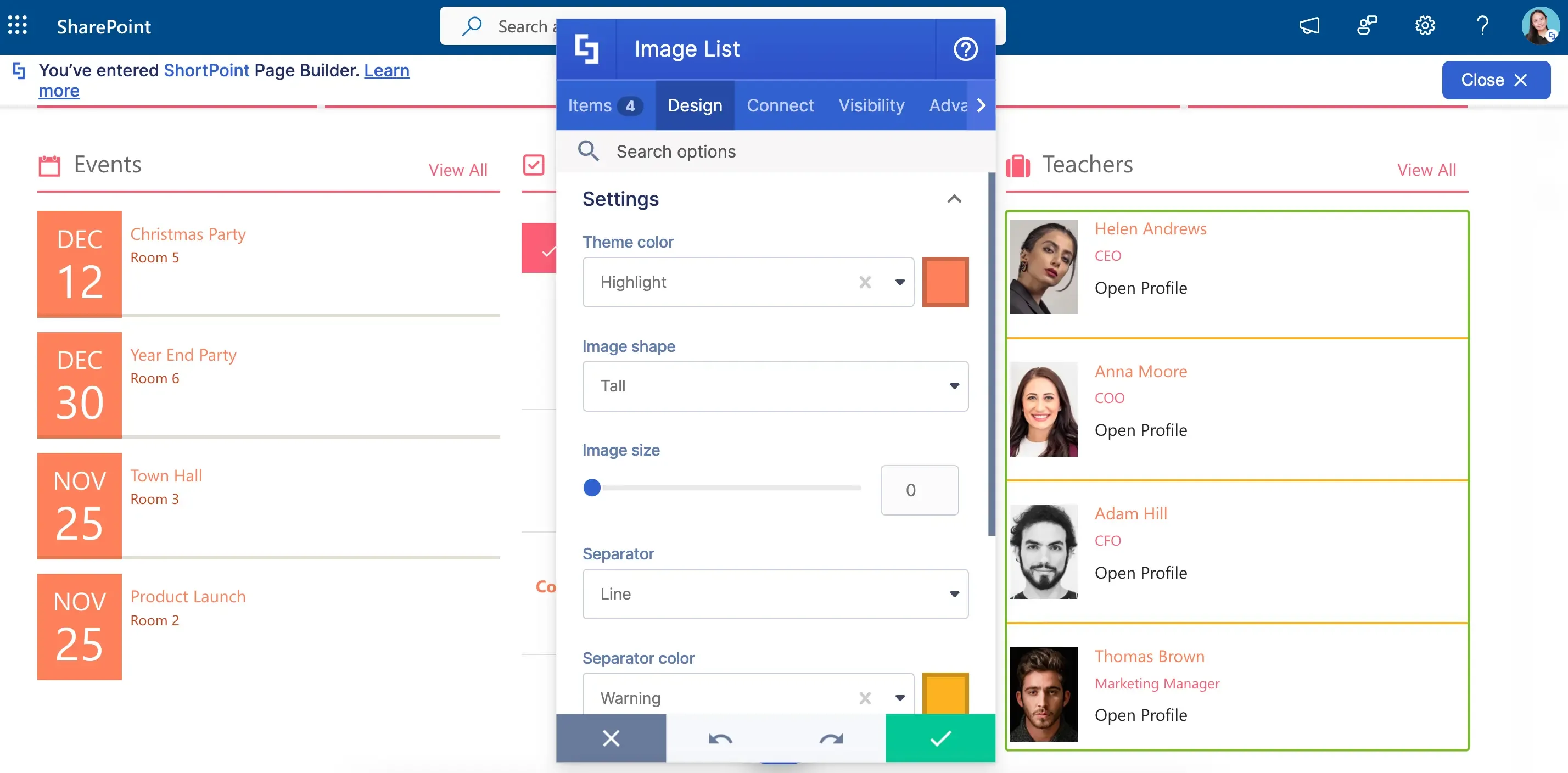
And, as usual, you can put in your own stamp by customizing its design. Play with colors, styles, sizes, and many more.
Let's bring the Image List to your SharePoint pages! Check out How to Customize the Image List Design Element to learn how.
ShortPoint Connect for Lists
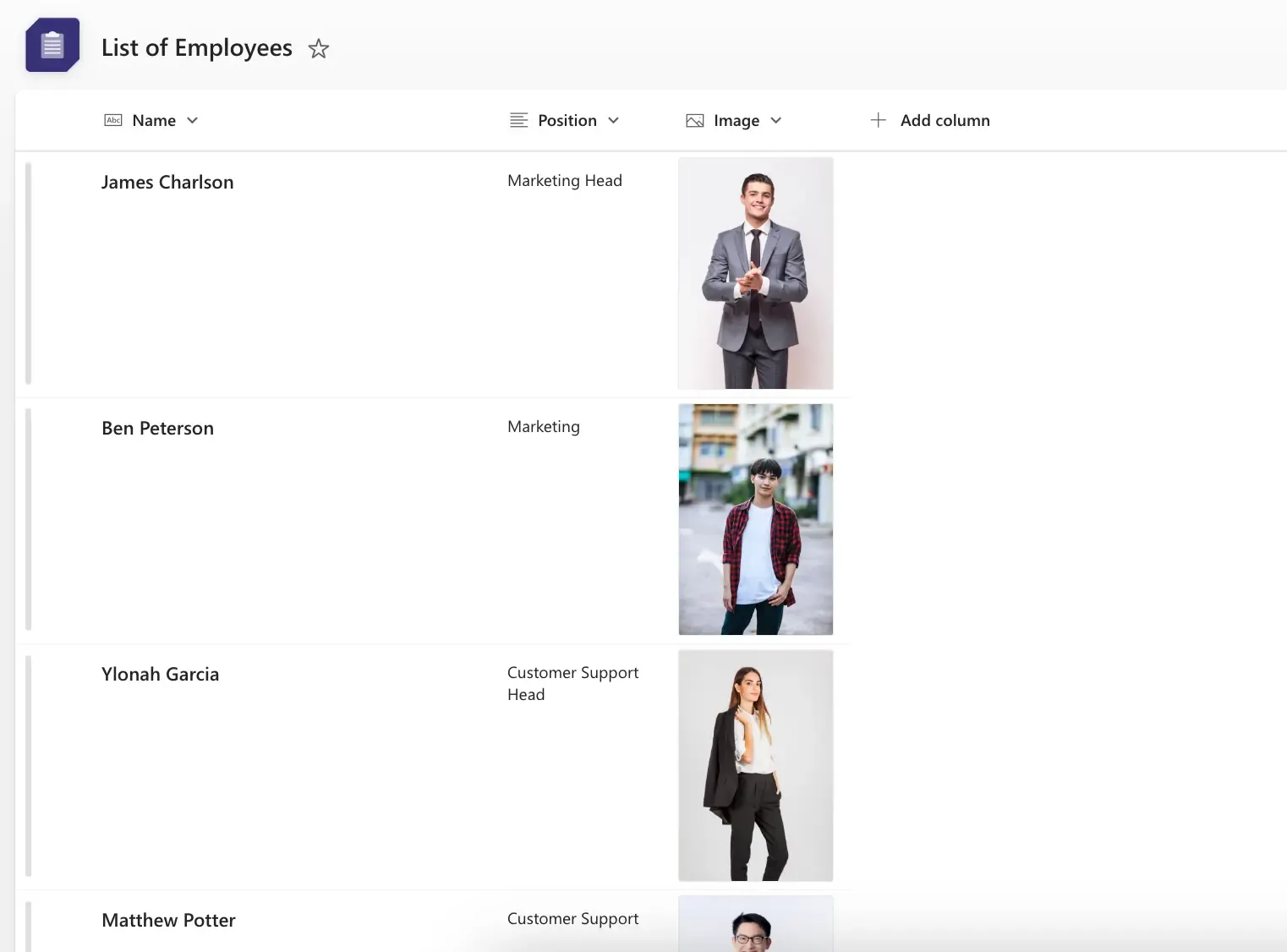
But what if you have a LOOOOONGGG list of information? Just imagine manually adding 20 or 30 items to a Design Element. It's a hassle!Good thing, ShortPoint has the Connect feature! With it, you can connect a Document Library or a SharePoint List like this one to any Design Element.
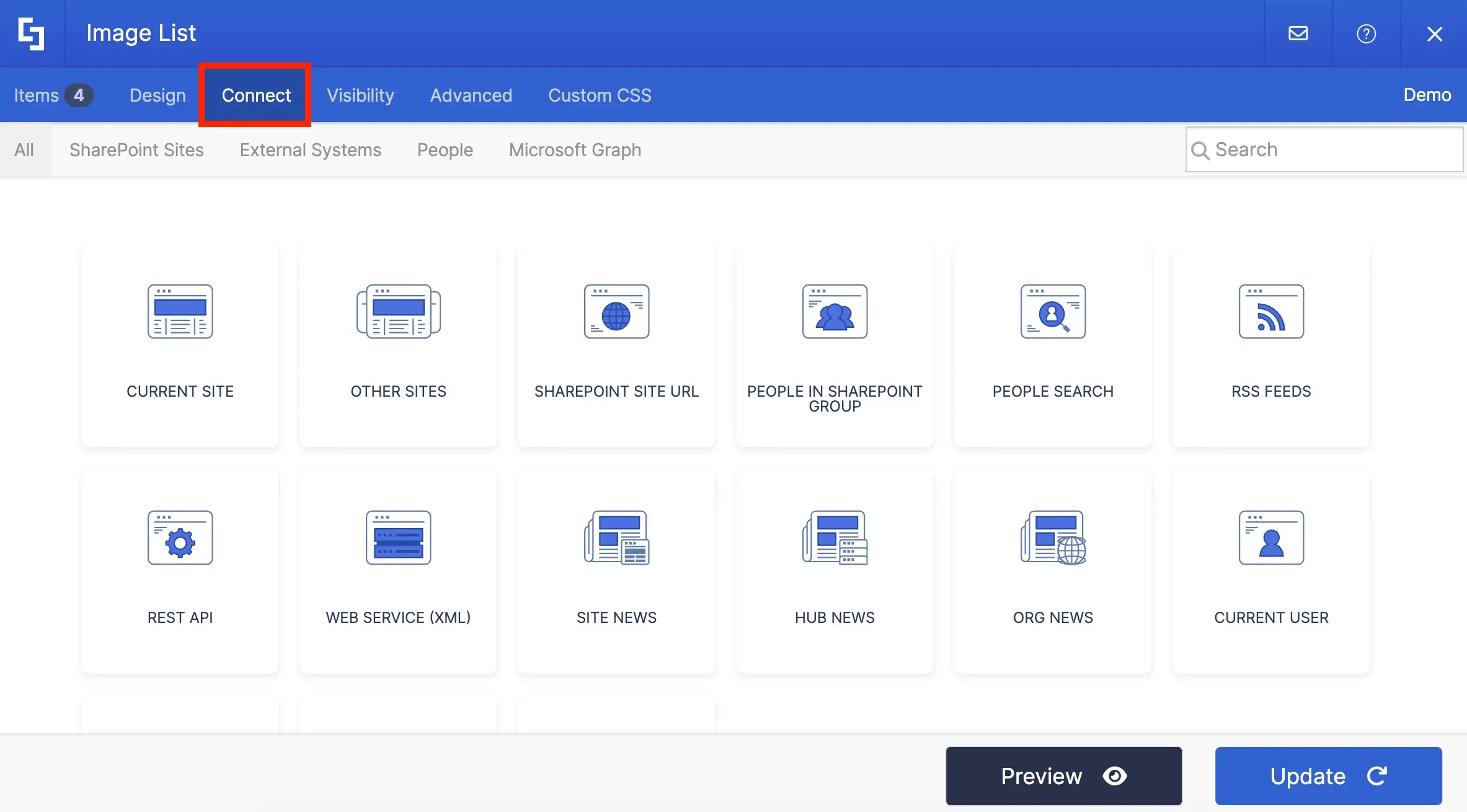
You can find ShortPoint Connect in the Connect tab of all the Design Elements we talked about.
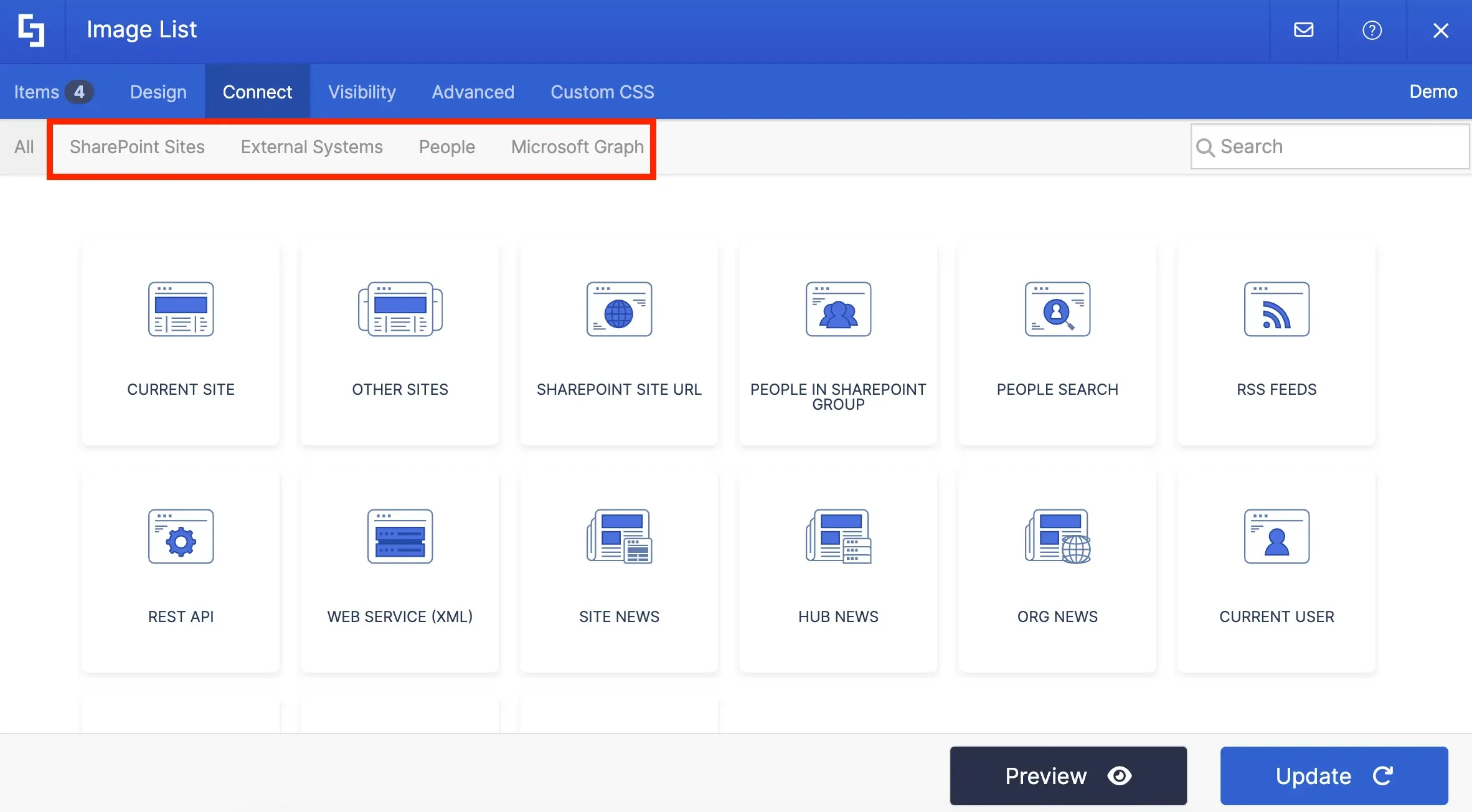
You have MANY options to connect. You can automatically pull information from your SharePoint sites, your Outlook calendar, and even other external sources (like RSS feeds or Rest API).
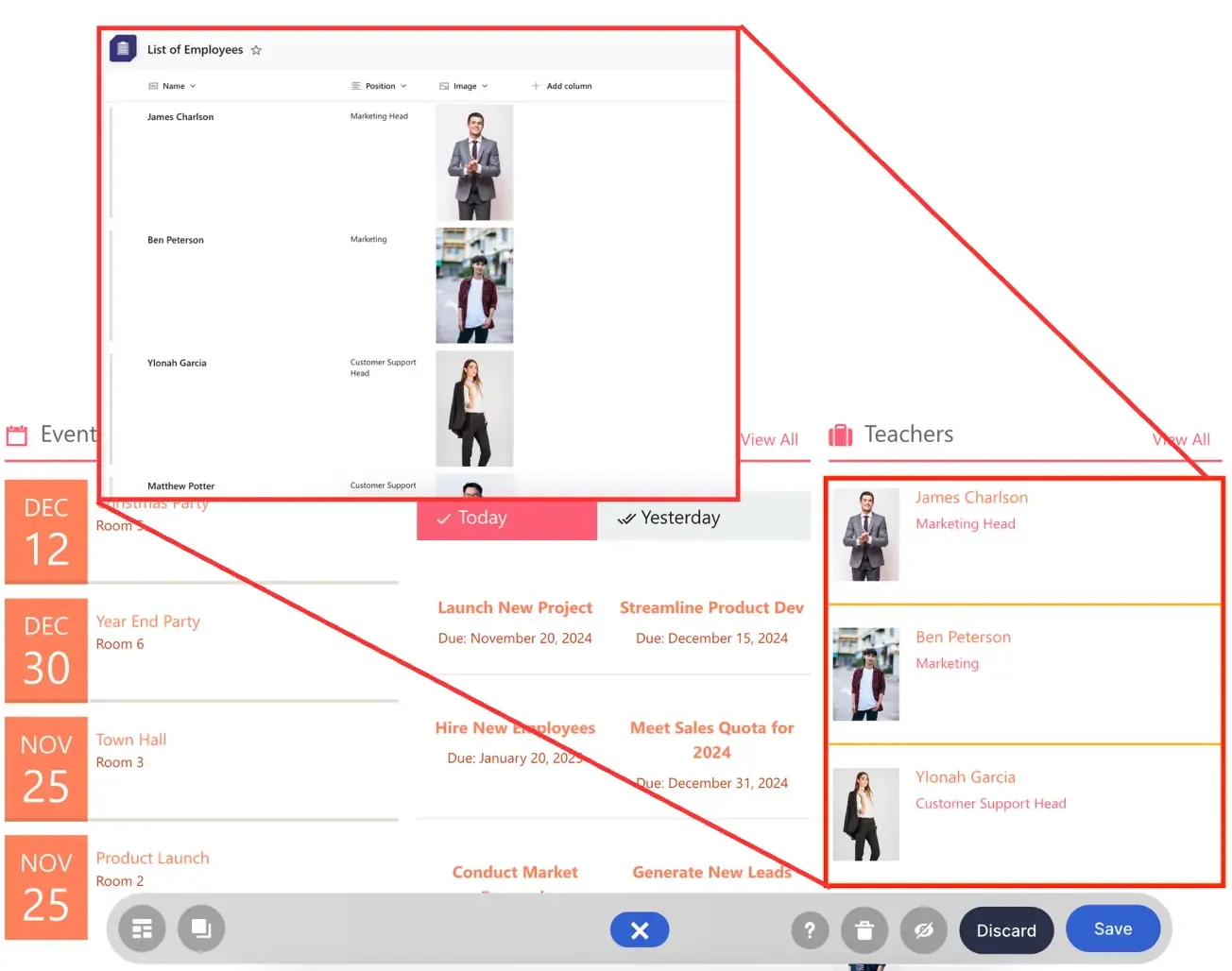
When you connect, ALL the information on your SharePoint List will be shown on your Design Element. Amazing, right?!
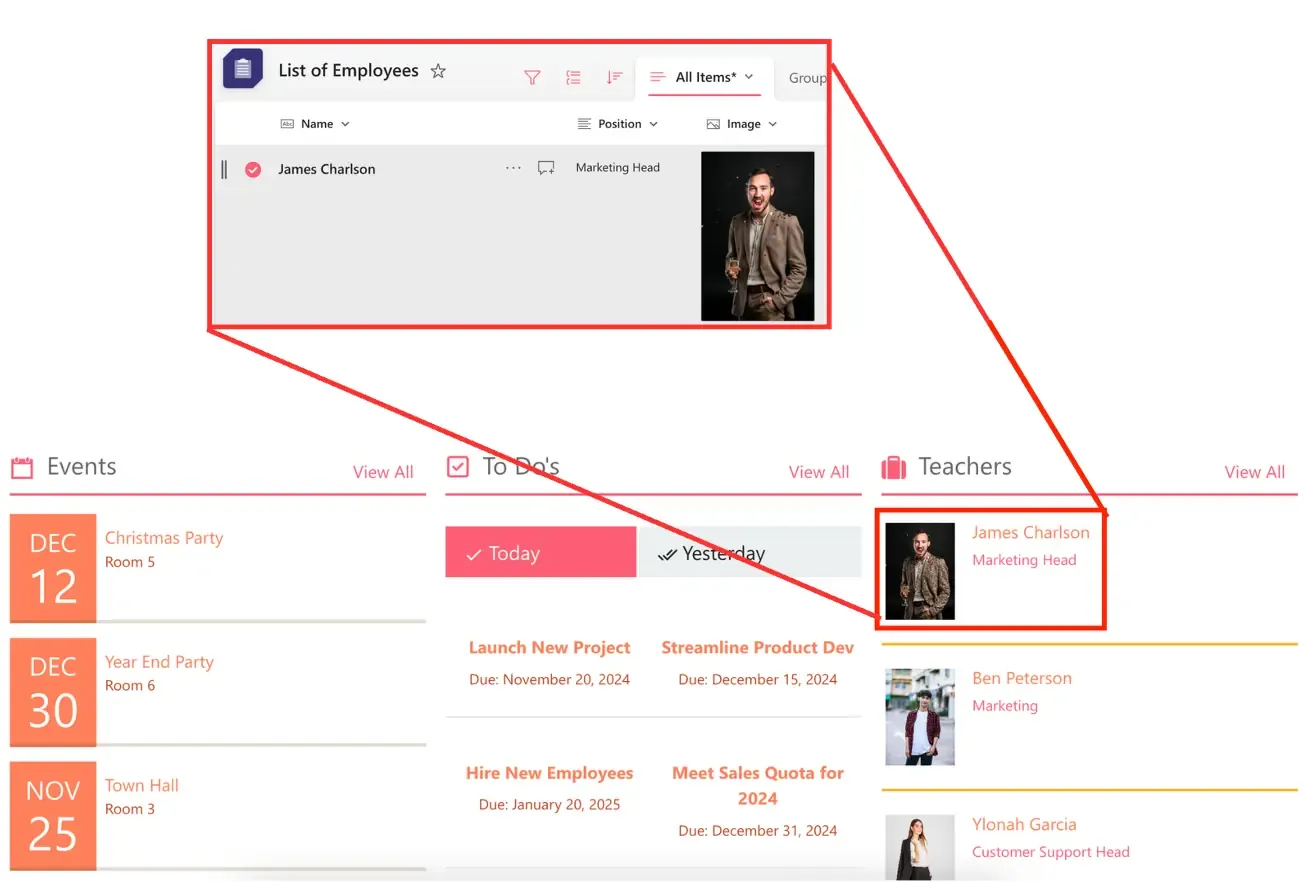
But, what's EVEN MORE amazing is when you edit your SharePoint List, the changes made will also reflect on your SharePoint page. For example, when we changed the image for James Charlson, the image changed on our page too!
Search & Filter Toolbar
Want to start connecting? Check out ShortPoint Connect: Basic Tutorial to get a step-by-step guide on how to use ShortPoint Connect.
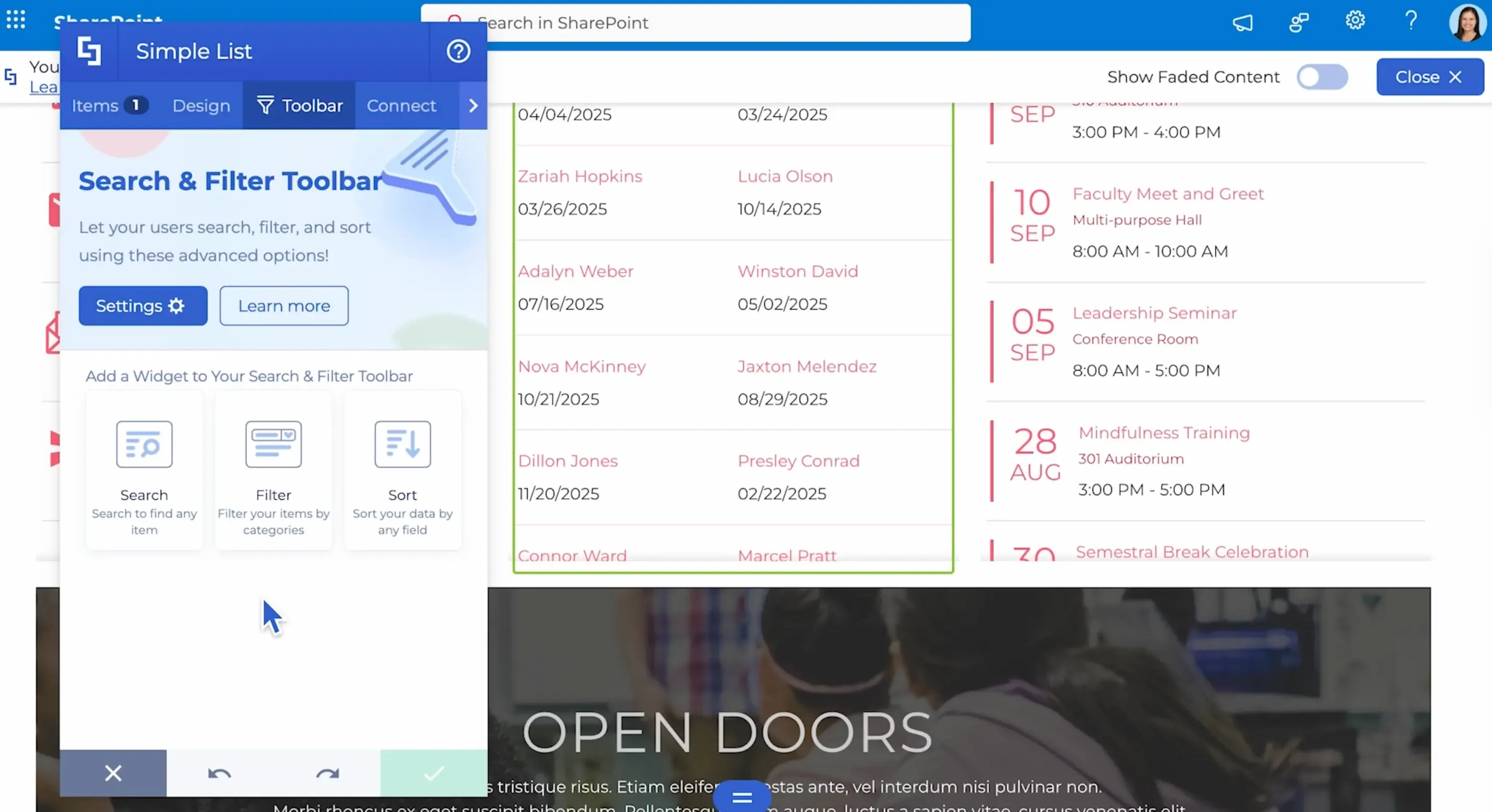
With such long lists on your SharePoint pages, finding the exact information you need can be hard. This is where the Search & Filter Toolbar comes in!It allows you to add three powerful widgets to your SharePoint pages:
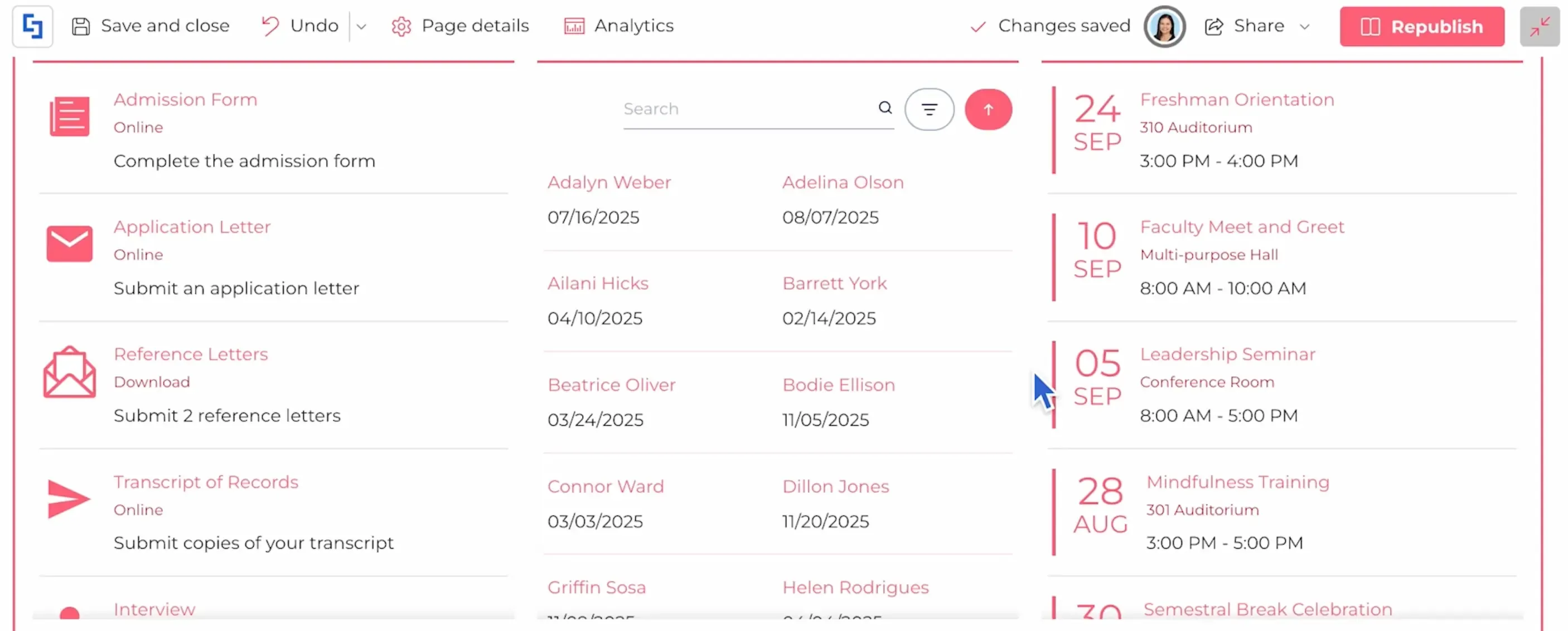
These powerful tools work hand-in-hand to create a list that is not only visually appealing but also user-friendly.
Learn more about the Search & Filter Toolbar in our Getting Started article.There you have it! Gone are the days of boring, scary, and imposing lists. Now, you're met with fun, creative, and engaging lists—just what you and your co-workers need to see lists in a new light.