
ShortPoint Design Elements
Best Design Elements for Videos and Social Media
Videos and social media are now taking over the world! Let's face it: they've become our go-to way to entertain and inform ourselves.

Video Design Elements
You can watch videos about any topic under the sun—intranets, SharePoint, ShortPoint, you name it—and you'll likely find it online. In fact, most people prefer watching a quick video over reading paragraphs of text!And social media? It's where we all hang out these days! We spend hours scrolling, liking, and connecting with content that catches our eye. It's how we stay connected and engaged.So, with that in mind, your SharePoint intranet should not miss out on the magic of videos and social media. Good news! ShortPoint makes it super simple to bring all that video and social media magic right into your intranet pages. You and your team will ABSOLUTELY love it!Let's get into the Design Elements you can use for both videos and social media.
We'll start with videos first! Here are the Design Elements you can use to showcase your amazing and creative videos:
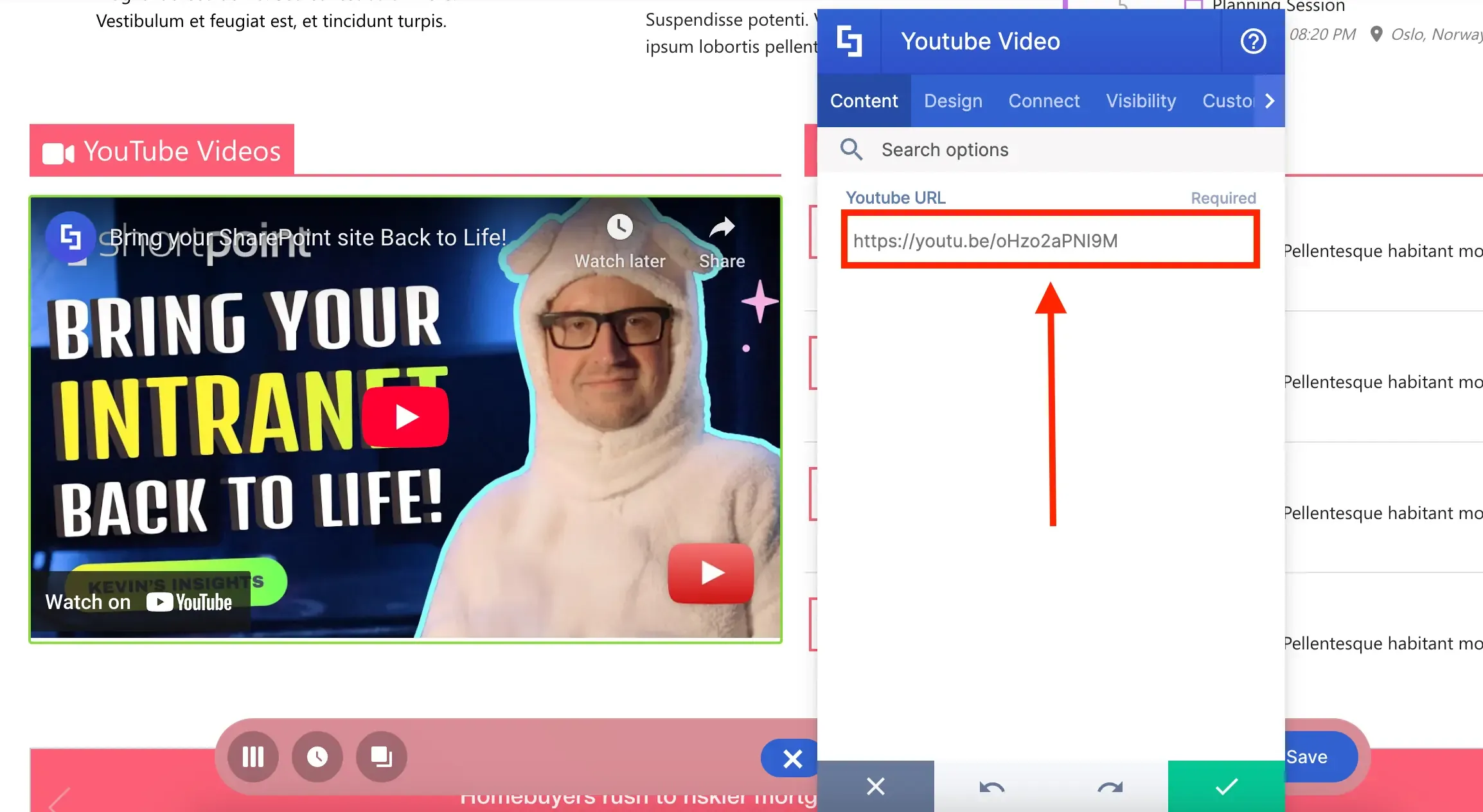
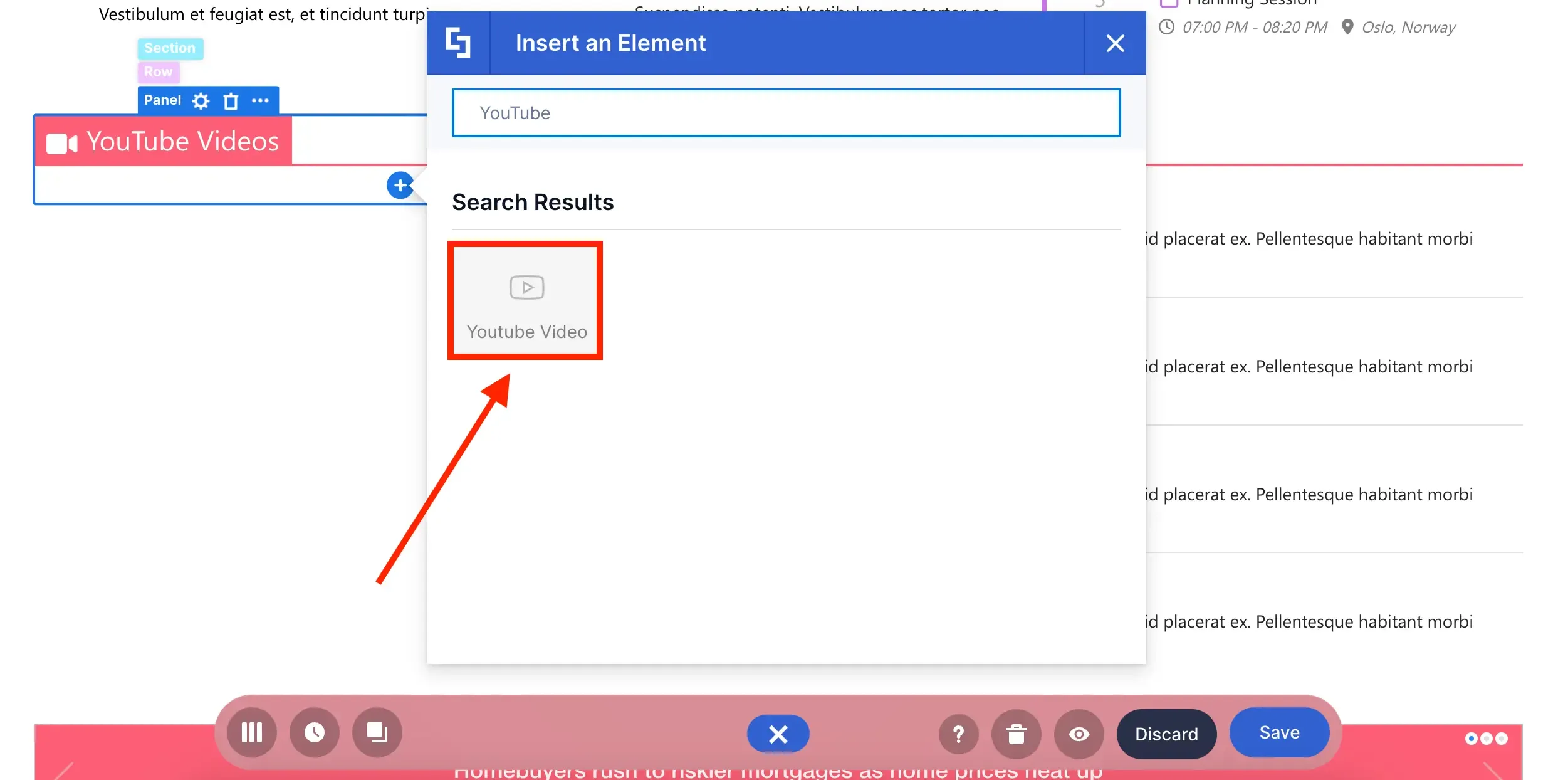
By now, you've probably watched THOUSANDS of YouTube videos in your lifetime. After all, whether you're learning a new skill, catching up on your favorite creator's latest adventure, or just unwinding with some laughs, YouTube has something for you!And, you can continue the fun on your own SharePoint intranets with the YouTube Video Design Element! With it, you can showcase any YouTube video on your pages:
YouTube Video Design Element
All you need is the exact URL of the YouTube video you want to showcase:
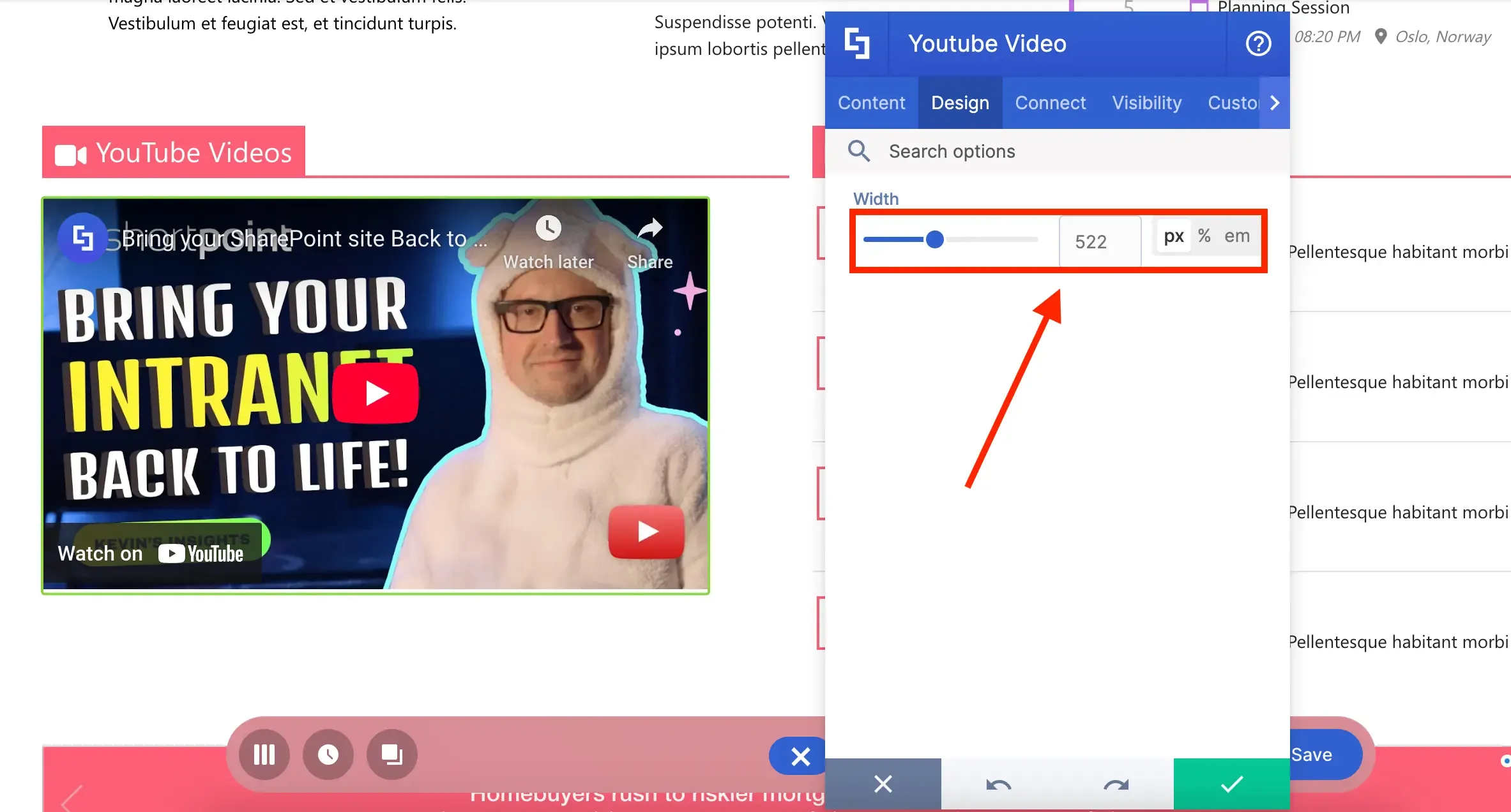
The best part? You can even control how wide the video is displayed on your page:
Want to give it a try? Go to How to Customize the YouTube Video Design Element to learn how to add it to your SharePoint page.
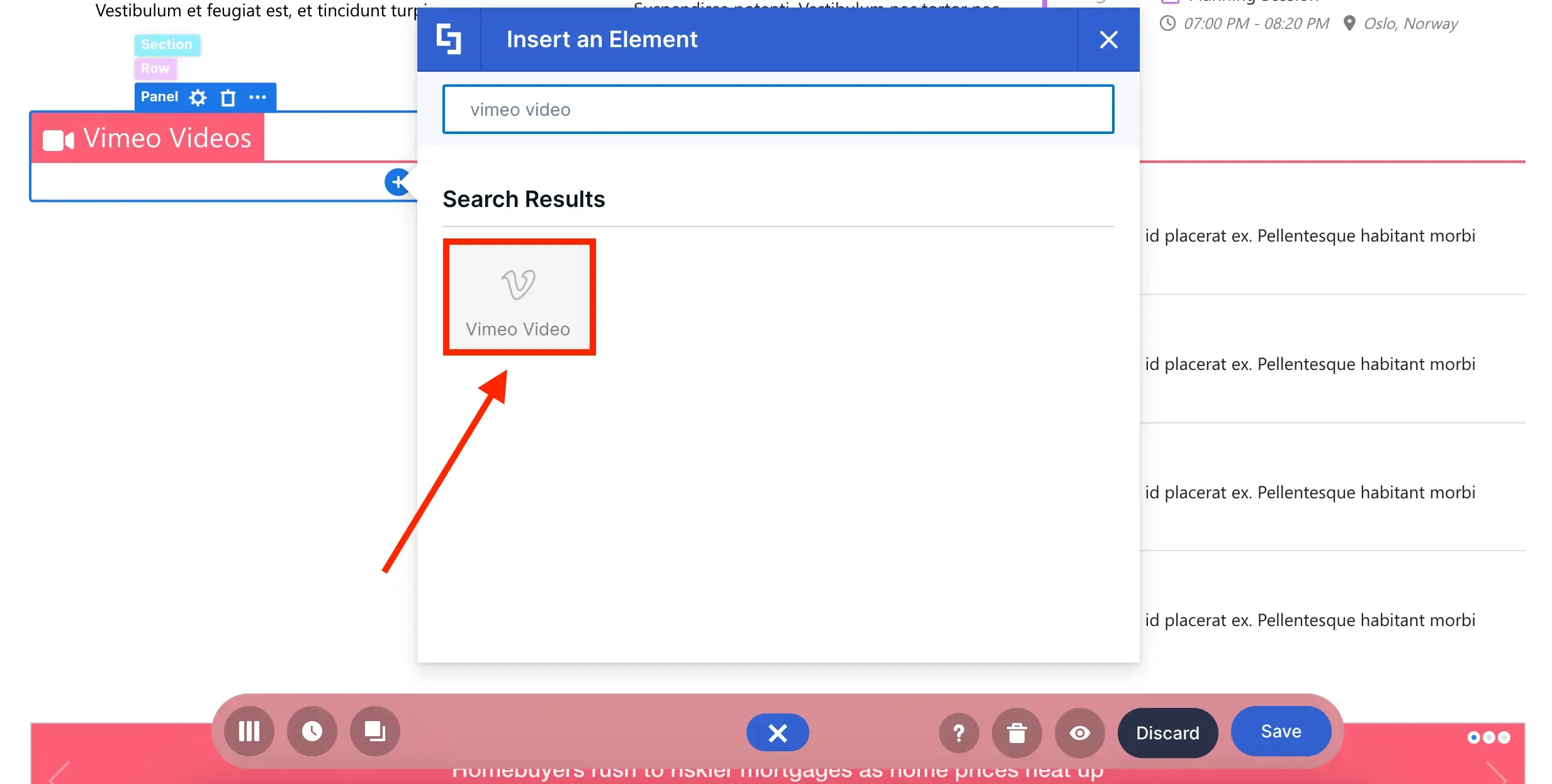
If you love creating professional and ad-free videos, there's a chance you've used Vimeo! With the Vimeo Video Design Element, you can now proudly showcase your creative output on your SharePoint pages:
Vimeo Video Design Element
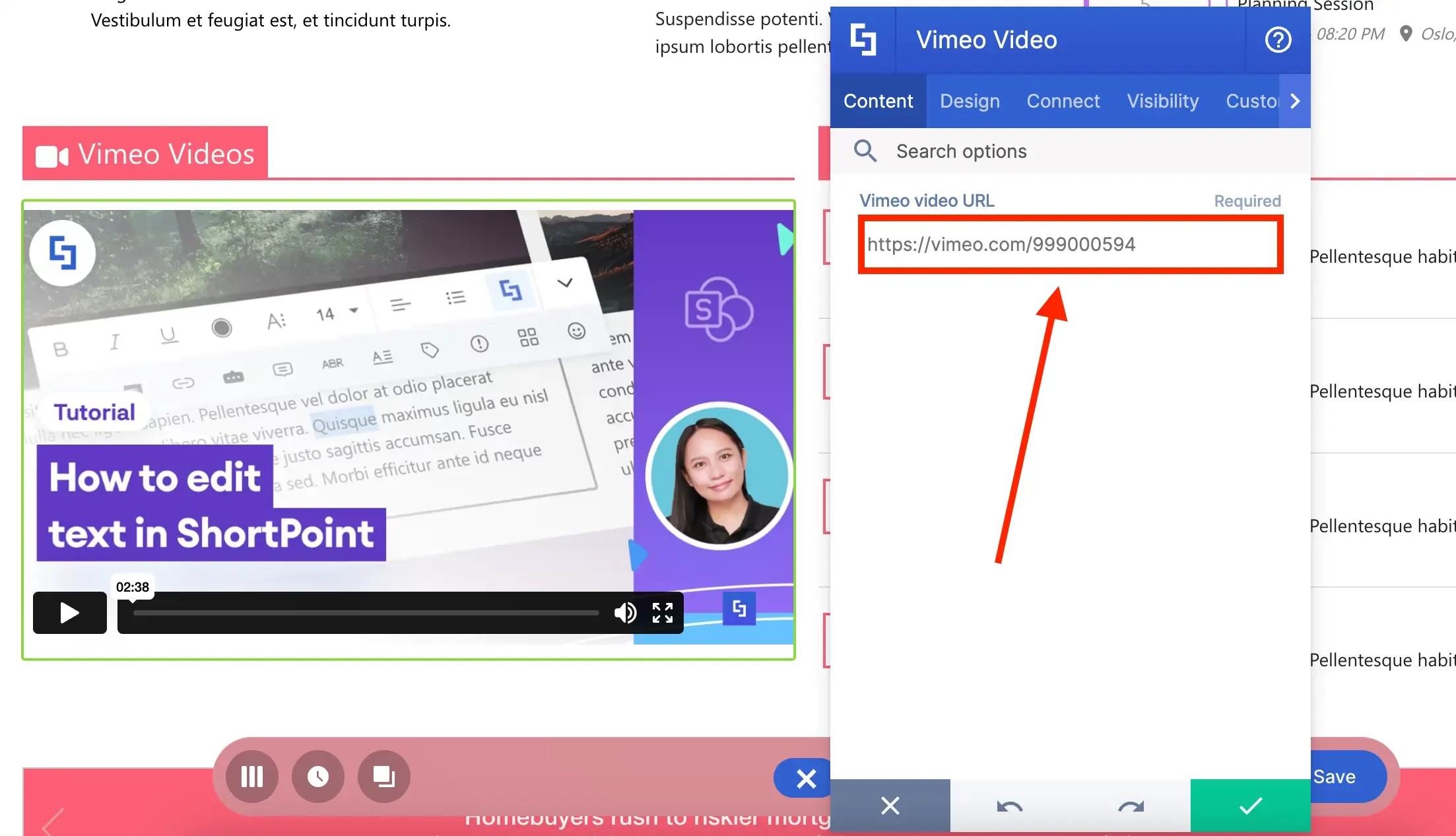
Like YouTube, you only need the video URL:
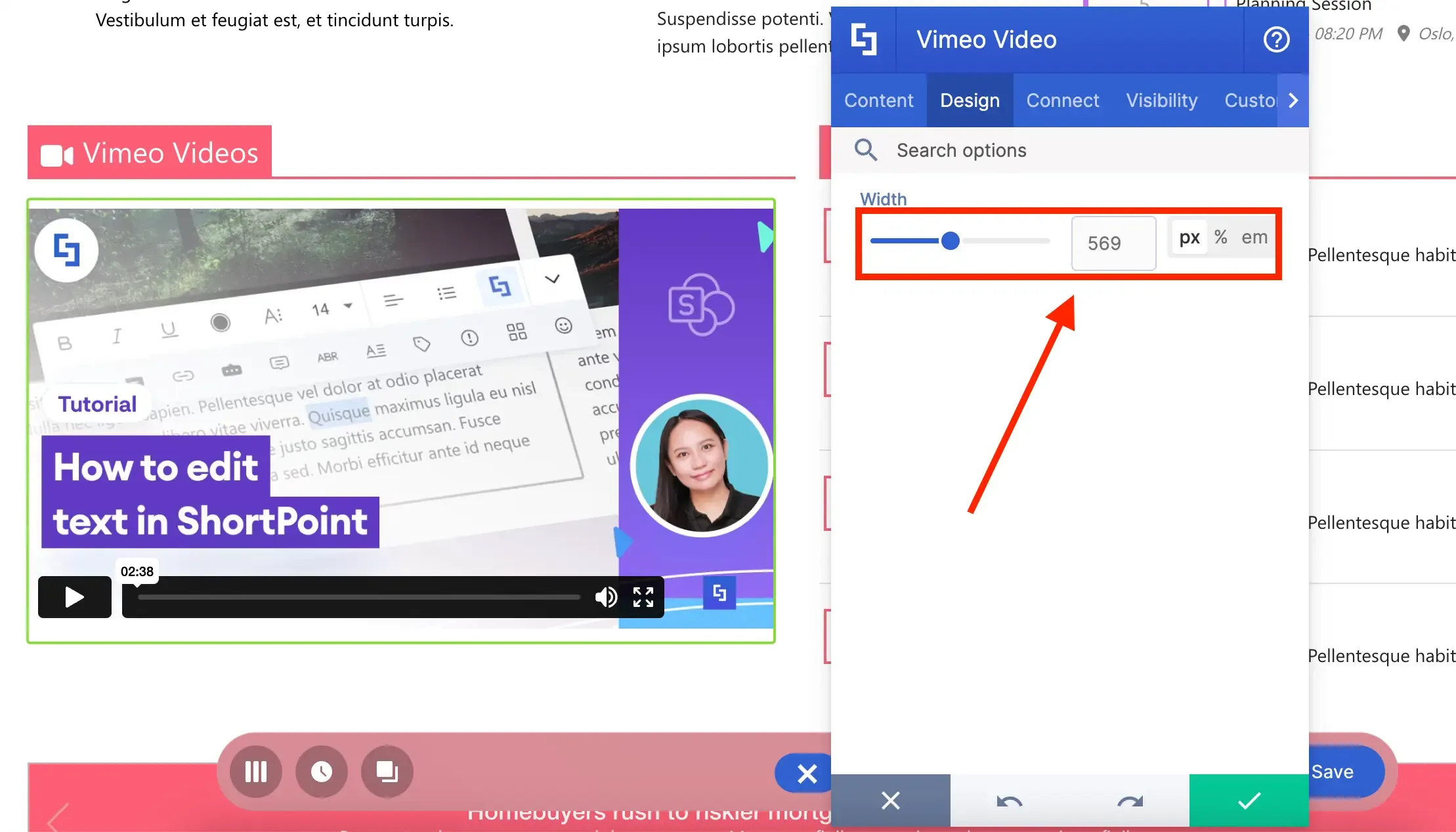
You can also adjust the width of the display:
Eager to use Vimeo Video and its features? You can check out How to Customize the Vimeo Video Design Element for a detailed guide on all the customizable options.
Code Design Element
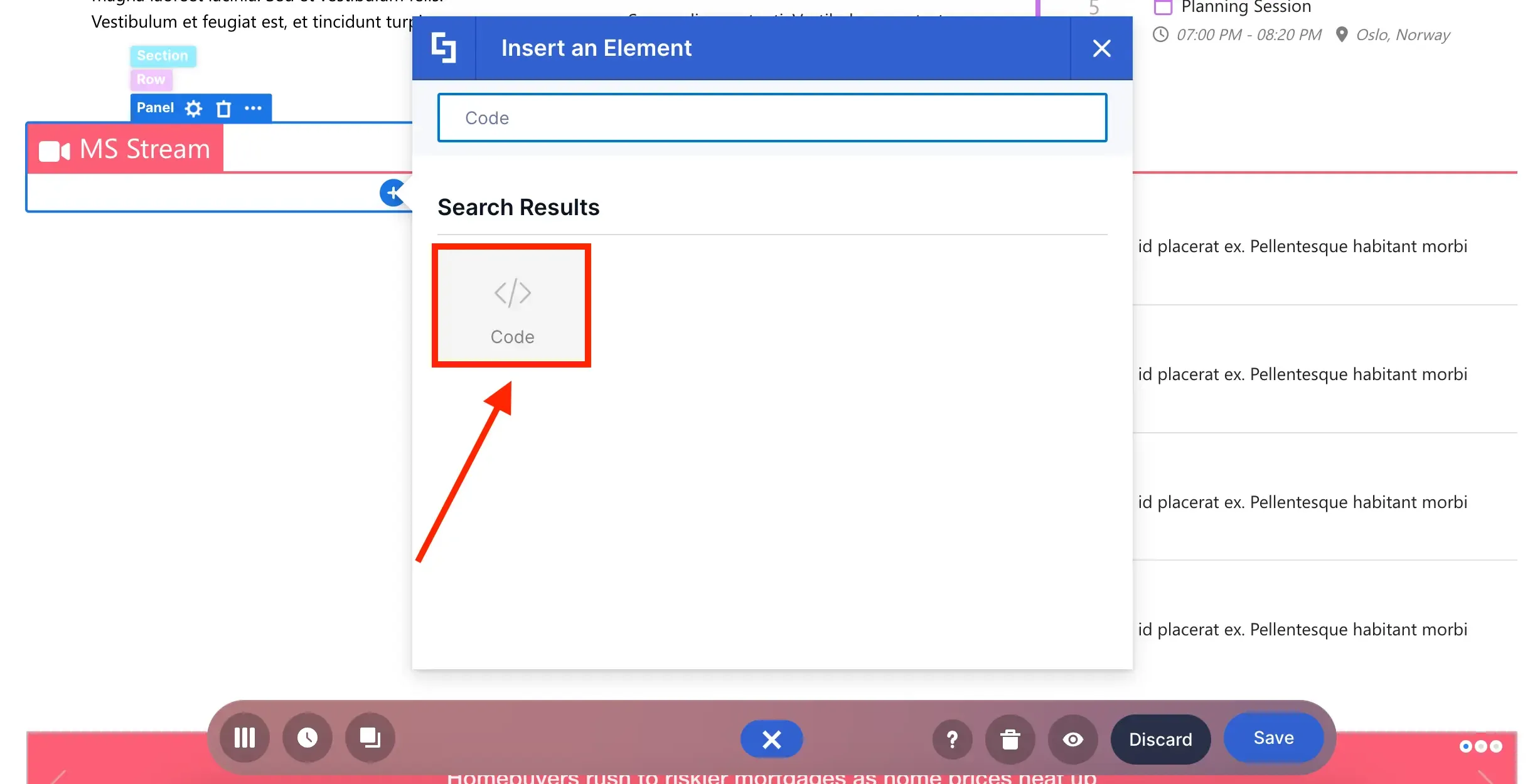
What if there are other video content you want to showcase? Like MS Stream videos, YouTube playlists, or Vimeo playlists? All you need is the Code Design Element and the video's embed code!The Code Design Element lets you add HTML, CSS, and Javascript snippets to your SharePoint page:
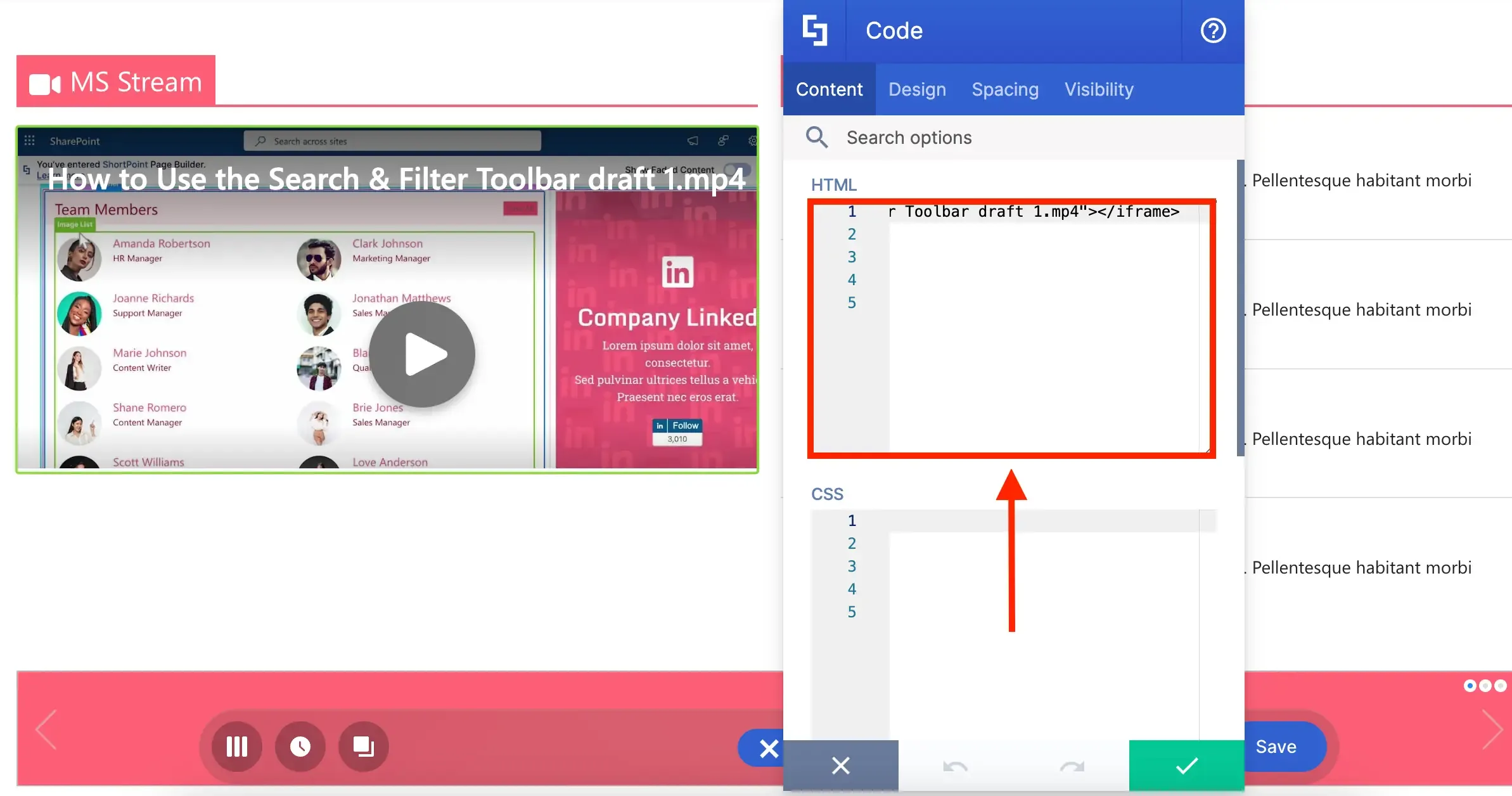
It is dynamic and useful in many scenarios, such as letting you embed videos from Stream:
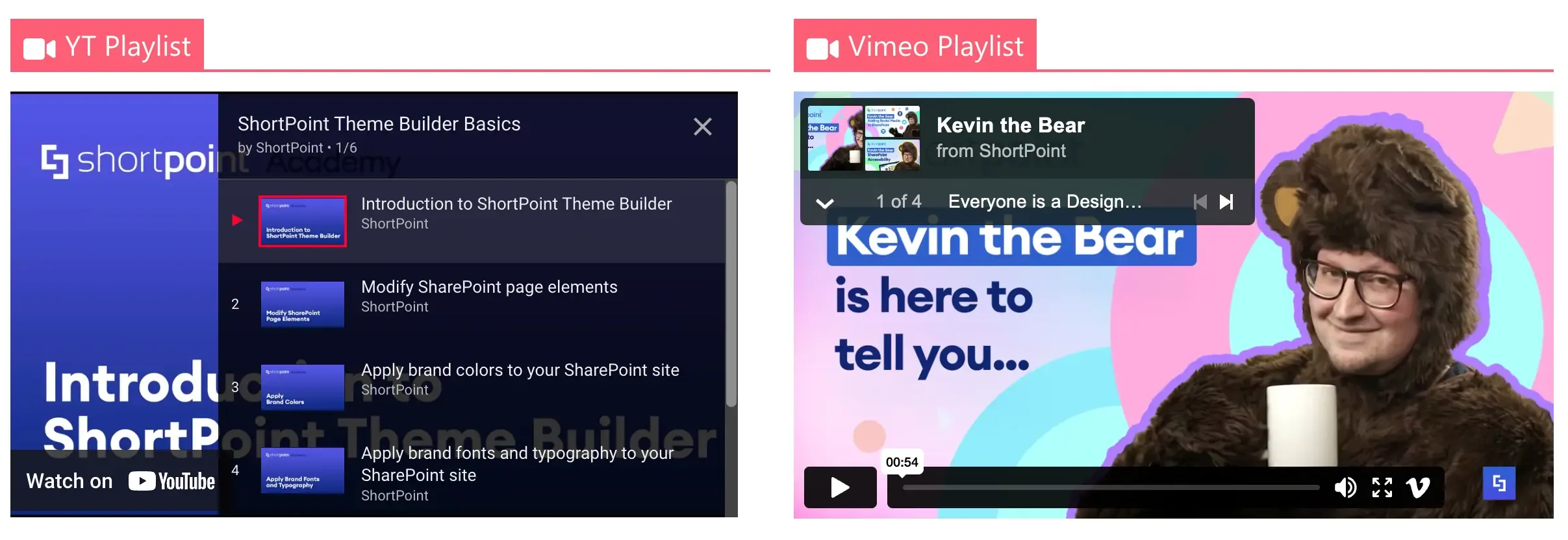
Or feature playlists from YouTube and Vimeo:
Social Media Design Elements
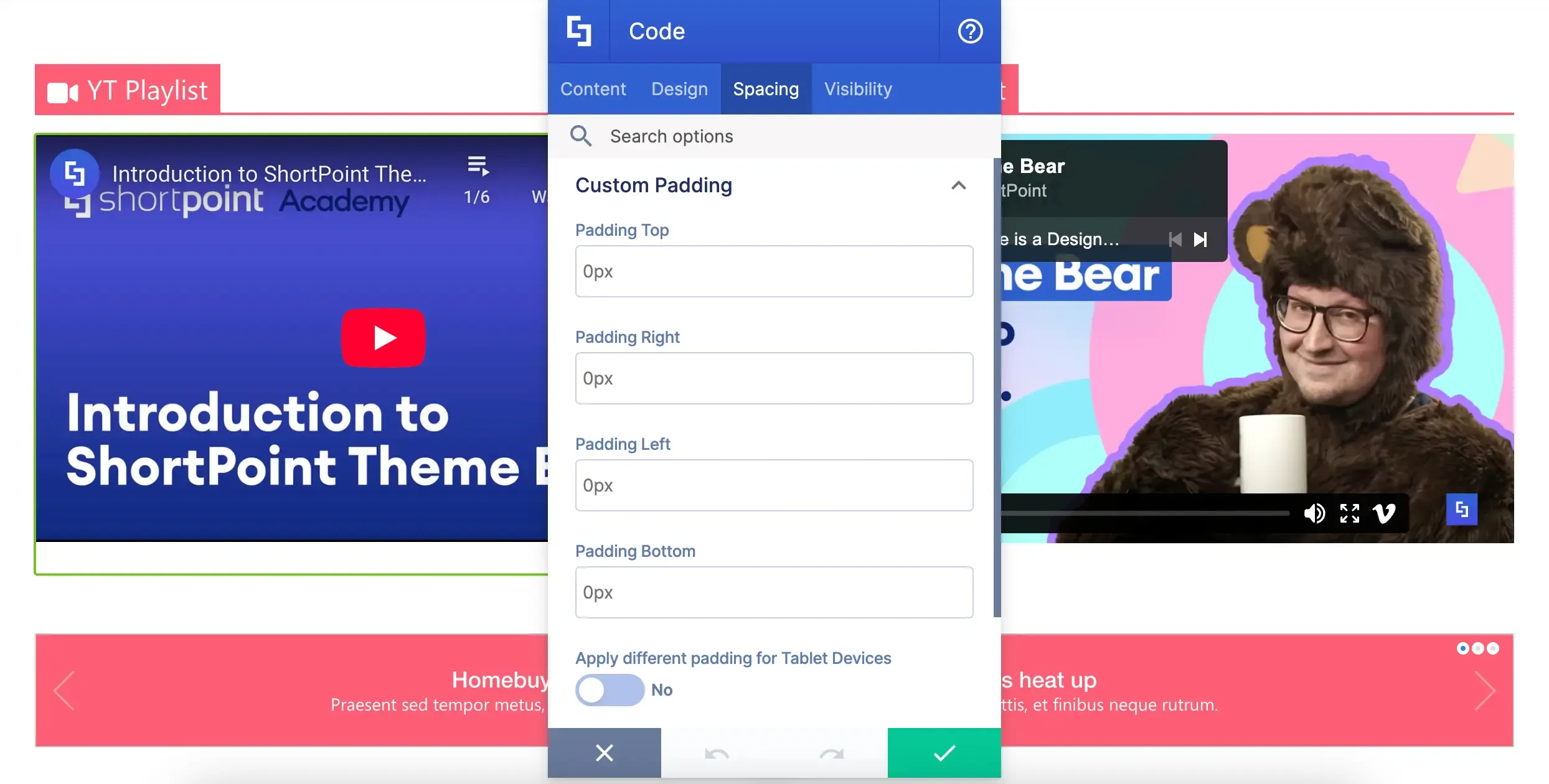
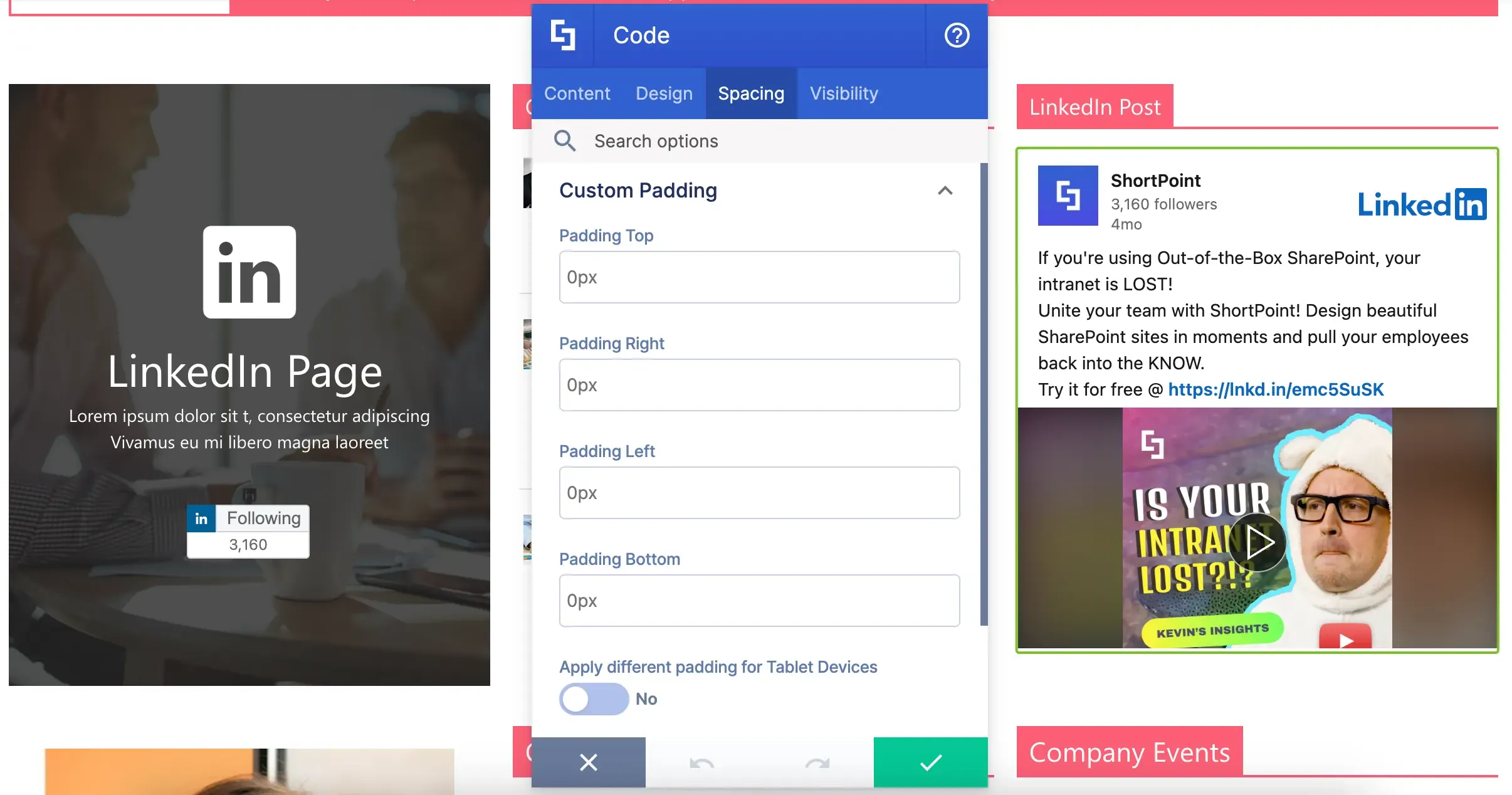
To top it off, there's even an option to adjust the paddings and margins around the Code Design Element:
Up for some video embeds on your SharePoint pages? Check out Introducing the Code Design Element.
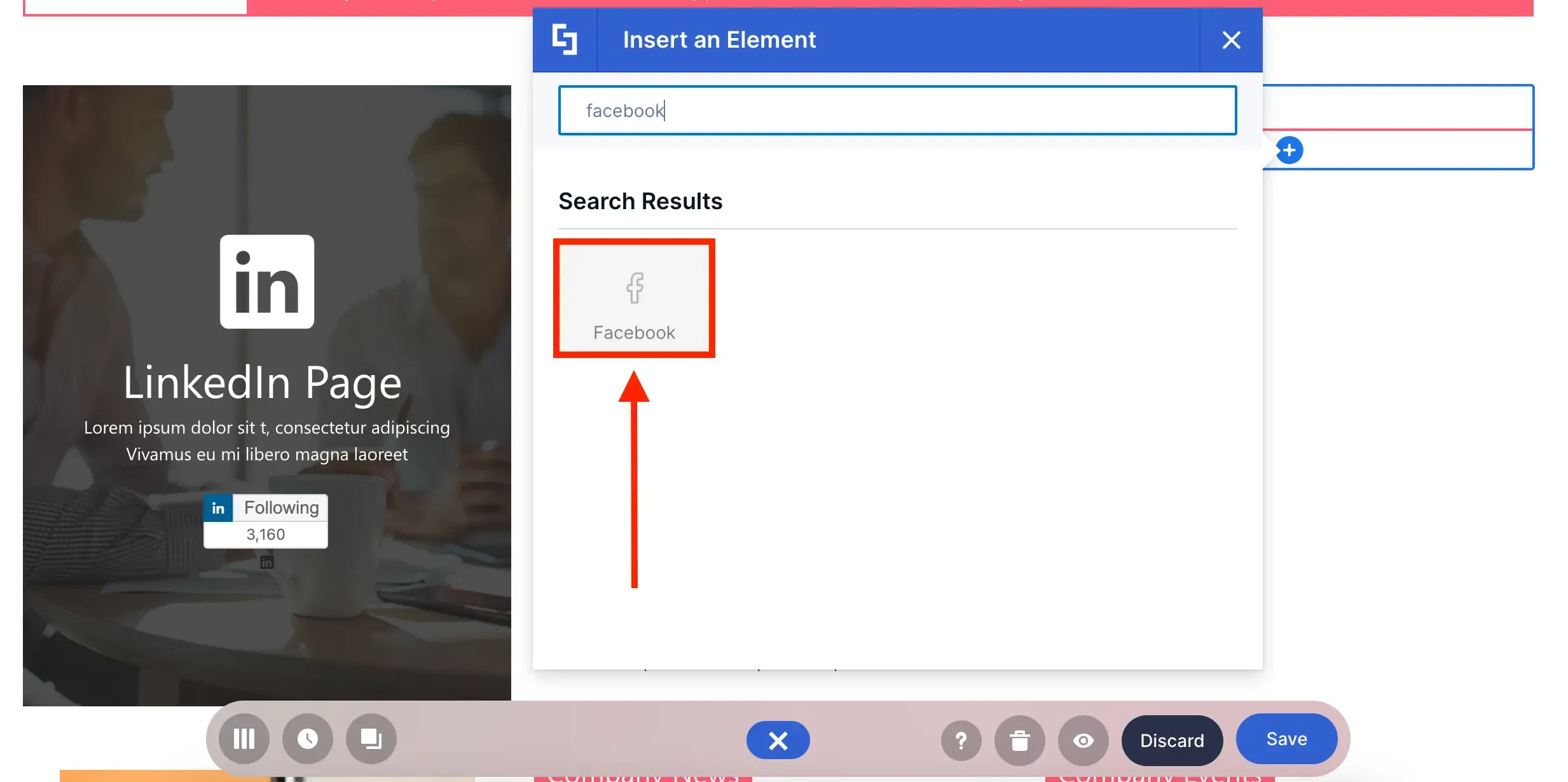
Now, let's continue our doom scrolling and move on to Design Elements you can use for Social Media:
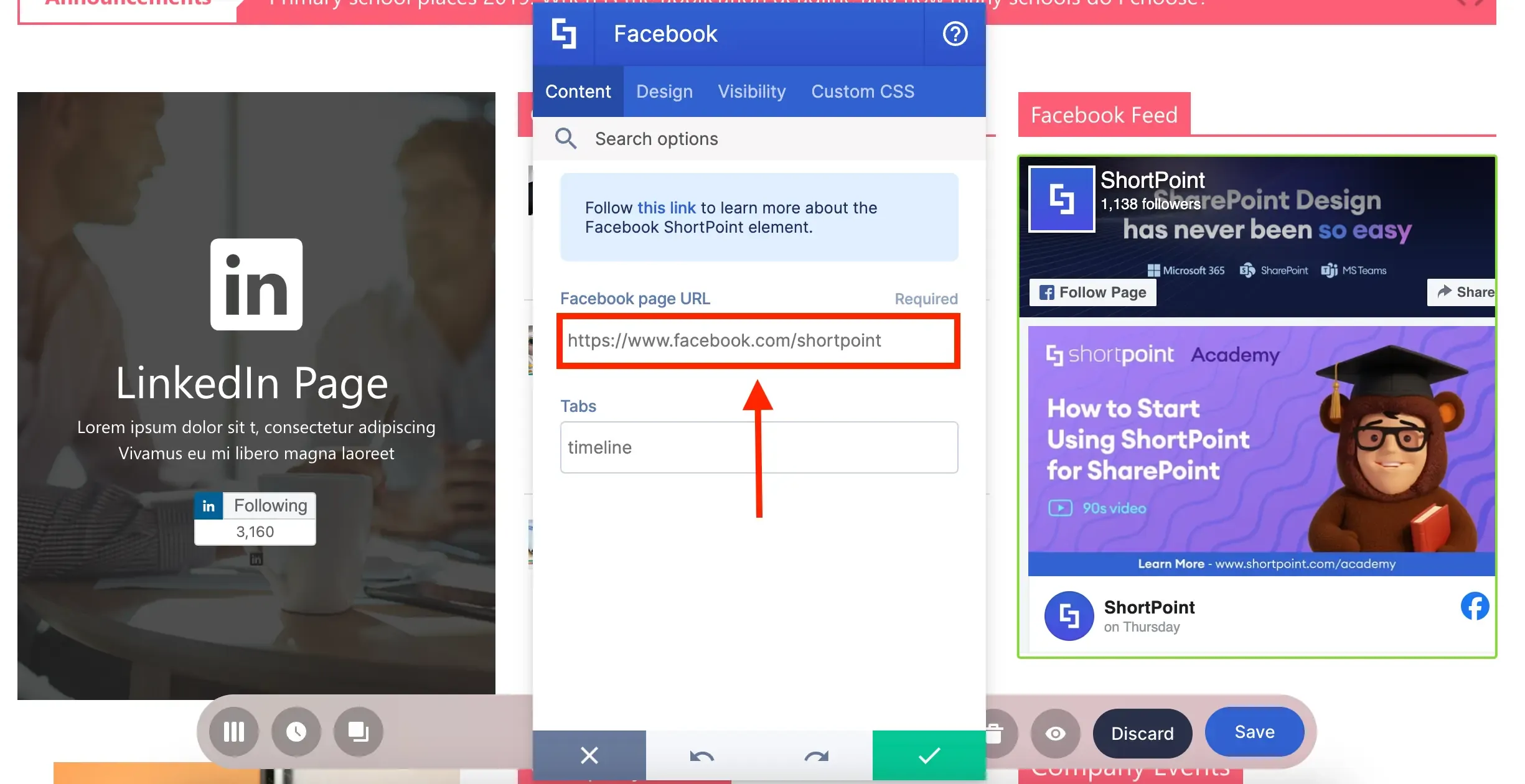
Does your company have a Facebook page? You can showcase it on your SharePoint pages using the Facebook Design Element.
Facebook Design Element
All you have to do is enter your Facebook URL:
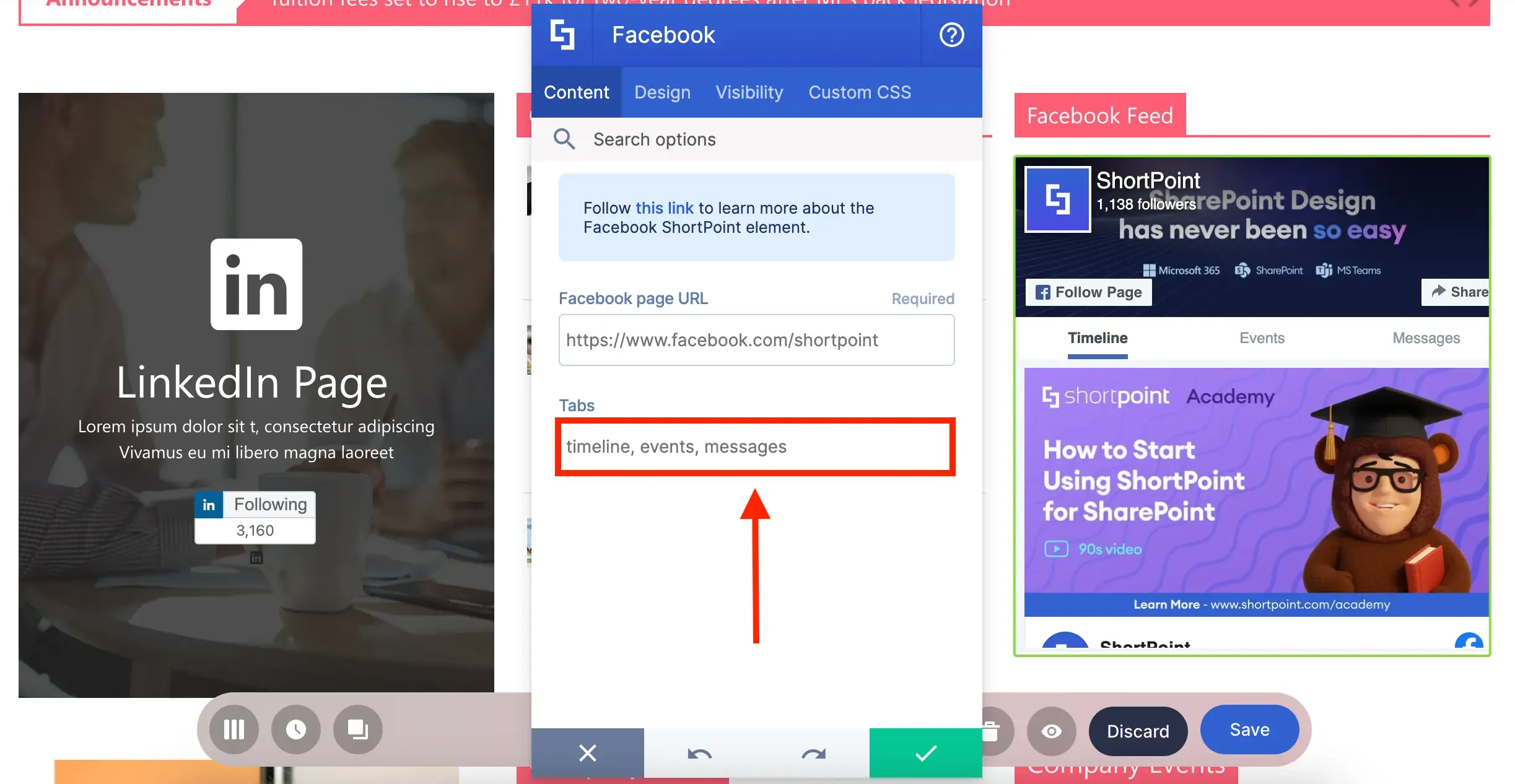
But what makes it unique is that it doesn't only let you post your timeline. You can also post upcoming events, messages, and many more:
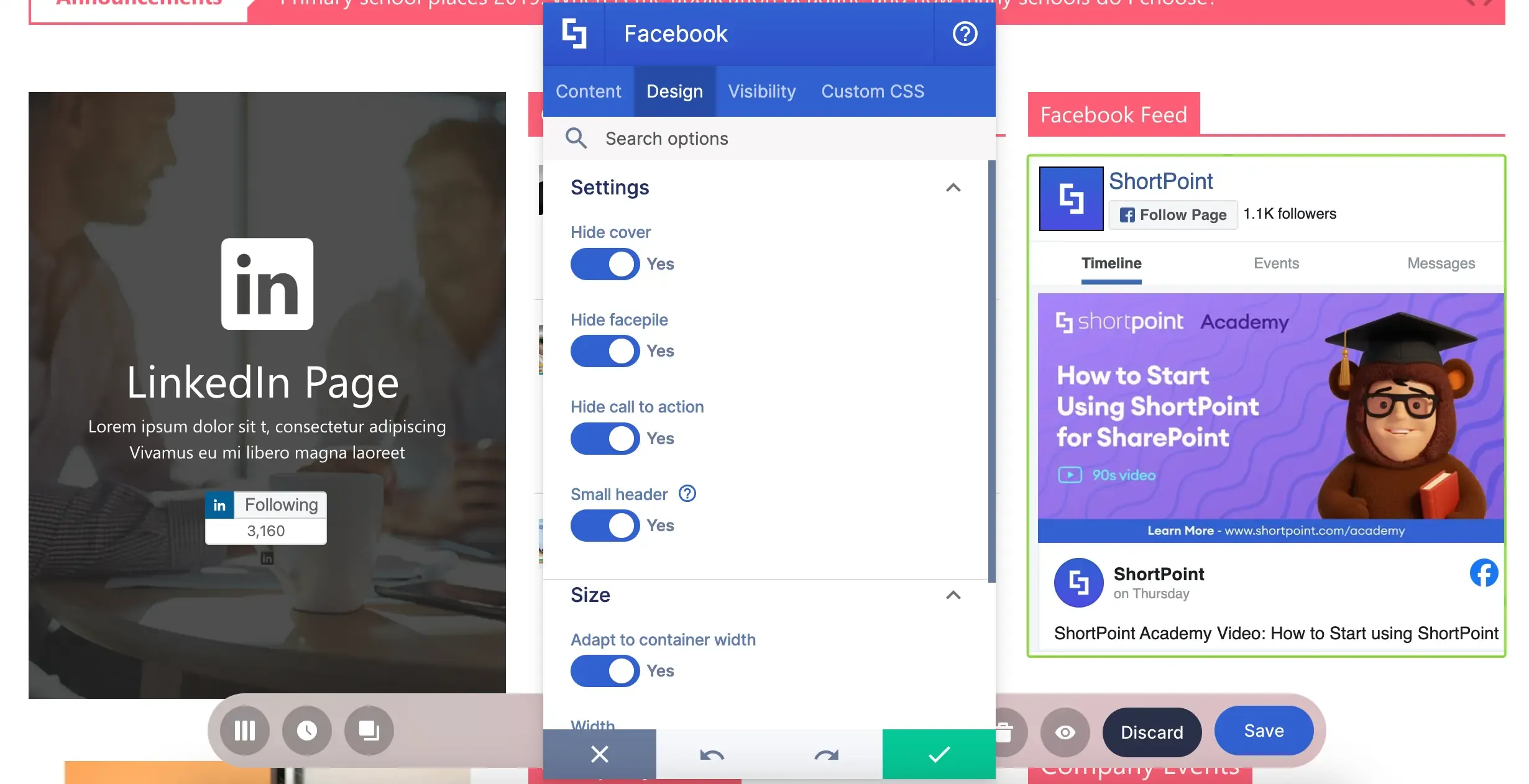
You can even further customize how it looks:
X Design Element
Ready to give the Facebook Design Element a try? Check out Introducing ShortPoint Facebook Design Element.
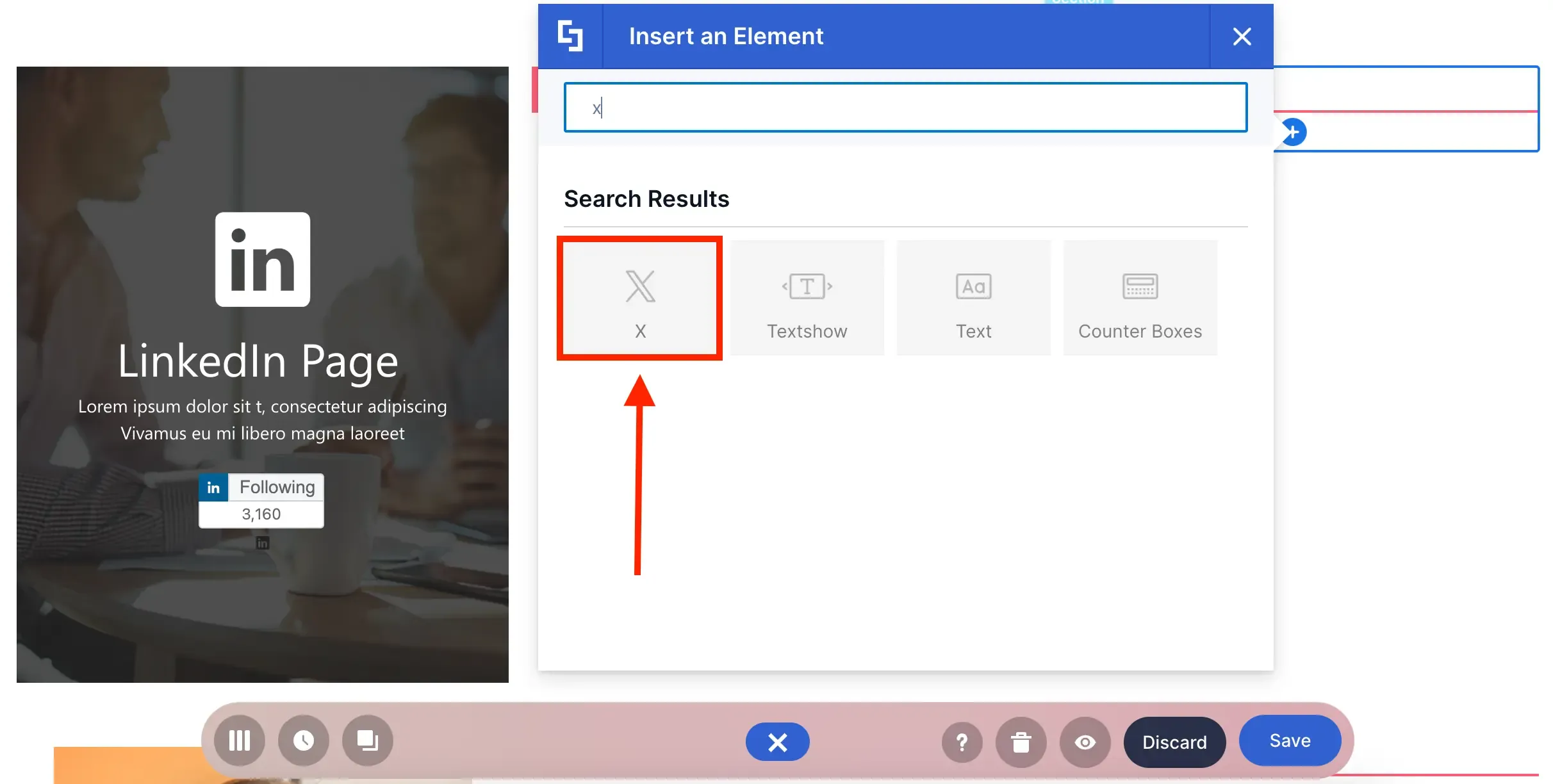
Is X your main source for company news and updates? Try out the X Design Element and post your profile feed on your page!
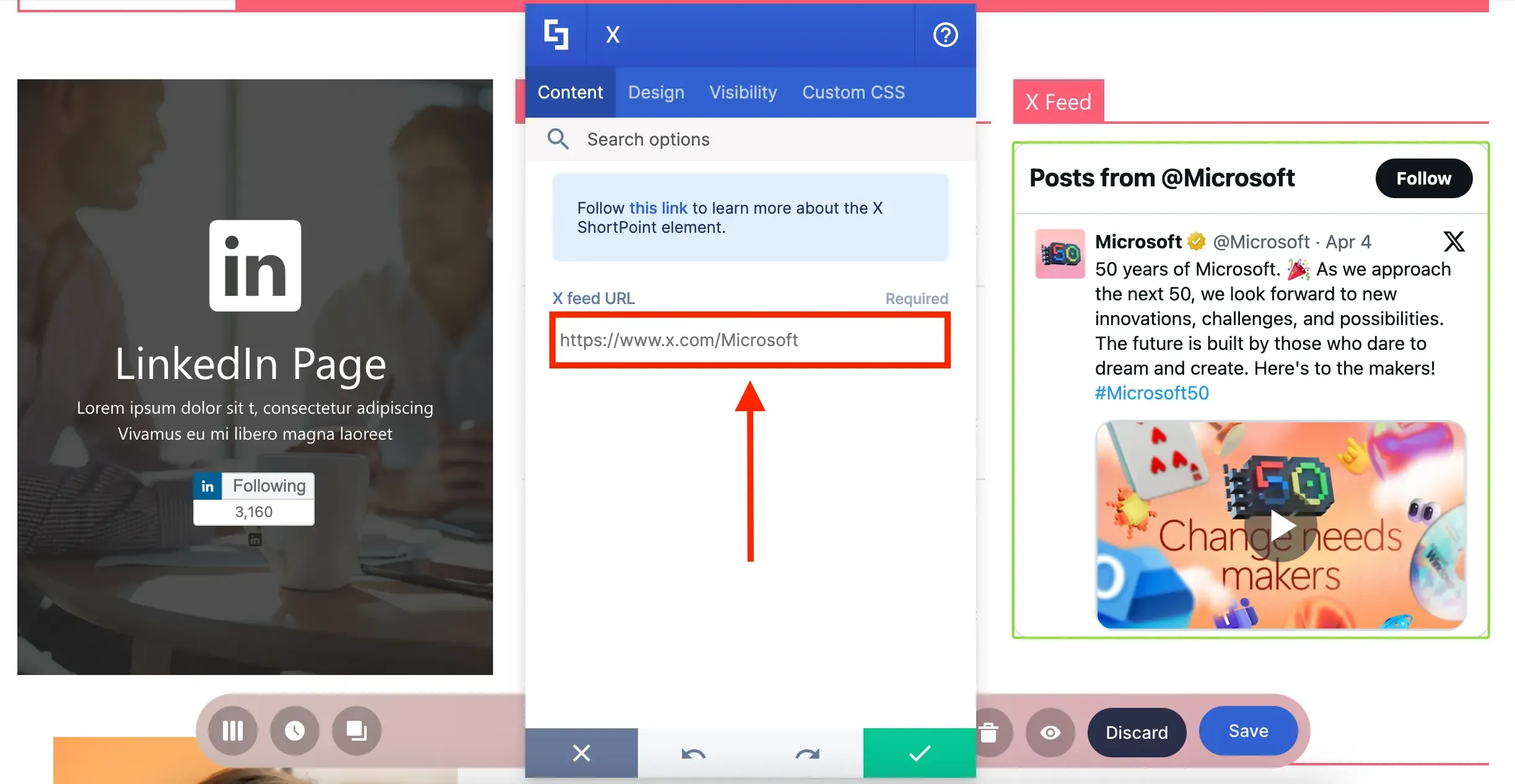
Again, the URL is all you need:
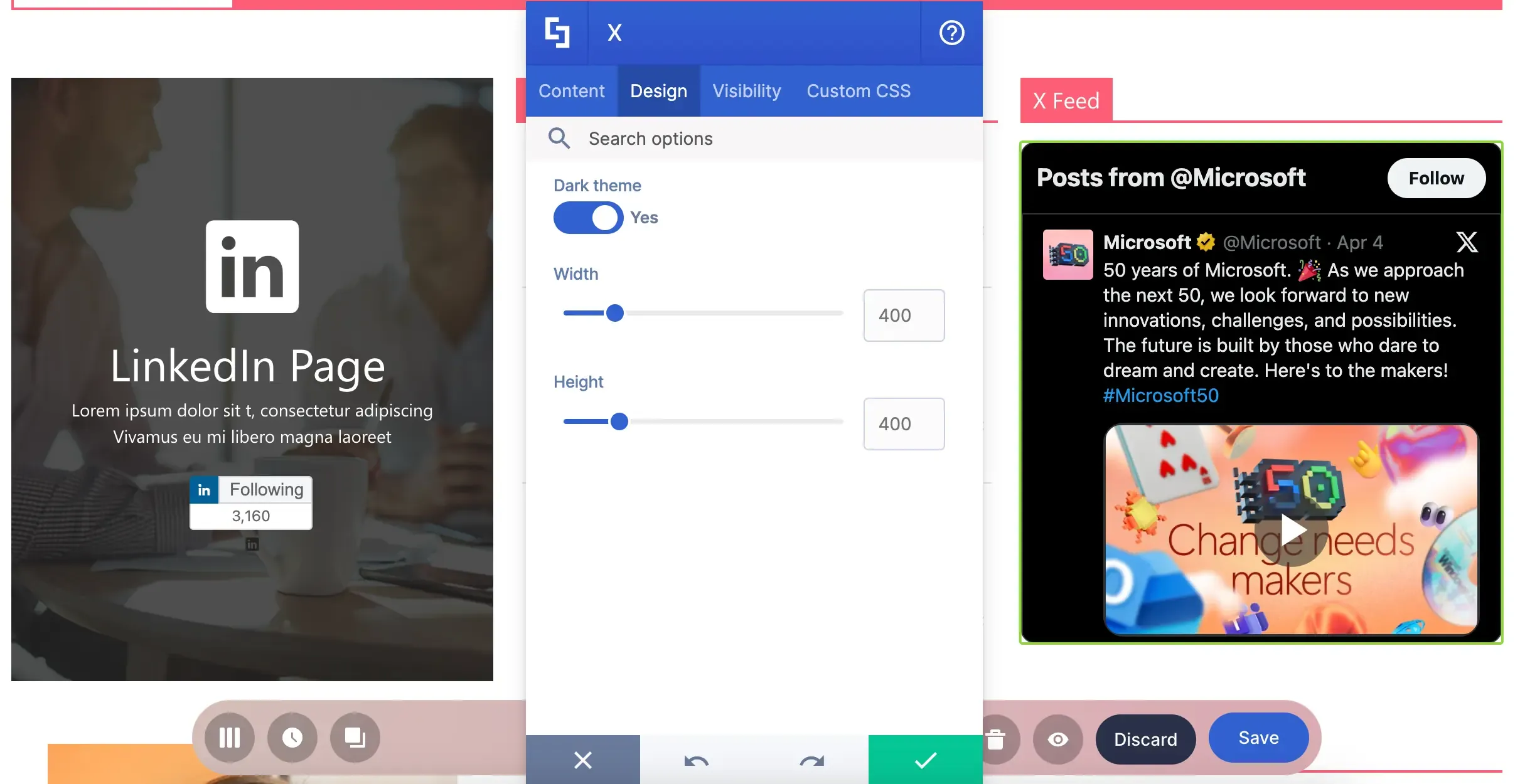
Then, you can choose to use a dark theme and even adjust the display size:
Instagram Design Element
Excited to add your X timeline to your page? Check out Introducing ShortPoint X Design Element.
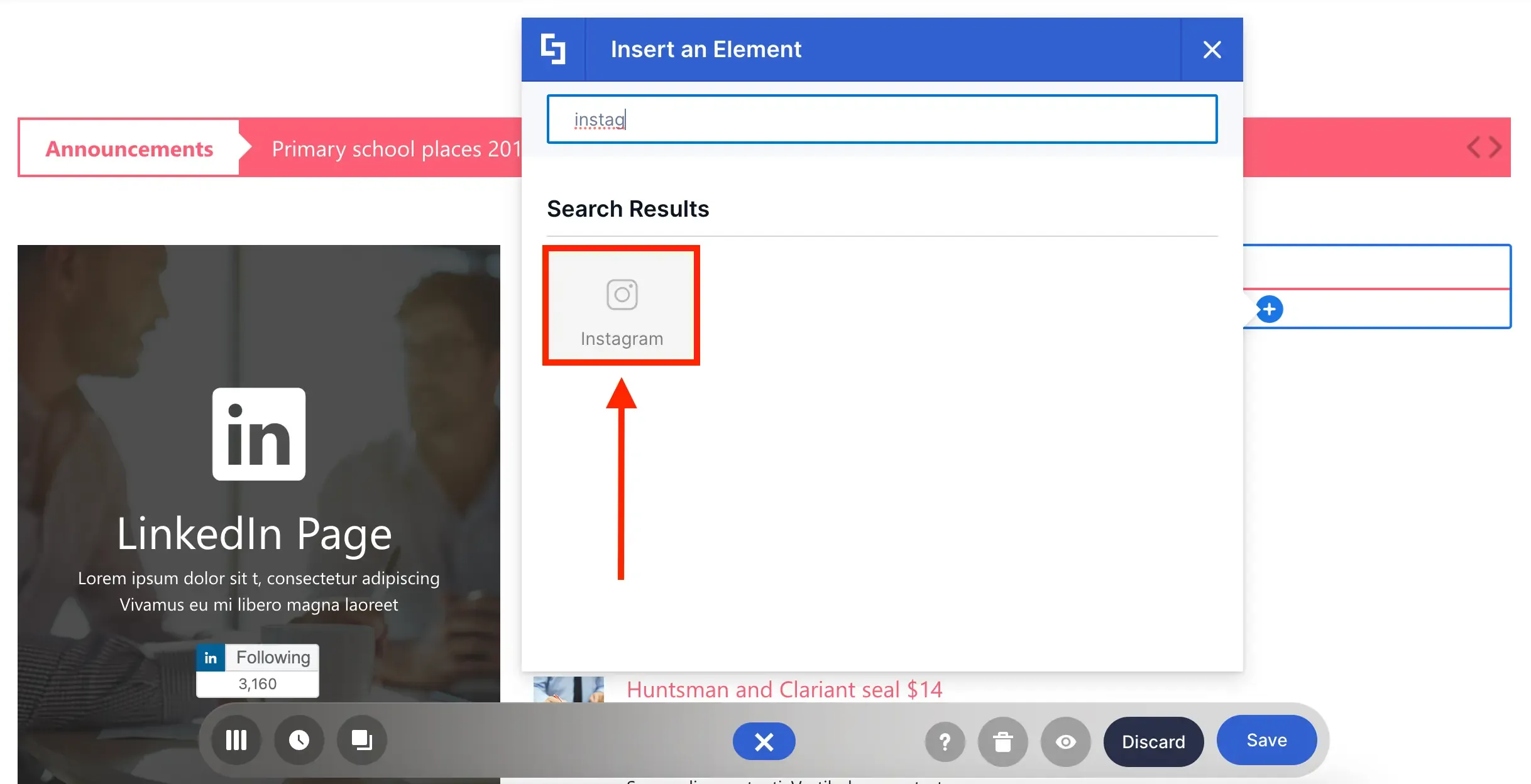
Love connecting with your followers using Instagram? Why not feature it on your intranet?! You can easily do this using the Instagram Design Element!
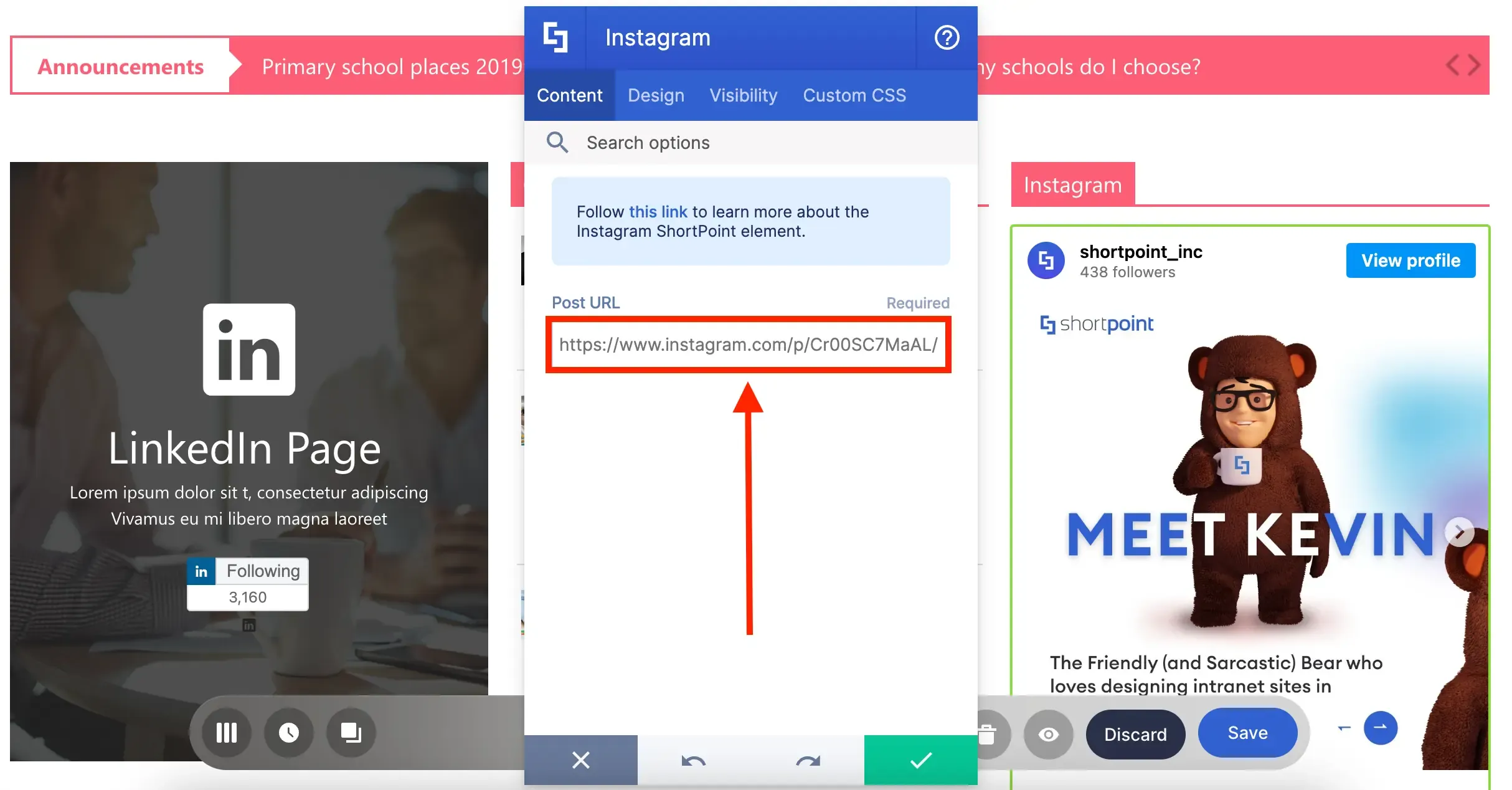
To add an Instagram post, simply add the post URL:
LinkedIn Design Element
You can even choose to remove the post caption and customize its size:
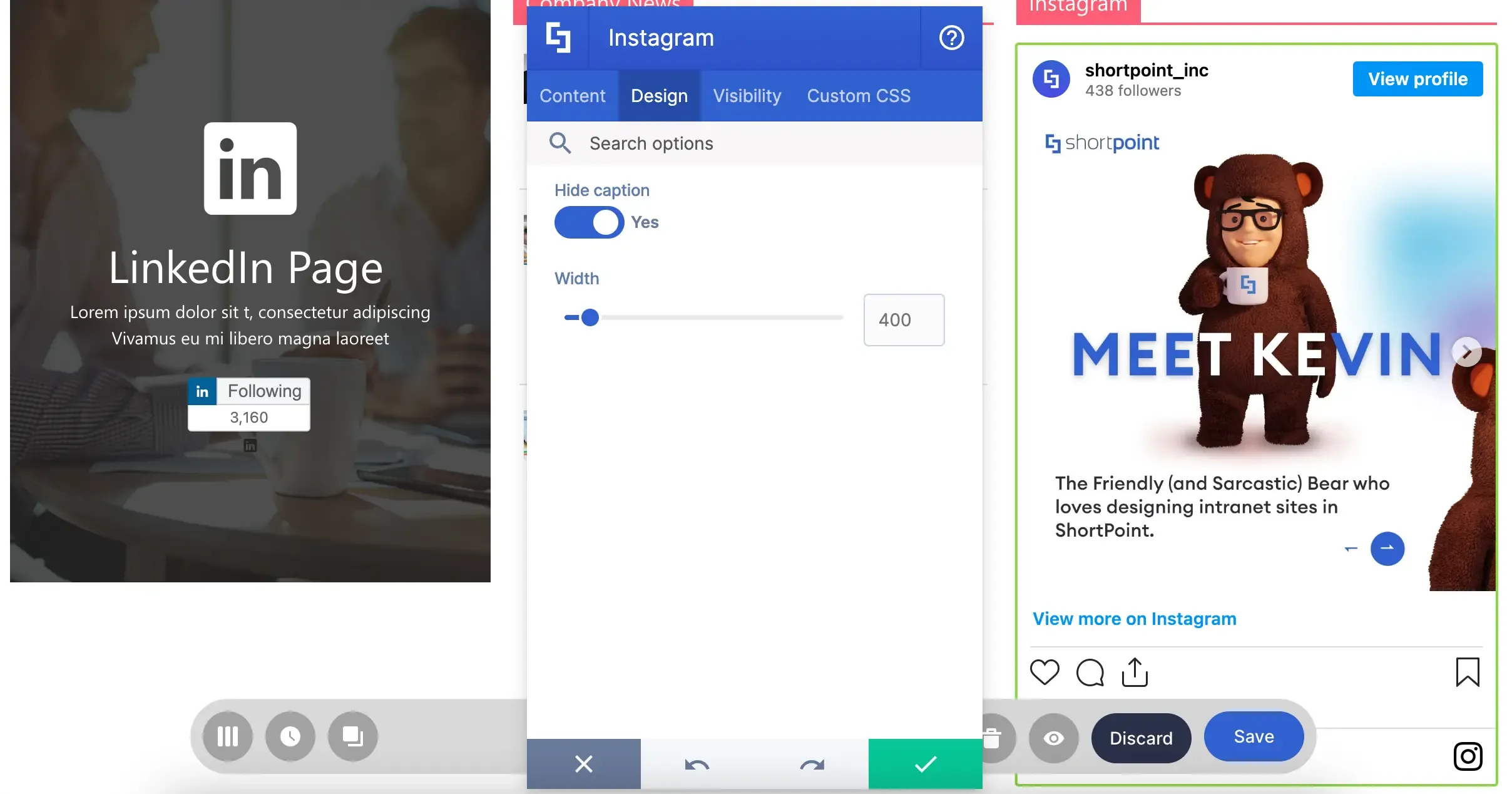
Need Instagram on your page? Check out Introducing ShortPoint Instagram Design Element to learn how to add it to your page.
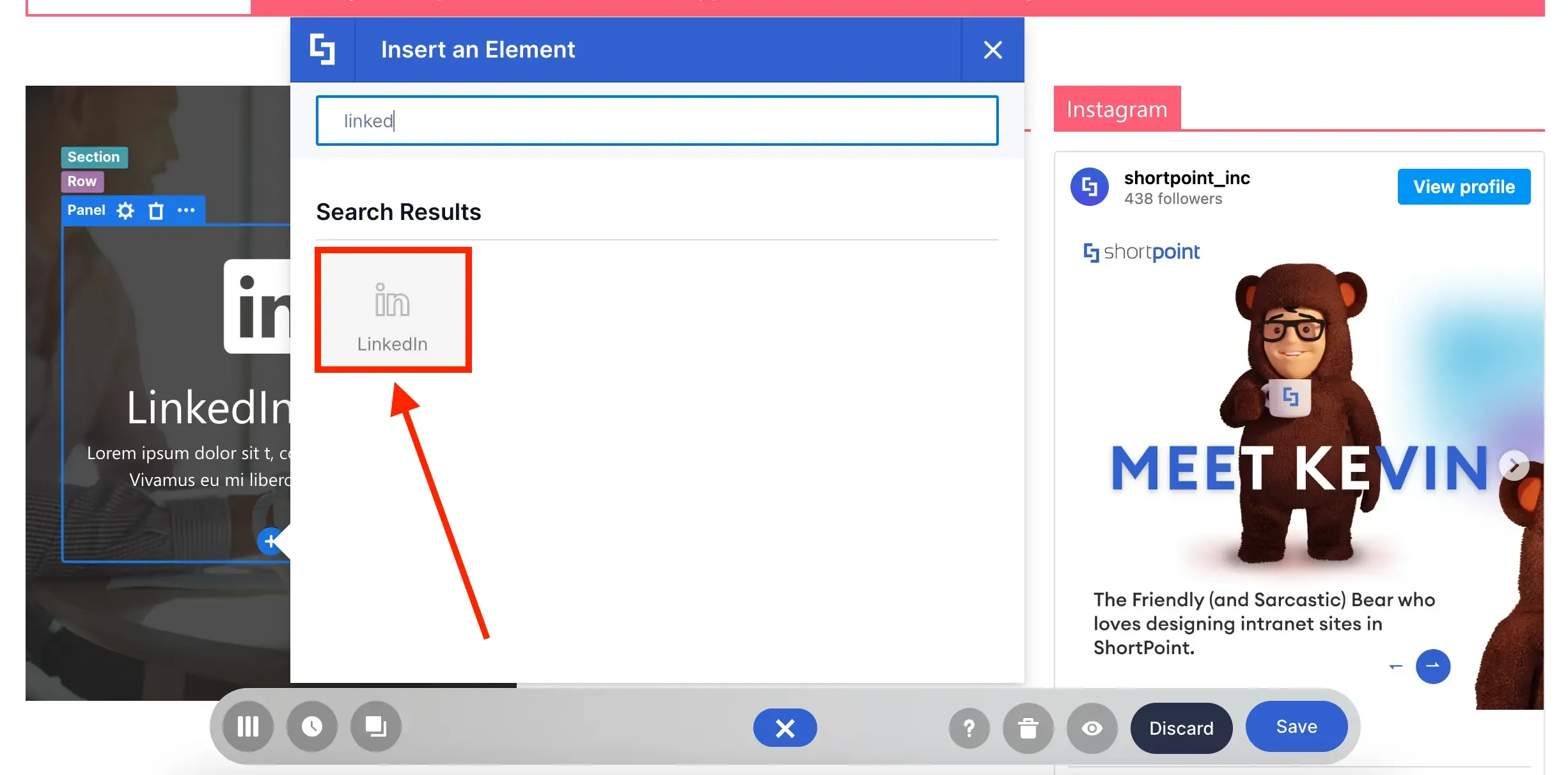
Need more LinkedIn followers? You can display your LinkedIn page's follow button using the LinkedIn Design Element!
Code Design Element
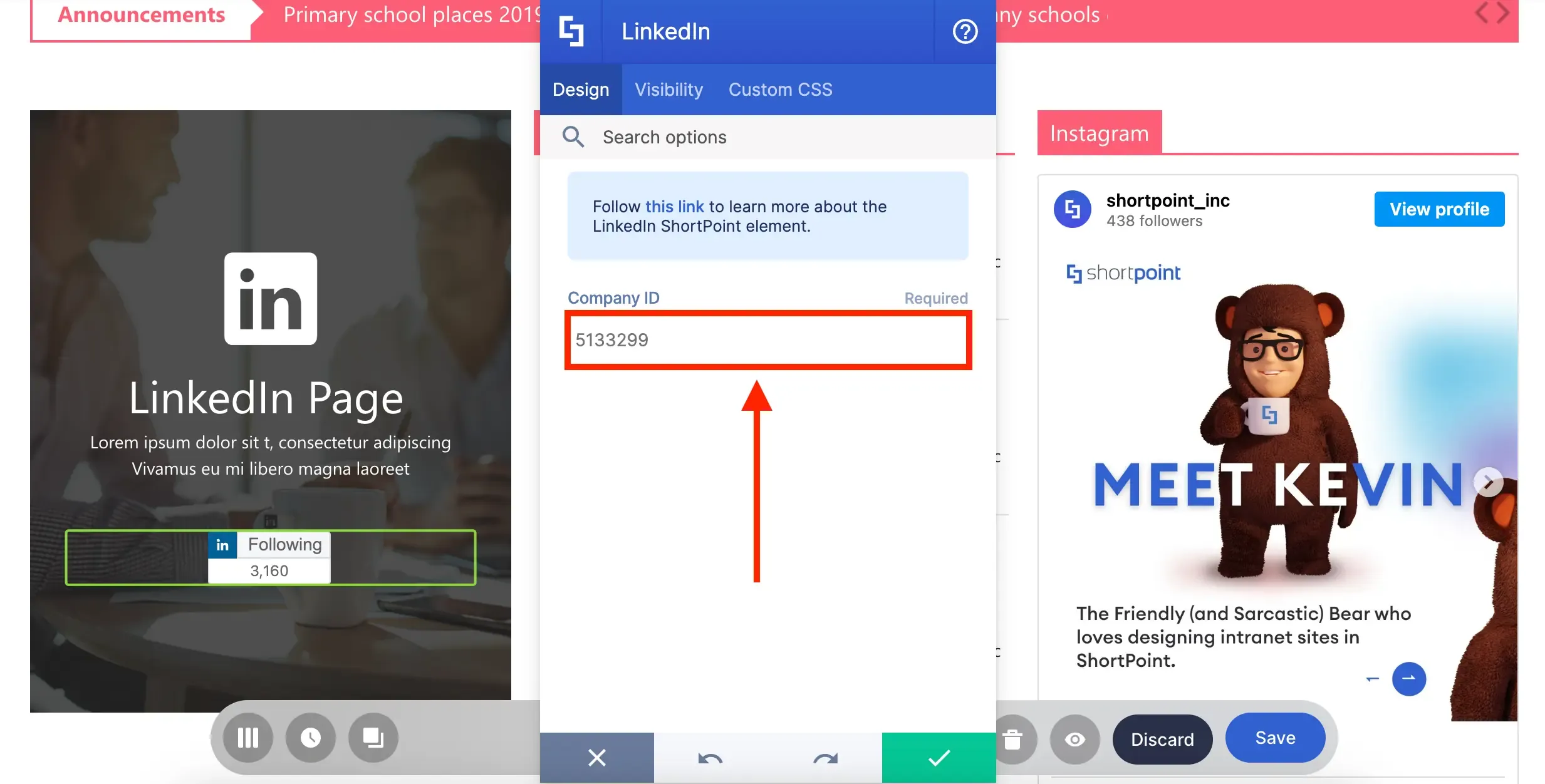
This time, you'll need your Company ID. You can learn more about how to get the Company ID in Introducing ShortPoint LinkedIn Design Element.
But, what if you want to display a LinkedIn post on your page? The Code Design Element is here to save the day!
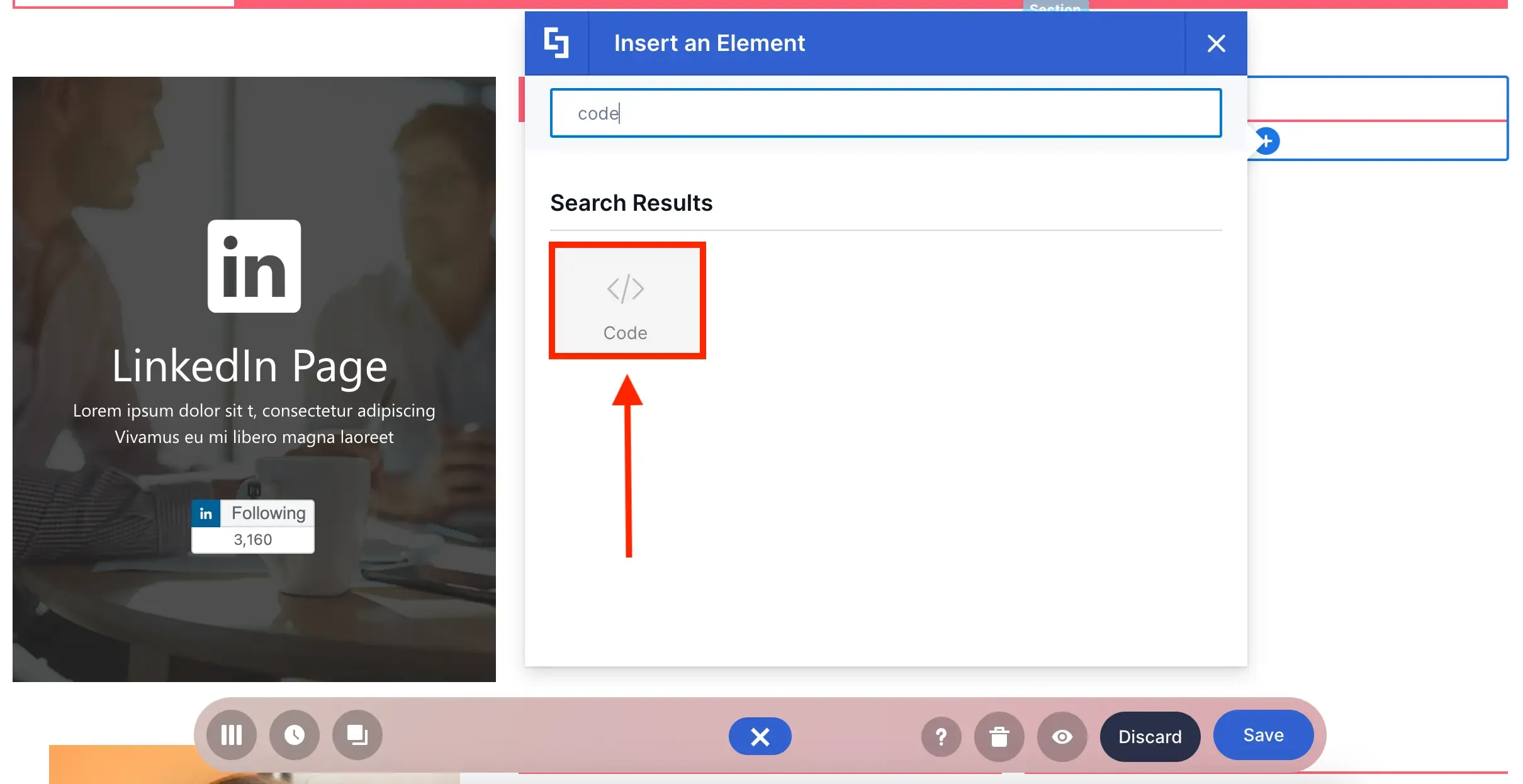
Like in embedded videos, you only need to get the embed code of the LinkedIn post you want to show:
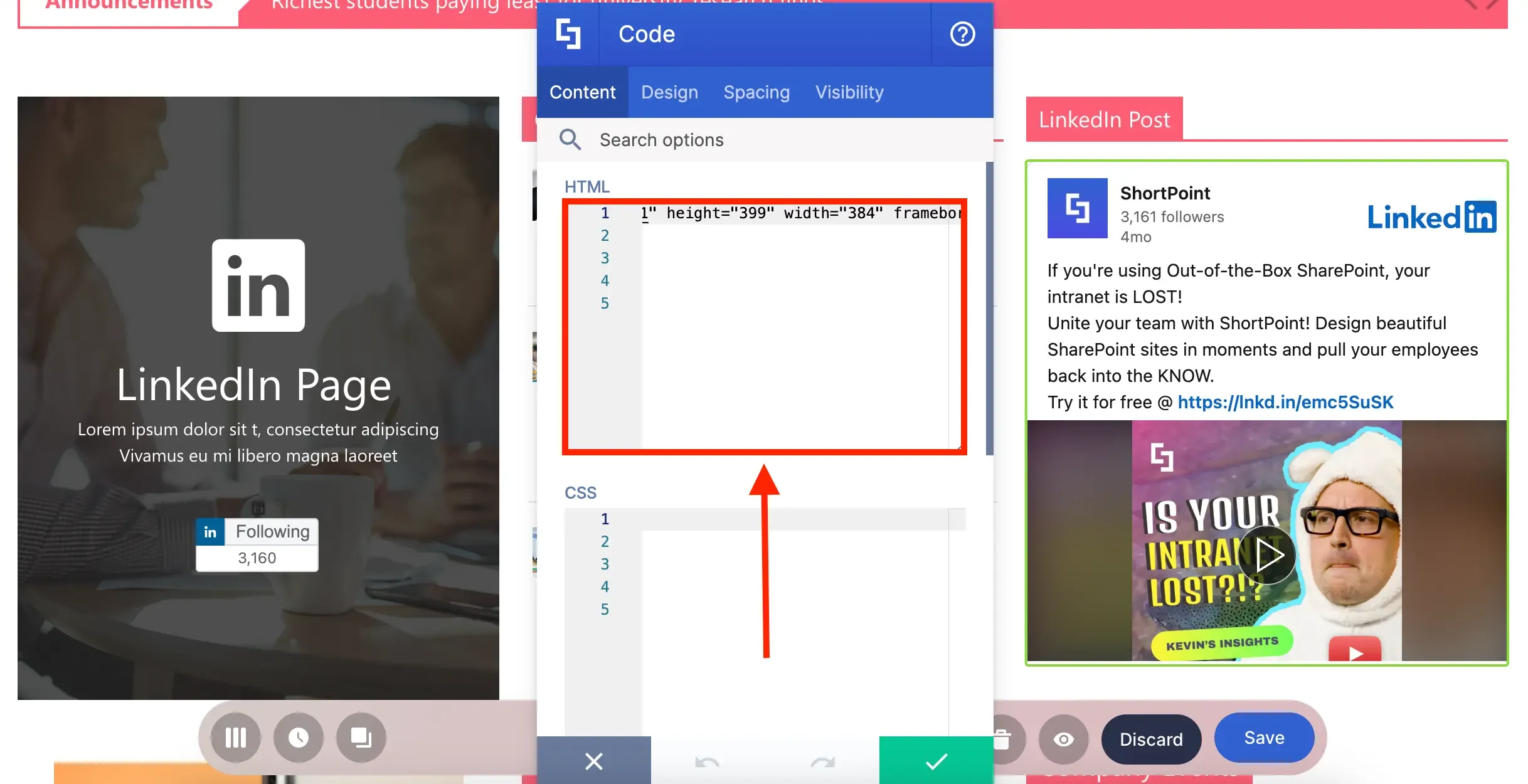
You can also adjust the paddings and margins around the Code Design Element:
Key Reminders
Want to start adding LinkedIn Posts to your page? Check out Introducing the Code Design Element to get a step-by-step guide on how to use the Code Design Element.That's it! You and your teammates can now continue your social media hangout on your own SharePoint page.
Before showcasing your videos and social media content on your SharePoint, there are key aspects you need to consider:
Videos and social media just have that special magic that grabs our attention like nothing else! They have everyone chatting, sharing, and connecting, proving that it's where all the excitement happens. The fantastic news is that you can bring this engaging energy right into your intranet spaces using the Design Elements we listed. By adding videos and social media elements, you can transform your page into a place your team actually wants to visit and interact with.