

ShortPoint Design Elements
Design Elements for App Integration
We’re finally on the last set of ShortPoint Design Elements! These awesome Design Elements will bring both your company's internal and external apps right into your intranet pages. How cool is that? Imagine having a one-stop digital workspace where you and your team can access everything you need without jumping from one system to another.

Everyone in your team will surely thank you for making their workday flow so much smoother and easier. Ready to explore how these game-changers can transform your intranet experience? Let’s dive right in!
SharePoint Web Part Design Element
We’ll let you in on a little secret: you can actually integrate SharePoint's out-of-the-box web parts within ShortPoint! How? By using the SharePoint Web Part Design Element, of course!
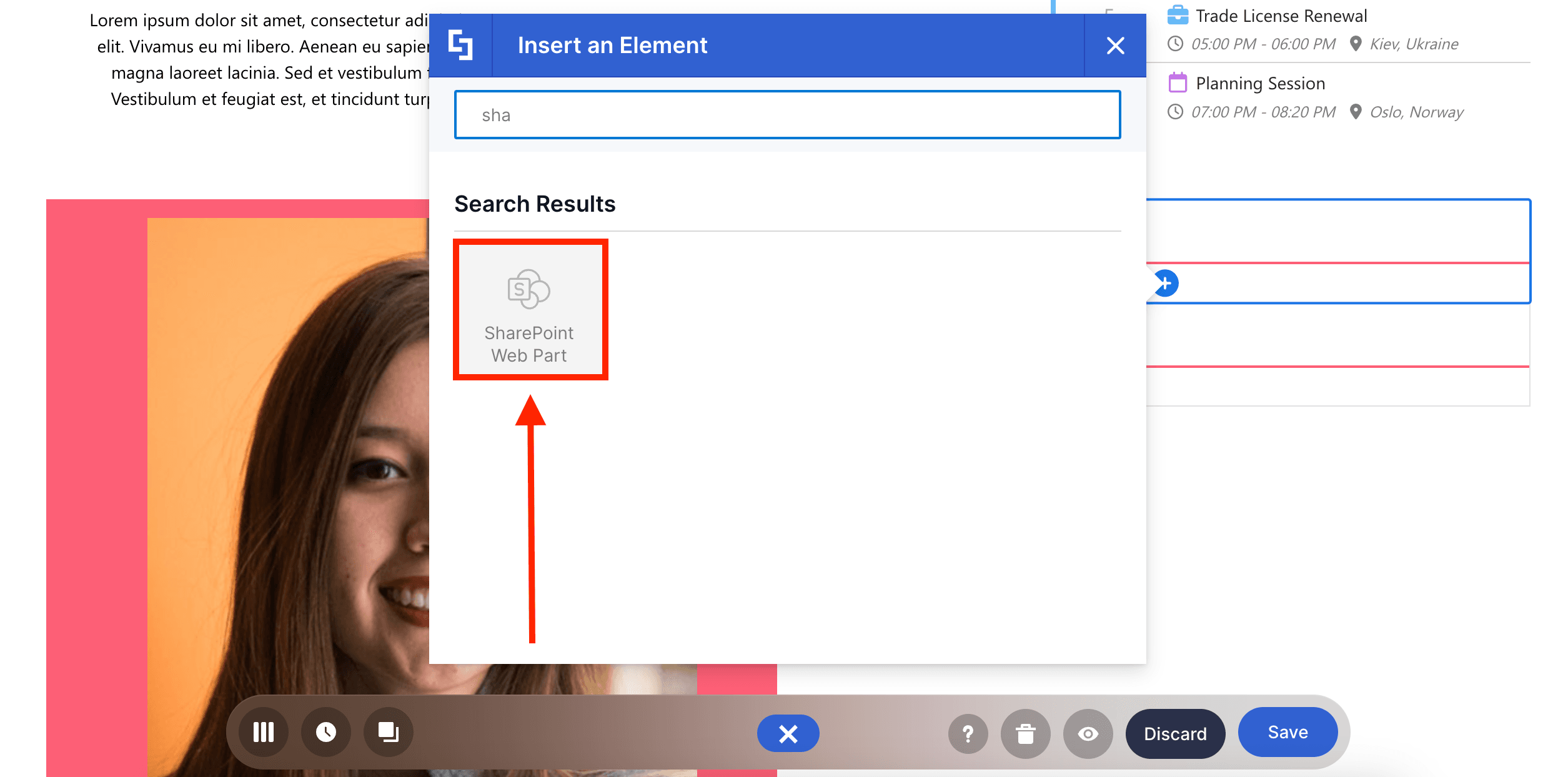
All you need is the page URL where the web part you want to use is published:
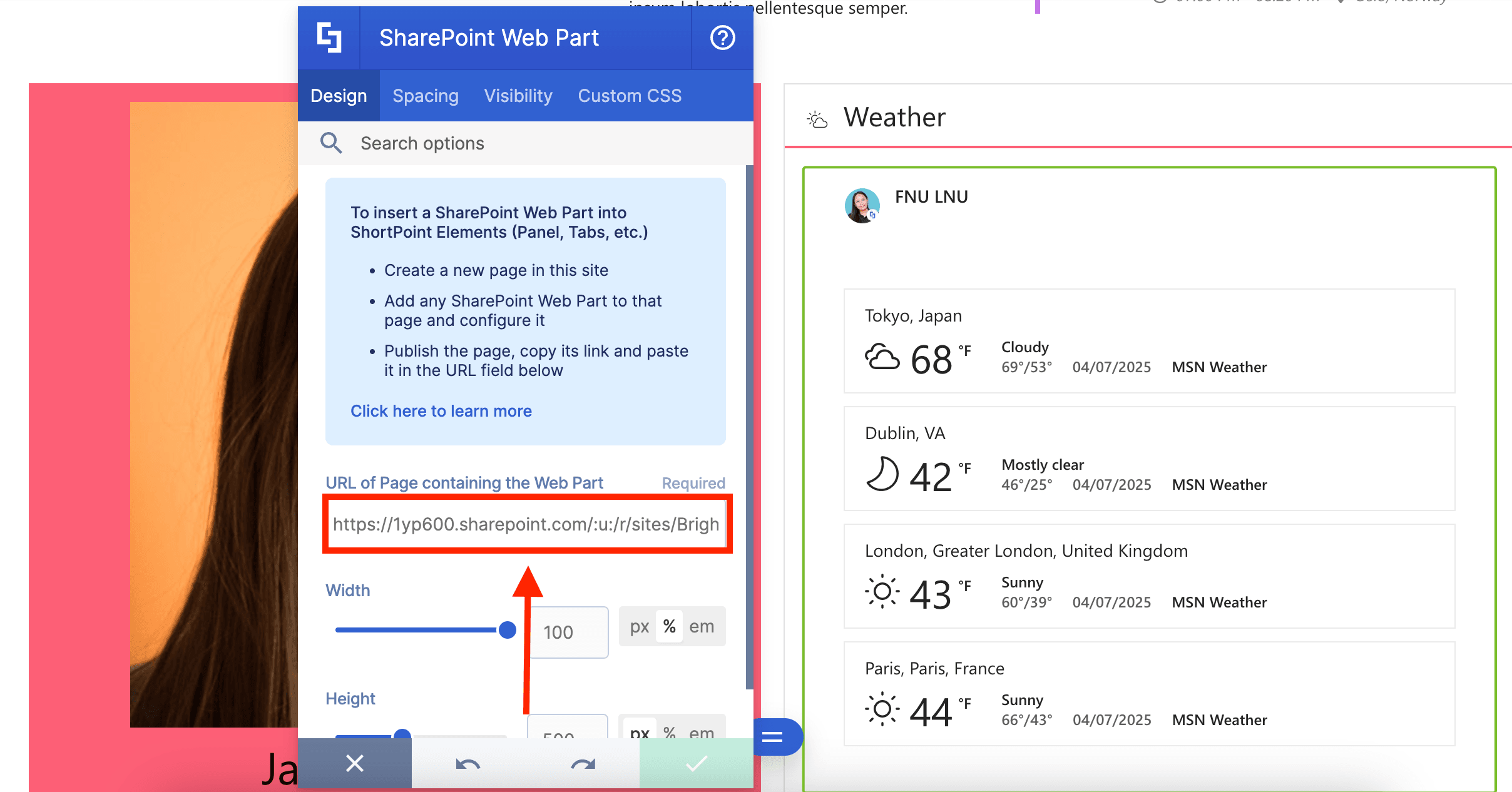
You can even adjust the width and height of the inserted web part:
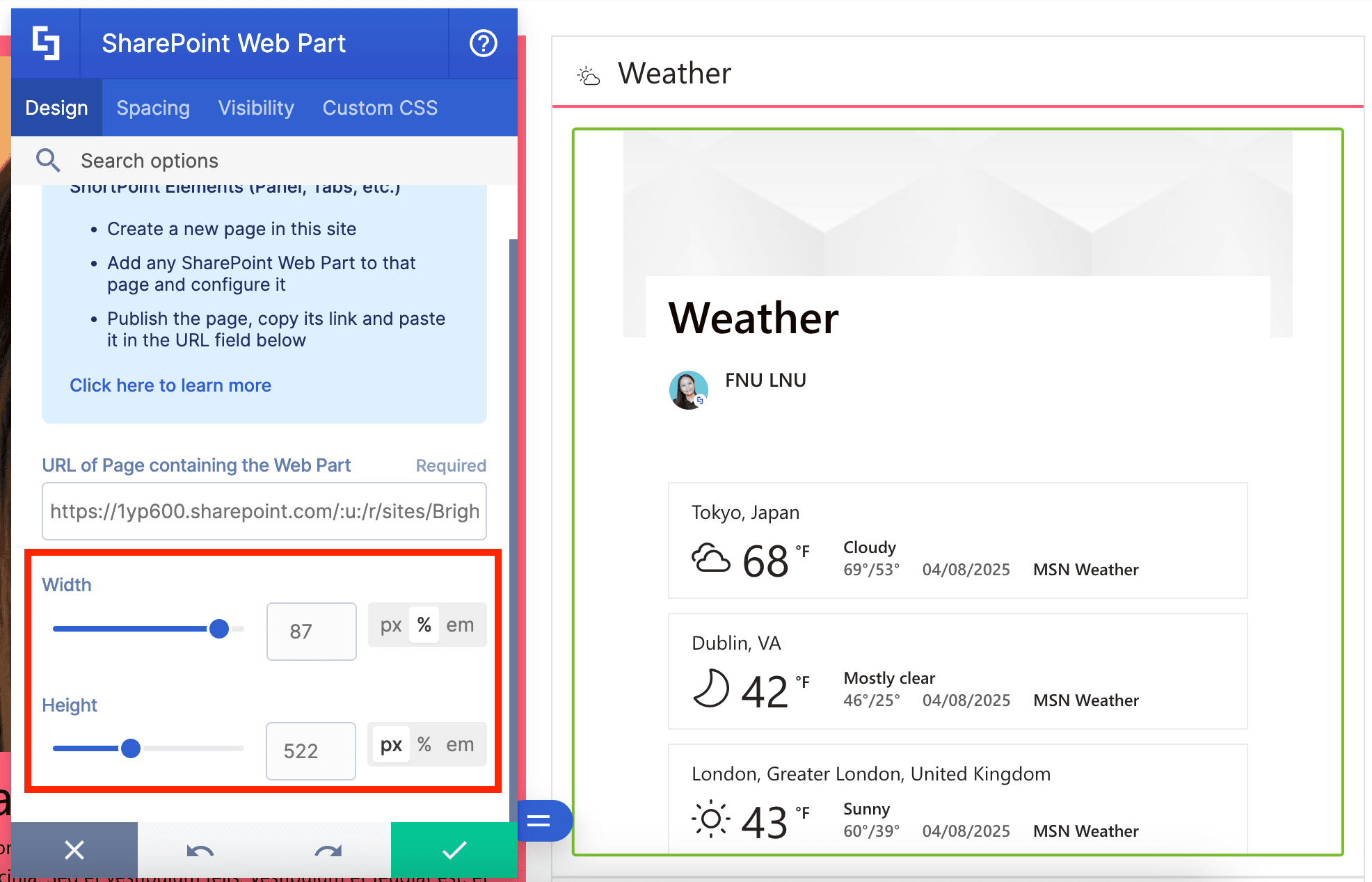
And adjust its paddings and margins:
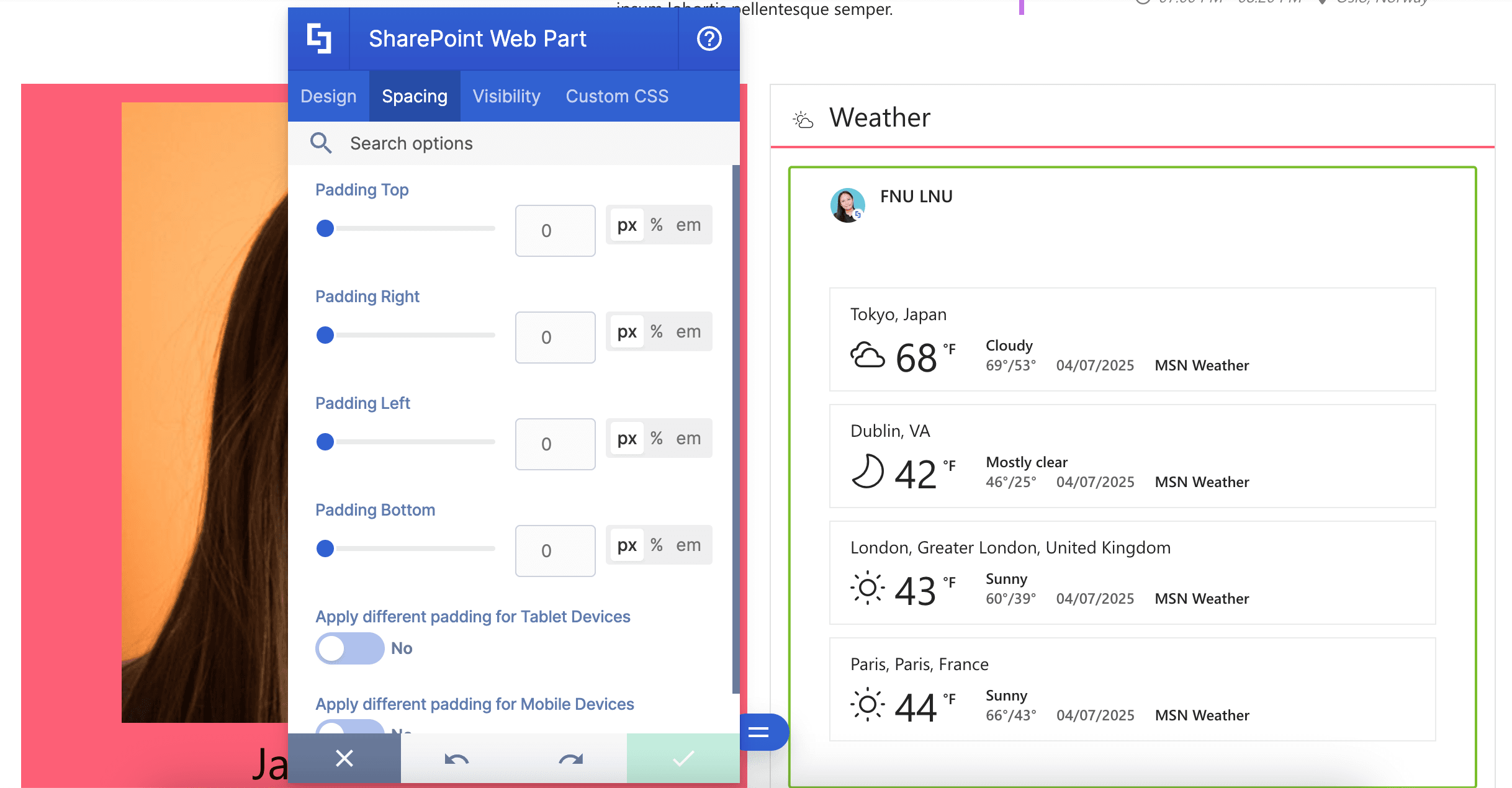
Ready to make the most out of SharePoint web parts? Check out How to Embed a SharePoint Web Part into ShortPoint for a detailed guide on how to use it.
Teams Design Element
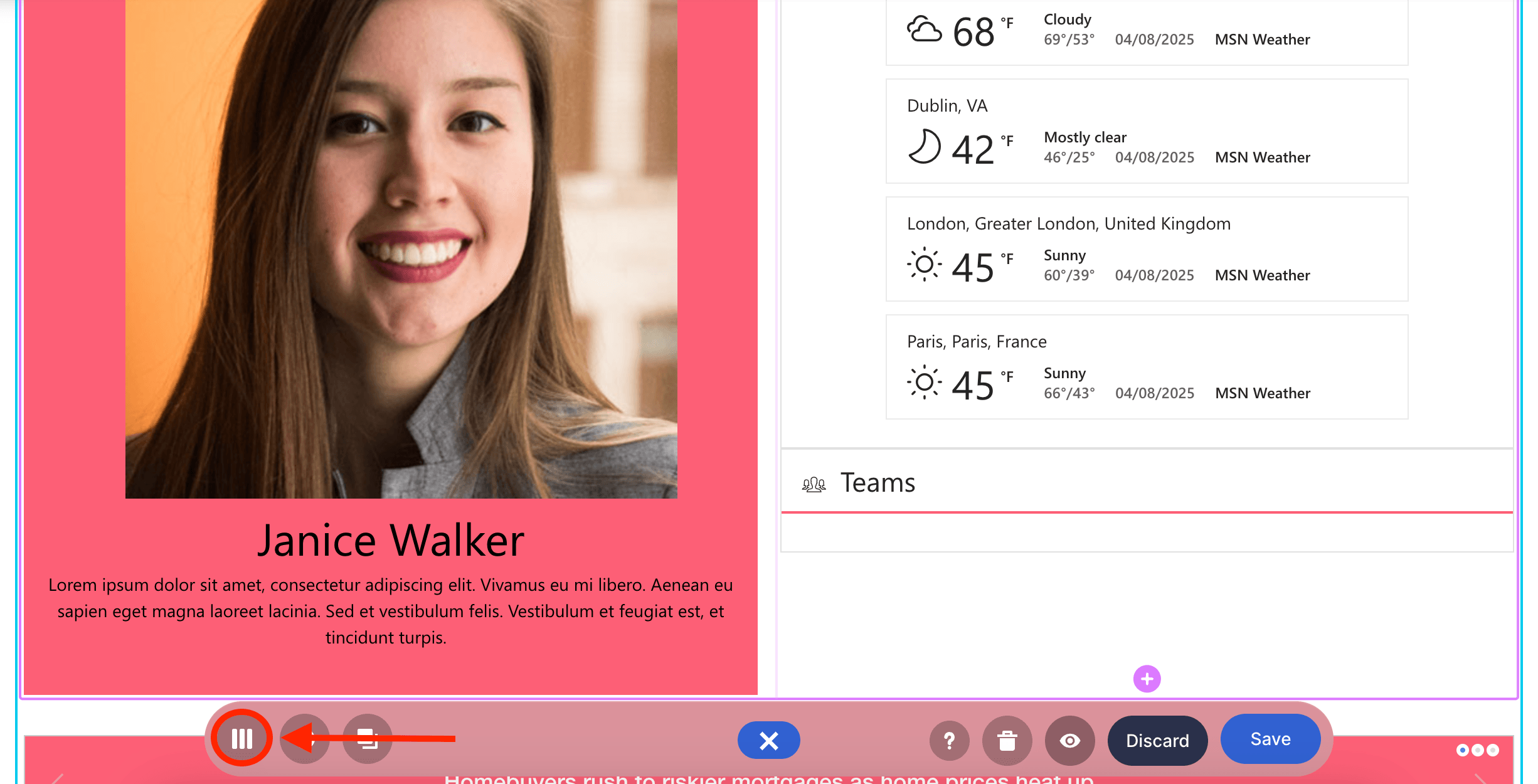
Are you an active user of MS Teams? You can actually integrate it into SharePoint using the Teams Design Element! To add it to your page, switch to Grid Mode:
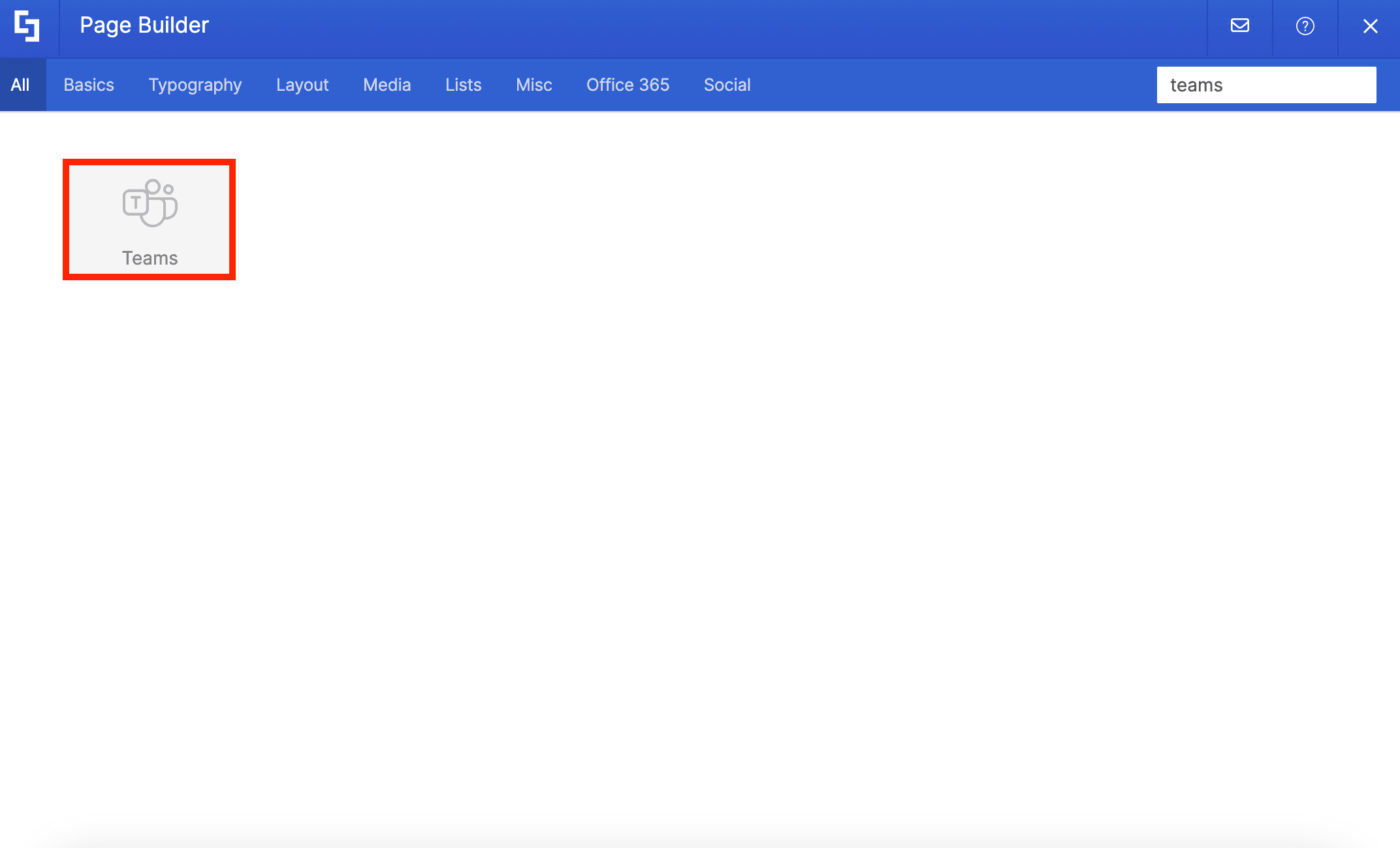
And select Teams:
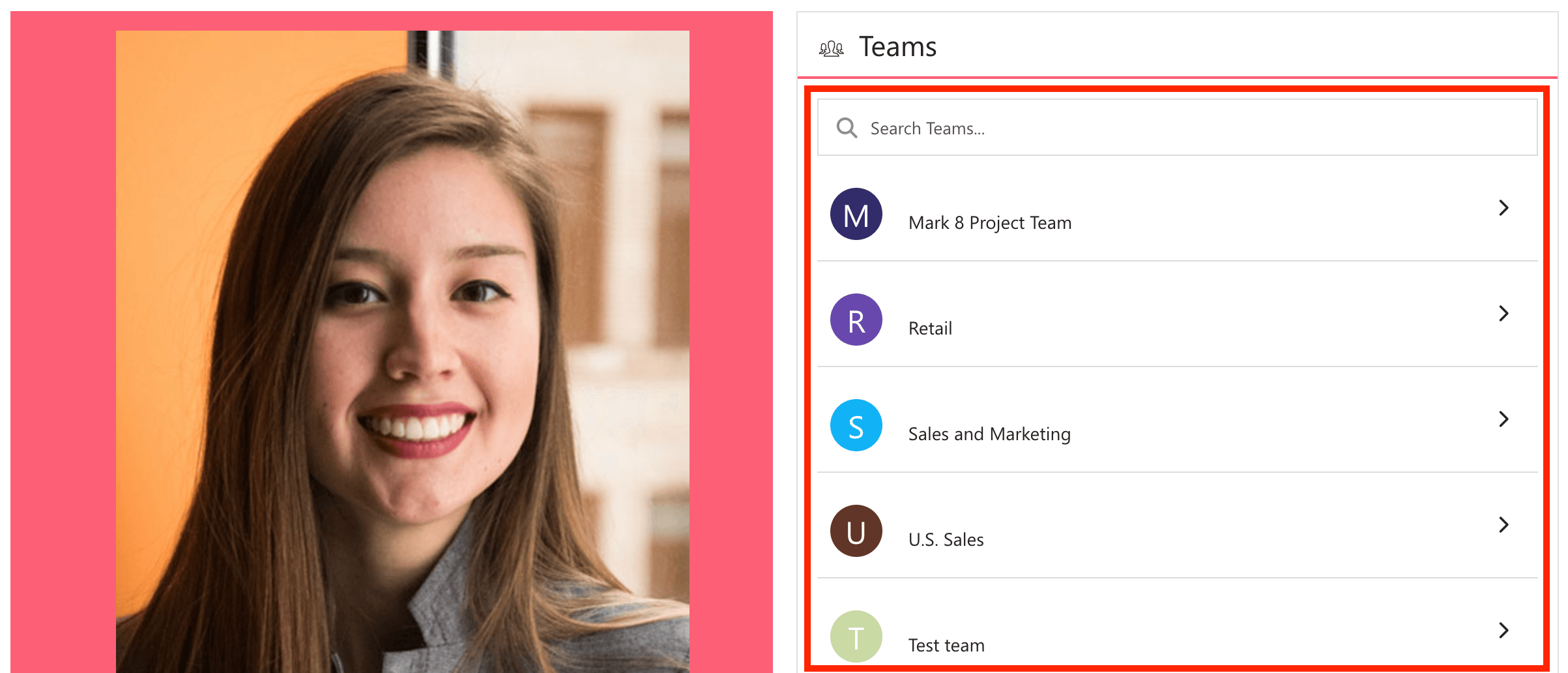
Here, you can show the Teams that you’re a part of or all the Teams in your organization:
Want to give it a try? Go to How to Customize the Teams Design Element to learn how to add it to your SharePoint page.
Power BI Design Element
Do your teams generate Power BI reports? You may want to showcase them on your page using the Power BI Design Element!
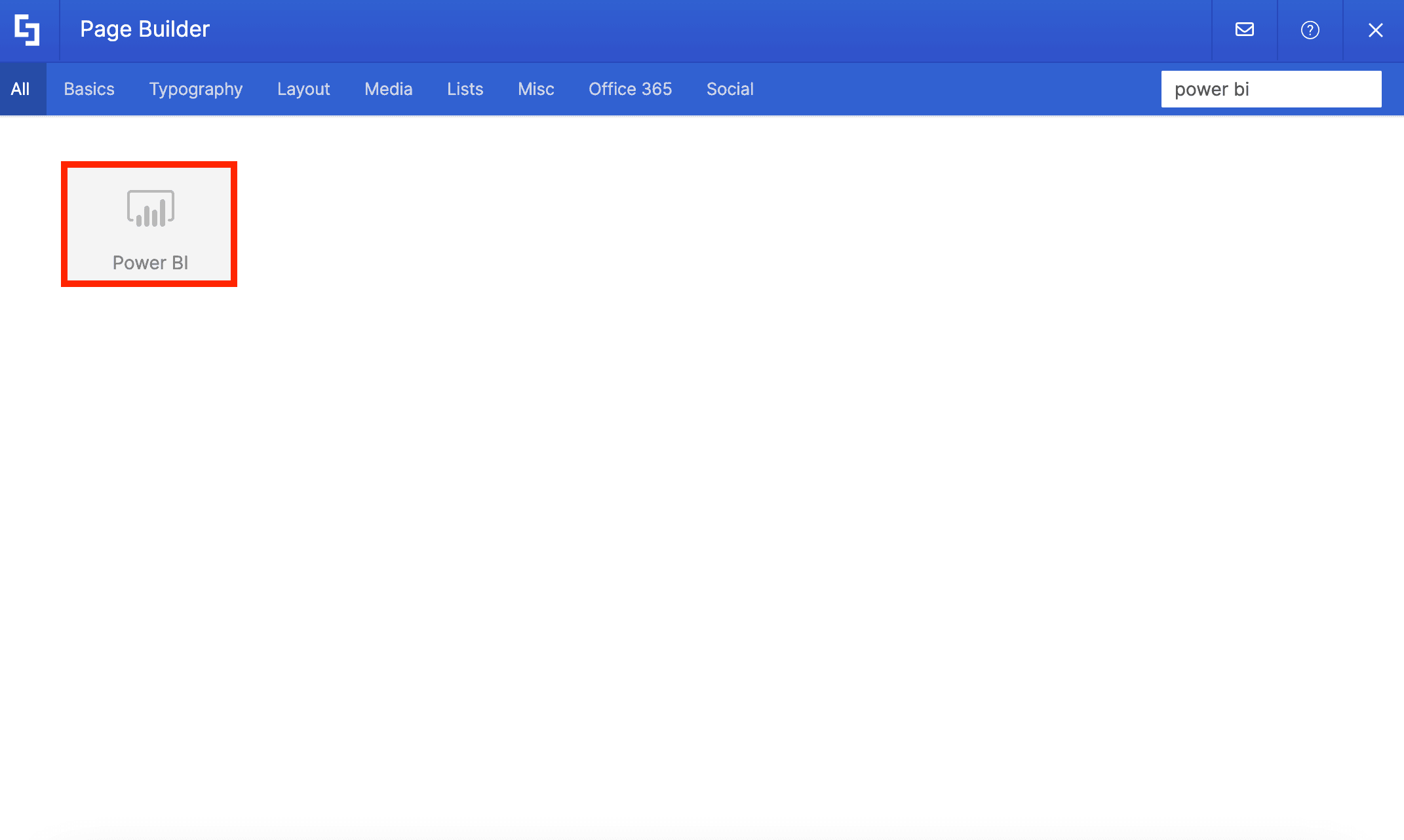
When inserted, it will automatically list all available workspaces, allowing you to showcase all the important reports for your organization:
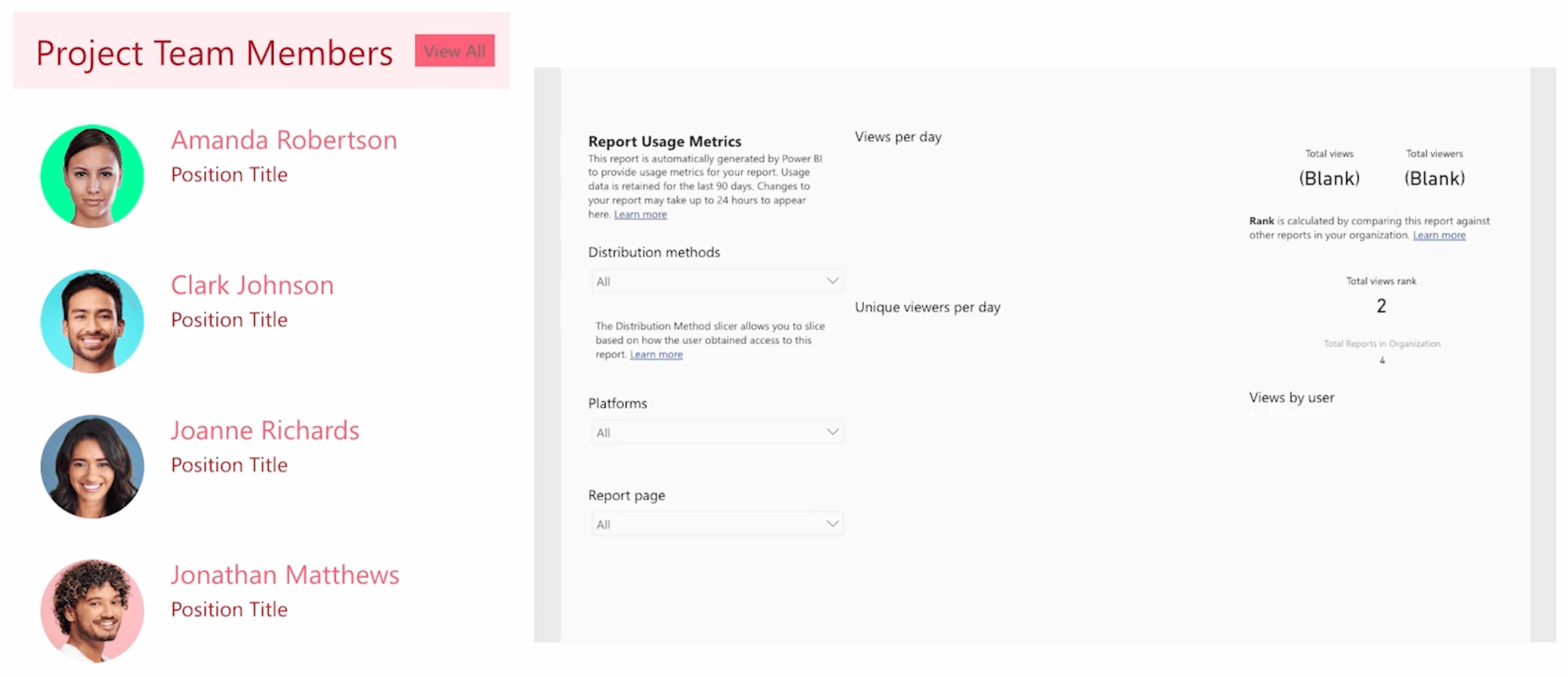
Up for some Power BI on your SharePoint pages? Check out Setting Up Power BI Integration.
Power Apps Design Element
Have any custom Power Apps? You can encourage your users to use them more often by featuring them on your SharePoint Pages! You can add the apps using the Power Apps Design Element.
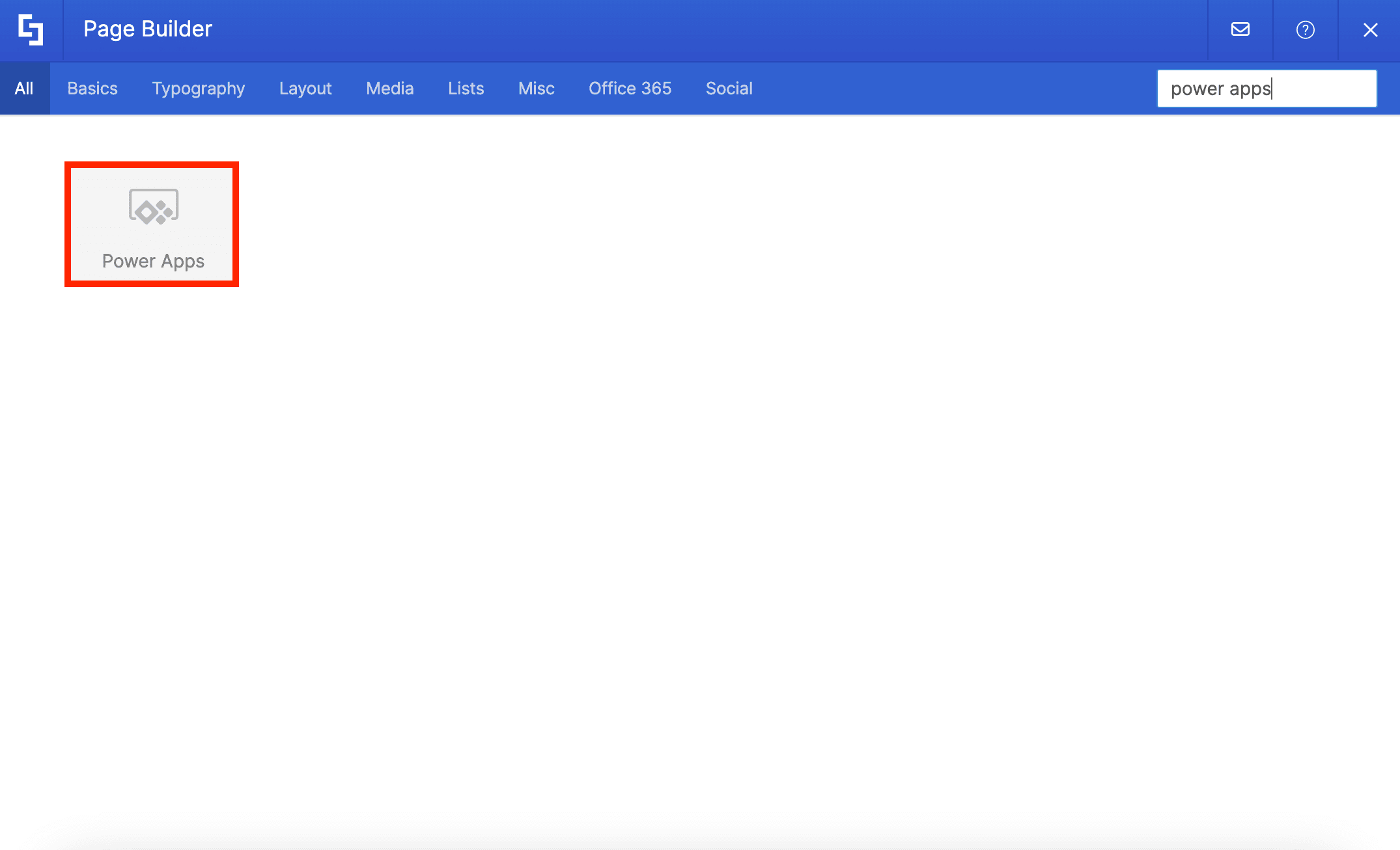
All you need is your application's PowerApp ID and, voila, you now have it on your page:
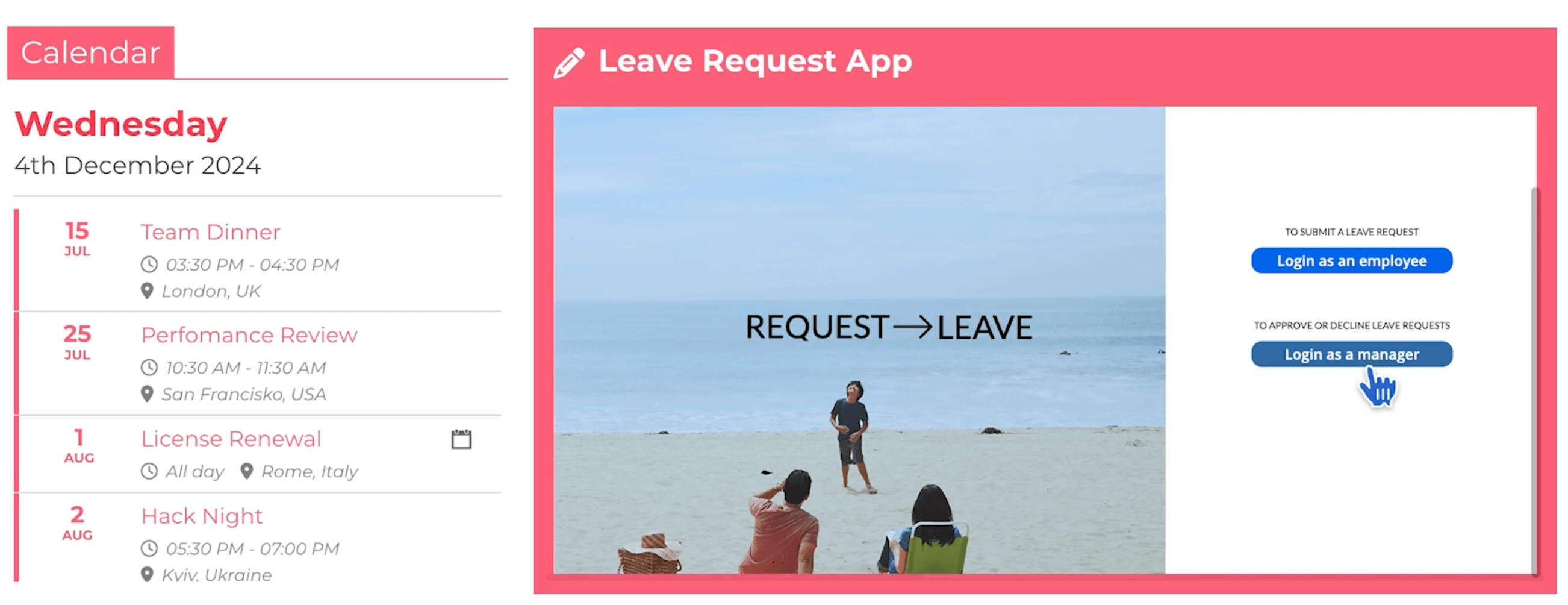
Ready to showcase your apps? Check out Add Your First PowerApps Application to a SharePoint Page.
Code Design Element
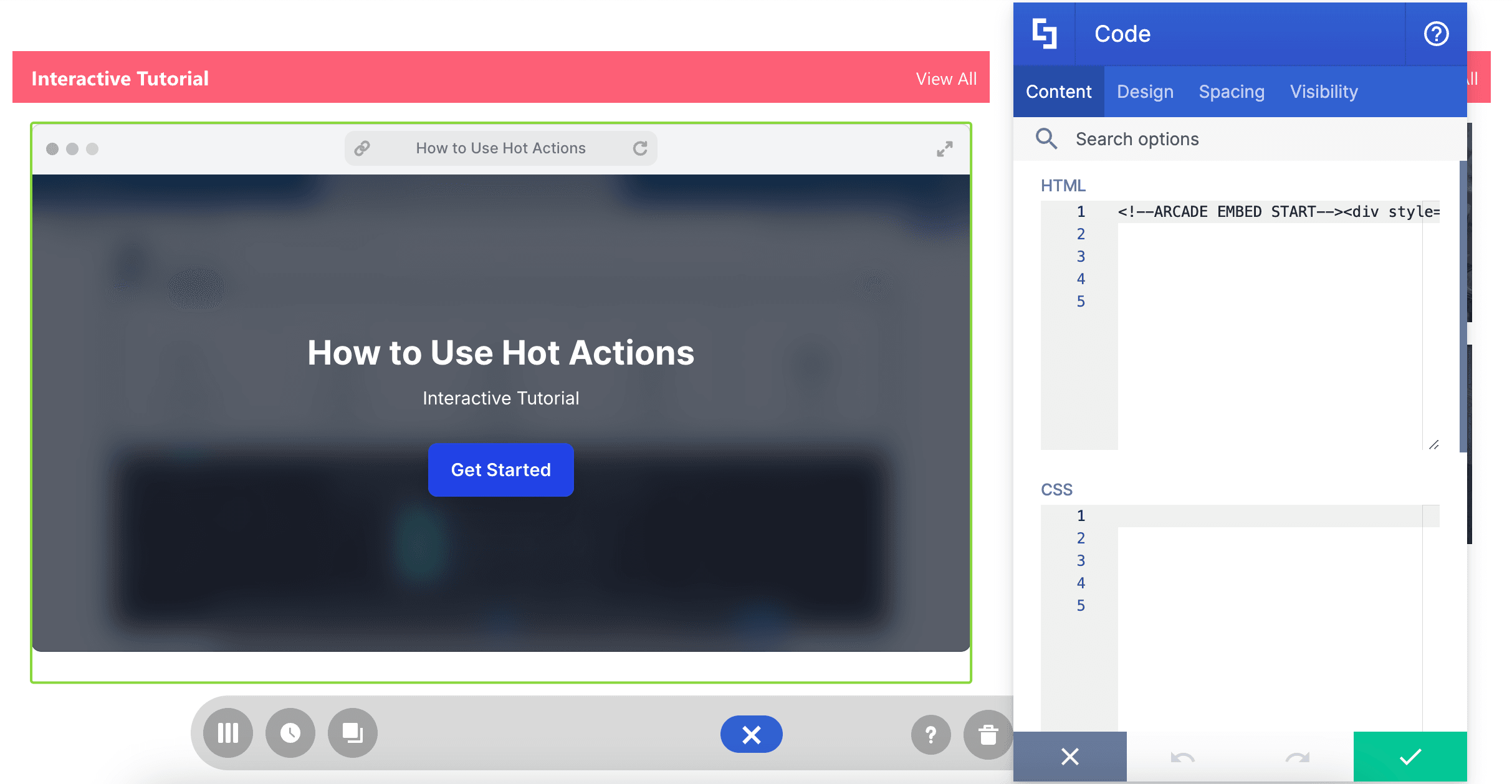
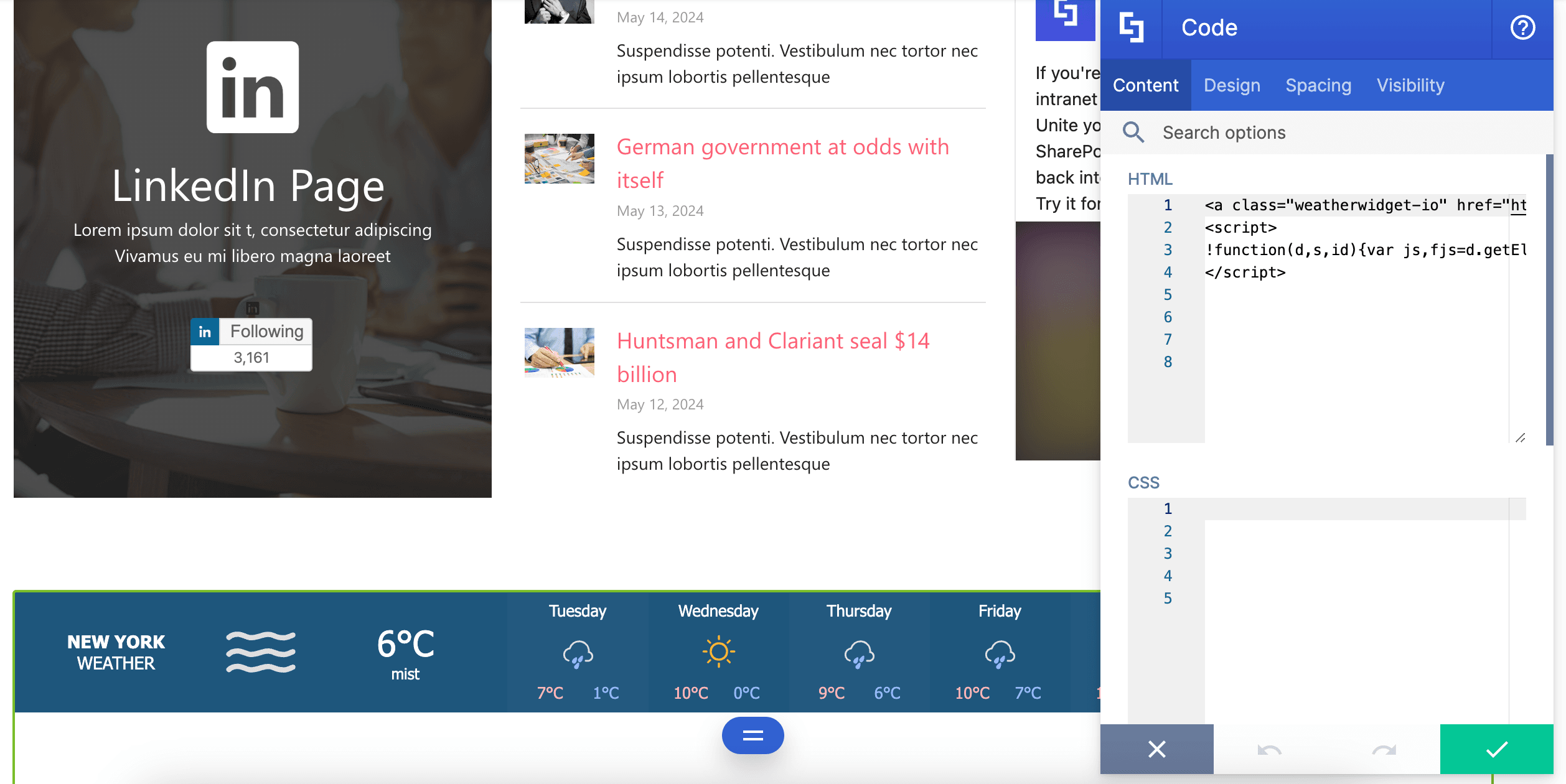
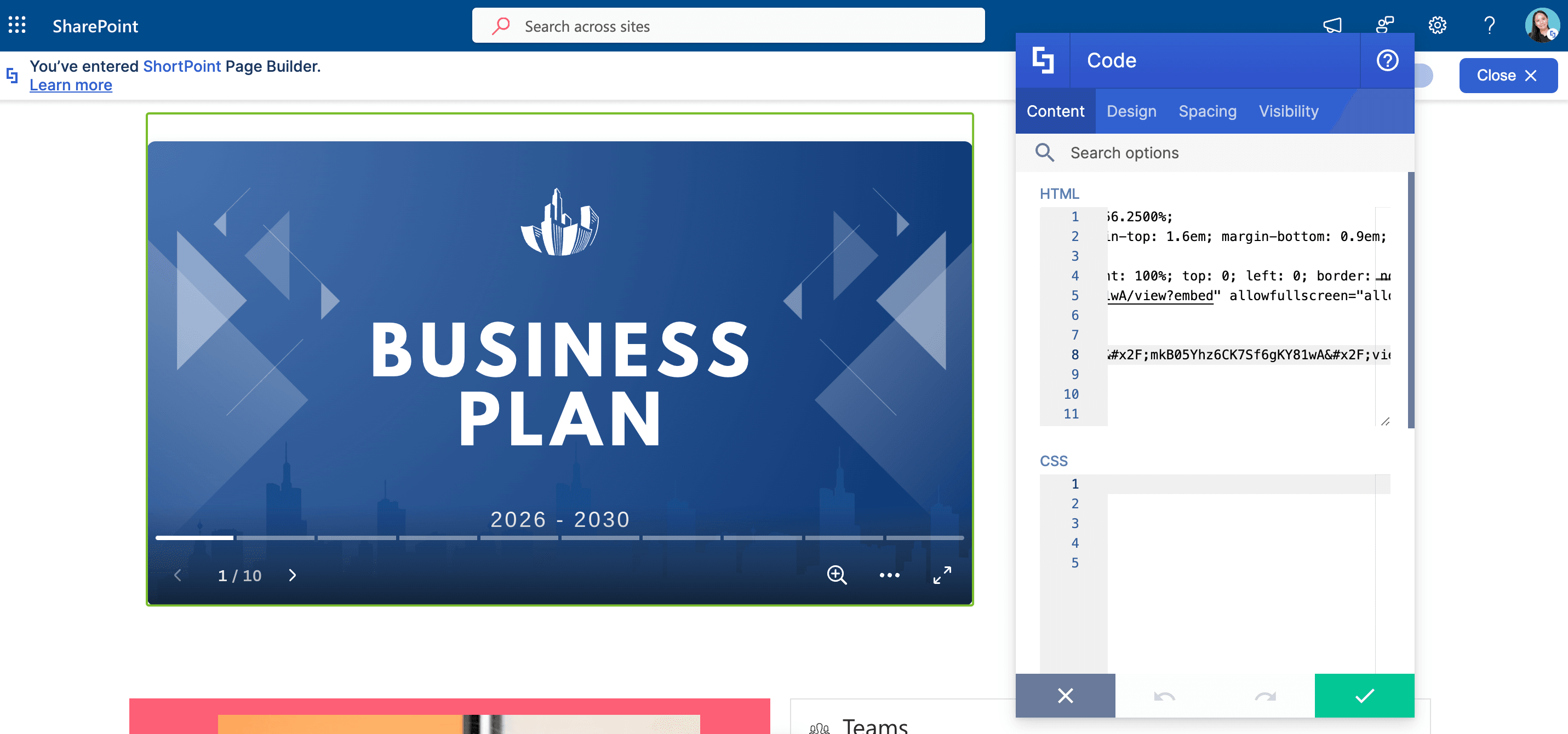
Remember how we used the Code Design Element to embed videos? Since it lets you add HTML, CSS, and JavaScript snippets into your page, there are SOOOO many more ways to use the Code Design Element to integrate external applications into your intranet.
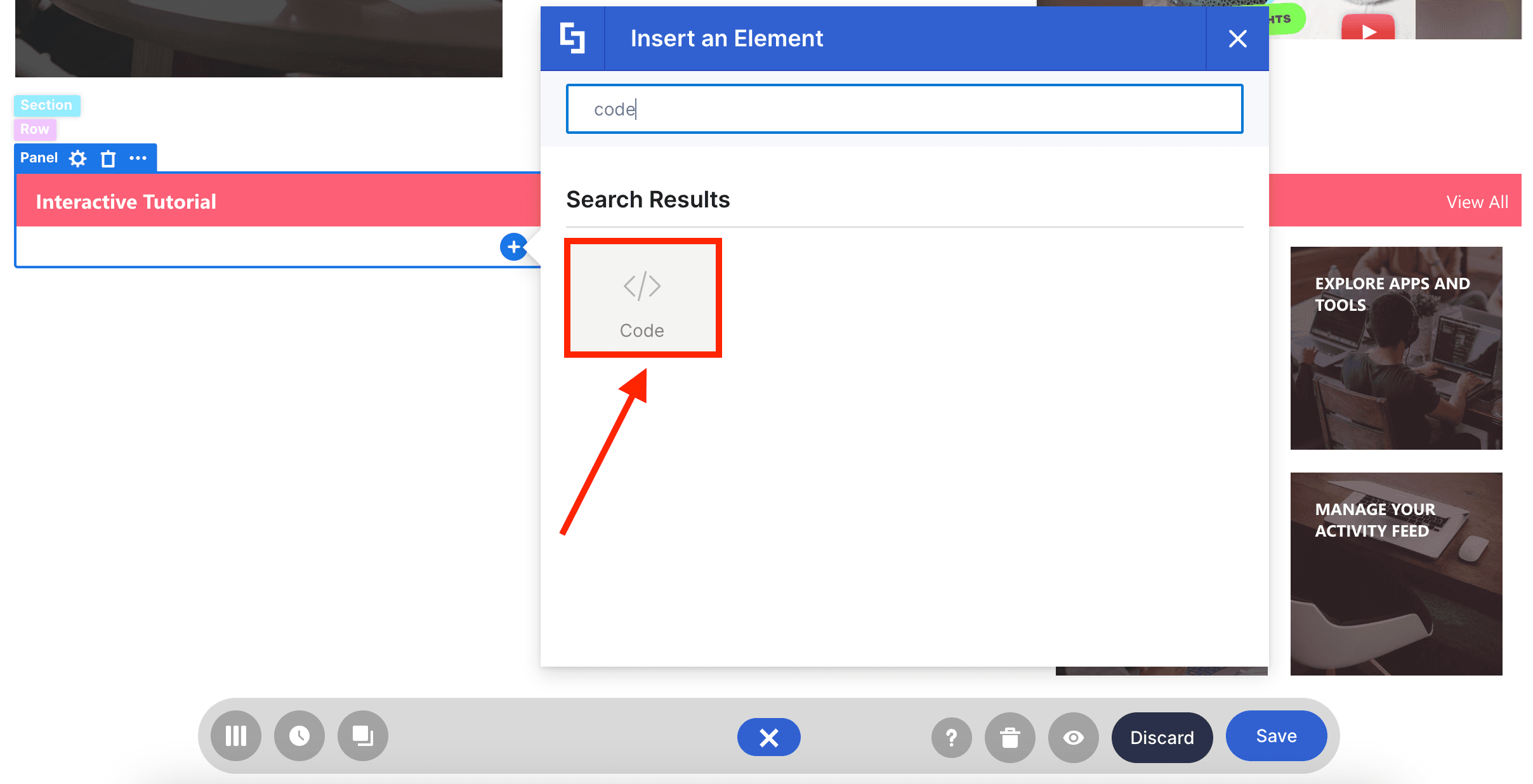
You can use it to add interactive tutorials from Arcade:
Add Weather Widgets:
Or even showcase Canva Designs:
You can explore all the ways you can make the most out of the Code Design Element in the articles below:
- Example Use Cases for ShortPoint Code Design Element: Part 1
- Example Use Cases for ShortPoint Code Design Element: Part 2
With these Design Elements at your disposal, you and your team’s everyday tasks just got easier! No need to switch between tools. Everything you need is in your intranet.
Key Reminders
Before adding any integration on your page, make sure to take note of the following:
- Access Permission — Applications may have their own set of access permissions. Make sure they are fully accessible to your target audience.
- Compatibility — Some solutions may run code that is not supported by the Design Elements. This will result in an error or a blank space on your page. Test your integrations and view them from a user's account before publishing.
- Security — Always consult with your security team when implementing integrations. It's a best practice when using any form of technology.
Now, you’re ready to integrate internal and external apps into SharePoint. It’s simple and useful for everyday tasks!