What's New in ShortPoint: 7 Design Elements Made for Designing SharePoint Pages
We have some news, and we're really excited about it.
ShortPoint just dropped seven brand-new Design Elements, and they're exactly the kind of additions that make designing SharePoint pages feel less like work and more like, well, fun.
Let's meet your new favorites.
Meet Your 7 New ShortPoint Design Elements
1. Keep Everyone in the Loop
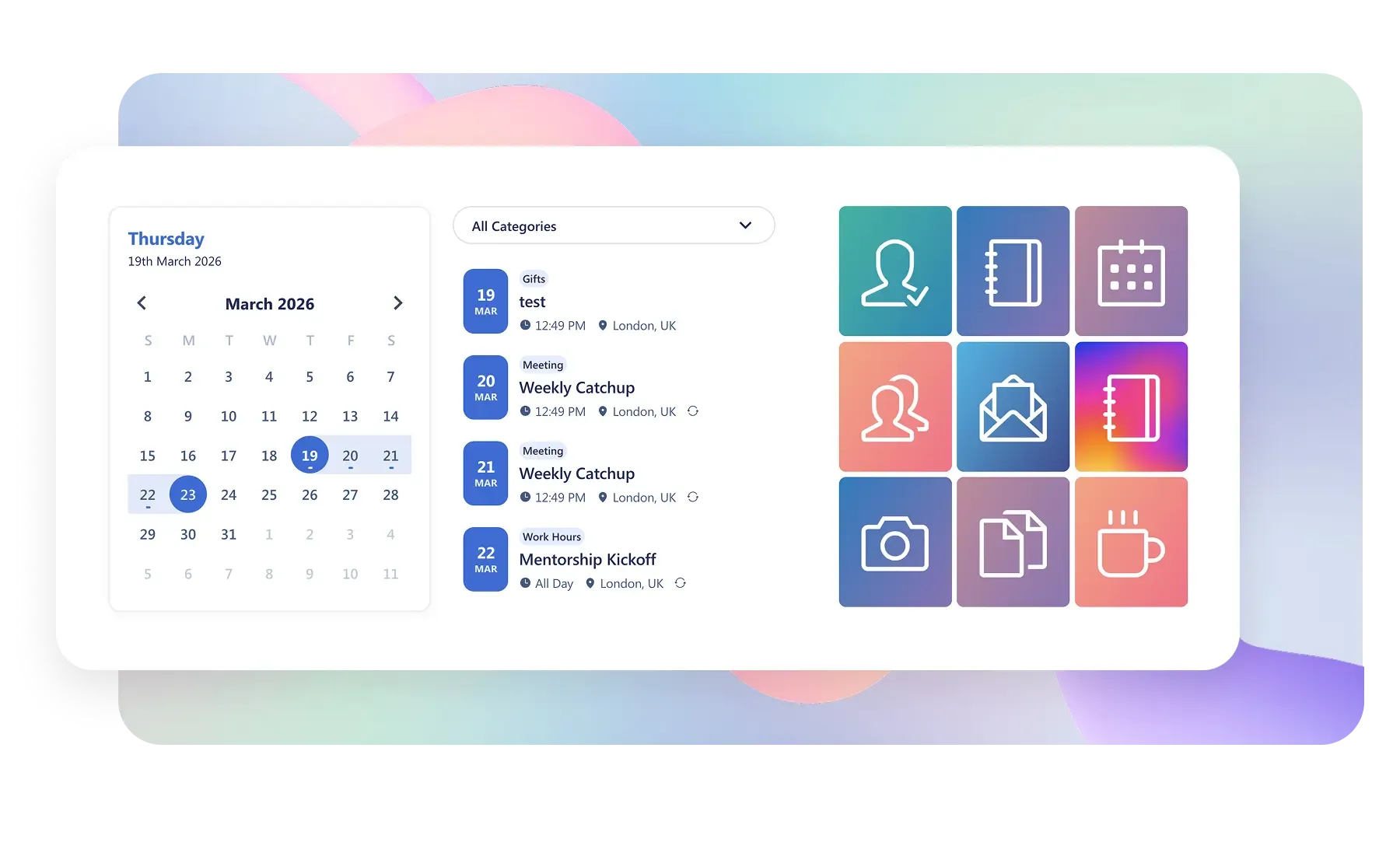
Nobody wants to miss an important date because it was buried in a SharePoint list. The new Calendar Design Element gives you a clean, visual way to display events, deadlines, and schedules directly on your modern SharePoint pages.
It integrates smoothly with your existing SharePoint Online data, looks polished right out of the box, and is flexible enough to match your organization's brand.
Learn how to use the Calendar Design Element
2. Let Your People Do the Talking
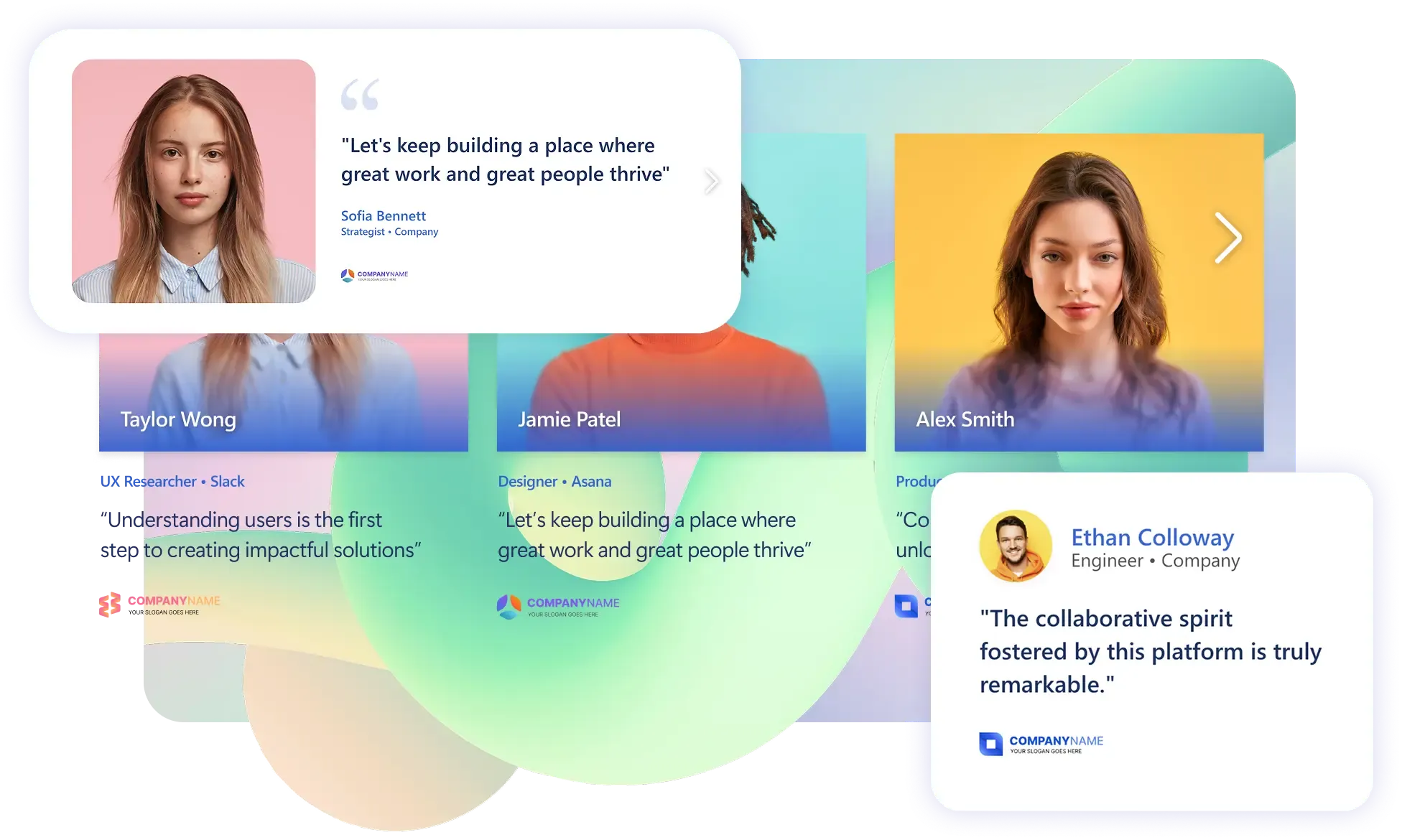
Social proof isn't just for marketing websites. Inside your SharePoint site, site visitors can see testimonials that spotlight team wins, highlight employee feedback, celebrate vendor partnerships, or showcase customer quotes in a way that's compelling and on-brand.
The Testimonials Design Element makes it beautifully simple to display quotes with attribution, styling, and layout options that actually look good. No more pasting quotes into text web parts and hoping for the best.
Learn how to use the Testimonials Design Element
3. Track Timezones Like a Pro
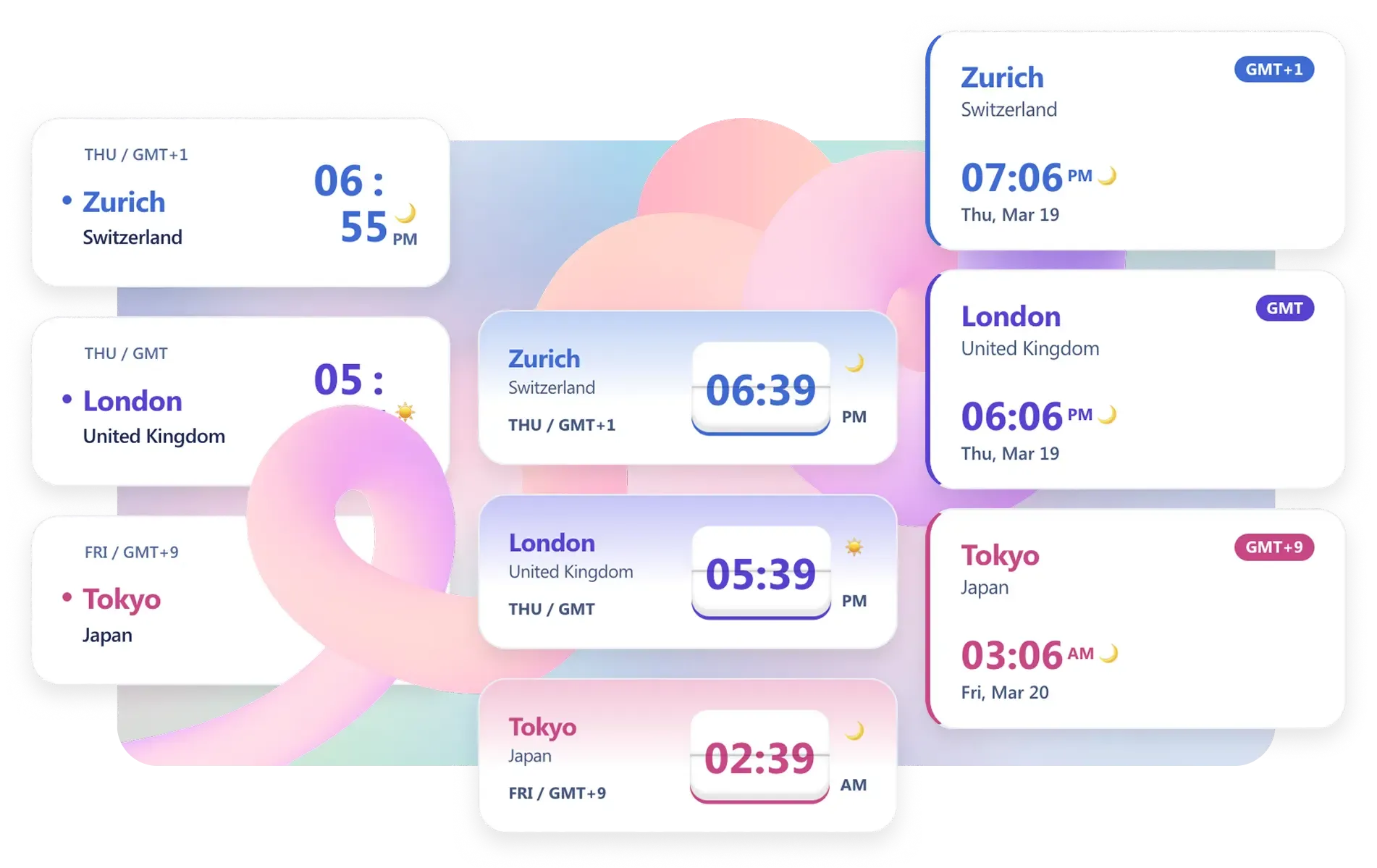
If your team spans more than one time zone, you already know the pain of the "wait, what time is it for them?" mental math. The World Clock Design Element puts multiple time zones front and center on your SharePoint pages, so scheduling across continents becomes a whole lot less stressful.
It's one of those features that, once you have it, you genuinely wonder how you managed without it. Designing SharePoint pages for global teams just got a serious upgrade.
Learn how to use the World Clock Design Element
4. Help Users Know Where They Are
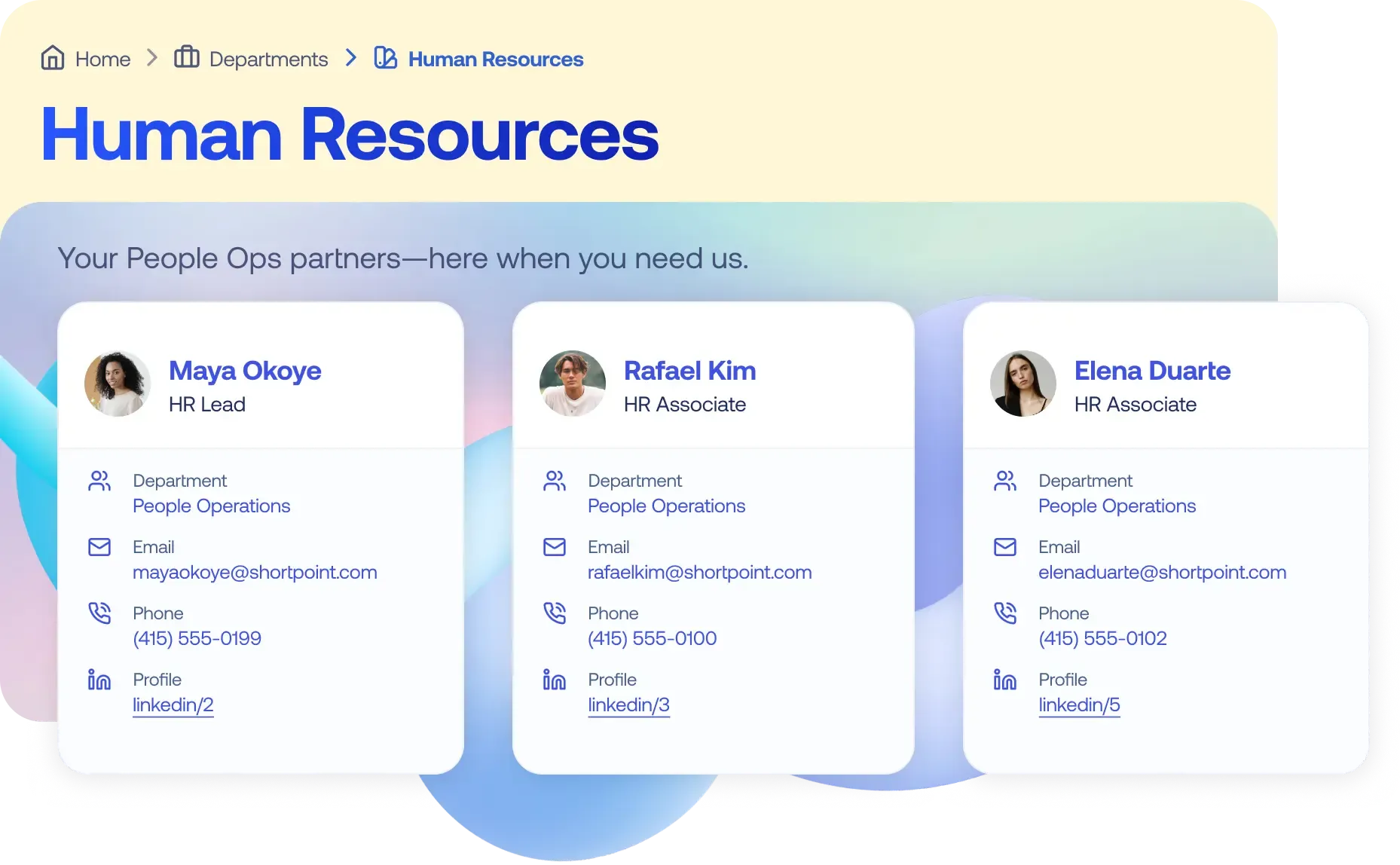
Navigation matters more than people give it credit for. When site users land on a modern SharePoint page and aren't sure where they are or how they got there, they bounce, or worse, they call IT. The Breadcrumb Design Element adds clear, clickable page anchors and navigation trails to your SharePoint pages so users always know exactly where they are in your SharePoint site structure.
It's a small addition that makes a huge difference to the overall user experience, and it's fully customizable to match your organization's theme and design system.
Learn how to use the Breadcrumb Design Element
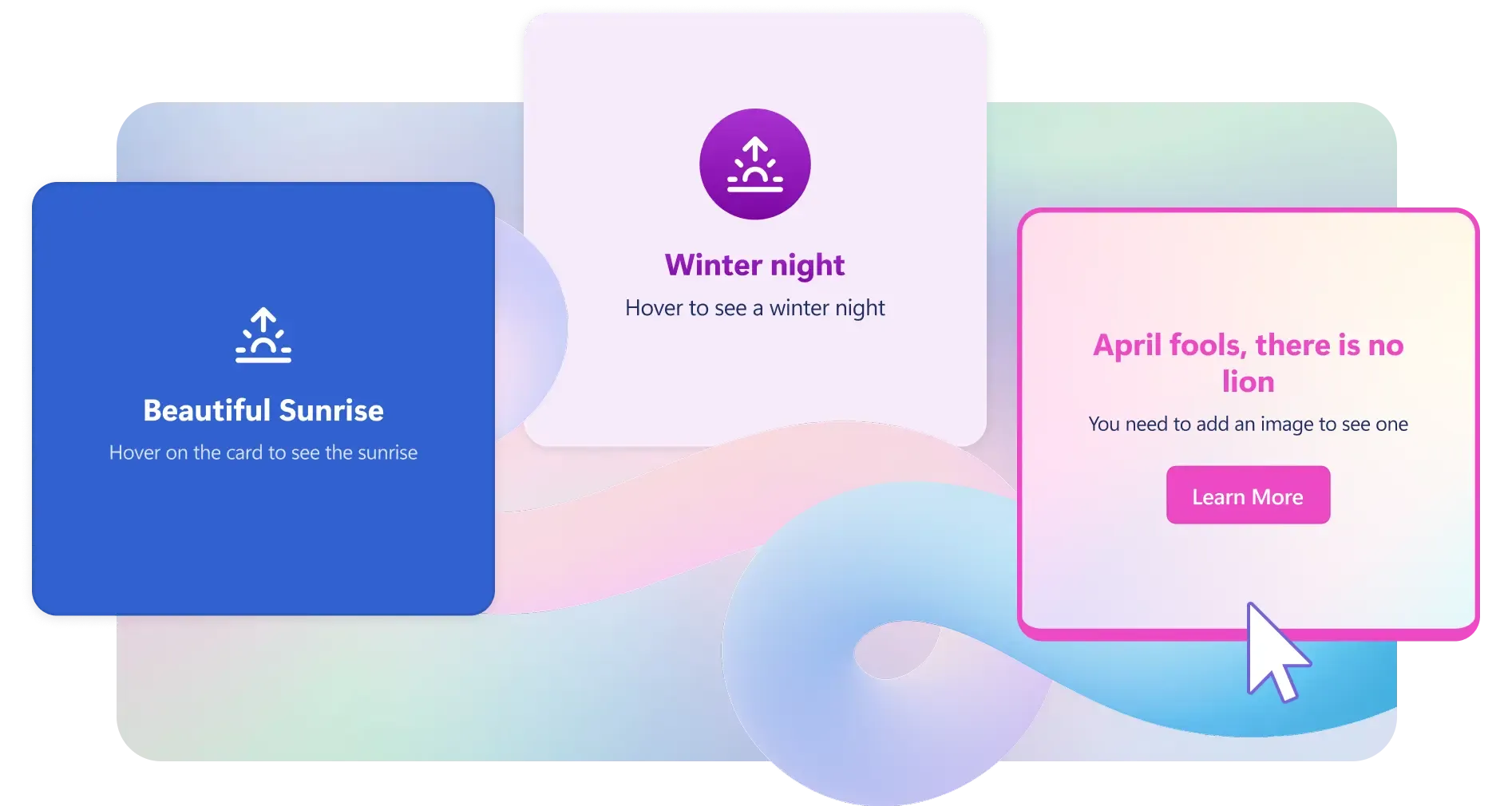
5. Bring Interactive Content That Actually Impresses
Want to add a little surprise to your modern pages? FlipBoxes are exactly what you need! They bring interactive boxes that flip to reveal content on the other side. It's a smarter, more engaging way to present two-sided information: a category on one side, details on the other; a team member's name on the front, their bio on the back.
FlipBoxes bring the kind of interactivity that used to require a developer and a lot of patience. Now it takes a few clicks.
Learn how to use the FlipBoxes Design Element
6. Bring Your Canva Assets Directly to SharePoint
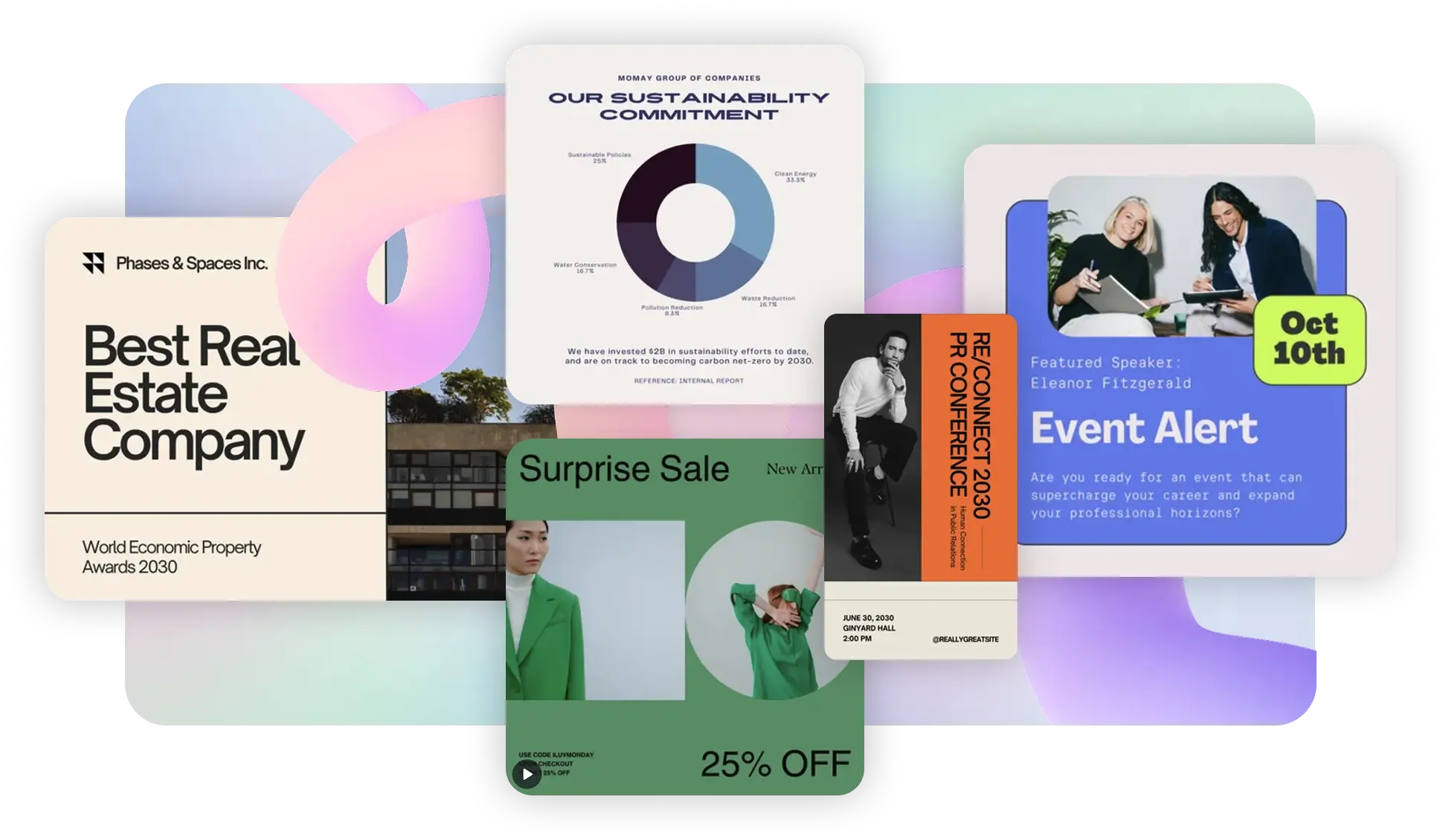
If your team already creates beautiful content in Canva, why should it live somewhere else? The Canva Design Element lets you embed Canva designs directly into your SharePoint pages.
This integration is a genuine time-saver for content teams and communicators who are tired of exporting, uploading, and reformatting. Designing SharePoint pages becomes a lot more creative (and a lot less repetitive) when your Canva assets are on the same page.
Learn how to use the Canva Design Element
7. Stay in the Know
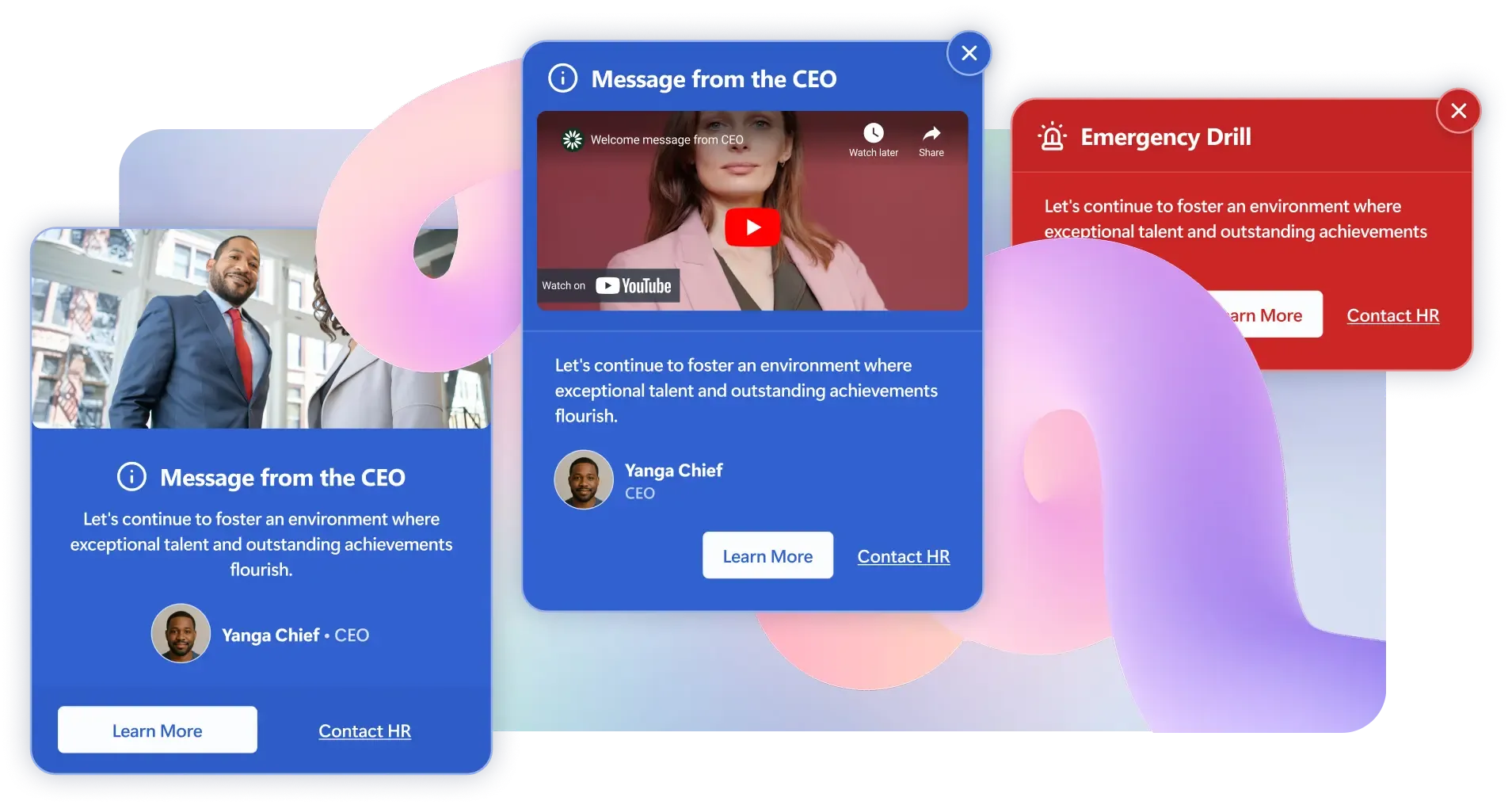
Have lots of important updates and announcements? The Announcement Design Element can bring your SharePoint update-sharing game to the next level.
Mix and match styles, colors, and layouts to match the branding of your organization. And, best of all, keep everyone in your organization in the loop without missing a beat.
Learn how to use the Announcement Design Element
Designing SharePoint Pages Has Never Been Better
Seven elements. Dozens of use cases. Endless combinations.
That's the thing about building with ShortPoint. It's not just about what each individual element does. It's about what becomes possible when you start combining them. A page with a World Clock, an Org Chart, a Calendar, and a Breadcrumb tells a completely different story than a blank SharePoint canvas. Here's how to get started:
Quick Start Guide:
- Install or update to the latest version of ShortPoint.
- Open up the Design Element library.
- Add elements to your pages with just one click.
- Customize styling to reflect your brand.
- Publish your enhanced SharePoint site.
Keep Learning with ShortPoint Academy
Want to get the most out of these new Design Elements? ShortPoint Academy has you covered with hands-on courses, practical exercises, and real-world examples that help you level up your SharePoint design skills.
Start Using Your New Design Elements Today
Designing SharePoint pages that people actually want to use, visit again, and share with their colleagues is the ultimate goal. These seven new Design Elements bring you even closer to that goal by enhancing your modern SharePoint pages with interactive and visually appealing features.
If you're already a ShortPoint user, you can access these elements immediately from your Design Element library to customize your site content effortlessly.
If you're new to ShortPoint and wondering what all the fuss is about, now is a genuinely great time to find out. Thousands of companies trust ShortPoint to handle the heavy lifting when it comes to designing SharePoint pages, making it easier to create intranet sites that boost collaboration and engagement. Start your free ShortPoint trial and discover just how good designing SharePoint pages can actually feel. And if you have questions, our support team is standing by. Five-star service is included with every license. That's just how we do things.
Ignite your vision. Install ShortPoint directly on your site, or play in sandbox mode. No credit card required.