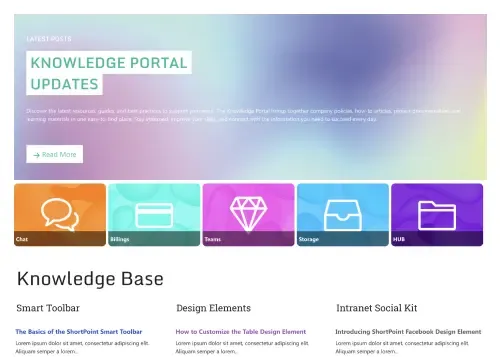
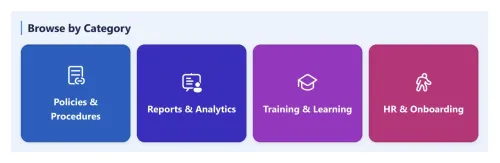
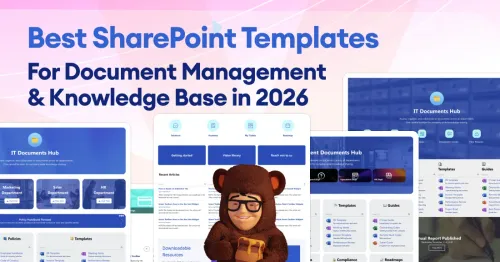
Browse document templates
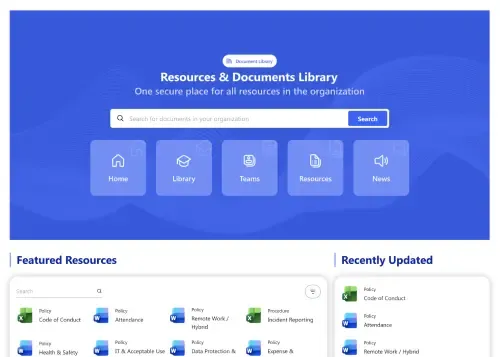
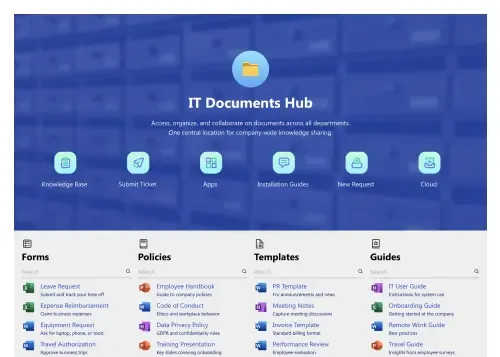 Docs Center Eight searchable libraries for every type of company file.
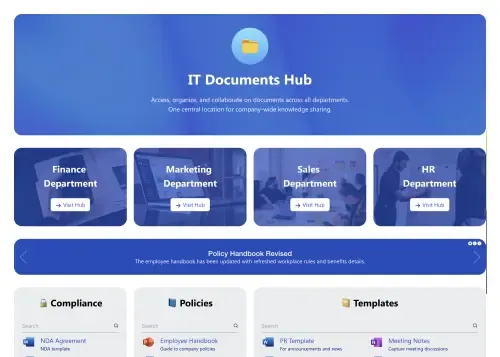
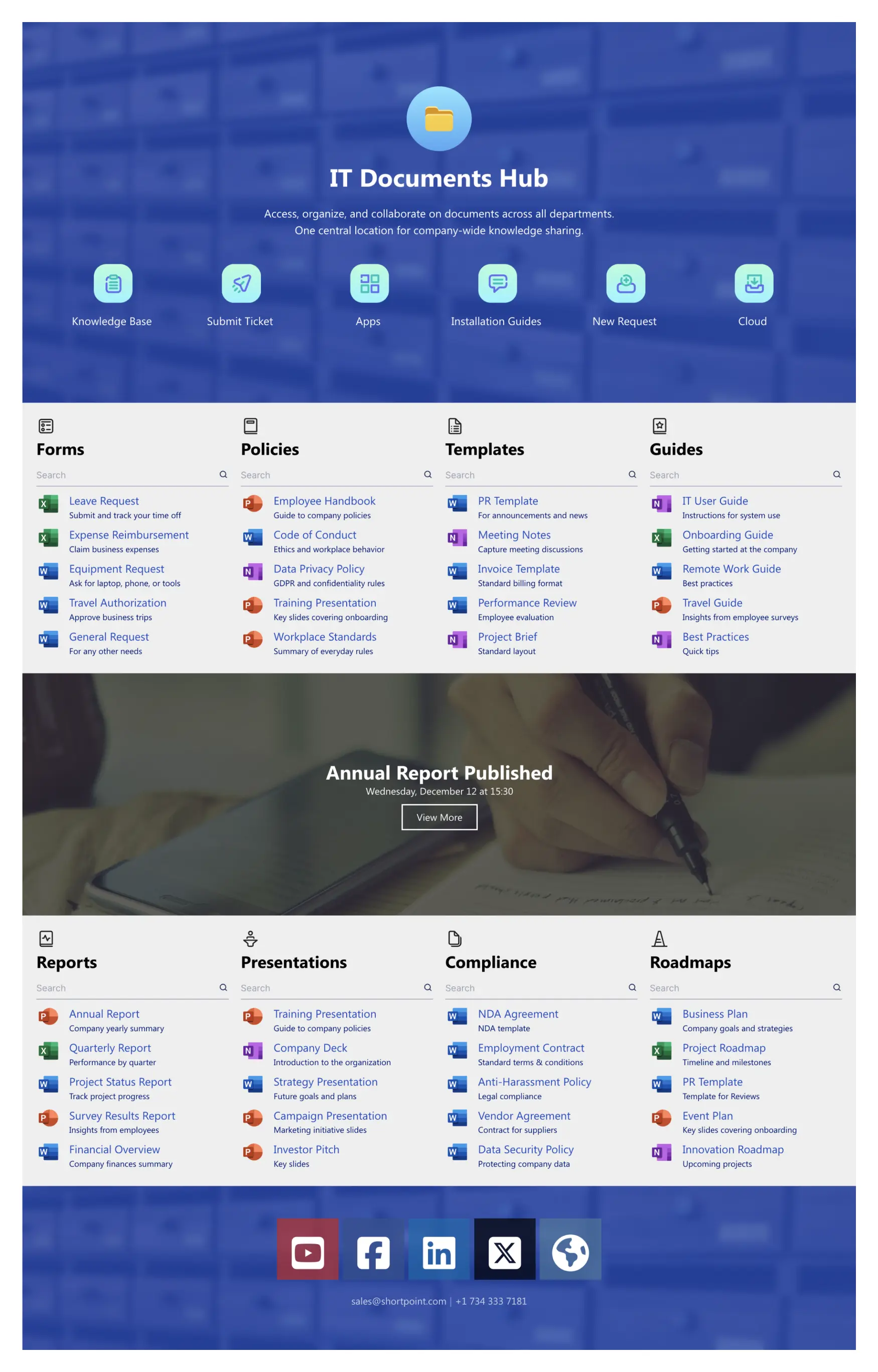
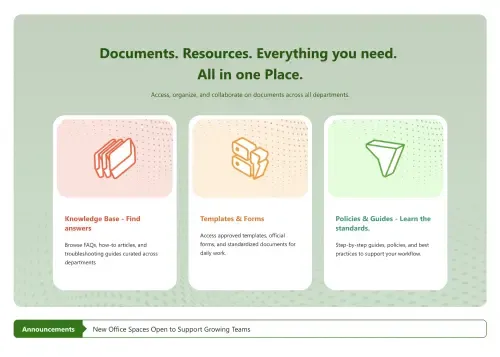 Document Hub Department libraries, popular files and a templates list.
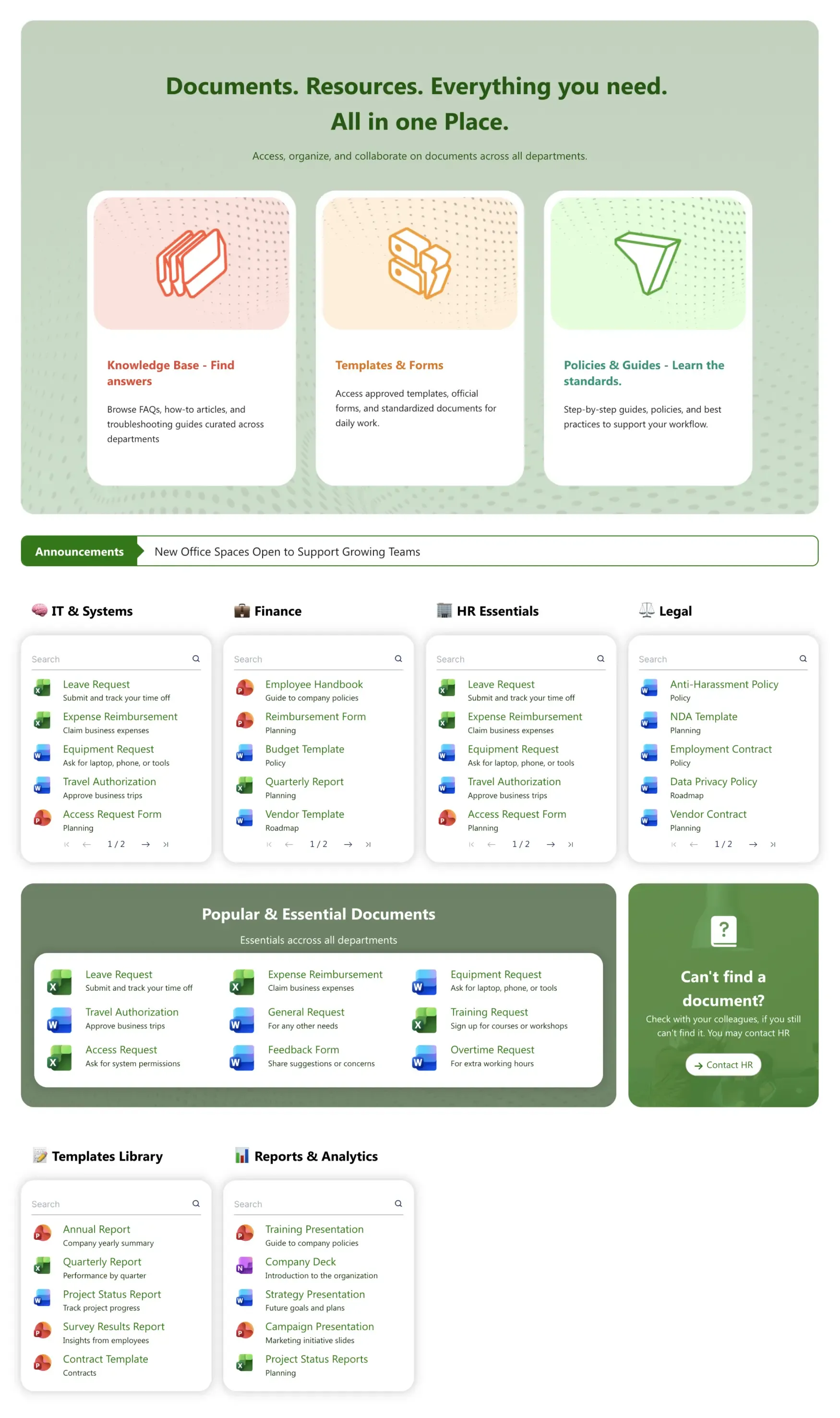
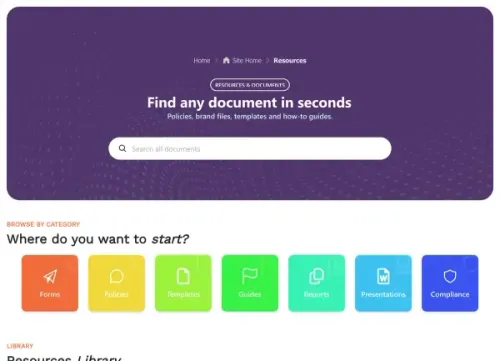 Archive Center One search across every document, then categories and an FAQ.
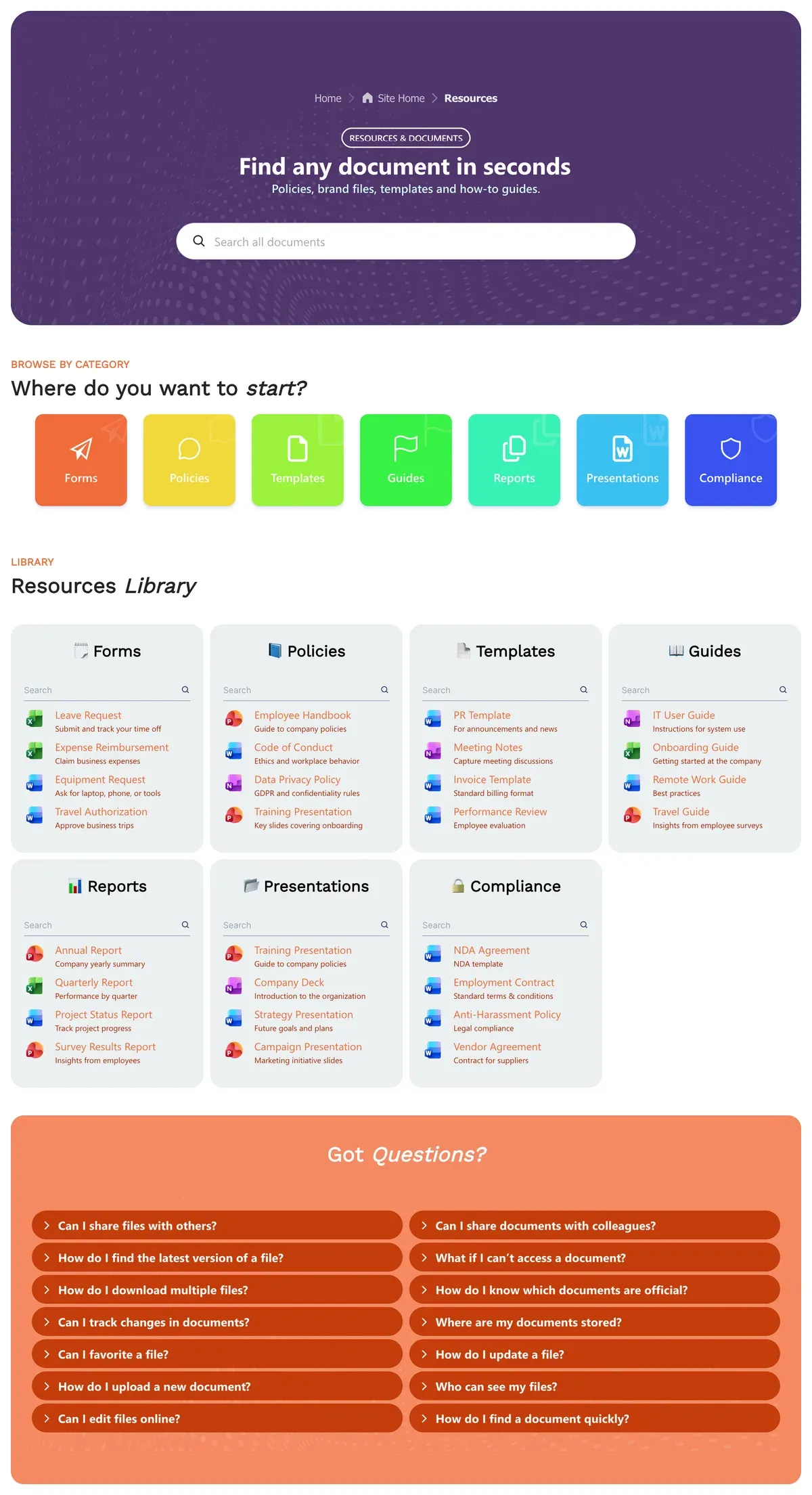
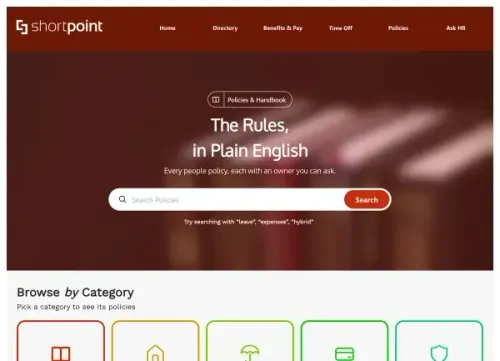 Company Policies One policy search, categories and a filterable library.
 Central Library Department tiles, searchable libraries and an upload card.
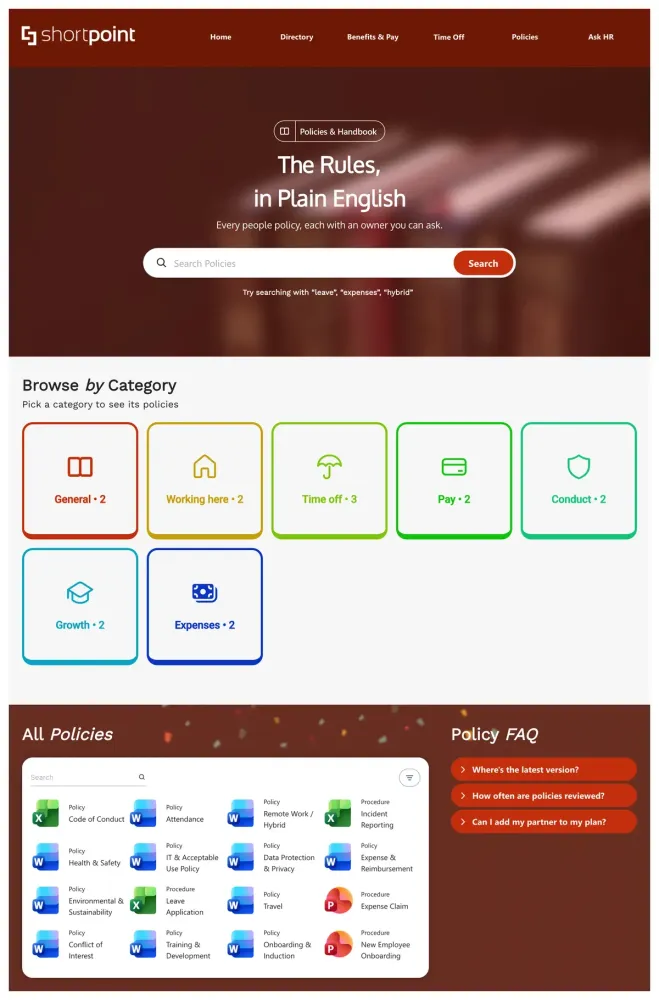
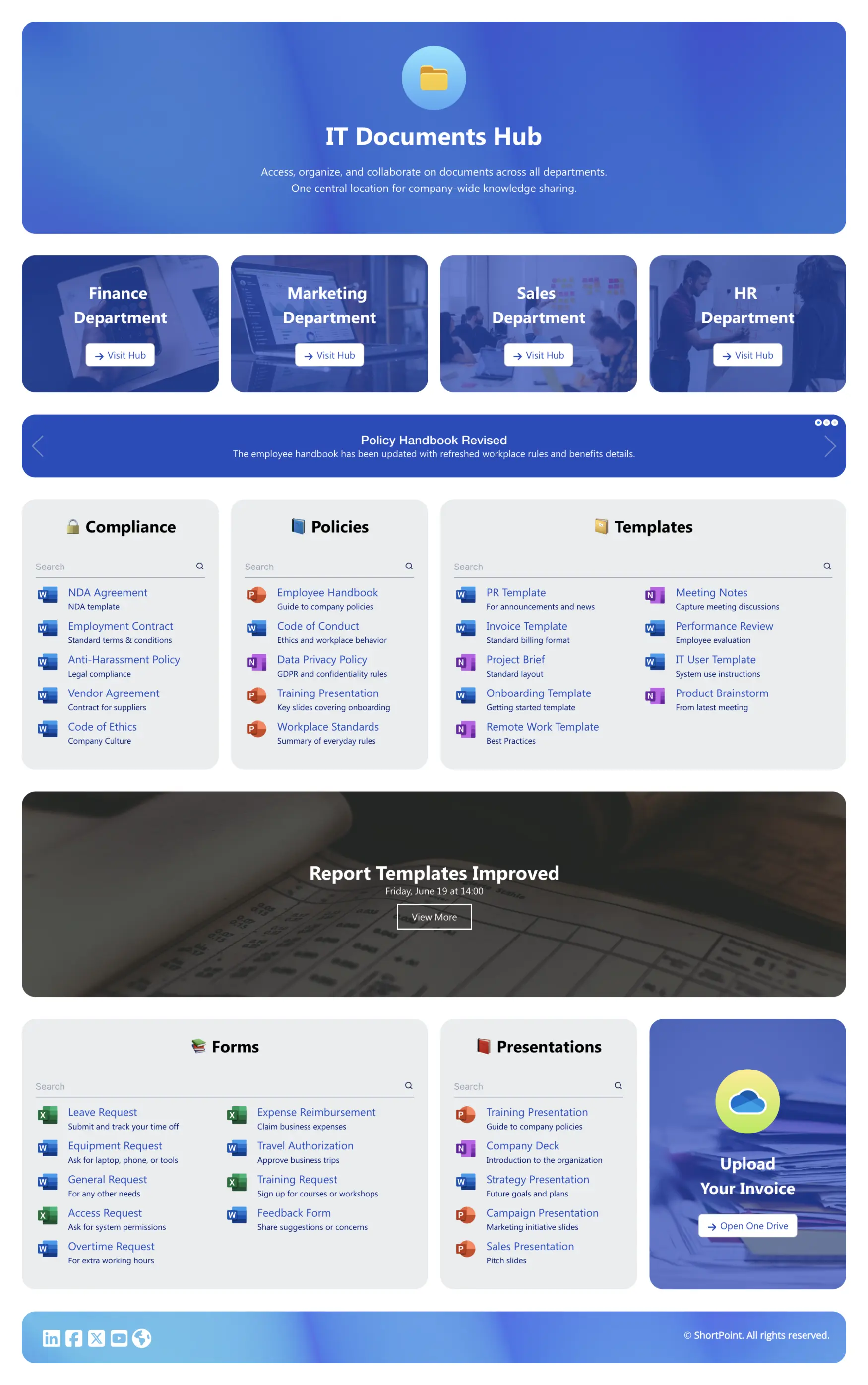
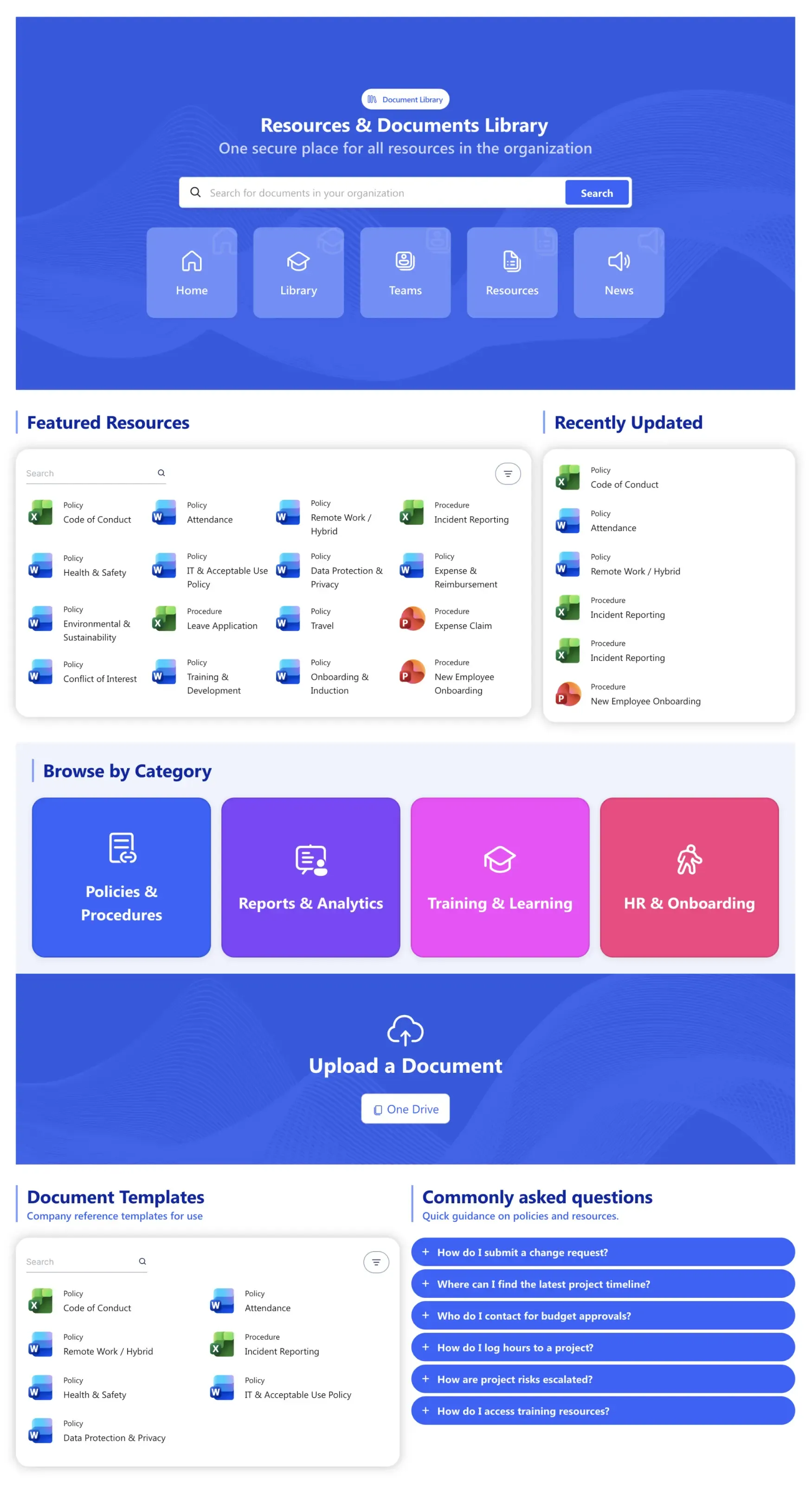
About SharePoint document center templates
A SharePoint document center template is a ready-made page that sits on top of your document libraries: one search across them, files grouped by type, and the forms and policies people ask for most. Every block, from the search bar to the file lists, is a ShortPoint section you can swap or restyle without code.
Need answers and how-to guides around the documents, not only the files? See the SharePoint knowledge base templates.
Document library or document center page?
- Document library Where SharePoint stores the files. People browse folders and columns.
- Document center page A designed page over one or more libraries: search, categories, recent and most-used files, so people find a file without knowing which folder it’s in.
The document pages most intranets need
- Company document center Every policy, form and template in one searchable place.
- Policies and handbook Official policies with owners and last-updated dates.
- Forms and templates Request forms, expense sheets and branded templates to download.
- Department documents Each team’s files, in the same layout as the rest of the intranet.
The sections a document page is built from
Document templates are assembled from three kinds of ShortPoint sections: Documents sections for file lists, libraries and featured files, Knowledge Base sections for FAQs, and Call to Action sections for shortcuts to the most-used forms.
Layout order for a document page
People open a document page to find one file, so search goes first. Below it, file categories, then the most-used and recently updated files. Further down, department libraries, help with finding a file, and the footer. On a phone, the search box stays at the very top, so people can still look for a file without scrolling.
- 1 Page title and document search search comes first
- 2 Categories policies, forms, templates, guides
- 3 Most-used files the documents asked for every week
- 4 Recently updated what changed, with dates
- 5 Department libraries each team’s files
- 6 Can’t find a document? who to ask
- 7 Footer help and contacts
Keeping documents current
Show the official version only. Connect each section to its library instead of uploading copies, show an owner and a last-updated date on key files, and archive what’s been replaced. Permissions carry over from SharePoint, so a confidential file never appears to someone who can’t open it.
- Duplicate copies Two versions of the same policy and nobody knows which is current. Link to one library.
- Folder-only navigation People need to search by name, not know the folder path.
- No dates Readers can’t tell whether a form is current.
- No help route Add a contact for files people can’t find.
Why ShortPoint for document pages
SharePoint document libraries store files well but make people browse folders. ShortPoint document templates present the same libraries as a designed page, with search, categories and the files people need most. When a policy is replaced in the library, the page shows the new version without anyone republishing it.
Every template here is a starting point. With ShortPoint you can connect any section to live data from SharePoint lists and Microsoft 365, such as people, calendars, news and files, using Connect. You can add or swap any of the design elements without code, and apply your brand to every page at once with Theme Builder. AI Designer can then help you adjust a layout or create a page that isn’t in the library.
Get started with a document page in three steps
- Start your free trial
Start a 15-day trial with no credit card, and sign in with your Microsoft 365 account to add ShortPoint to your SharePoint.
- Pick your starting point
Open the Templates Library inside SharePoint and choose the template you previewed here.
- Make it yours and publish
Replace the sample content, connect your data, apply your brand with Theme Builder, and publish.