Browse knowledge base templates
knowledge base templates
 Knowledge Center Knowledge Base
Viewing
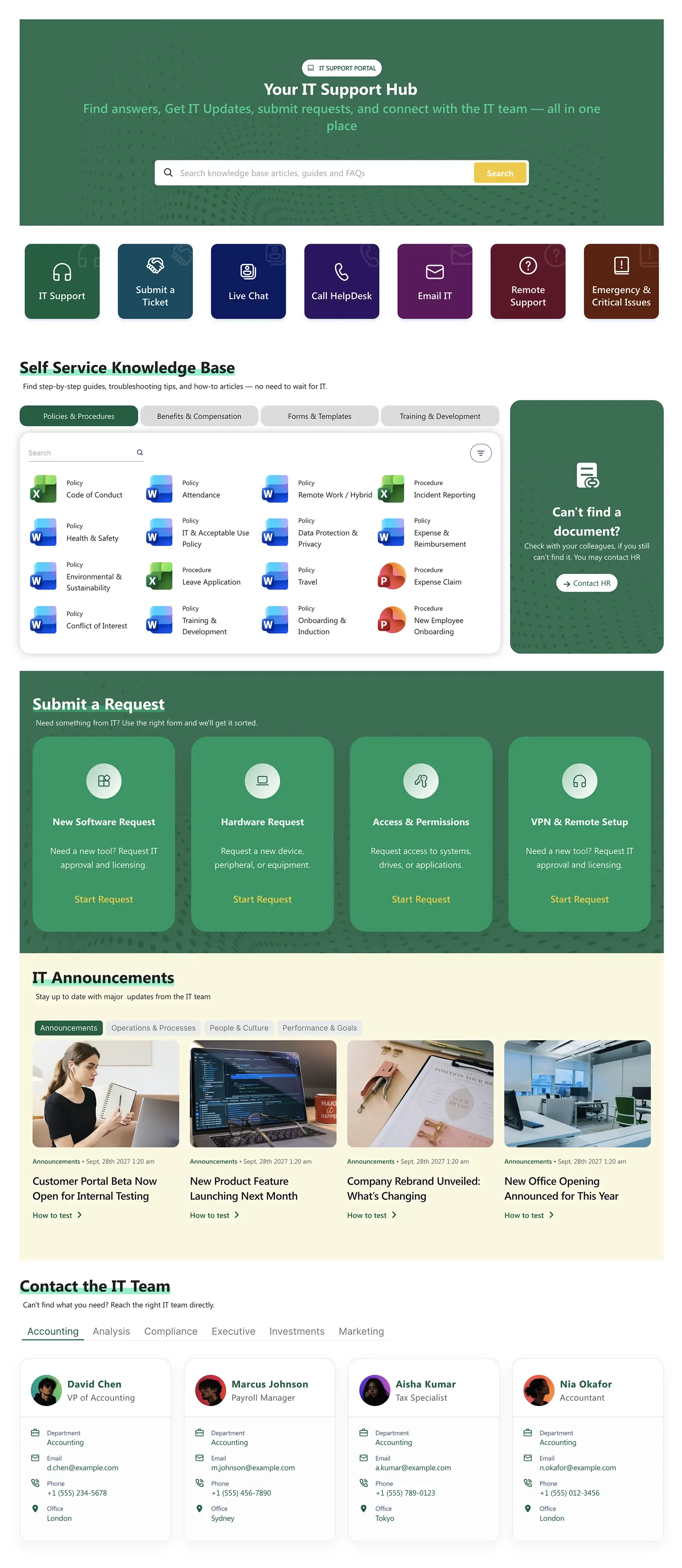
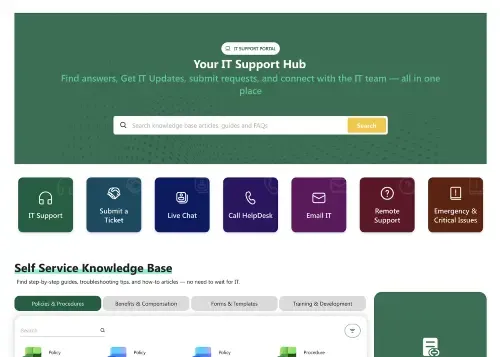 IT Helpdesk Knowledge Base
Viewing
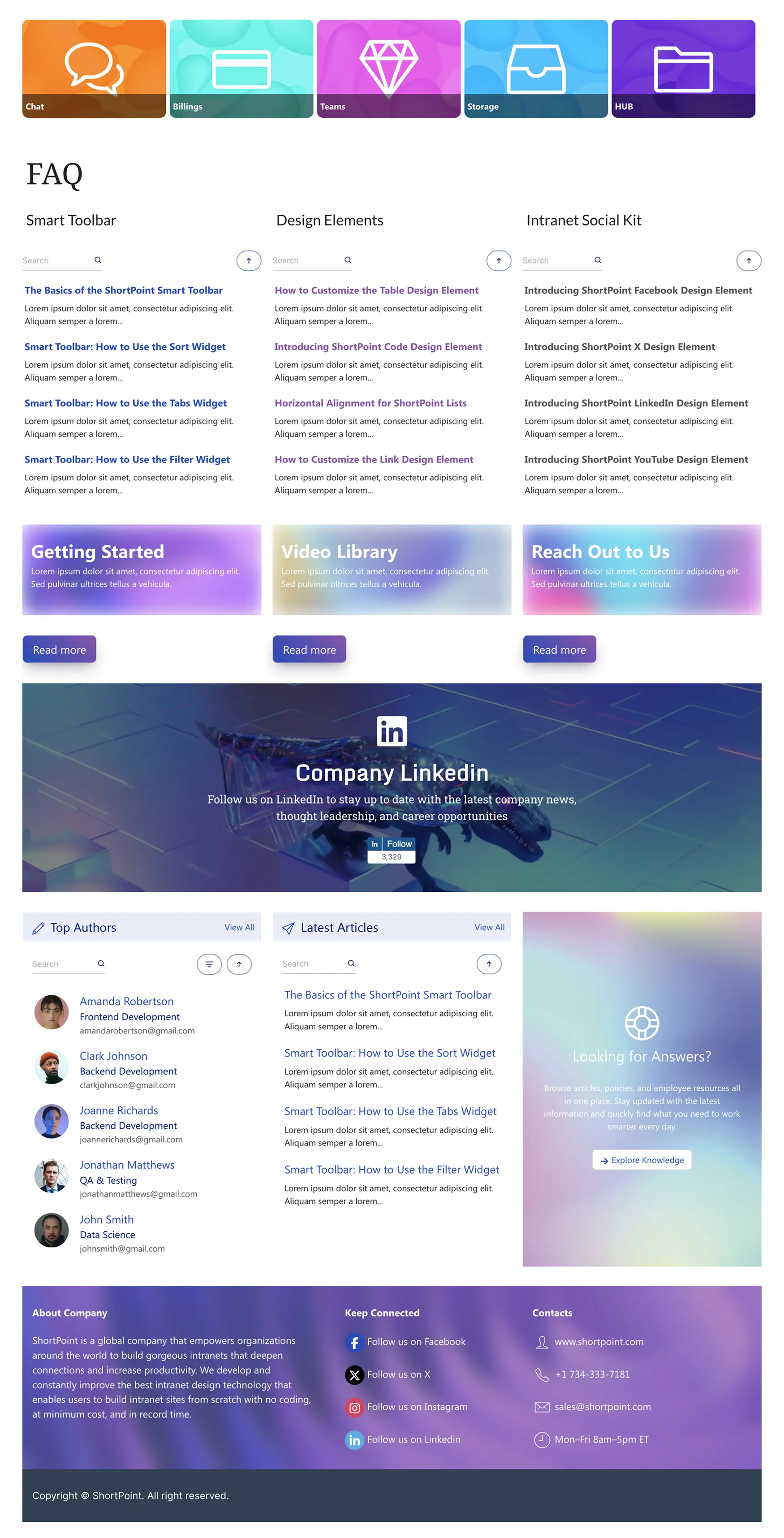
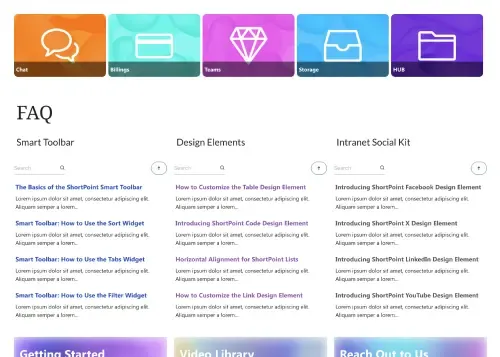 Answers Hub Knowledge Base
Viewing
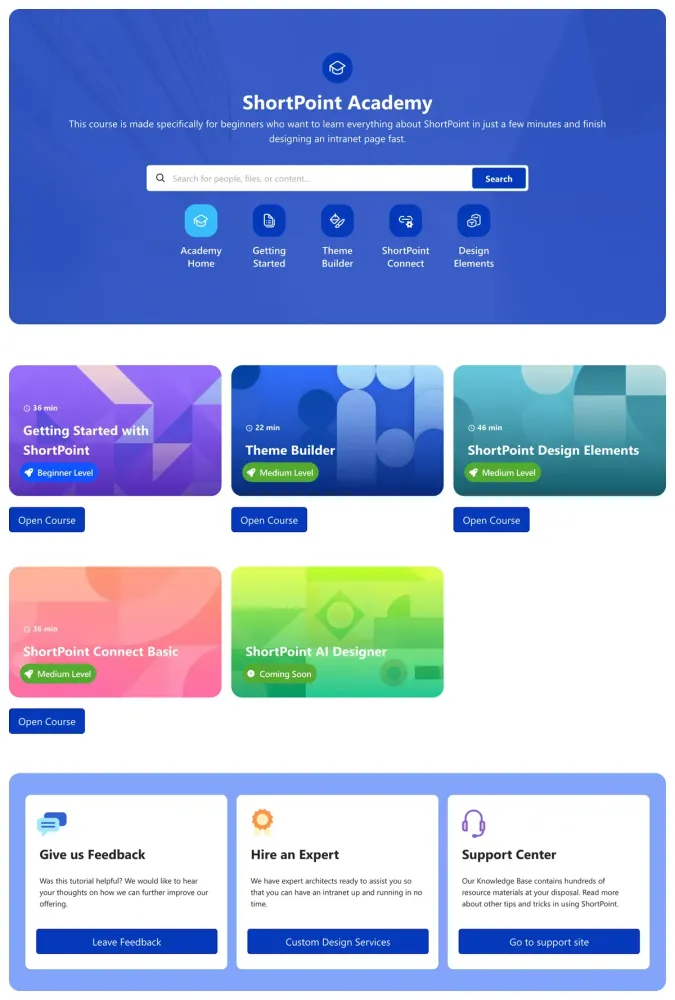
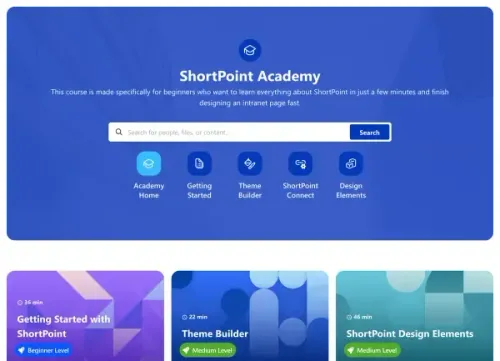 Academy Knowledge Base
Viewing
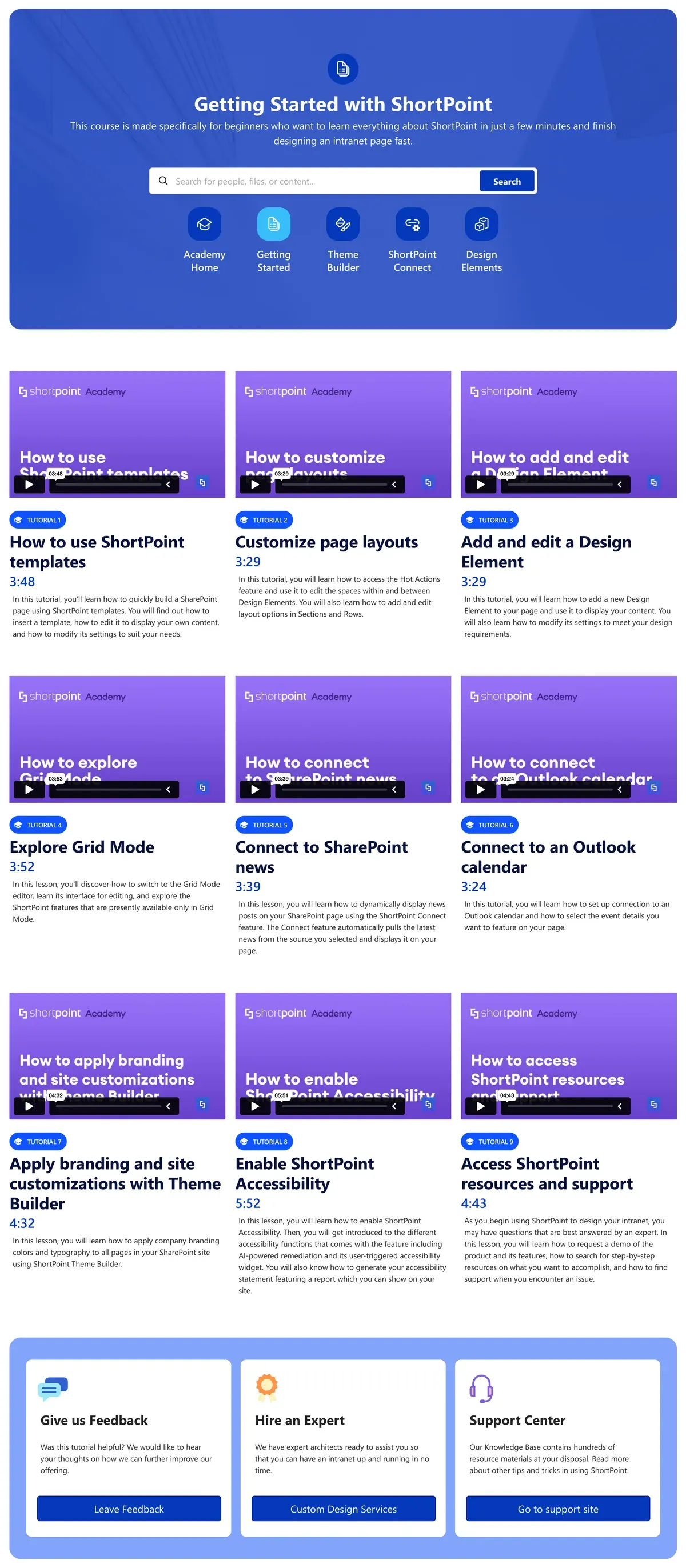
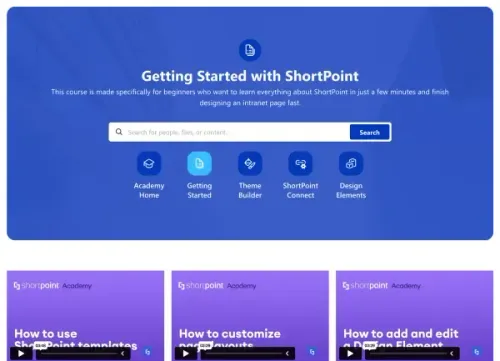 Getting Started Knowledge Base
Viewing
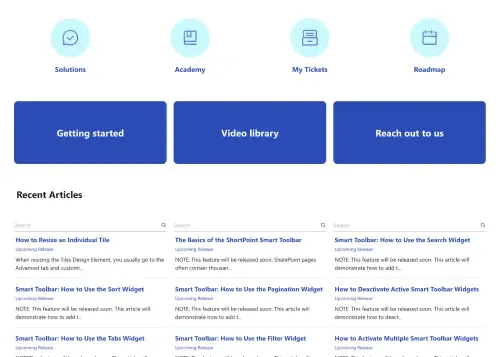 Support Center Knowledge Base
Viewing
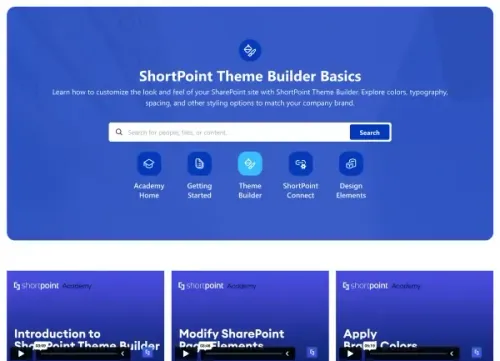 Theme Builder Knowledge Base
Viewing
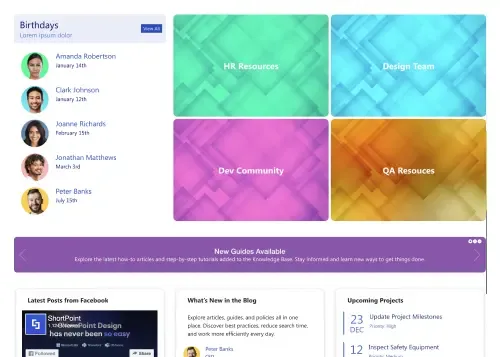 Resource Center Knowledge Base
Viewing
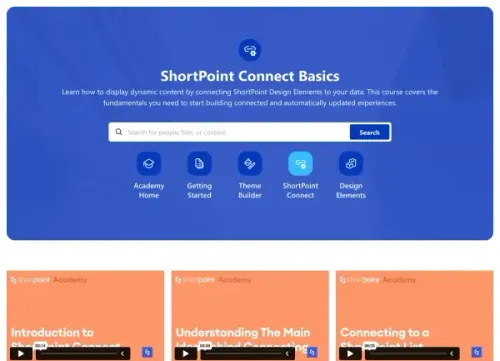 ShortPoint Connect Knowledge Base
Viewing
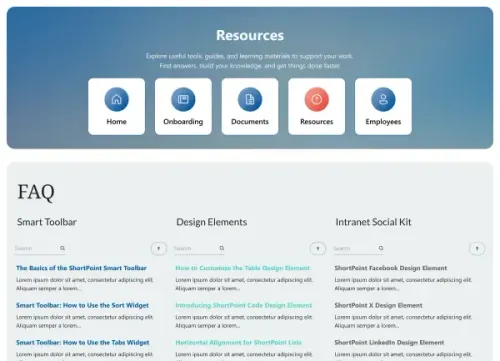 How-To Hub Knowledge Base
Viewing
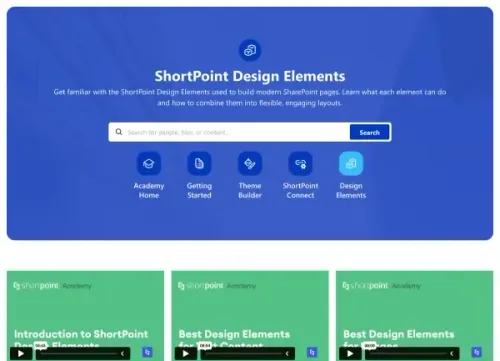 Design Elements Knowledge Base
Viewing
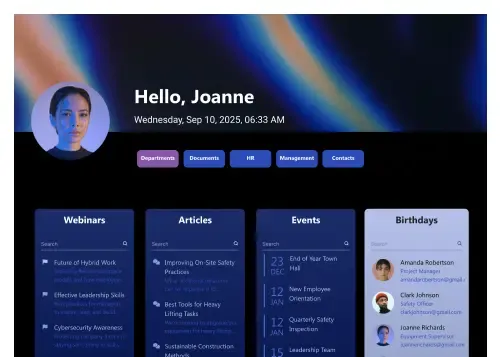 Employee Home Knowledge Base
Viewing
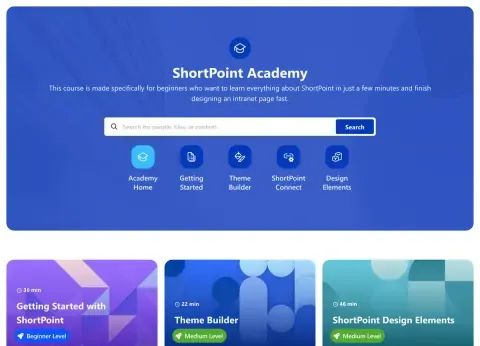
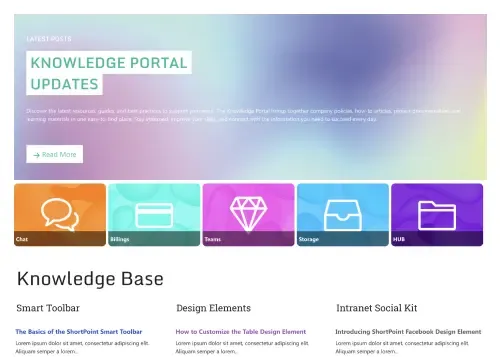
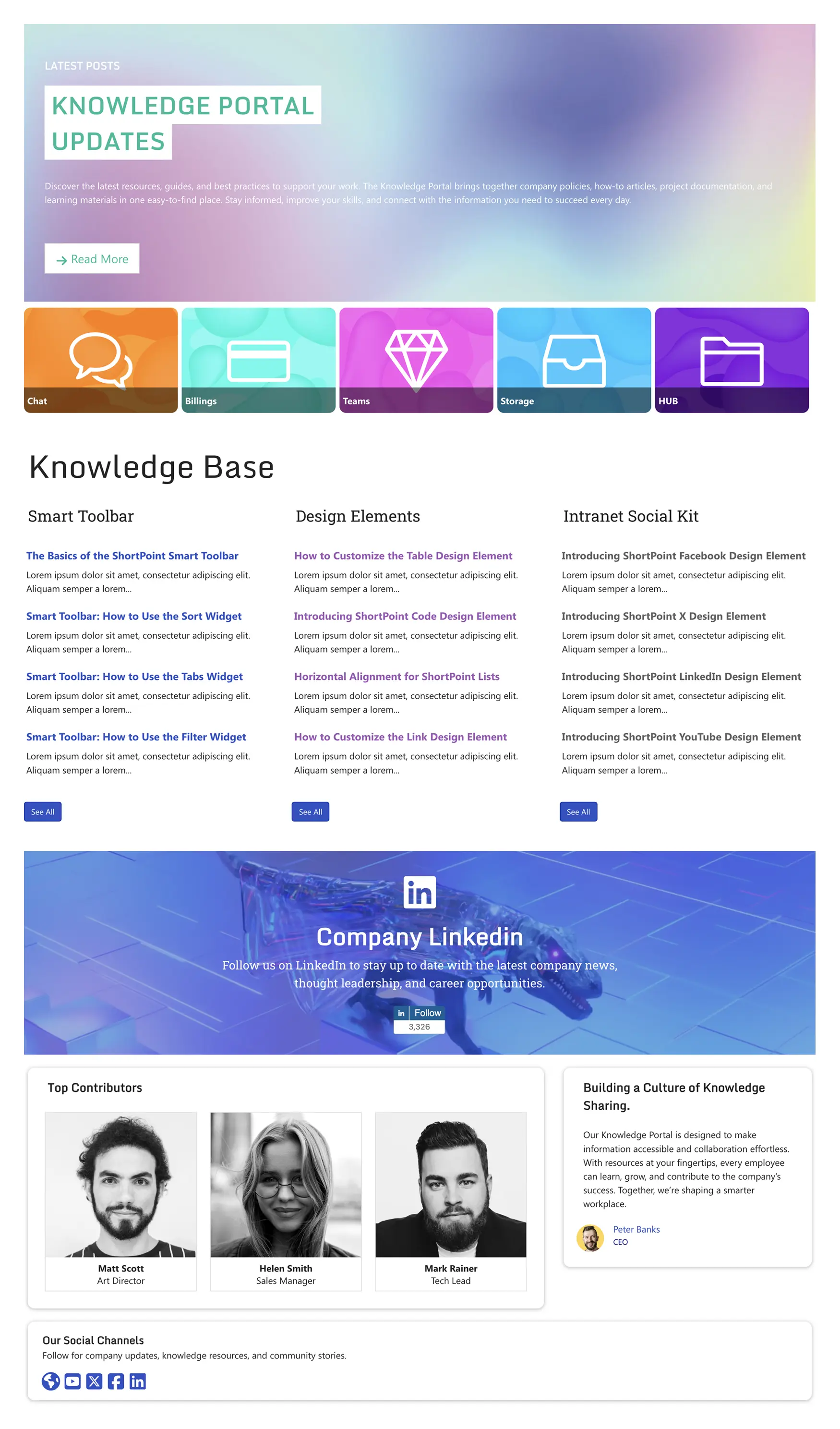
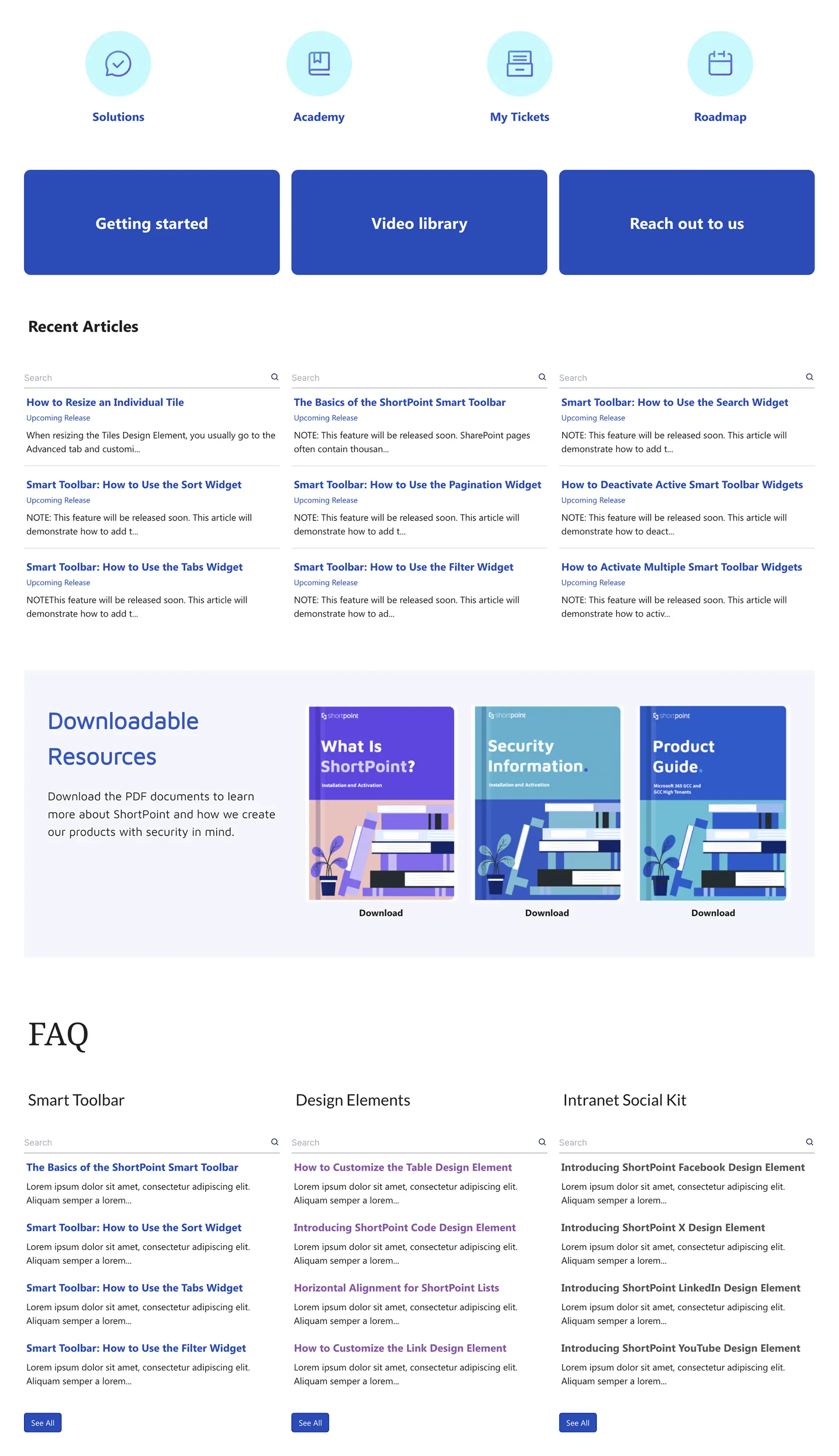
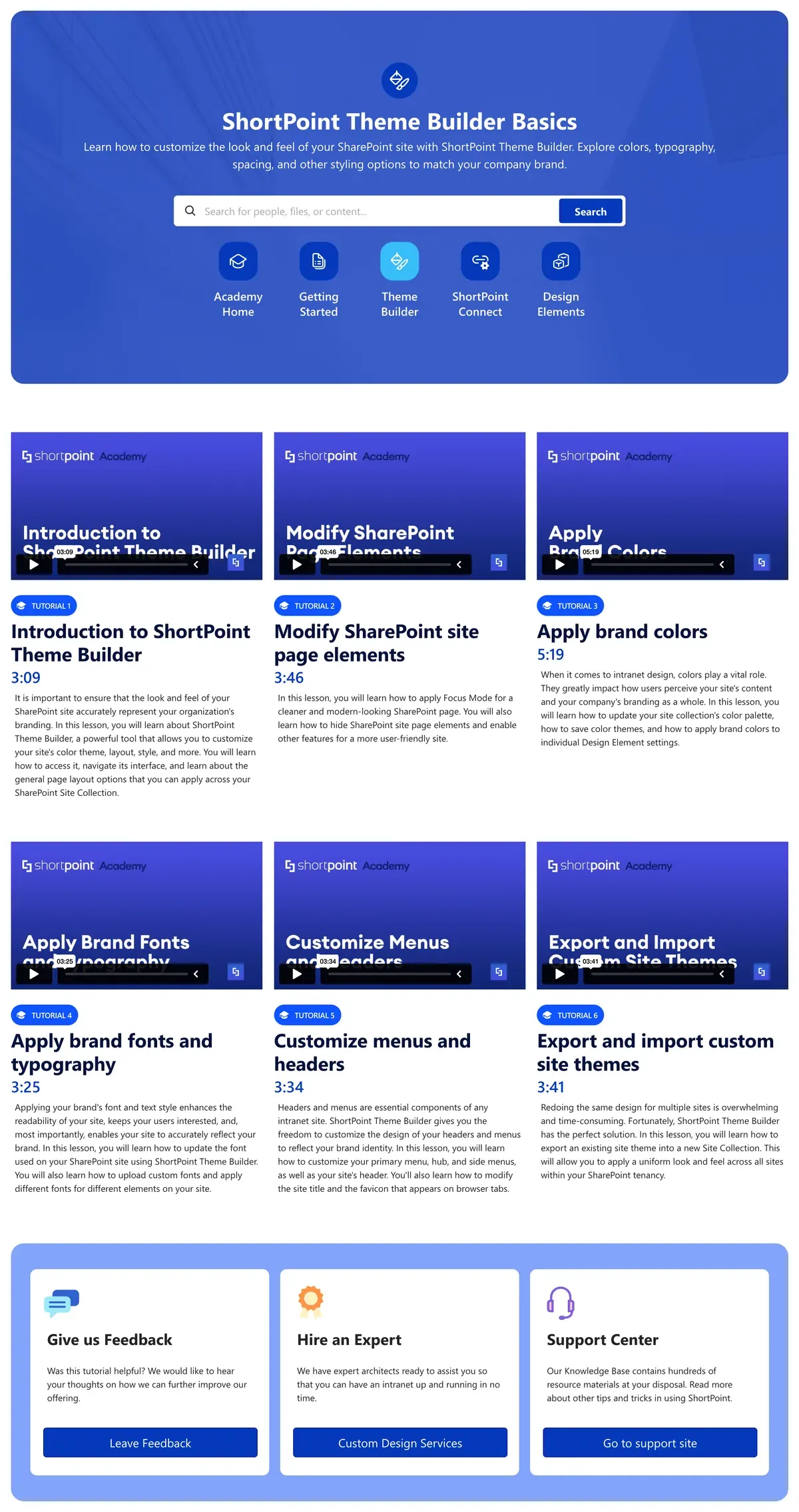
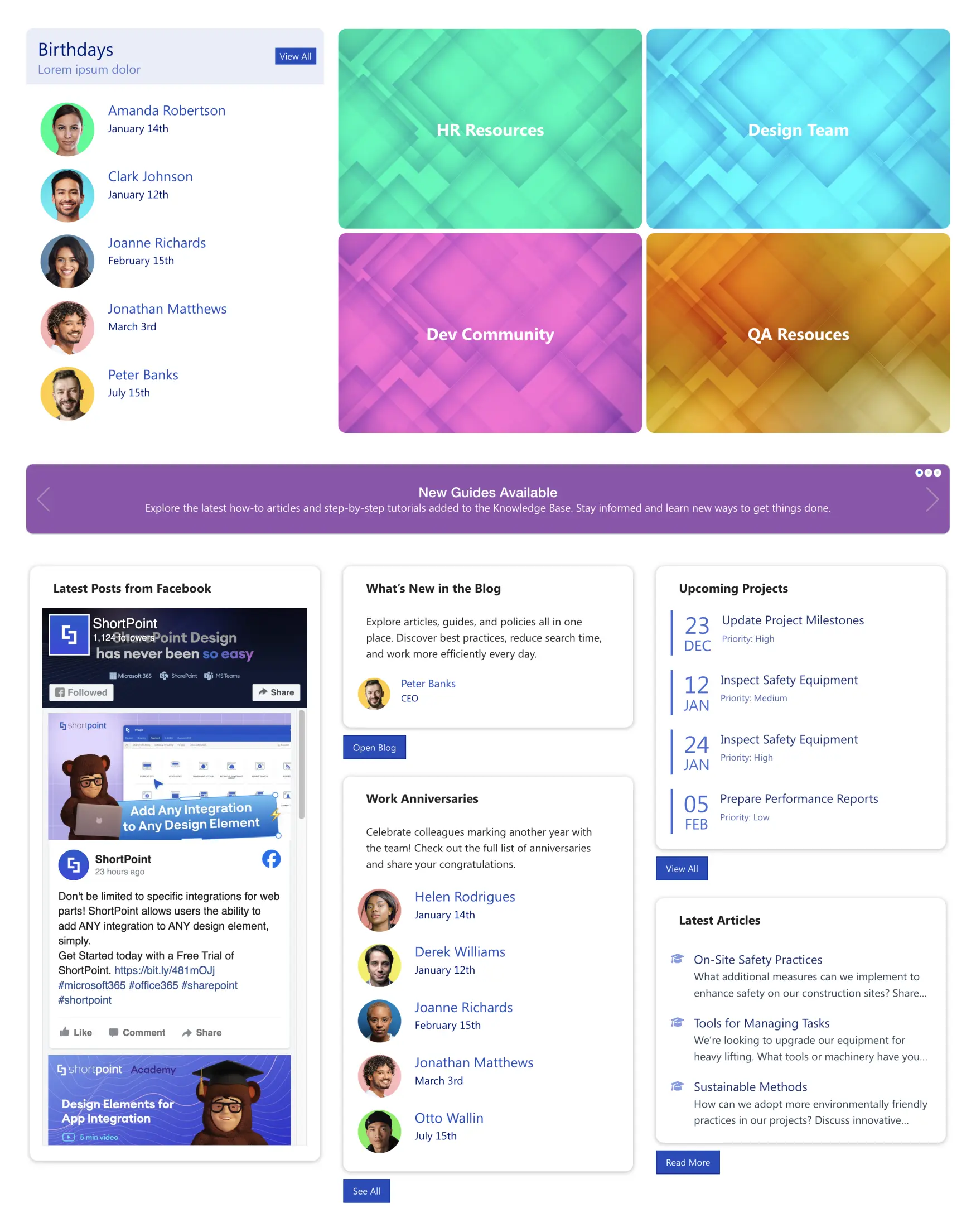
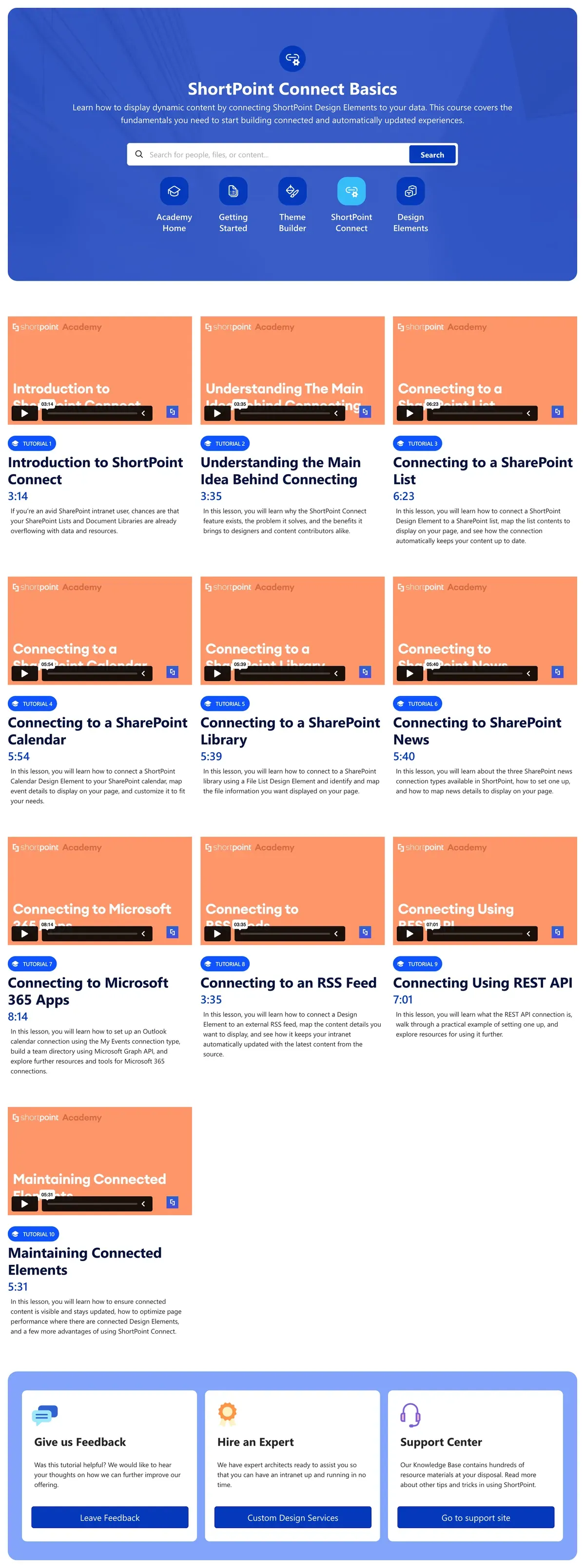
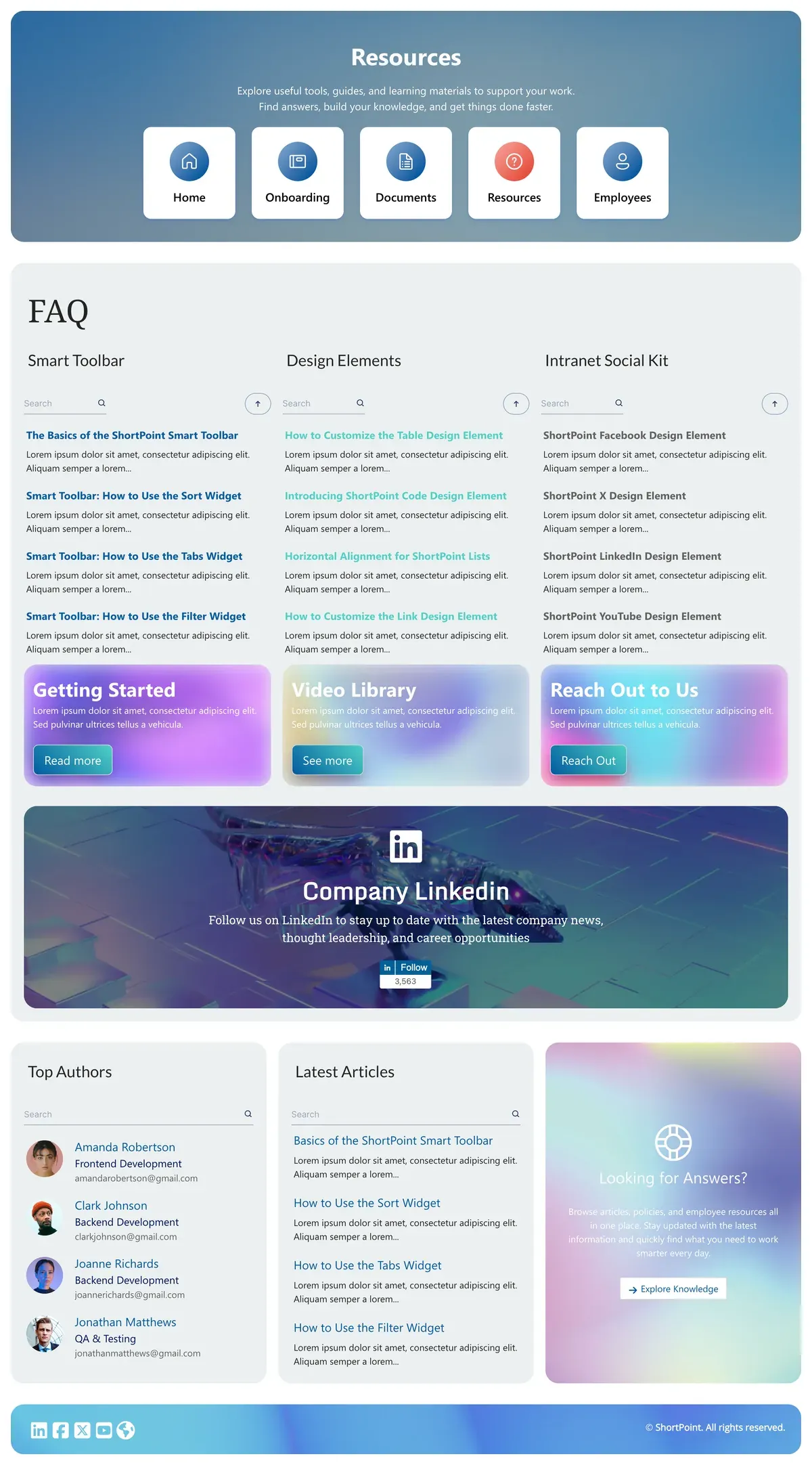
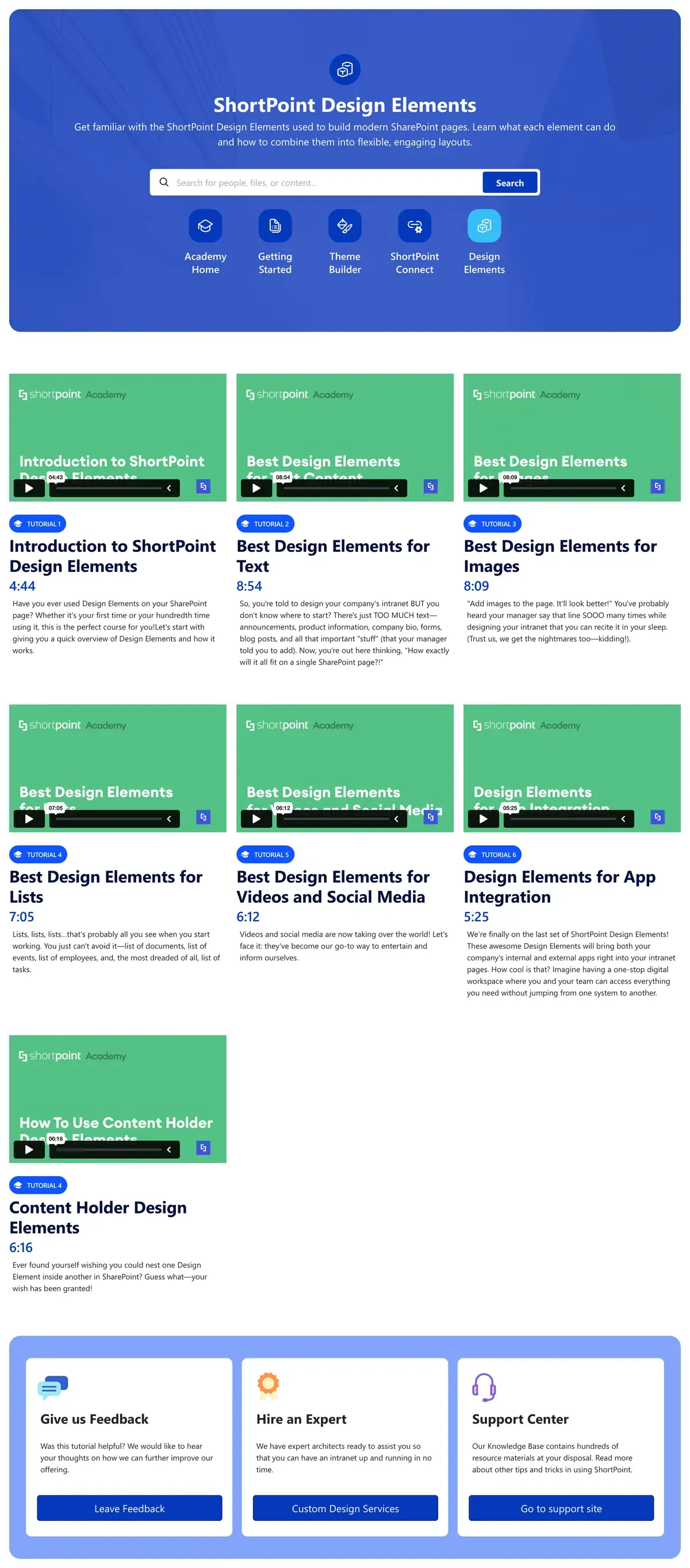
Knowledge Center Articles by topic in three columns, with top contributors. IT Helpdesk IT search, request tiles, self-service KB and IT contacts. Answers Hub Color topic tiles, FAQ columns, videos and top authors. Academy Course catalog showing each course’s length and level. Getting Started Nine numbered video tutorials for beginners.
About SharePoint knowledge base templates
A SharePoint knowledge base template is a ready-made page for finding answers: search at the top, then categories, FAQs, how-to guides and the documents behind them. Some teams call it a SharePoint wiki. The search, category and FAQ blocks are ShortPoint sections, so owners can change any of them without code.
Need more than one page, with a library, courses and an expert directory? See the SharePoint knowledge management site templates.
Knowledge base, wiki or document library?
- Document library Stores the files themselves: policies, forms, templates. Good for storage, slow for finding an answer.
- Wiki Free-form articles that link to each other. Good for writing knowledge down, harder to keep organized.
- Knowledge base page Puts search, categories, FAQs and articles on one page over your existing libraries, so people find the answer without browsing folders.
The knowledge base pages most intranets need
- Company knowledge base Articles grouped by topic, with the people behind them.
- Company wiki Searchable FAQs, guides, videos and a way to reach support.
- Support center Articles, downloadable guides and ticket access in one place.
- Team knowledge hub Team resources and guides next to birthdays, anniversaries and projects.
- Documents hub Files and policies from every department. See the Documents page templates.
The sections a knowledge base page is built from
Knowledge Base sections do the heavy lifting here: FAQs, article lists and searchable libraries. Documents sections add file lists, and Team sections add the experts behind each topic.
Layout order for a knowledge base page
People come to a knowledge base with a question, so search goes first. Below it, categories for browsing, then the most-asked articles and FAQs. Further down, what was recently updated, the experts to ask, and a way to request a missing article. On a phone, the search box stays at the top of the page.
- 1 Page title and search every question starts here
- 2 Categories the way to browse when search isn’t enough
- 3 Popular articles and FAQs the answers asked for most
- 4 Recently updated what changed, so people trust it
- 5 Experts by topic who to ask when the article isn’t enough
- 6 Request or feedback report a gap or ask for an article
- 7 Footer support contacts
Keeping a knowledge base accurate
A knowledge base is only used while people trust it. Connect each section to its source library instead of copying text in, give every article an owner and a review date, and show when it was last updated. Restricted documents stay restricted: ShortPoint shows each person only what their SharePoint permissions allow.
- No search at the top People leave and ask a colleague instead.
- Copied content Text pasted into the page drifts from the source file. Link to the library.
- No owner or date Readers can’t tell whether an answer is current.
- No way to ask Missing articles stay missing. Add a request or feedback block.
Why ShortPoint for a knowledge base
SharePoint already stores your documents, but its default libraries make people browse folders to find an answer. ShortPoint knowledge base templates put search first and present the same libraries as a designed page, with categories, FAQs and the people behind each topic. A question gets answered on the page instead of in someone’s inbox.
Every template here is a starting point. With ShortPoint you can connect any section to live data from SharePoint lists and Microsoft 365, such as people, calendars, news and files, using Connect. You can add or swap any of the design elements without code, and apply your brand to every page at once with Theme Builder. AI Designer can then help you adjust a layout or create a page that isn’t in the library.
Get started with a knowledge base in three steps
- Start your free trial
Start a 15-day trial with no credit card, and sign in with your Microsoft 365 account to add ShortPoint to your SharePoint.
- Pick your starting point
Open the Templates Library inside SharePoint and choose the template you previewed here.
- Make it yours and publish
Replace the sample content, connect your data, apply your brand with Theme Builder, and publish.