Best SharePoint Templates for Document Management & Knowledge Base in 2026
Six ready-to-use SharePoint templates for document management and knowledge bases—install, customize, and publish in under an hour. No code required.
Every organization runs on two things: the documents people create and the knowledge those documents contain. SharePoint handles both, but most teams never move beyond a basic document library or a plain wiki page. The result is scattered files nobody can find and knowledge that walks out the door when employees leave.
A well-designed SharePoint document management system brings structure to your files: version control, metadata, search, and clear ownership. A SharePoint knowledge base does the same for institutional know-how: FAQs, how-to guides, SOPs, and troubleshooting articles that anyone can find in seconds.
That's where templates change the equation. Instead of starting from a blank page and spending weeks on layout, navigation, and design, you start with a proven structure and customize it for your team.
In 2026, teams also want speed and iteration—not another long intranet project. The next wave is the AI intranet workflow: generate pages faster, improve them continuously, and keep content structured so it's easy to find and easy to reuse. That's exactly what ShortPoint AI Designer enables inside Page Builder as an AI-Powered Intranet Page Builder for SharePoint—a practical SharePoint AI approach to creating full pages from a prompt, refining them through conversation, and updating specific elements without rebuilding the whole layout.
Below are six ShortPoint templates purpose-built for document management and knowledge management in SharePoint. Three focus on organizing, finding, and managing documents. Three focus on building searchable knowledge bases and internal wikis. Each one is ready to install, customize, and publish in under an hour—no code required.
By Luisa Silva, Growth Manager at ShortPoint • Last Updated: March 30, 2026 • 10 min read
Document Management vs Knowledge Base: When You Need Each
Before choosing a template, it helps to understand what you are building. SharePoint document management and SharePoint knowledge bases solve different problems, even though they often live on the same intranet.
Document Management
Document management is about storing, organizing, versioning, and controlling access to files. Think policies, contracts, reports, forms, and compliance documents. The goal is to make sure the right people can find the right file, that only one version is the "truth," and that audit trails are intact. SharePoint's document libraries, metadata columns, retention policies, and co-authoring features make it a capable SharePoint DMS out of the box.
Knowledge Base
A knowledge base is about surfacing information in a way that helps people solve problems on their own. Think IT troubleshooting guides, HR policy FAQs, product documentation, onboarding instructions, and internal wikis. The goal is self-service: employees find answers without emailing a colleague or filing a ticket. SharePoint site pages, search, categories, and FAQ web parts make this possible.
Many teams need both. A compliance department needs document management for its policy library and a knowledge base to explain what those policies mean in plain language. An IT team needs document management for technical runbooks and a knowledge base so end users can reset passwords without submitting a ticket. The templates below are organized into these two categories so you can pick the right starting point—or combine both.
Document libraries and knowledge bases are two of 11 core template types. See them all in our SharePoint templates library.
3 Best SharePoint Document Management Templates
Each template below is built with ShortPoint and works on Microsoft 365, SharePoint Online, SE, 2019, 2016, and 2013. No code required to install or customize.
-
1. SharePoint Document Management System Template
All-in-one system for documents, updates, and actions.
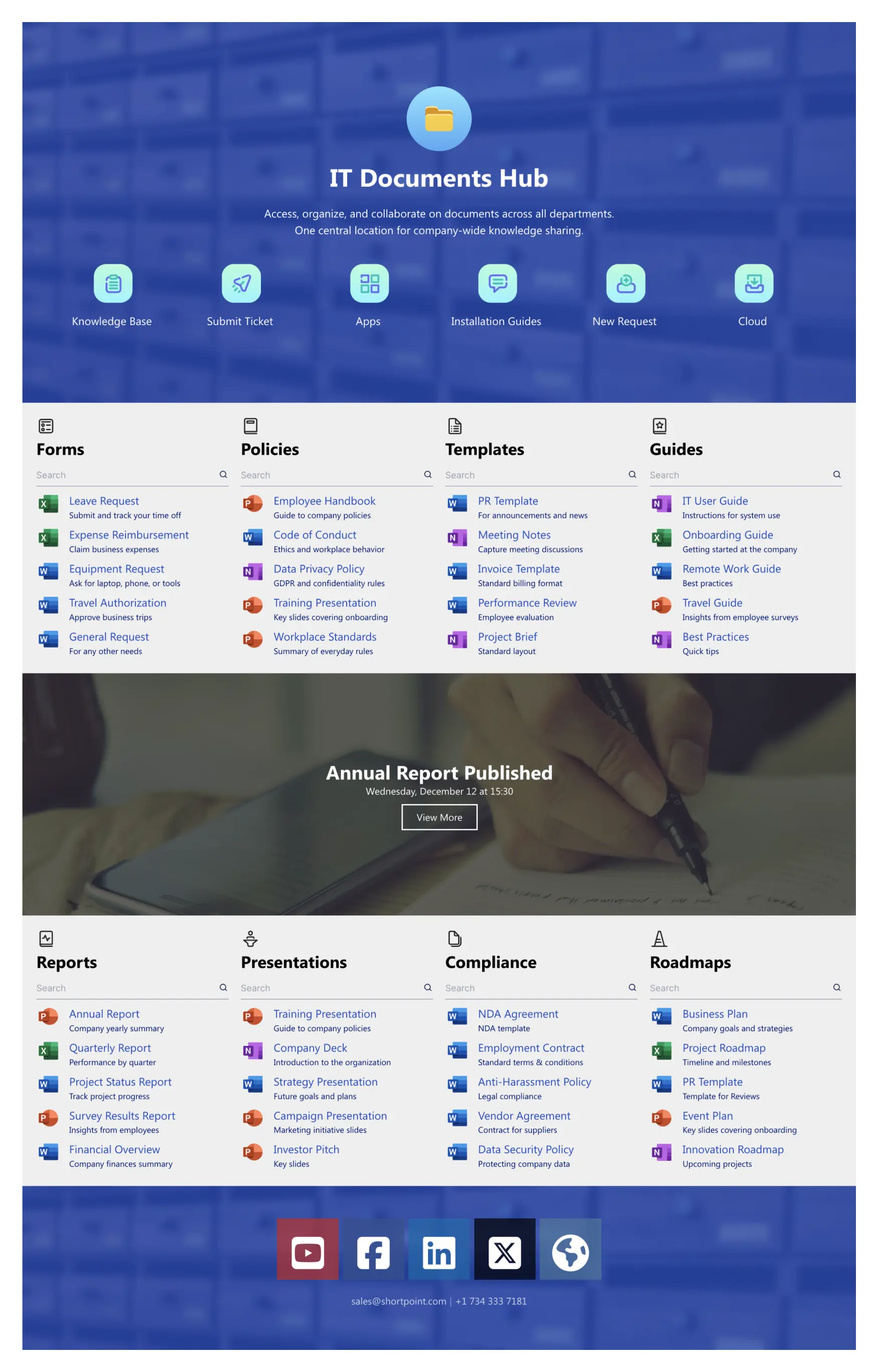
This is the most comprehensive document management template in the collection. It functions as a complete SharePoint document management system, not just a library. A focused hero section sets context and establishes the page as the central hub for all document-related activity across your organization.
Quick-action tiles give users one-click access to the most common tasks: jump to the knowledge base, submit a new request, access cloud storage, open ticketing, browse install guides, or launch key applications. Below the actions, category blocks organize documents into clear groups—Forms, Policies, Templates, and Guides—each with its own search bar for faster retrieval within that category.
A featured banner section highlights time-sensitive items like newly published annual reports or compliance updates that need immediate attention. Lower sections cover Reports, Presentations, Compliance documents, and Roadmaps, each with clear ownership labels so employees know who maintains what. The layout reduces clicks and guesswork, turning SharePoint into a structured document center where employees find, use, and update official files without delays.
Improve with ShortPoint AI Designer: Generate a complete document hub from a prompt ('Build a document center with categories + quick actions + compliance section'), refine it through follow-up edits ('add a \'Most Used Forms\' area', 'reorder categories'), and update only a specific block using element-level targeting—without redesigning the page.
Best for: Organizations that need a single, centralized document management system covering multiple document types, departments, and workflows.
View Template -
2. SharePoint Document Library Template
Faster document findability with search, filters, and categories.
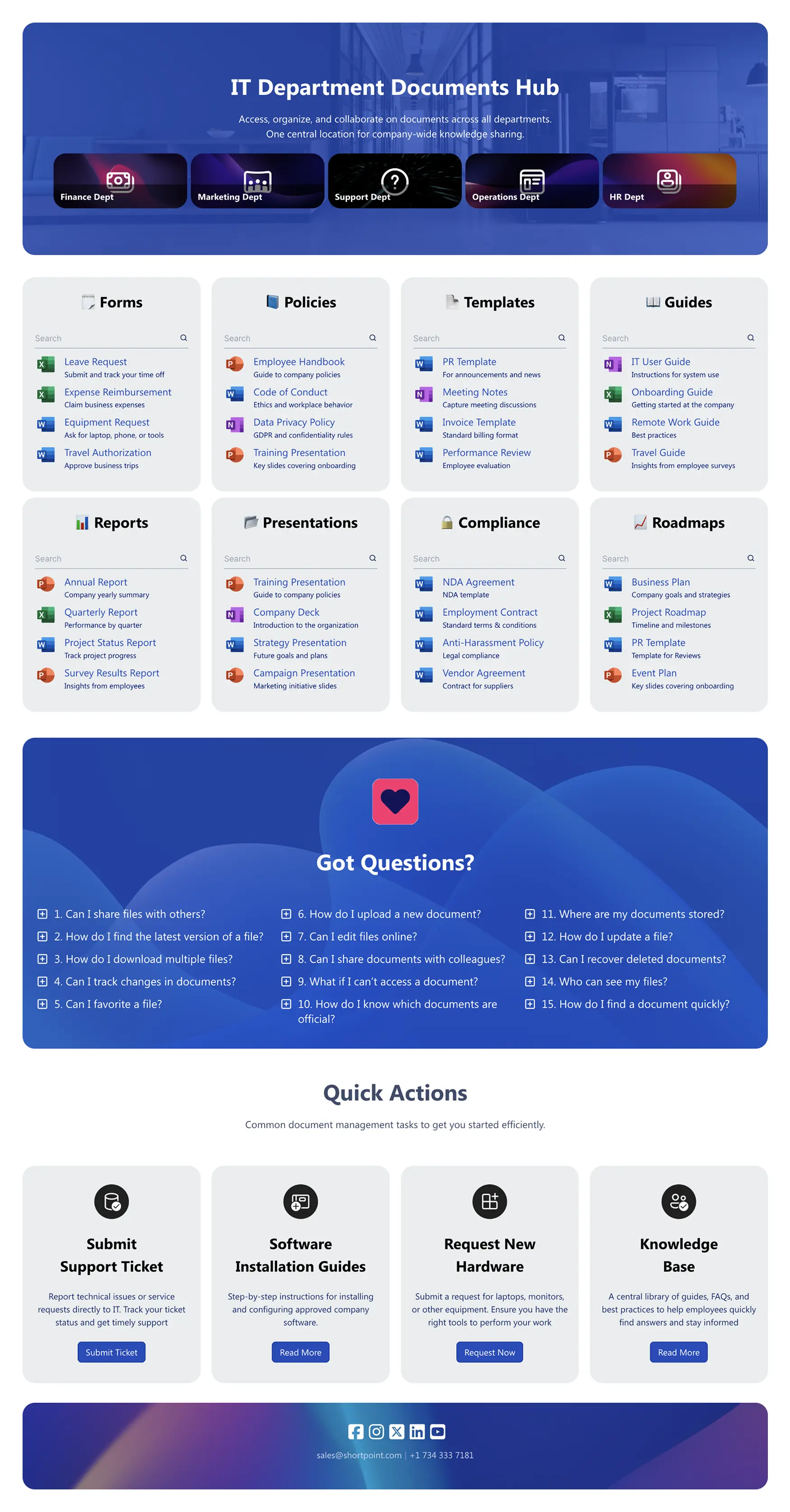
This template reimagines the standard SharePoint document library as a user-friendly portal designed around findability. Instead of the default list view that forces users to scroll through hundreds of files, this template puts a prominent search bar front and center, backed by category filters that let users narrow results by document type, department, or topic.
The layout uses card-based sections that group related documents visually, making it easy to scan and browse even when you don't know exactly what you're looking for. Each category is clearly labeled with descriptive headings and icons, so users can orient themselves quickly. The design is particularly effective for teams that manage large volumes of forms, policies, or reference materials that employees access frequently.
ShortPoint Connect ties the layout directly to your SharePoint document libraries, so new uploads appear automatically without anyone having to update the page manually. The template is fully responsive, so employees on mobile devices get the same clean findability experience as desktop users.
Improve with ShortPoint AI Designer: Turn 'raw library views' into a structured, searchable hub by generating categories from a prompt ('Create sections for Policies, Forms, Templates, Guides'), then refine the layout through conversation. Add SmartToolbar patterns like filtering, sorting, tabs, and pagination so results stay usable as the library grows.
Best for: Teams with large document collections where search and filtering are the primary way employees find files.
View Template -
3. SharePoint Document Management Template
Central document hub with alerts, search, and actions.
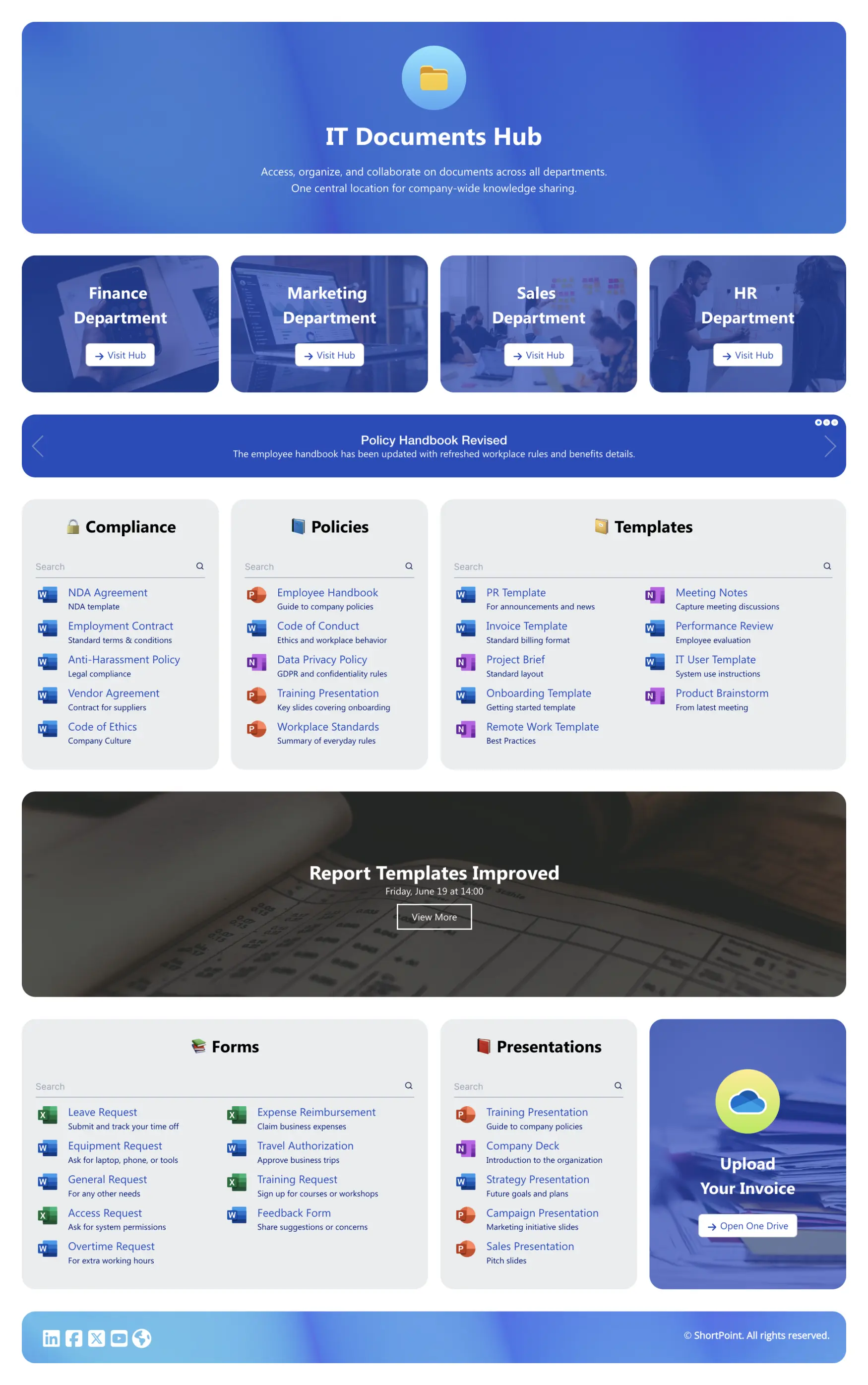
This template takes a more action-oriented approach to SharePoint document management. It combines a central search experience with alert banners that surface urgent updates—think compliance deadlines, new policy versions, or document review reminders—so critical information never gets buried in a library.
The layout balances browsing and task completion. Document categories are organized in a clean grid, but each section also includes action buttons for common tasks: upload, request review, share, or download. This makes the page not just a place to find documents but a place to act on them. A dedicated alerts section at the top ensures time-sensitive updates catch attention before users start browsing.
The combination of search, categorization, alerts, and inline actions makes this template ideal for teams that need their document hub to drive workflows, not just store files. When connected through ShortPoint Connect, the alerts and document sections pull live data from SharePoint lists and libraries, keeping everything current without manual maintenance.
Improve with ShortPoint AI Designer: Generate an alerts-first document hub from a prompt ('Build a document page with alert banner + review reminders + actions'), then tune it with follow-up edits ('only show alerts for compliance docs') and target just the alert banner or grid when you need changes.
Best for: Teams that need document management combined with alerts, notifications, and inline actions to drive document workflows.
View Template
3 Best SharePoint Knowledge Base & Wiki Templates
These SharePoint knowledge base templates give you a structured, search-first portal that employees can rely on for FAQs, guides, SOPs, and troubleshooting content.
-
4. SharePoint Wiki Template
Centralize company news, events, highlights, and resources.
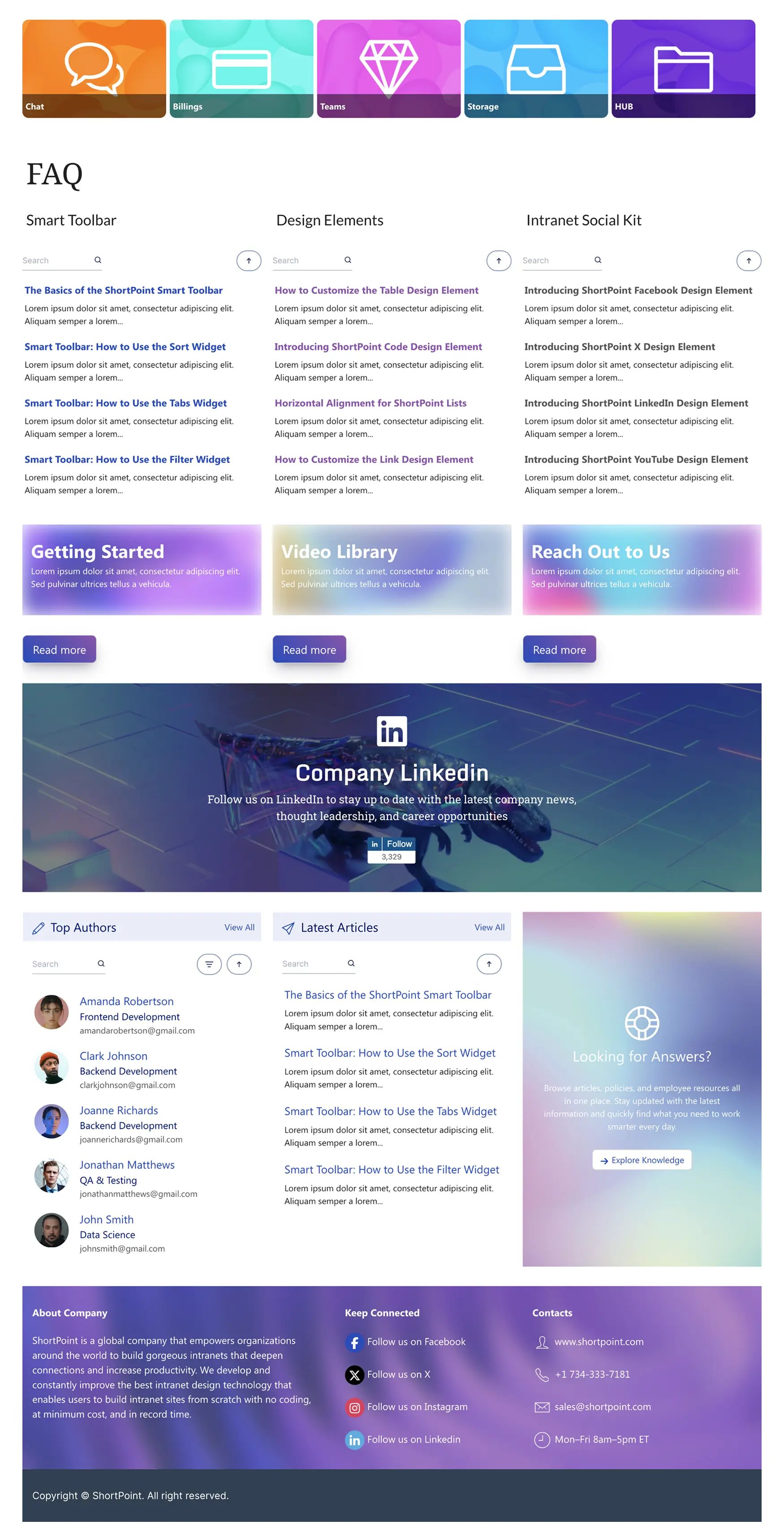
Knowledge Portal 4 transforms SharePoint into a clean, searchable internal wiki for product information, how-tos, and troubleshooting content. The design prioritizes discoverability with a prominent Search & Filter Toolbar that lets users find answers by keyword, category, or tag—the functionality that made traditional wikis useful, now with modern SharePoint page design.
Prebuilt sections organize content by category, so wiki pages are grouped logically rather than dumped into a flat list. An FAQ module surfaces the most frequently asked questions with expandable answers and related article links. A Video Library section supports short walkthroughs and tutorials for topics that benefit from visual explanation. A "Reach Out to Us" panel routes people to subject-matter experts or support channels when self-service doesn't resolve their question.
Everything connects to Microsoft 365 lists and files through ShortPoint Connect, so when a SharePoint list is updated, the wiki page reflects the change automatically. The layout is responsive and accessible, ensuring employees can learn on any device. This template is ideal for teams looking to replace legacy wiki pages with a modern, structured experience.
Improve with ShortPoint AI Designer: Generate a wiki homepage structure from a prompt ('Build a troubleshooting wiki with categories + FAQs + videos'), then refine only the FAQ module or category layout with element-level targeting as content evolves.
Best for: Teams replacing legacy SharePoint wiki pages with a modern, searchable wiki that includes FAQs, video content, and expert contacts.
View Template -
5. Best SharePoint Template for Knowledge Base
Streamline documents, FAQs, guides, and updates for teams.
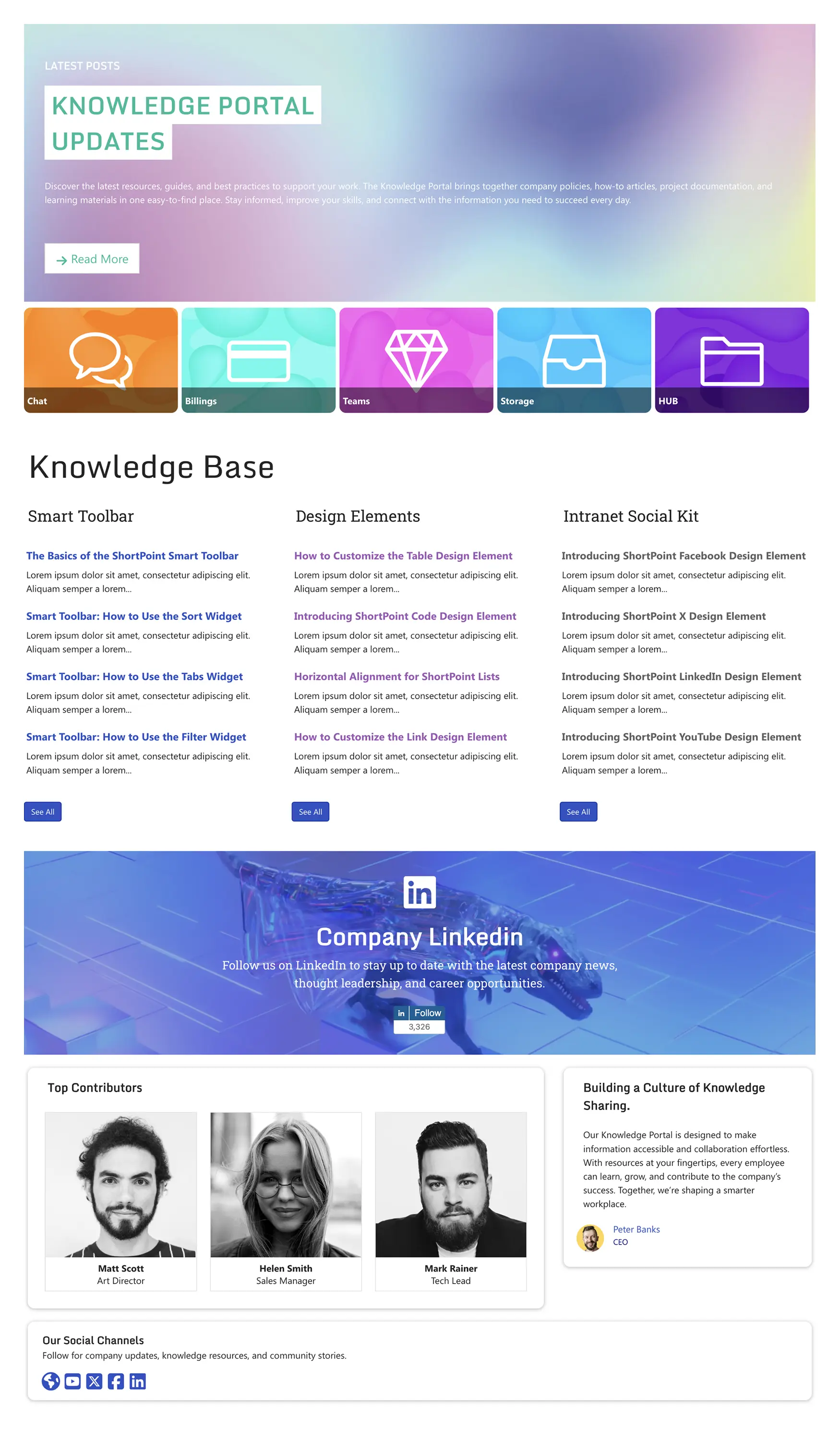
Knowledge Portal 3 is a search-first SharePoint knowledge base template designed to help people find, trust, and use information fast. The homepage opens with a prominent search bar and category tiles that guide users to the right topic area—IT, HR, Operations, Product, or any custom categories you define.
Featured posts highlight the most important or recently updated knowledge base articles, while compact article lists let users scan content by topic without clicking into each one. The layout supports a hierarchical information architecture: top-level categories lead to topic pages, which lead to individual articles. This mirrors how established knowledge base platforms like Confluence or Notion organize content, but keeps everything inside SharePoint.
The template is optimized for performance with clear headings, keyboard-friendly interactions, and WCAG-compliant design. ShortPoint Connect surfaces SharePoint list data automatically, so content owners can update a list item and see the change reflected on the knowledge base page without touching the page layout. Ideal for HR, IT, and communications teams who want a dependable portal that scales across departments and reduces support tickets.
Improve with ShortPoint AI Designer: Use AI to generate category pages and article layouts ('Create an IT category with password reset, VPN, and device setup articles'), then refine headings and cards via follow-up edits—keeping the structure consistent as the KB grows.
Best for: HR, IT, and communications teams building a structured, search-first knowledge base with categories, featured articles, and scalable information architecture.
View Template -
6. SharePoint Knowledge Base Template
Centralize documents, FAQs, and updates for teams.
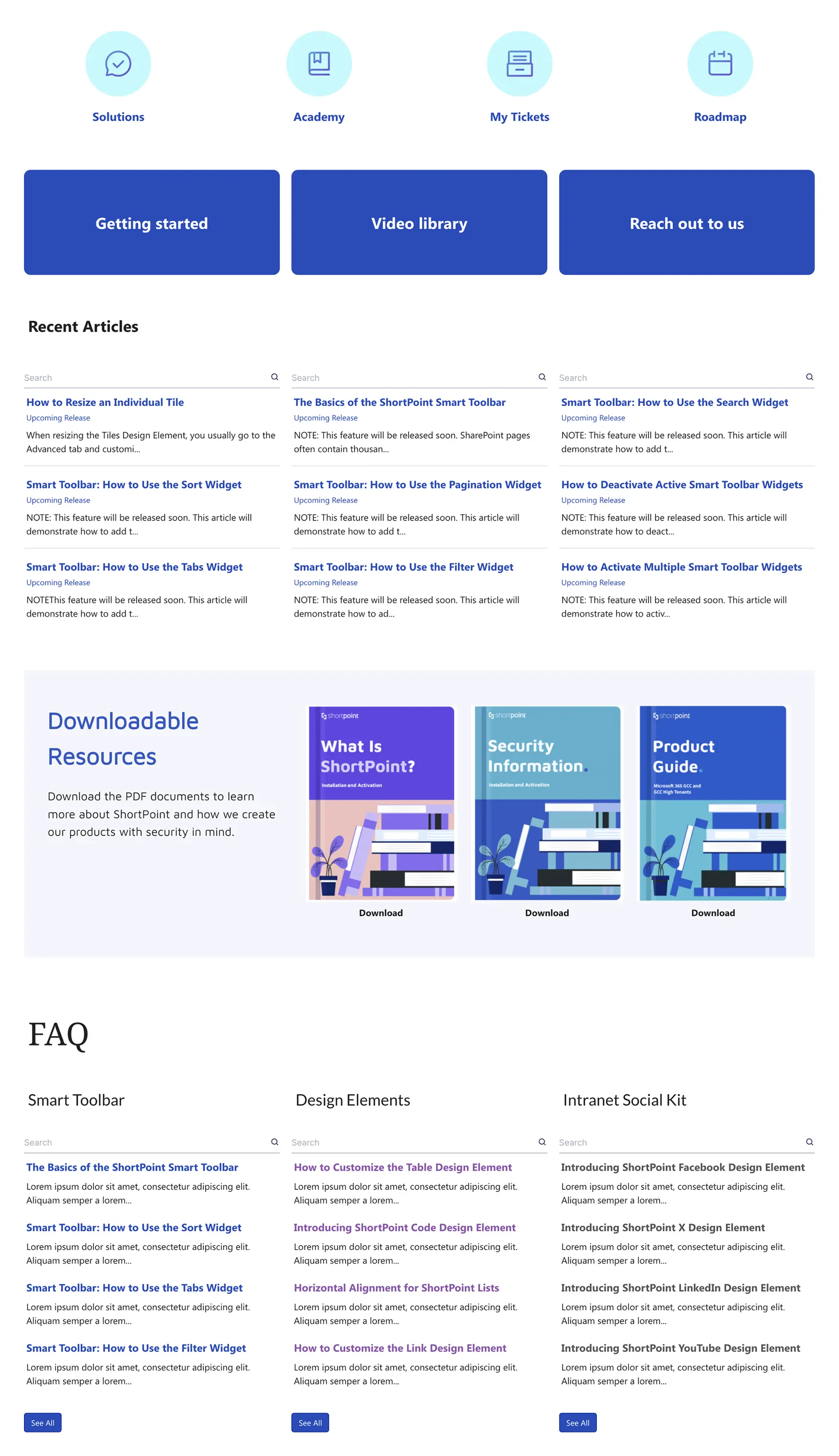
The original Knowledge Portal template delivers everything you need to launch a functional SharePoint knowledge base quickly. It centralizes documents, FAQs, help resources, and critical files into a streamlined hub that balances visual appeal with functional depth.
The architecture guides users from discovery to action: a clean navigation structure, searchable content sections, and clear calls to action ensure employees can find what they need without getting lost. The design adapts to any department or industry through customizable visuals, structured sections, and web parts that work exactly how you need them to. Whether you're building an IT self-service portal, an HR policy library, or a product documentation hub, the template provides a solid foundation.
ShortPoint Connect integrates with SharePoint lists, document libraries, and Microsoft 365 apps like Planner, Outlook, and Teams, keeping your documents, FAQs, and other content automatically updated without manual intervention. The template loads quickly, performs smoothly on mobile devices, and scales effortlessly as your content expands.
Improve with ShortPoint AI Designer: Generate a full KB homepage from a prompt ('Build a knowledge hub with search + categories + featured articles + FAQs'), then refine just one section at a time as priorities shift—without rebuilding the page.
Best for: Teams that want a versatile, all-purpose knowledge base template they can adapt to any department or use case.
View Template
How to Choose: Document Hub vs Knowledge Base
Use this quick decision matrix to match your primary need to the right template:
| Your Primary Need | Recommended Template | Why |
|---|---|---|
| Store and version-control files | Document Mgmt System (Template 1) | Comprehensive DMS |
| Search large document collections | Document Library (Template 2) | Search-first findability |
| Drive document workflows with alerts | Document Management (Template 3) | Action-oriented hub |
| Replace legacy wiki pages | Wiki Template (Template 4) | Modern wiki with FAQs |
| Build structured KB with categories | Knowledge Base (Template 5) | Search-first KB portal |
| Launch a versatile KB quickly | Knowledge Base (Template 6) | All-purpose KB hub |
| Both: files + self-service answers | Template 1 or 3 + Template 5 or 6 | Combined approach |
Many organizations combine one document management template with one knowledge base template. For example, a legal department might use Template 1 for contract storage and Template 5 for a self-service policy FAQ. An IT team might pair Template 3 for runbook management with Template 4 as an end-user troubleshooting wiki.
SharePoint Document Management Best Practices
A beautiful template only works if the underlying document management practices are solid. Here are the fundamentals that make using SharePoint for document management effective:
Use Metadata Instead of Folders
The biggest mistake teams make when using SharePoint for document management is recreating their old file-server folder hierarchy. Folders force documents into a single category, making it impossible to find a file that belongs to multiple topics. Metadata columns—document type, department, project, status, date—let users filter and search across dimensions without navigating nested folders. ShortPoint Connect can surface metadata-driven views directly on your template pages.
Establish Clear Ownership
Every document category needs an owner responsible for keeping content current. Assign content stewards by department or document type and display ownership clearly on your document hub. Template 1's layout includes ownership labels for exactly this reason. When employees know who maintains a section, they know who to contact when something is outdated or missing.
Automate What You Can
SharePoint's Power Automate integration handles document lifecycle tasks that would otherwise fall through the cracks: send review reminders when a policy hasn't been updated in 12 months, notify owners when new documents are uploaded to their section, or route documents through approval workflows before publishing. Templates 1 and 3 include action buttons that can trigger these flows directly from the page.
Structure for Copilot and AI Designer
Microsoft 365 Copilot uses your SharePoint content as a knowledge source. Documents with clear titles, consistent metadata, and logical structure generate better Copilot responses than files buried in nested folders with cryptic names. Treat your document management system as the training data for your organization's AI assistant.
That same structure also supports an AI intranet workflow. With ShortPoint AI Designer, teams can generate and refine document hubs from prompts while keeping page sections consistent and scannable—so employees can find information faster and AI tools can surface better answers.
Measure and Improve
Track which documents get viewed, searched for, and downloaded. If employees consistently search for a document type that doesn't exist, that's a gap. If a section gets no traffic, the content may be outdated or misplaced. Use SharePoint analytics and ShortPoint's built-in reporting to identify patterns and continuously improve your document hub.
SharePoint Knowledge Management Best Practices
A knowledge base is only as good as its content and structure. These practices ensure your SharePoint knowledge base becomes the go-to resource your team actually uses:
Start with the Questions People Already Ask
The fastest way to build a useful knowledge base is to start with the questions your support team, IT helpdesk, or HR inbox already receives every week. Pull your top 20 most-asked questions and write knowledge base articles for each one. This guarantees your first articles have immediate value. Use a standard knowledge base article template—title, summary, step-by-step instructions, related links—so articles are consistent and scannable.
Organize by Topic, Not by Department
Employees don't think in org-chart terms when they're stuck. They think in topics: "How do I reset my password?" not "What does the IT department say about authentication?" Organize your knowledge base by topic categories (Access & Accounts, Benefits, Policies, Tools, etc.) and let search handle the rest. Templates 4 and 5 include category-based navigation for exactly this reason.
Keep Articles Short and Actionable
A knowledge base article should answer one question completely. If an article tries to cover everything about a topic, it becomes a reference manual that nobody reads. Write for the employee who has a specific problem and needs a specific answer. Use numbered steps for processes, screenshots for navigation, and bold text for key actions.
Assign Content Owners and Review Cycles
Outdated content is worse than no content—it erodes trust in the entire knowledge base. Assign every topic area to a content owner and set quarterly review reminders through Power Automate. When content owners approve their articles as current, mark them with a "Last reviewed" date so employees can gauge freshness. Template 5's featured posts section can highlight recently updated articles to build trust.
Leverage Copilot and SharePoint AI Search
Structure your articles with clear headings, consistent formatting, and descriptive titles. Microsoft 365 Copilot and SharePoint's AI-powered search use this structure to surface answers directly in chat and search results. A well-structured knowledge base becomes the foundation for your organization's AI assistant.
Why Teams Build with ShortPoint
ShortPoint gives you everything you need to turn these templates into production-ready document hubs and knowledge bases:
- 250+ ready-to-use templates. Start with any document management or knowledge base template and customize it to match your brand, structure, and content.
- 80+ design elements. Cards, accordions, search bars, filters, tabs, carousels, and more—everything you need to build professional pages without code.
- ShortPoint Connect. Pull live data from SharePoint lists, document libraries, Planner, Outlook, and other Microsoft 365 sources directly into your pages. When a list updates, your page updates.
- Page Builder & Theme Builder. Visual, no-code editors for layout and branding. Design pages in real-time with drag-and-drop, then apply consistent themes across your entire intranet.
- Copy & Paste. Duplicate sections, pages, or entire template layouts across sites in seconds. Scale your document hub or knowledge base to new departments without starting over.
- Accessibility built in. WCAG 2.1/2.2 compliant with ADA support. Every template is keyboard-navigable and screen-reader friendly from day one.
- Works everywhere. SharePoint Online, Subscription Edition, and On-Premises (2019/2016/2013). Responsive design adapts to desktop, tablet, and mobile.
- ShortPoint AI Designer: Full page generation from prompts, follow-up edits via conversation, element-level targeting, template customization, SmartToolbar interactivity (search/filter/sort/pagination/tabs/date filtering), version history, and persistent conversations stored in SharePoint.
ShortPoint customers report launching up to 60% faster (2–4 weeks vs. 6+ months for custom builds) and saving $100,000+ in development costs.
Get Started in 3 Steps
You can go from template to live document hub or knowledge base in under a day:
- Start a free trial: Sign up with your Microsoft 365 credentials—no credit card required. ShortPoint installs directly into your SharePoint environment.
- Insert a template: Edit any SharePoint page, add the ShortPoint web part, and choose your document management or knowledge base template from the library.
- Customize and publish: Replace sample content with your own, connect your SharePoint data sources, apply your brand theme, and publish. Most teams go live the same day.
Frequently Asked Questions About Document & Knowledge Management
Yes. SharePoint provides core document management capabilities including version control, metadata tagging, search, permissions, co-authoring, retention policies, and audit trails. It functions as a DMS out of the box, though the default interface is utilitarian. Templates like the ones above add a designed front-end that makes SharePoint's DMS features more accessible and user-friendly for everyday employees.
A document center is a SharePoint site template designed specifically for managing large volumes of documents with features like content organizer rules and document routing. A document library is a component within any SharePoint site that stores files with metadata. Think of the document center as the entire building and the document library as a room inside it. The templates above work with standard SharePoint sites and document libraries—you don't need a dedicated document center site.
Absolutely. SharePoint's site pages, search, metadata, and navigation features make it well-suited for building a knowledge base. The key is structure: organizing content by topic, using consistent page templates for articles, and providing search and category navigation so employees can find answers quickly. SharePoint knowledge base templates like those in this article give you that structure out of the box.
Classic SharePoint wiki pages still exist but are no longer the recommended approach for internal wikis. Microsoft has shifted toward modern site pages, which offer better design flexibility, mobile responsiveness, and integration with Microsoft 365 services. Modern SharePoint pages combined with knowledge base templates provide a far superior wiki experience—better search, richer formatting, live data connections, and Copilot compatibility.
Our SharePoint Intranet Examples article covers a wide range of template categories—homepage, HR, IT helpdesk, department sites, and more. This article goes deep on two specific use cases: document management and knowledge bases. If you need a broad overview of what's possible with SharePoint templates, start with the intranet examples article. If you know you need a document hub or knowledge base specifically, you're in the right place.
Yes, and many organizations do exactly this. A common pattern is to use a document management template (like Template 1 or 3) as the central file repository and a knowledge base template (like Template 5 or 6) as the self-service portal that explains how to use those documents. ShortPoint's Copy & Paste feature makes it easy to replicate and connect pages across sites.
Yes. The templates create well-structured SharePoint pages that Copilot can index and reference. When employees ask Copilot questions about company documents or policies, Copilot draws from the content on these pages. The better your document and knowledge base structure, the more accurate Copilot's answers will be.
Most teams go live within a few hours. The template provides the design and structure—you just need to replace sample content with your own documents, connect your SharePoint data sources, and apply your brand. The longest part is usually deciding how to organize your content, not building the pages. ShortPoint's no-code tools mean you don't need a developer or designer to get started.

Luisa Silva
Growth Manager, ShortPoint
Luisa is the Growth Manager at ShortPoint. She translates customer insights and ShortPoint solutions into practical, no-code guides for SharePoint and Microsoft 365 intranets. Focusing on intranet design, HR, knowledge hubs, and internal comms, her work is all about helping you achieve faster launches and higher adoption rates.
Ignite your vision. Install ShortPoint directly on your site, or play in sandbox mode. No credit card required.