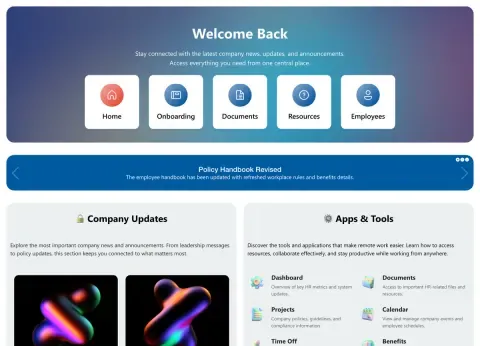
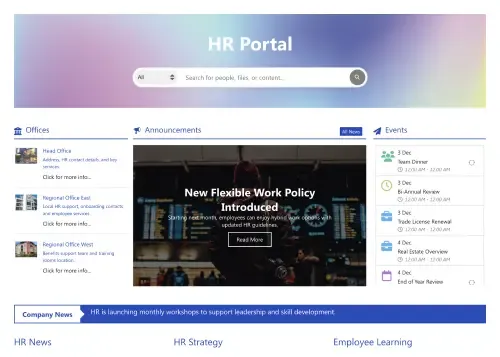
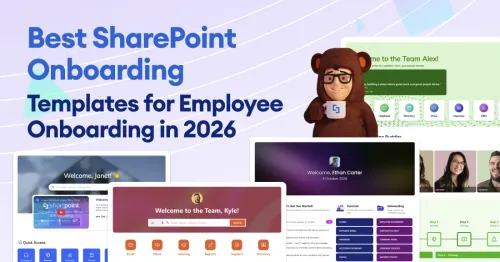
Browse onboarding templates
onboarding templates
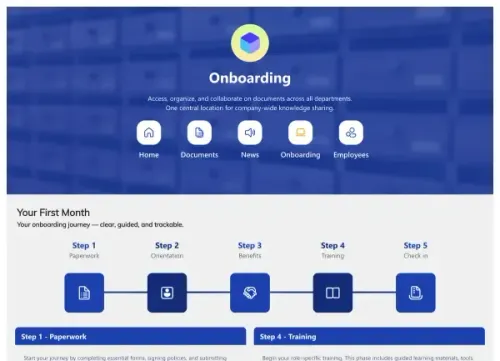
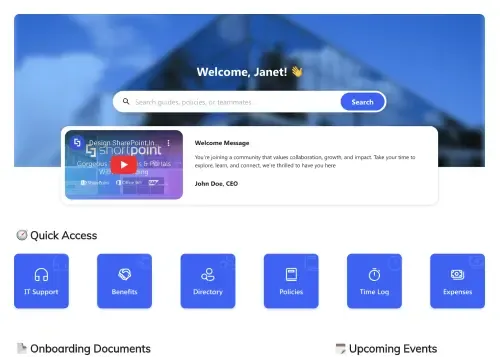
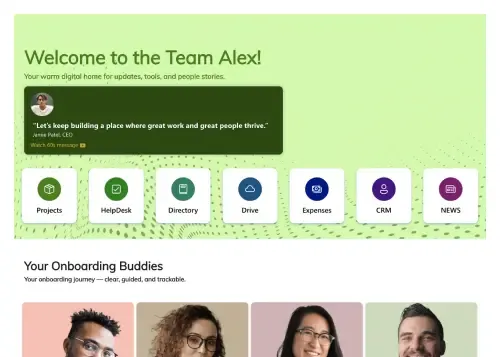
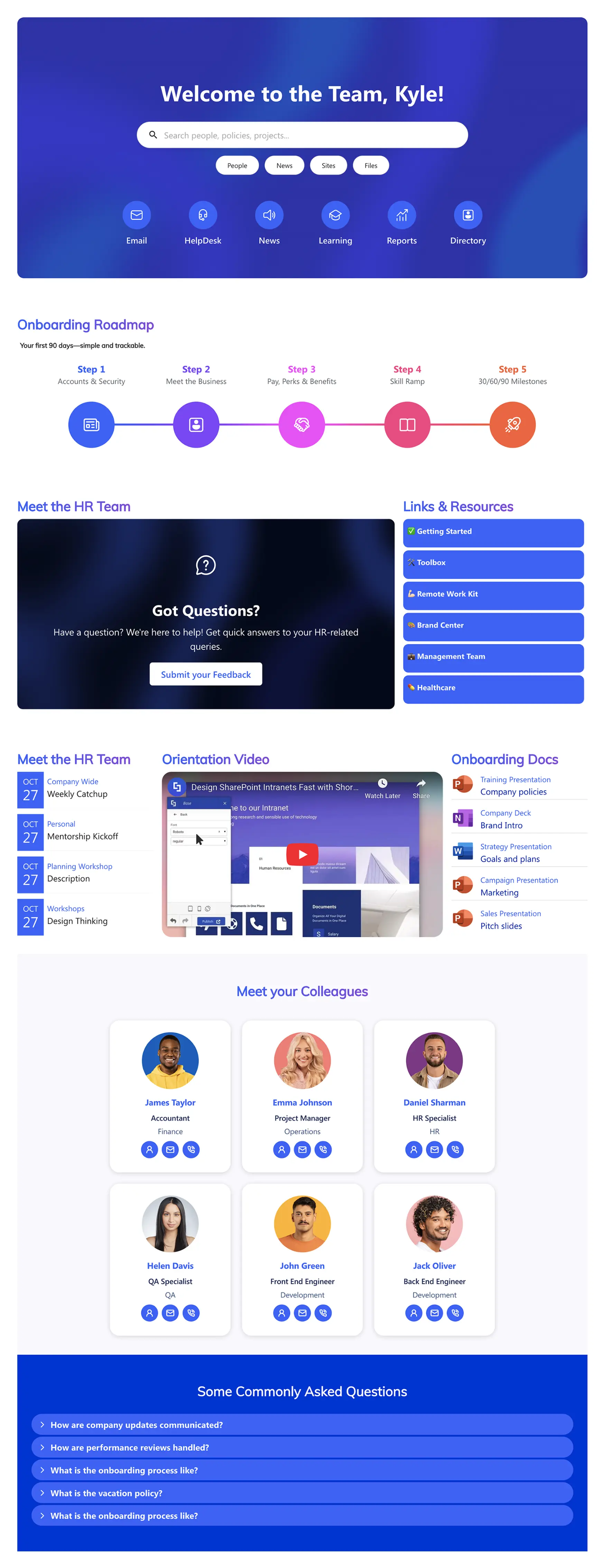
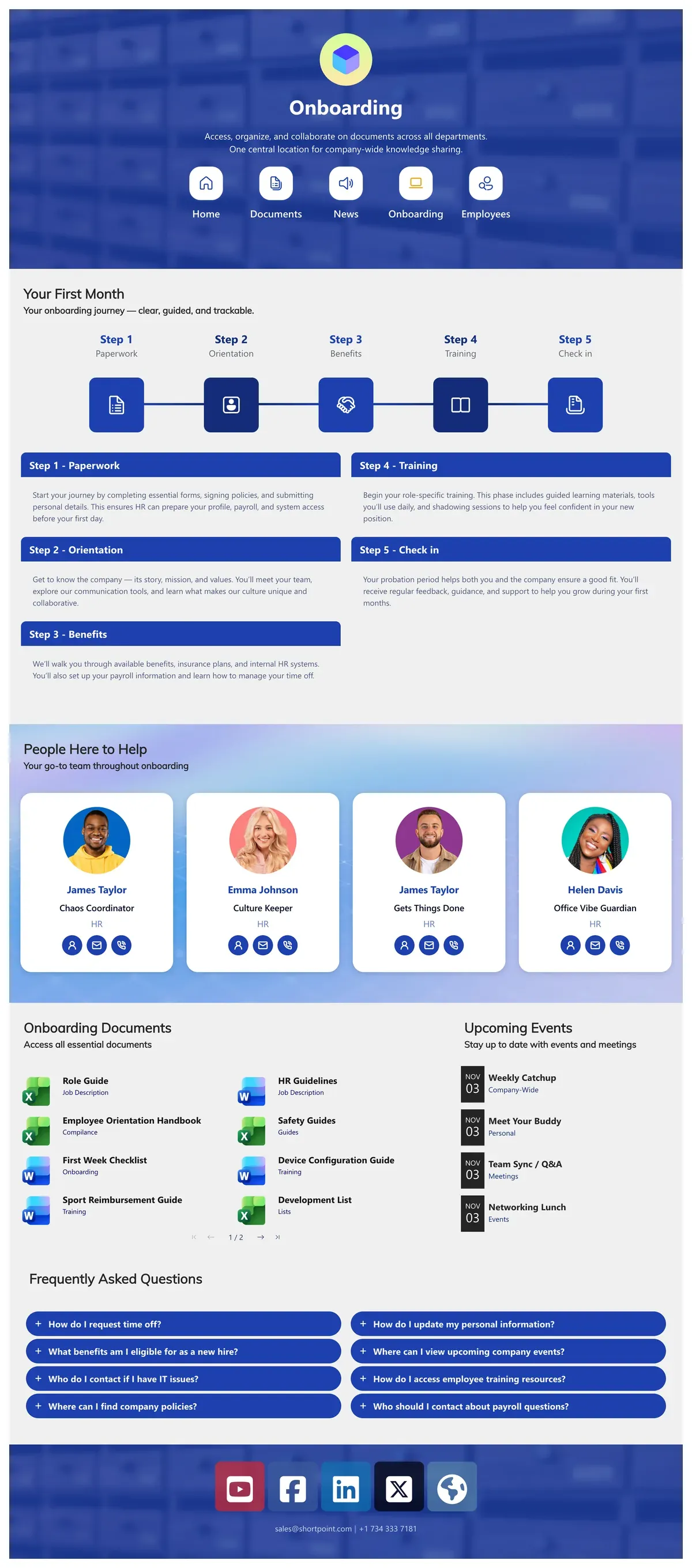
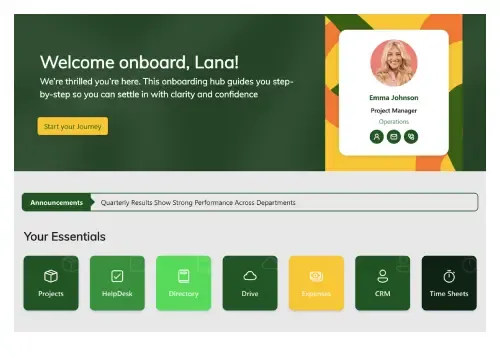 Onboarding Essentials App tiles, first-month plan, team, CEO video and FAQ.
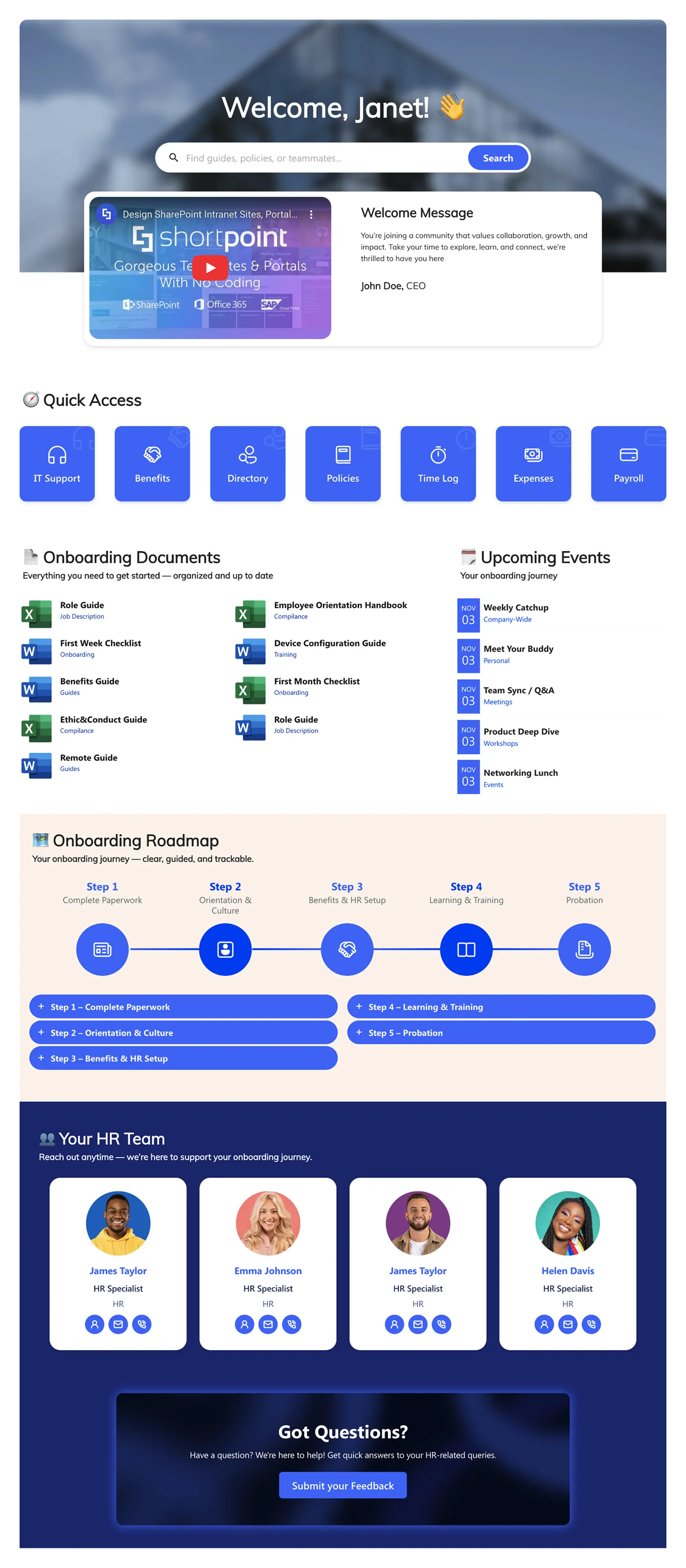
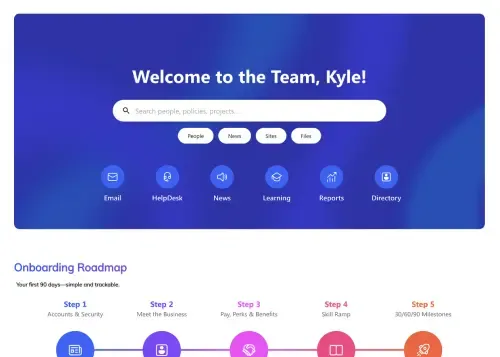 The Welcome Space Filtered search, a 30/60/90 roadmap and orientation video.
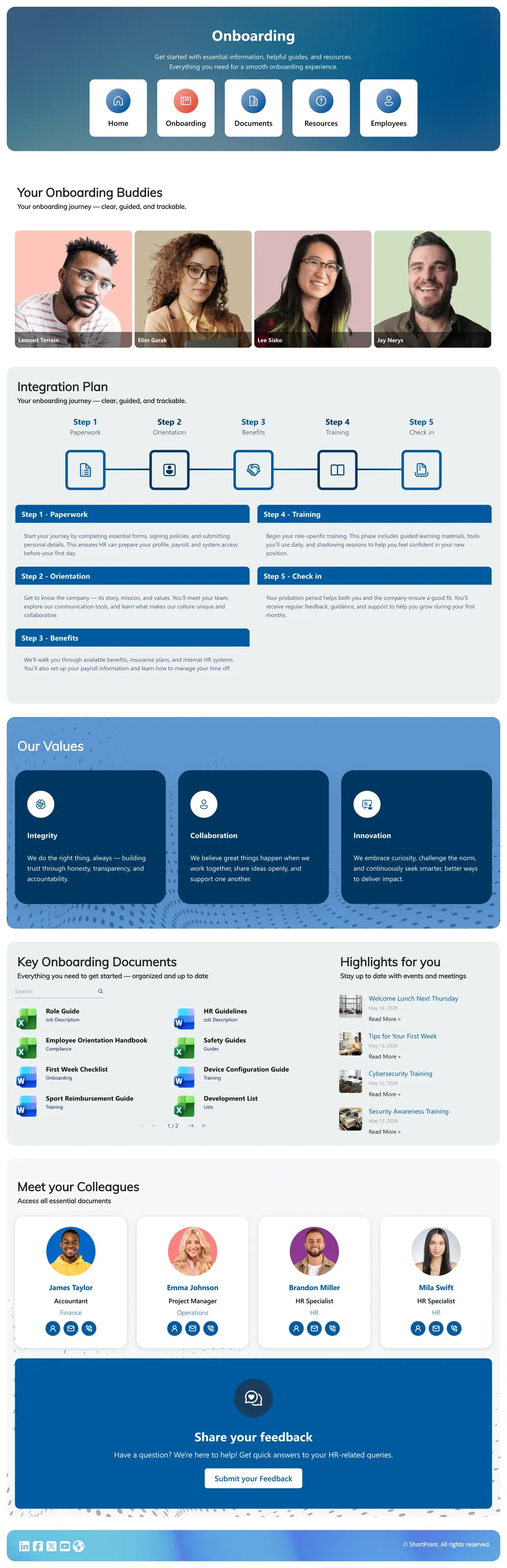
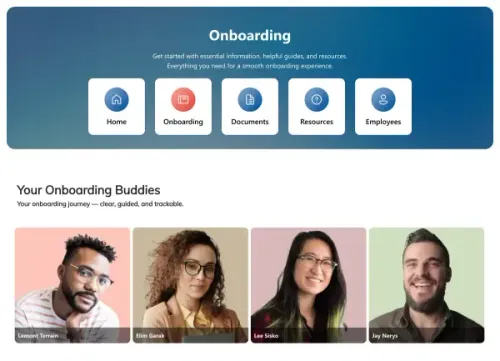 Orientation Hub Onboarding buddies, integration plan, values and feedback.
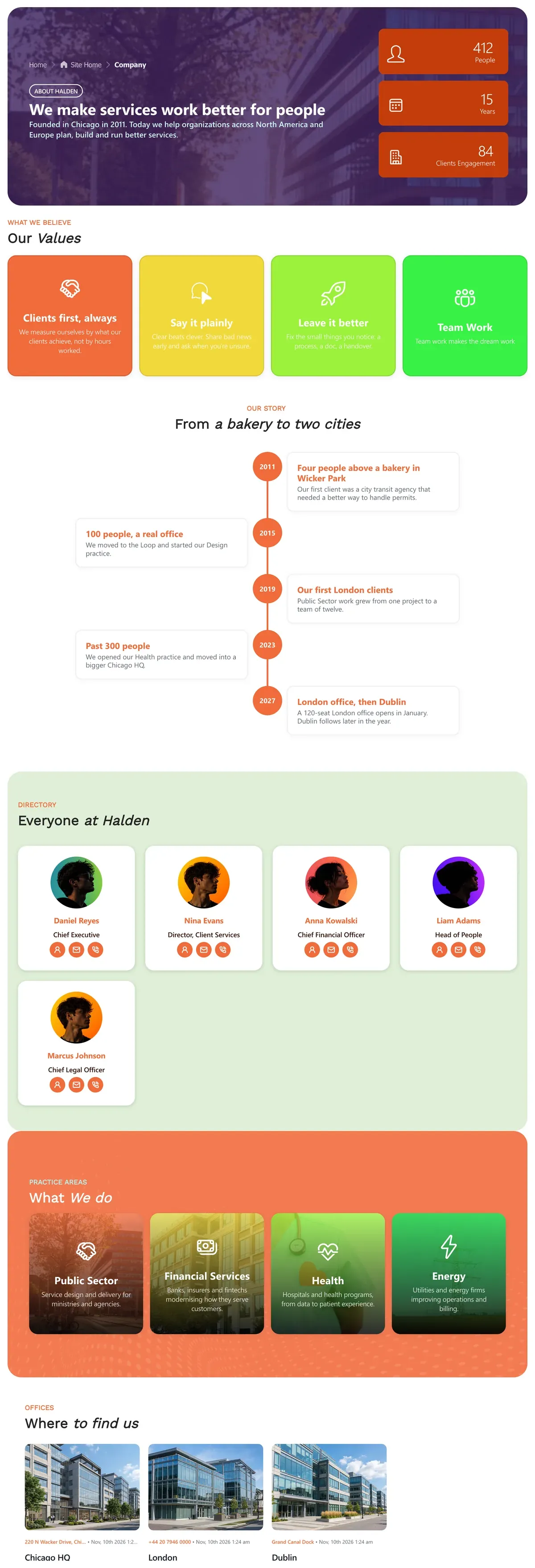
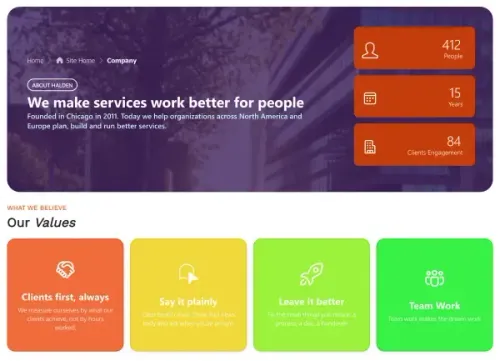 Squad Space Company stats, values, story timeline, leaders and offices.
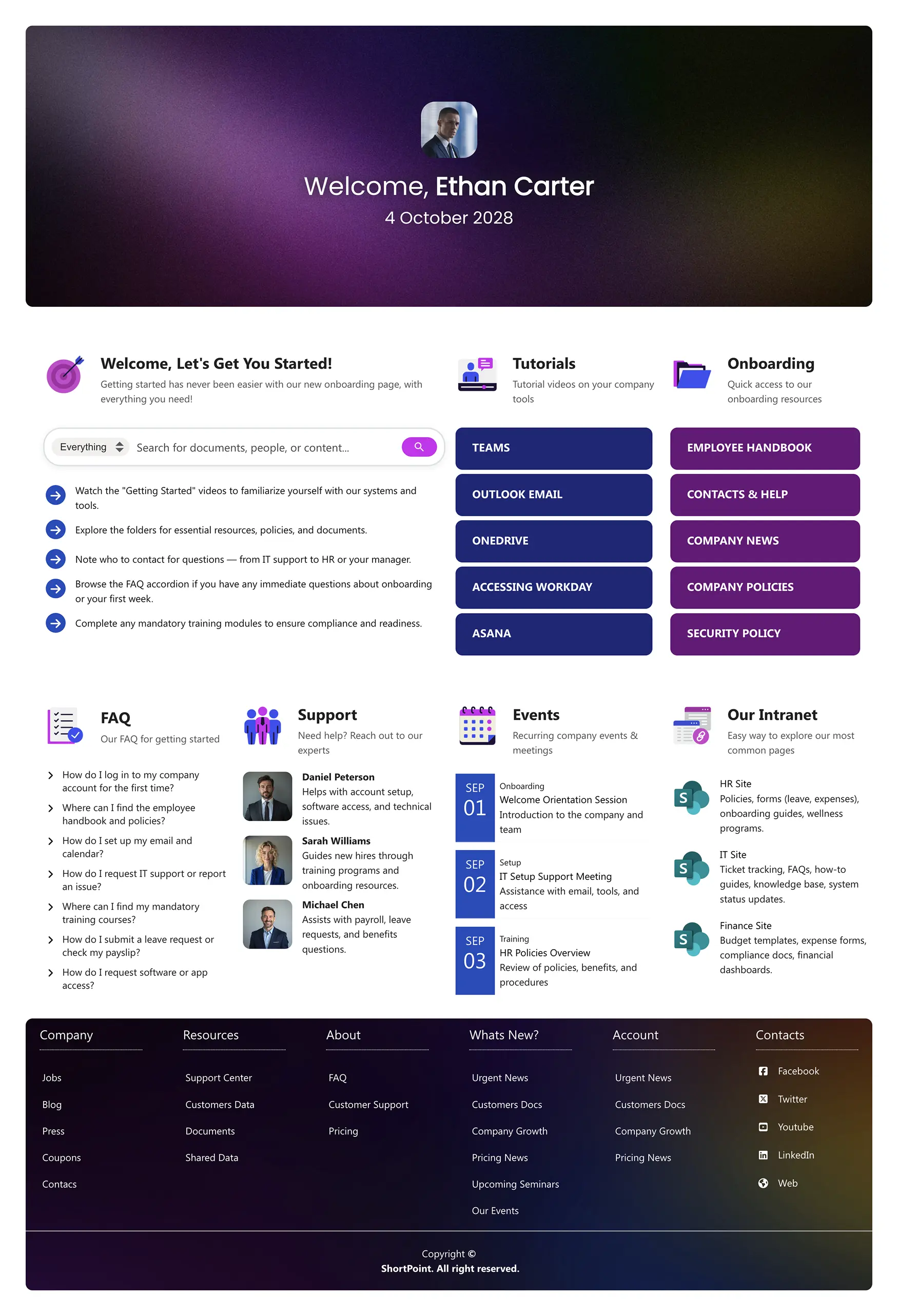
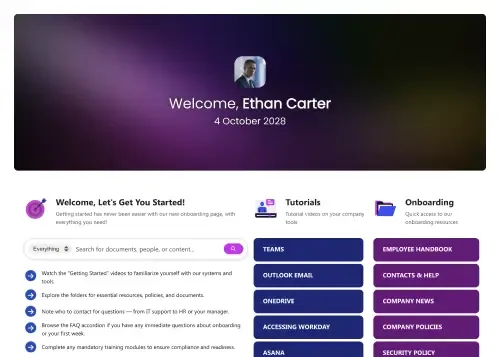 Onboarding HQ Start checklist, tool tutorials and support contacts.
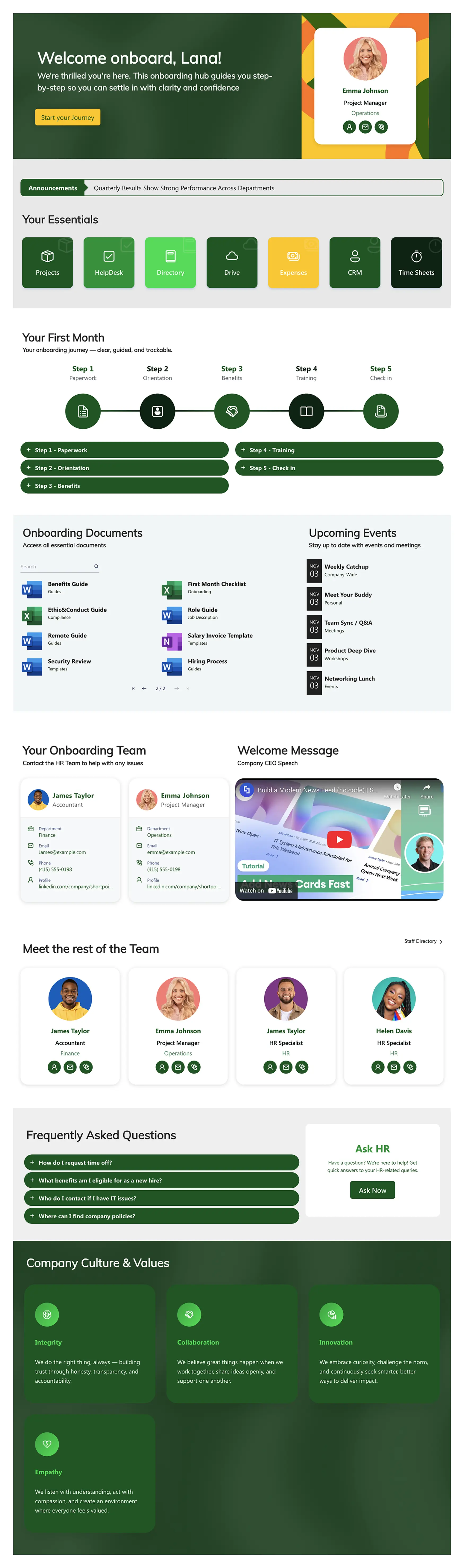

About SharePoint onboarding templates
A SharePoint onboarding template is a ready-made page for a new joiner’s first weeks: the steps to follow, the people to meet, the documents to read and the training to complete. The roadmap, people cards and reading list are ShortPoint sections that HR can reorder or restyle without code.
Need onboarding as part of a full HR site? See the HR site templates.
The onboarding pages most intranets need
- Company welcome Who we are, how we work and where to start.
- First-weeks roadmap Steps from paperwork to the end of probation.
- Documents to read Handbook, policies and forms in one list.
- People to meet Buddy, manager, HR and IT contacts.
- Training Required courses and where to take them.
The sections an onboarding page is built from
Three kinds of ShortPoint sections do most of the work on an onboarding page: HR sections for onboarding teams and contacts, Team sections for people cards, and Documents sections for the reading list.
Layout order for an onboarding page
A new joiner needs to know what to do first. Put the welcome and the next steps on the first screen, then the people to meet and the documents to read. Training, events and FAQs follow. On a phone, the next step a new joiner has to take is still the first thing they see.
- 1 Welcome and page title greet the new joiner
- 2 First-weeks roadmap what to do, step by step
- 3 People to meet buddy, manager, HR and IT
- 4 Documents to read handbook, policies, forms
- 5 Training required courses
- 6 Onboarding FAQs the questions every new joiner asks
- 7 Footer who to call in week one
Keeping onboarding current
Review the roadmap every time a process changes, and connect the documents list to the official library so new joiners always read the current version. Give the page one owner, usually HR or the people team.
- Out-of-date steps New joiners follow a process that no longer exists.
- No named contacts People don’t know who to ask in week one.
- Too much at once Spread content across the first weeks instead of one long list.
- Copied documents Old versions stay online. Link to the library.
Why ShortPoint for onboarding pages
SharePoint can store every onboarding document, but a new joiner still has to find them. ShortPoint onboarding templates turn the same content into a designed page with steps, people and documents in order. When a step in the process changes, HR updates the roadmap once and every new joiner sees the new version.
Every template here is a starting point. With ShortPoint you can connect any section to live data from SharePoint lists and Microsoft 365, such as people, calendars, news and files, using Connect. You can add or swap any of the design elements without code, and apply your brand to every page at once with Theme Builder. AI Designer can then help you adjust a layout or create a page that isn’t in the library.
Get started with an onboarding page in three steps
- Start your free trial
Start a 15-day trial with no credit card, and sign in with your Microsoft 365 account to add ShortPoint to your SharePoint.
- Pick your starting point
Open the Templates Library inside SharePoint and choose the template you previewed here.
- Make it yours and publish
Replace the sample content, connect your data, apply your brand with Theme Builder, and publish.