Browse HR page templates
HR page templates
 HR Central HR
Viewing
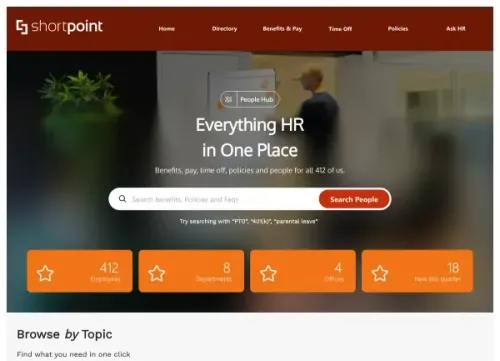 People & HR Hub HR
Viewing
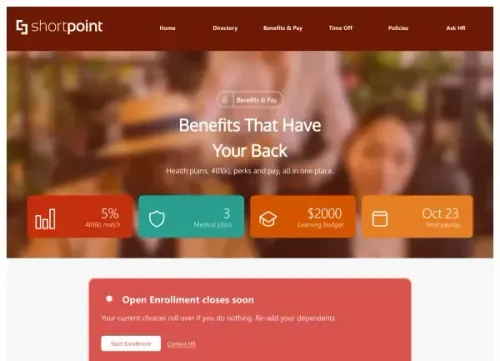 Benefits & Pay HR
Viewing
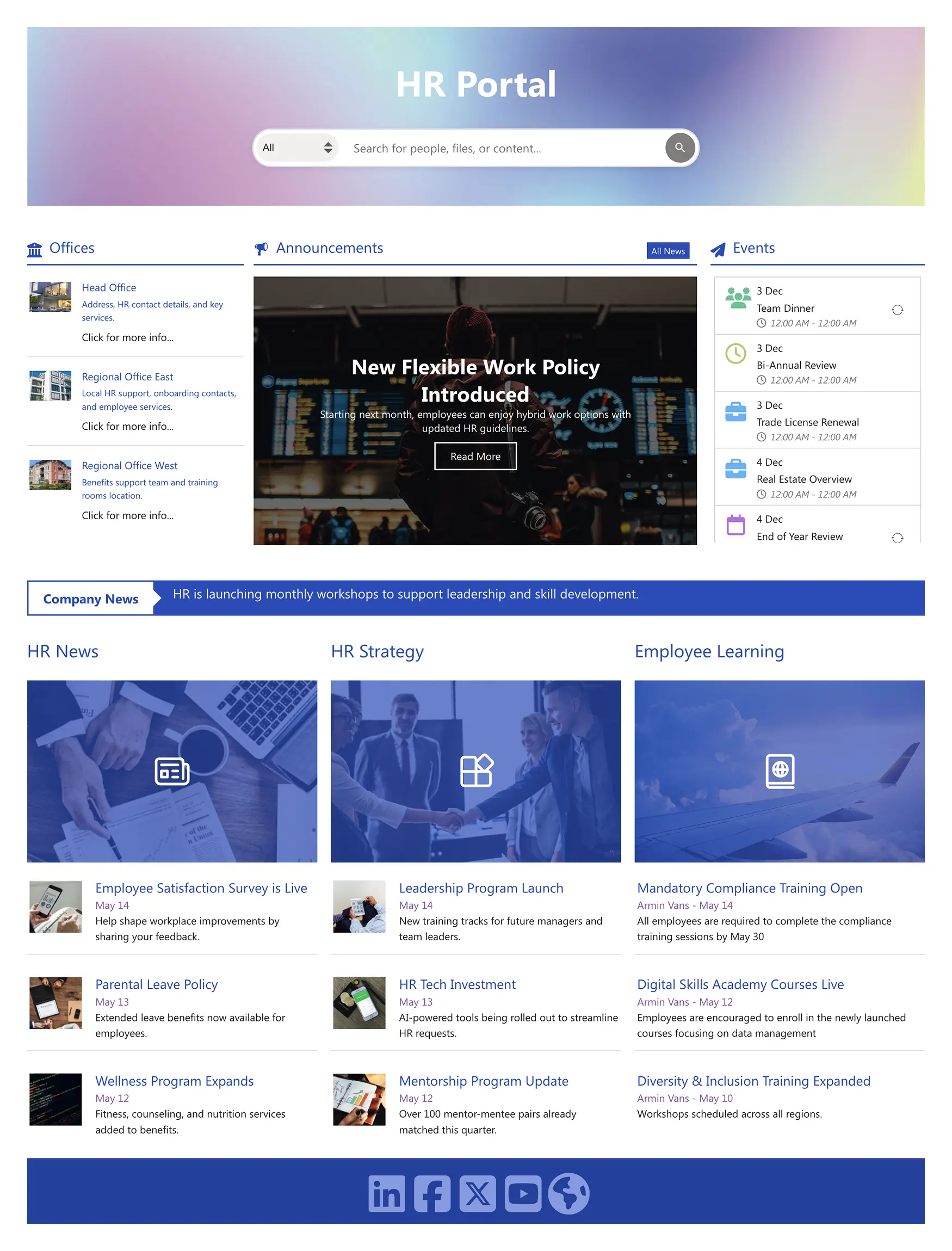
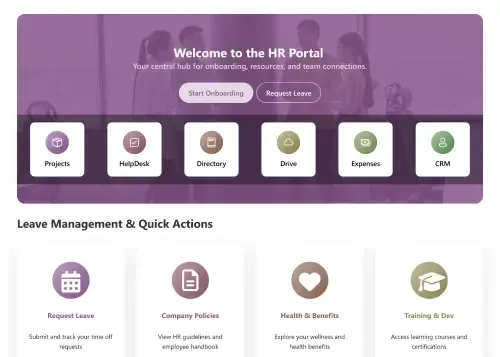 HR Portal HR
Viewing
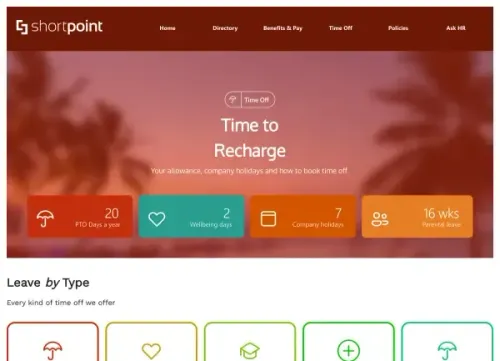 Time Off HR
Viewing
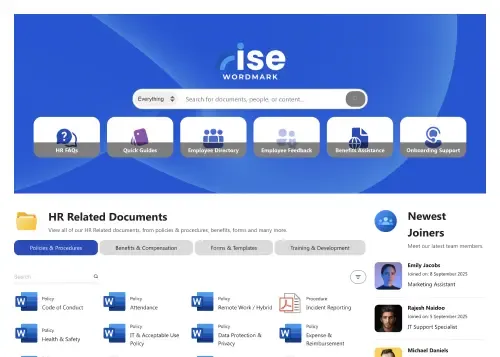 HR Knowledge HR
Viewing
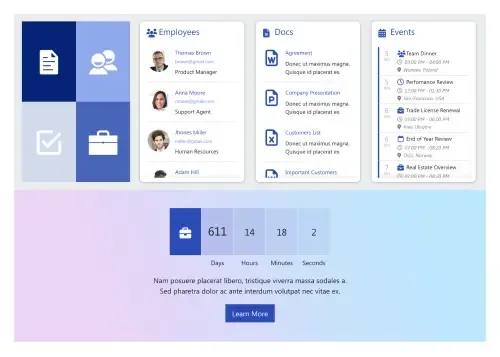 Pulse Point HR
Viewing
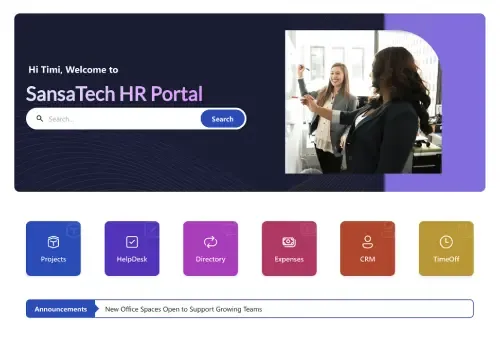 Welcome Portal HR
Viewing
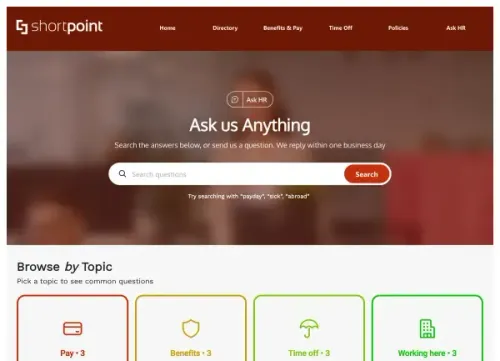 HR FAQs HR
Viewing
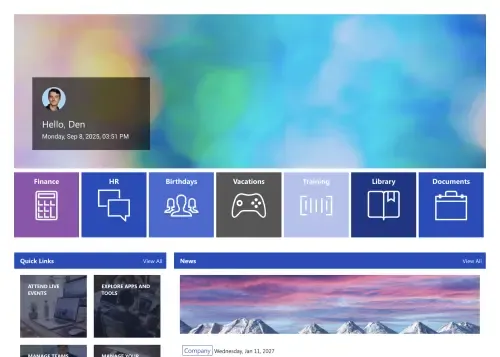 People Home HR
Viewing
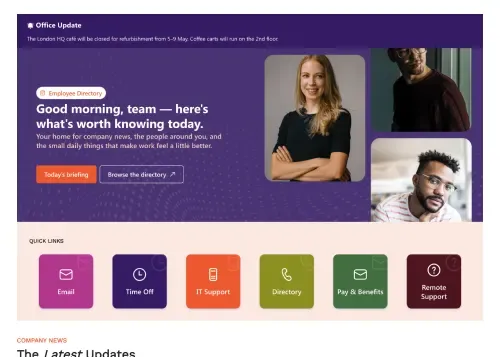 Daily Start HR
Viewing
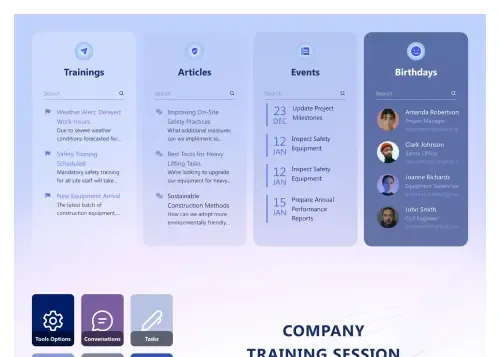 Talent Hub HR
Viewing
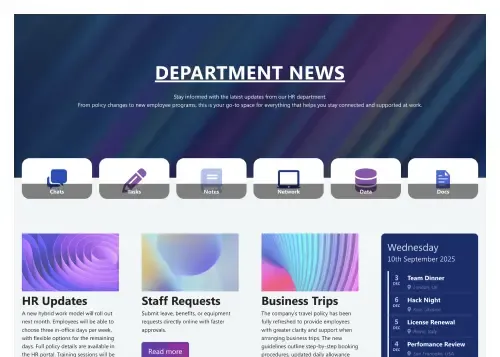 HR Corner HR
Viewing
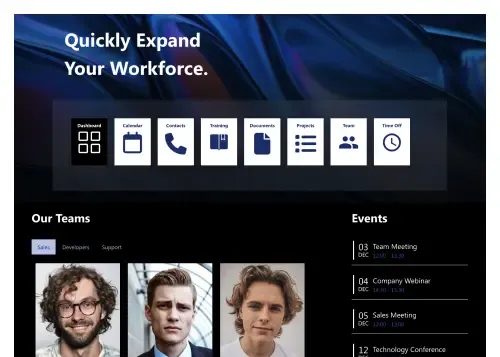 People Space HR
Viewing
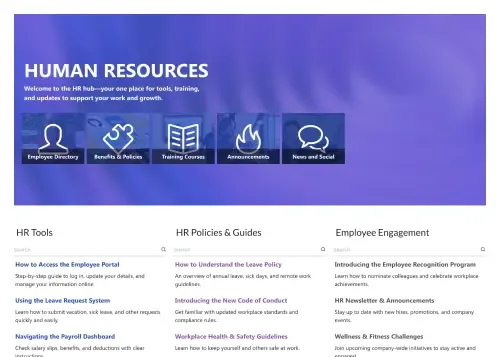 Worklife Hub HR
Viewing
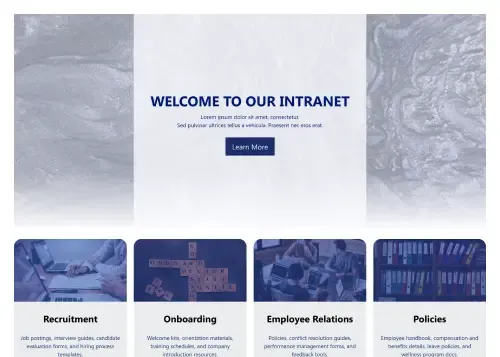 HR Compass HR
Viewing
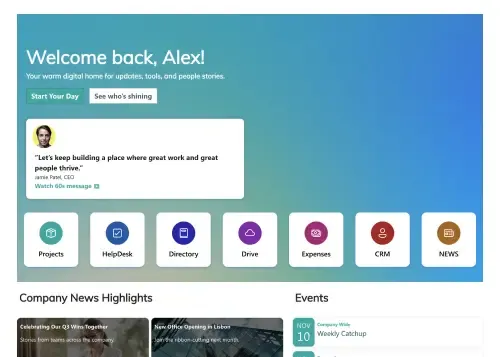 The Welcome Hub HR
Viewing
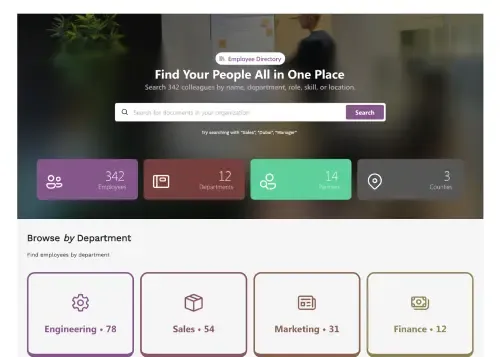 People Net HR
Viewing
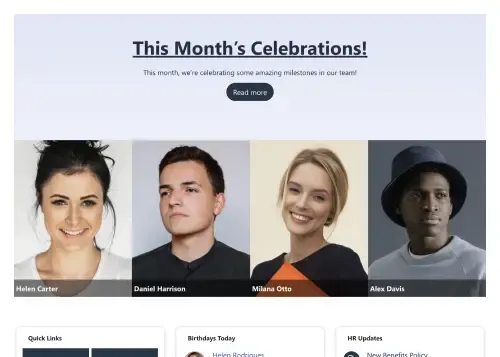 Care & Culture HR
Viewing
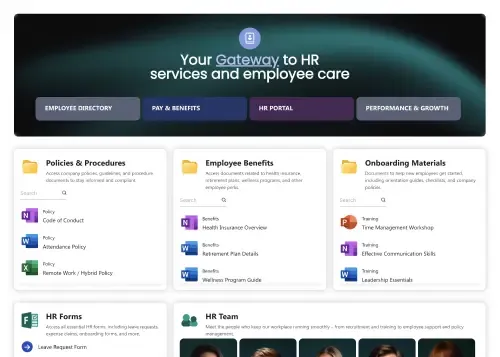 HR Gateway HR
Viewing
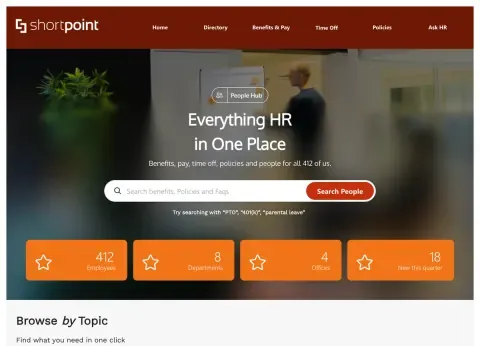
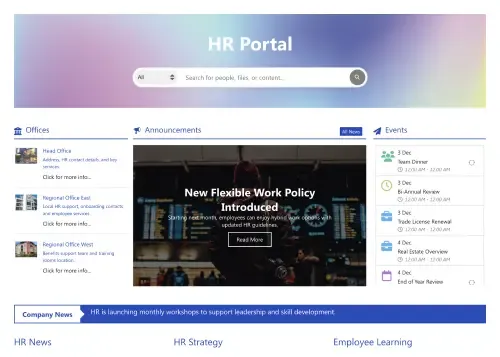
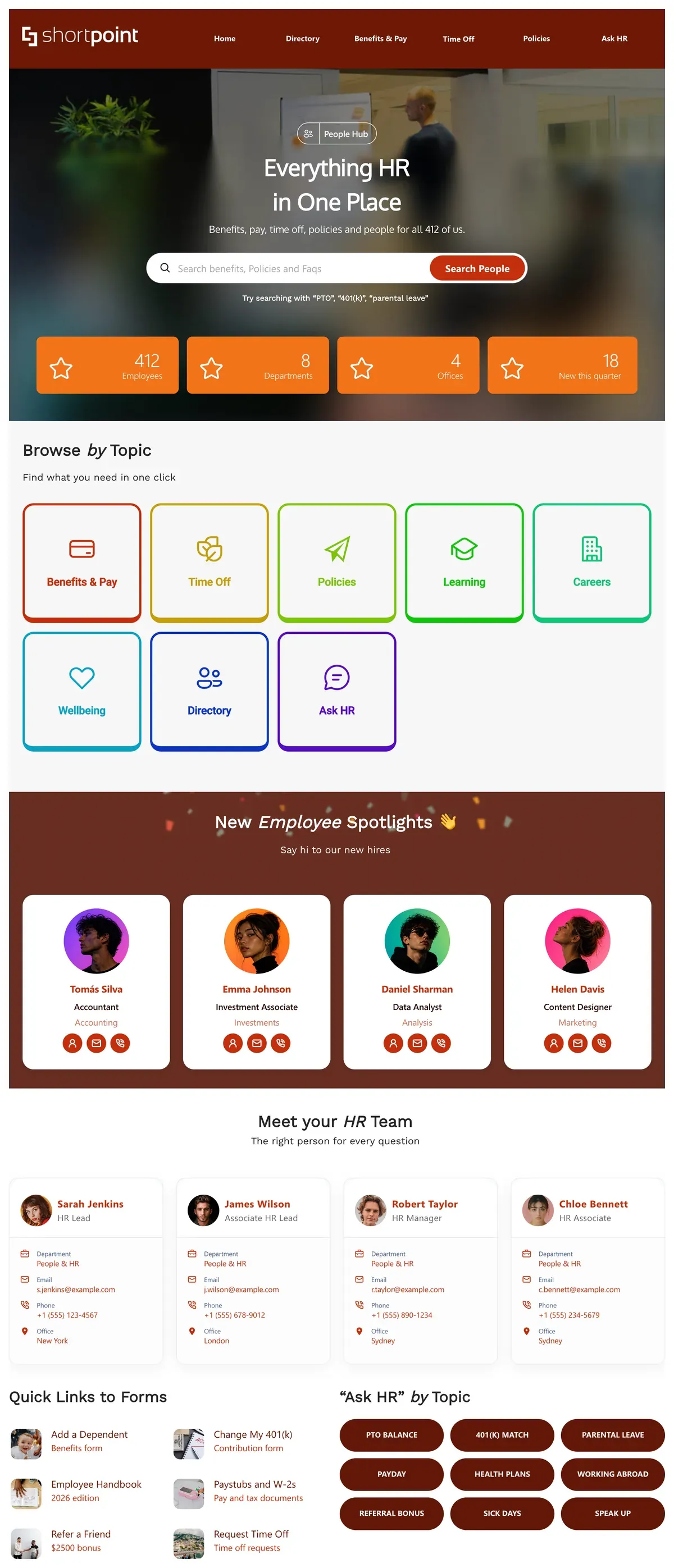
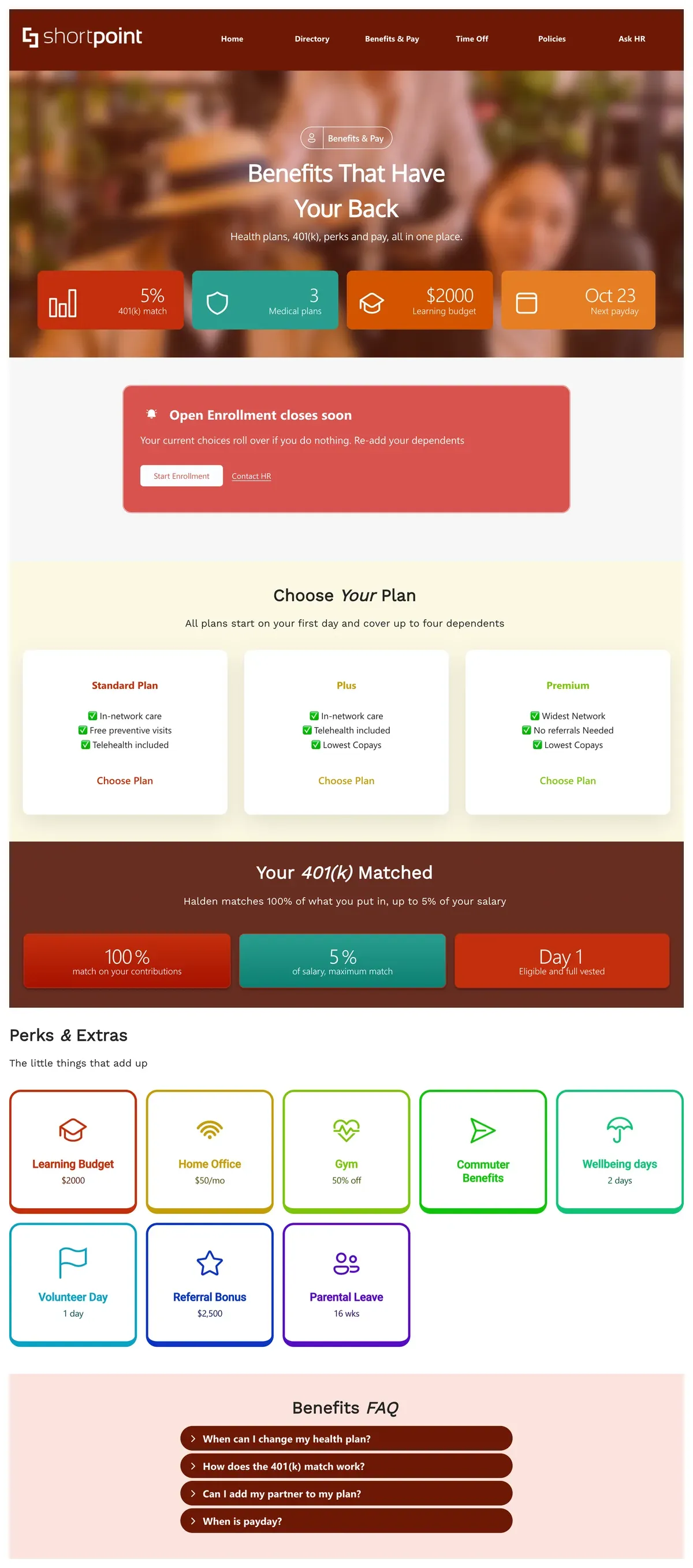
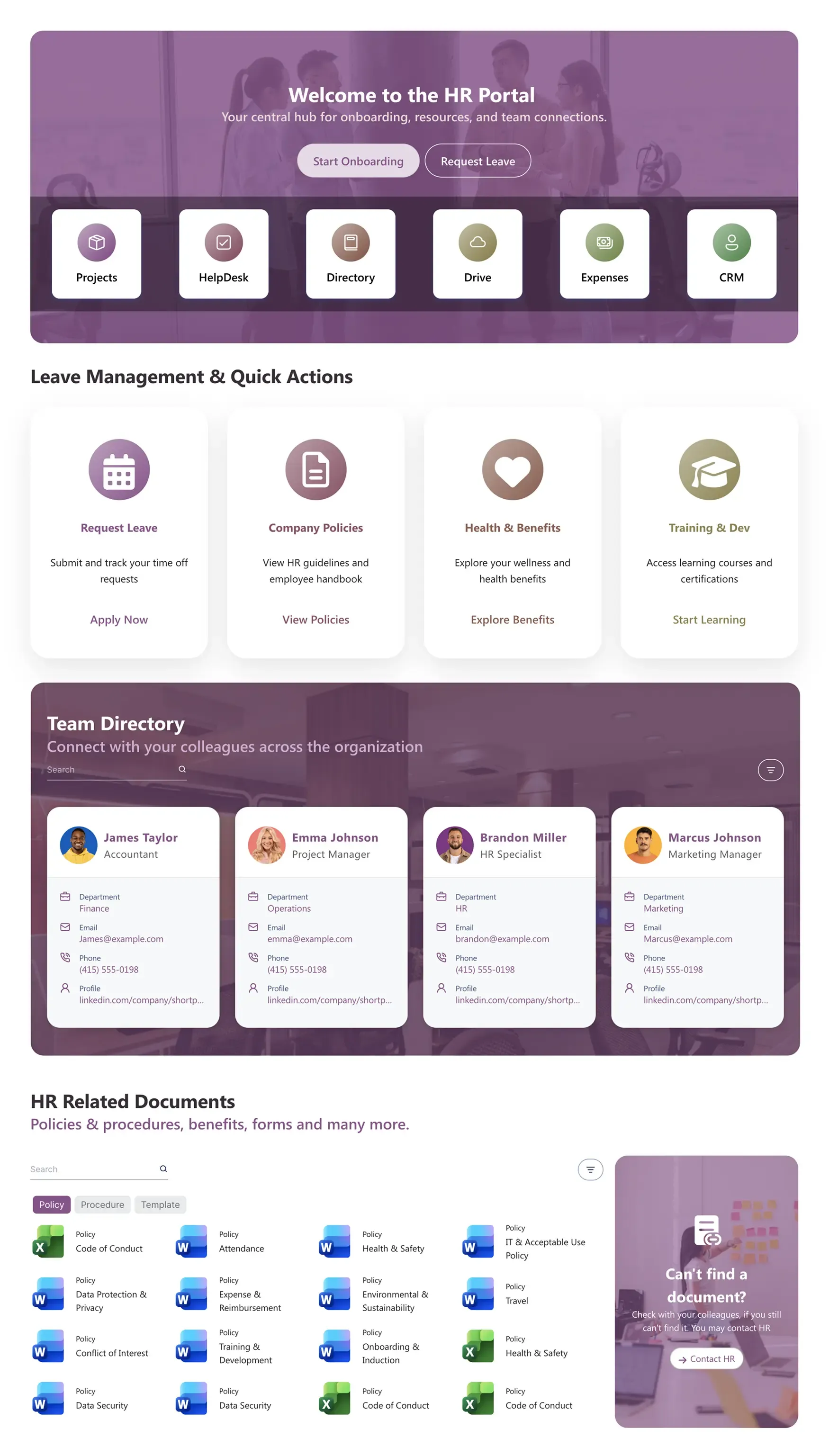
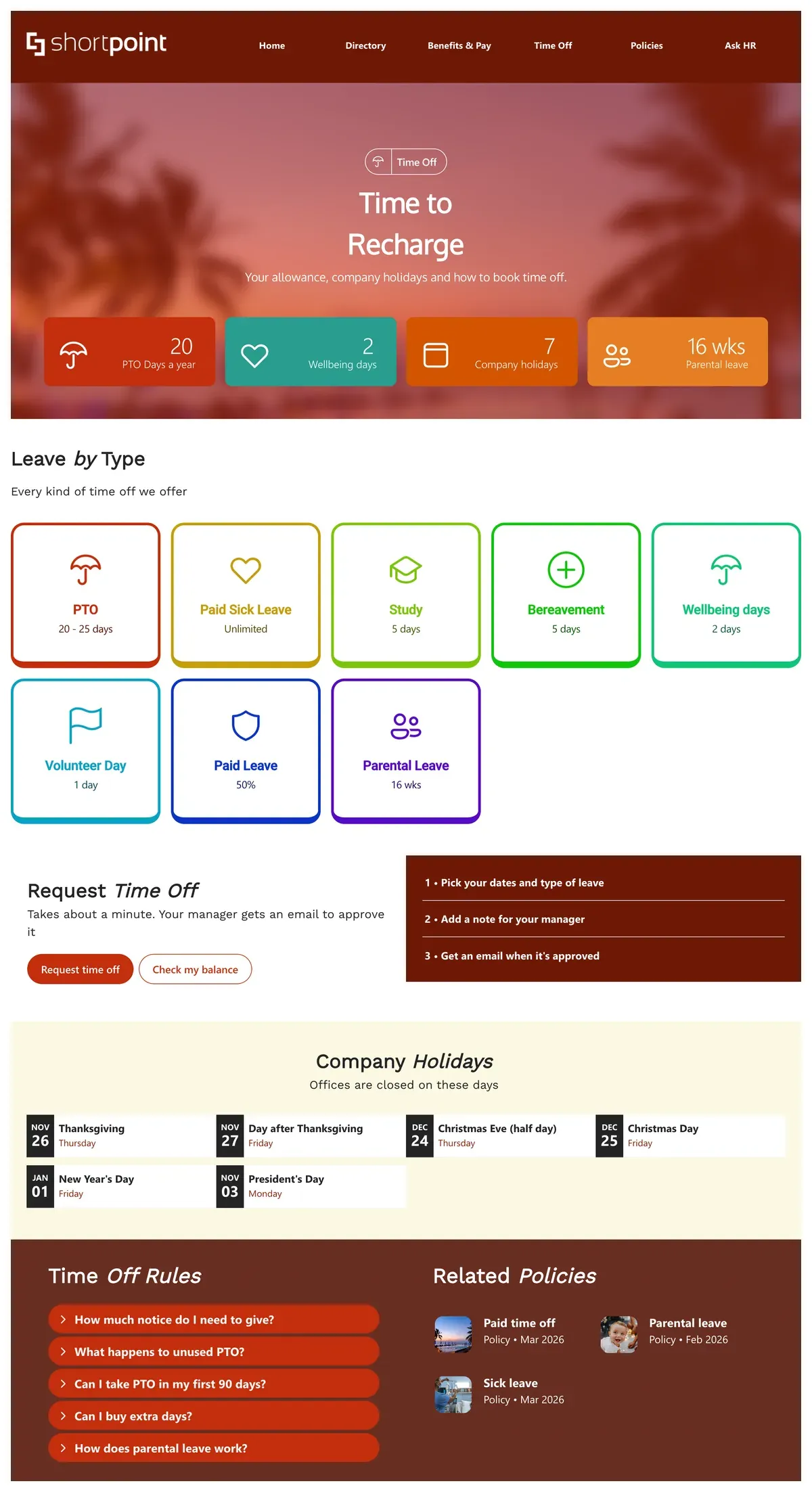
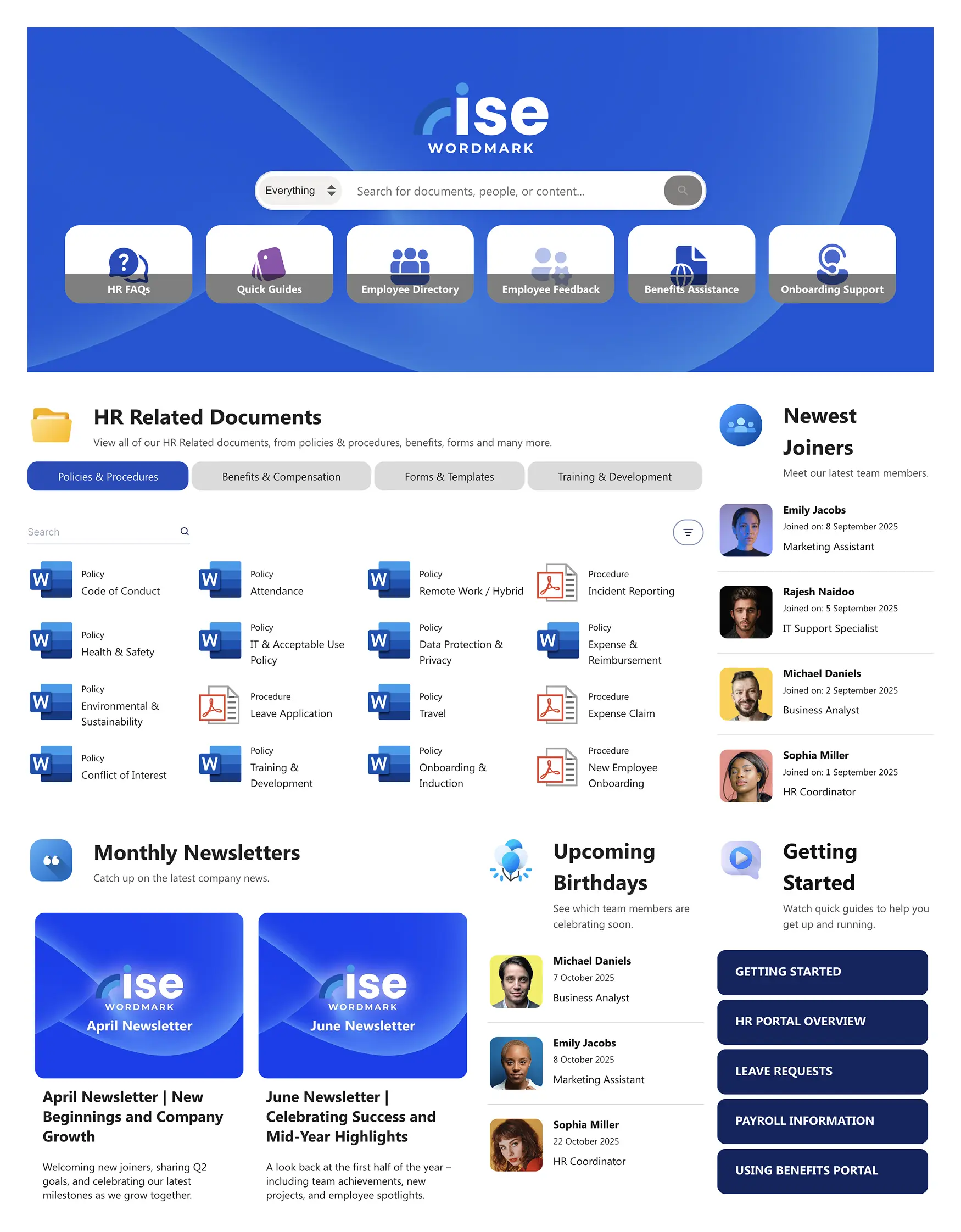
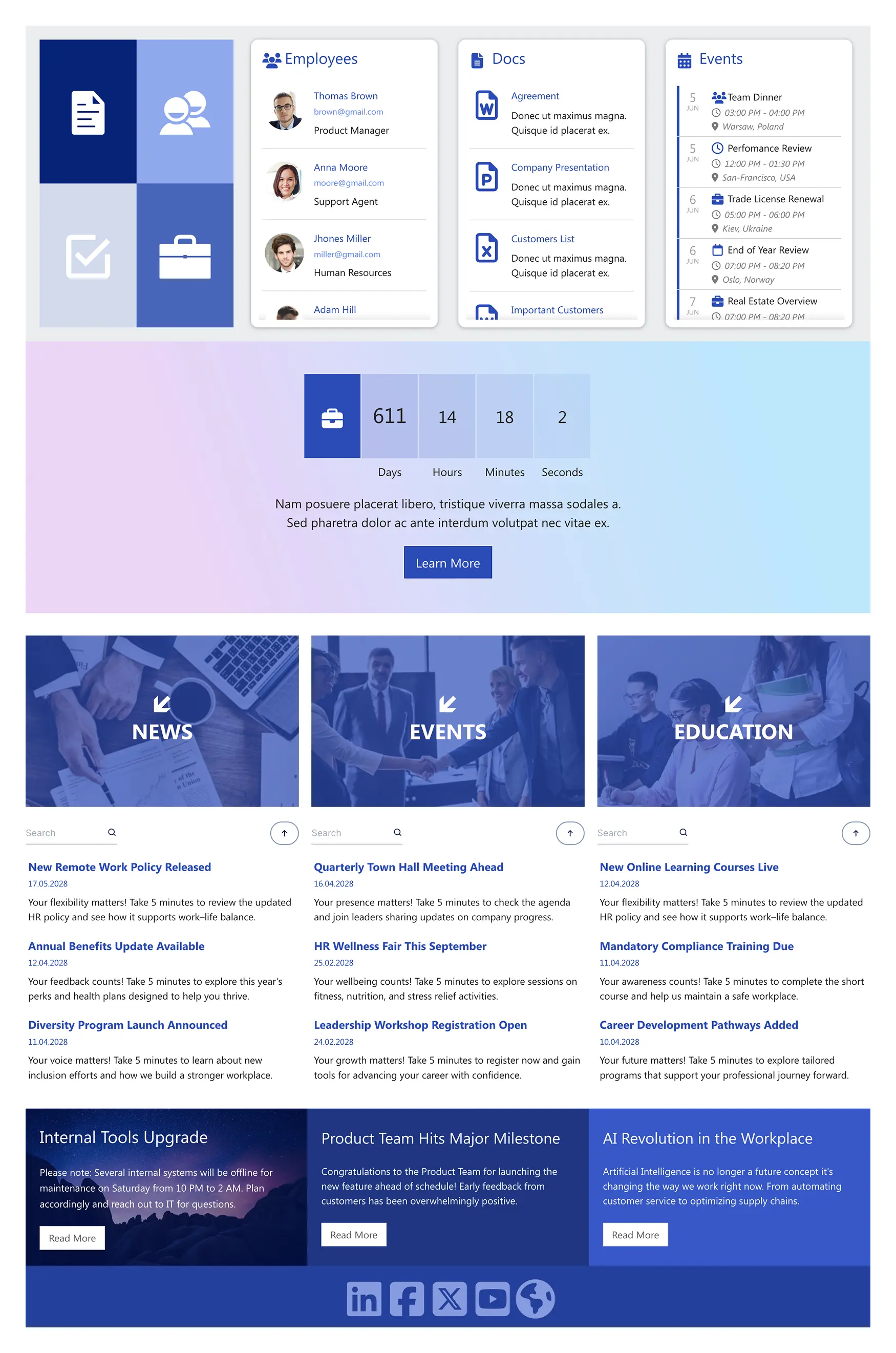
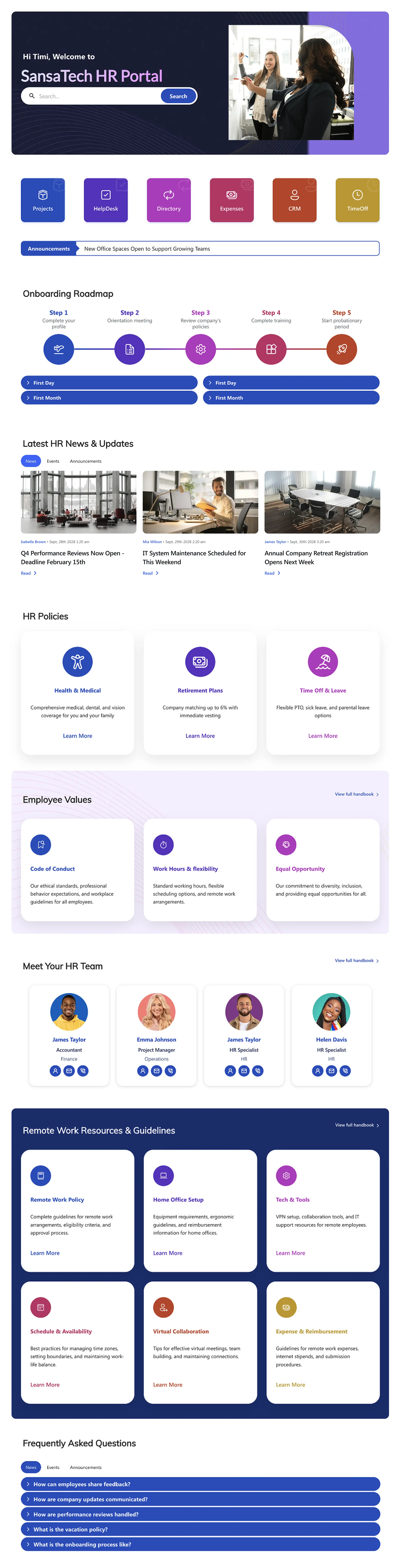
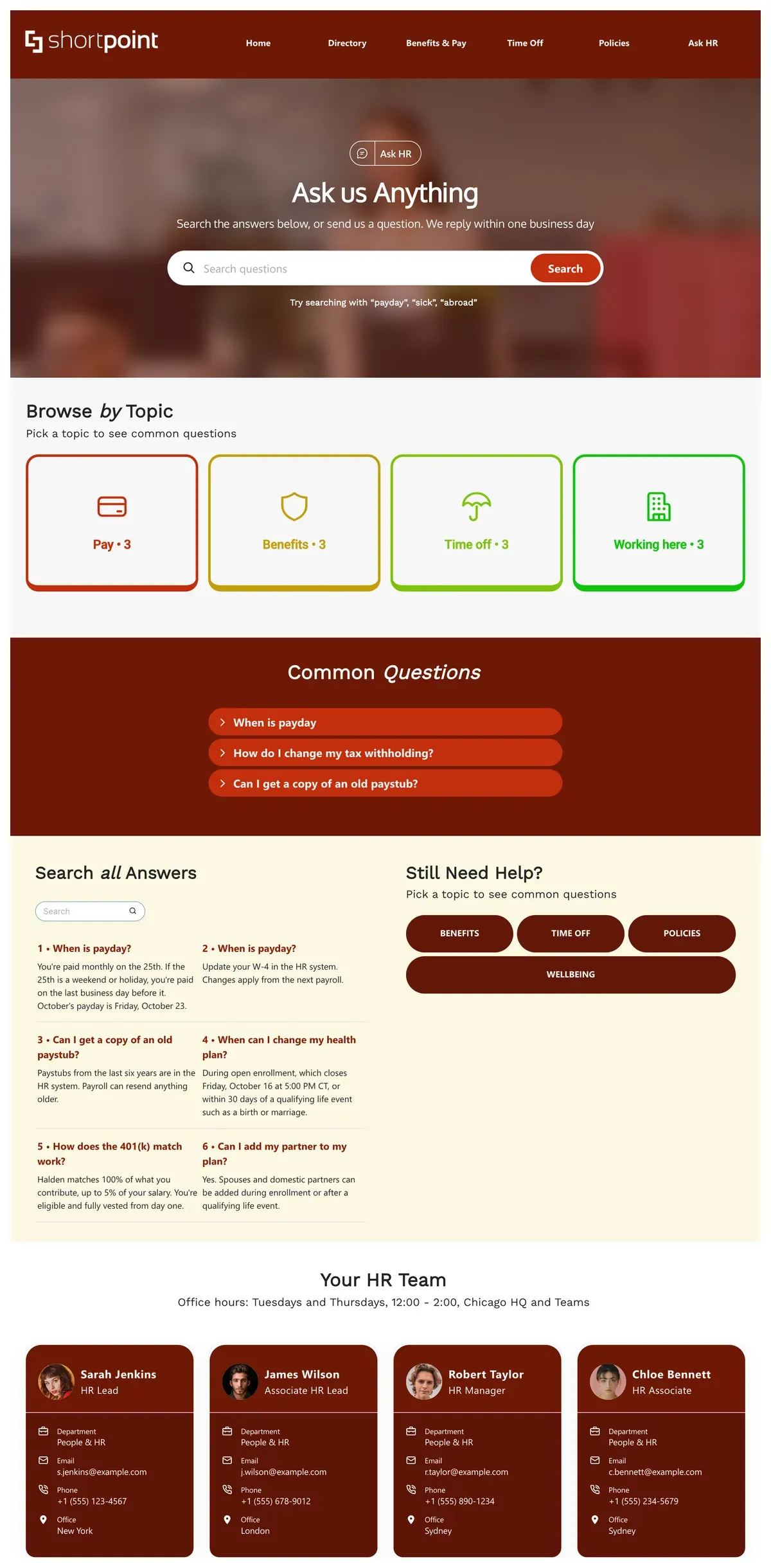
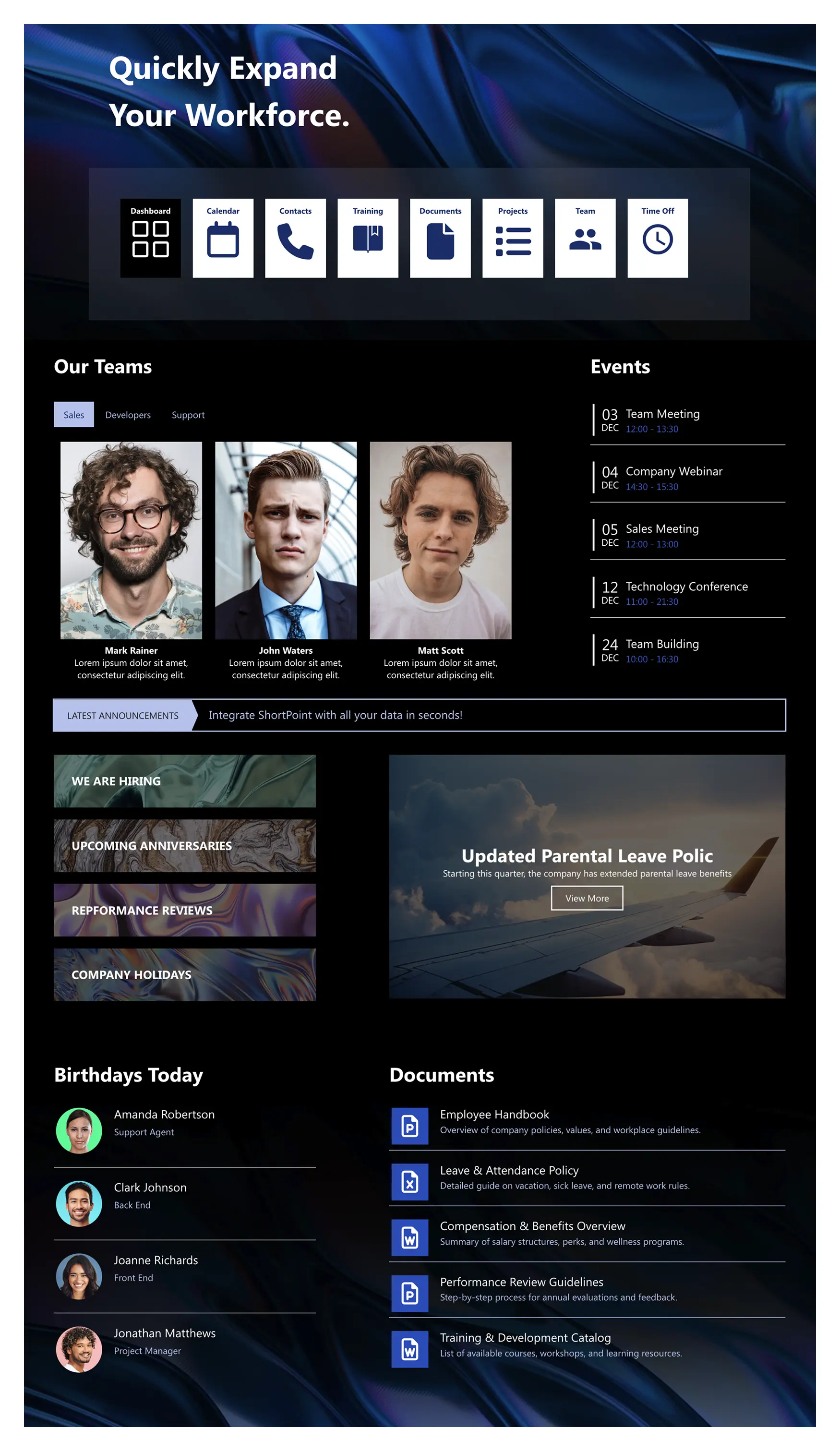
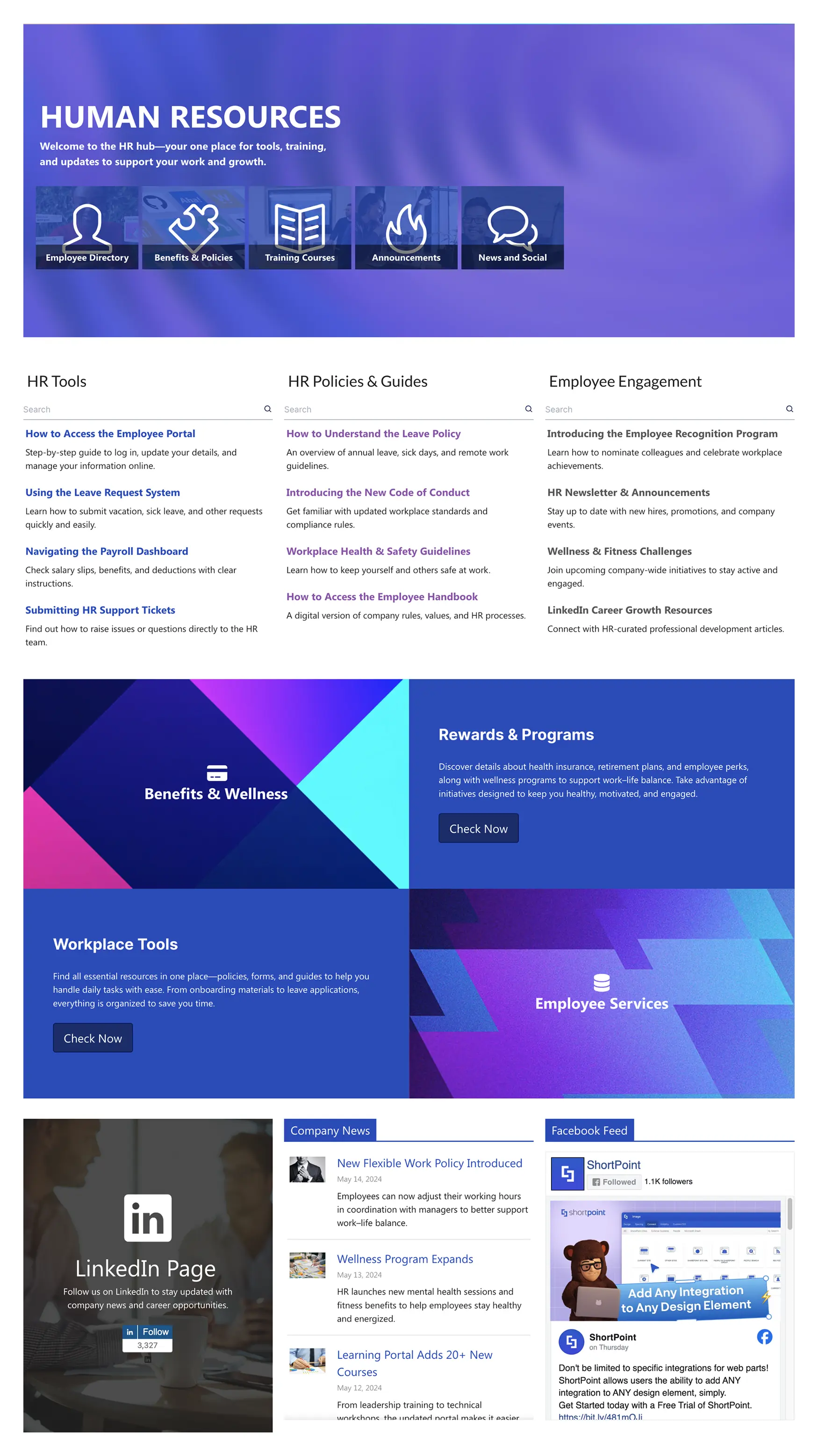
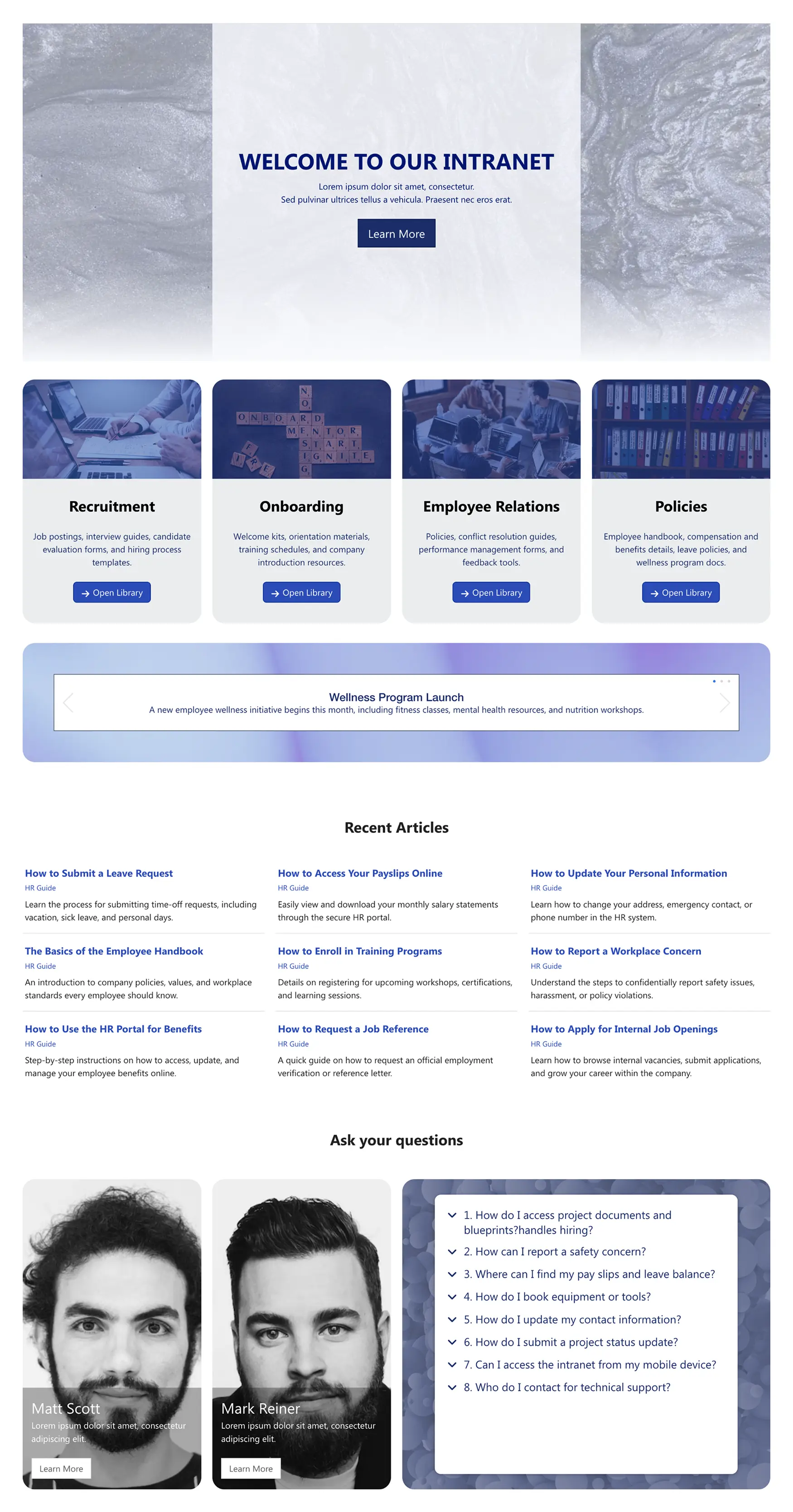
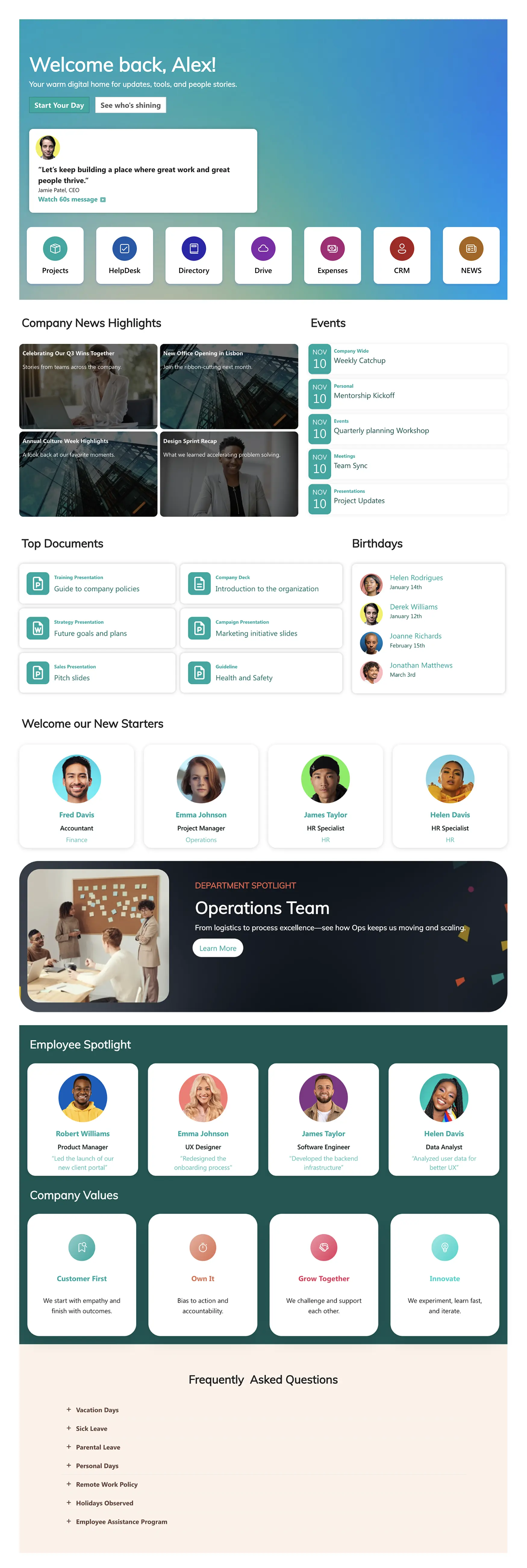
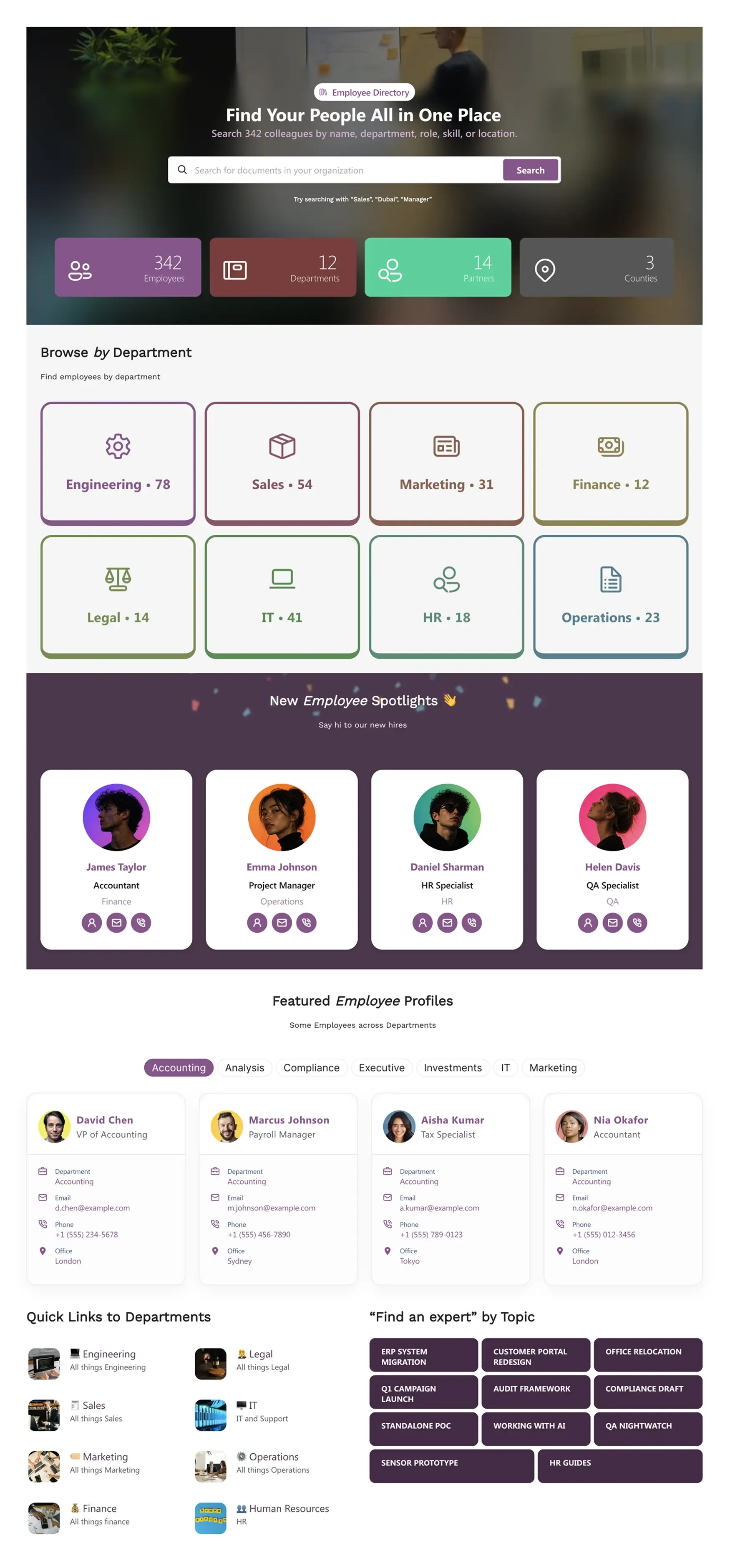
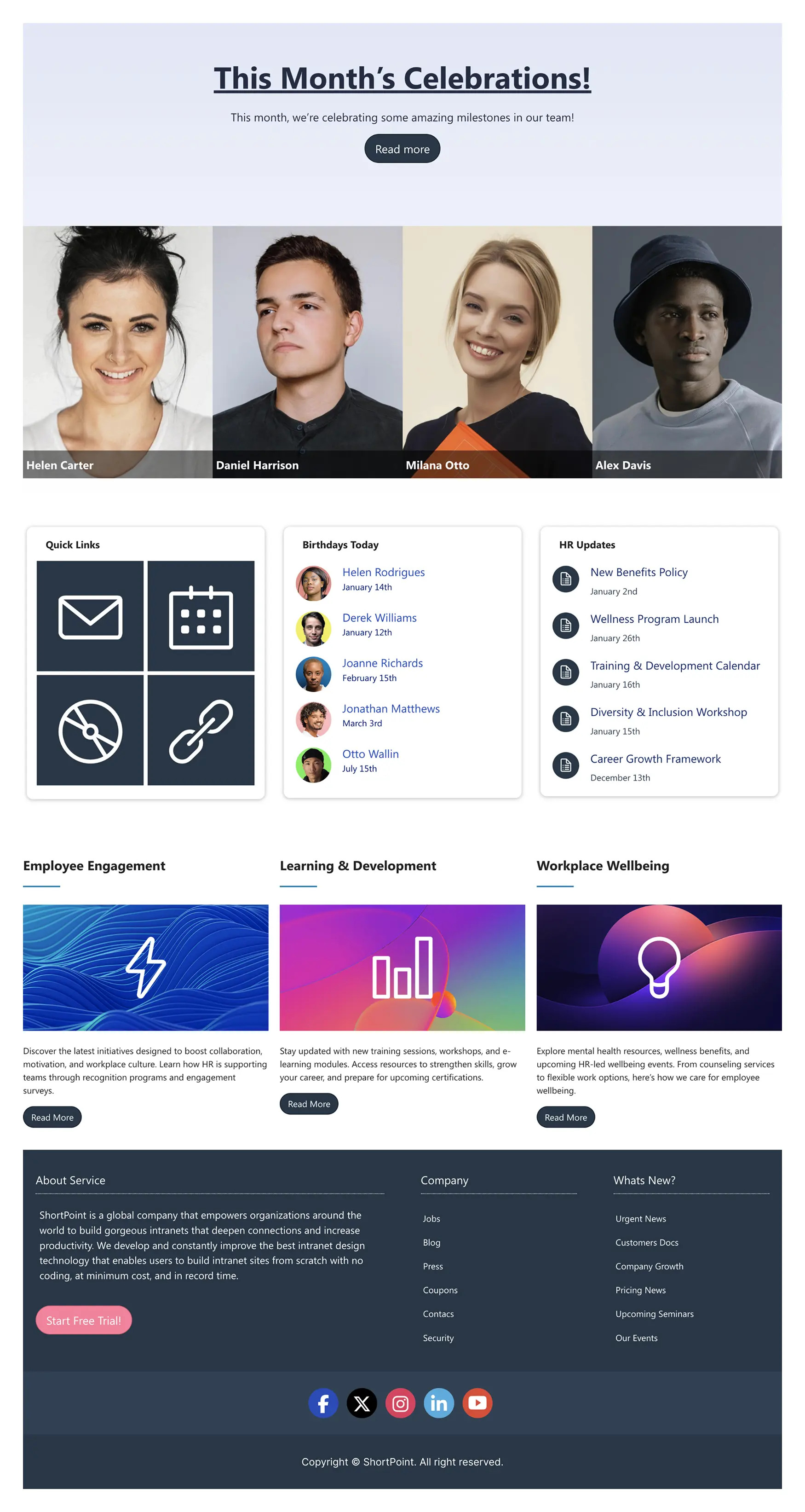
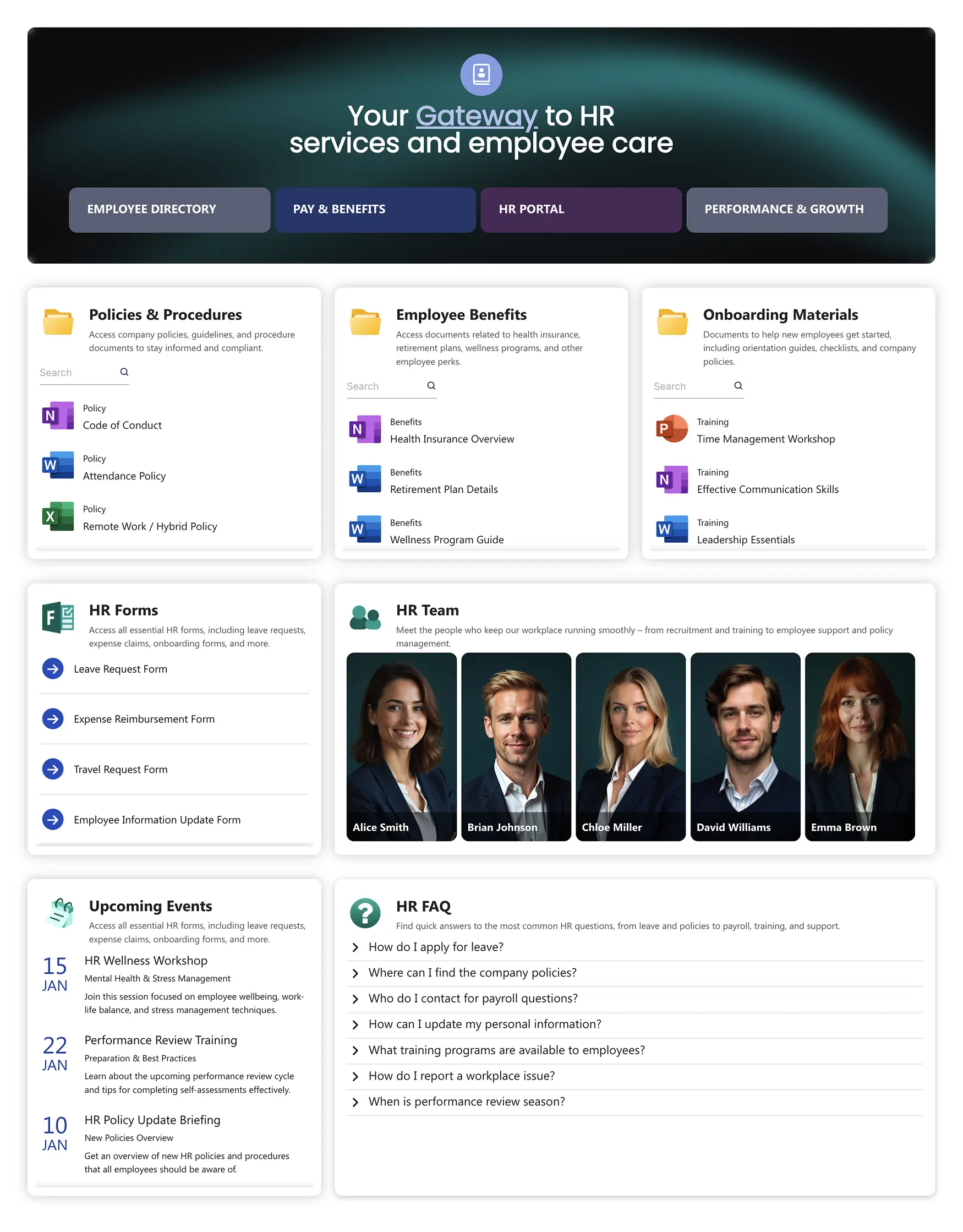
HR Central Big HR search, office panels, events and learning. People & HR Hub HR search, topic grid, new hires and Ask HR topics. Benefits & Pay Pay figures, enrollment alert, plan comparison and perks. HR Portal Onboarding and leave buttons, HR docs and a directory. Time Off Leave allowances, leave types, request steps and holidays.
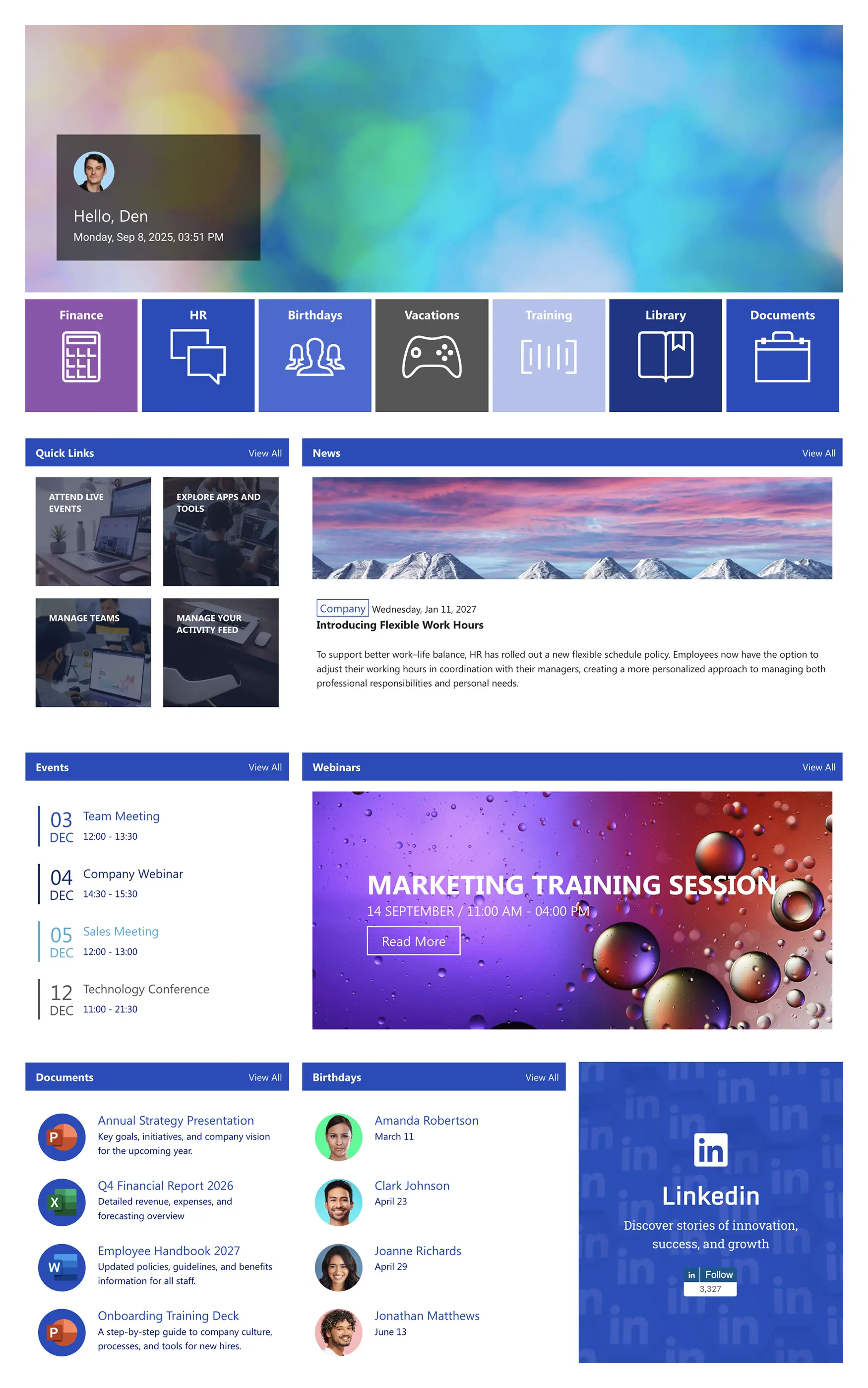
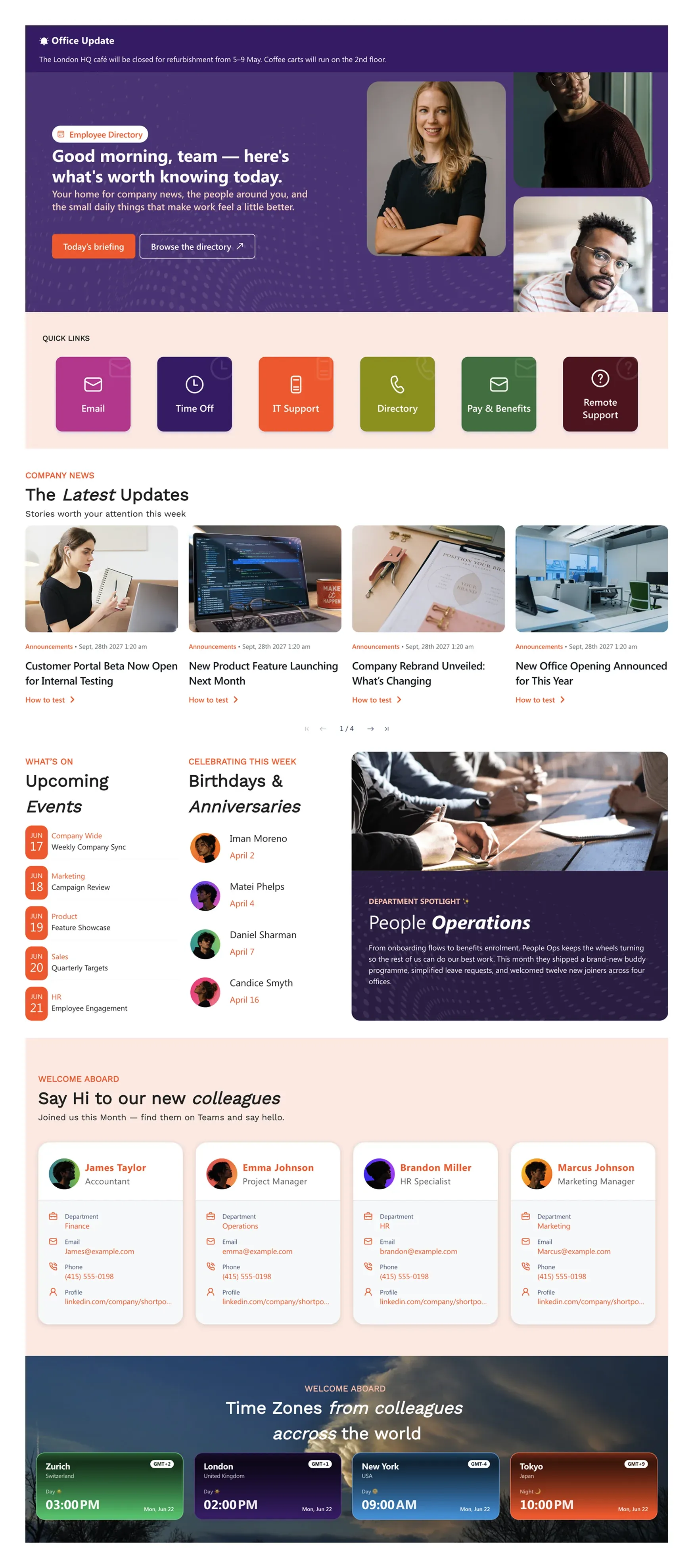
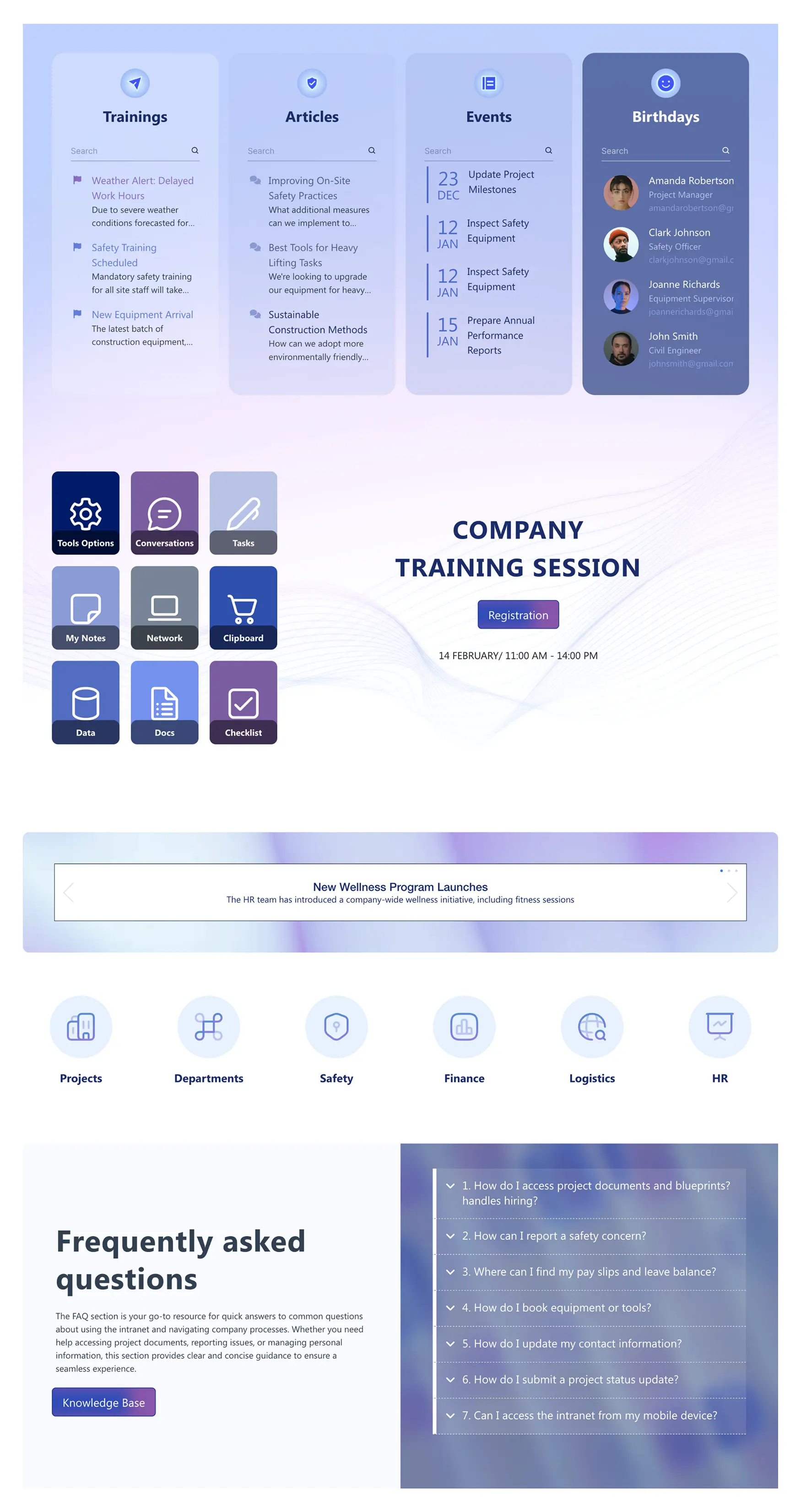
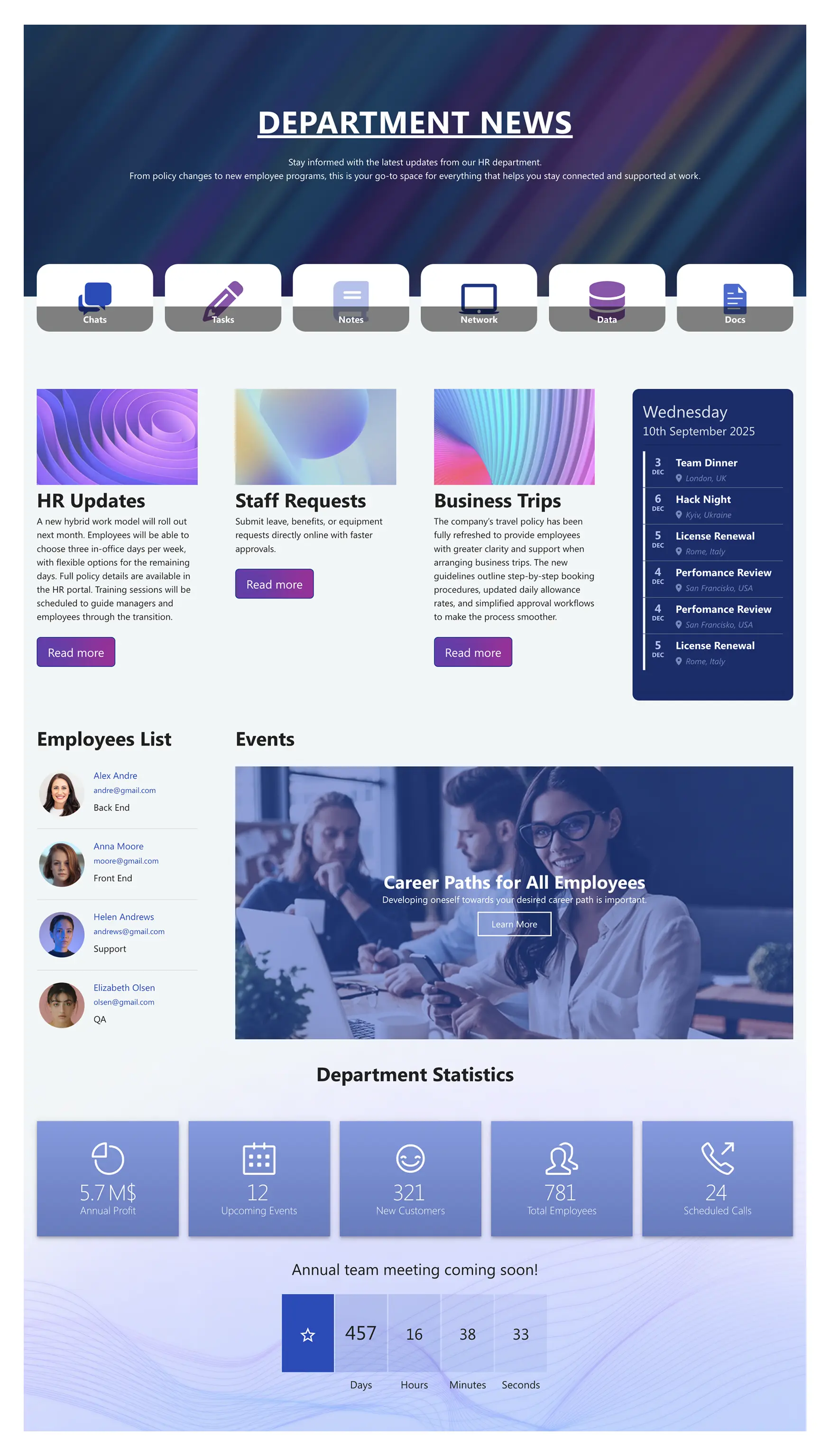
About HR SharePoint page templates
An HR page template is a ready-made layout for one HR page: an HR portal home, a policies and forms page, benefits, time off or a new-joiner welcome. Each layout is made of ShortPoint sections, so HR can swap, reorder or restyle any part without a developer.
Need the whole set of HR pages in one design? See the HR site templates, which link several of these pages under one navigation.
The HR pages most intranets need
- HR portal home HR search, announcements and quick links to every HR topic.
- Policies and forms Handbooks, codes of conduct and downloadable forms, searchable by category.
- Benefits and wellbeing Benefits summaries, wellbeing programs and who to contact.
- Time off and leave Leave policy, how to request time off and the holiday calendar.
- New-joiner welcome A welcome, key contacts and an onboarding roadmap. See also the Onboarding page templates.
- HR team and contacts Who does what in HR, with an FAQ and a way to raise a request.
The sections HR pages are built from
HR pages use the same ShortPoint sections you can add to any page. HR sections cover employee spotlights, HR contacts, calendars, birthdays and onboarding teams; Team sections add directories, and Documents sections add policy libraries.
Layout order for an HR page
An HR page doesn’t need its own header: it sits inside the intranet and keeps the shared one. Below that header, put what employees come to HR for most on the first screen: a page title with HR search, current announcements and quick actions like requesting leave or finding a payslip. Below that, policies and forms, then HR contacts, then benefits and wellbeing. On a phone, HR search and the quick actions stay on the first screen.
- 1 Page title and HR search what people come to HR for
- 2 HR announcements what’s changing now, read first
- 3 Quick actions request leave, payslips, benefits, ask HR
- 4 Policies and forms the documents people look up most
- 5 HR contacts who to ask, by topic
- 6 Benefits and wellbeing programs and who to contact
- 7 Footer HR contacts and policies
Keeping HR pages accurate
HR pages lose trust the first time a policy or contact is out of date. Connect each page to its source instead of typing content in. Policies come from a SharePoint library, calendars from Microsoft 365, and people from Microsoft 365 profiles. ShortPoint follows your SharePoint permissions, so restricted content shows only to the people allowed to see it.
- Copied policy text Typed-in policies drift from the official file. Link to the library instead.
- No search HR pages are where people look for answers. Put search at the top.
- Missing contacts Every HR page should say who to ask, by name or team.
- One page for every office Regional rules differ. Copy the page per region and connect local data.
Why ShortPoint for HR pages
SharePoint holds your HR files and people data, but its default pages show them as plain lists. ShortPoint HR templates turn the same data into designed pages, with search, benefits cards, time-off details and directories that update from Microsoft 365. When a policy or contact changes at the source, every HR page that shows it updates too.
Every template here is a starting point. With ShortPoint you can connect any section to live data from SharePoint lists and Microsoft 365, such as people, calendars, news and files, using Connect. You can add or swap any of the design elements without code, and apply your brand to every page at once with Theme Builder. AI Designer can then help you adjust a layout or create a page that isn’t in the library.
Get started with an HR page in three steps
- Start your free trial
Start a 15-day trial with no credit card, and sign in with your Microsoft 365 account to add ShortPoint to your SharePoint.
- Pick your starting point
Open the Templates Library inside SharePoint and choose the template you previewed here.
- Make it yours and publish
Replace the sample content, connect your data, apply your brand with Theme Builder, and publish.