Building an intranet page with the ShortPoint AI Designer is as easy as following these key steps:
Step 1: Launch the AI Designer
Insert the ShortPoint web part into your SharePoint page, open the Page Builder, and click AI Designer to get started.
Step 2: Describe your page
Tell AI Designer what you need in plain language. Start by stating the department or purpose of the page, who it's for, what components to include - quick links, news cards, event lists, or document libraries - and any other requirements. You can type your prompt, speak it, attach an image, or start from a ShortPoint template.
Here is a sample prompt:
Build a new hire onboarding page that will be used by new hires to check their training schedules, access important documents, forms, and requirements, and a gallery of their mentors. Start with a Welcome heading then add a quick link navigation for access to important apps and resources. Then add a clear timeline that shows their 30, 60, 90 day journey. Make it clean and professional.

copy prompt
Step 3: Review and refine your design
Need more tweaks? Keep the conversation going. For changes to a specific element, select it and tell AI Designer what to adjust.
Step 4: Set up your content
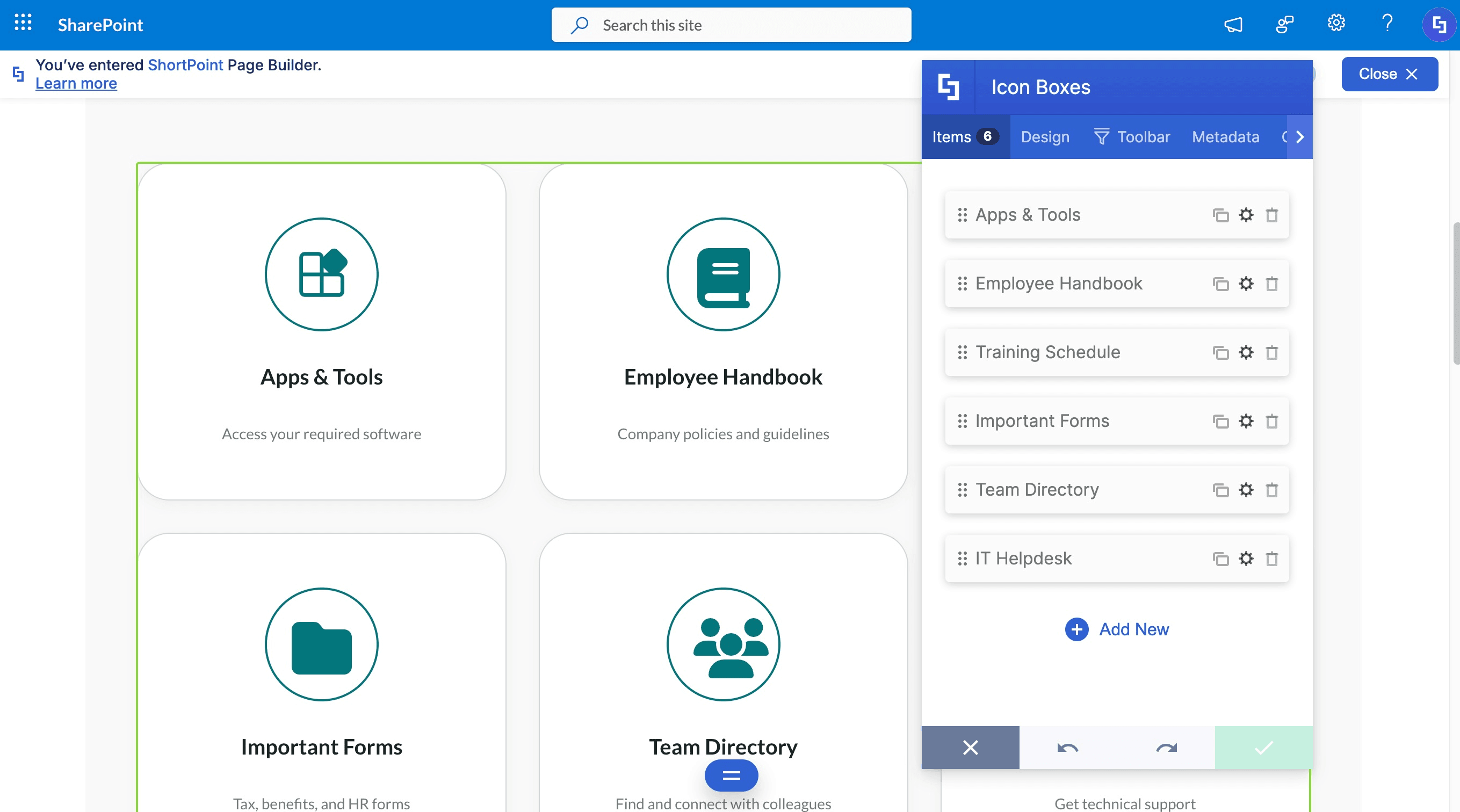
With your page design ready, replace the content with your own. You can even connect to any SharePoint or Microsoft 365 data sources — lists, libraries, calendars, and more. Just ask AI Designer to handle it for you.
Step 5: Publish the page
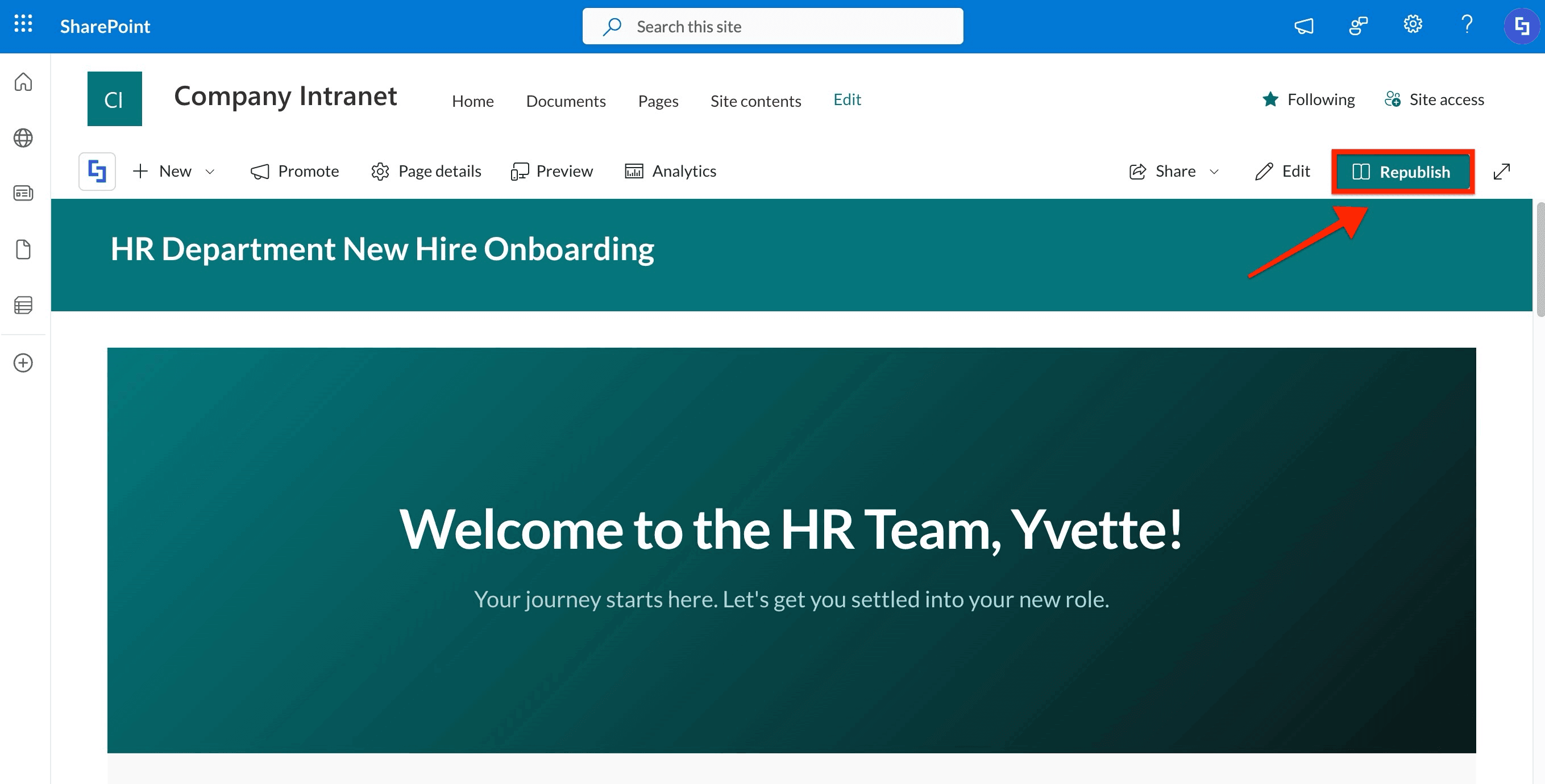
Save your changes and publish. Your first AI-built intranet page is live!
To learn more about how ShortPoint AI Designer interprets your prompts and builds your pages, check out How AI Designer Works.
