10 Ways to Display SharePoint News (2026 Guide)
SharePoint news is any update, announcement, or article your team publishes to an intranet page, usually through SharePoint's built-in News web part. The native web part works, but its preset layouts all look the same, and important posts get buried in a list nobody scrolls. This guide covers 10 ways to display news in SharePoint using ShortPoint's Design Elements (card grids, scrolling tickers, tabbed categories, and more), plus how to build a SharePoint news feed in minutes with AI Designer. Updated for 2026.
Layout matters more than most intranet owners assume. The problem is rarely that news wasn't posted; it's that it couldn't compete for attention against email, Microsoft Teams, and everything else on screen, so people scroll straight past it.
74%
of employees feel they miss out on company news and information, according to research from Gallup and Trade Press Services. A richer, better-placed news display is one of the most direct fixes: it's how the updates people need to see actually get seen.
Source: Gallup / Trade Press Services
By Yvette Tunguia, Content Unit Manager at ShortPoint • Last updated: July 2026 • Tested on ShortPoint SPFx v8.6.2.0 on SharePoint Online
10 ways to display news in SharePoint
Each option below is a distinct approach to displaying news, not just a different skin. Every one is built on top of your existing SharePoint news source, so you're adding layout control, not replacing the underlying feature. Where two elements solve a similar problem, we lead with the one to reach for first and name the alternative so you know when to switch. You'll find all of them in the Page Builder .
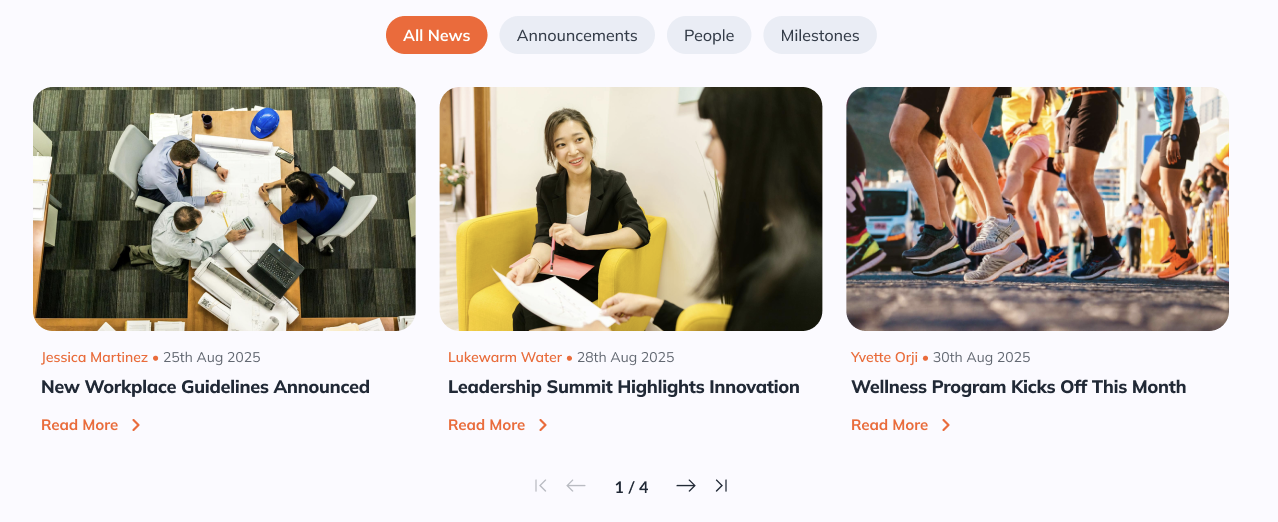
1. News Cards — the default for a busy, all-company feed
Start here if you're not sure which element to use. News Cards is ShortPoint's newest and most flexible news element: stories render as clean cards where you control the image, title, author, date, and link, and the whole element connects to your Site News source through ShortPoint Connect so it updates itself as new posts publish. For a communications team running a high-volume company-wide feed — the intranet homepage that has to carry a dozen live stories at once — this is the workhorse. See how to showcase news using the News Cards design element for the full walkthrough. Available from ShortPoint SPFx version 8.6.2.0 for SharePoint modern pages.
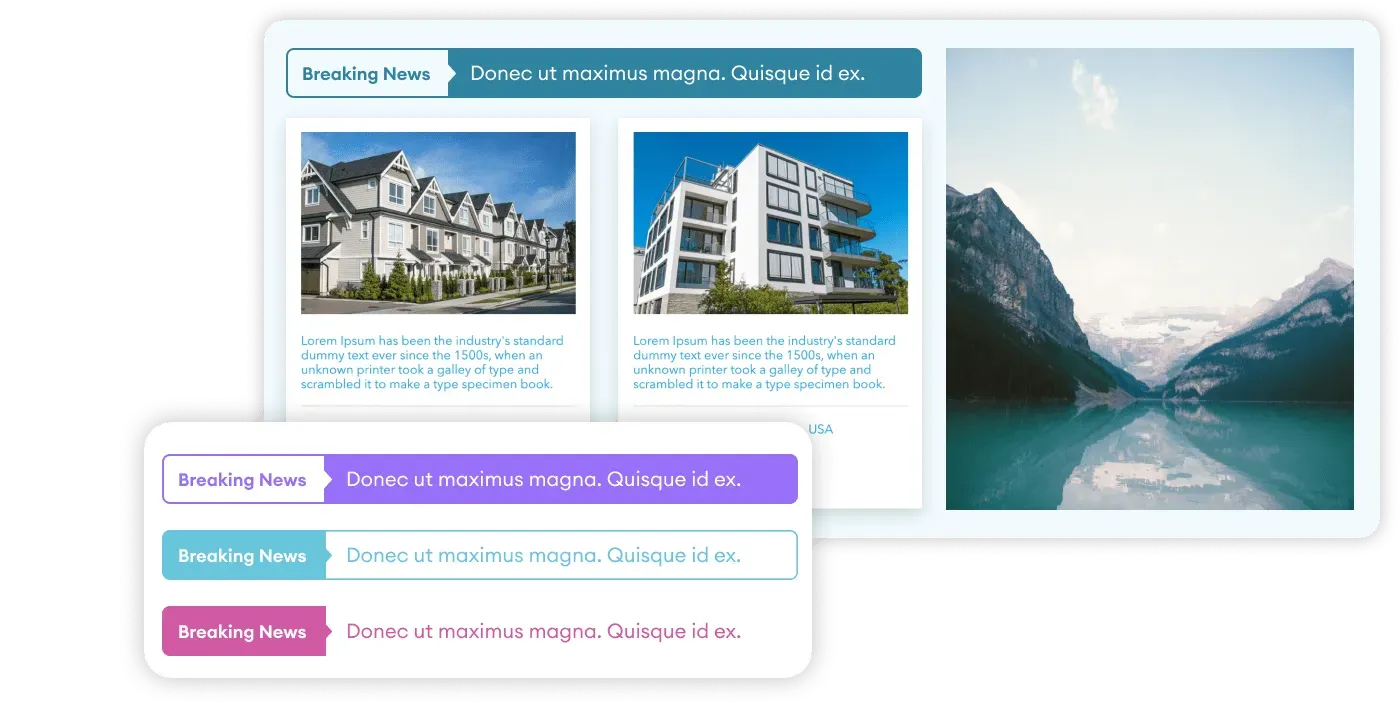
2. Tickers — headlines only, in almost no space
When your news is text with no images to lead on, Tickers scrolls a single continuous line of headlines that each open the full story on click. Because it lives in one thin strip, it's the right pick for a header or footer band that has to stay visible without stealing room from the rest of the page — think an IT team pushing a steady stream of short system-status notices. Reach for Textshow instead when the writing itself is the point and readers need a preview before they click, like internal memos or policy summaries; Textshow adds a short text section under each item so the words do the work a photo can't.
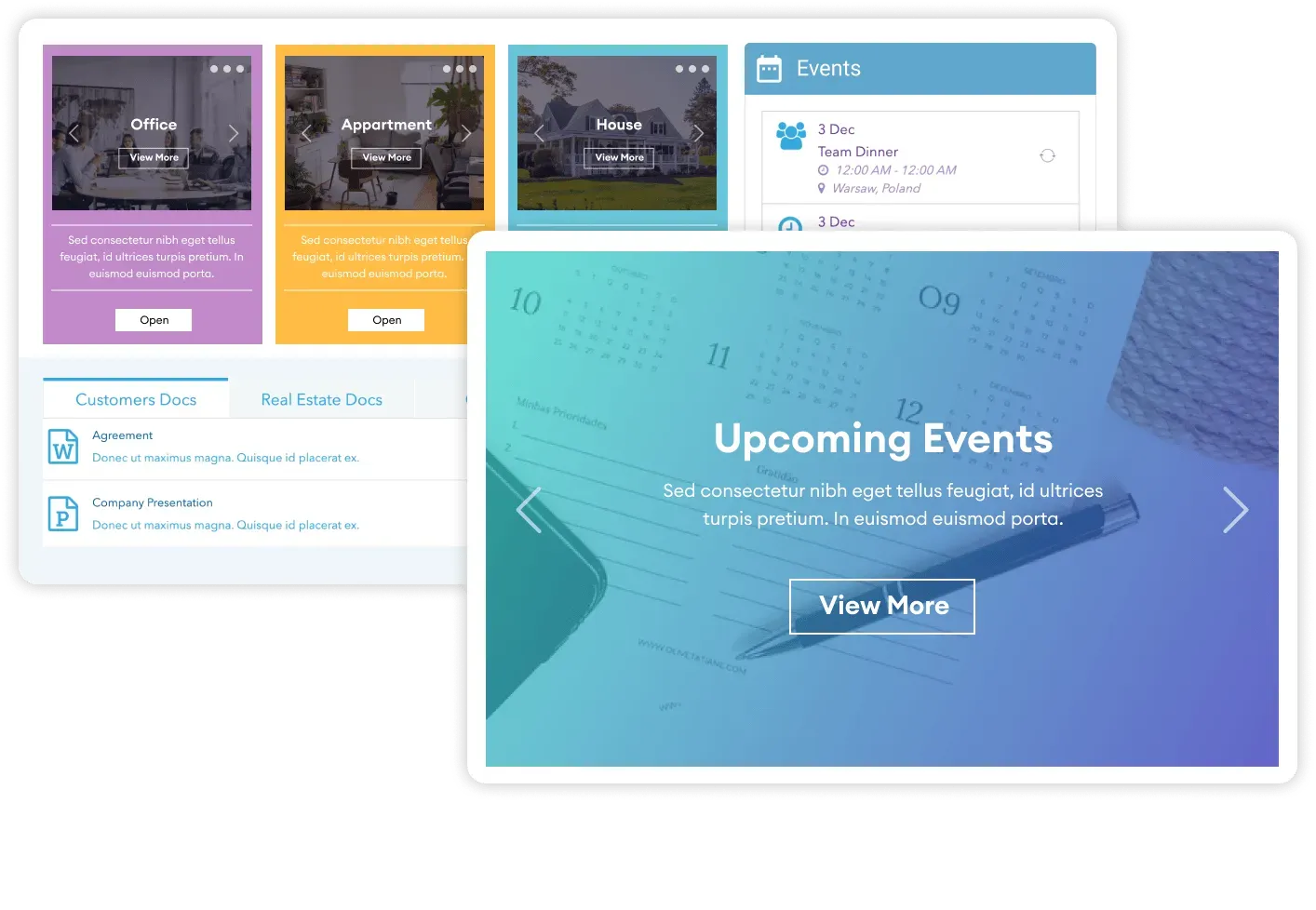
3. Slideshow — keep one big story in front of everyone
Slideshow rotates through your top stories, usually with a secondary panel of additional headlines beside it. The animated transitions pull the eye back to whatever's featured, so a recurring high-priority slot — a weekly leadership update, say — stays prominent instead of scrolling out of view. Use it when a small, curated set of stories needs to command the top of the page week after week. (For a larger rotating set at a steadier pace, see Image Carousel below.)
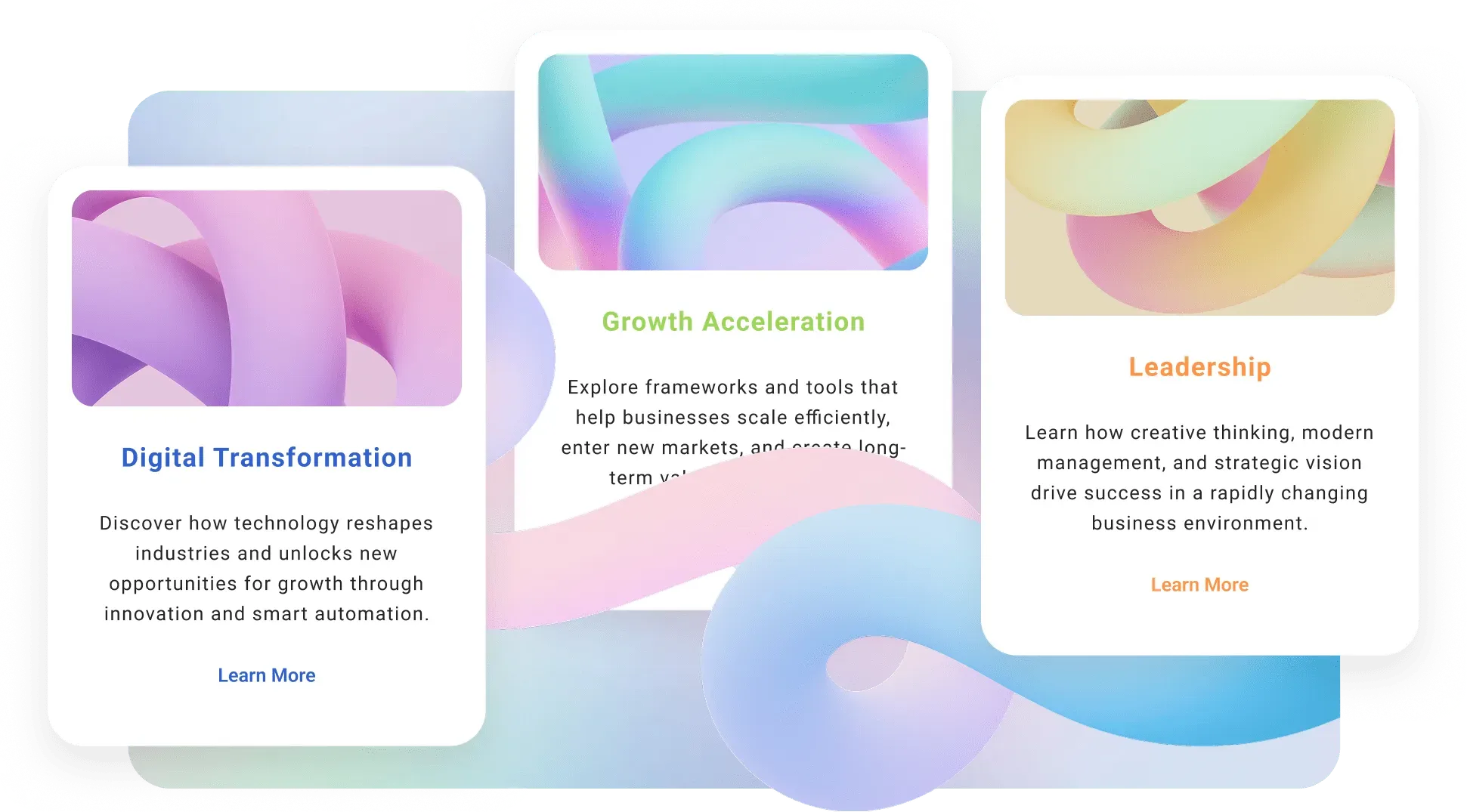
4. Image Boxes — let a strong photo do the work
Image Boxes turn photos into clickable tiles: each pairs an image with a headline and opens the full story. It's deliberately lighter than News Cards — no author fields, dates, or connected data source to configure — so it shines when the visual is the hook rather than the metadata. A recap of a company offsite, a new office opening, or a product launch, where the picture sells the click, is exactly its lane.
5. Tabs — stop departments from burying each other
When news piles up across departments, Tabs splits it into browsable sections on one page instead of a single endless feed. Each tab holds its own stories, so a visitor sees only the category they came for. On a multi-team intranet — HR onboarding notes, IT maintenance windows, and Sales wins all competing for the same space — Tabs keeps company-wide announcements from drowning departmental news, and vice versa. It's the cleanest answer when one combined feed would force everyone to scroll past updates that don't apply to them.
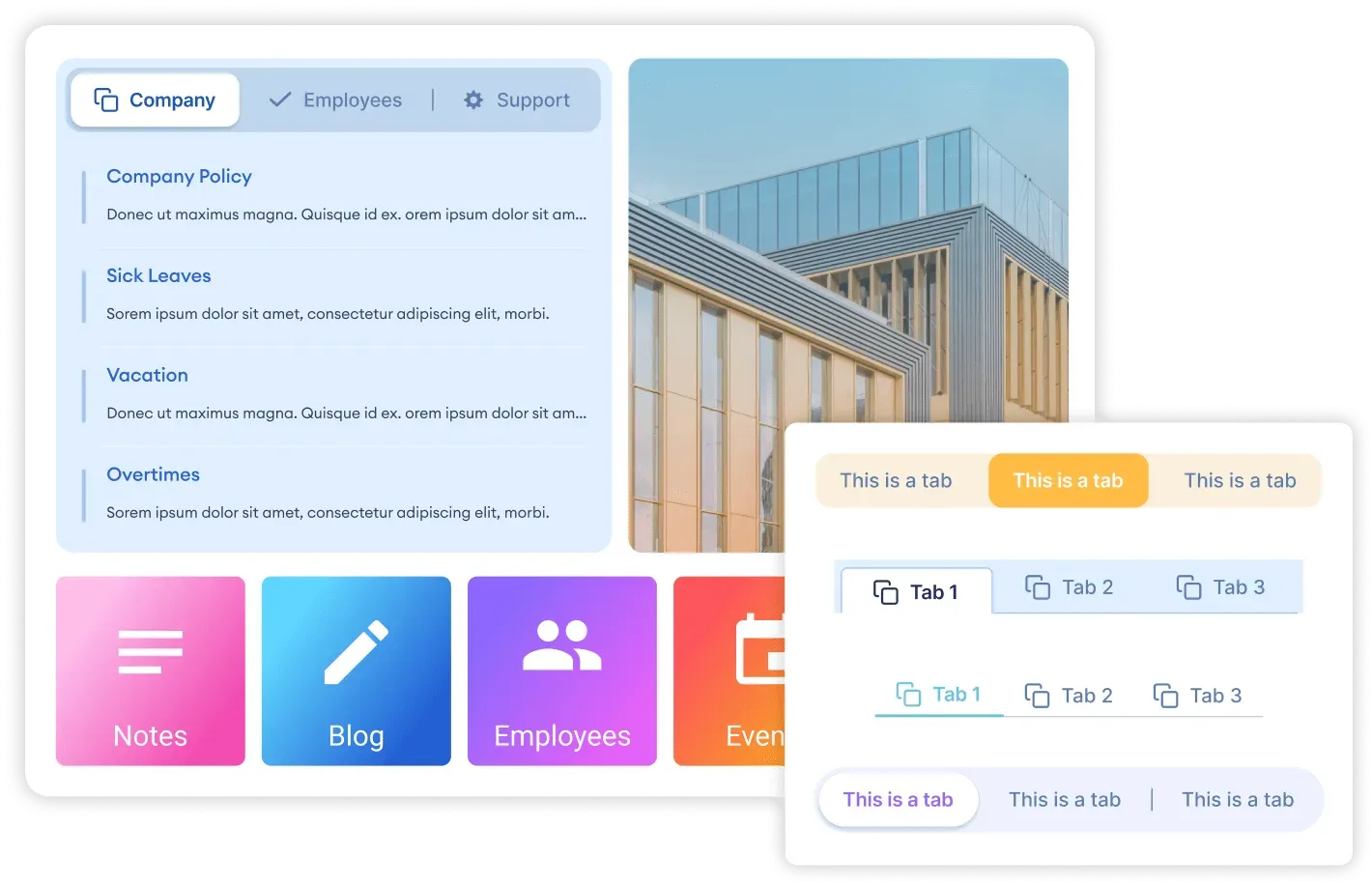
6. Events — news that's really about a date
For time-sensitive updates, Events connects to your SharePoint calendar so each item shows the date and time that matter, not just a headline. It's built for the moment when readers need to know when to act — an open-enrollment deadline, a town hall, a mandatory training window. Past items drop off automatically as their dates pass, so you're not hand-editing stale announcements. Use Date List instead when you want a simple chronological timeline of updates without tying it to a live calendar — the same date-sorted tidiness, minus the scheduling detail.
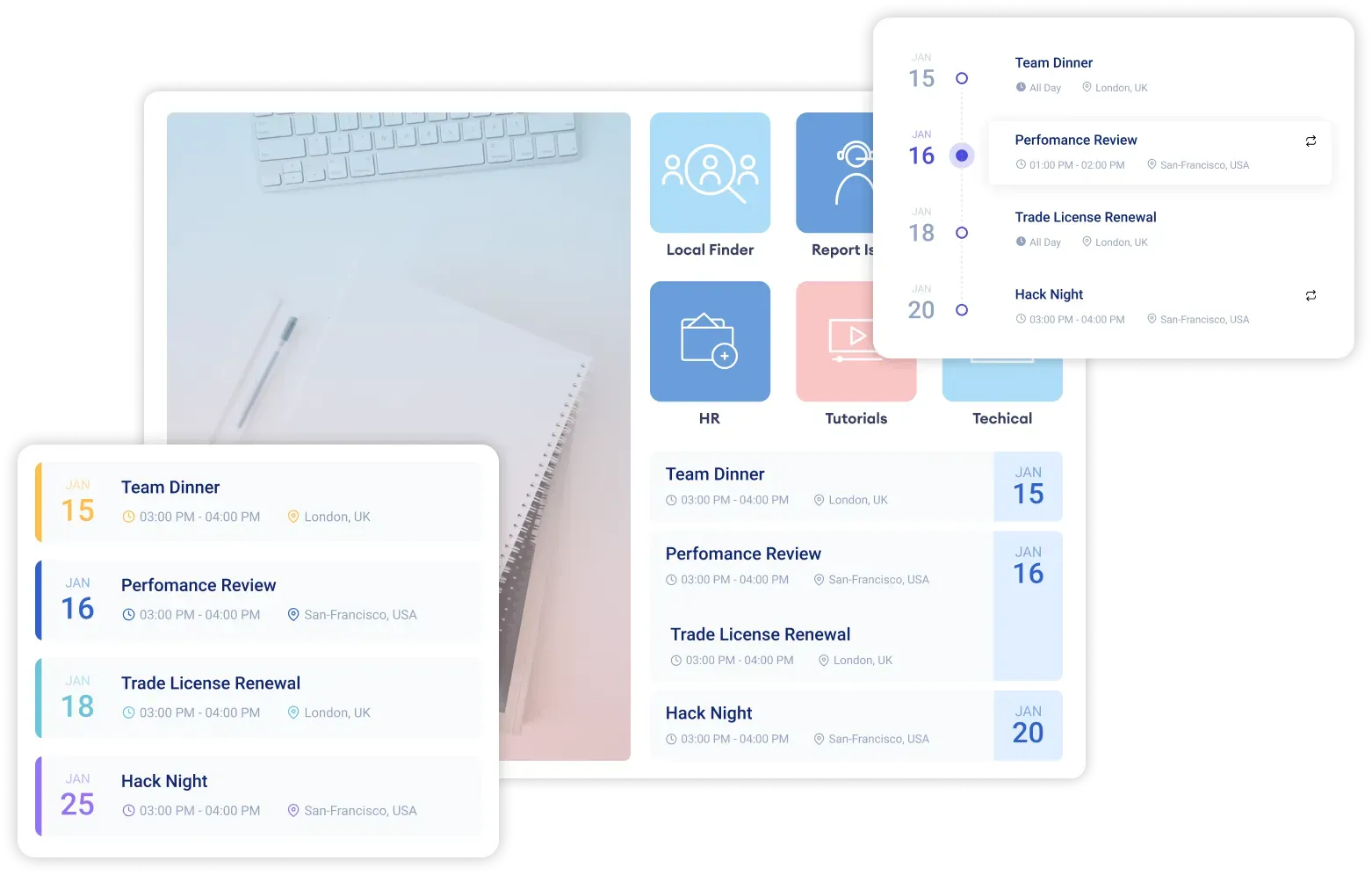
7. Image Carousel — a rotating gallery of recent stories
Image Carousel cycles automatically through a set of news images in a small footprint. Where Slideshow spotlights a few curated stories, Carousel is built to move steadily through a larger set — a rolling gallery of everything published lately rather than a hand-picked "top news" spot. It's the choice when you want visual motion on the page and breadth of coverage without giving up much vertical space.
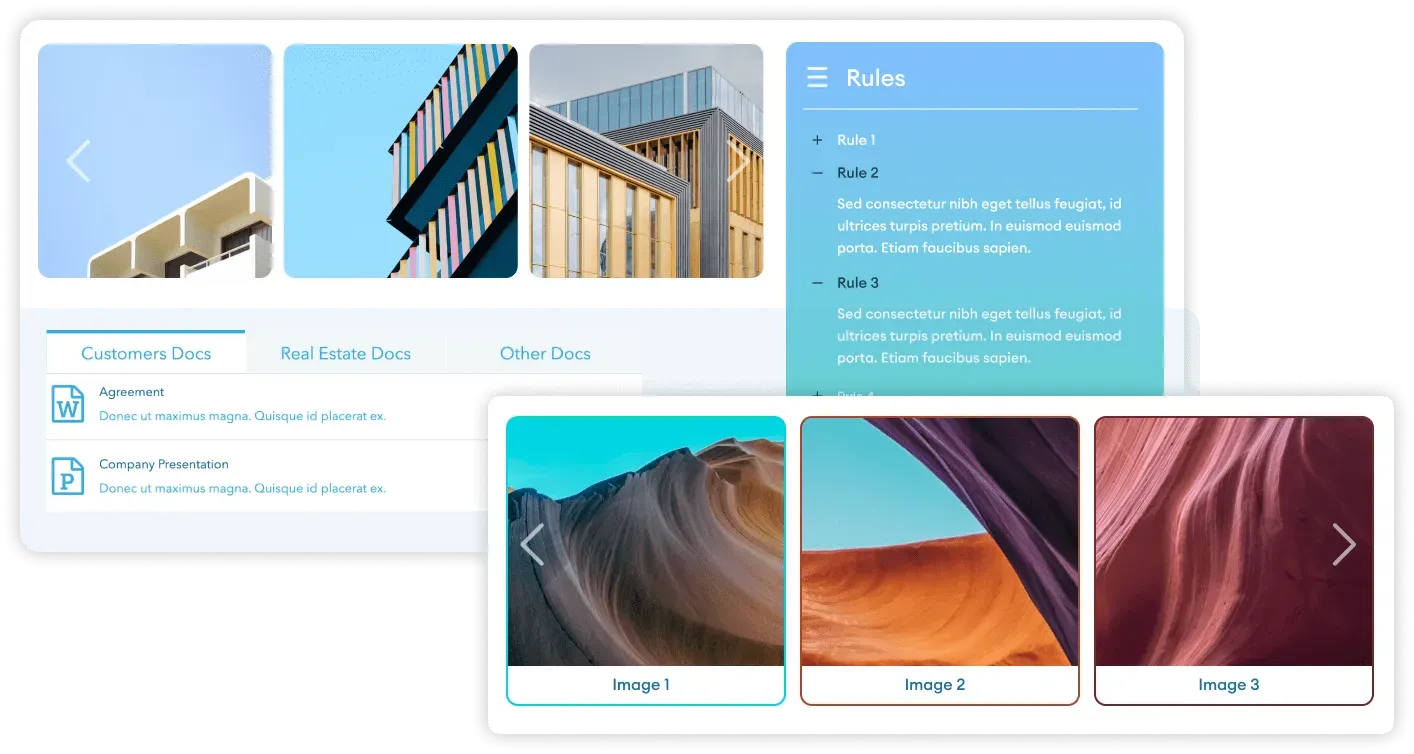
8. CTA Card — one message that can't be missed
When a single announcement has to stand out from the routine feed — a policy change, a form deadline — CTA Card gives it a title, a line of supporting text, and one action button pointing at the obvious next step (read the policy, complete the form). It's lean by design. Switch to Announcement when that message needs to stay current on its own: Announcement can connect to a live source instead of sitting as static text, which makes it the better fit for a rolling deadline or a status that changes. Either way, the job is the same — make sure a high-priority item doesn't get lost among everyday news.
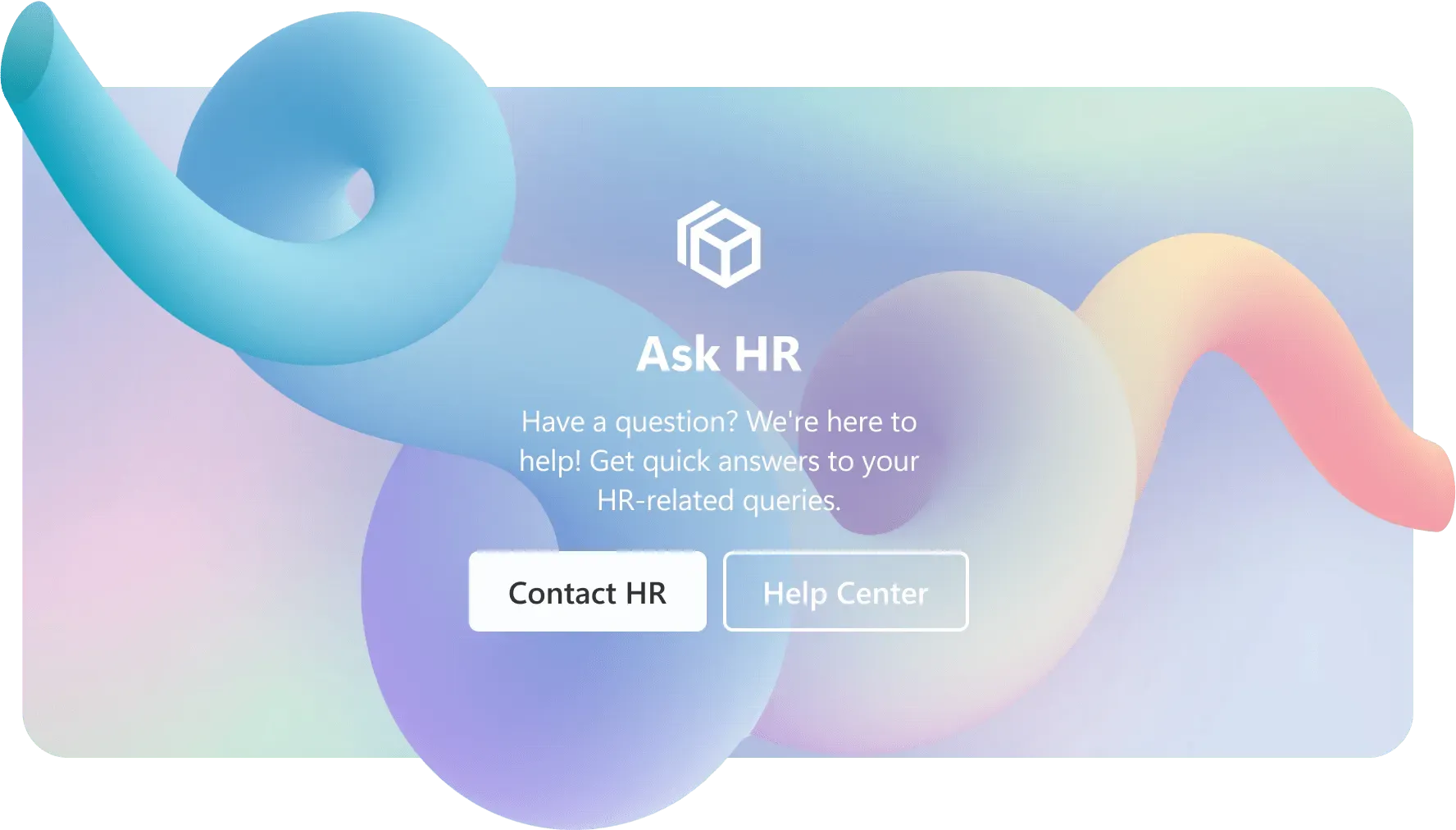
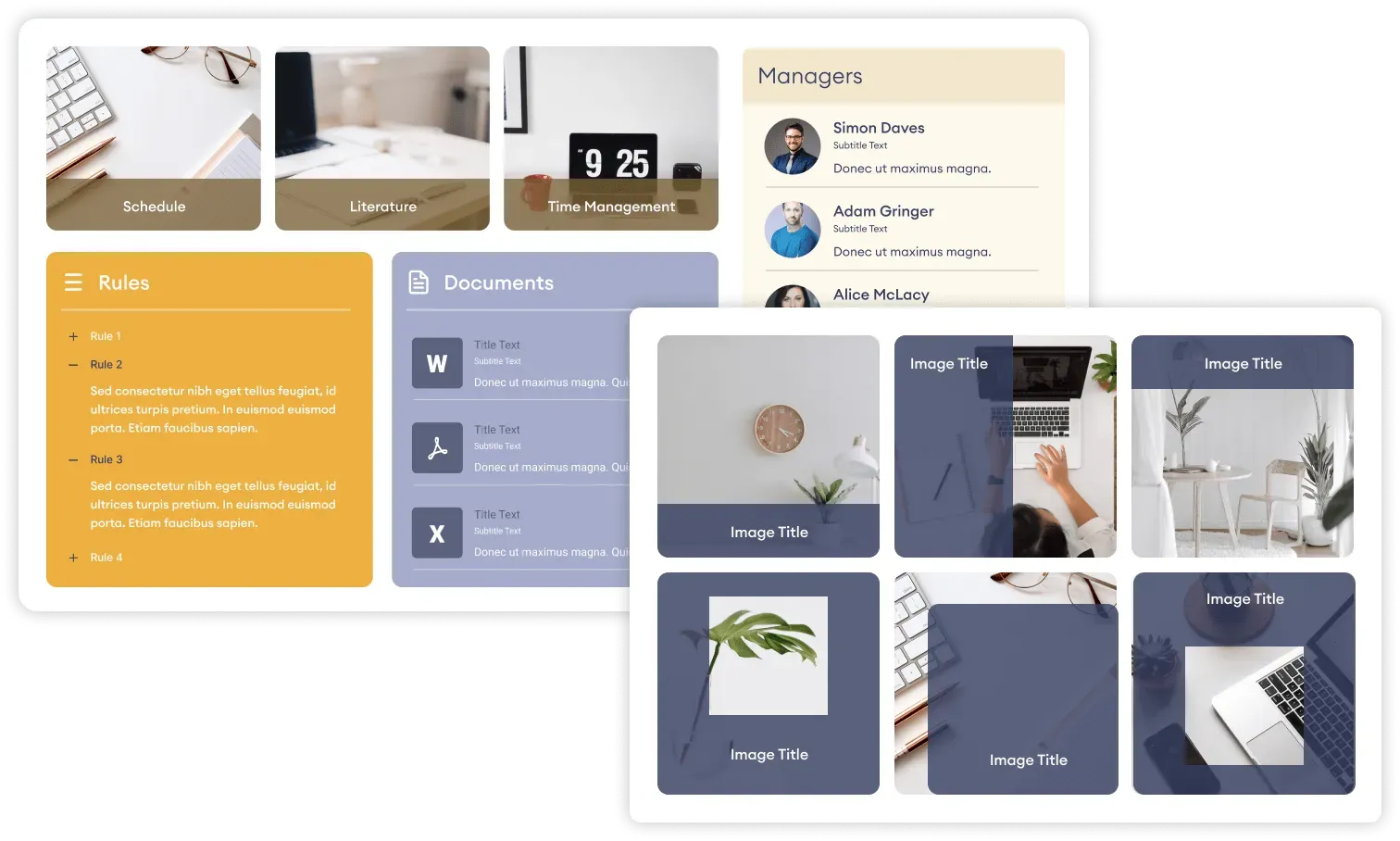
9. Image Titles — an editorial feature spot
Image Titles pairs a photo with a headline and nothing else — no author, no date, just an image that opens the full story. The result reads more like a magazine feature than a feed, which suits a spot that changes only occasionally: a homepage hero story, a standing leadership message, a section you want to look designed rather than automated.
10. Social Feeds — mirror the channels you already post to
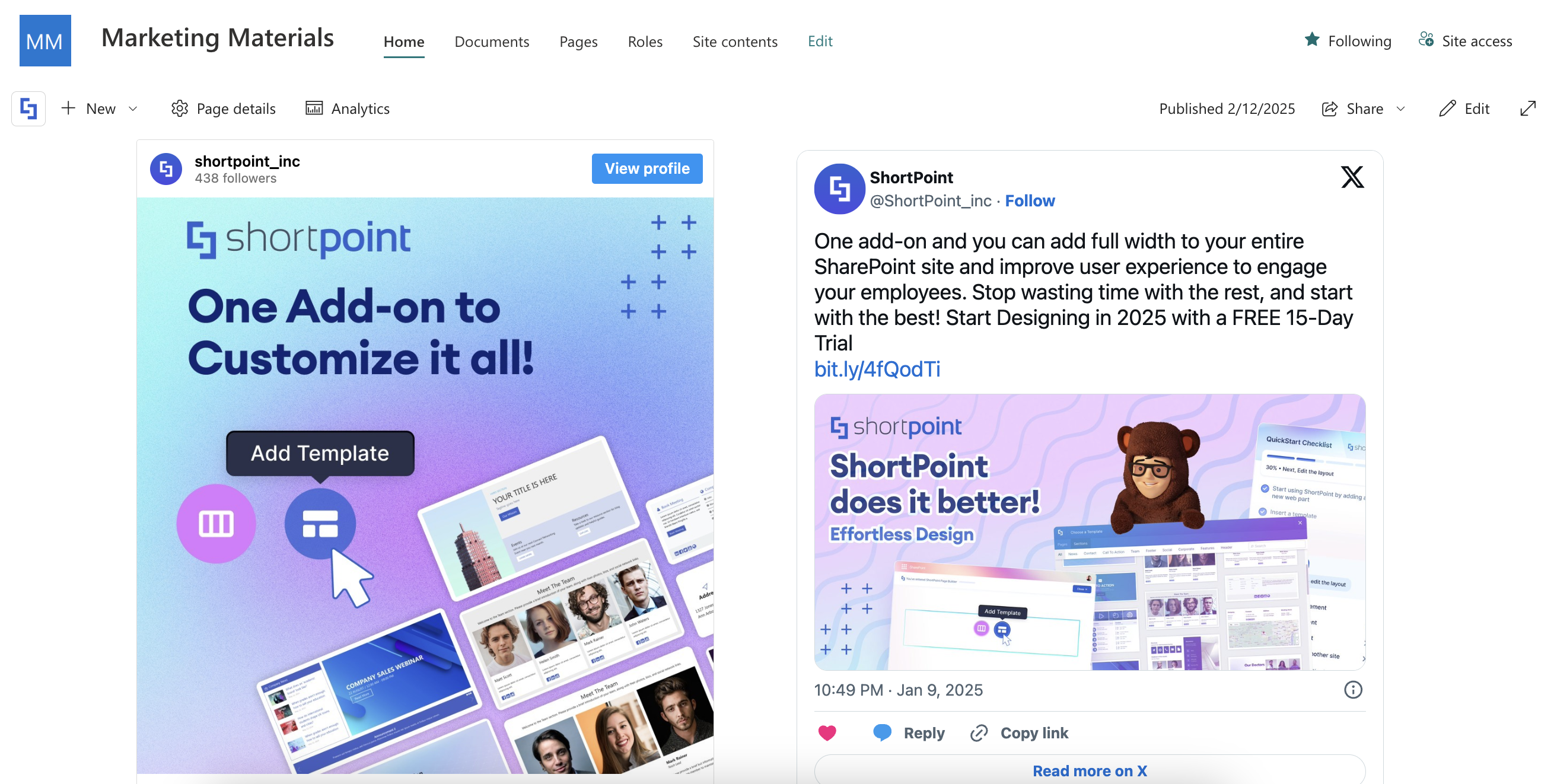
If your comms already run through Viva Engage, X, or Facebook, the matching social elements embed those live feeds straight onto the intranet. Employees see the announcements your organization is already publishing without anyone re-keying them, and the internal page stays in sync with the external one automatically. It's the natural setup for a team that treats social and internal news as one coordinated stream rather than two things to maintain separately.
Build a SharePoint news feed with ShortPoint AI Designer
Picking one element and building it by hand is the traditional route. The faster one is to let ShortPoint AI Designer assemble a working layout for you — not a mockup or a picture, but a real, editable ShortPoint section made of the same elements described above. That distinction matters: whatever it produces, you can keep refining through follow-up prompts or open directly in Page Builder and edit by hand, exactly as if you'd built it yourself. It collapses the "which element, arranged how" decision into a single step, then hands you the controls.
There are three ways to start, and they suit different situations:
- Text prompt — describe the outcome ("a news section with a highlighted story at the top and a scrolling ticker below it") and AI Designer builds a layout to match. Best when you know what you want but not which elements produce it. For structure and examples, see how to write effective AI prompts for ShortPoint AI Designer .
- Image prompt — upload a screenshot of a news layout you like — from another intranet, a competitor, or a design comp — and AI Designer recreates the structure using ShortPoint elements. Best when you can point to an example faster than you can describe it.
- Start from a template — pick a ready-made news section from the Templates library , then tell AI Designer what to change (content, colors, layout, elements) and it adapts the template to your brand. Best when you want a proven starting point rather than a blank page.
In every case the output is a launch pad, not a lock-in: adjust it by prompt or by hand until it fits.
How do you add a news feed to a SharePoint site?
Whichever element you choose, the setup is the same four steps:
- Edit the SharePoint page and open the ShortPoint web part.
- Insert the Design Element where you want the news to appear.
- Add your content directly, or connect the element to your SharePoint news source for dynamic, auto-updating content.
- Customize the design in the Design tab, then save and publish.
The steps are quick; the real decision is which element to reach for, and that comes down to what your news needs to do.
SharePoint news examples: which layout fits your use case?
The table below maps common scenarios to the element that handles them best. Where a second element is a close alternative, it's noted so you can match the pick to how your news actually behaves.
| Use case | Recommended element |
|---|---|
| High-volume, all-company feed | News Cards (or Tabs to split by department) |
| Headlines in minimal space | Tickers |
| Text-heavy updates with previews | Textshow |
| One story kept front and center | Slideshow |
| Rotating gallery of recent stories | Image Carousel |
| Image-led storytelling | Image Boxes |
| Editorial / feature spot | Image Titles |
| Date-driven announcements | Events (or Date List without a calendar) |
| Single high-priority announcement | CTA Card (or Announcement for live updates) |
| Social posts alongside news | Viva Engage, X, or Facebook |
The native News web part gets a SharePoint news site running; the elements above are what turn it into something people stop and read — a ticker, a card grid, or a layout AI Designer builds for you in minutes. The right element and a predictable publishing rhythm work together: a layout that surfaces news clearly earns attention, and a steady cadence teaches employees when to look for it, so each post lands with an audience that's already expecting it.
Frequently asked questions
Ignite your vision. Install ShortPoint directly on your site, or play in sandbox mode. No credit card required.