
Connecting to content
Connect to SharePoint news
In this lesson, you will learn how to dynamically display news posts on your SharePoint page using the ShortPoint Connect feature. The Connect feature automatically pulls the latest news from the source you selected and displays it on your page.

Choosing a connection type
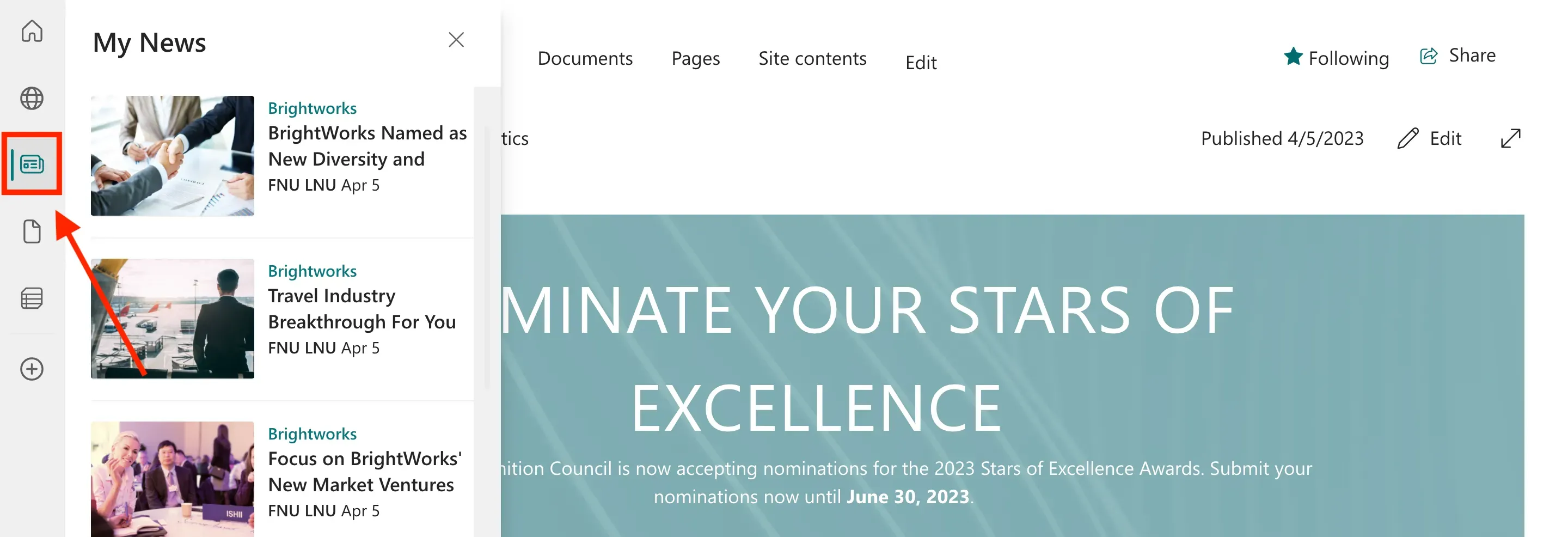
With SharePoint, you may have news posts and news links that are important to highlight on your intranet. Through ShortPoint Connect, you can display these news items on your page, enabling you to easily incorporate content into your intranet page.
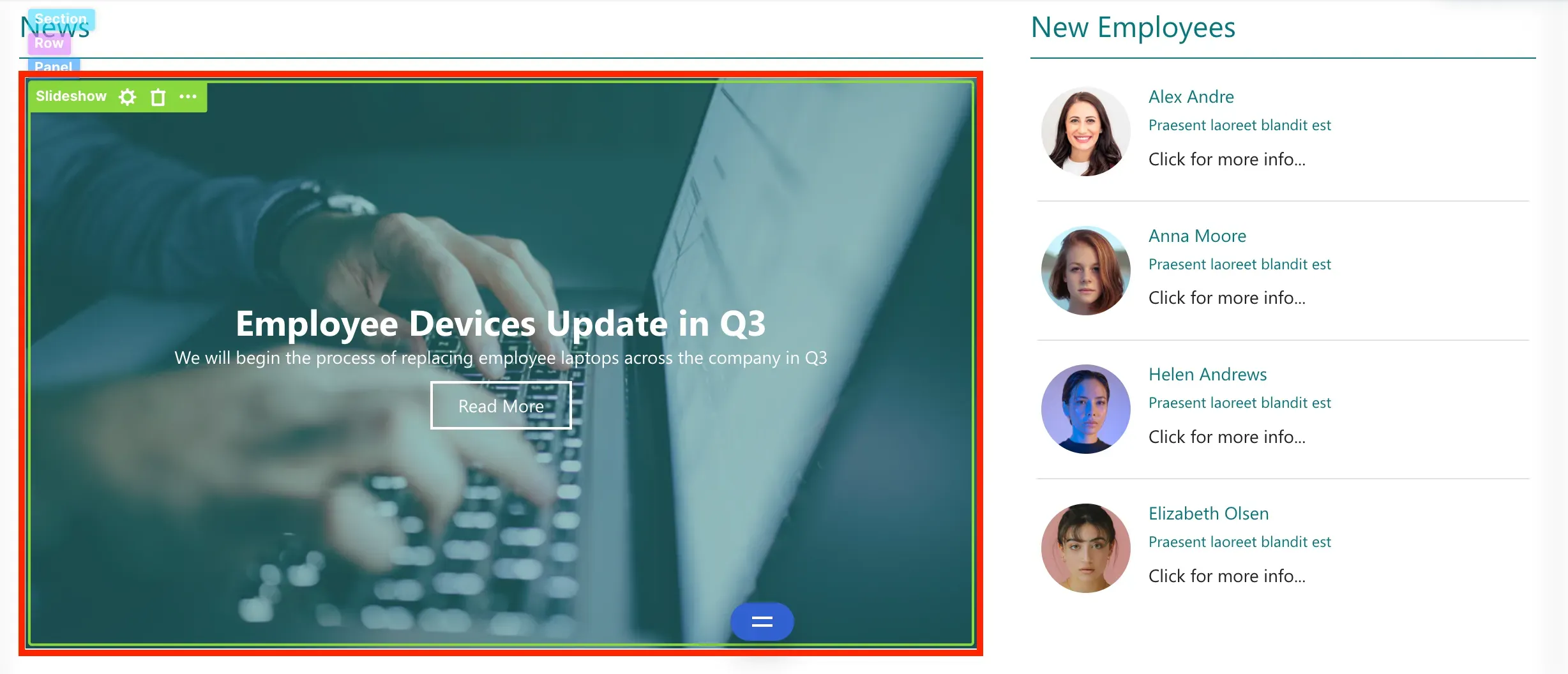
ShortPoint Connect is available for almost all Design Elements, including this Slideshow Design Element in our template.
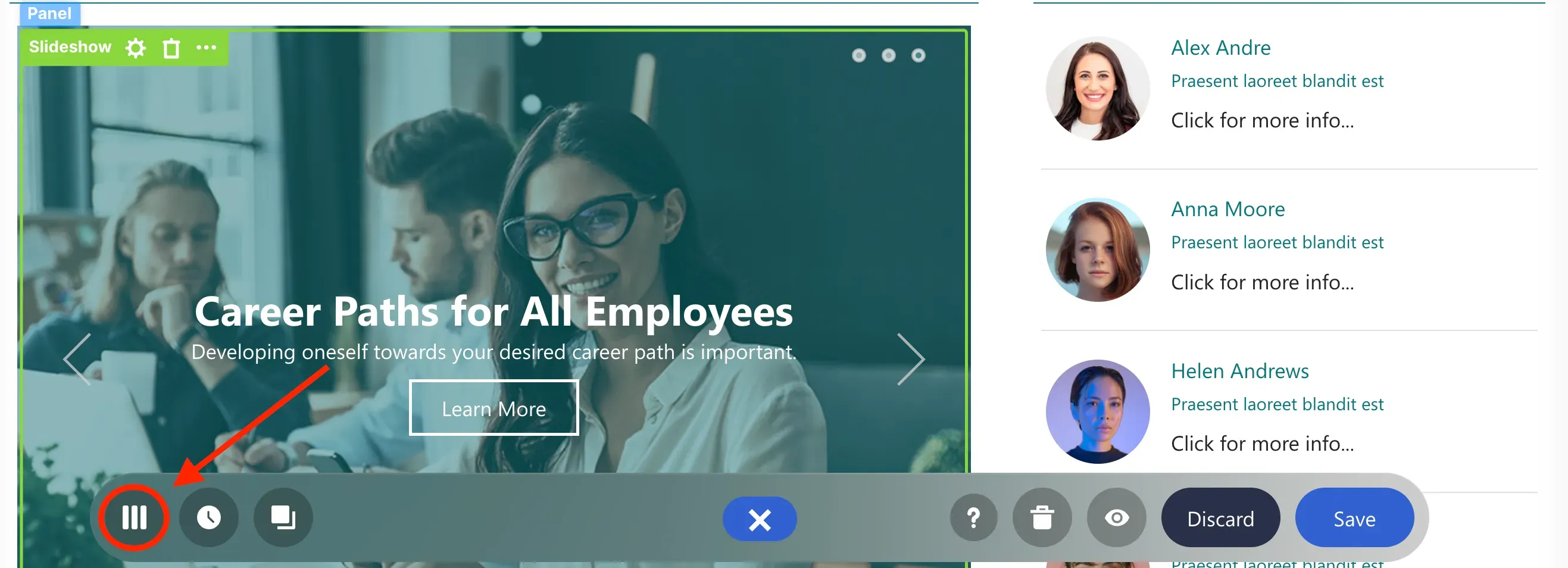
To get started, you must first Switch to the Grid Mode editor by clicking the Switch to Grid Mode icon in the floating bar. Grid Mode is an outline-based interface where you will see a basic structural view of your page. This is the interface that supports the Connect feature.
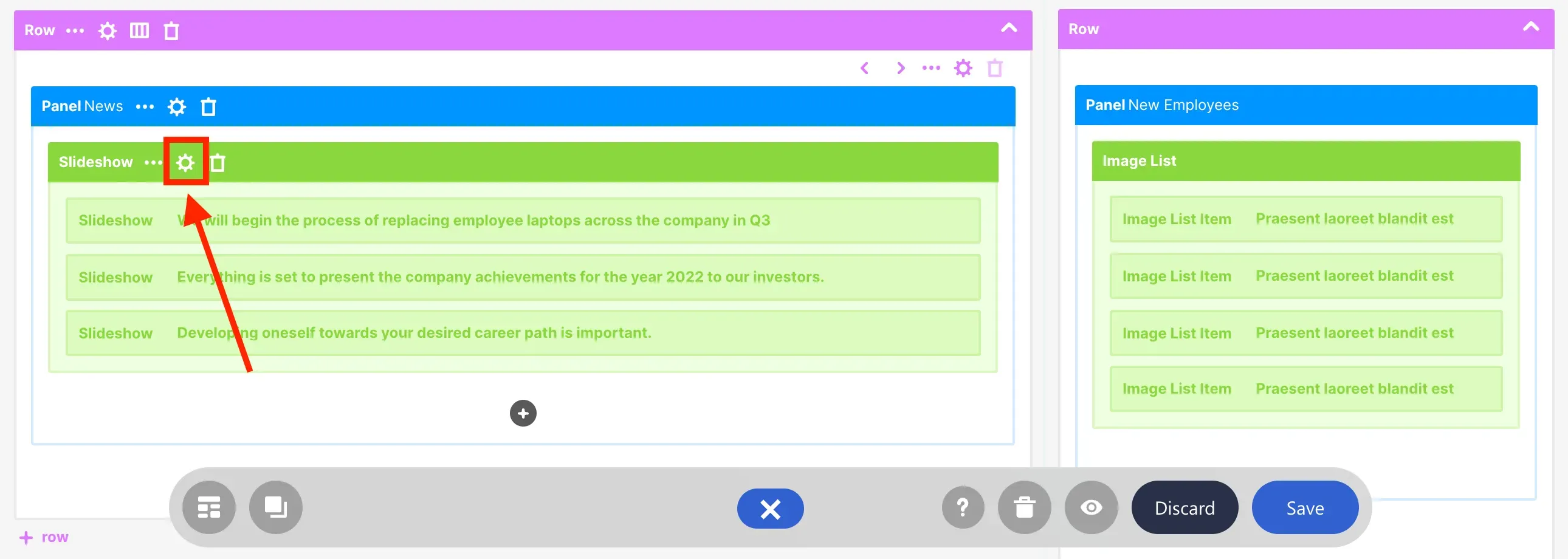
Once you are in Grid Mode, scroll down to look for the Slideshow Design Element and select the cogwheel icon.
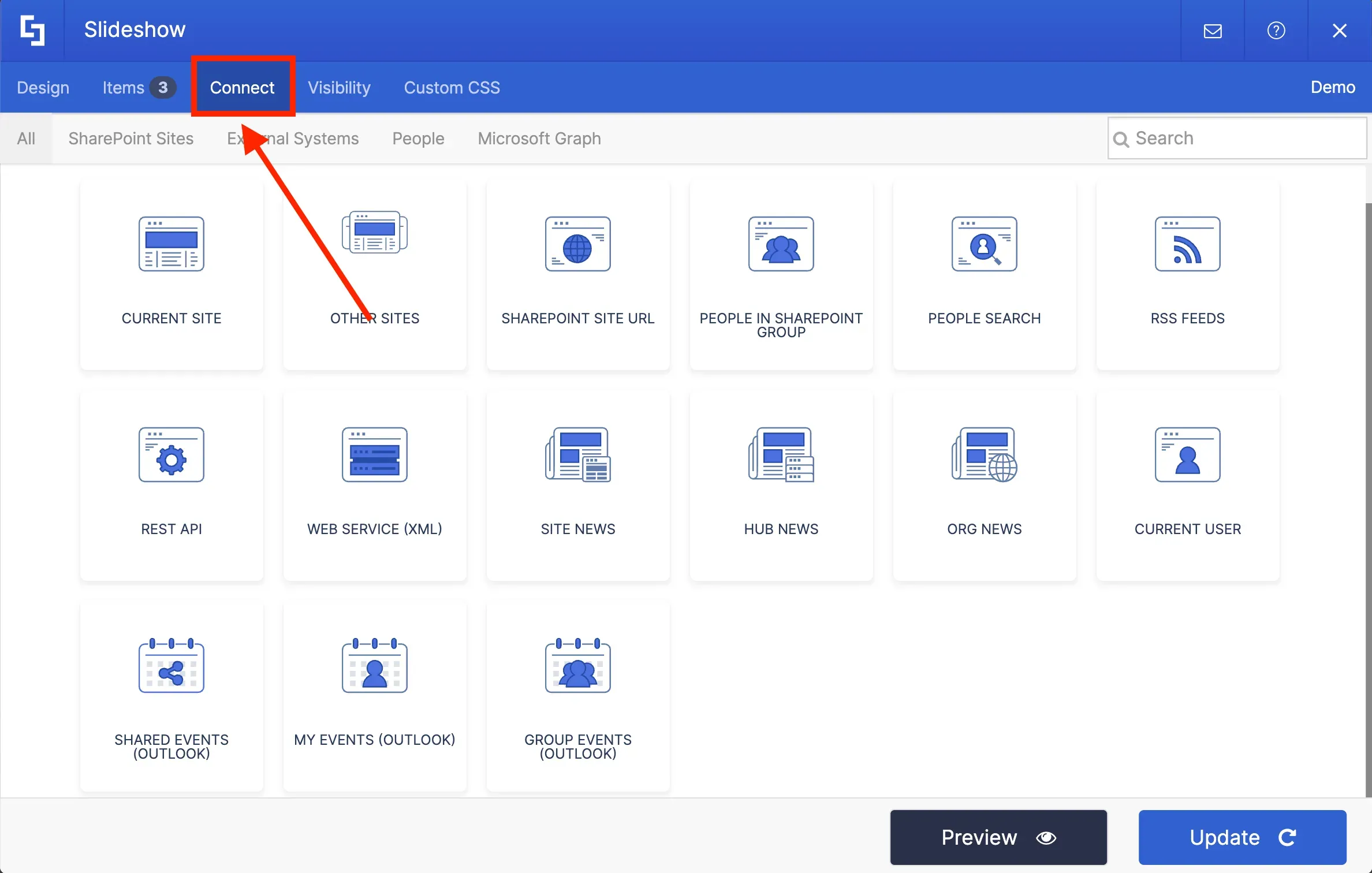
The settings window for the Slideshow Design Element will appear. Go to the Connect tab to select a connection type.
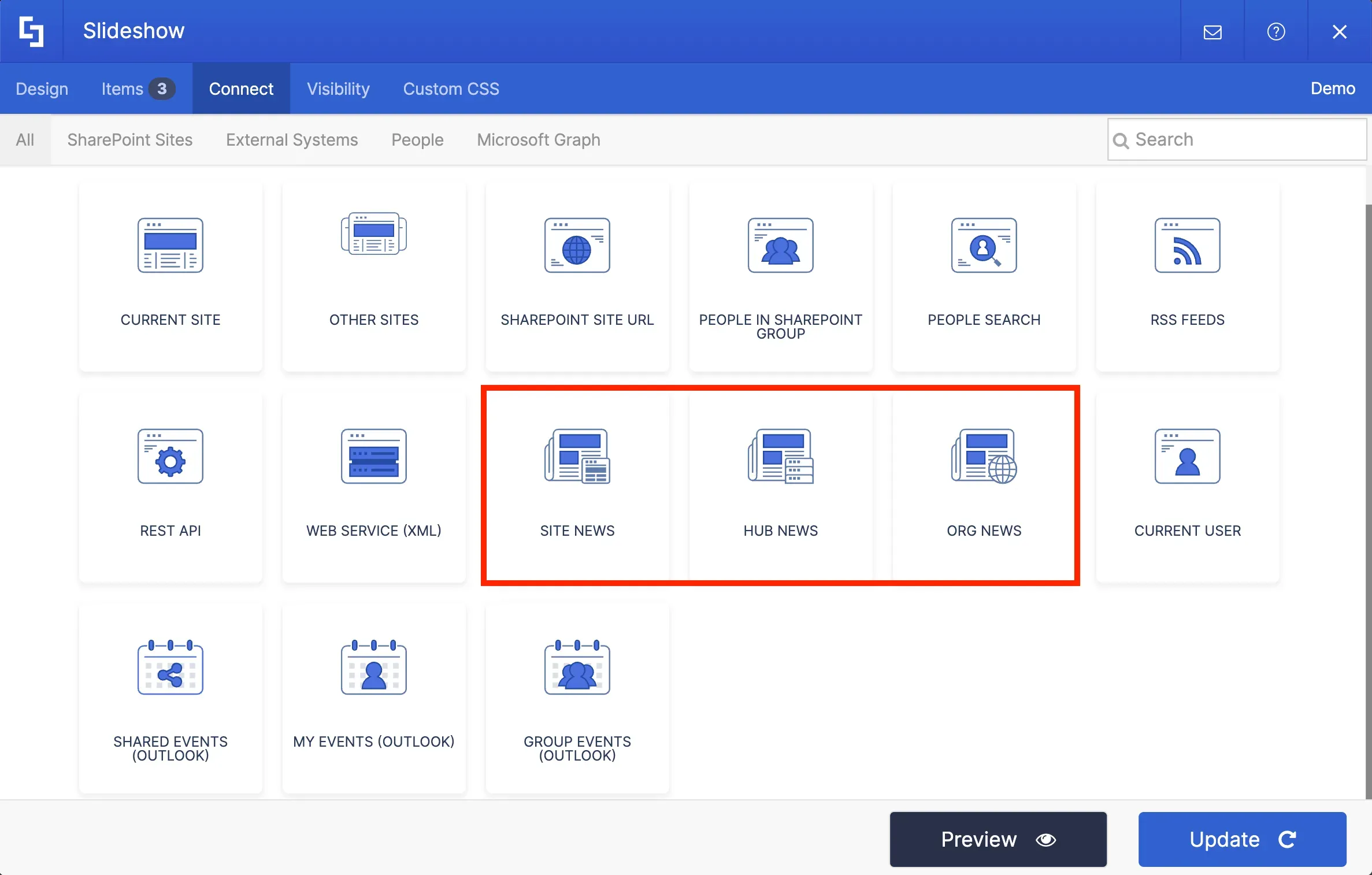
There are 3 connection types that you can use to establish news connection:
Setting up connection
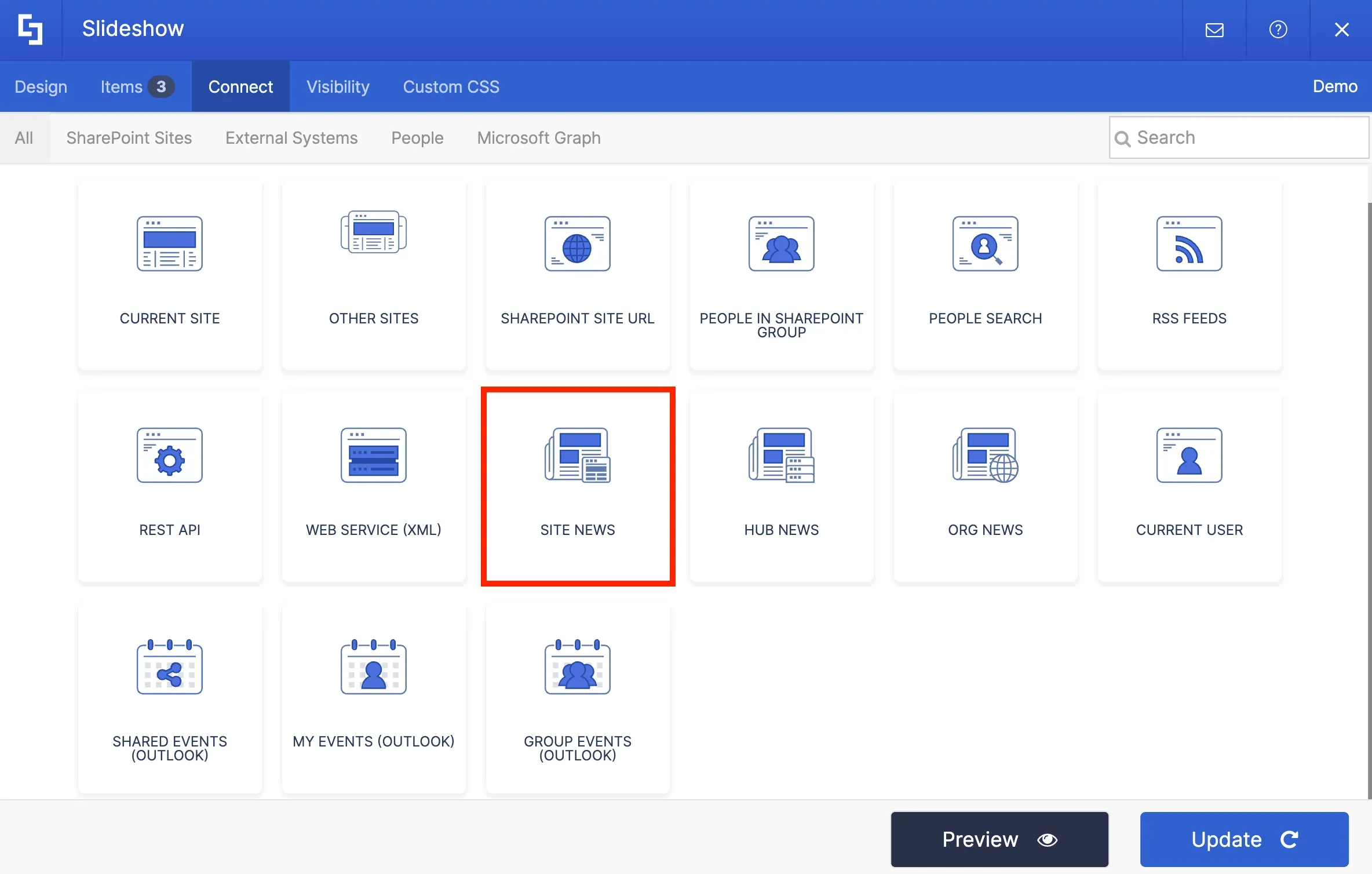
For our intranet project, we will be using Site News.
Now, you need to provide some information to set up the connection.
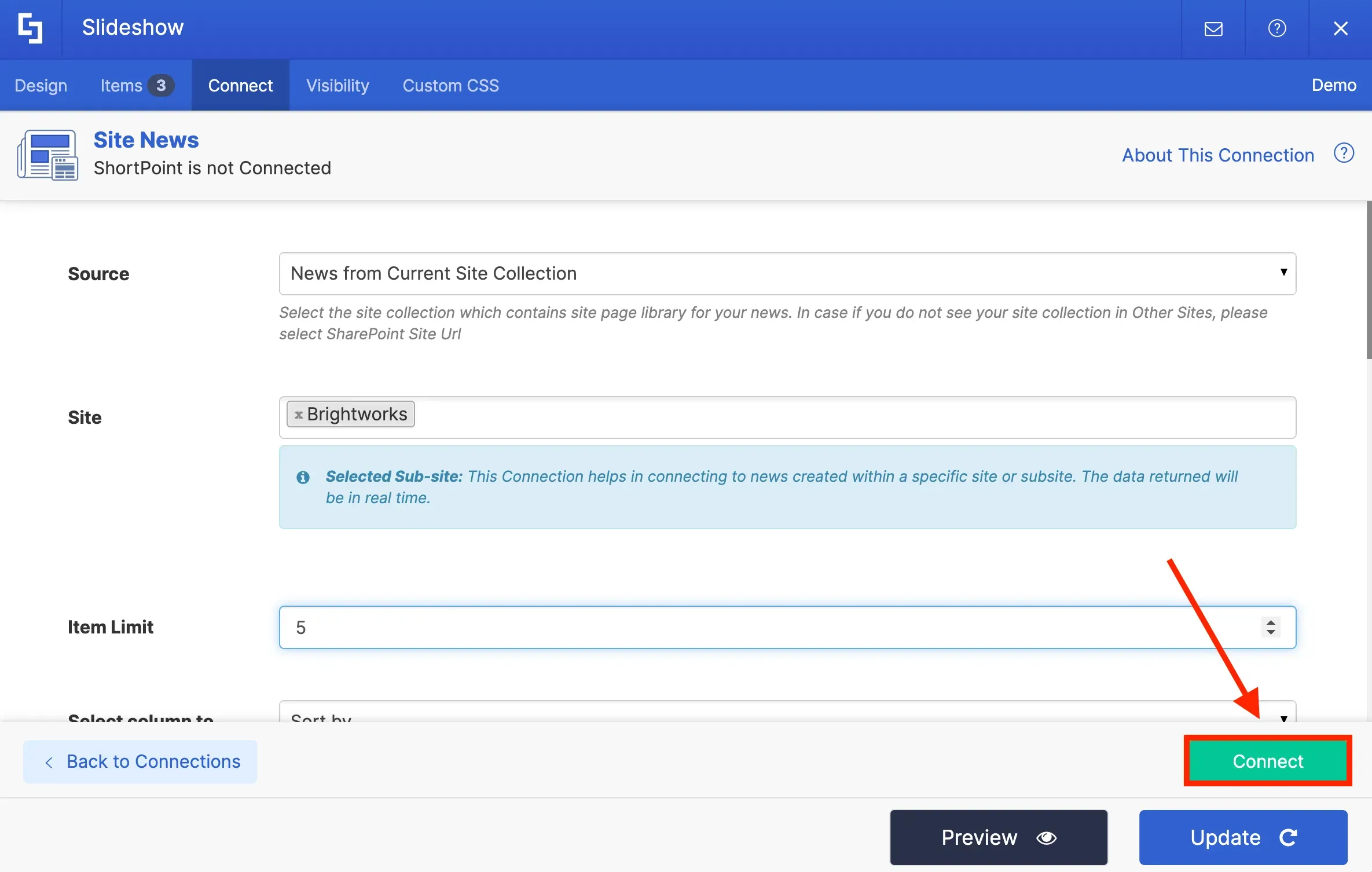
First, select the Source of your news. You can choose to pull news from the Current Site Collection, Other Sites, or a specific SharePoint Site URL. Depending on your selection, additional fields may be required.
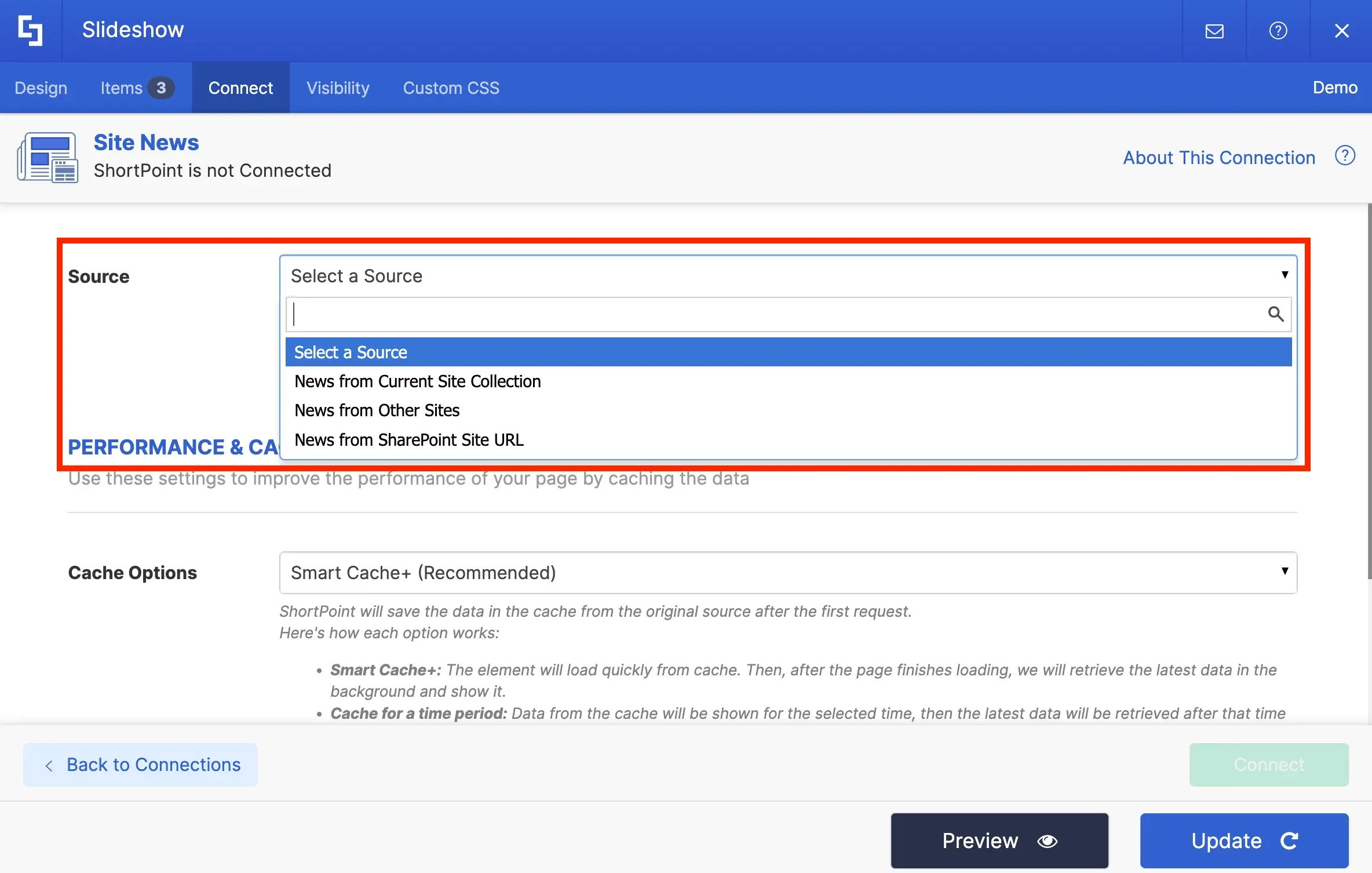
In our case, we will select News from Current Site Collection.
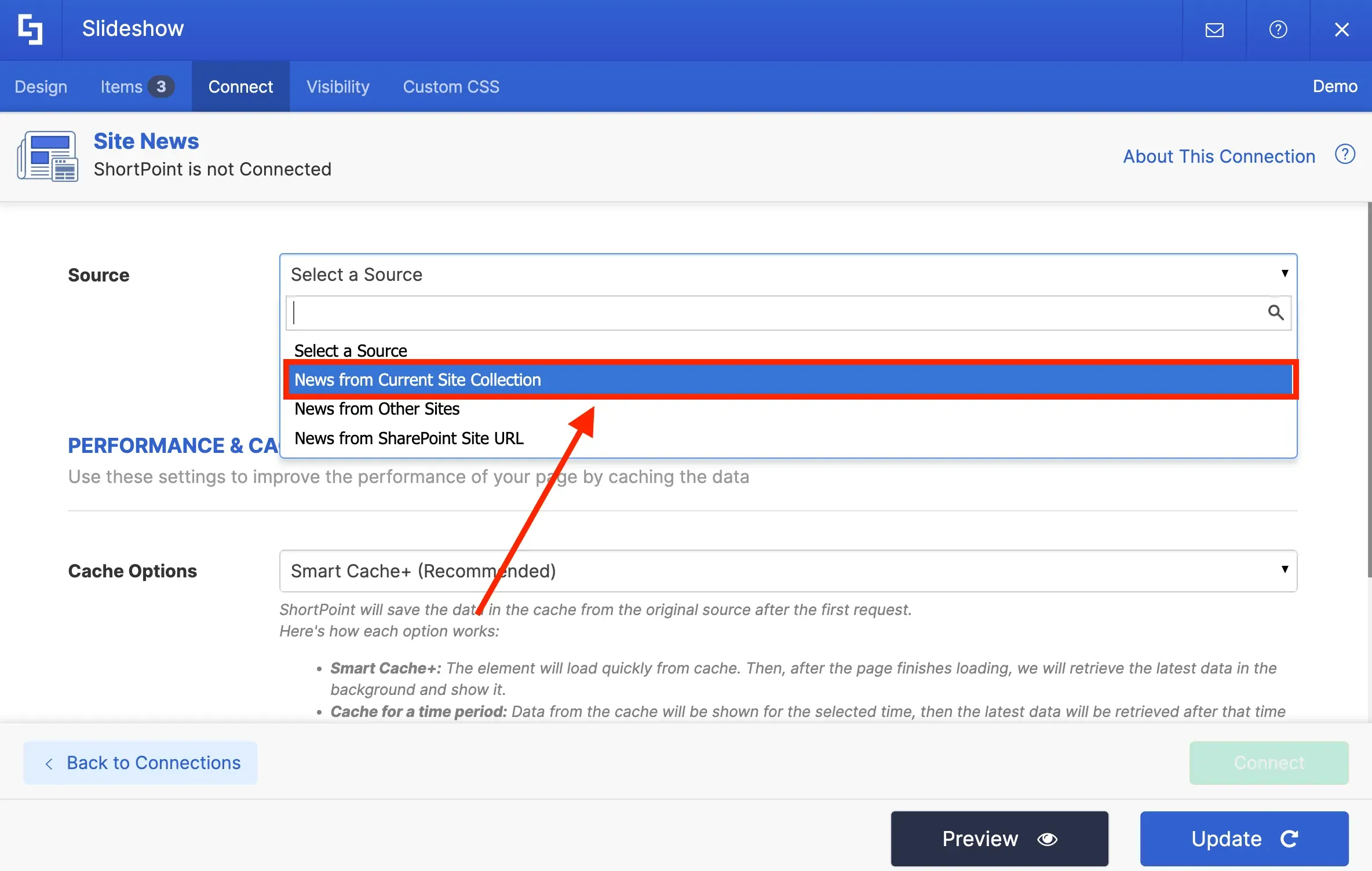
Then, select the Site from where you want to pull the news. For the purpose of this project, we will only pull news from our current site.
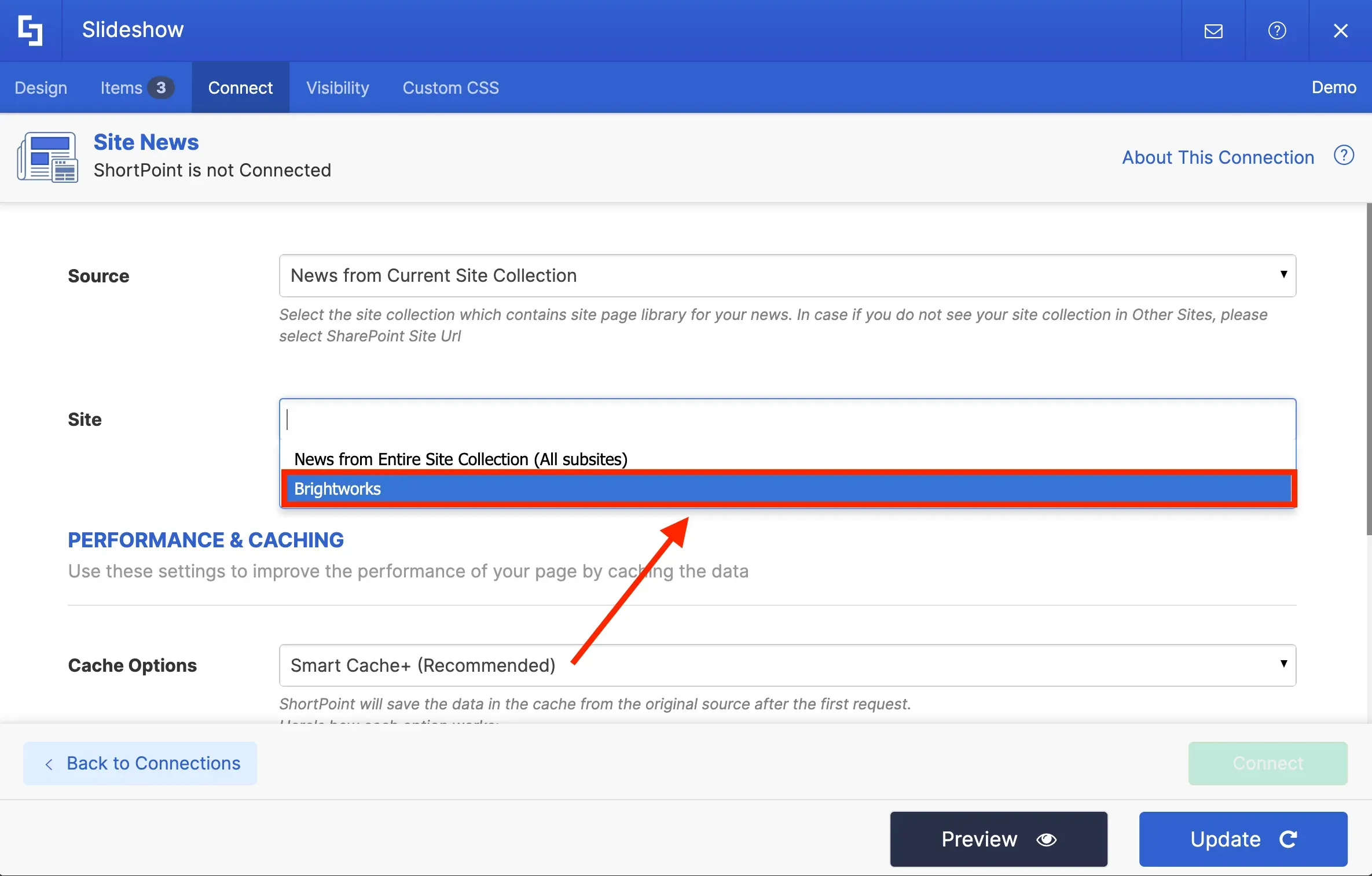
In the Item Limit field, you can set the number of items to display. We will set the number of news displayed to 5.
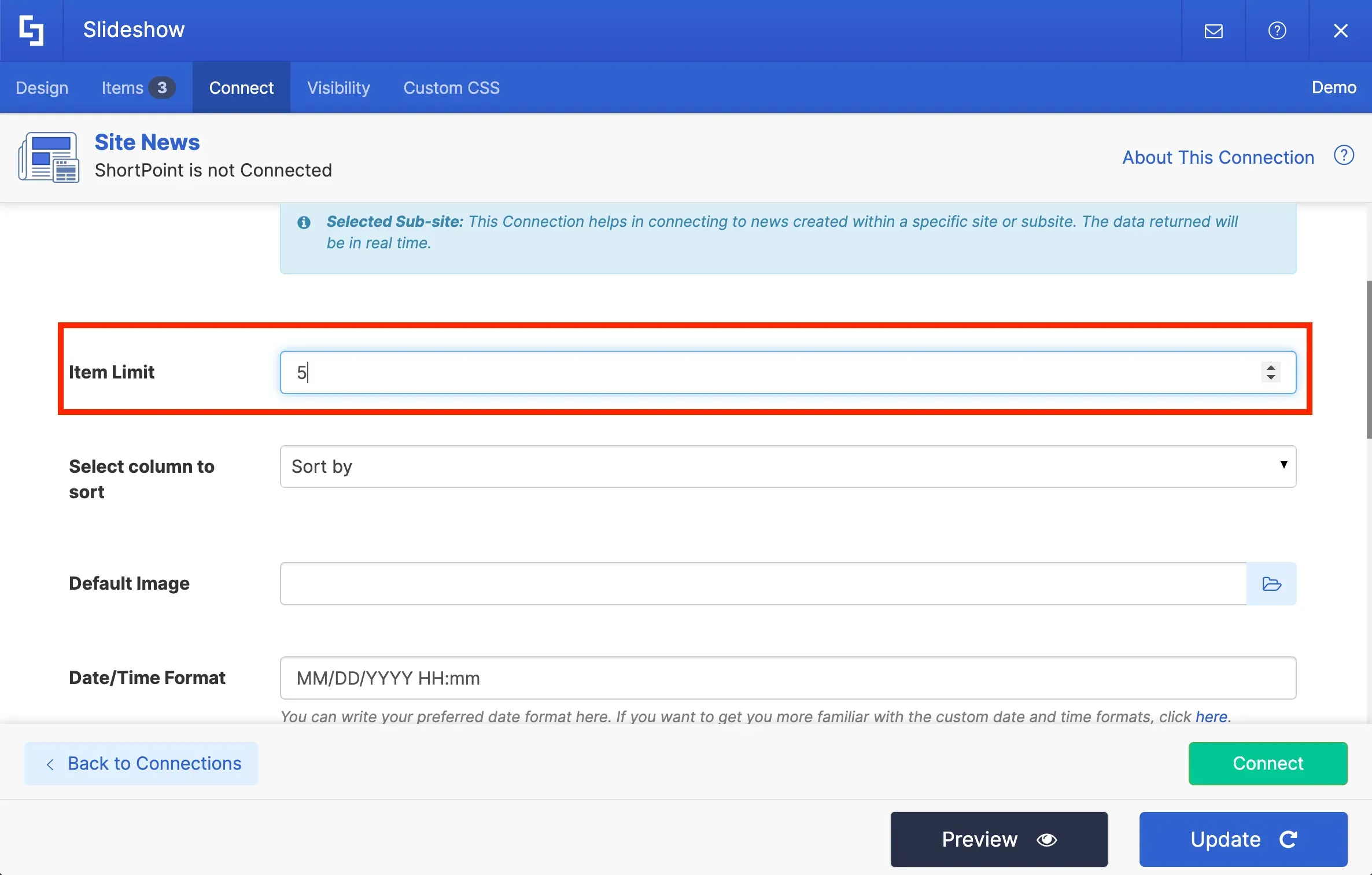
There are other connection settings that you can configure, but for now, we can keep them at their default values.
Once you have provided the required information, you can hit Connect to establish the connection.
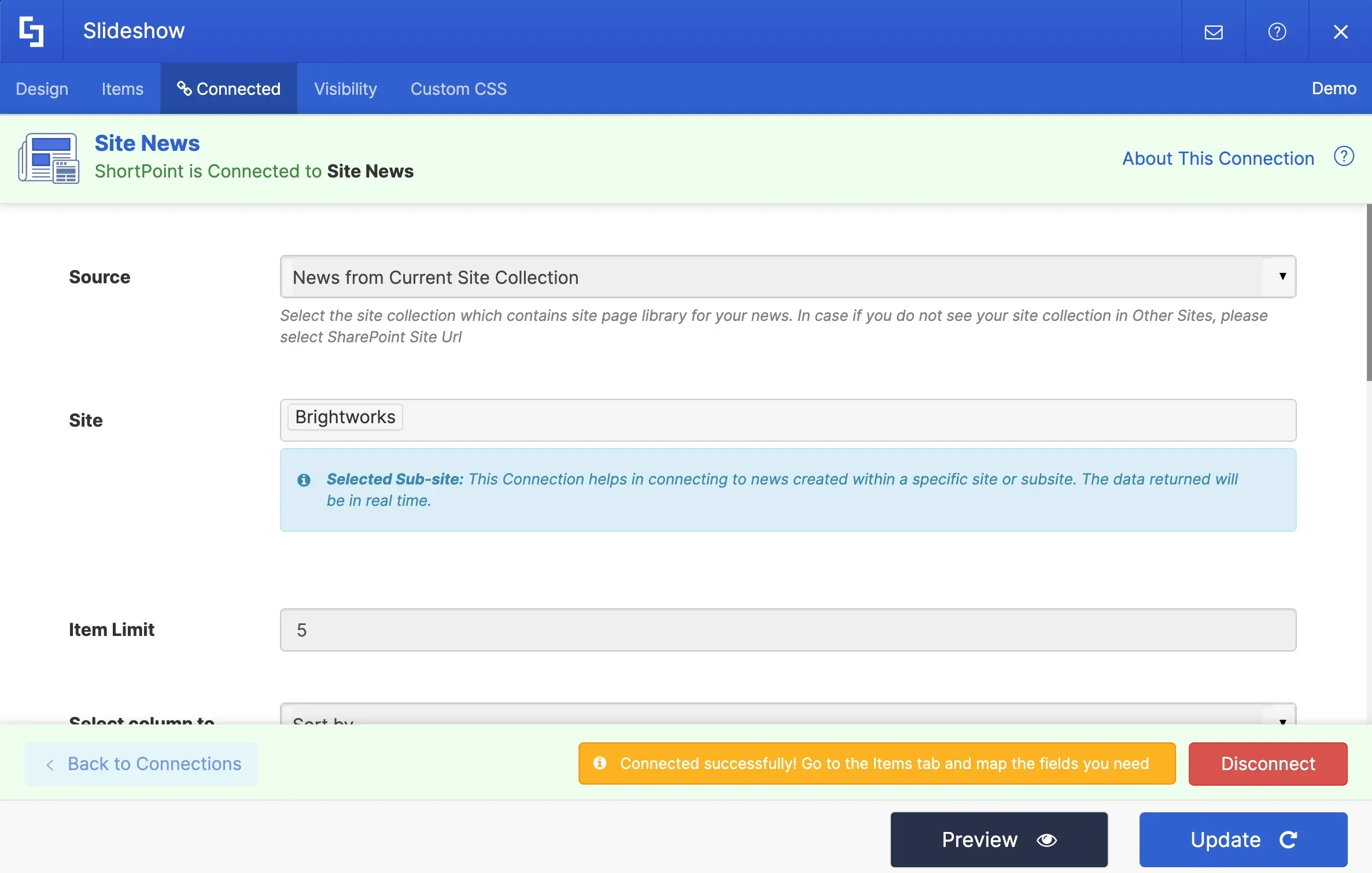
Once you hit Connect, you will see green banners at the top and bottom of your Settings window. This means that you have successfully connected to your news source page.
Mapping news content
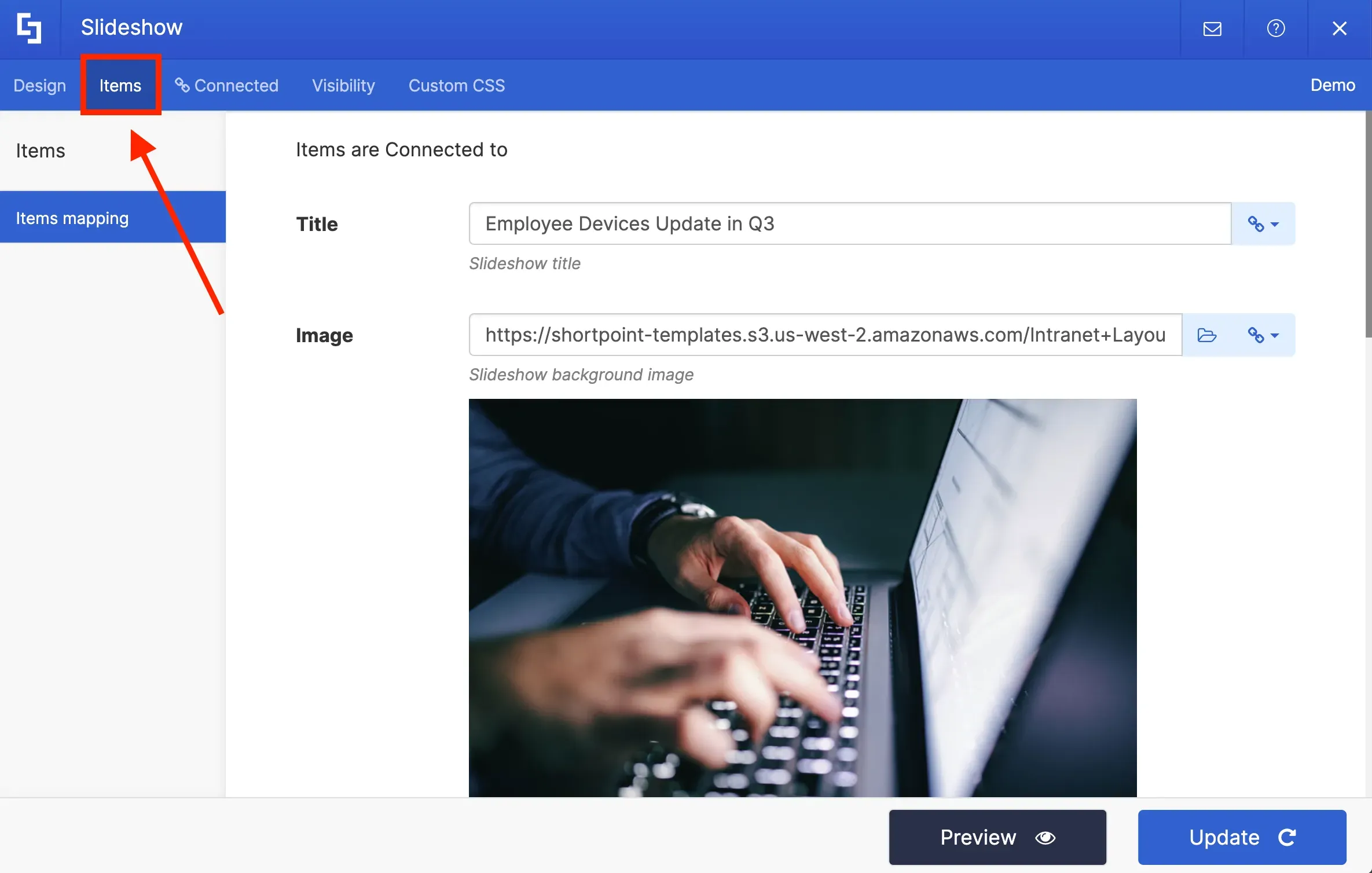
To indicate what types of information you want to display on the Slideshow, you need to go to the Items tab.
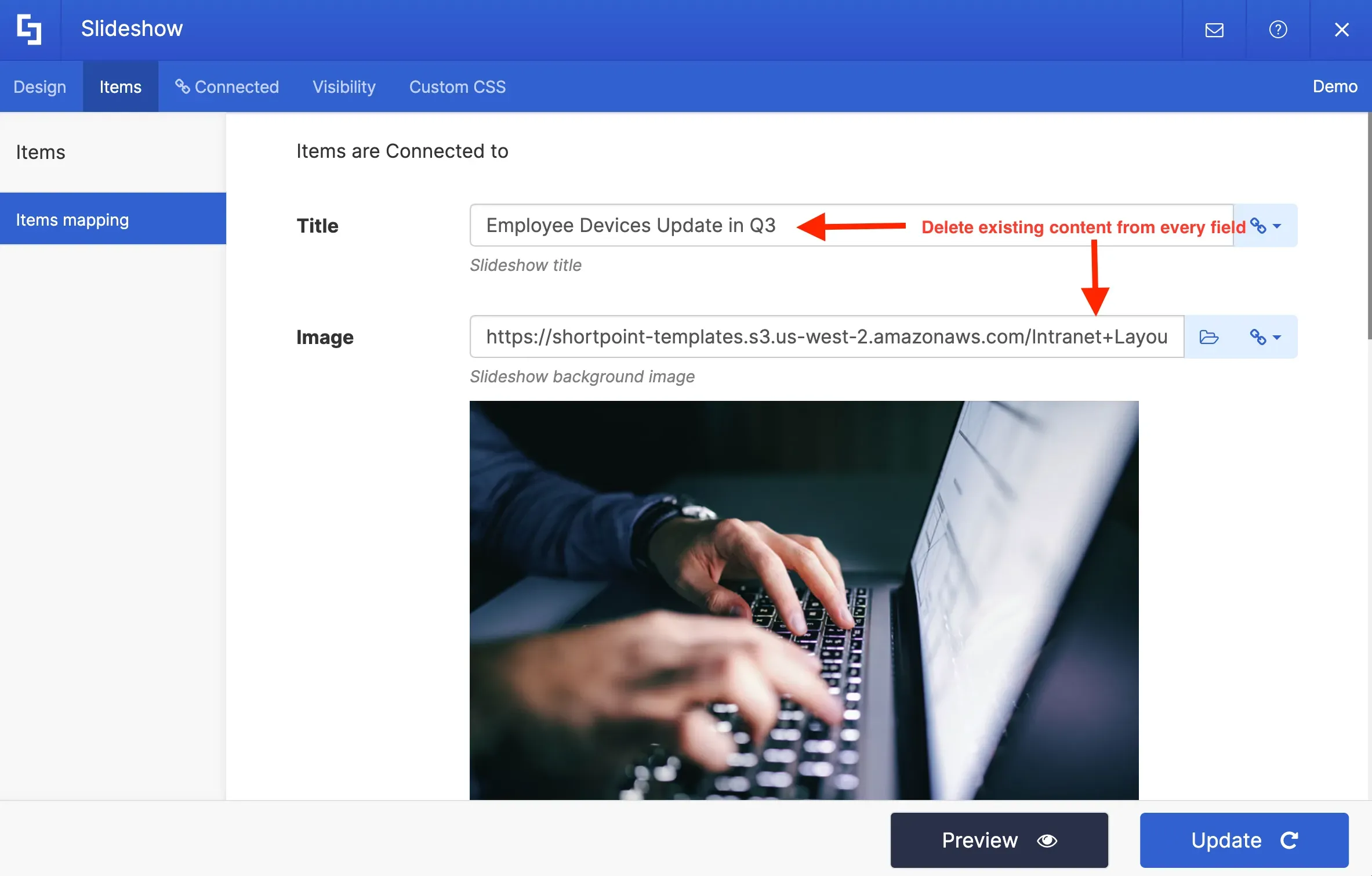
You will notice that some item fields already have existing content. Delete all placeholder content so you can customize the items according to your preference.
For each item field, there are link icons. These link icons contain several property options you can choose from. The property you select for each field will automatically be displayed on your page.
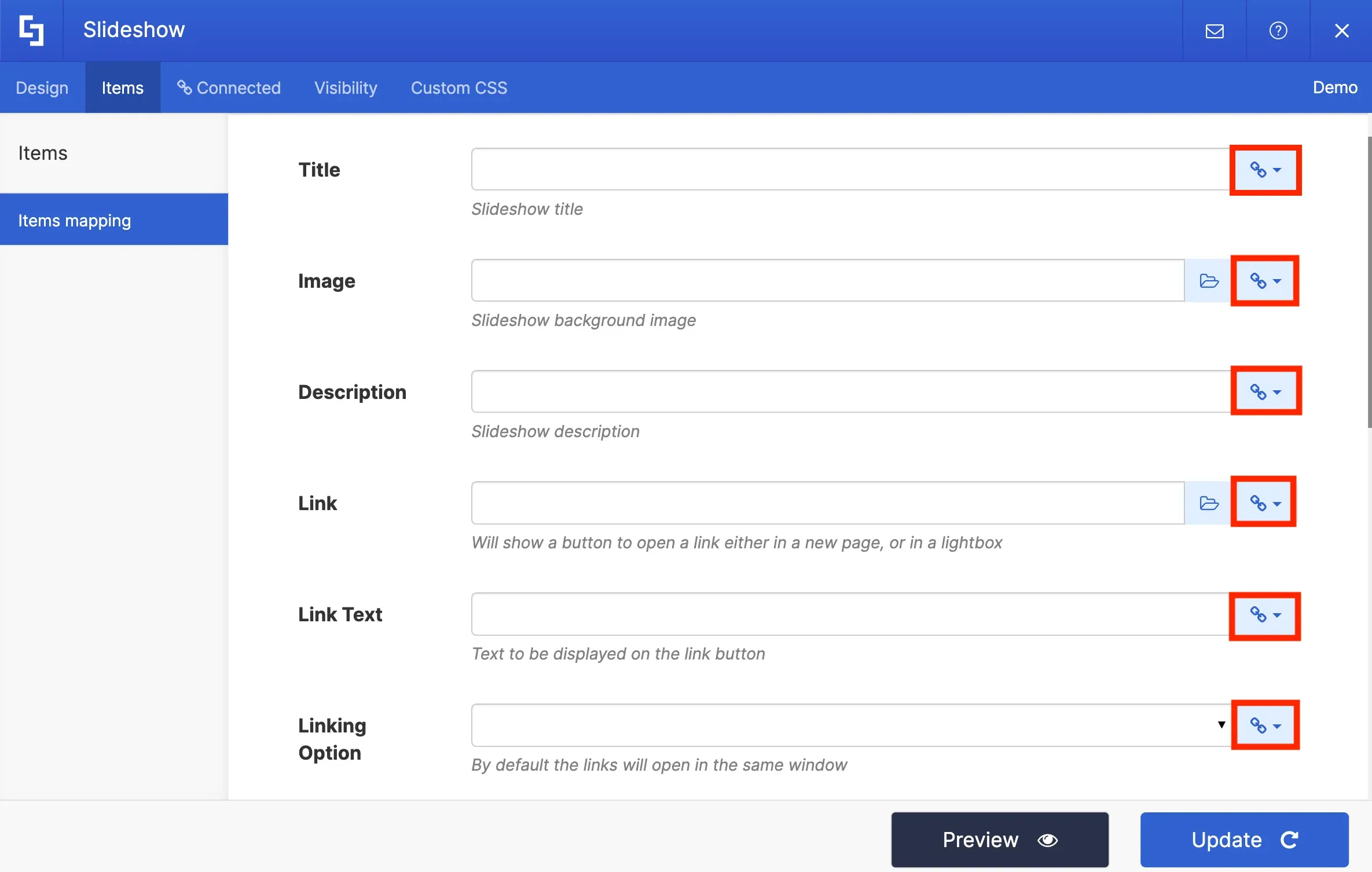
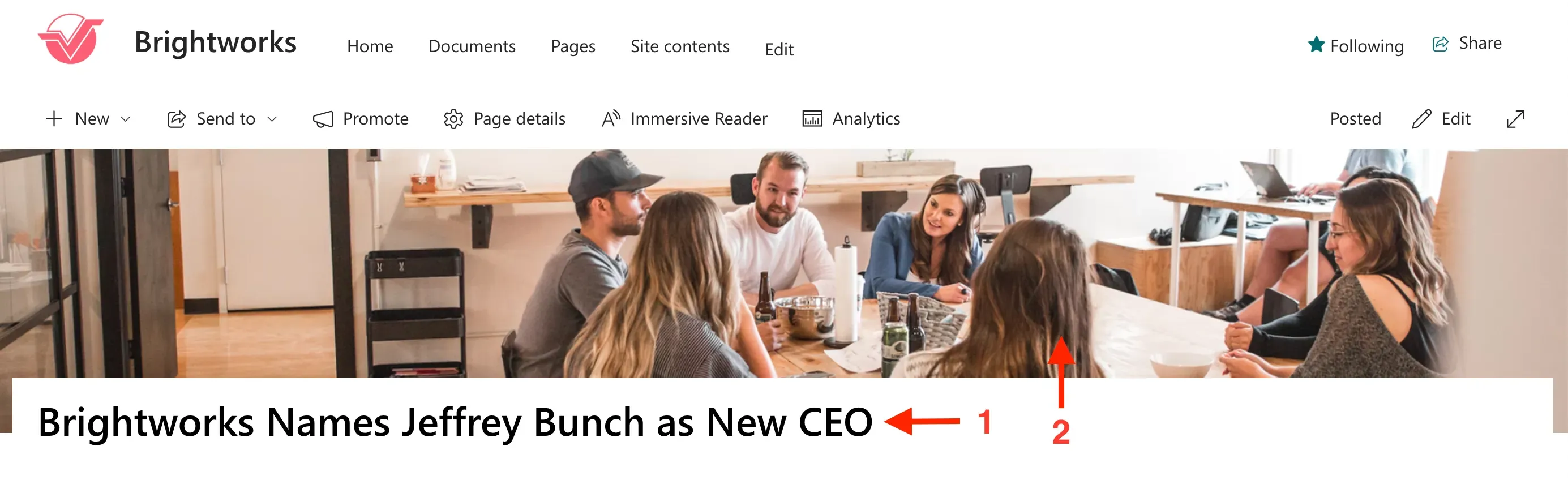
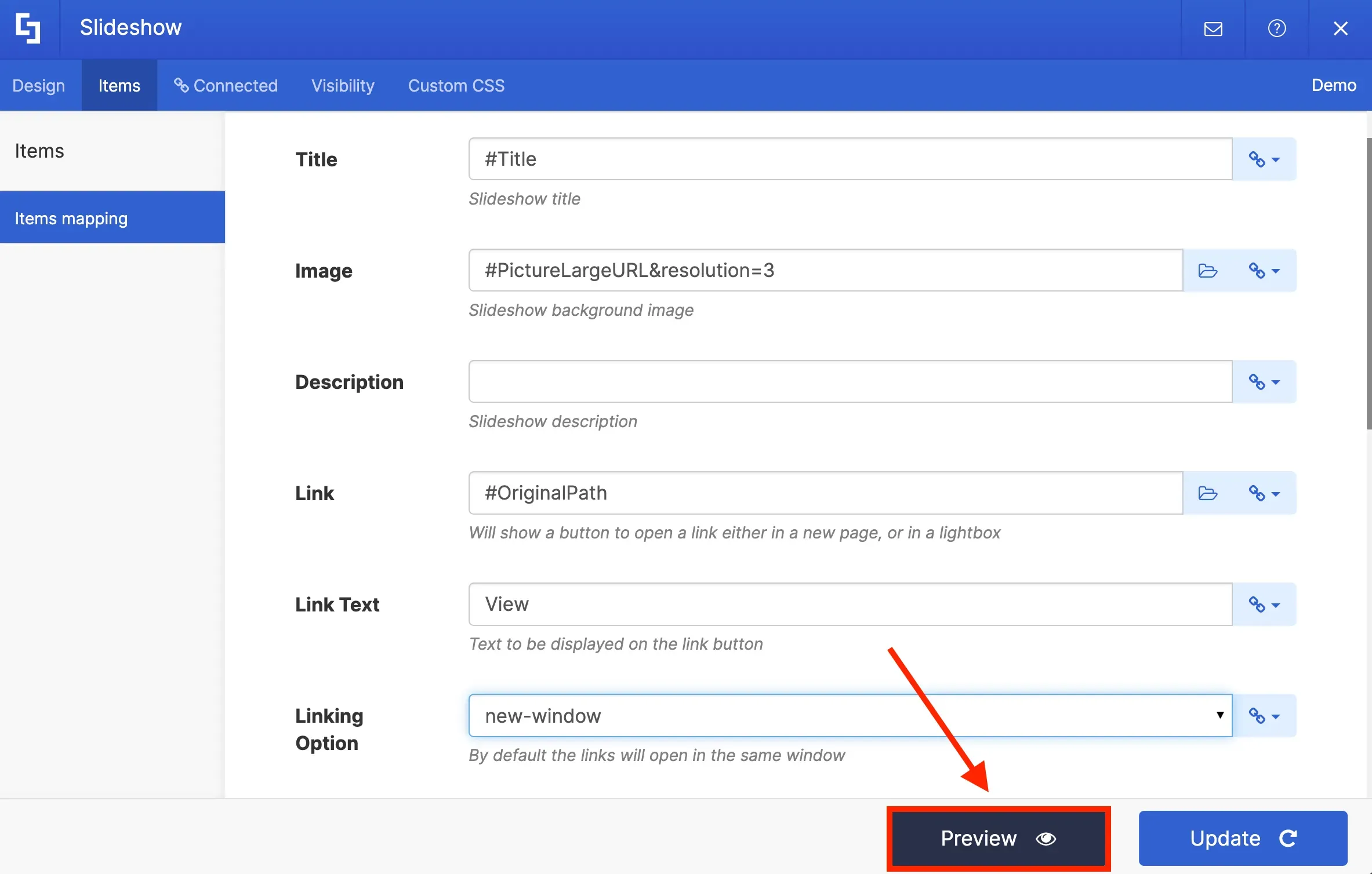
For this project, we want to display the [1] Title of the news and the [2] header image we used for the news. We also want to include a button that site viewers can click to redirect them to the article.
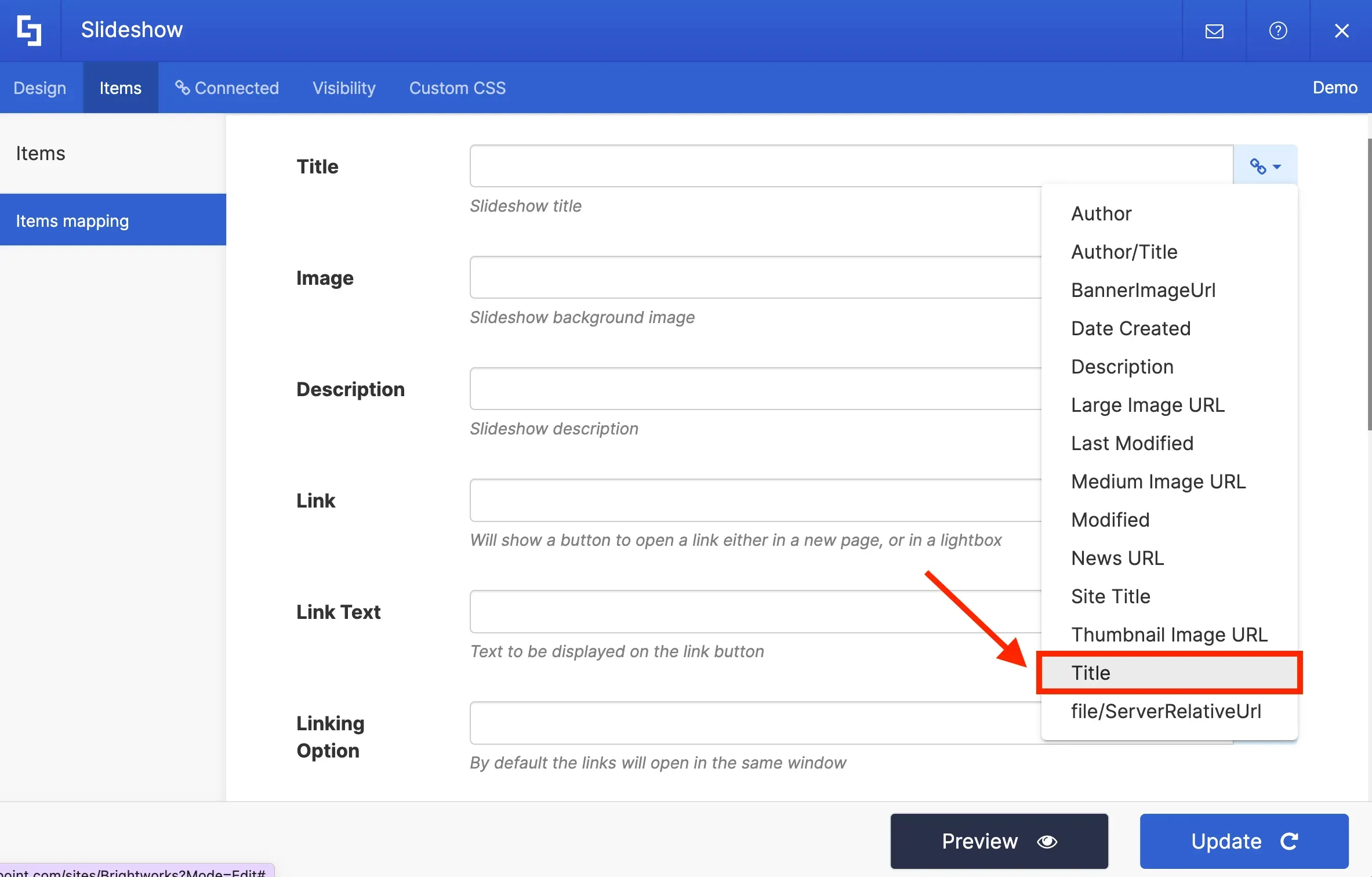
To do this, click the link icon in the Titles field. From the drop-down, select the Title property to pull up all news titles on your site.
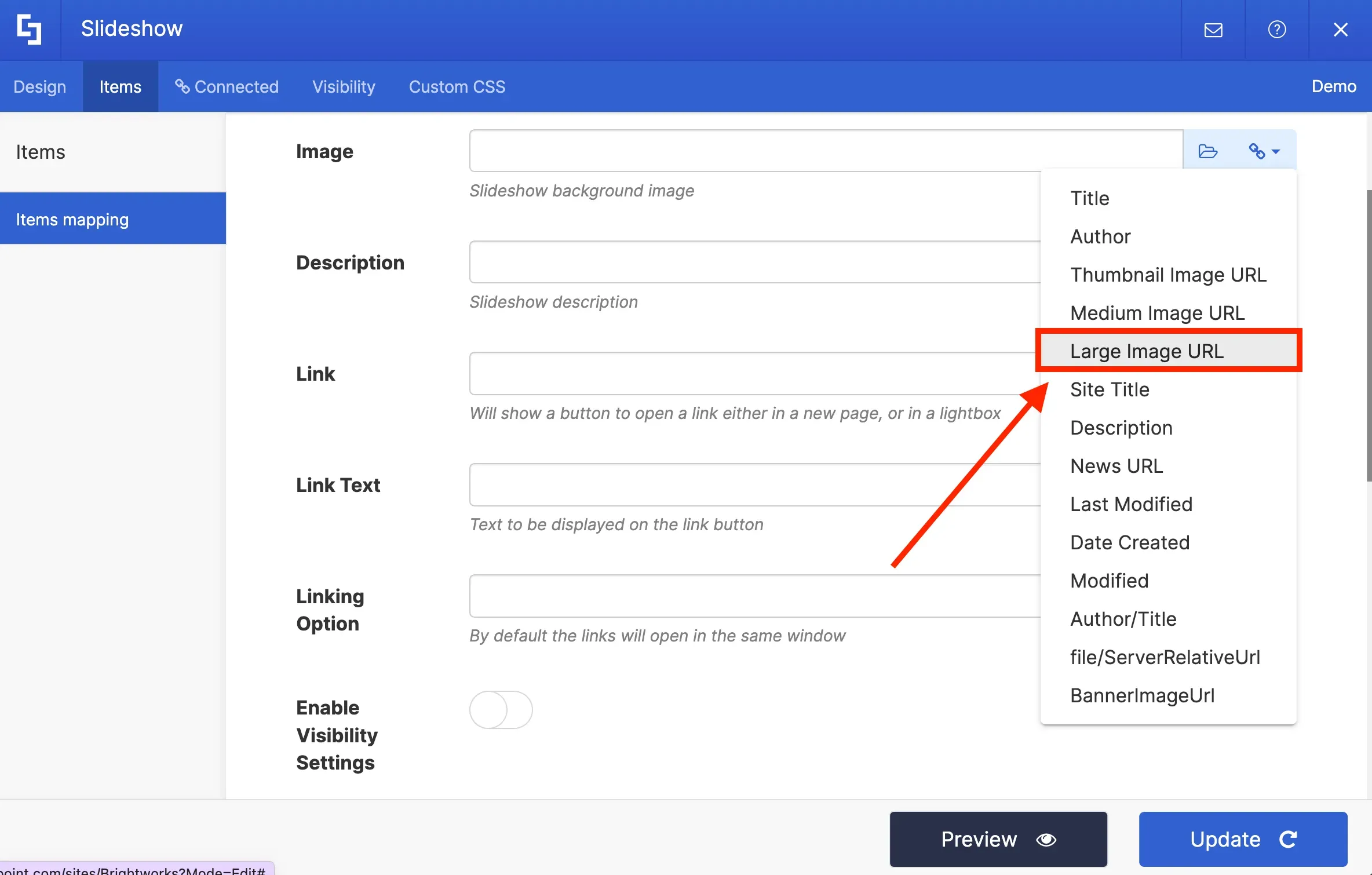
Then in the Image field, select the Large Image URL property to showcase the largest image resolution on our slideshow.
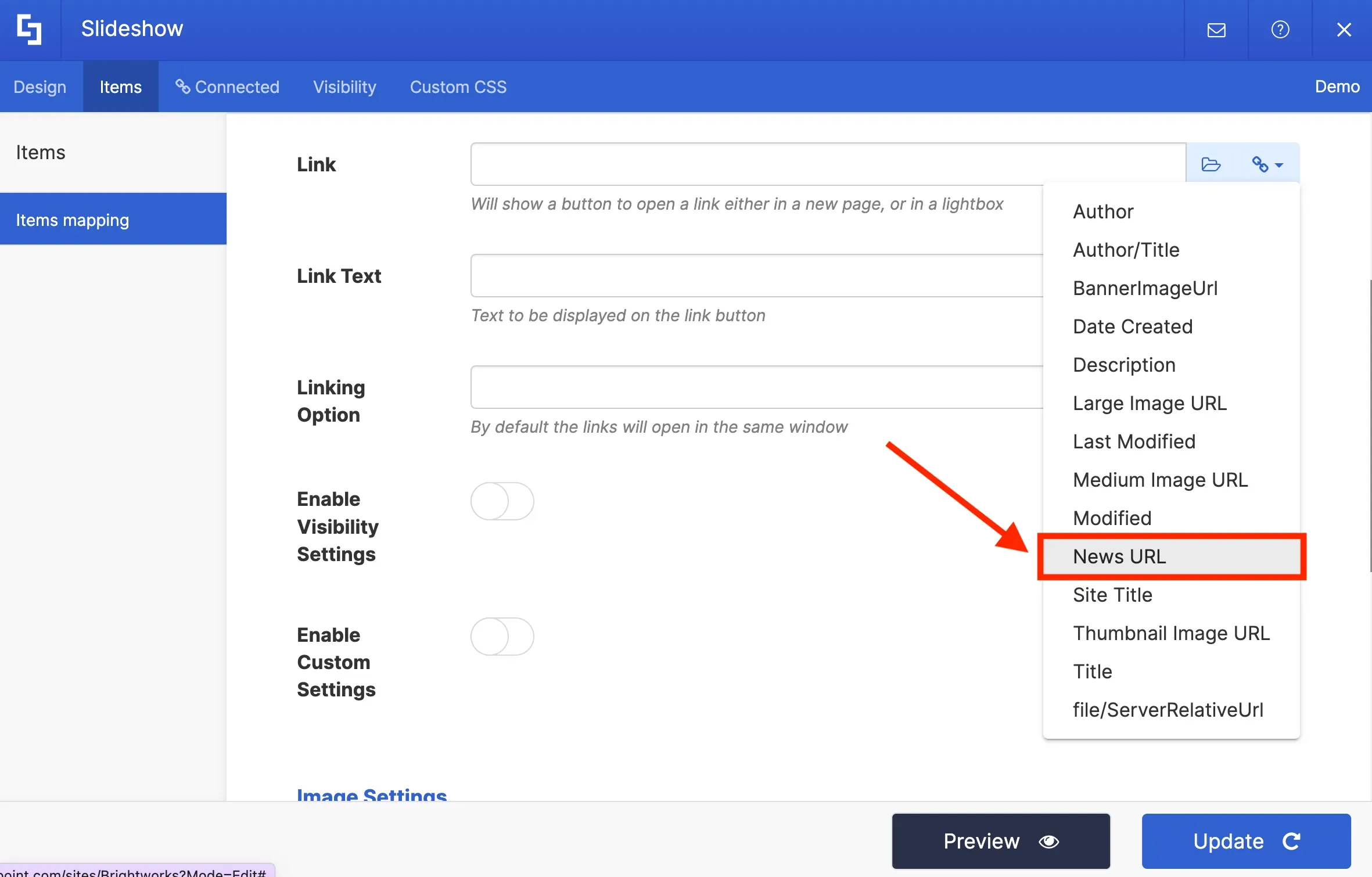
In the link field, we will select the News URL property to redirect viewers to the actual article when they click it.
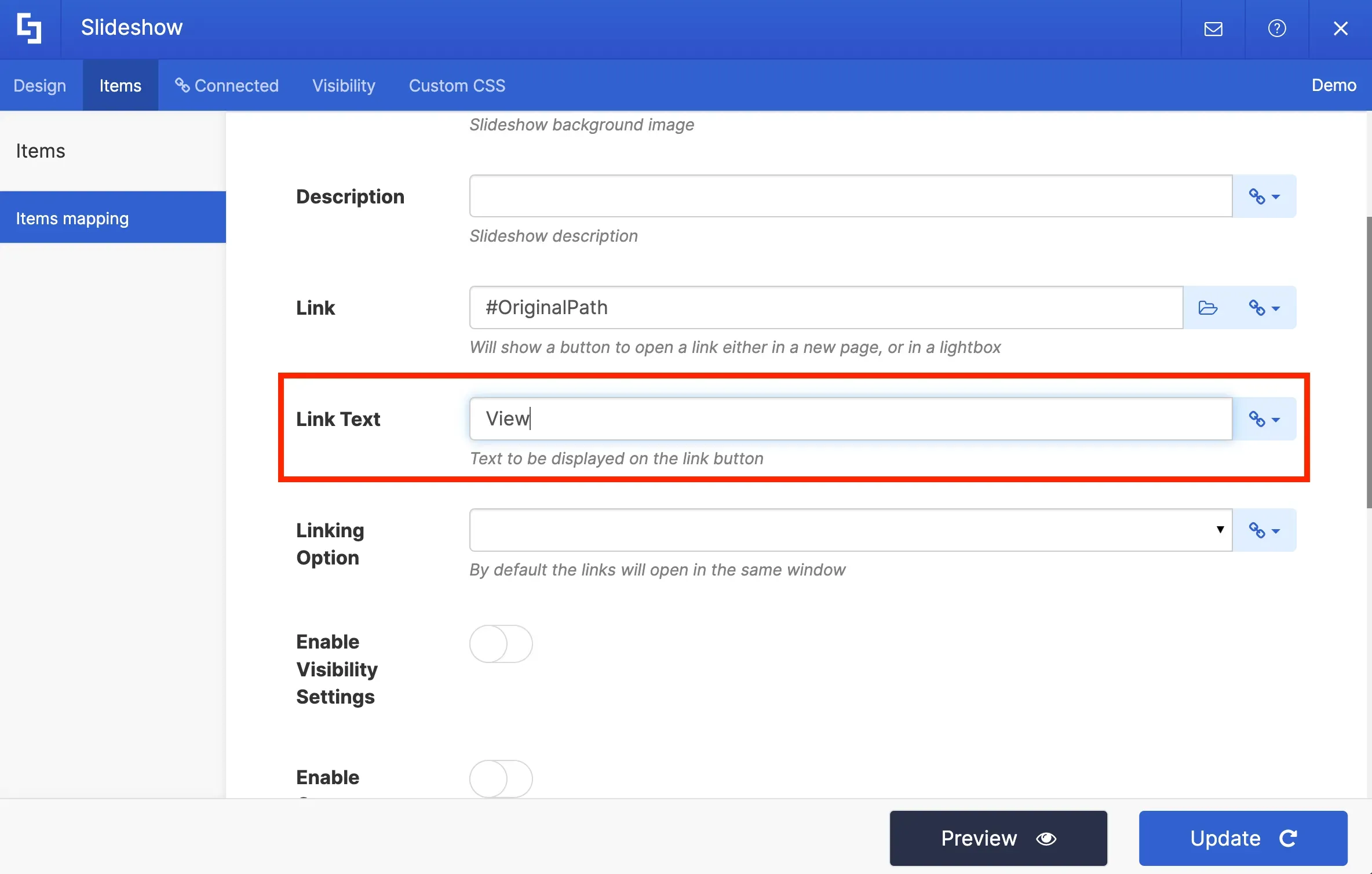
Then in the Link Text field, we will write the text we want to be displayed inside the button.
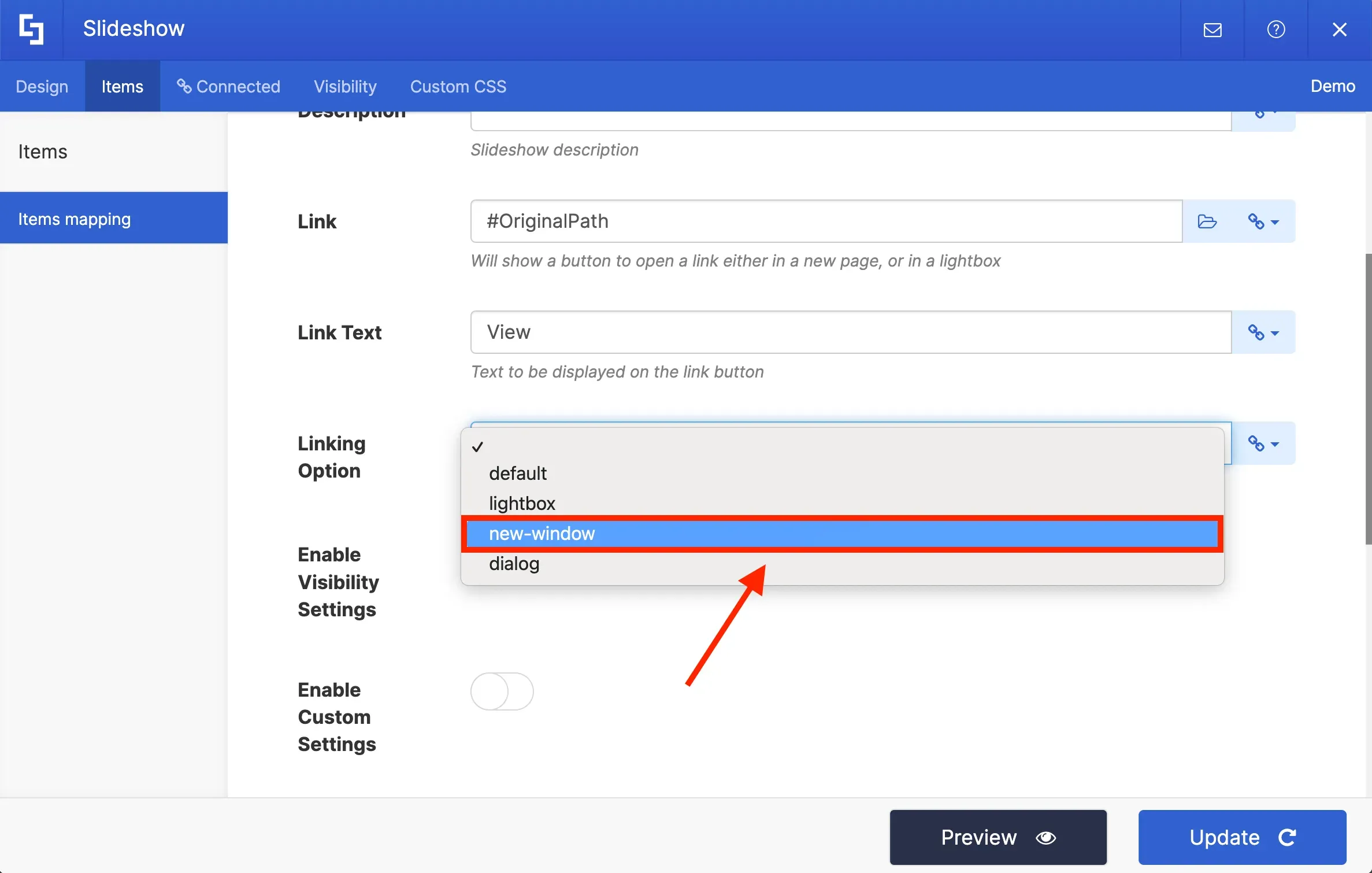
In the Linking Option field, you can choose how your link will open:
For this project, we want to open the link in a new window.
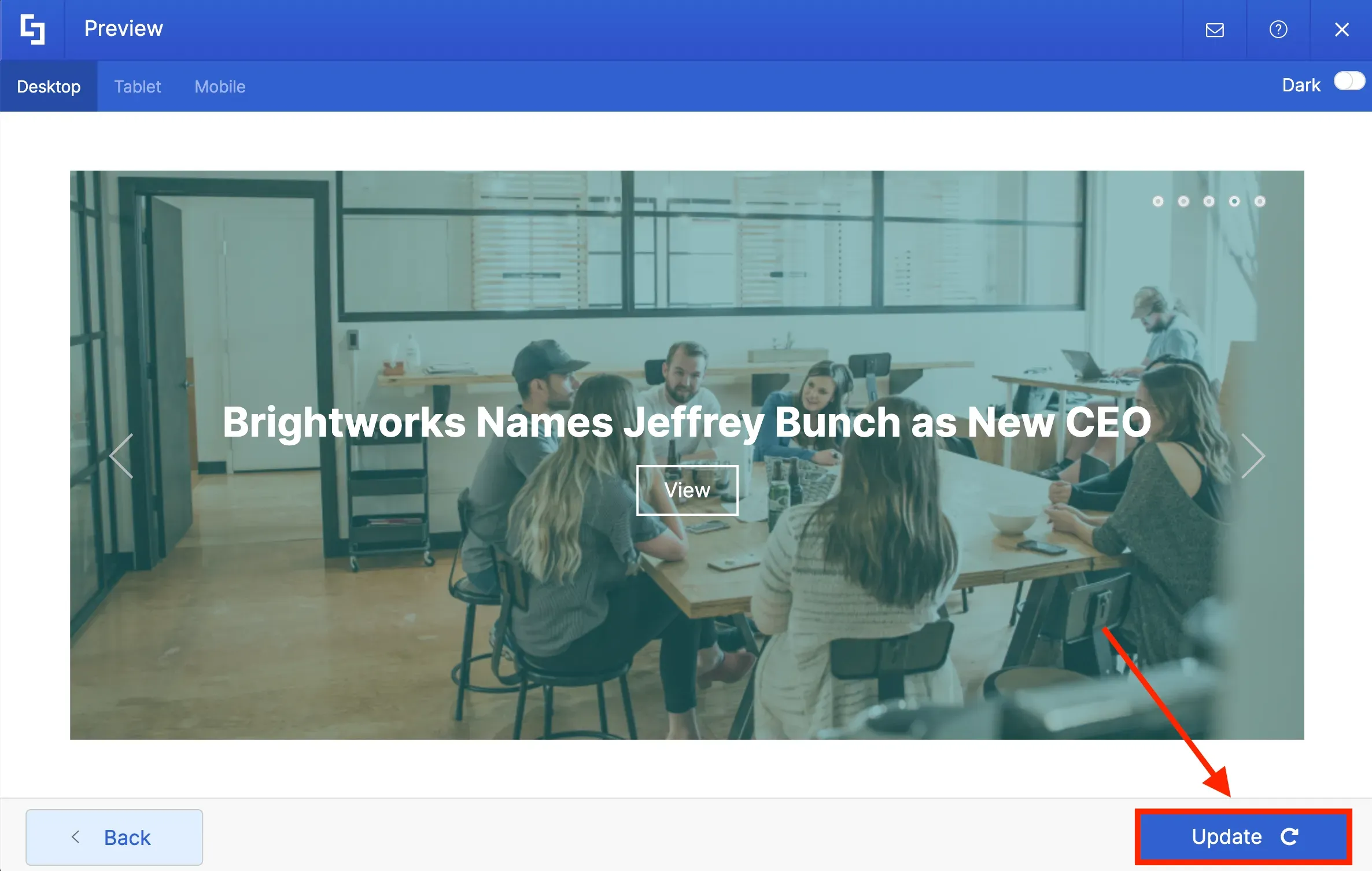
Once you have selected the desired properties, you can Preview how your content will look on the Slideshow.
Finally, you can hit Update to apply your changes.
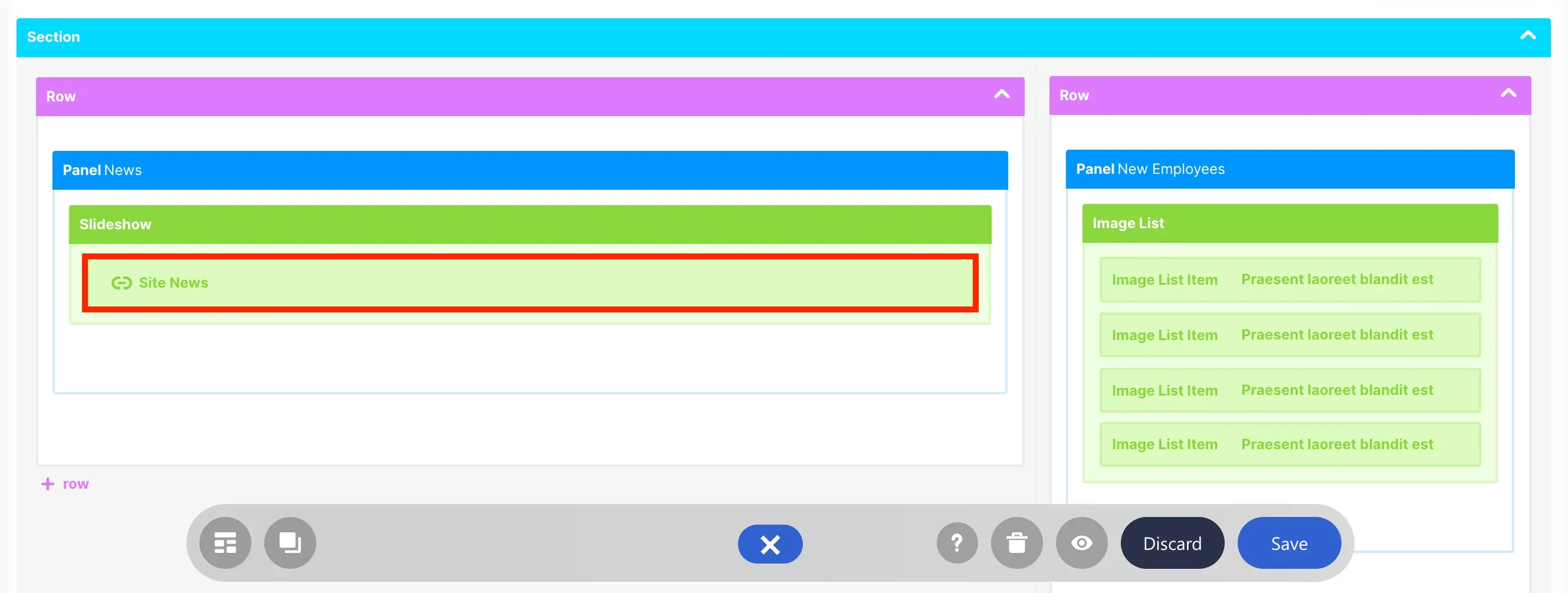
Once you click Update, you will notice that Site News connection is now inside your SlideShow Design Element. Take note that you do not need to repeat this process again once you add new news posts or links. ShortPoint will automatically retrieve and update any new news posts or links added to your site in the background.
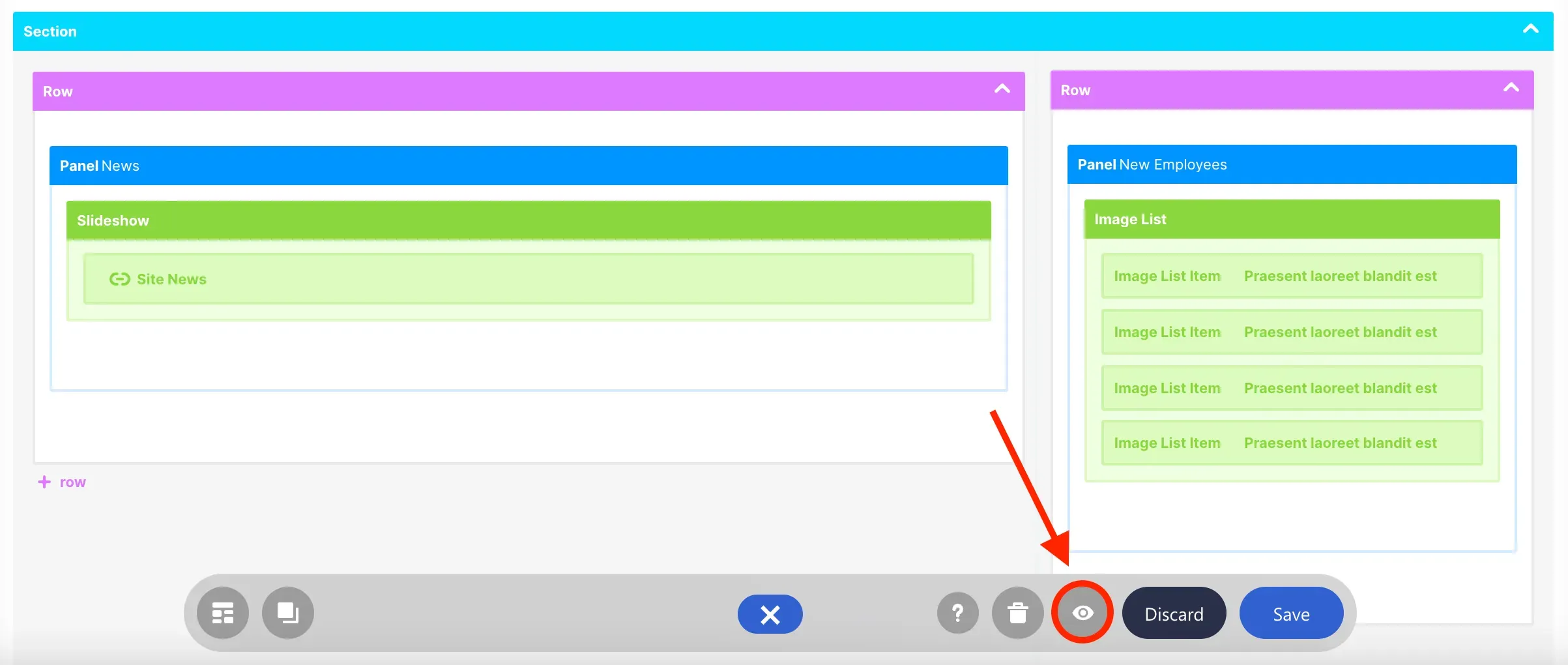
To see your slideshow in real-time, click the eye icon.
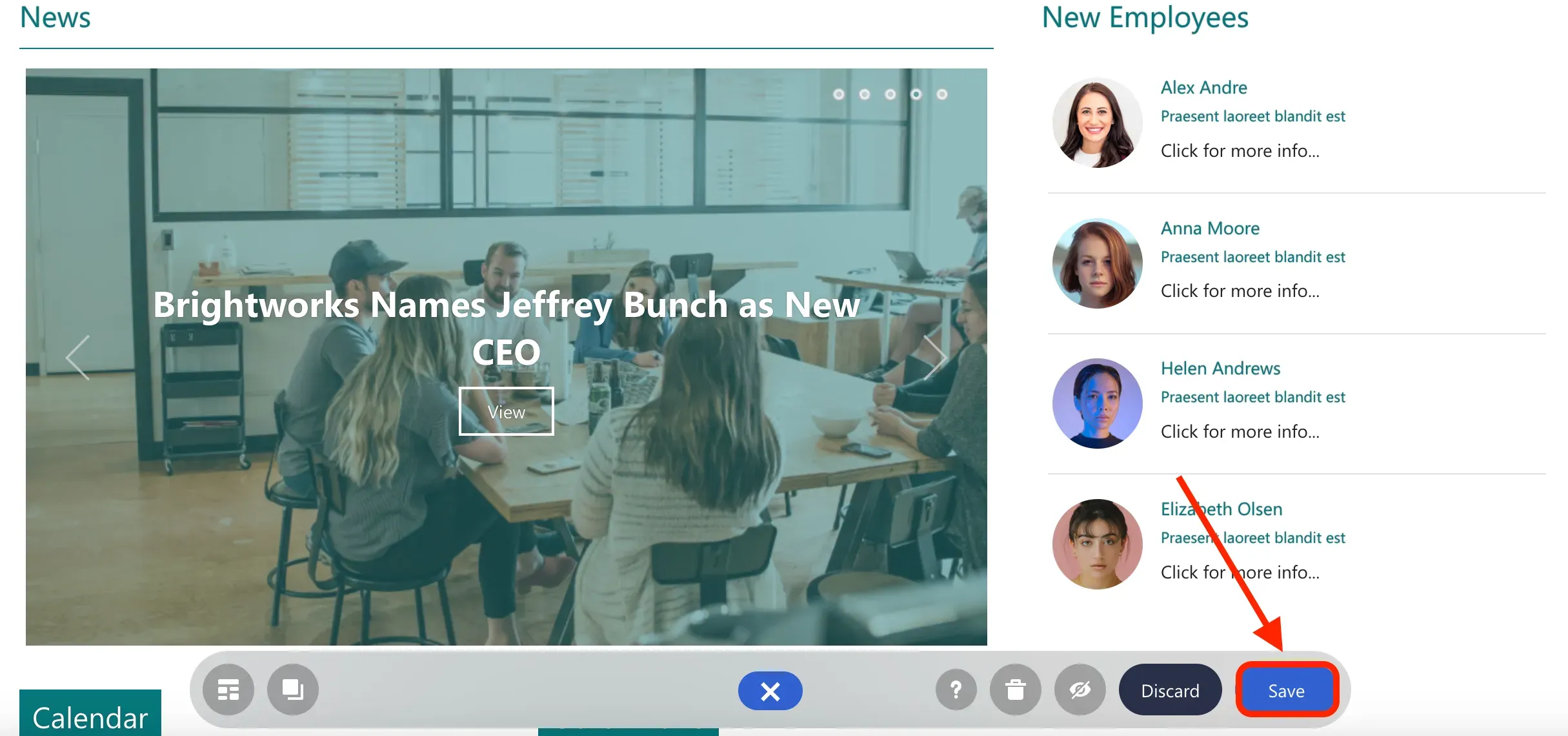
You will now see your slideshow. Click Save to keep your progress.
Congratulations! You have just learned how to use ShortPoint Connect to pull and display updated news content from your SharePoint site on your intranet page.