
Building the page
Explore Grid Mode
In this lesson, you'll discover how to switch to the Grid Mode editor, learn its interface for editing, and explore the ShortPoint features that are presently available only in Grid Mode.

Switching to Grid Mode
The Live Mode editor is the first interface you see when you start editing a page in ShortPoint. It provides a fully visual experience where you can see your changes in real-time.
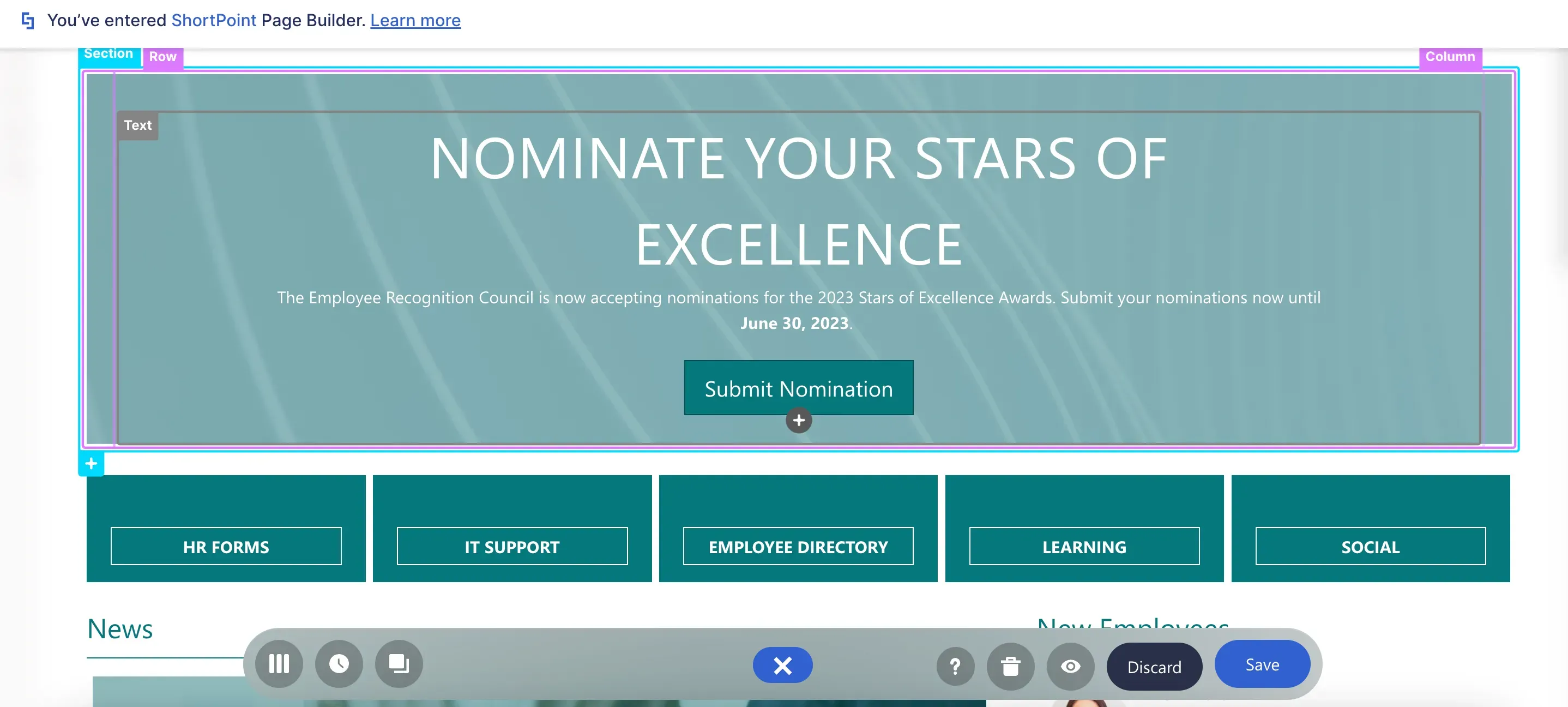
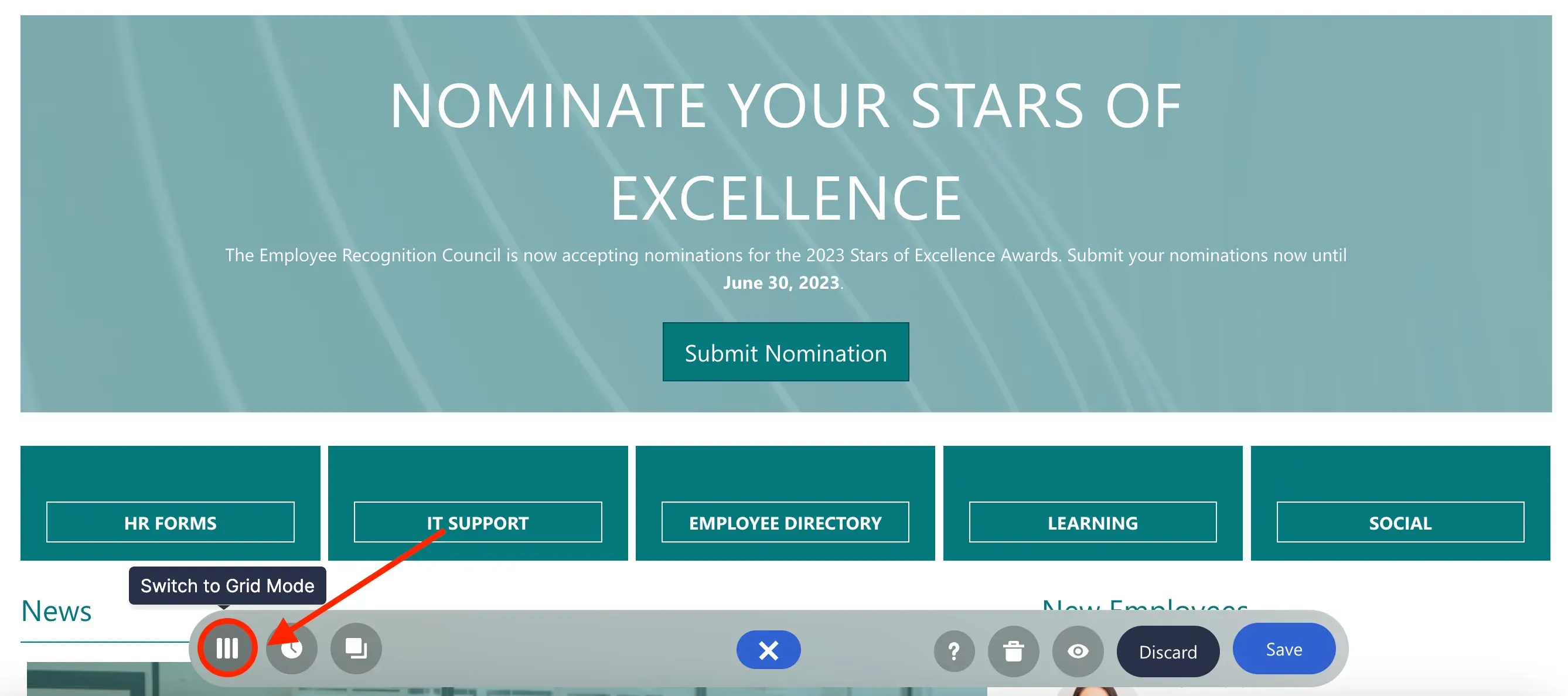
ShortPoint also offers a second editing interface called Grid Mode. To access it, simply click the Switch to Live Mode icon in the Action Toolbar.
This will take you to Grid Mode. Grid Mode is a wireframe-based interface that shows the structure of your page in colorful blocks.
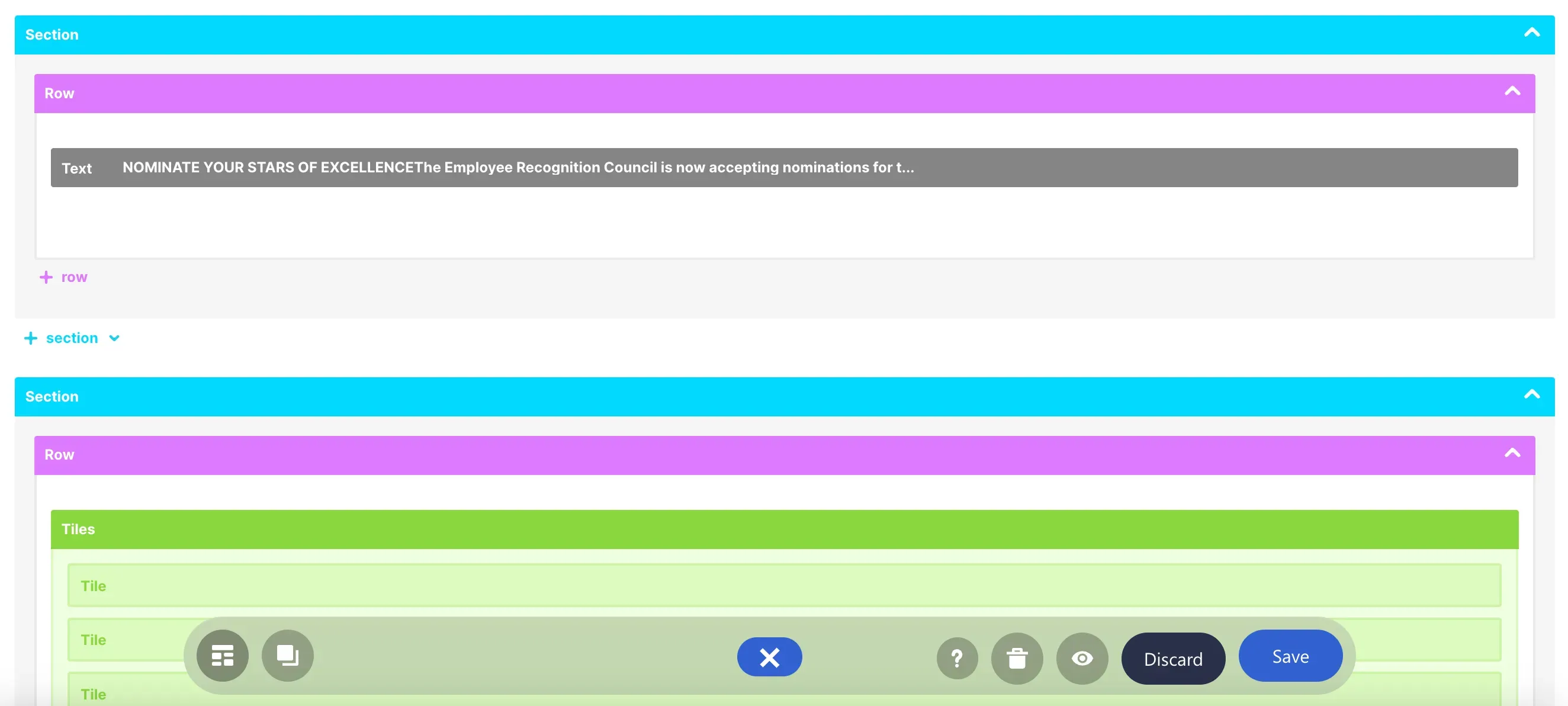
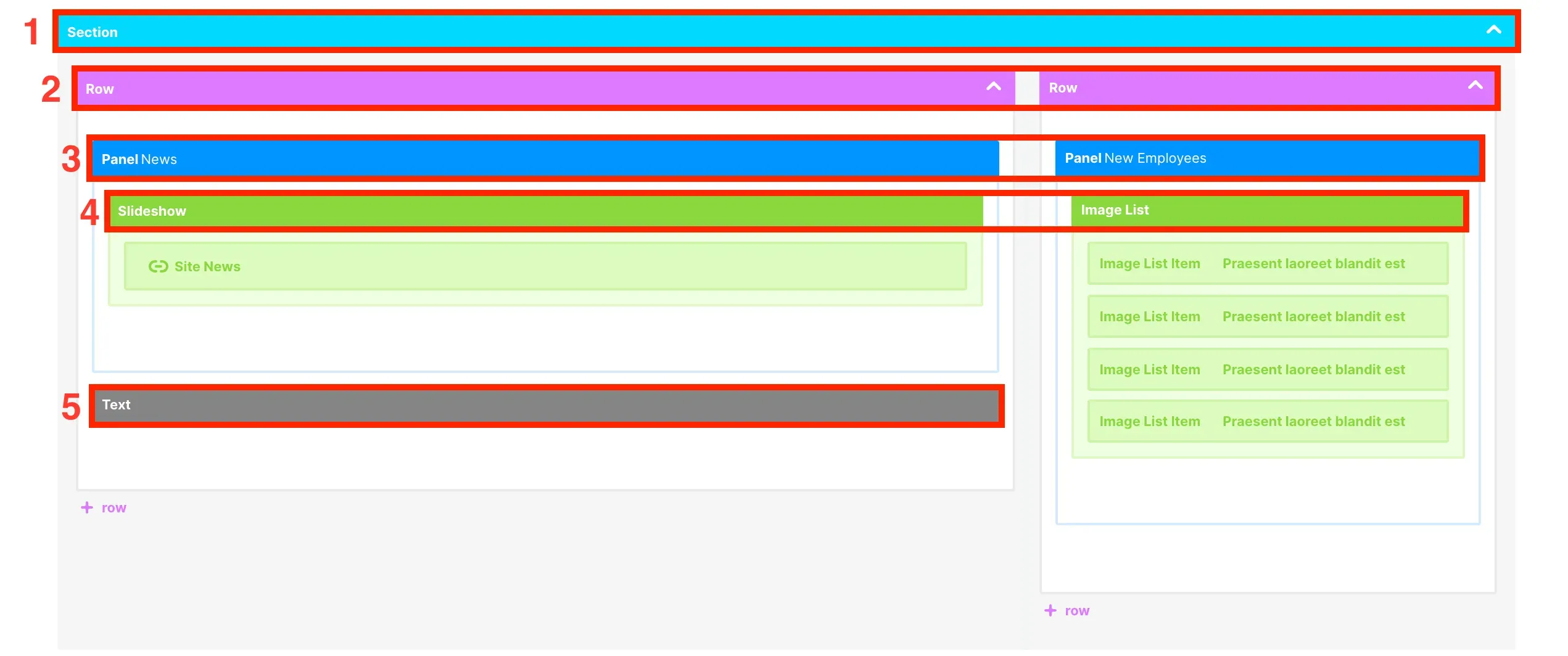
The color coding of the elements is similar to the one in Live Mode. [1] Sections are light-blue; [2] Rows are pink; [3] Content-holder Design Elements are dark blue; [4] Multiple-item Design Elements are green; and [5] Single-item Design Elements are gray.
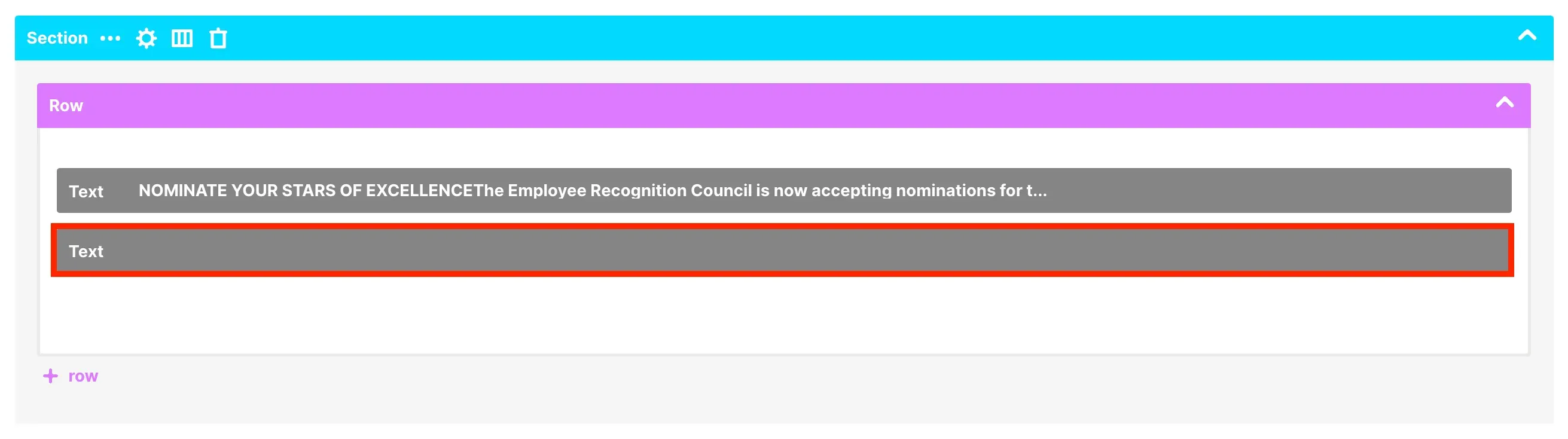
You may also notice that there are elements that appear in Grid Mode but not in Live Mode. For example, this blank text element can only be seen in Grid Mode.
Editing in Grid Mode
While most editing functionalities are the same in both Live Mode and Grid Mode, the experience differs slightly between the two modes.
First, let's access the action items of an element. To do this, hover over an element. The following action items will appear:
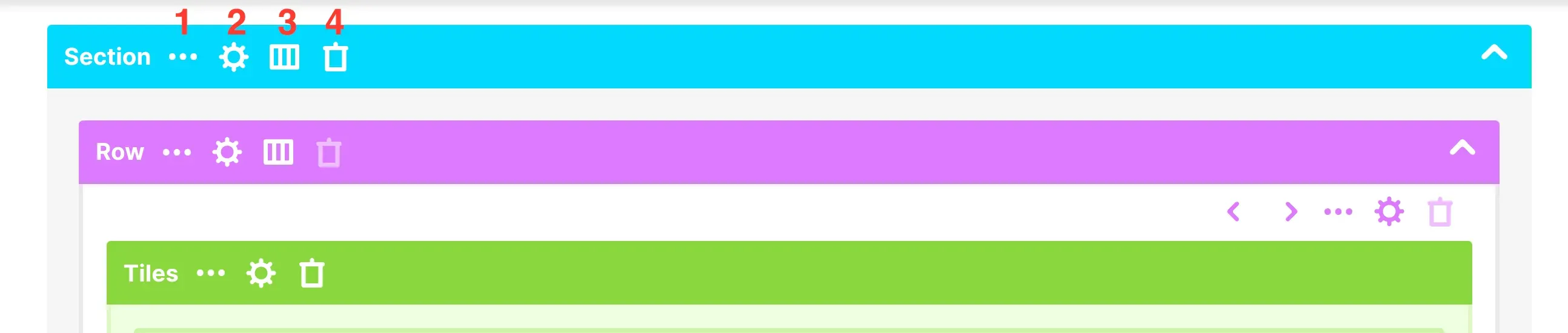
[1] Ellipsis icon - lists other actions that will allow you to either copy, duplicate, cut, preview, or paste an element. [2] Cogwheel icon - allows you to open the Settings Window where you can further customize an element. [3] Layout icon - allows you to change the layout of an element. (Only available for Sections and Rows). [4] Trash icon - allows you to delete an element.
For example, let's demonstrate how to copy and paste this Panel Design Element to the blank column beside it.
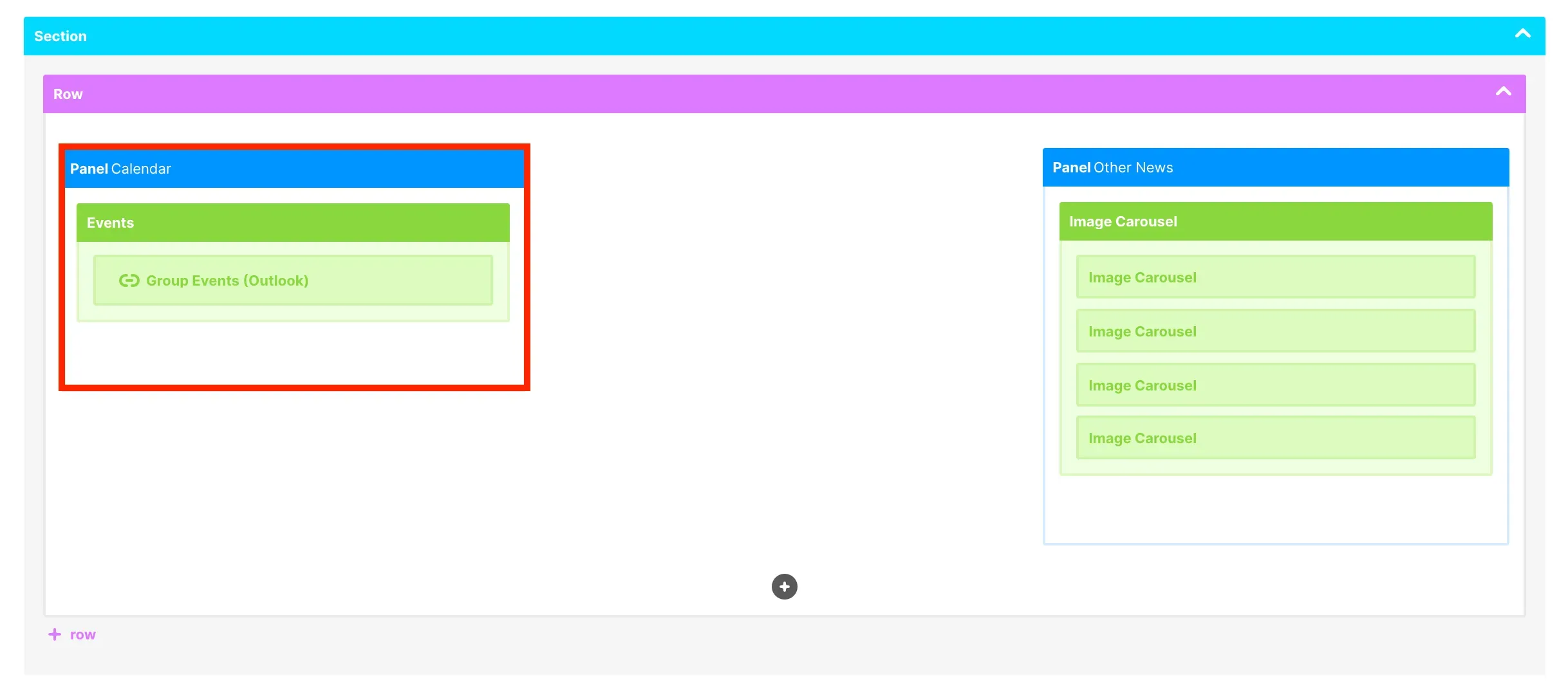
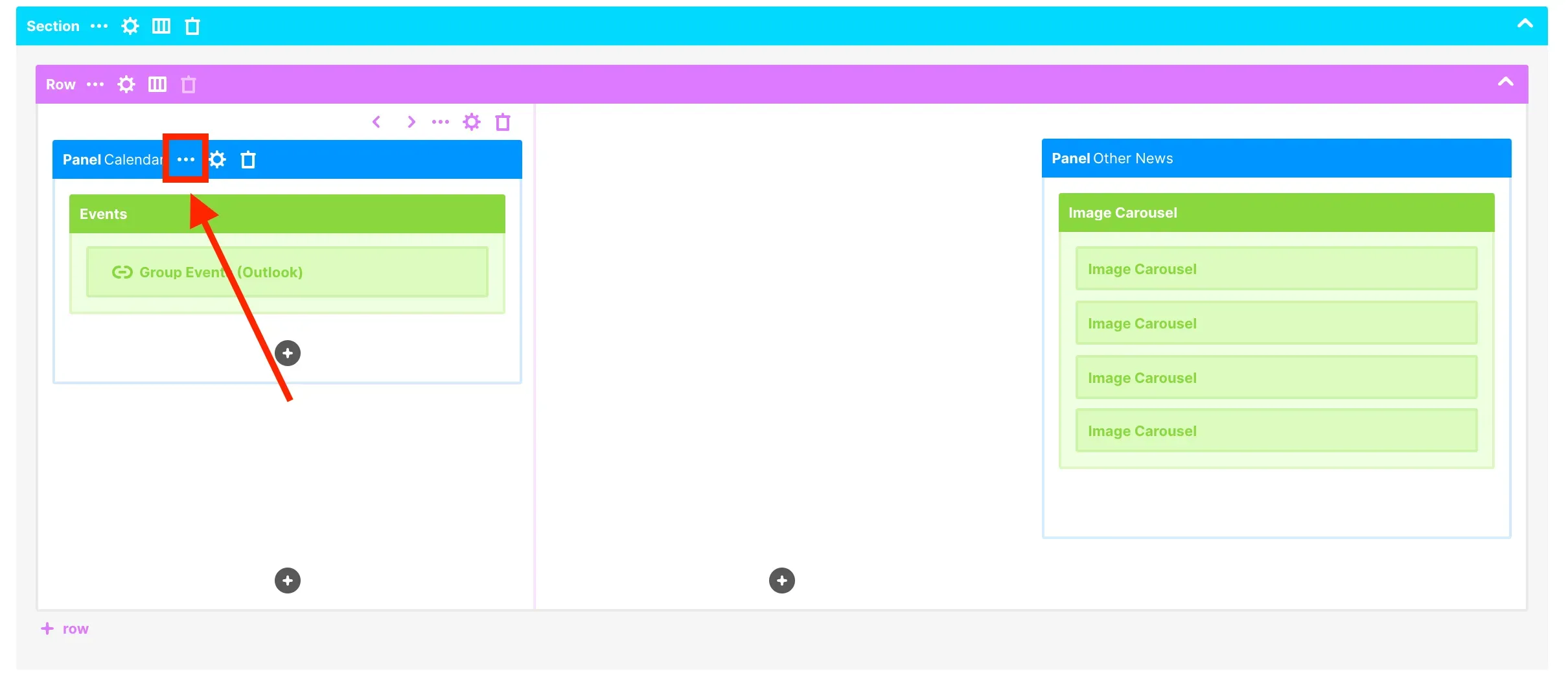
Hover over the Panel Design Elements until you see the action items. Then, click the ellipsis icon.
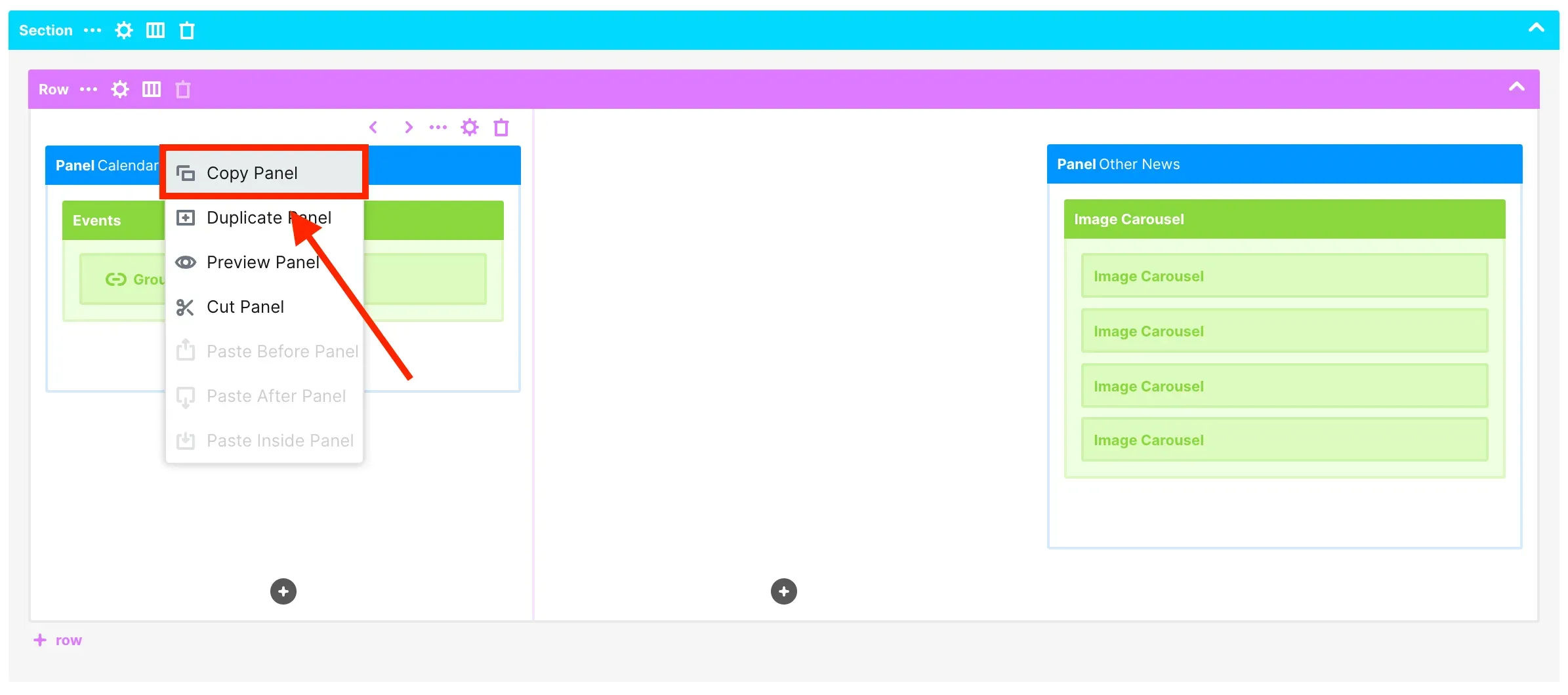
From the list of actions, select Copy Panel.
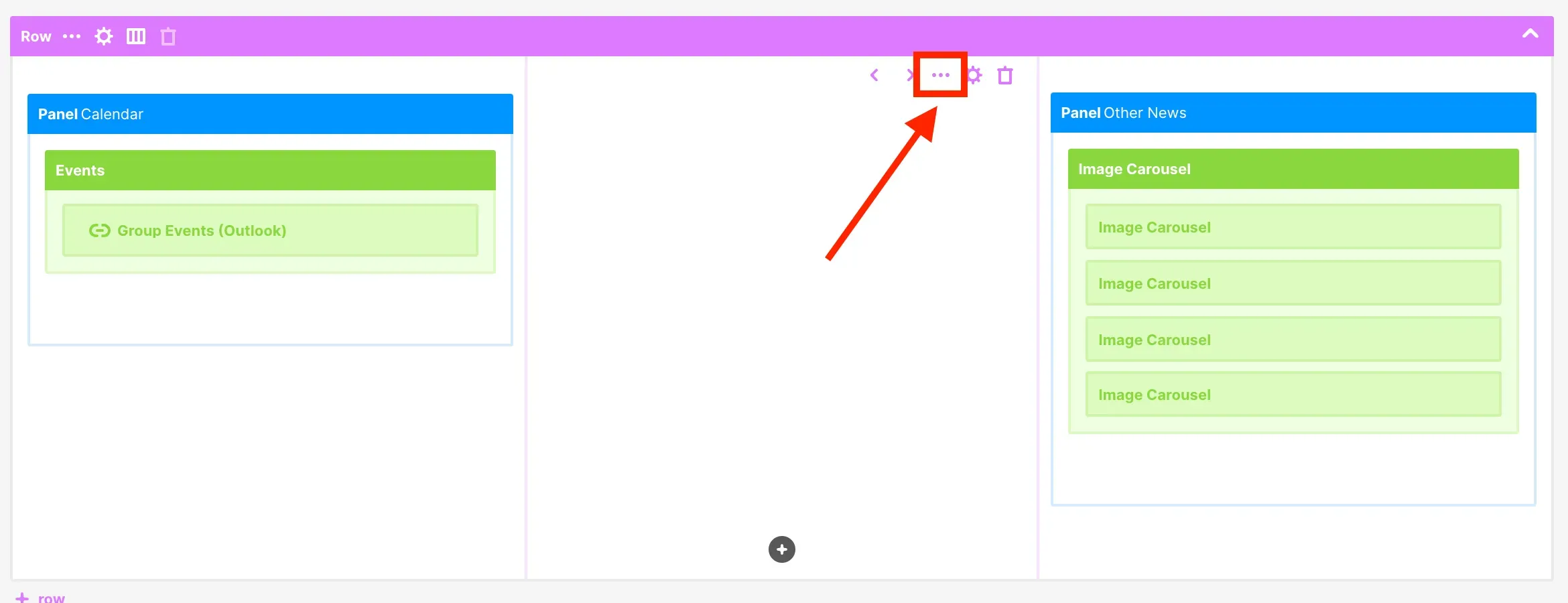
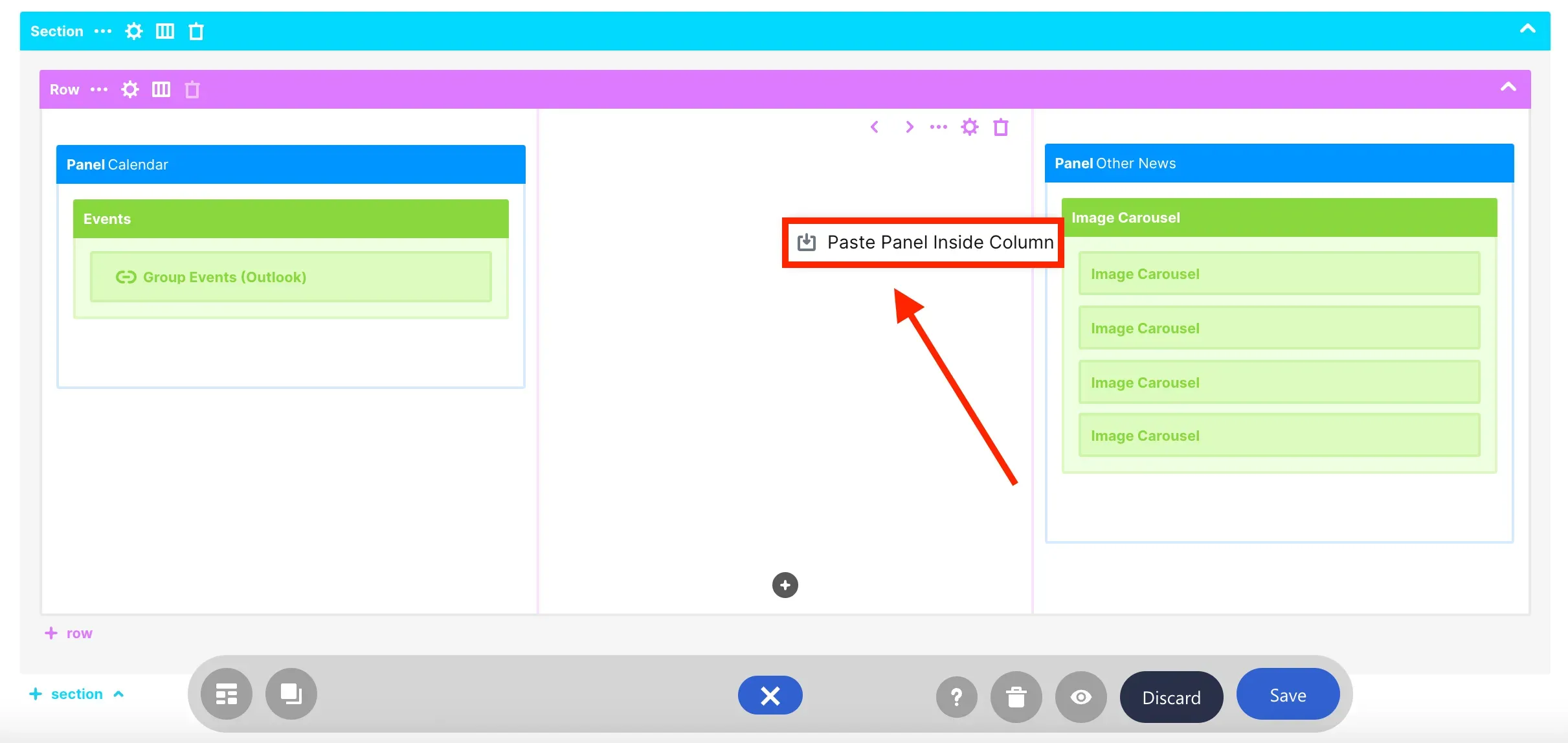
Then, hover over the blank Column until you see the action items. Click the ellipsis icon.
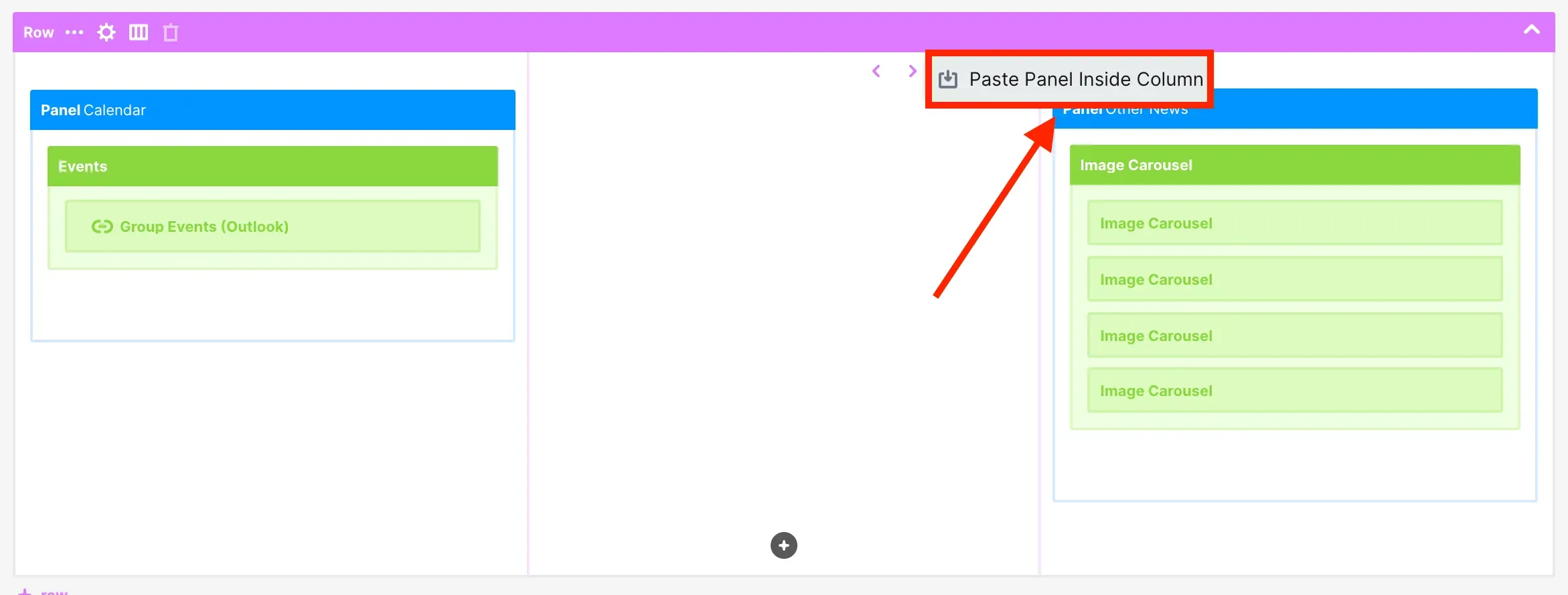
Then, from the list, select Paste Panel inside Column.
Alternatively, you can also right-click on the blank Column and click Paste Panel Inside Column.
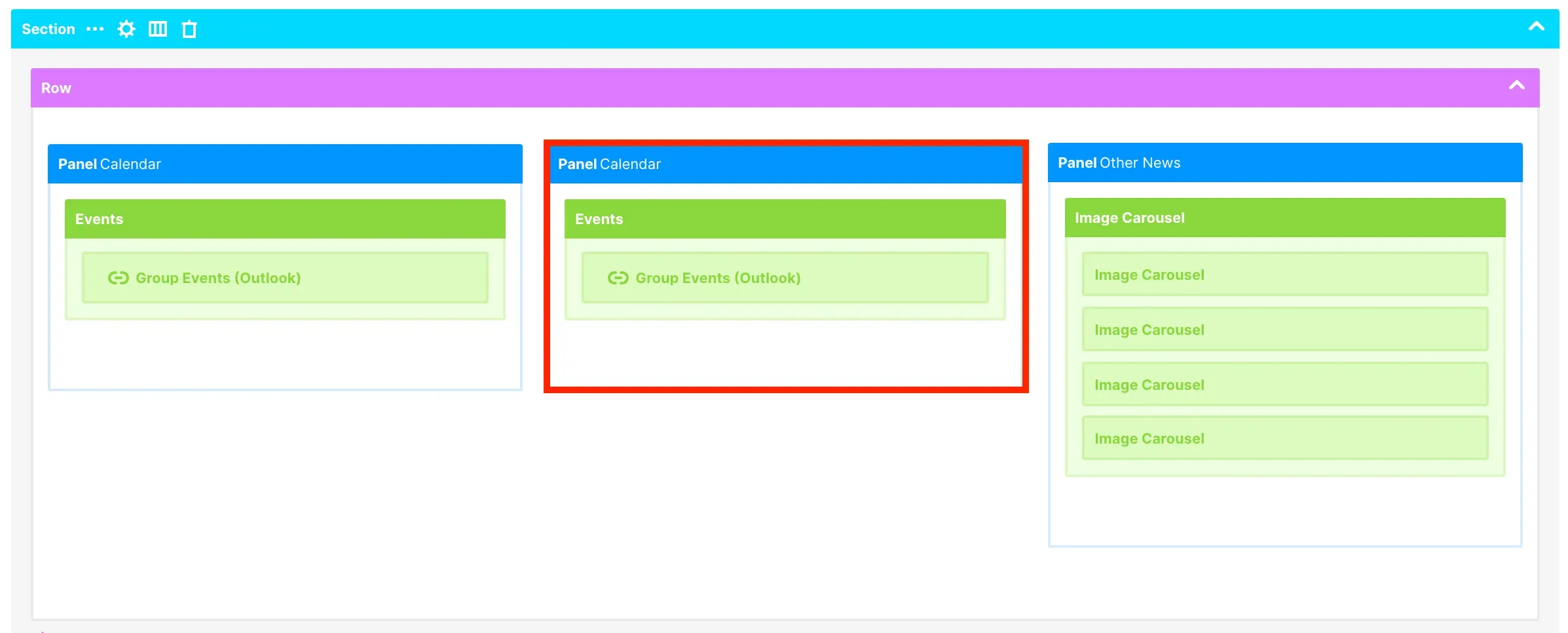
You will now see your copied Panel Design Element.
Accessing additional features in Grid Mode
There are also some actions that can only be done in Grid Mode.
If you have a busy page, you can collapse and expand groups of design elements to focus on the ones you need to work on. To collapse elements, click the up icon.
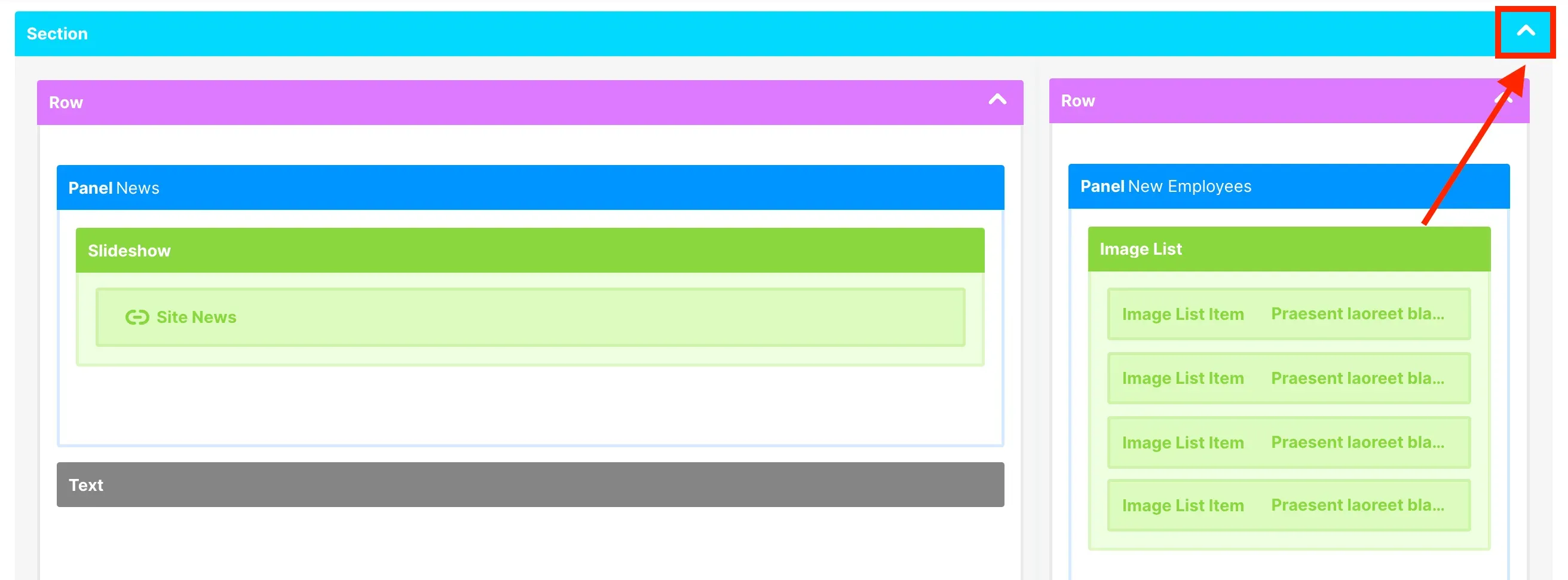
To expand it again, simply click the down icon.
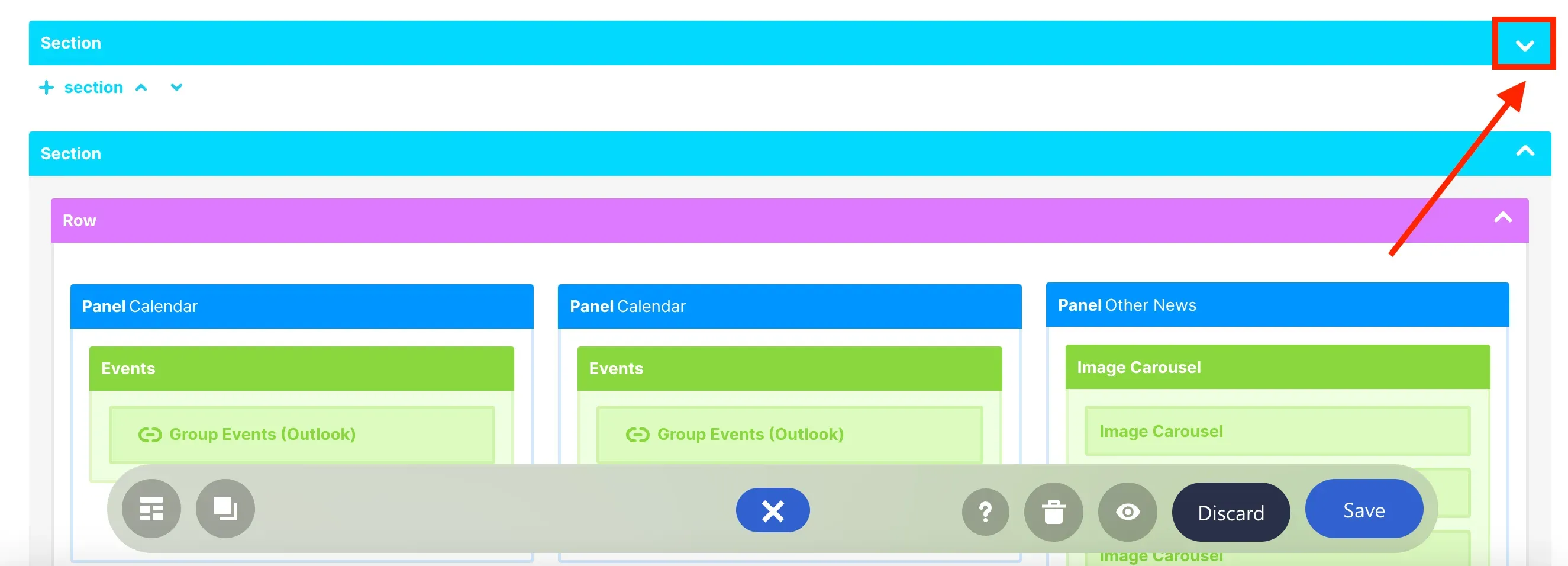
You can also arrange the order of Sections and Rows on your page. To do this, click the arrow icons found at the bottom.
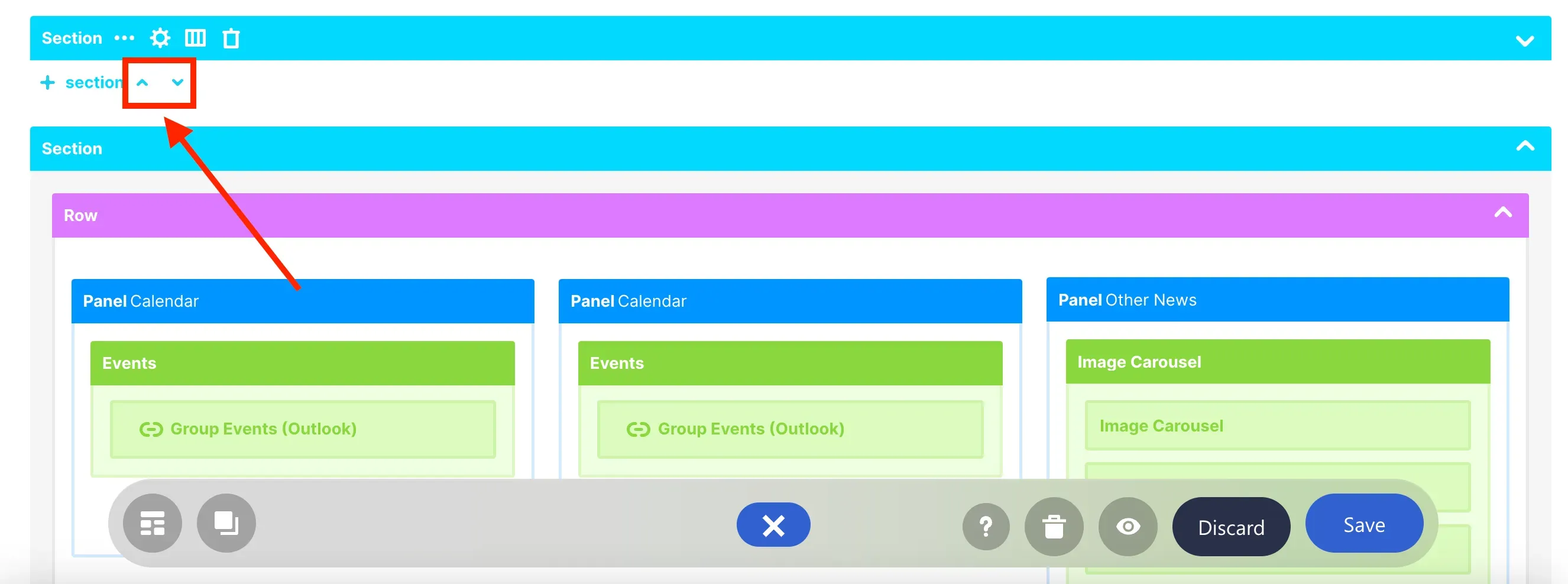
For example, let us move the collapsed Section below the Section with the Panel Calendars. To do this, click the down arrow icon.
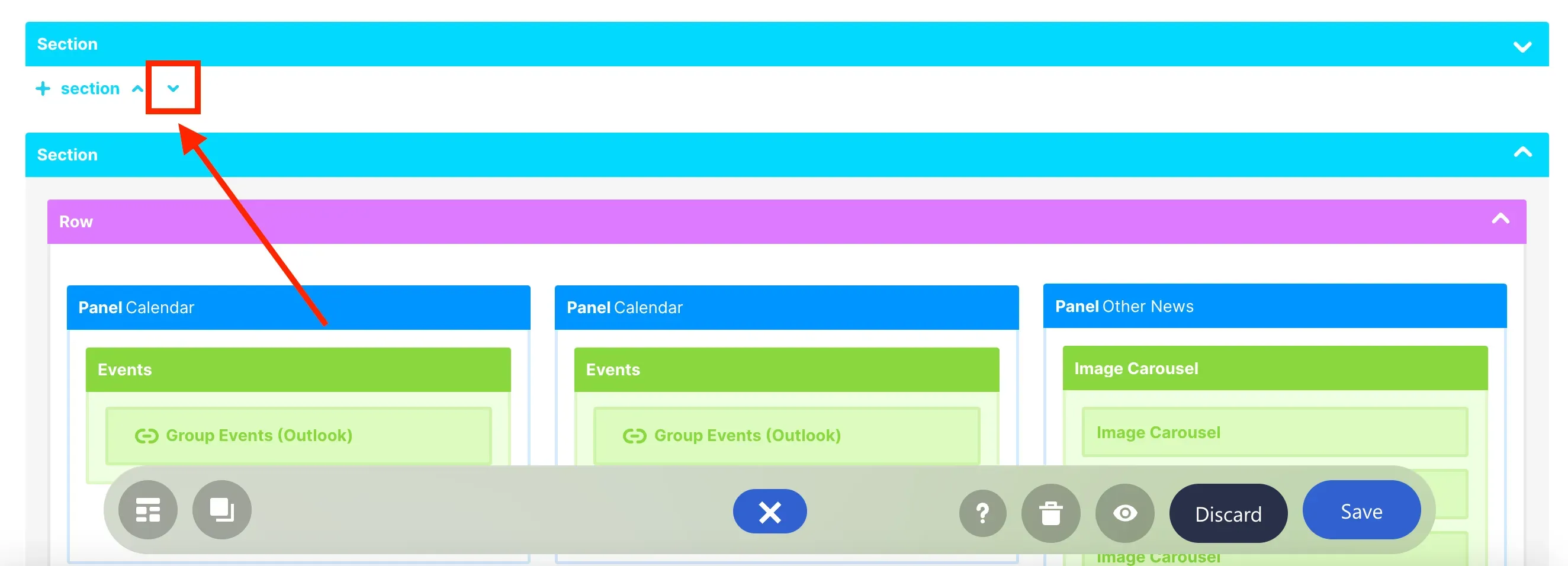
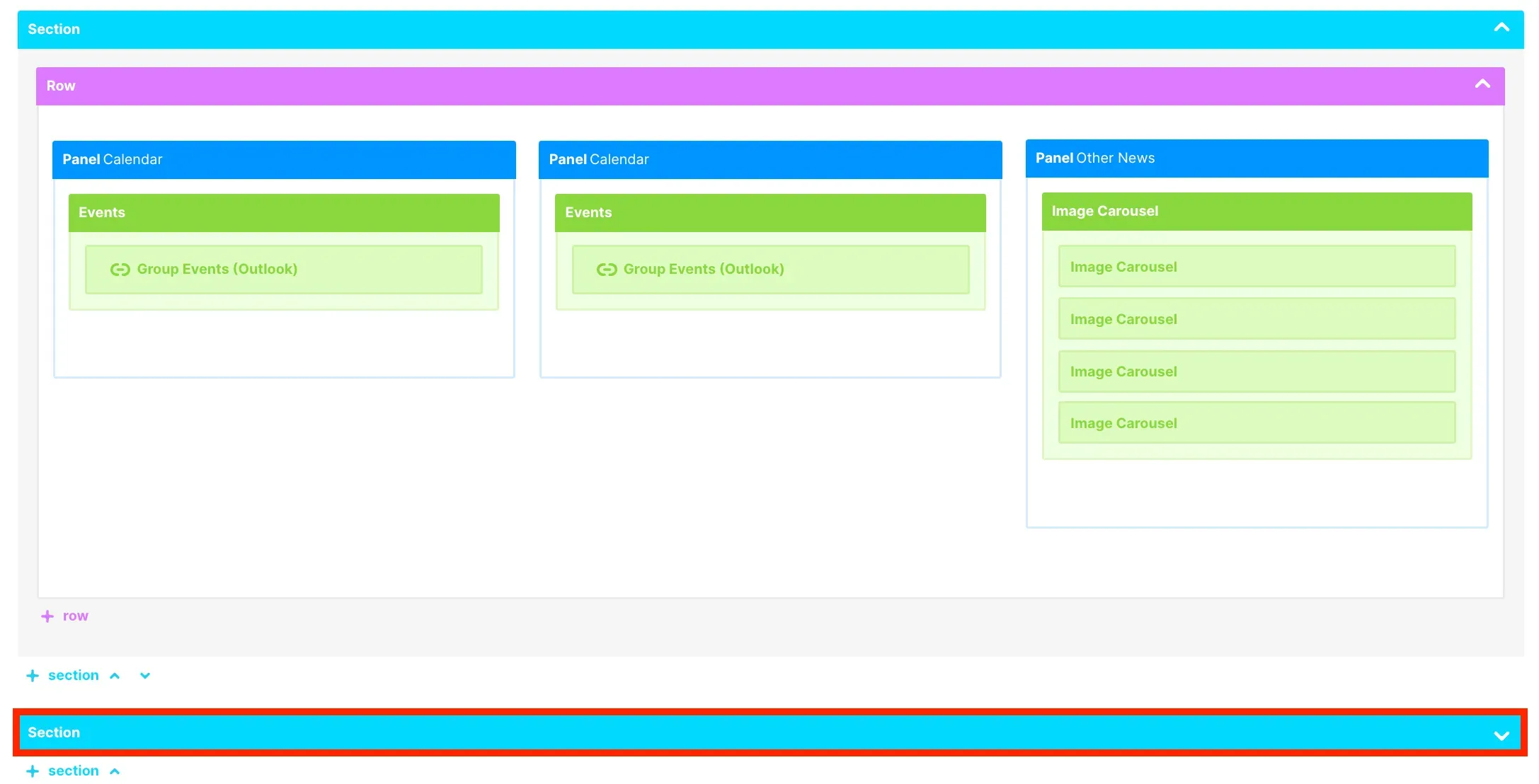
You will now see the collapsed Section below the Section with the Panel Calendars.
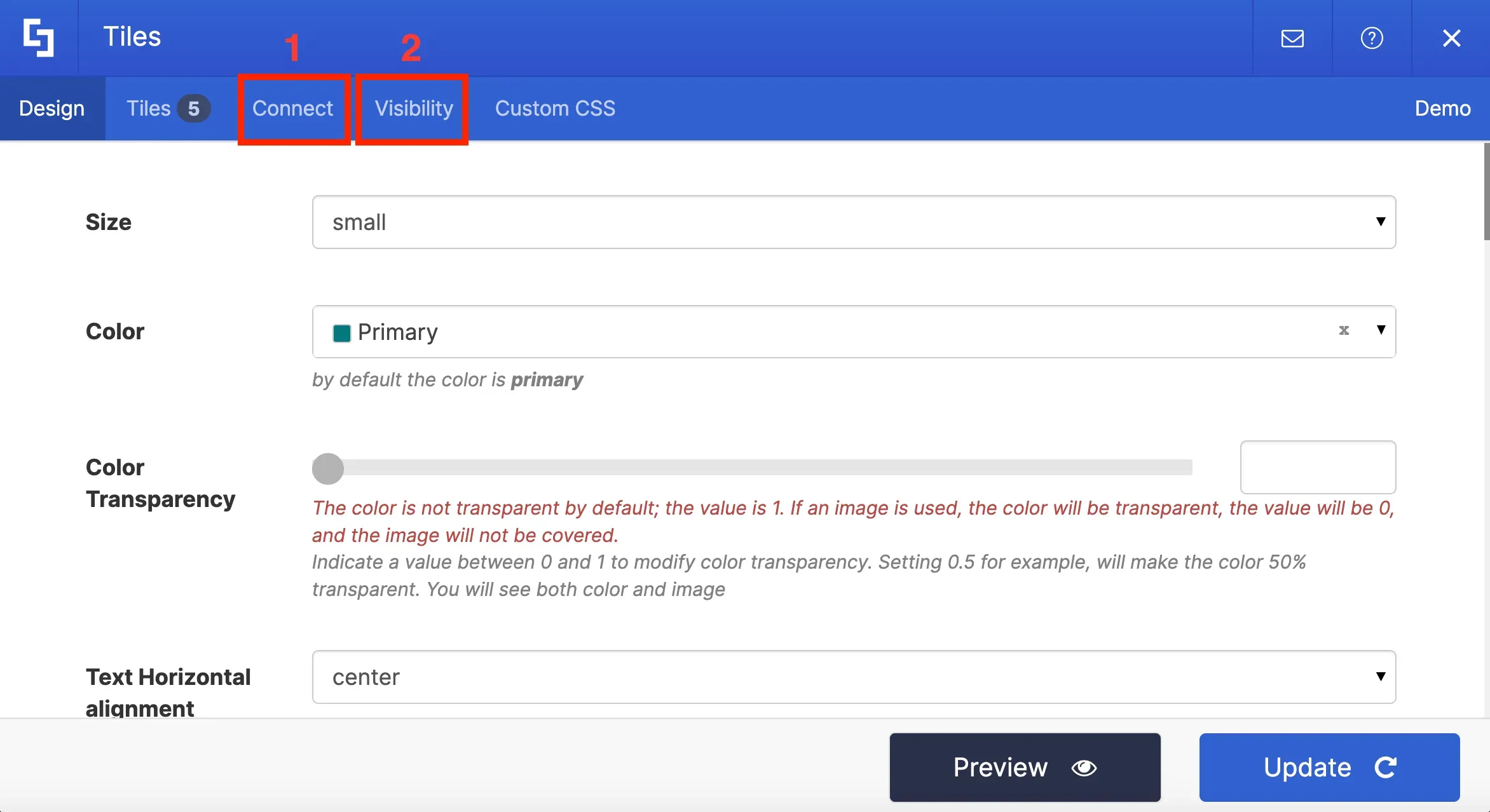
Additionally, there are two important ShortPoint features that are currently only available in Grid Mode. These are Connect and Visibility. To access them, simply hover over a Design Element and click the cogwheel icon.
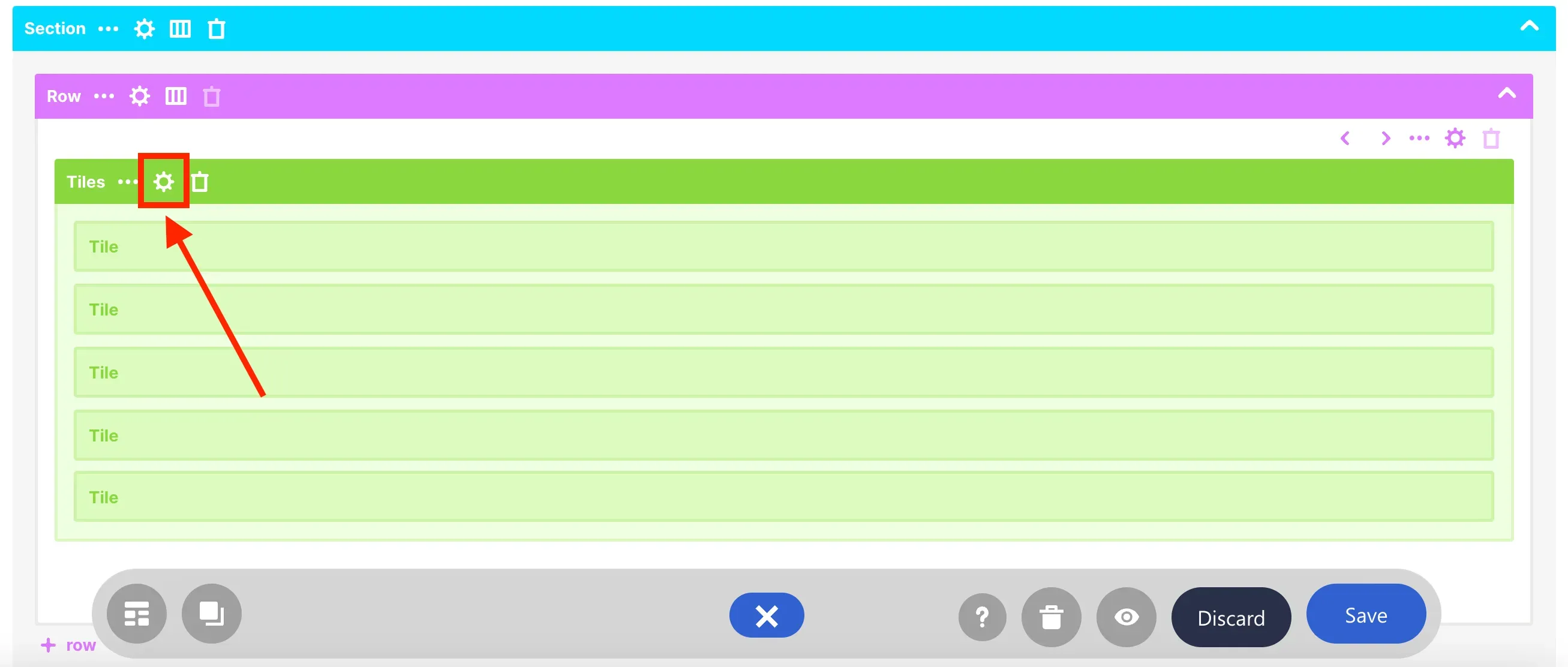
This will open the Settings window. Here, you will find the [1] Connect and [2] Visibility tabs.
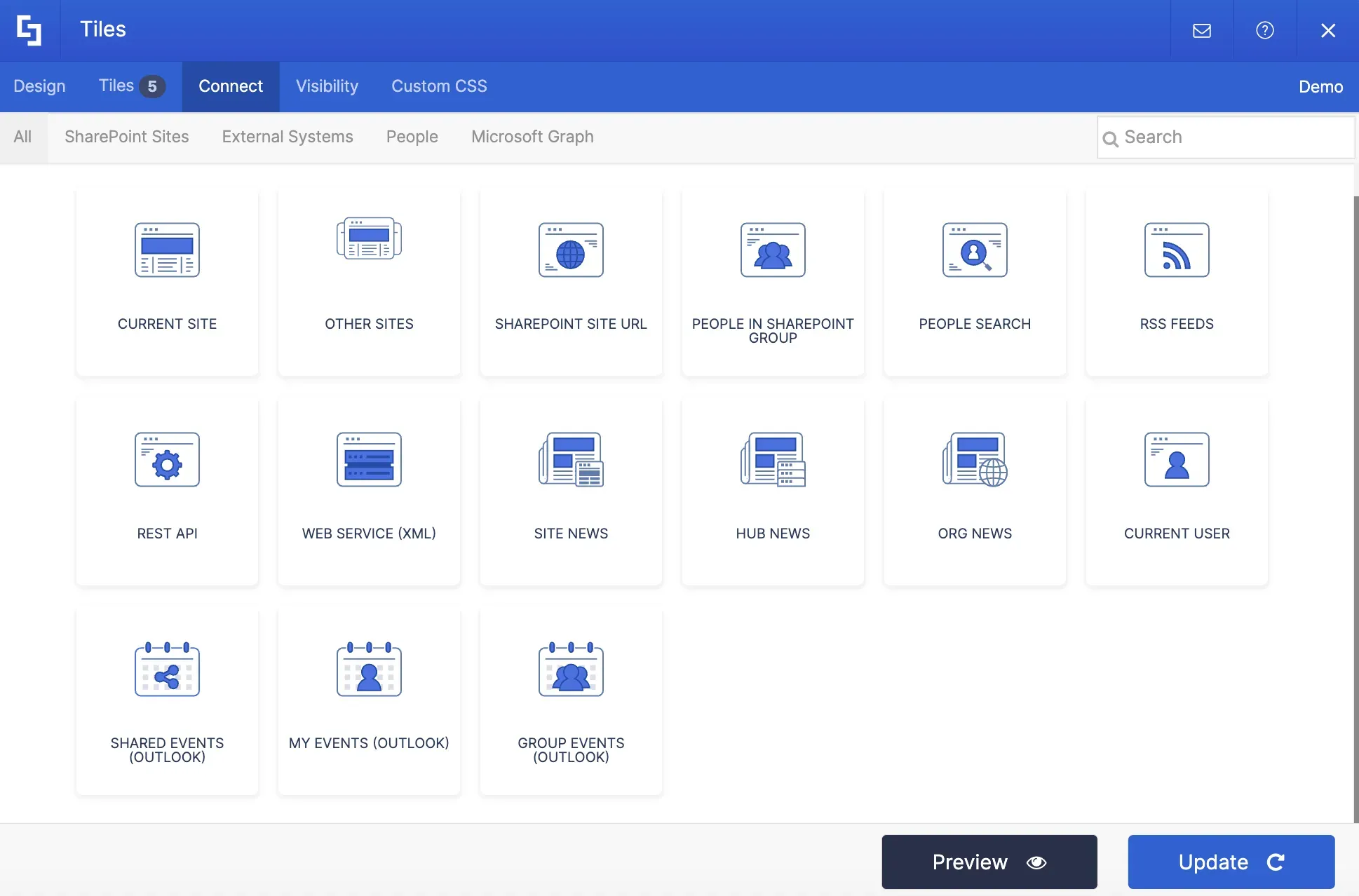
Connect enables you to automatically retrieve content from internal or external sources and display it on your page. This can include news from different SharePoint sites, content from a SharePoint list or library, calendar entries from Outlook, and more.
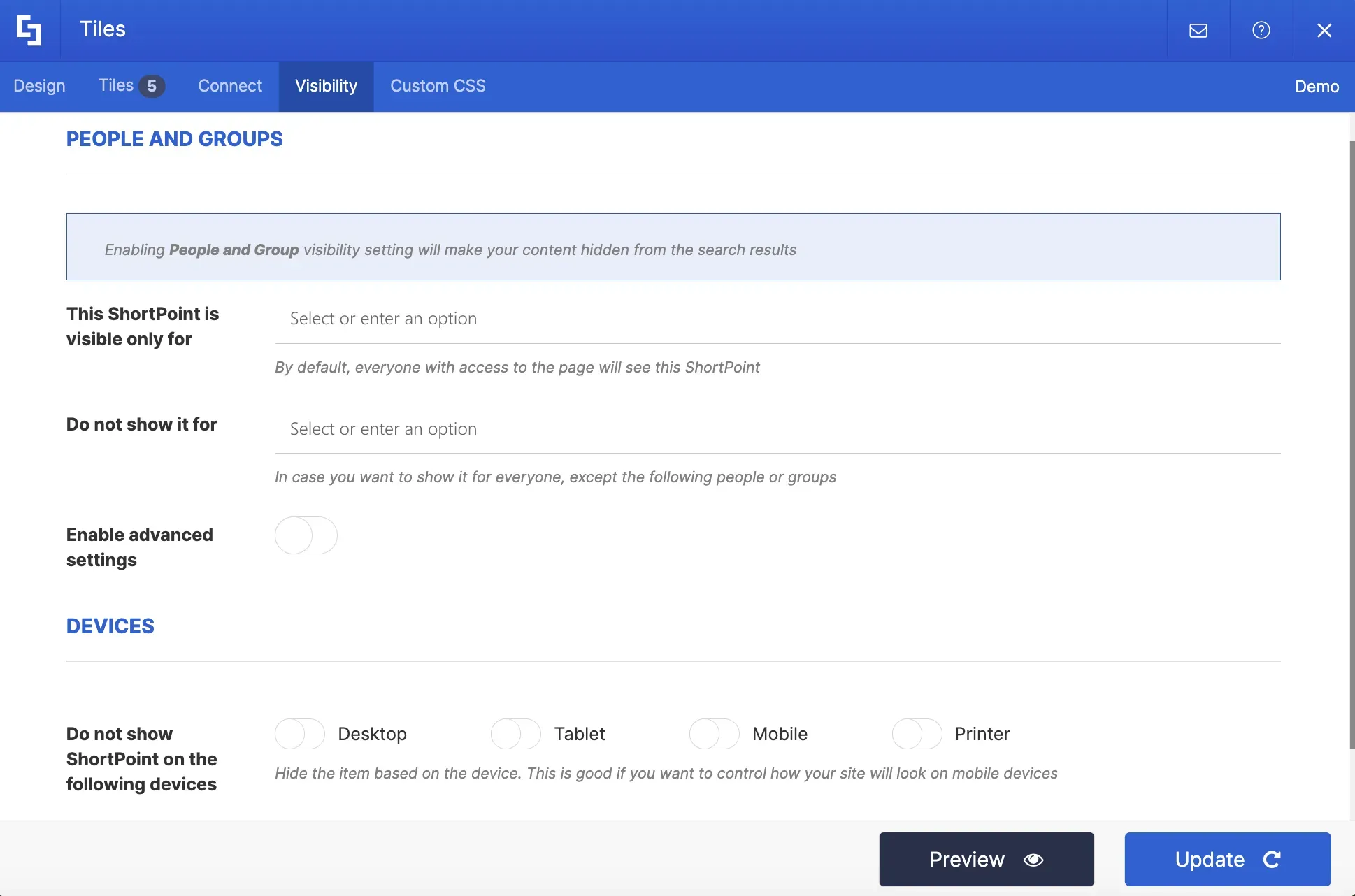
Visibility allows you to control which content on your page is visible or hidden to specific individuals or groups. You can even hide design elements on certain devices.
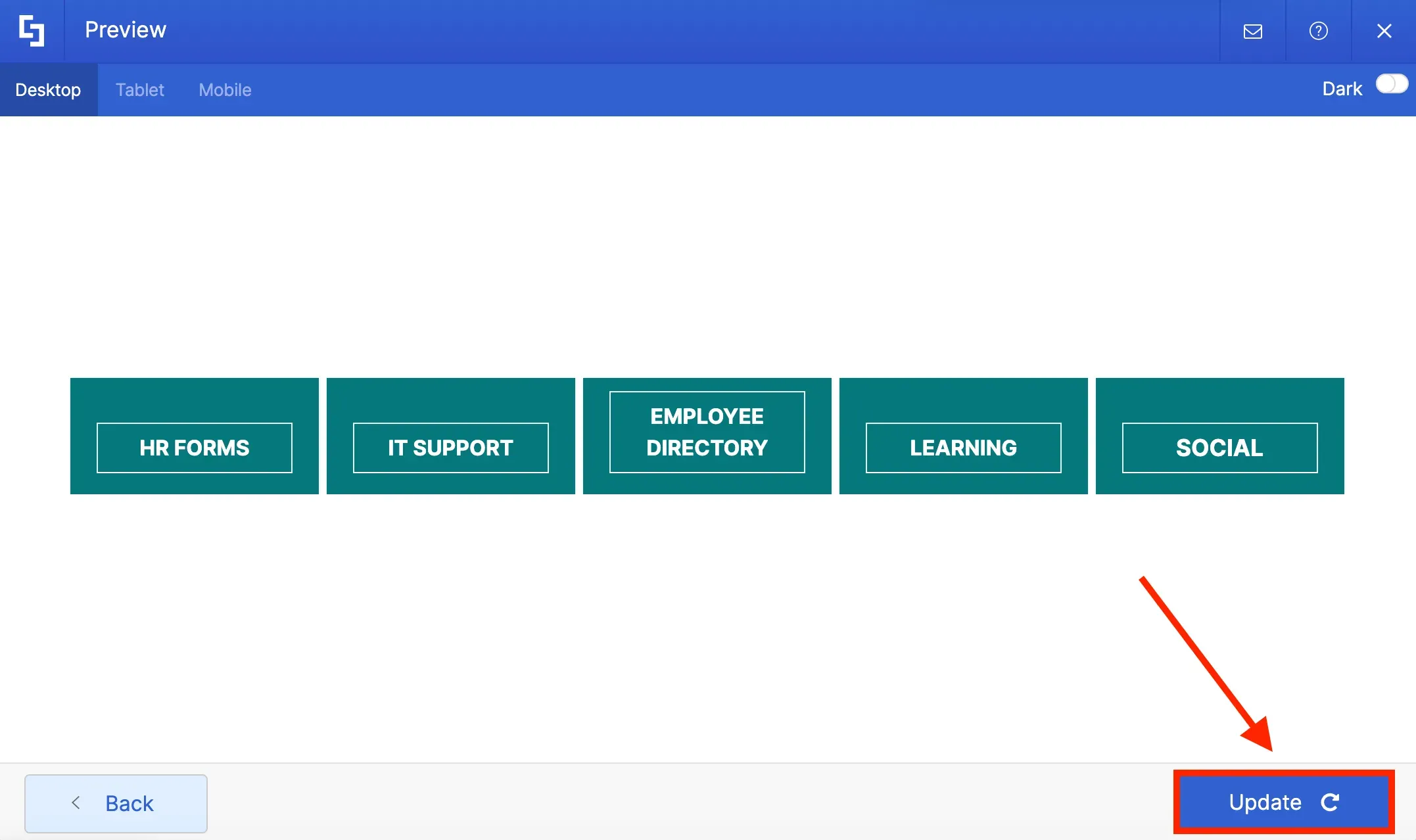
Then, click Preview to see how individual Design Elements will appear on your page.
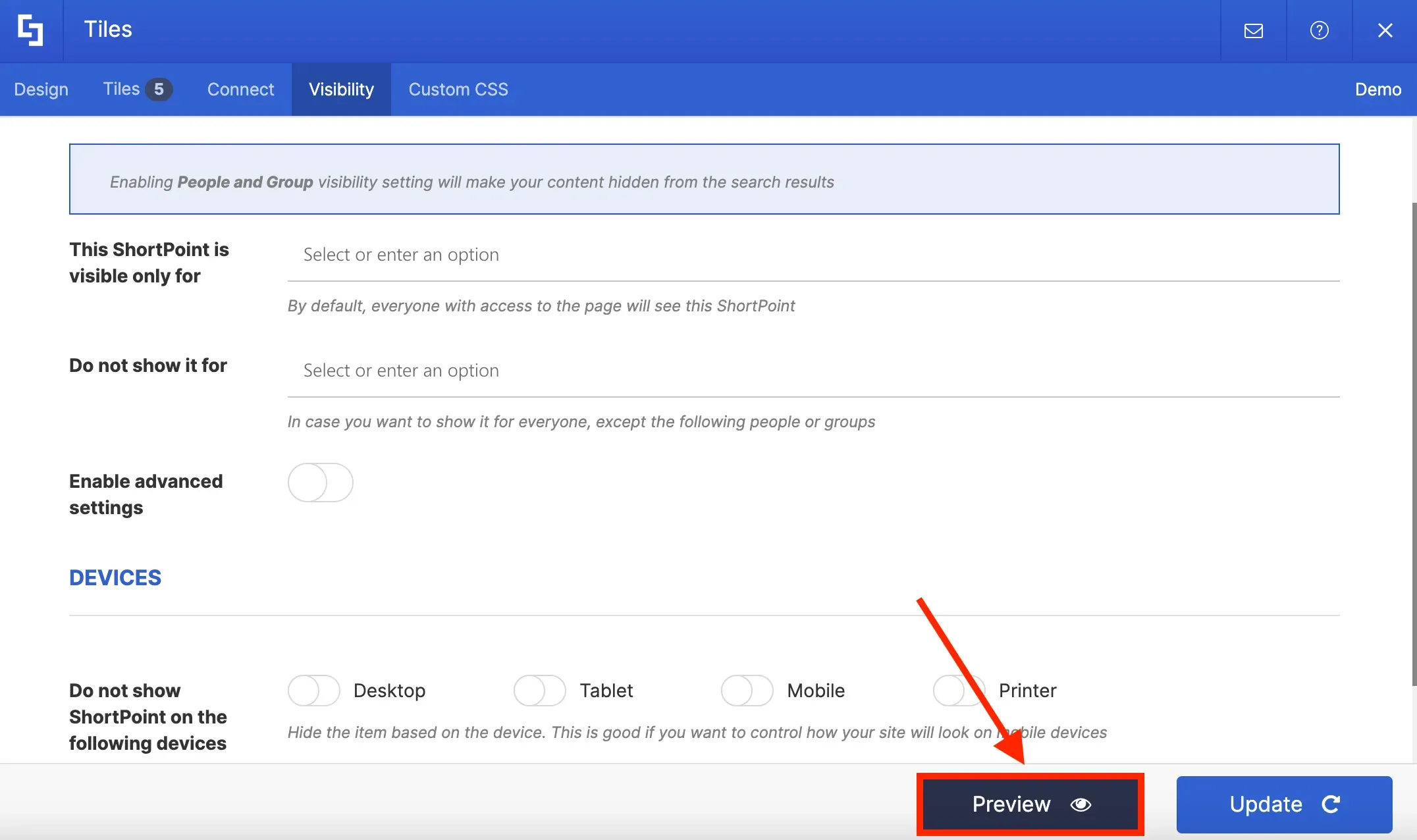
Once you are satisfied, click Update.
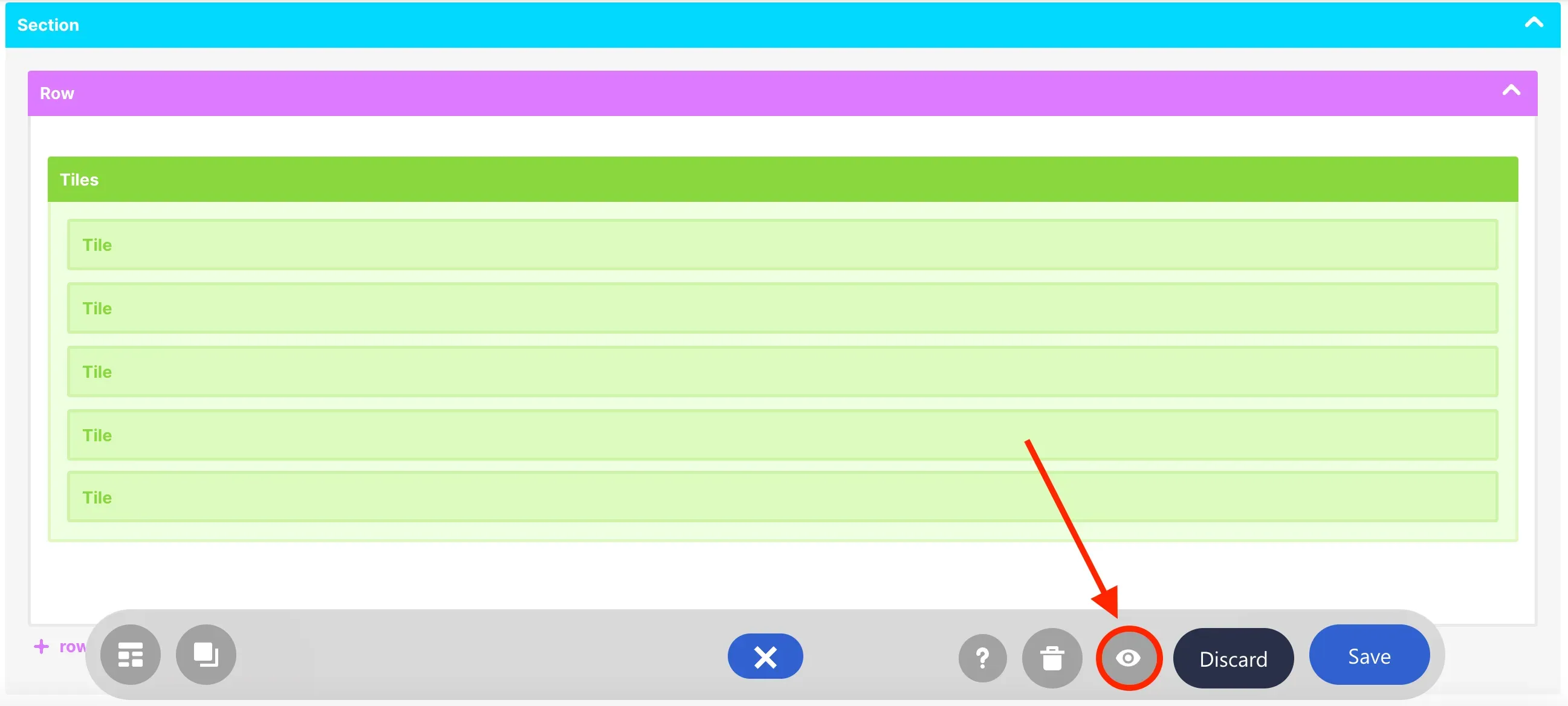
Finally, you can also preview your page after editing in Grid Mode. To do this, click the eye icon in the Action toolbar.
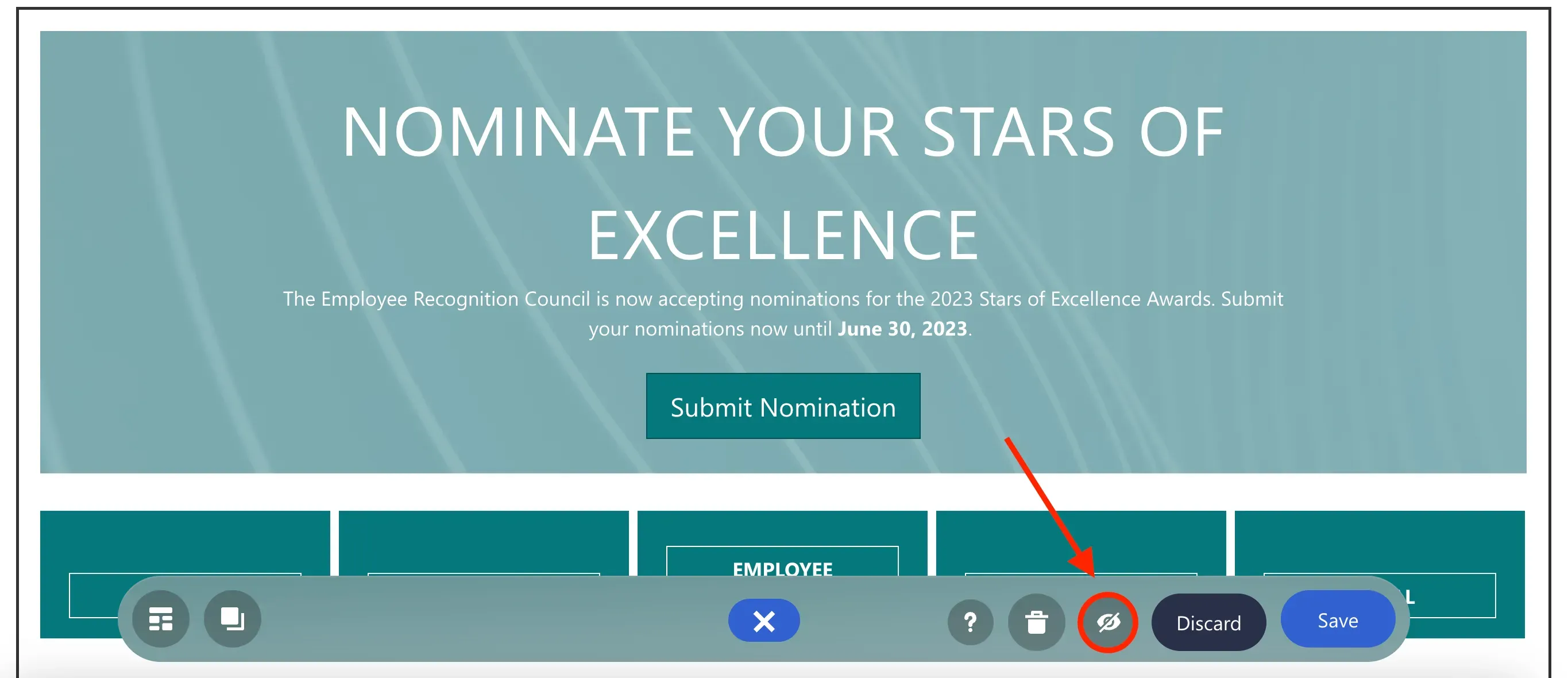
When you're done, just click the eye icon again to return to edit mode.
That's it! Now that you're acquainted with the Grid Mode editor, it's time to take your intranet design to the next level. By familiarizing yourself with both interfaces, you can unlock even greater flexibility and creativity in crafting stunning intranet pages.