

ShortPoint Connect Basics
Connecting to an RSS Feed
In this lesson, you will learn how to connect a Design Element to an external RSS feed, map the content details you want to display, and see how it keeps your intranet automatically updated with the latest content from the source.

Going beyond your organization
So far, every connection we’ve set up has pulled data from within your organization. This time, we’re going outside — connecting to external sources using RSS feeds. If you want your users to stay on top of the latest industry news or follow updates from a specific website or blog, you can bring that content directly onto your intranet page.
Getting an RSS feed URL
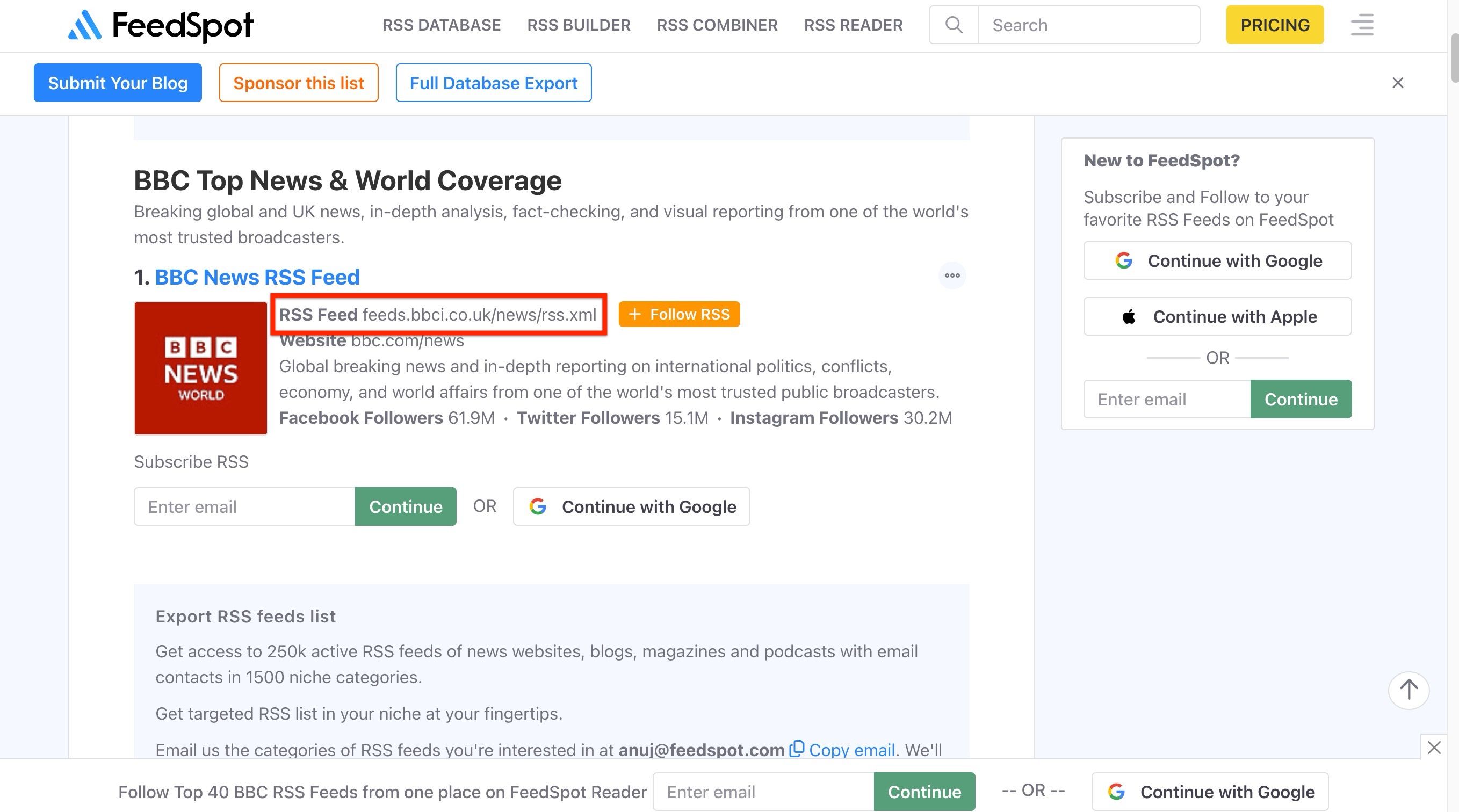
The one thing we need is the RSS feed URL of the source we want to connect to. You can use the RSS feed URLs your organization already has access to, or generate your own using an RSS feed generator. For this project, we’ll use a public RSS feed from BBC News that pulls the top world headlines.
Inserting the Design Element
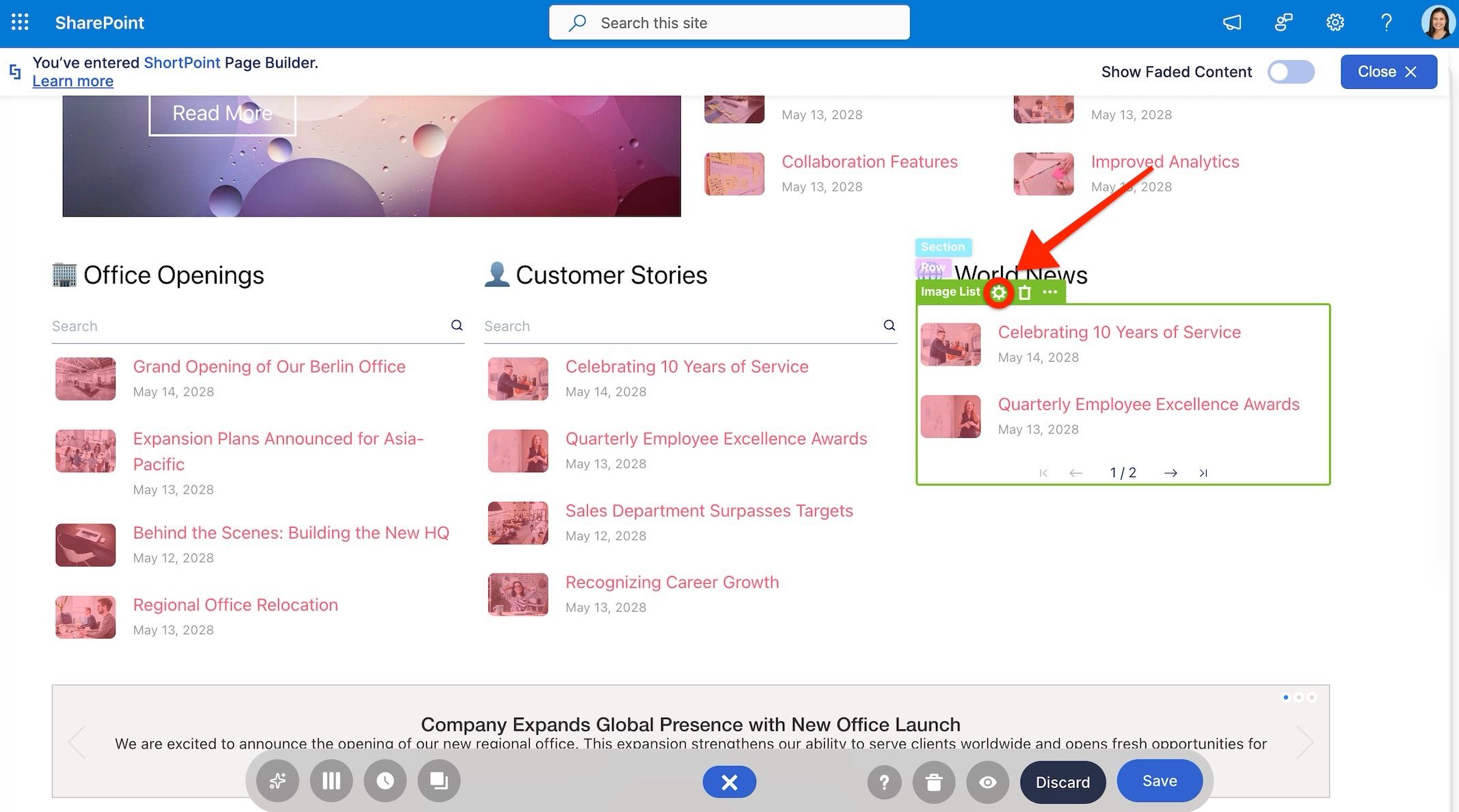
We’ve added an Image List Design Element to display the RSS feed content. You can choose other Design Elements that fit the content you want to add to your page.
Setting up the connection
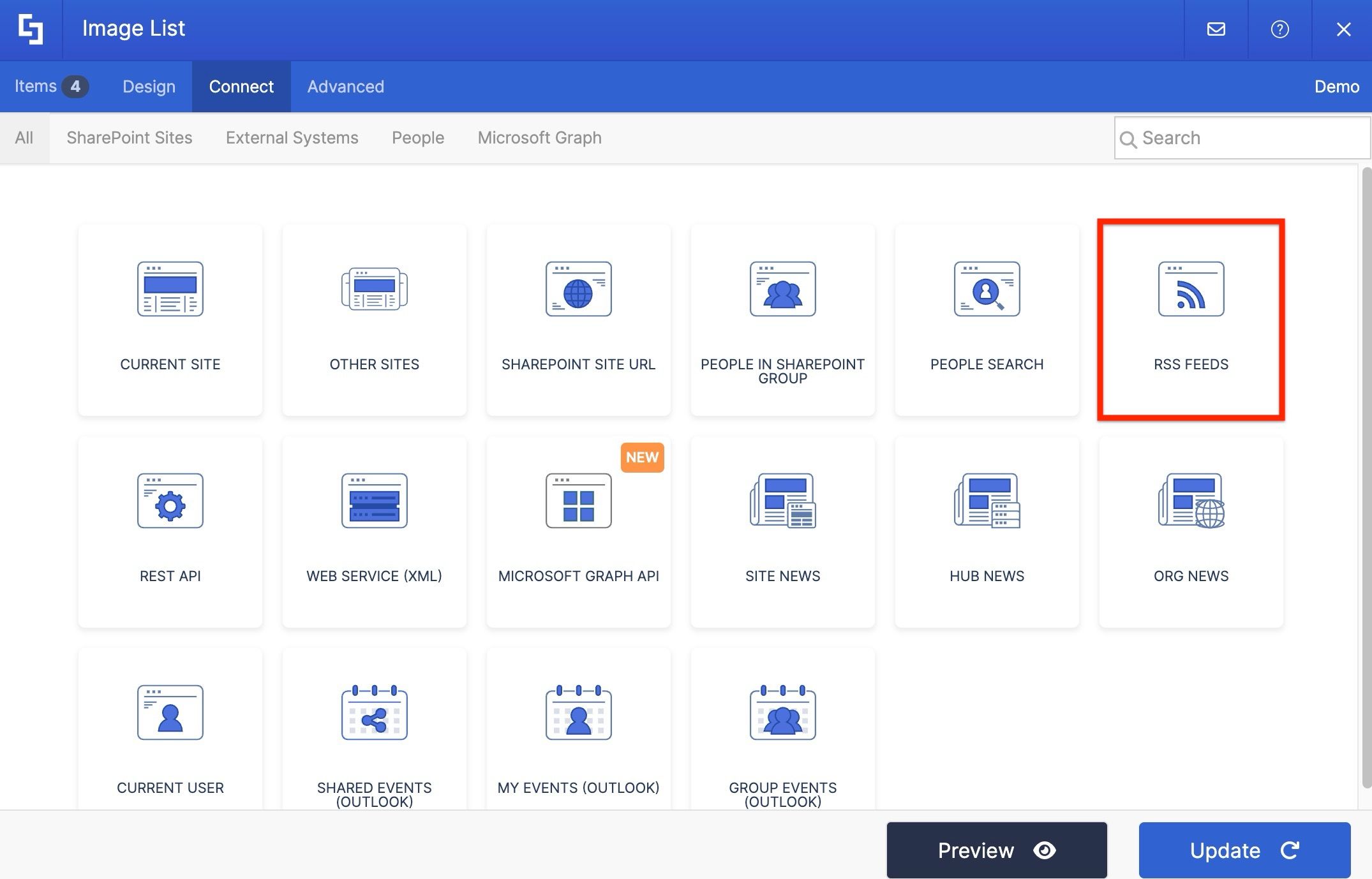
Open the Image List’s settings by clicking the cogwheel icon, then go to the Connect tab. Since we want to connect to an RSS feed, select the RSS Feeds connection type.
Copy your RSS feed URL and paste it into the field. You can set how many news items you want to show in the Items field. We’ll keep it at 0 for now.
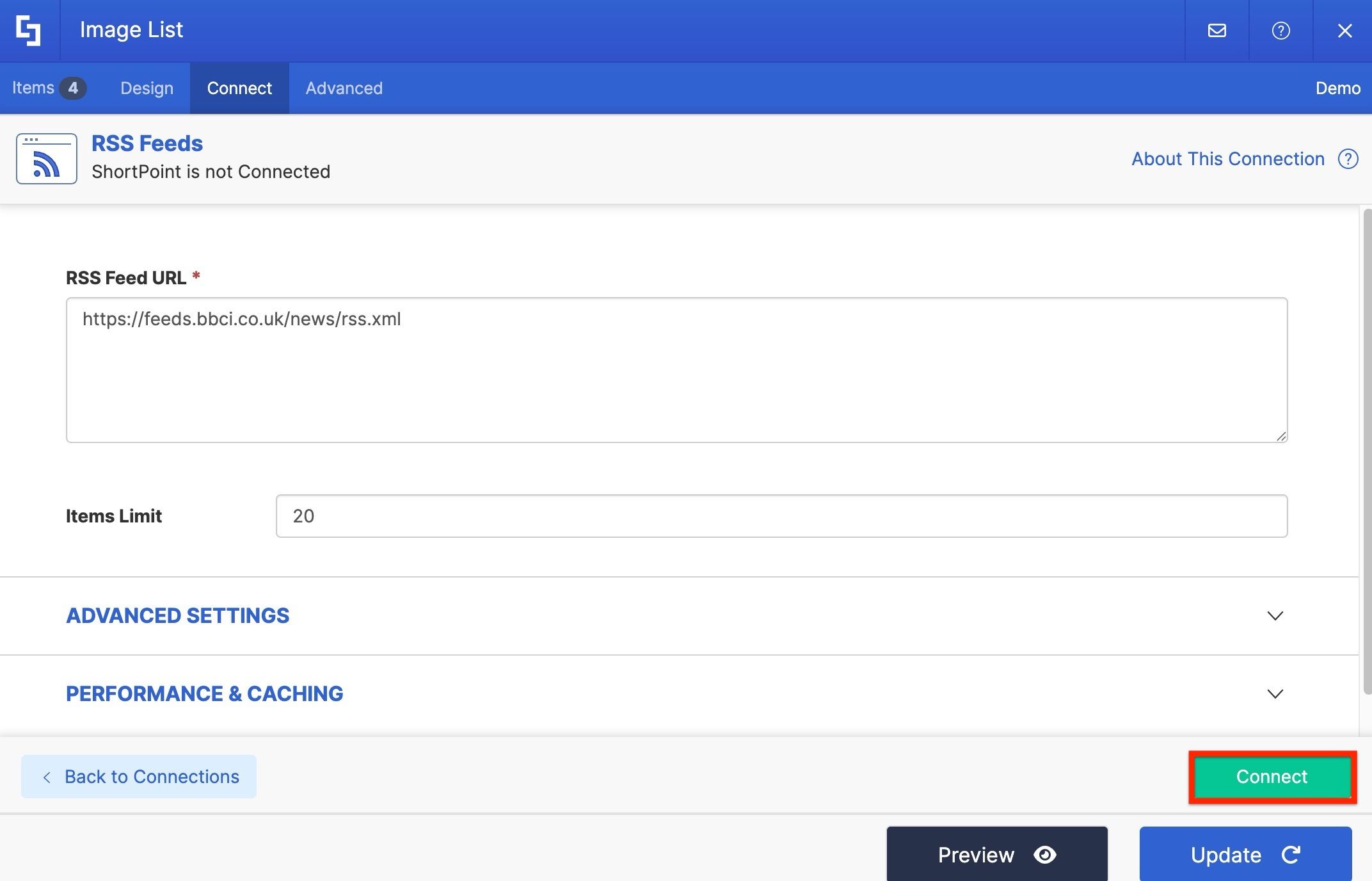
Hit Connect, and you’ll see a confirmation that the connection was successful.
Mapping feed content
Move to the Items tab. The RSS feed connection retrieves a specific set of properties that the source site has allowed us to get. You’ll see these in the link icon dropdown.
We’ll set the news title in the Title field, show a summary of the news in the Description field, pull the news image to be displayed, and add the link property so users are redirected to the actual news item.
There are several other settings you can customize, but for this lesson, we won’t tweak them too much. We’ll just go to the Link settings and set the link to open in a new tab.
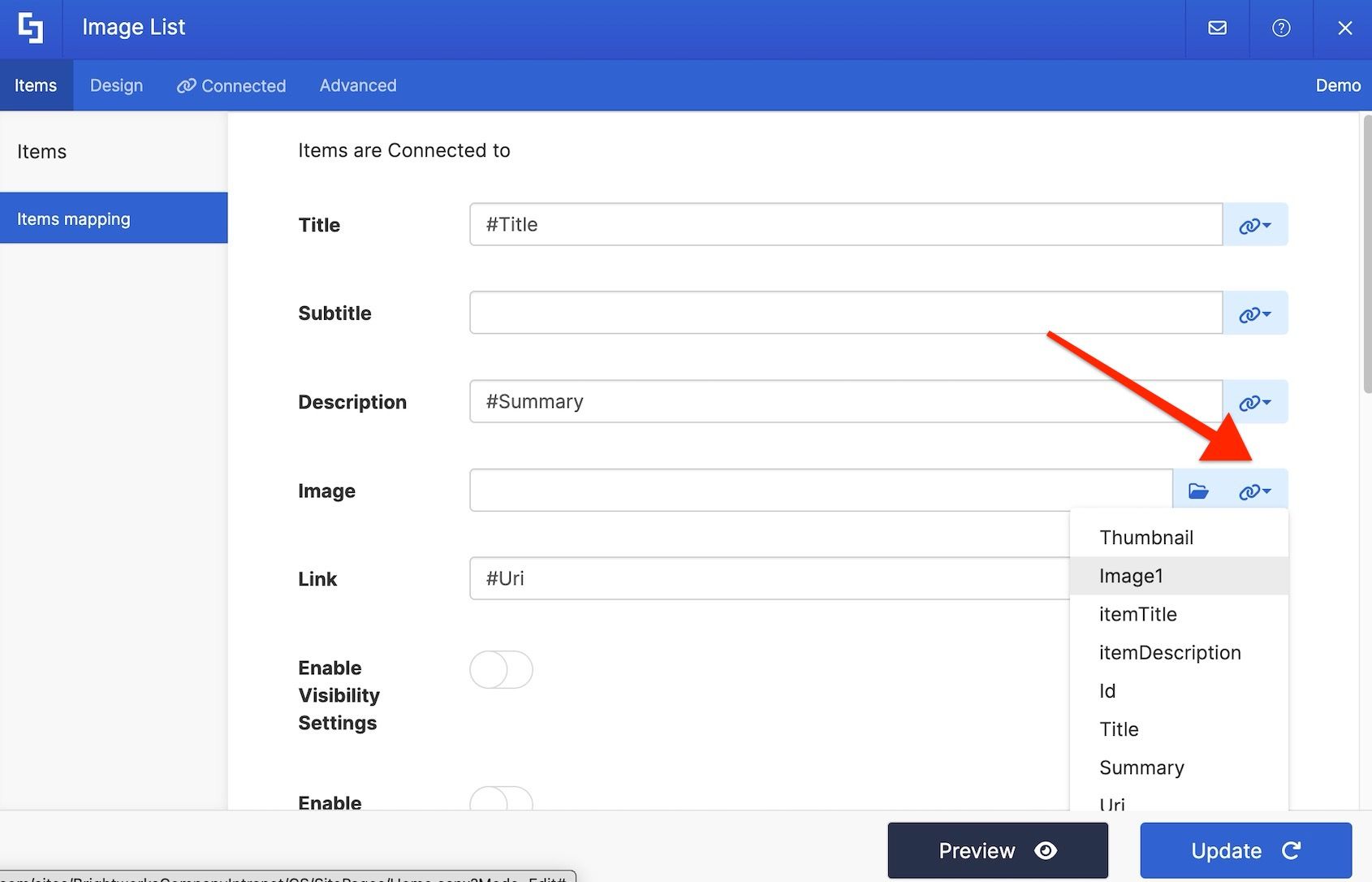
Hit Update and apply changes when you’re done. Then use Preview on the Action Toolbar to see how it looks on your page.
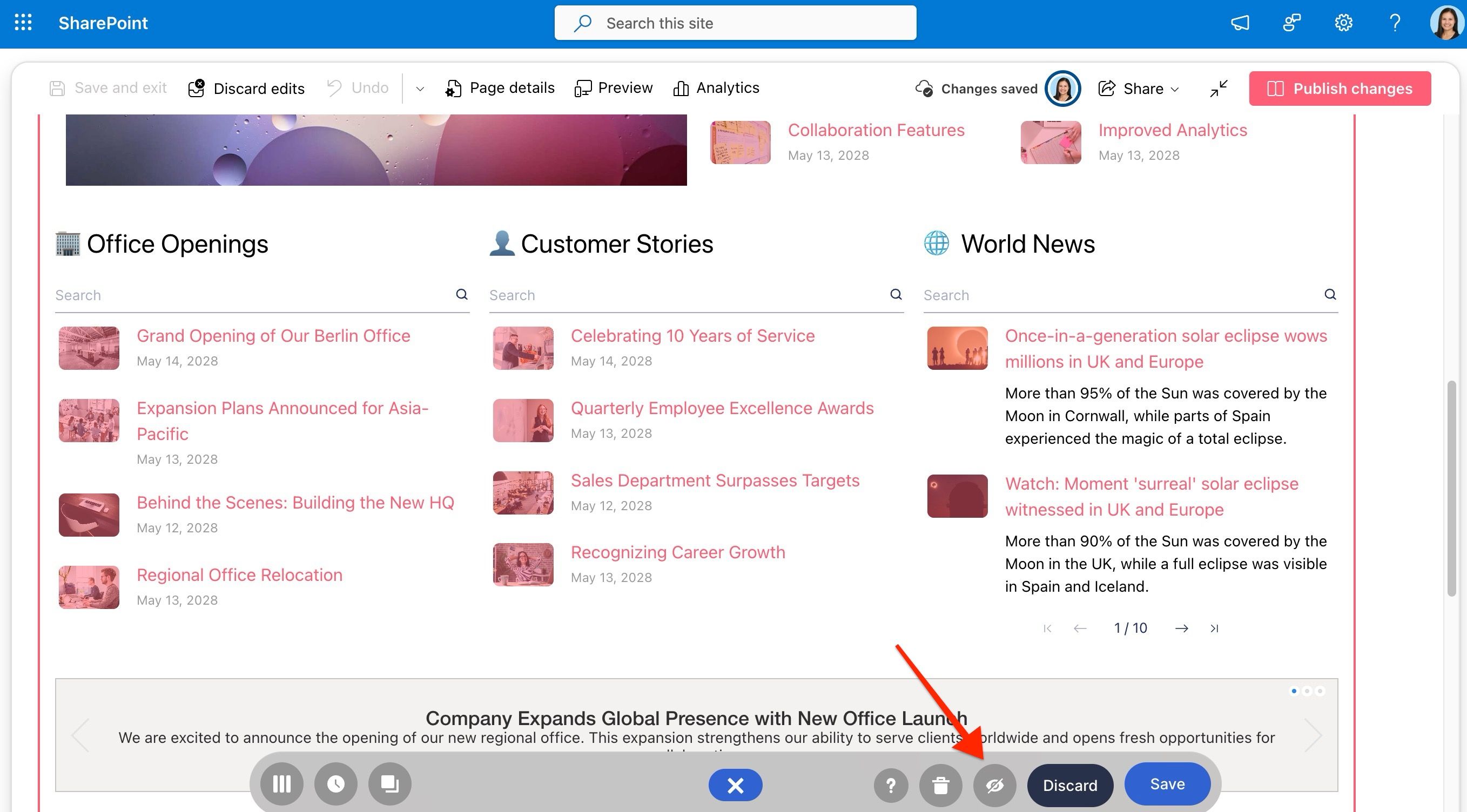
Save when you’re happy with it.
Seeing the connection in action
News websites and blogs are regularly updated, so all changes made by the source on their RSS feed will automatically appear on your SharePoint page. Your users can stay on top of breaking news and updated content without ever leaving the intranet.
You’ve successfully connected to an external RSS feed, bringing live content from outside your organization directly onto your intranet page.