

ShortPoint Connect Basics
Introduction to ShortPoint Connect
If you’re an avid SharePoint intranet user, chances are that your SharePoint Lists and Document Libraries are already overflowing with data and resources.

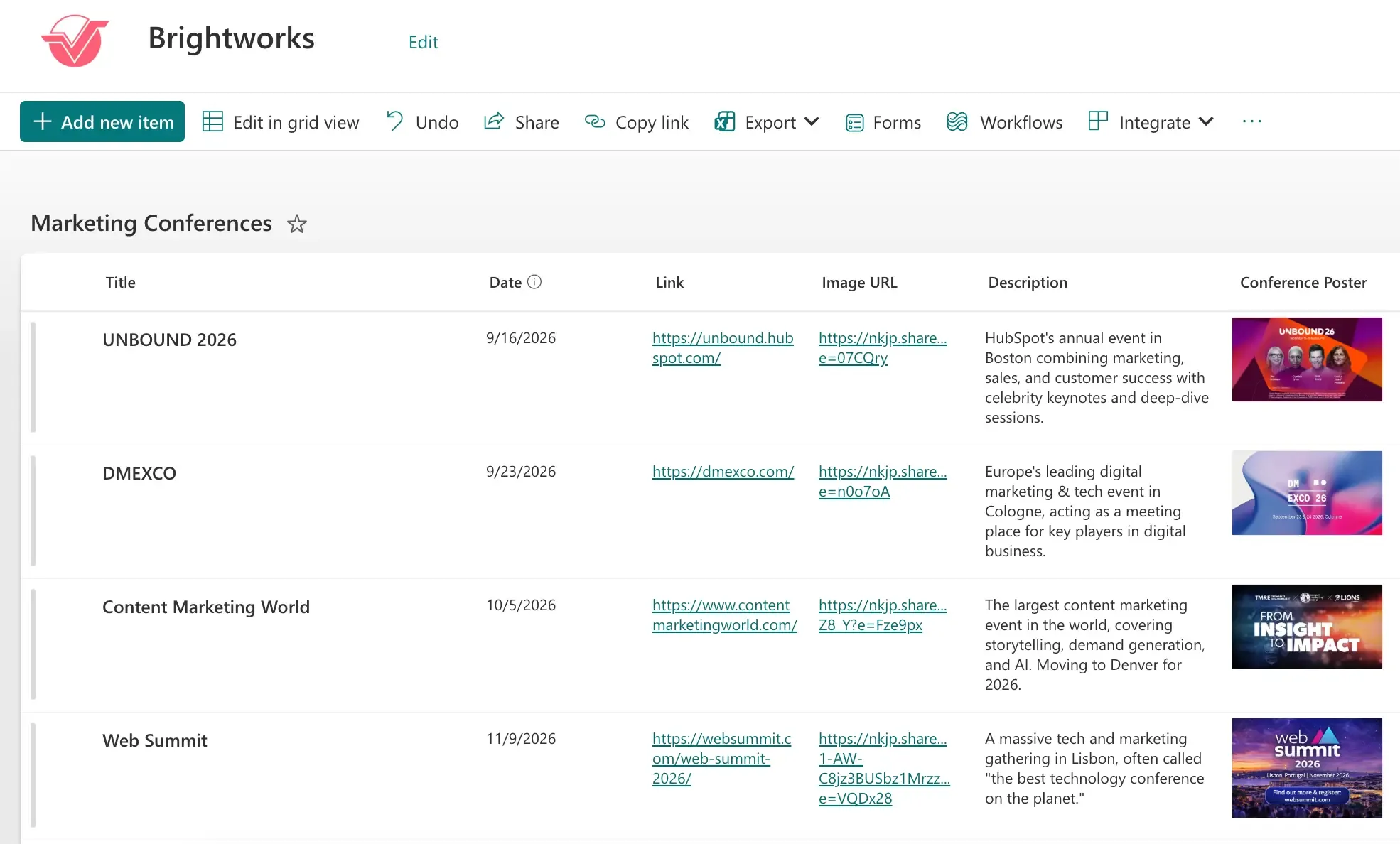
Just think about it. You may already have a list of upcoming conferences your company is tracking:
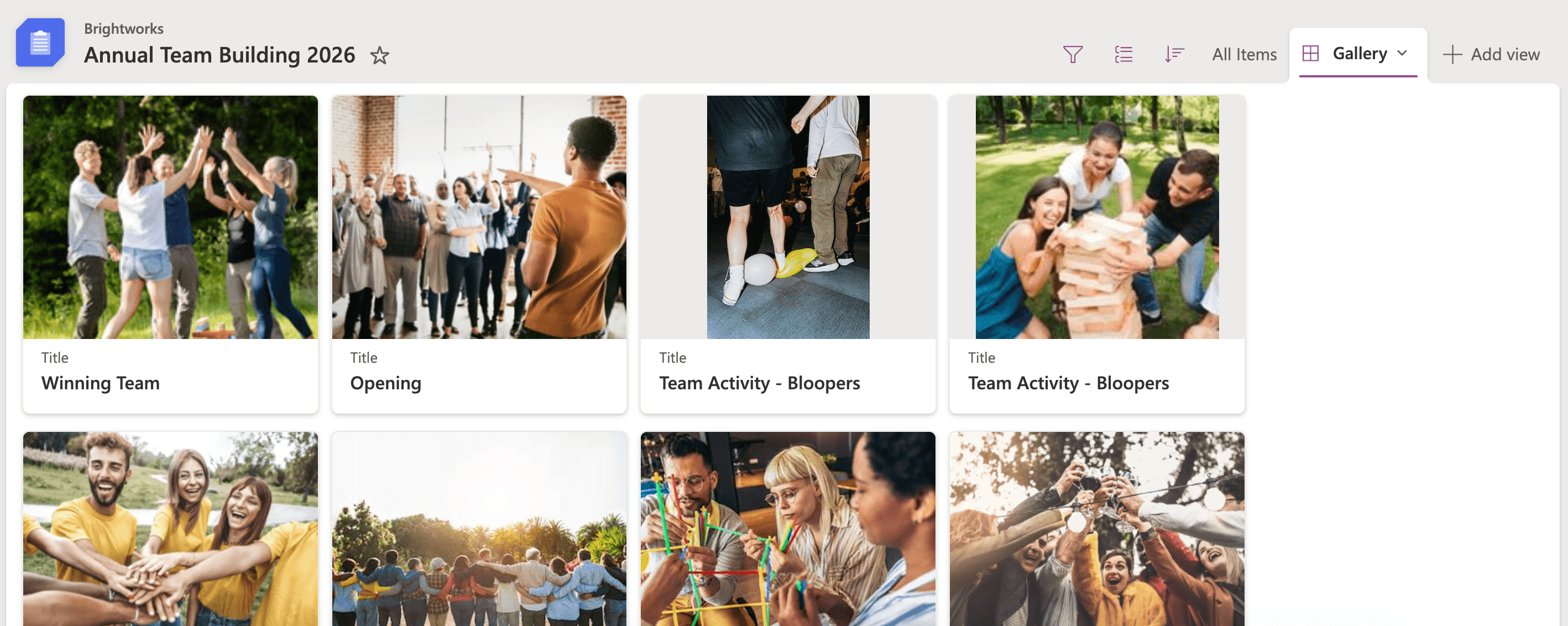
You may also have a Picture Library packed with great shots from your latest team event:
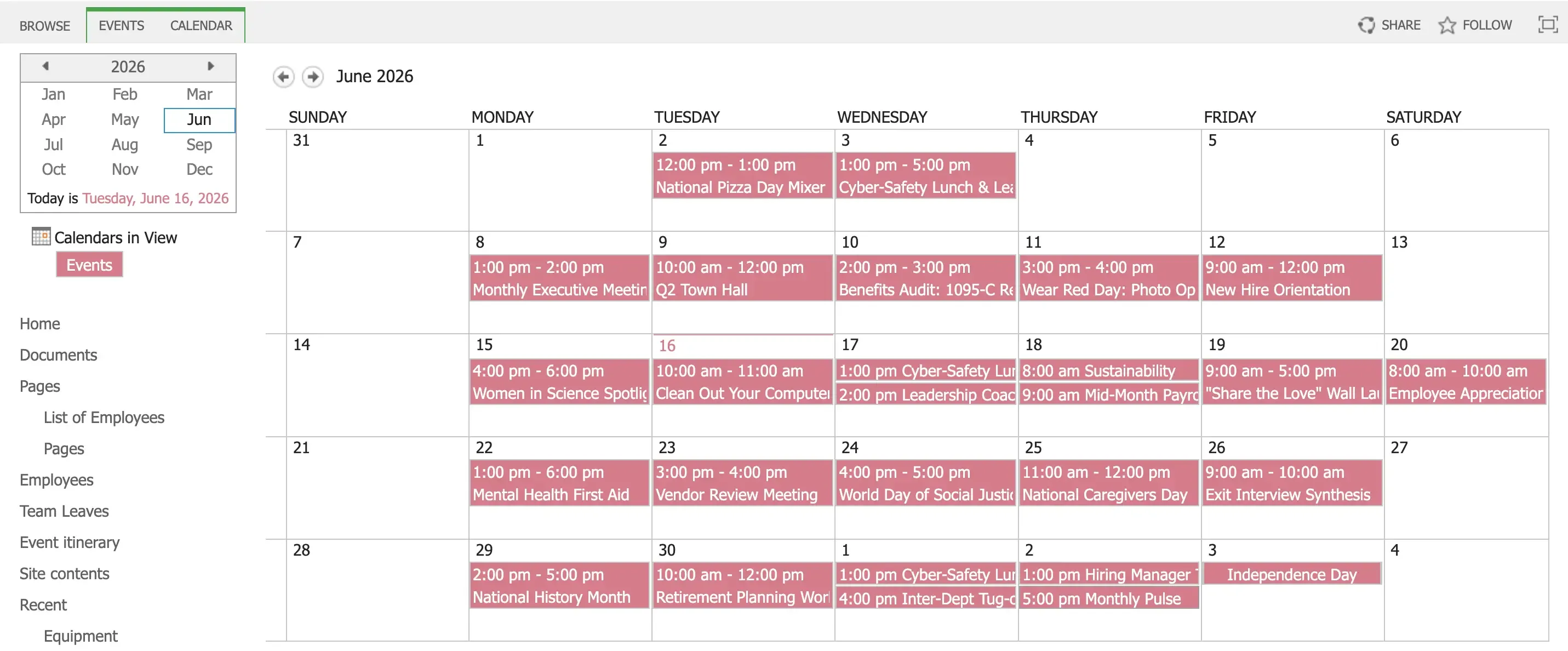
And, you can’t forget the company calendar filled with events, meetings, and conferences:
Now, why is this important? Well, when you’re building an Intranet page, wouldn’t it be nice to see these existing resources in one place? Having them on your page will help your team easily find them and gain value from the information they provide.
How do you do that? That’s where ShortPoint Connect comes into play!
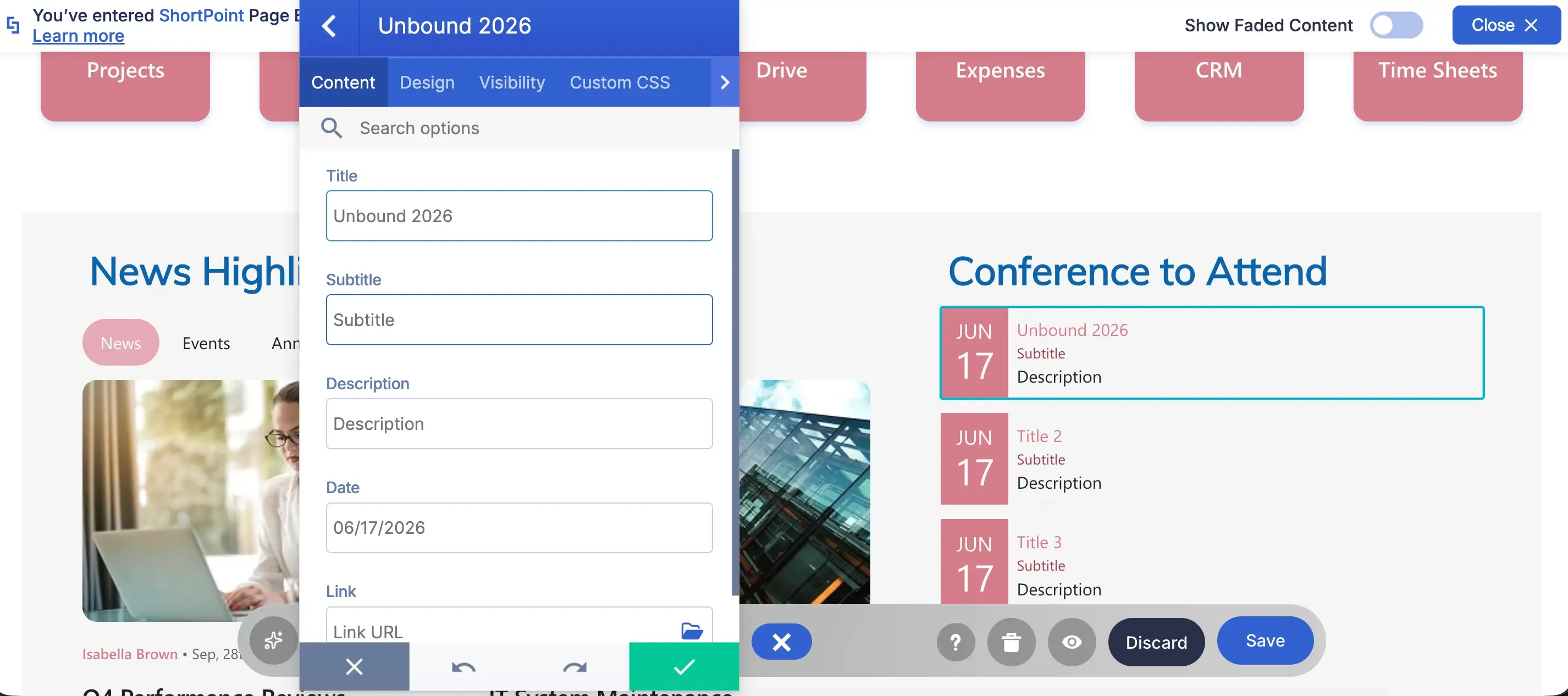
Instead of manually re-typing information or re-uploading files into individual page elements, like what we’re doing here:
ShortPoint Connect gives you integration superpowers! To put it simply, you get to pull the data from any SharePoint List or Document Library and present it beautifully in almost any ShortPoint Design Element.
Let’s give you an example. Remember the list of upcoming conferences? Here it is now with ShortPoint Connect in place:
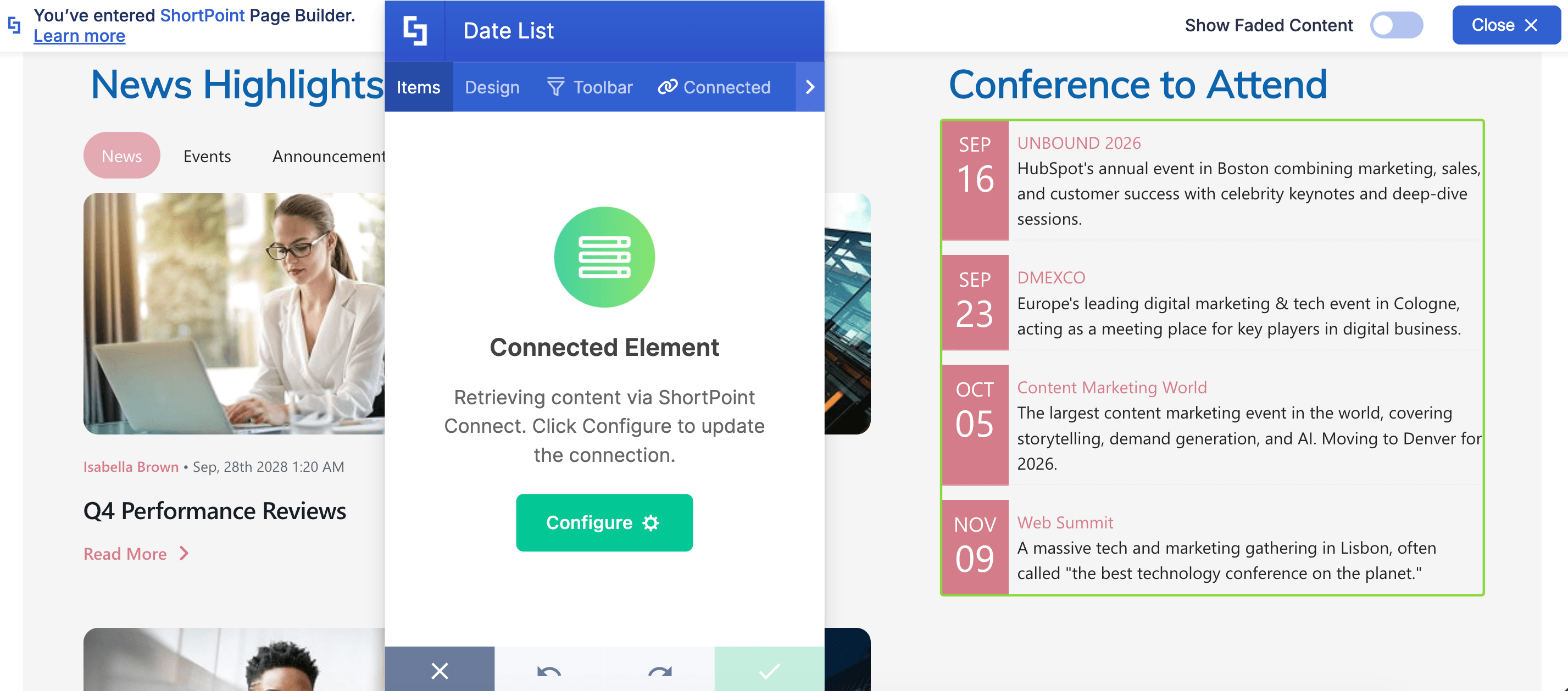
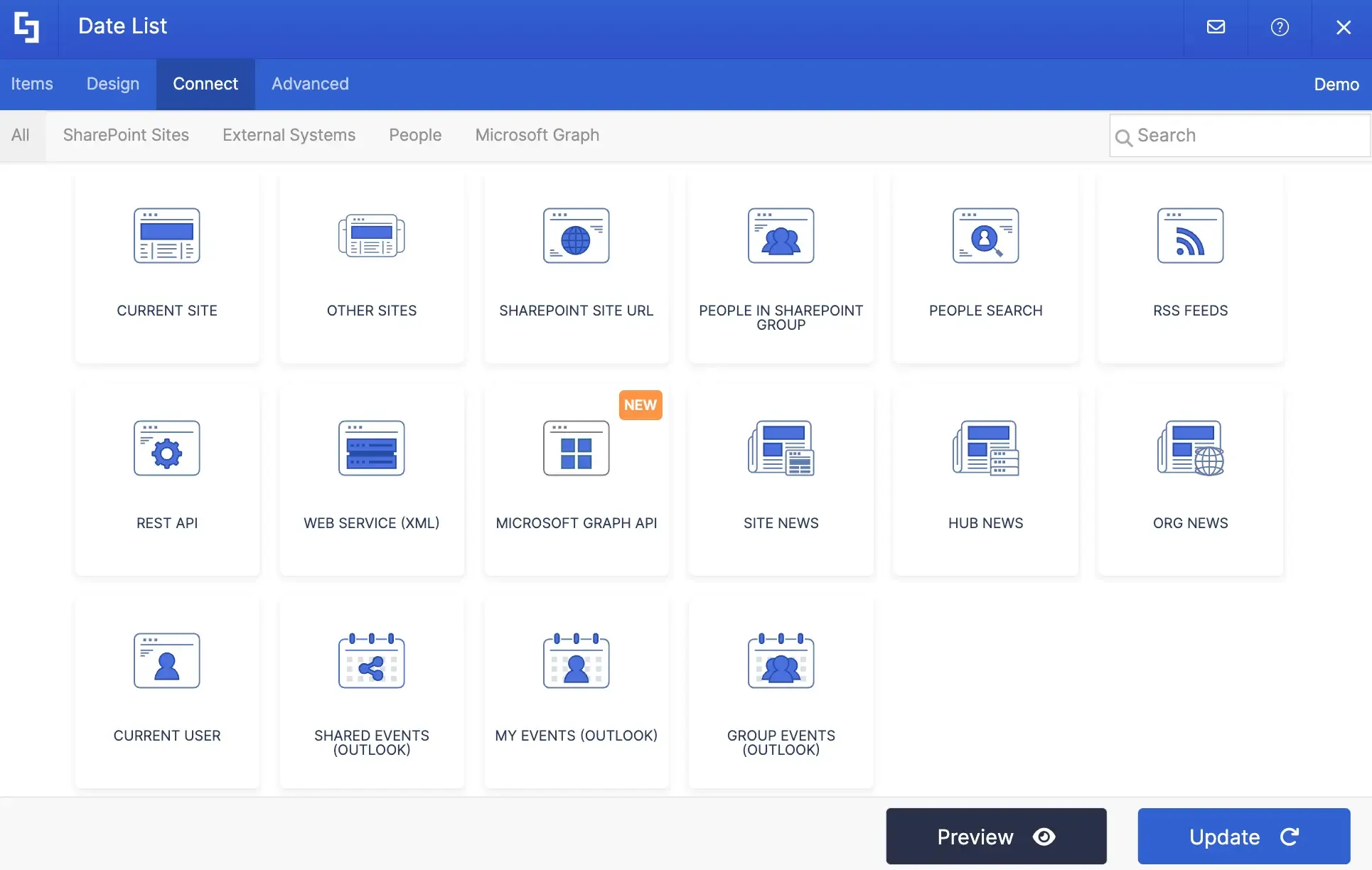
ShortPoint offers a versatile collection of these connection options, called Integrations. You aren’t just limited to your internal SharePoint tenant resources (like lists, libraries, and calendars). You can also connect to external information sources like RSS feeds or leverage advanced integrations such as People Search, Outlook events, and Hub News.
By the end of this course, you’ll feel completely confident putting your existing Intranet resources to work using the Connect feature.
Ready to dive in? Let’s get started with our first lesson!