

ShortPoint Connect Basics
Connecting to SharePoint News
In this lesson, you will learn about the three SharePoint news connection types available in ShortPoint, how to set one up, and how to map news details to display on your page.

What counts as news in SharePoint
Before setting up the connection, it’s worth clarifying what SharePoint considers as news. Only pages created as a news post or a news link will be picked up by the connection. You can verify this by checking the Promoted State column, which is hidden by default. To view it, go to Add Column, select Show or hide columns, and check Promoted State. Any item showing the number 2 is a news post or news link.
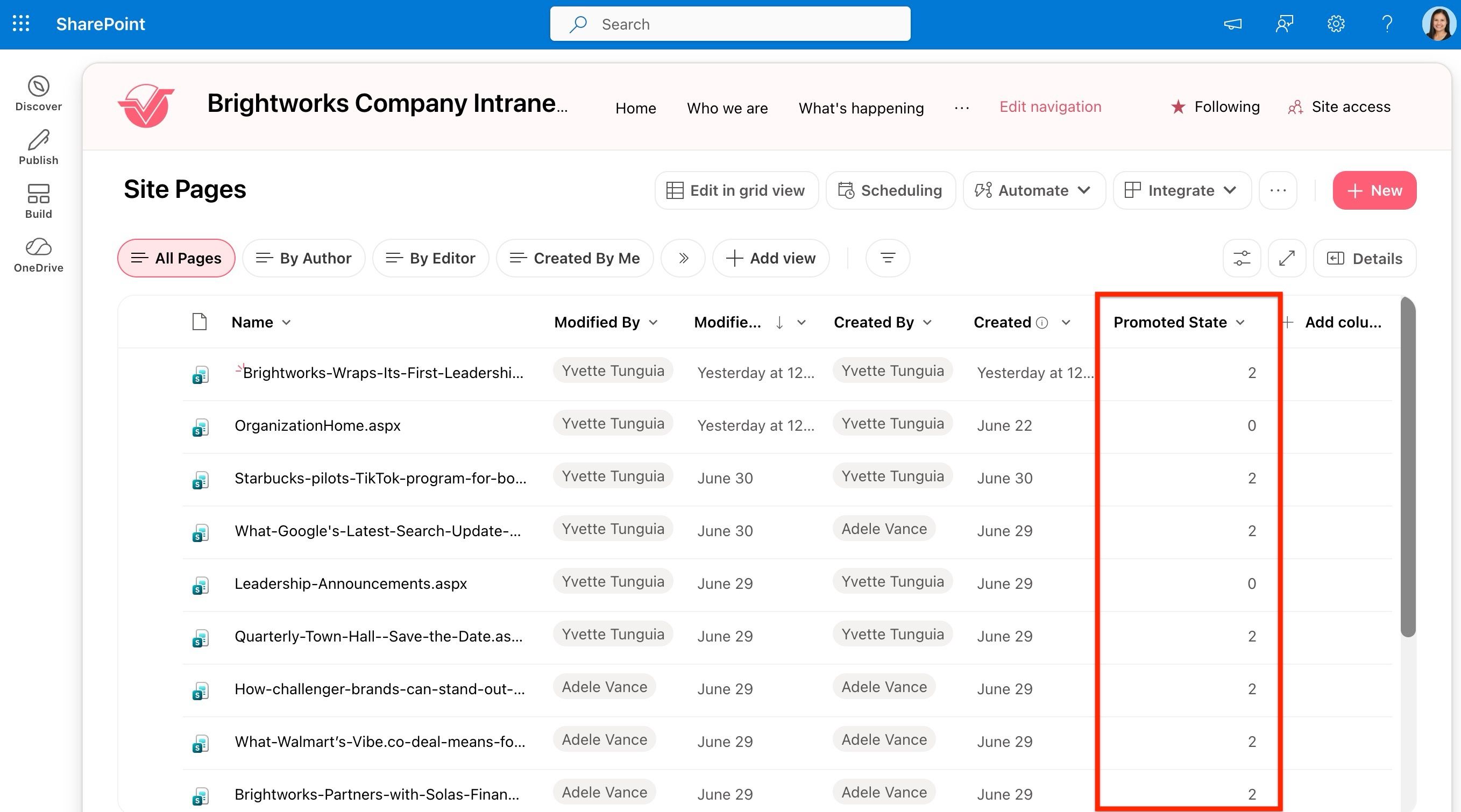
Choosing a connection type
ShortPoint offers three ways to connect to SharePoint news, depending on how wide you want to cast your net:
- Site News pulls news from a specific SharePoint site or site collection — ideal for targeted, site-specific content.
- Hub News gathers news from all sites associated with a SharePoint hub — useful if your organization groups related teams together under a hub.
- Org News pulls news from across your entire SharePoint tenant — best when you want your intranet home page to reflect organization-wide news.
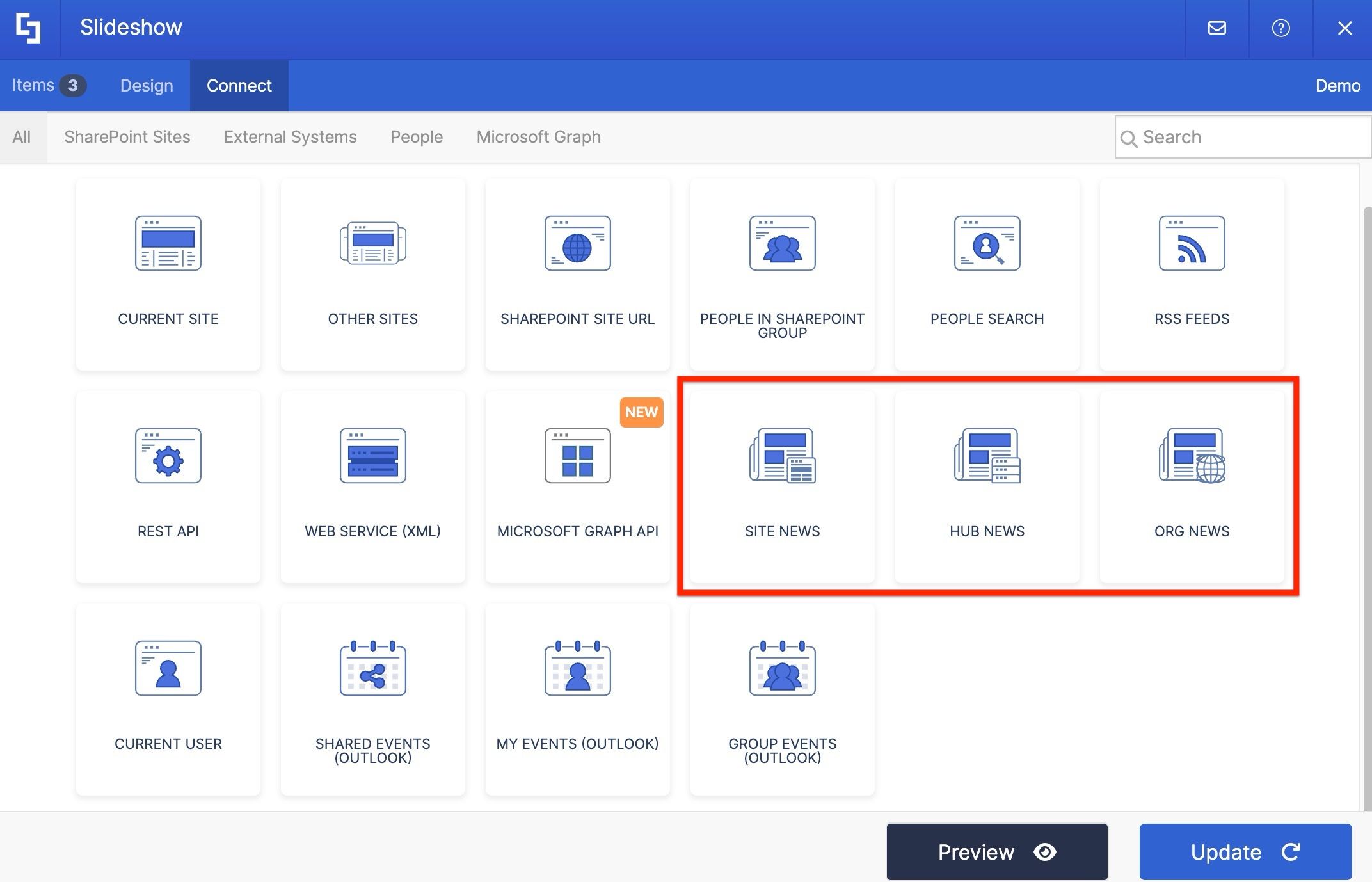
For this project, we’ll use the Site News connection to display news from our corporate site. The steps are the same regardless of which news connection type you choose.
Adding a News template
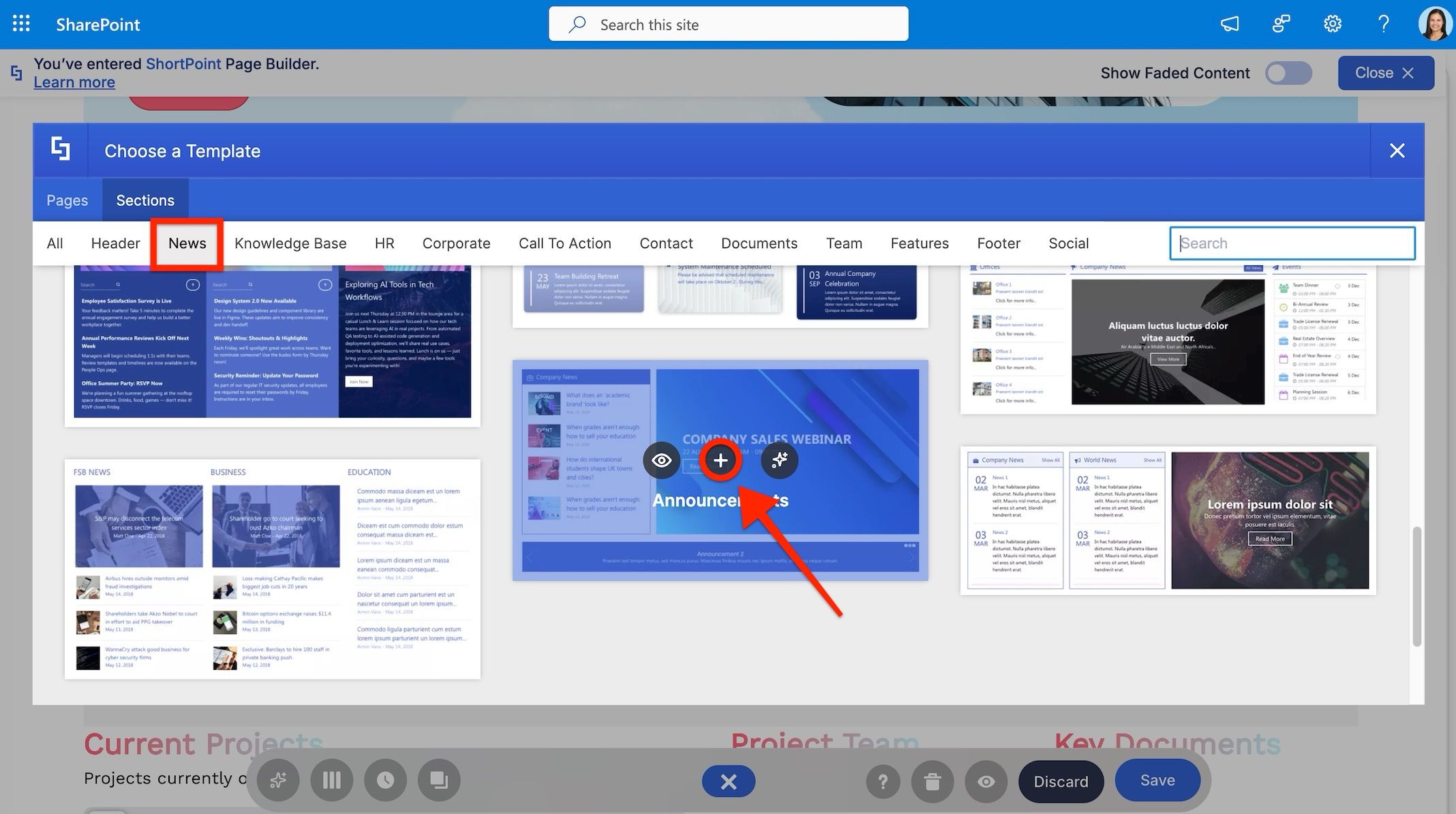
Instead of inserting a single Design Element, we’ll add a full section from the Templates Library. Browse to the News templates and select a design you like. For this project, we’ll use one that includes a Slideshow layout.
Setting up the connection
Open the Slideshow’s settings, go to the Connect tab, and click Configure. From the connection type options, select Site News.
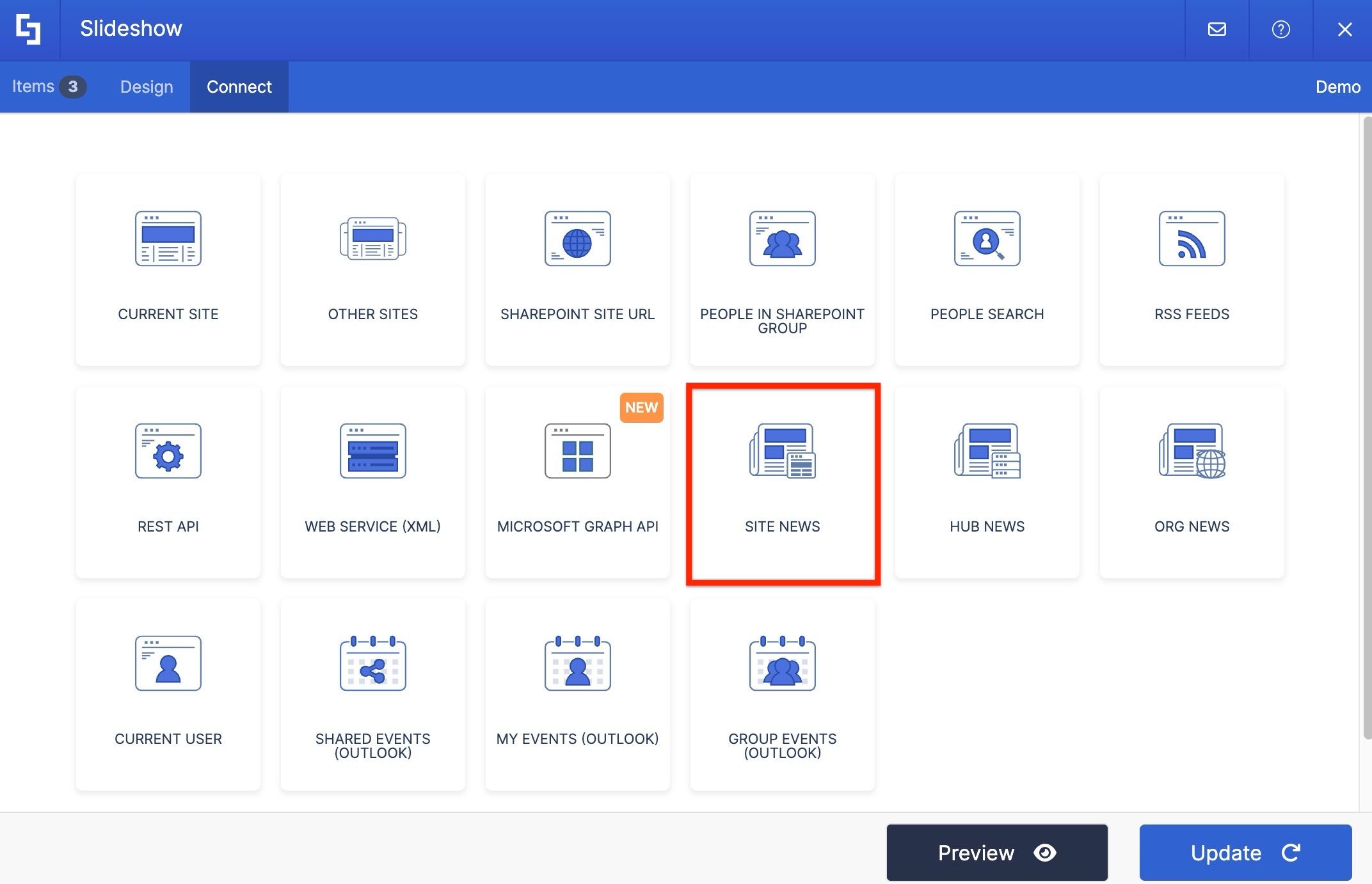
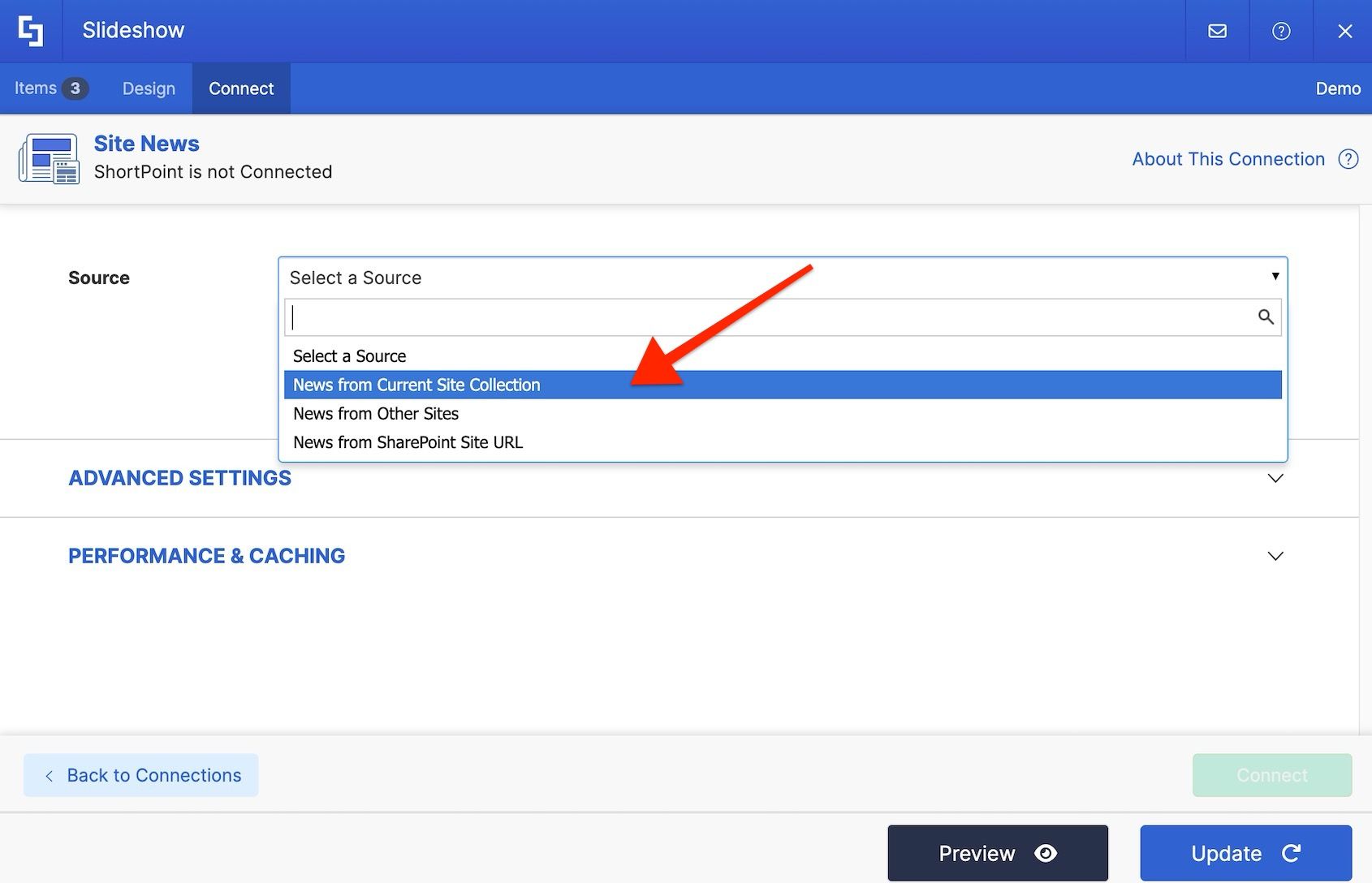
Next, choose your source. You’ll see three options: News from the Current Site Collection, News from Other Site Collections, or entering a specific SharePoint site URL. For this project, we’ll select News from the Current Site Collection.
From here, you can either include the entire site collection along with its subsites, or handpick specific sites to pull news from. You’re not limited to just one site. You can select multiple sites to pull news from all at once.
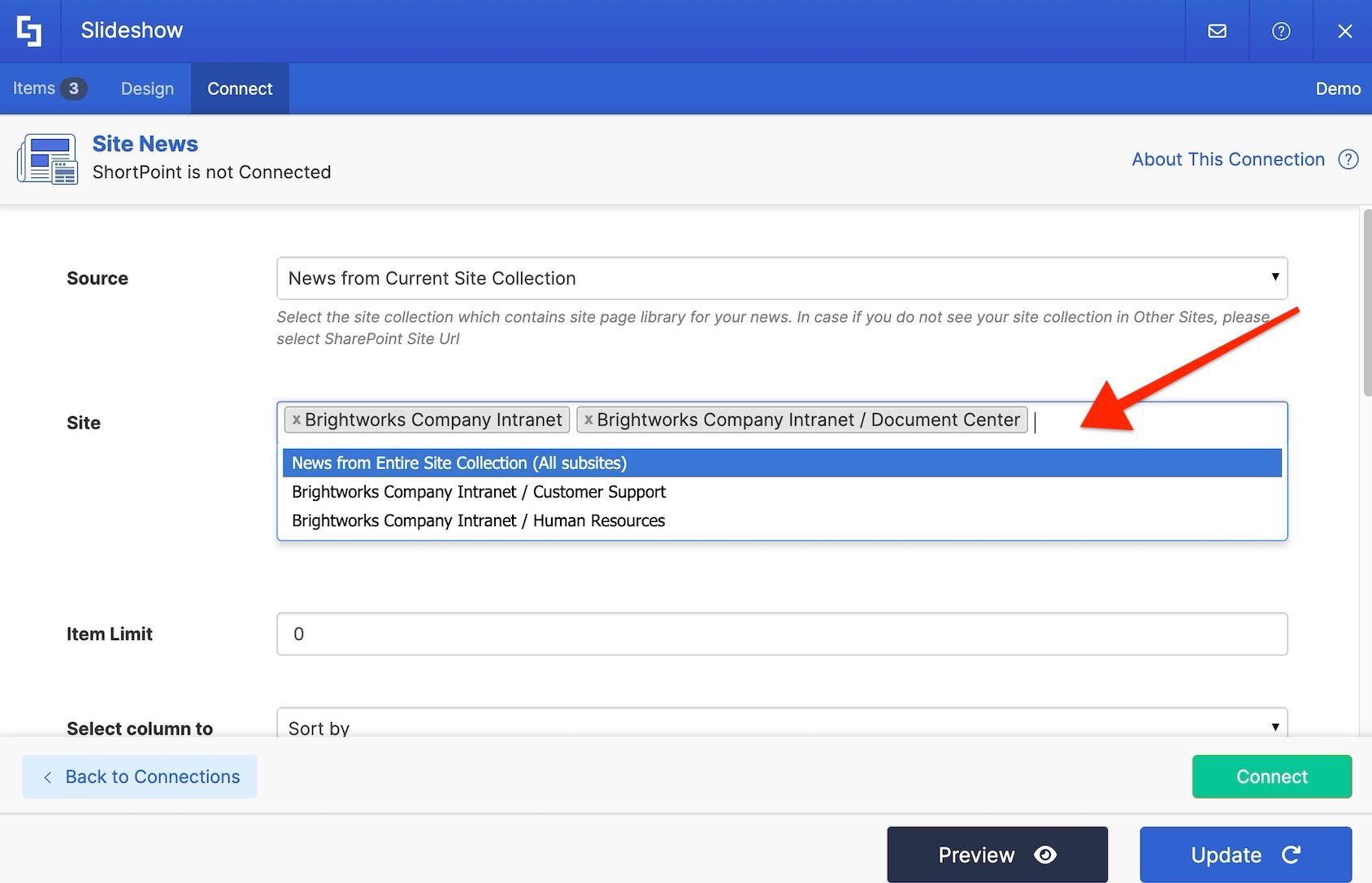
You can also set an item limit to control how many news posts appear, sort them by date or title, and assign a default image for posts that don’t have one.
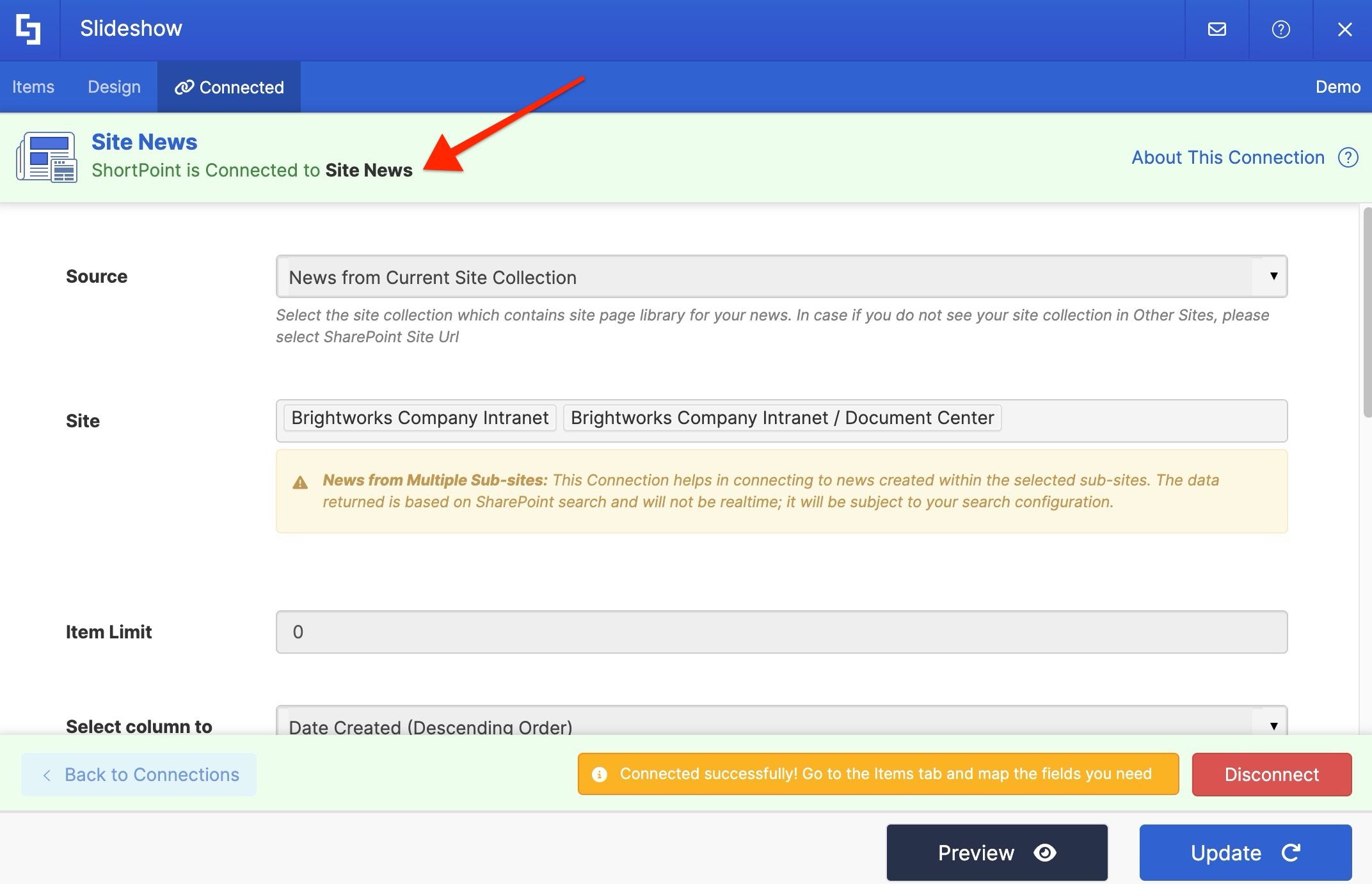
Hit Connect, and you’ll see a confirmation that the connection was successful.
Mapping news content
Head to the Items tab to map what you want to display. Remove the default content, then click the link icon to see the available properties.
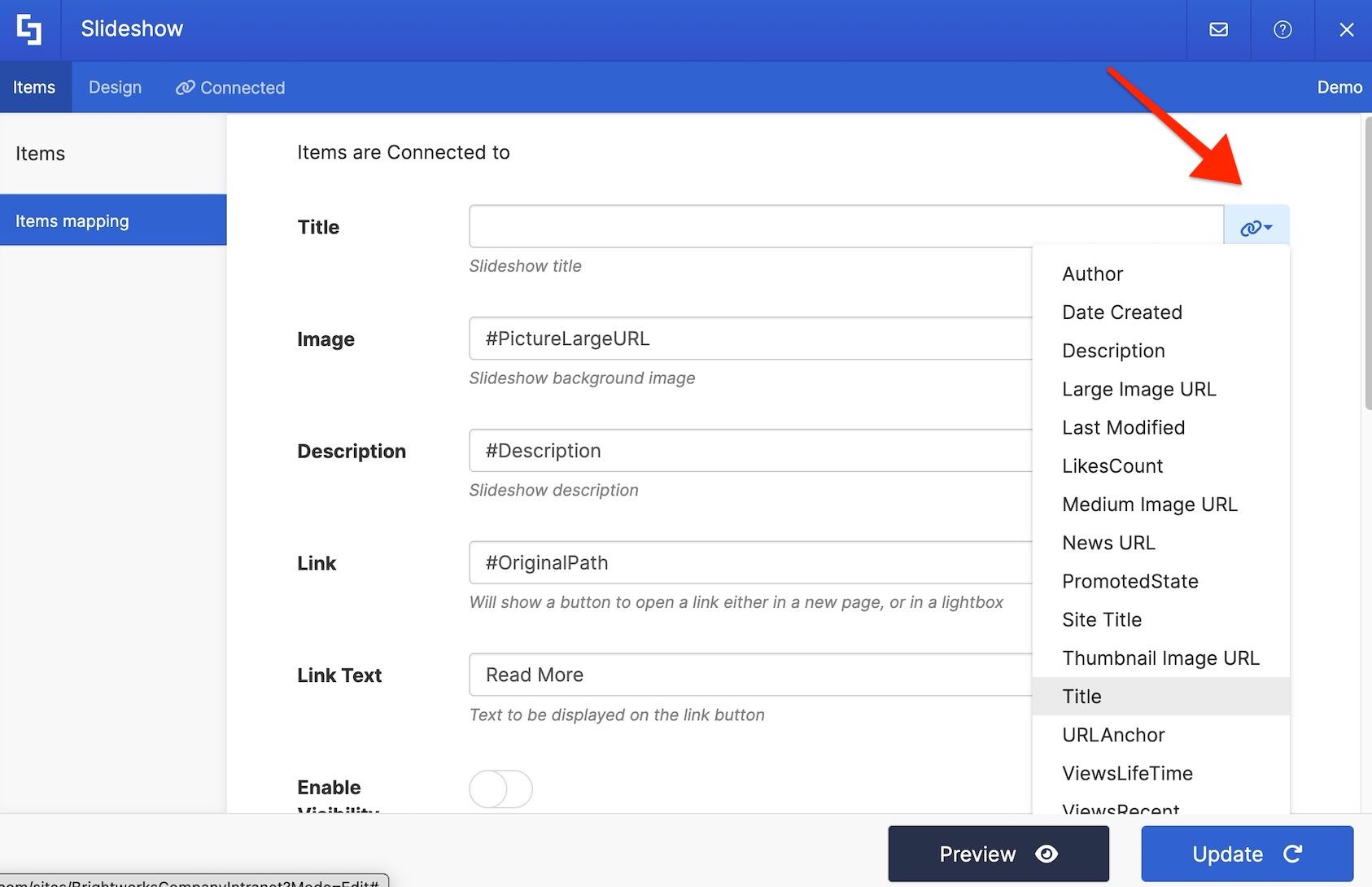
For this project, we’ll map the Title, the thumbnail image using the PictureThumbnailURL property, the Description, and the News URL so users can click through to the full article.
Click Preview to check your mapping, then hit Update when you’re satisfied.

Use Preview on the Action Toolbar to see how it looks on the page, and don’t forget to hit Save to keep all your changes.
Seeing the connection in action
From this point on, every time a new news post is published on the connected site, it will automatically appear on your page — no manual updates needed.
Congratulations! You’ve successfully connected to SharePoint news, giving your intranet a dynamic, always up-to-date way to keep your team informed.