

ShortPoint Connect Basics
Connecting to Microsoft 365 Apps
In this lesson, you will learn how to set up an Outlook calendar connection using the My Events connection type, build a team directory using Microsoft Graph API, and explore further resources and tools for Microsoft 365 connections.

Beyond SharePoint
So far, you’ve seen how to connect to lists, calendars, libraries, and news. These are all content sources within SharePoint. But ShortPoint Connect can also reach into your other Microsoft 365 apps and bring that data directly onto your intranet pages. In this lesson, we’ll look at two types of Microsoft 365 connections: Outlook and Microsoft Graph API.
Choosing an Outlook connection type
Your organization likely already uses Outlook calendars to manage schedules — personal calendars, team group calendars, and shared mailbox calendars for things like conference rooms or department events. ShortPoint gives you three connection types to work with these:
- My Events pulls events from the personal Outlook calendar of whoever is viewing the page — great for personalized dashboards.
- Group Events connects to the calendar of a Microsoft 365 group — useful for a department’s shared events or a team’s activities.
- Shared Events connects to the calendar of a shared mailbox, like a conference room booking calendar, and shows the same calendar to all page viewers.
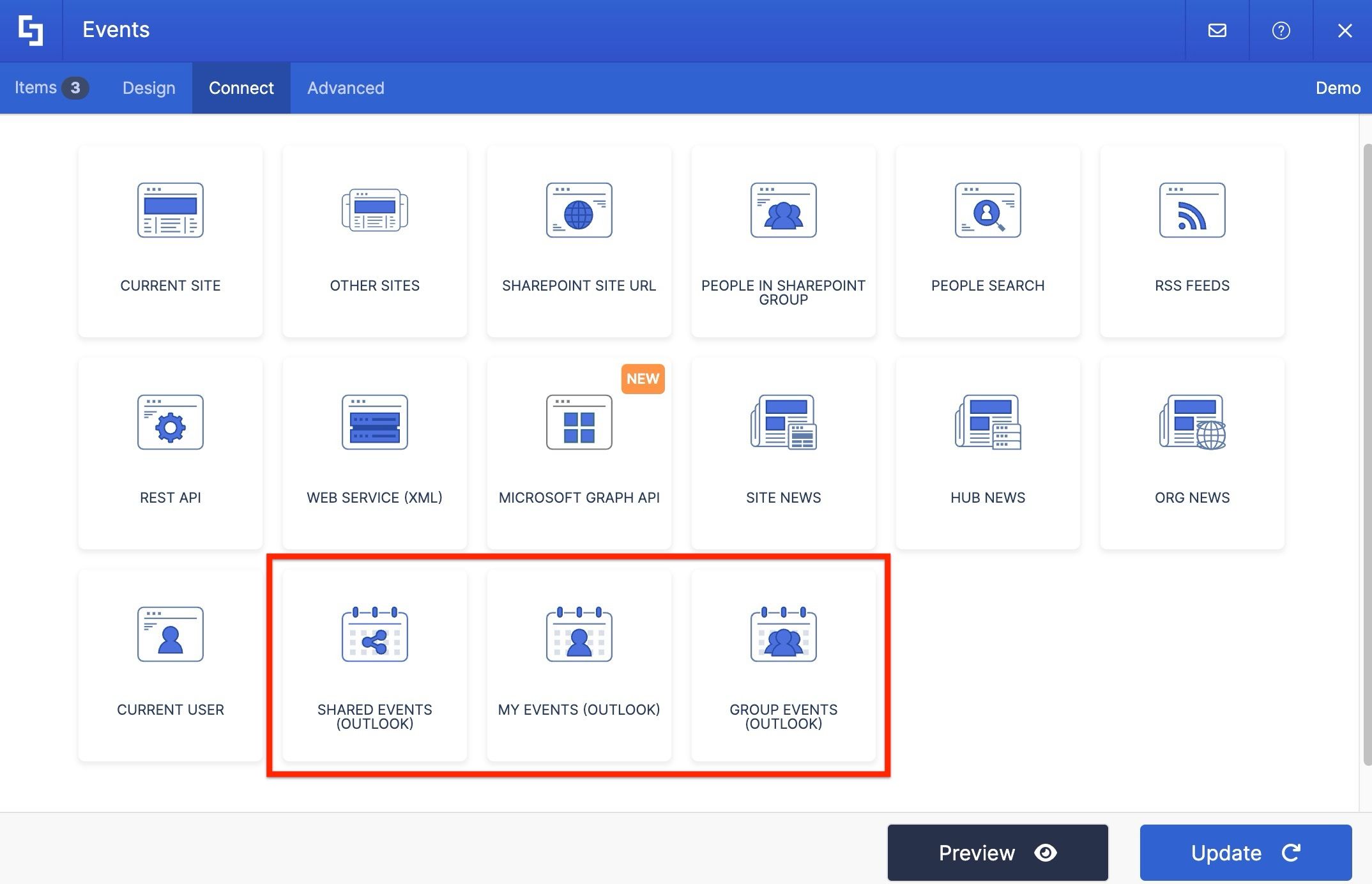
Setting up a My Events connection
For this project, we’ll use My Events to display a personal Outlook calendar on the page. We’ve added an Events Design Element. Open its settings, go to the Connect tab, click Configure, and select My Events from the connection options.
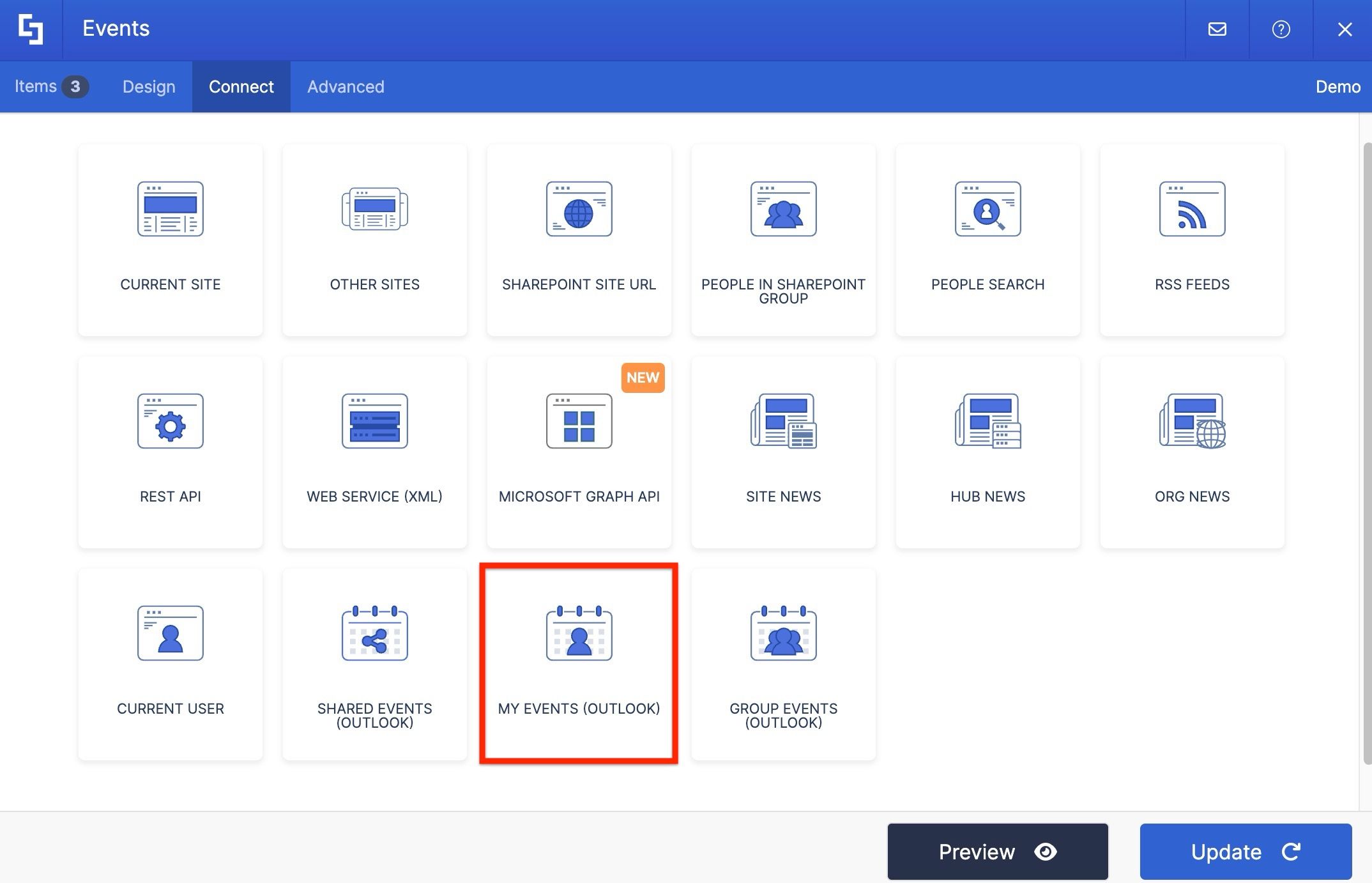
Since My Events pulls from the calendar of whoever is viewing the page, there’s no additional configuration needed to identify the source. ShortPoint handles that automatically. From here, you can set how far back or ahead you want to retrieve events, choose how recurring events appear, and set an item limit if needed.
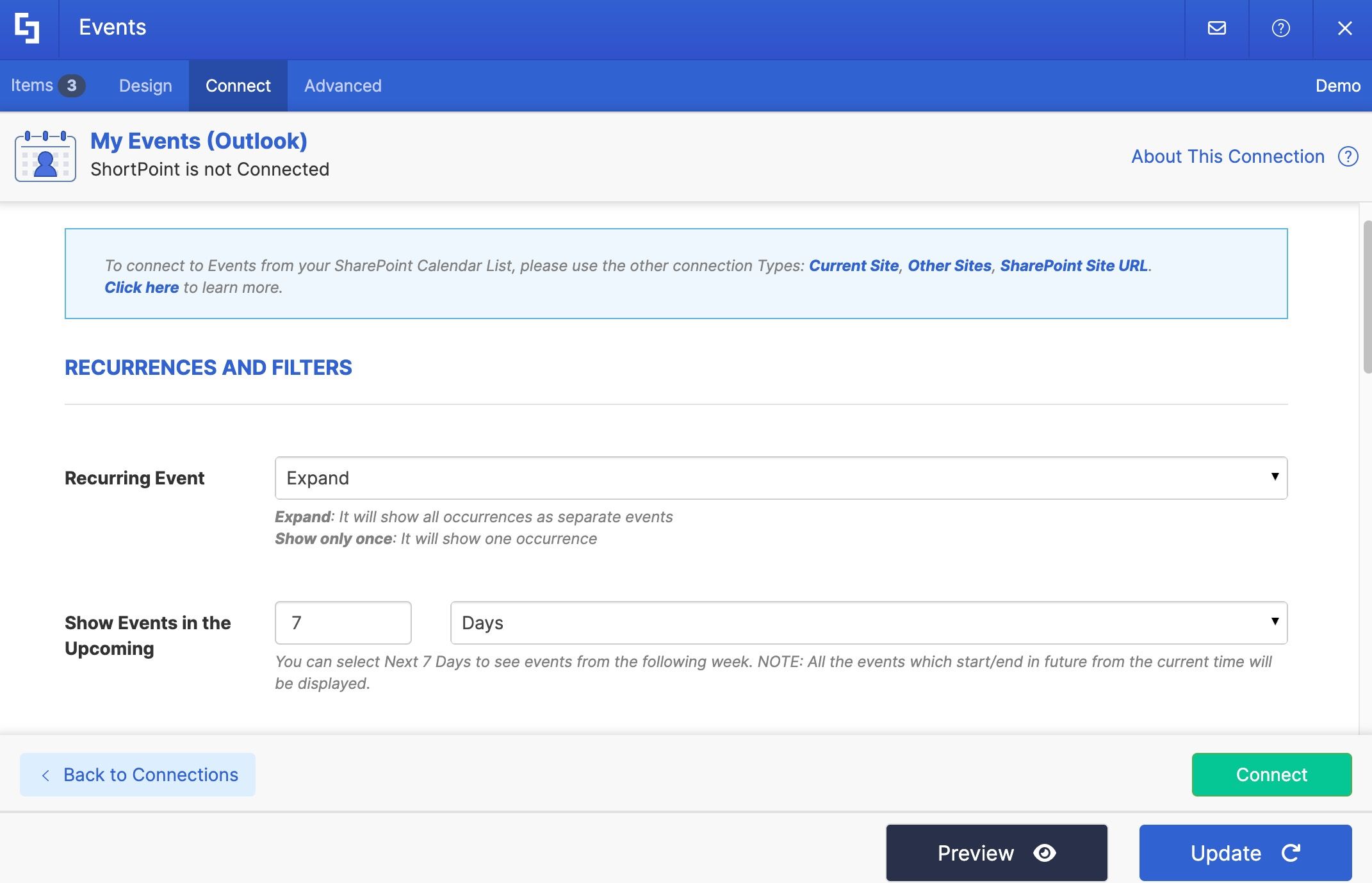
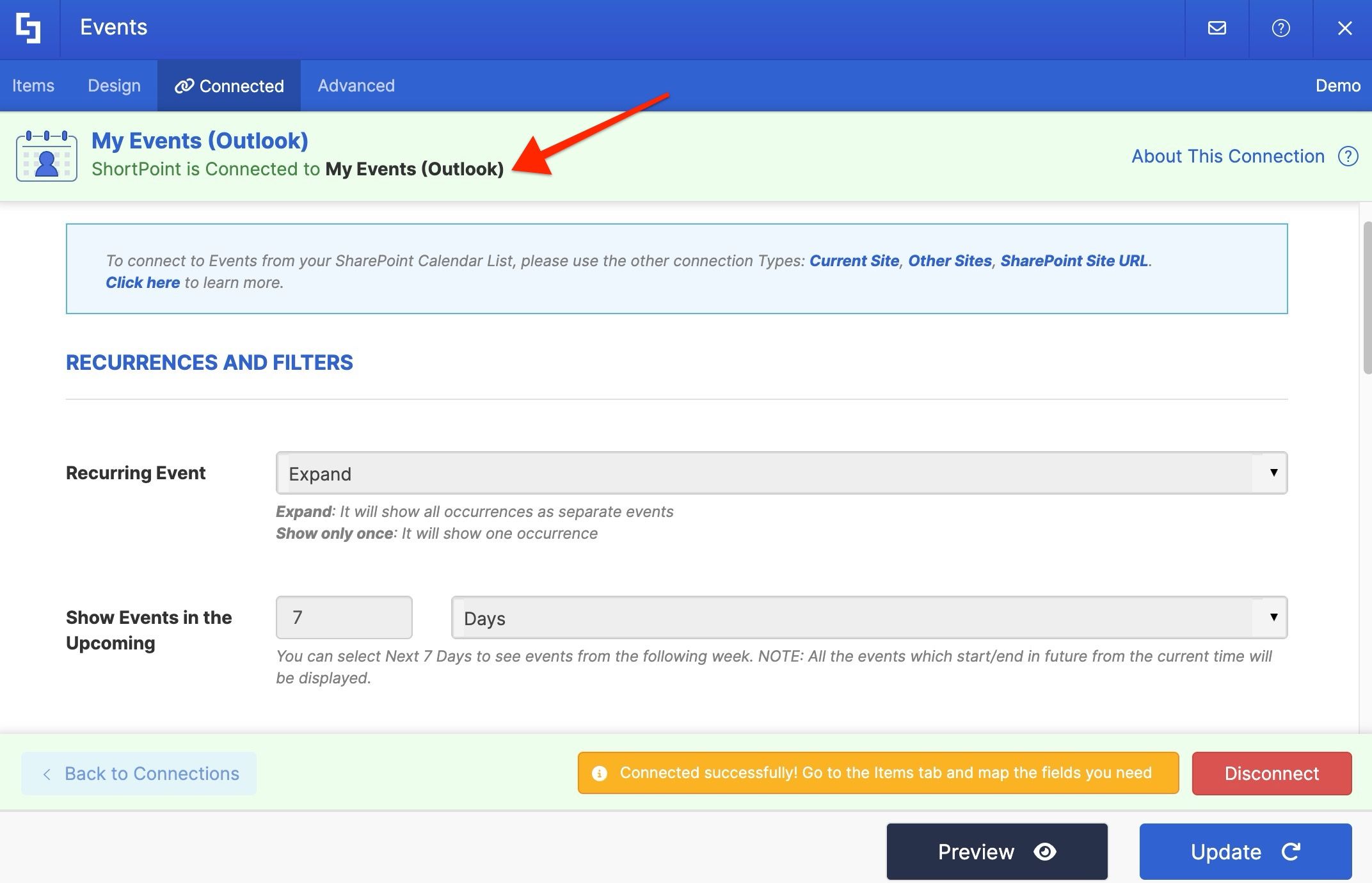
Hit Connect, and you’ll see a confirmation that the connection was successful.
Mapping Outlook event details
Head to the Items tab to map the event details. We’ll add the event title, start and end times, location, and description.
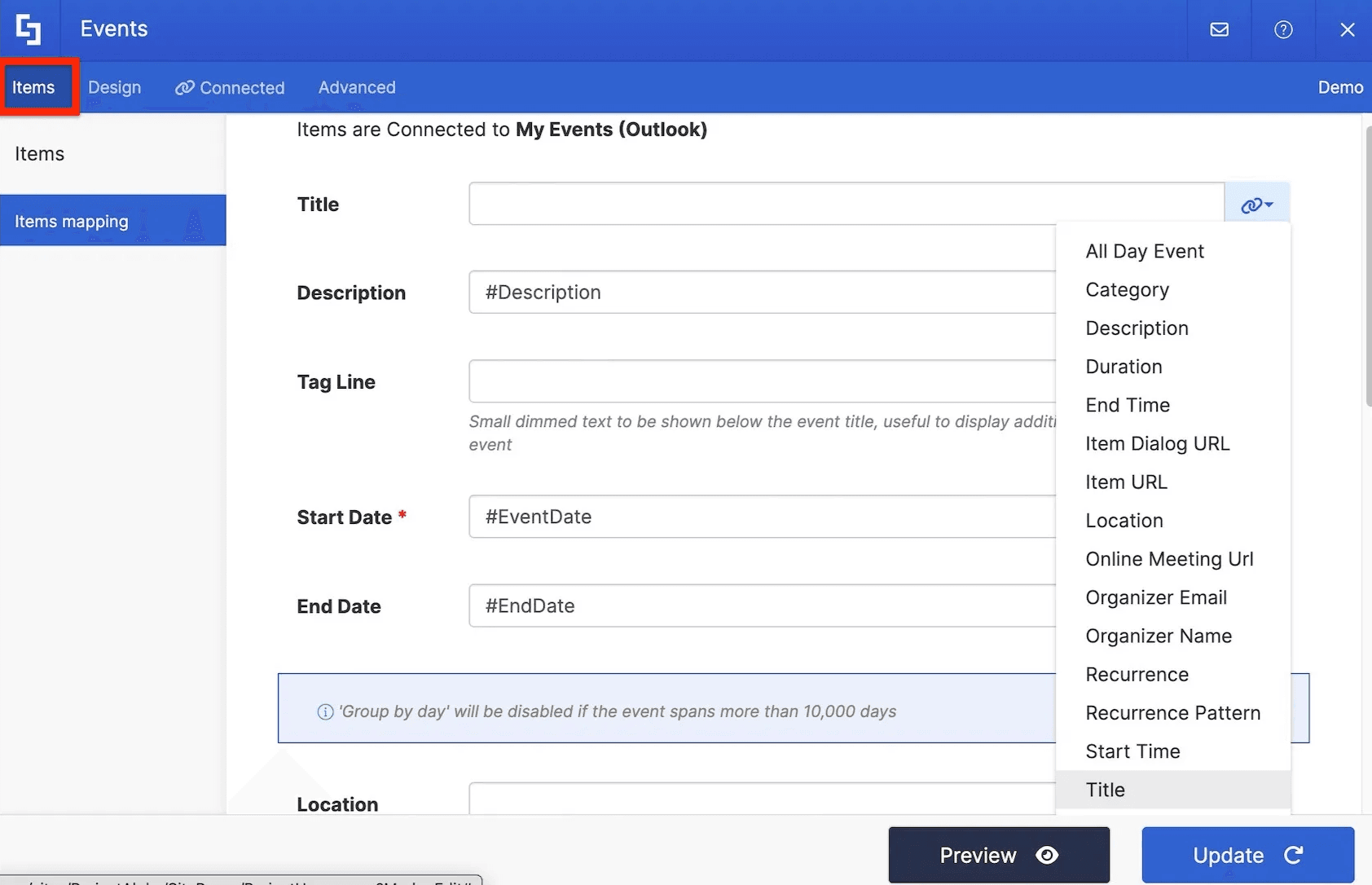
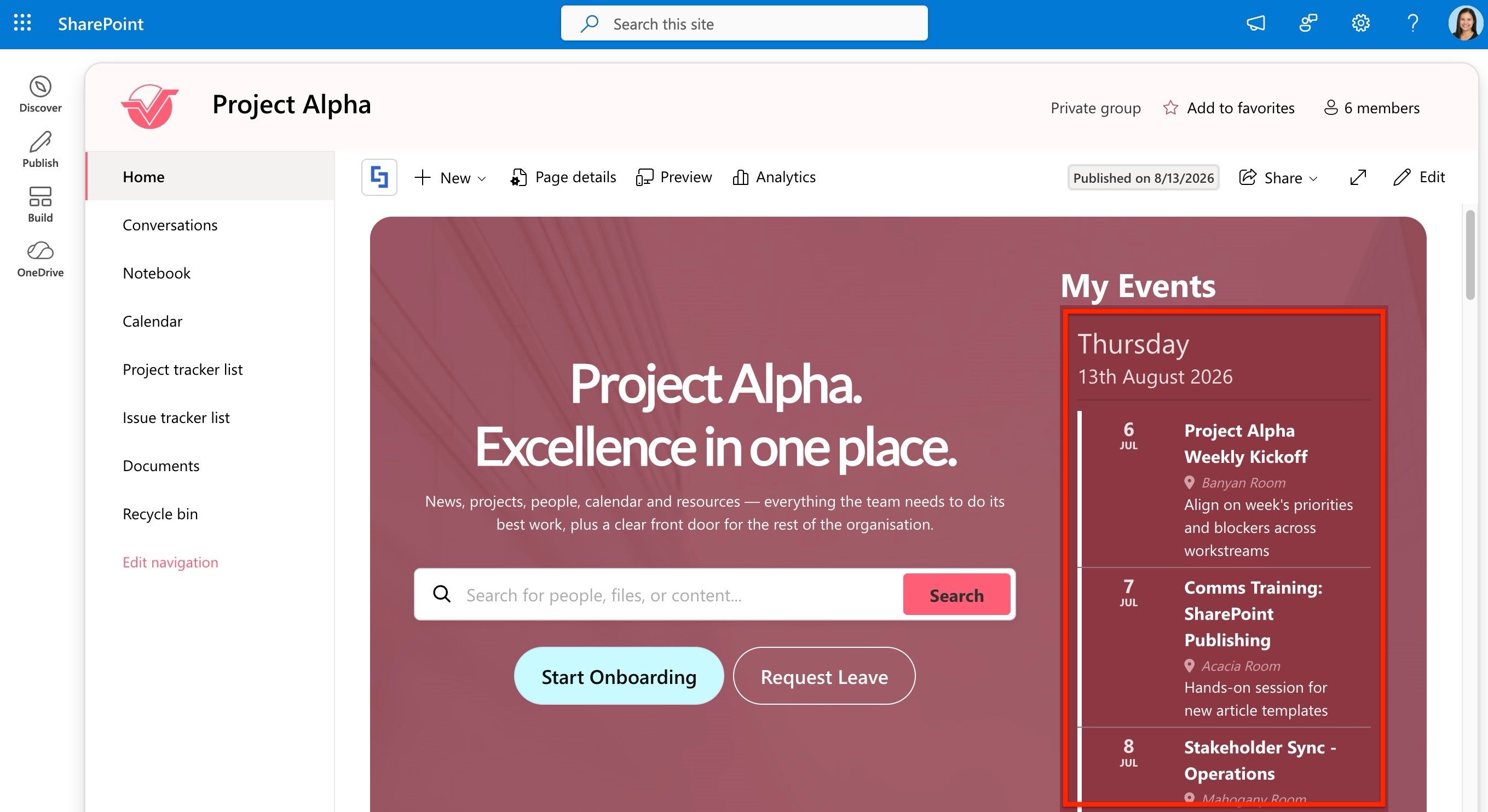
Click Preview to check the mapping, hit Update when you’re satisfied, and apply your changes. Once this is live, every user who visits the page will see their own upcoming Outlook events displayed right on the intranet, personalized automatically, with no extra work needed.
Introducing Microsoft Graph API
The Outlook connections are great for calendar-based content, but what if you need to pull in a wider range of data from across your Microsoft 365 environment? That’s where the Microsoft Graph API connection comes in.
This is ShortPoint’s most flexible connection type. Through Microsoft Graph API, you can connect to data from Microsoft Entra ID including Users and Groups, OneDrive, Teams, Excel, SharePoint, OneNote, Outlook, and Planner. It is one of the most powerful tools available for pulling meaningful, dynamic content onto your intranet pages.
Building a team directory
One common use case is pulling in a team directory from Microsoft Entra ID. We’ll add a Person Cards Design Element to the page, open its settings, go to the Connect tab, and click Configure. Select Microsoft Graph API.
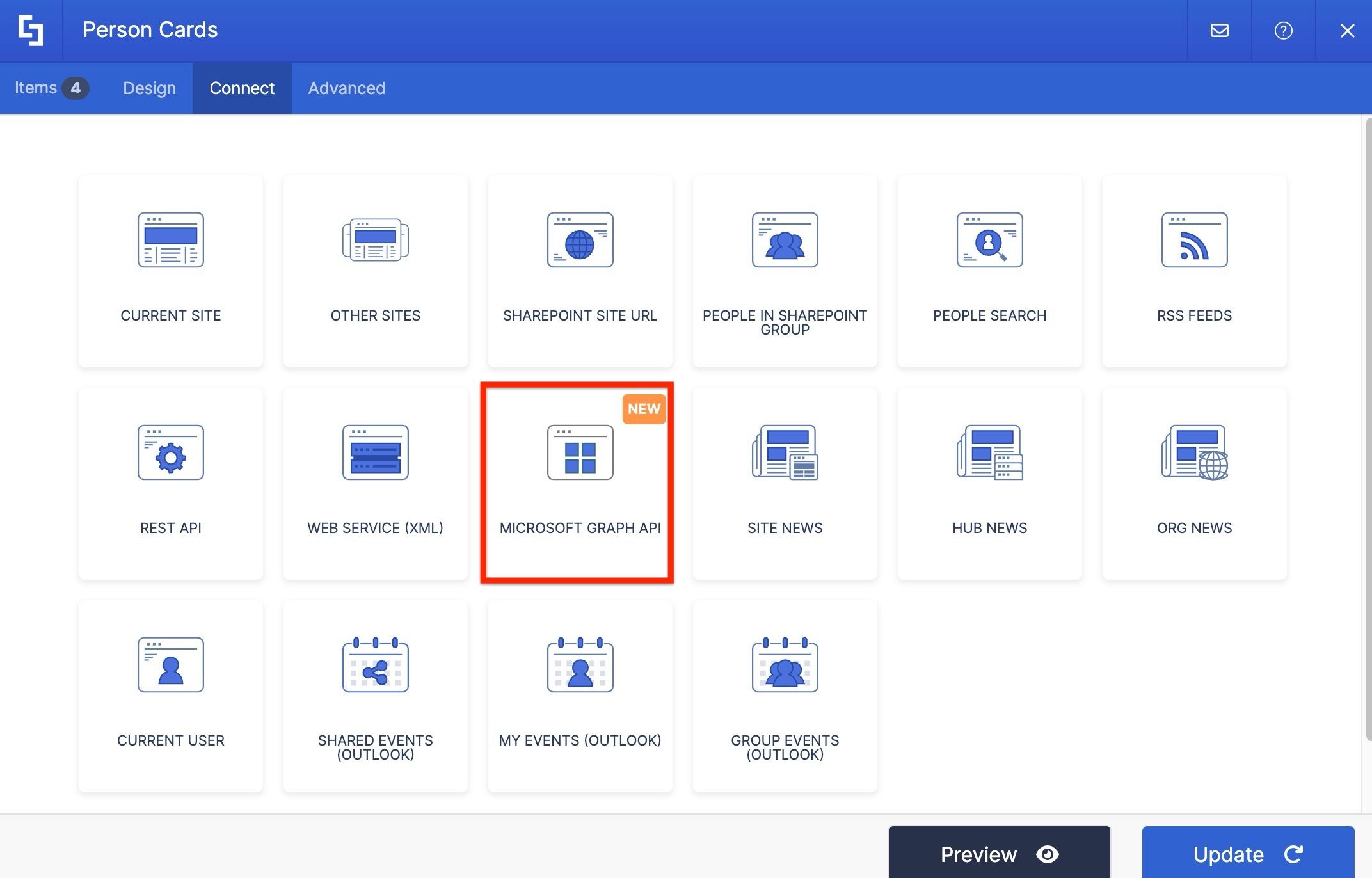
Before proceeding, make sure the Microsoft Graph API connection is enabled and that API access has been granted for the apps you need. If it isn’t enabled yet, you’ll be prompted to do so directly from the connection options. If you’re unsure, check with your Microsoft 365 administrator before continuing.
Once you select Microsoft Graph API, you’ll be taken to the Use Cases library. It is a collection of over 90 pre-built scenarios organized by app. Just select the use case that fits your scenario, and ShortPoint generates the query behind the scenes, so no technical experience needed. If you have a custom query you’d like to use instead, there’s an option for that too.
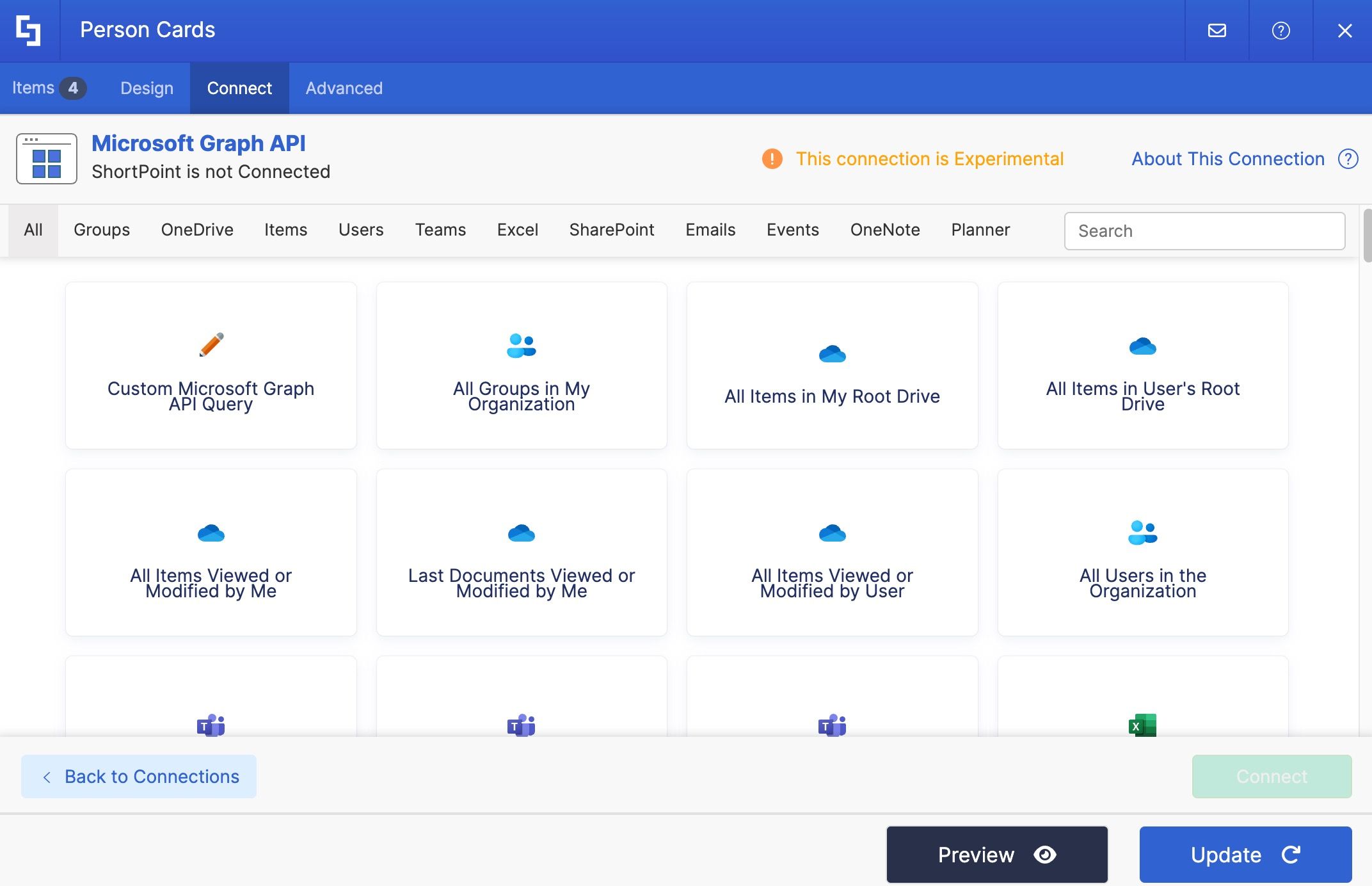
For our team directory, we’ll select Members of a Group. Since this use case requires a Group ID, click the Get Parameter link to browse your available groups, select the one you want, and copy its ID.
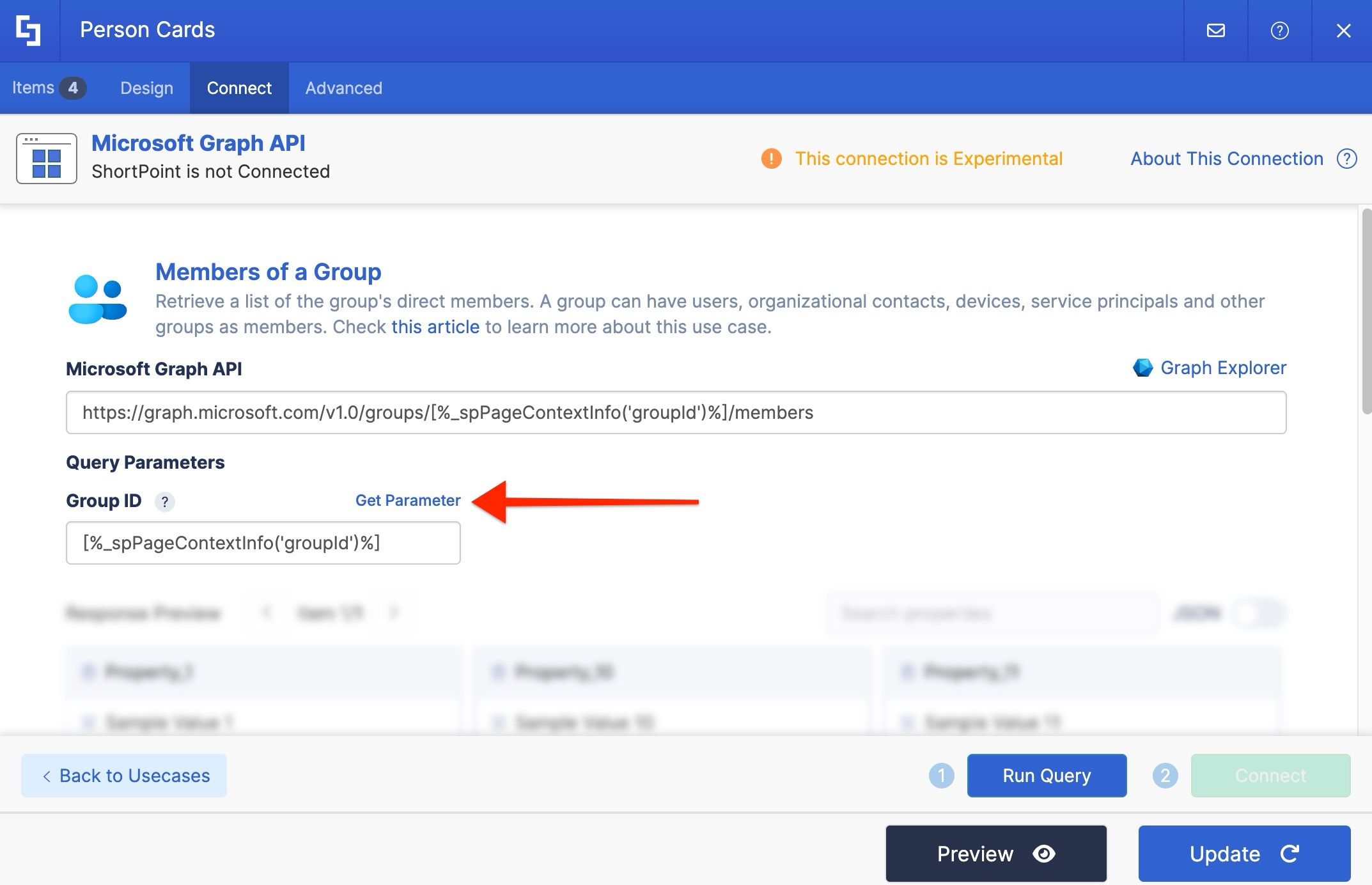
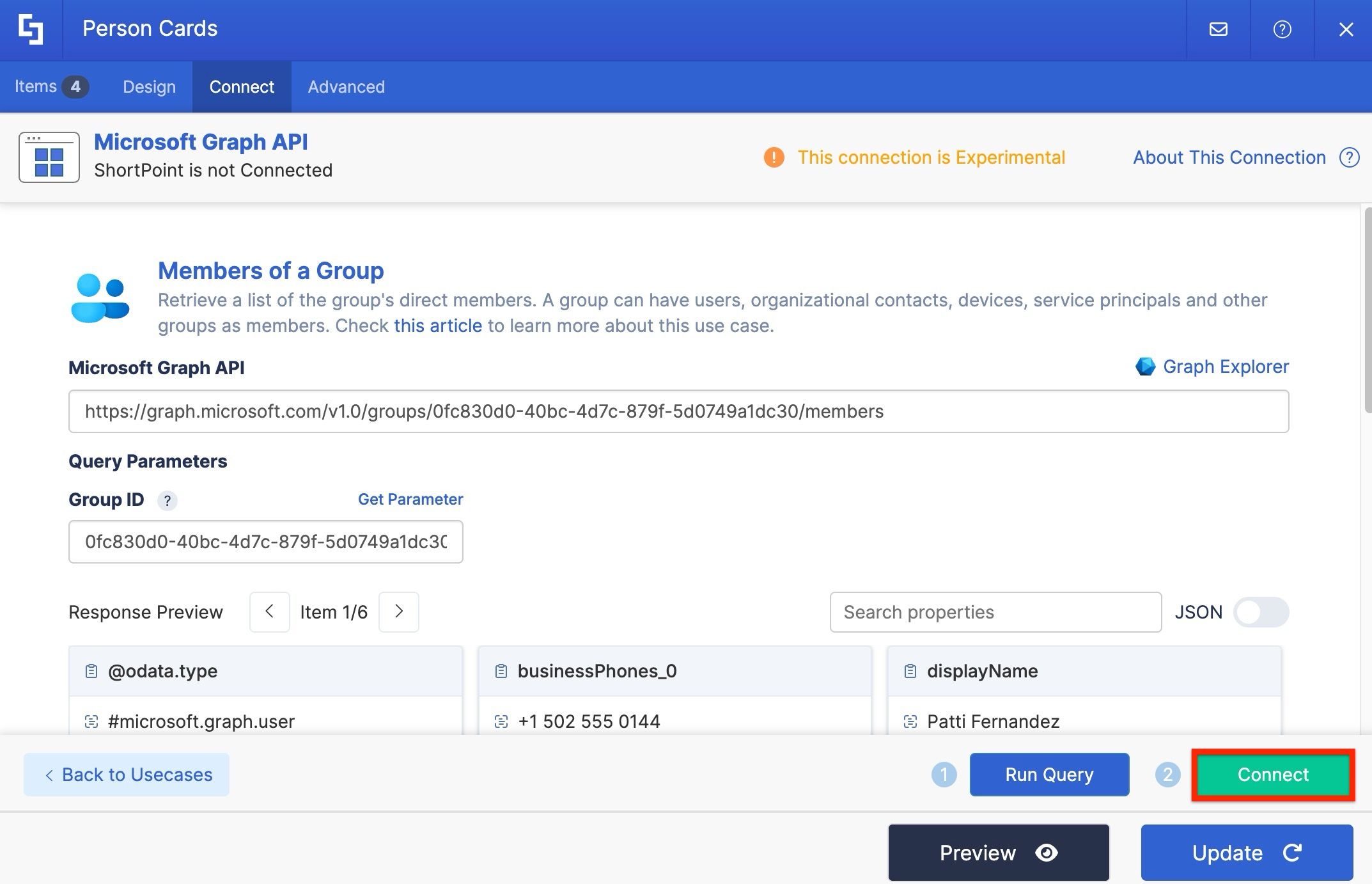
Paste it in, then click Run Query. Once the Connect button becomes available, click it to establish the connection.
Mapping employee information
Go to the Items tab and remove the default content. Using the link icon, map the properties you want to display. We’ll map the profile image, the display name in the Title field, job title in the Subtitle field, email in the Description field, and business phone in the Additional Info field.
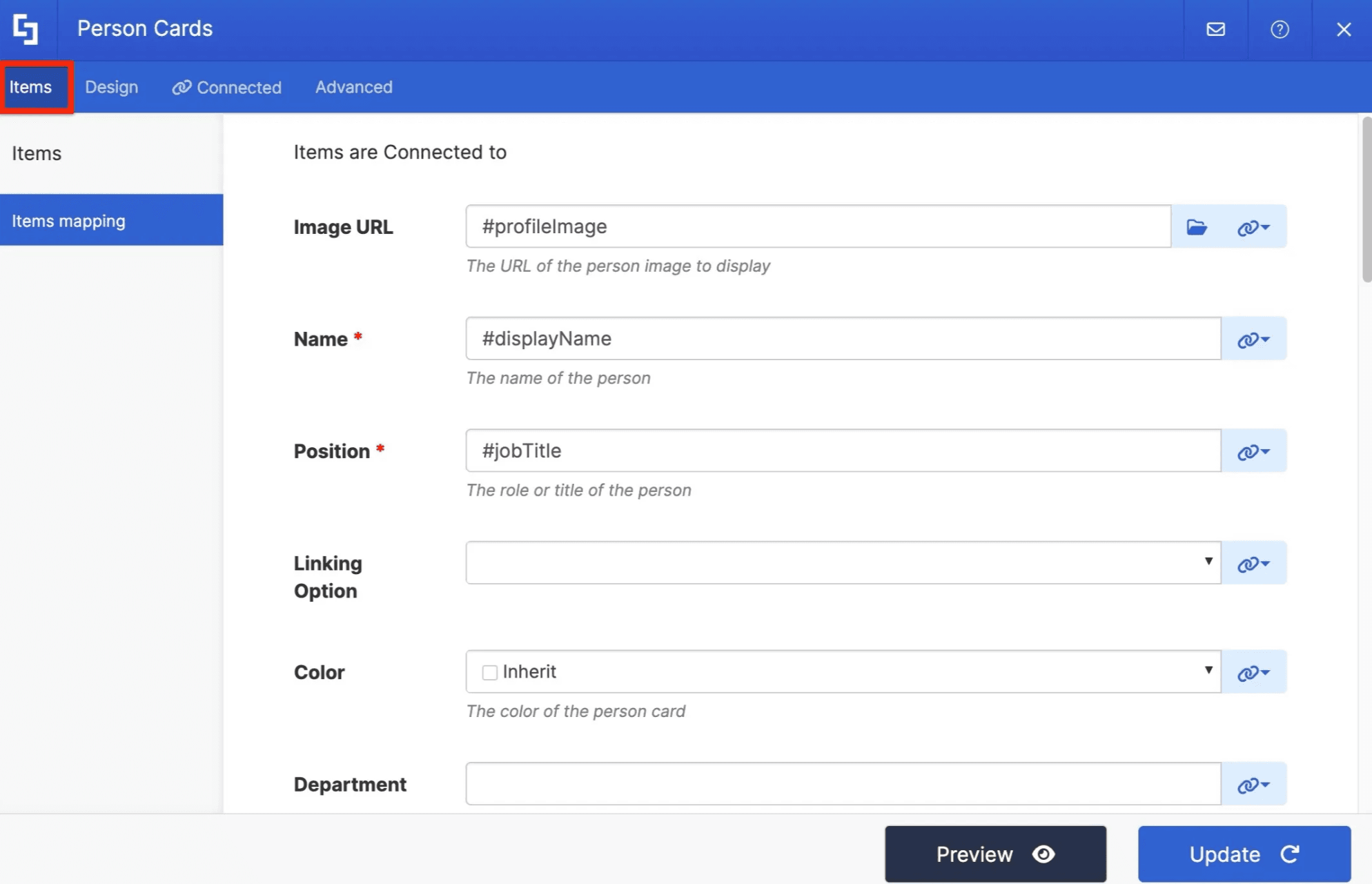
Hit Update when you’re done.
Adding search and filter options
Let’s make the directory easier to navigate. Go to the Toolbar tab and add a search bar so users can look up employees by name, and set up filter options so they can narrow results by department, job title, or any other property you’ve mapped.
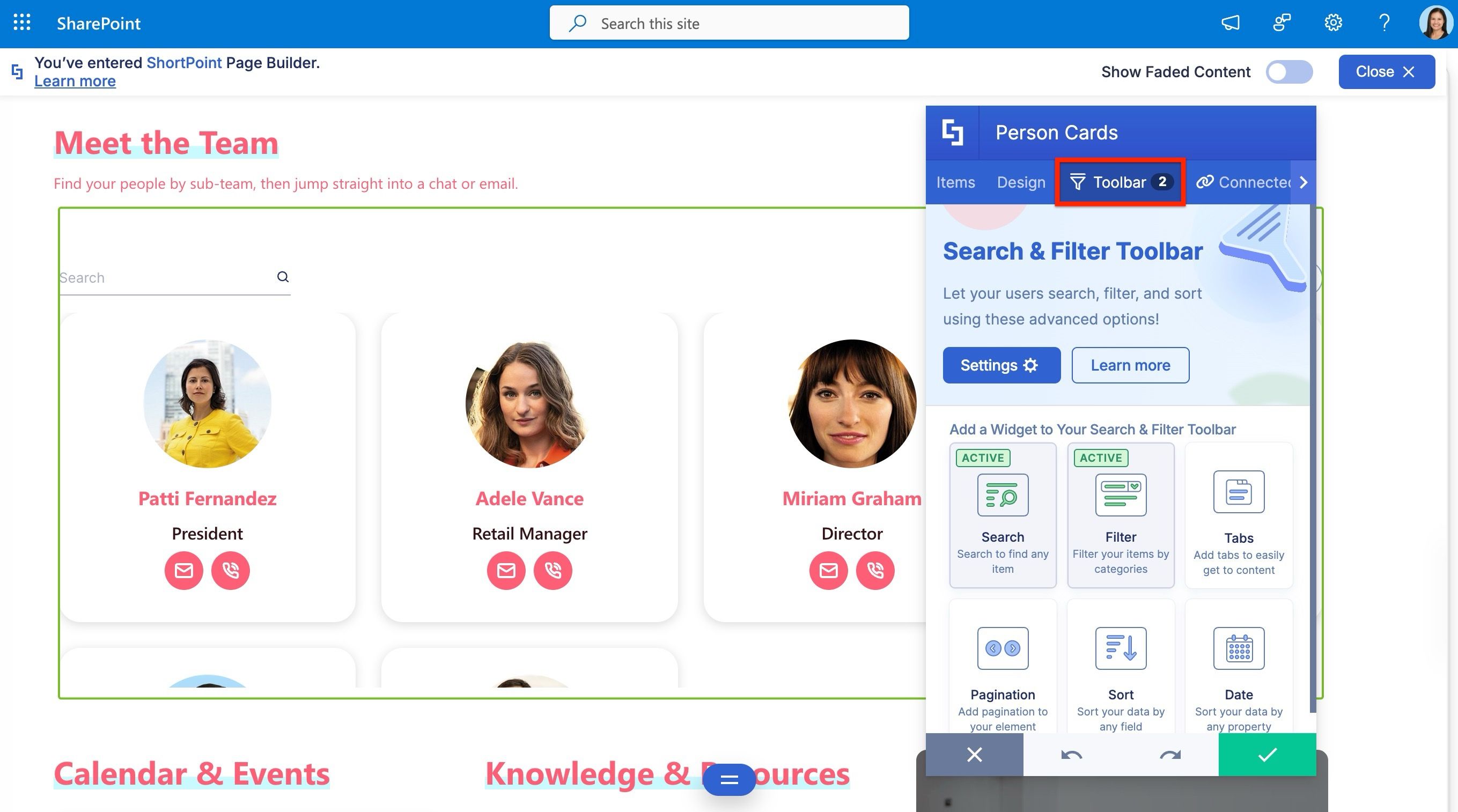
Use Preview on the Action Toolbar to see how it looks on the page, then Save when you’re happy with it.
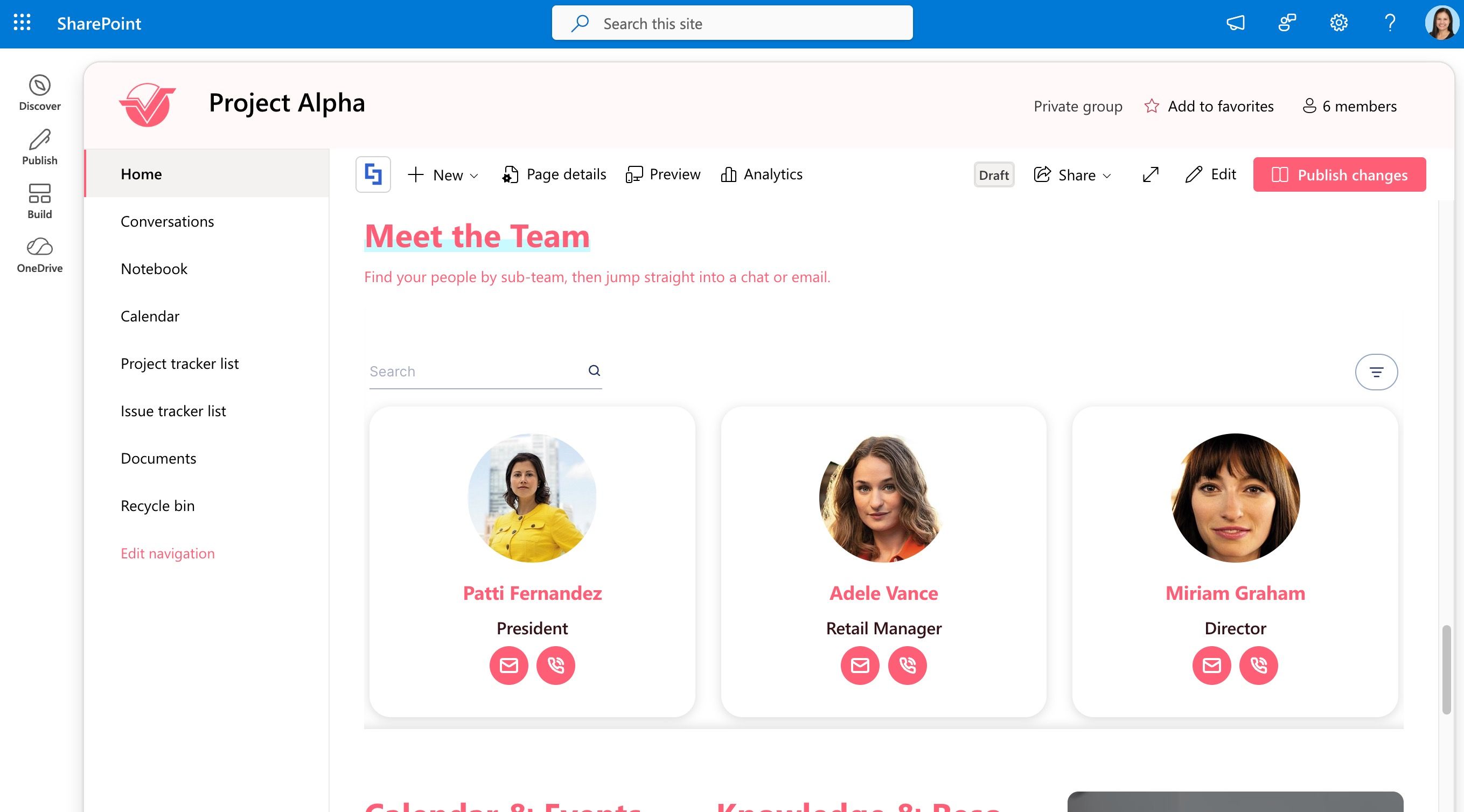
Seeing the connection in action
Since this directory is connected to your Microsoft 365 data, it updates automatically whenever someone joins or leaves the team, or when their information changes — no more outdated directories on your intranet.
Setting up connections even faster
If you’d like an even faster way to set up connections like this, ShortPoint AI Designer can do it for you. Just describe what you want to display in plain language, and it handles the configuration behind the scenes.
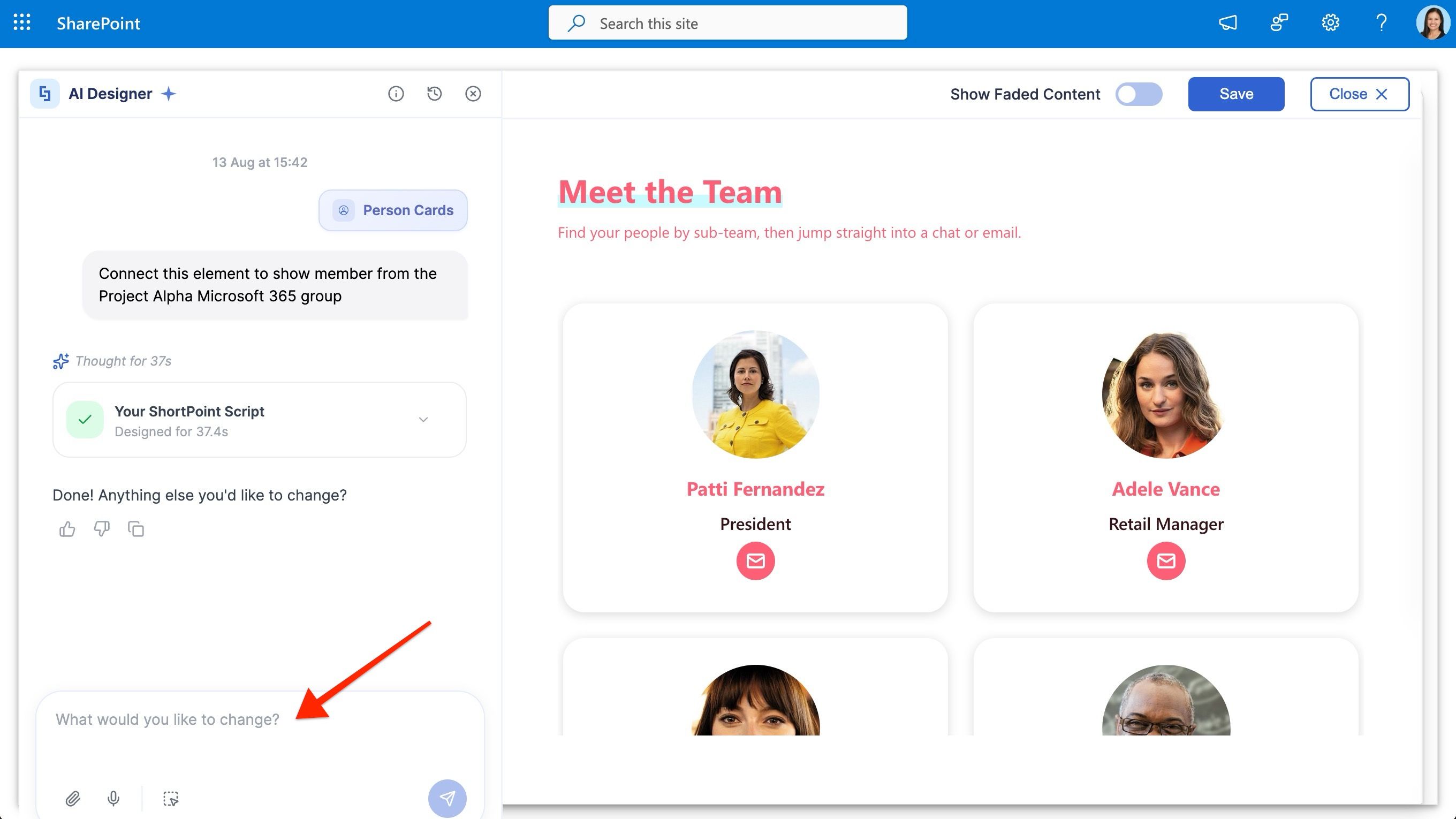
This is just one example of what’s possible with Microsoft Graph API. There’s a lot more you can do with it. Our Knowledge Base has a rich collection of use cases to explore, and there will soon be a dedicated course on ShortPoint Academy that goes much deeper into Graph API connections. Definitely worth checking out when you’re ready.
From personal Outlook calendars to organization-wide directories, you now have a powerful set of tools for bringing Microsoft 365 data onto your intranet pages.