

ShortPoint Connect Basics
Connecting Using REST API
In this lesson, you will learn what the REST API connection is, walk through a practical example of setting one up, and explore resources for using it further.

Going beyond dedicated connection types
Everything we’ve connected to so far has used dedicated connection types — purpose-built for specific sources and the best choice when they fit your scenario. But sometimes you need to go beyond what those connection types offer, like connecting to a specific folder inside a document library, pulling search results, or retrieving data from an external system. That’s where REST API comes in.
What is a REST API connection?
In simple terms, a REST API is a standard way for different systems to communicate and exchange data over the web. ShortPoint’s REST API connection lets you supply a URL that points to a data source, and ShortPoint retrieves and displays that data on your page. It currently supports the GET function, which is exactly what we need for displaying content on an intranet.
What makes it powerful is its flexibility. With a REST API URL, you can connect to SharePoint lists and document libraries from any site collection, SharePoint search results, site pages, and even external data sources outside of Microsoft 365, as long as they expose a REST API endpoint.
Building a REST API URL
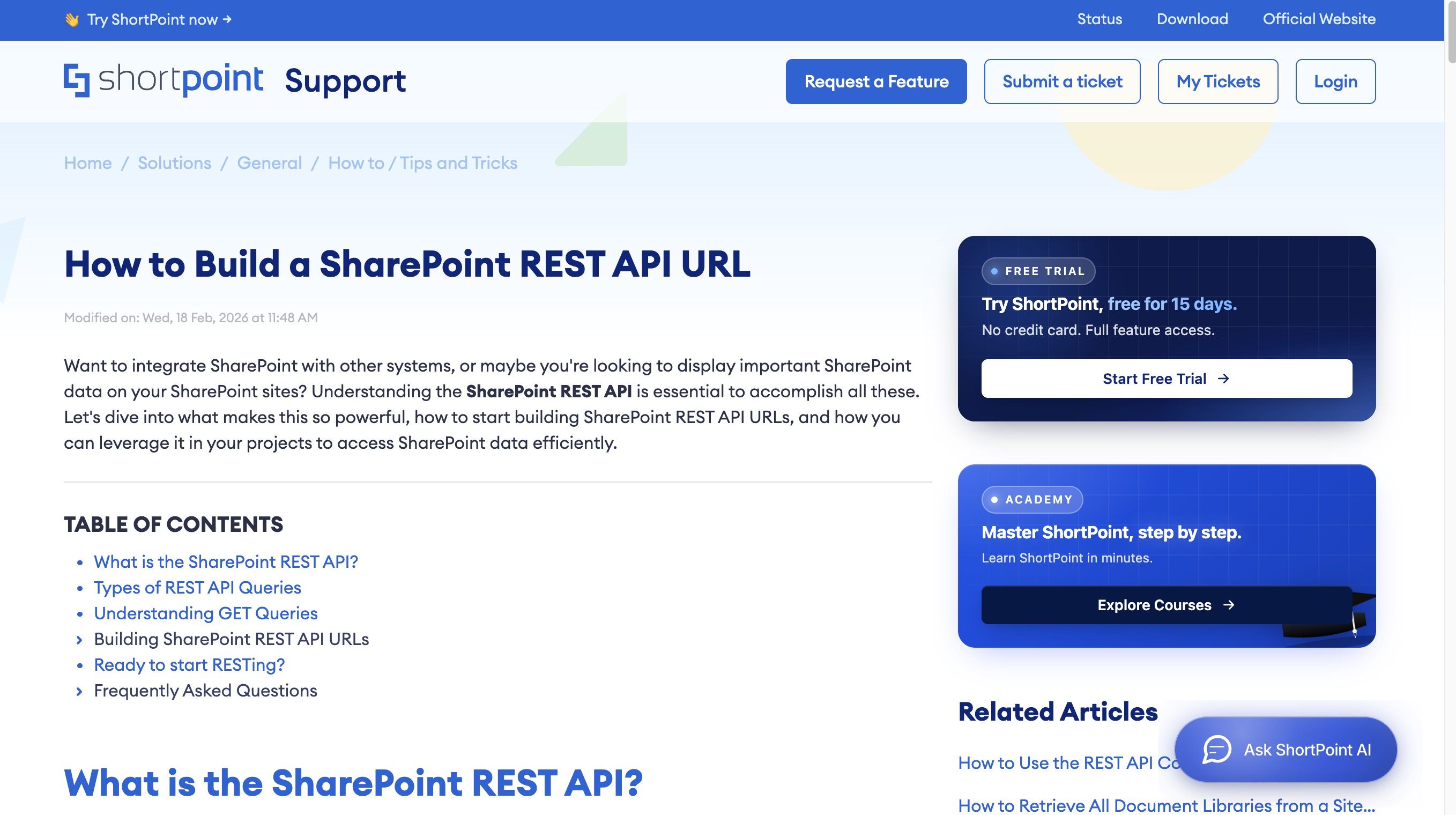
Building a REST API URL does require a bit more technical know-how than the other connection types we’ve covered, but don’t let that put you off. ShortPoint has a Knowledge Base guide on building a SharePoint REST API URL that walks you through the process step by step. You can also use AI apps to generate the REST API URLs you need. Just describe the data source you want to connect to and ask it to build the URL for you. And if you’d rather skip the URL building entirely, ShortPoint AI Designer can handle the whole connection for you.
Setting up the connection
For this project, we want to display files from a specific folder inside a document library. Something that isn’t possible with the standard library connection types. We’ve prepared a REST API URL for this, based on the format shown in our Knowledge Base article, adjusted to point directly to the folder we want to use.
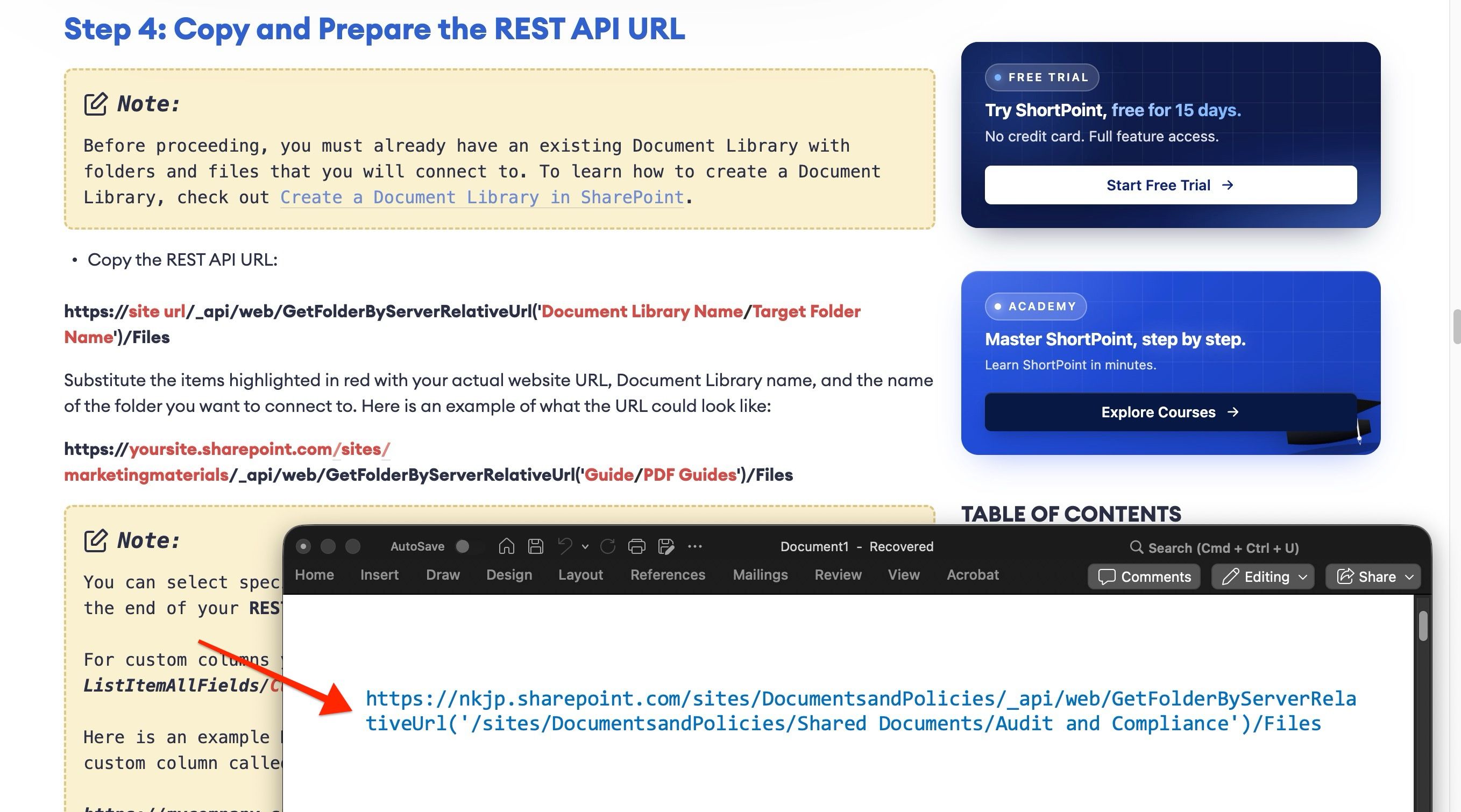
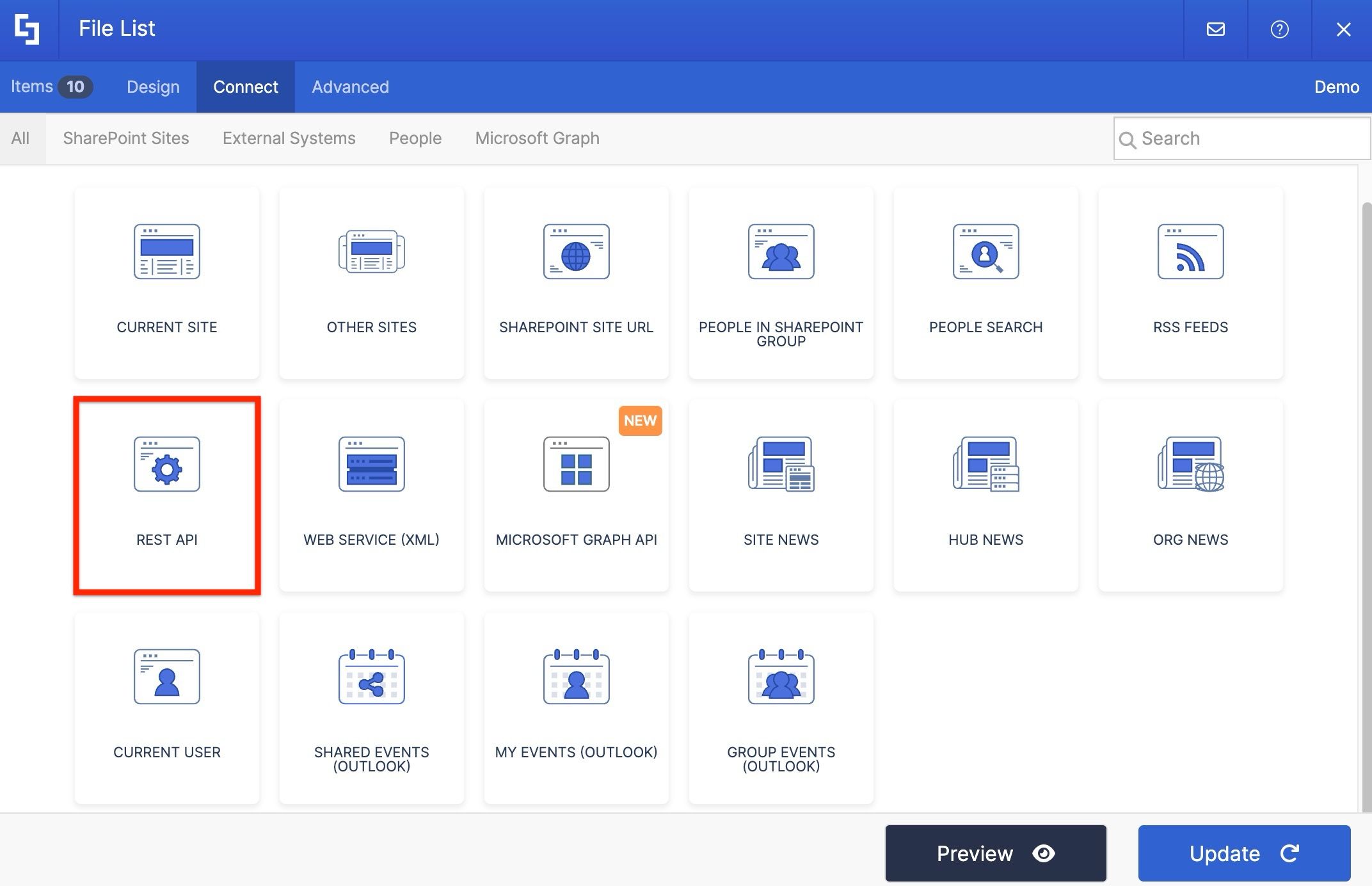
On the page, open the settings of the File List Design Element, go to the Connect tab, and click Configure. From the connection type options, select REST API.
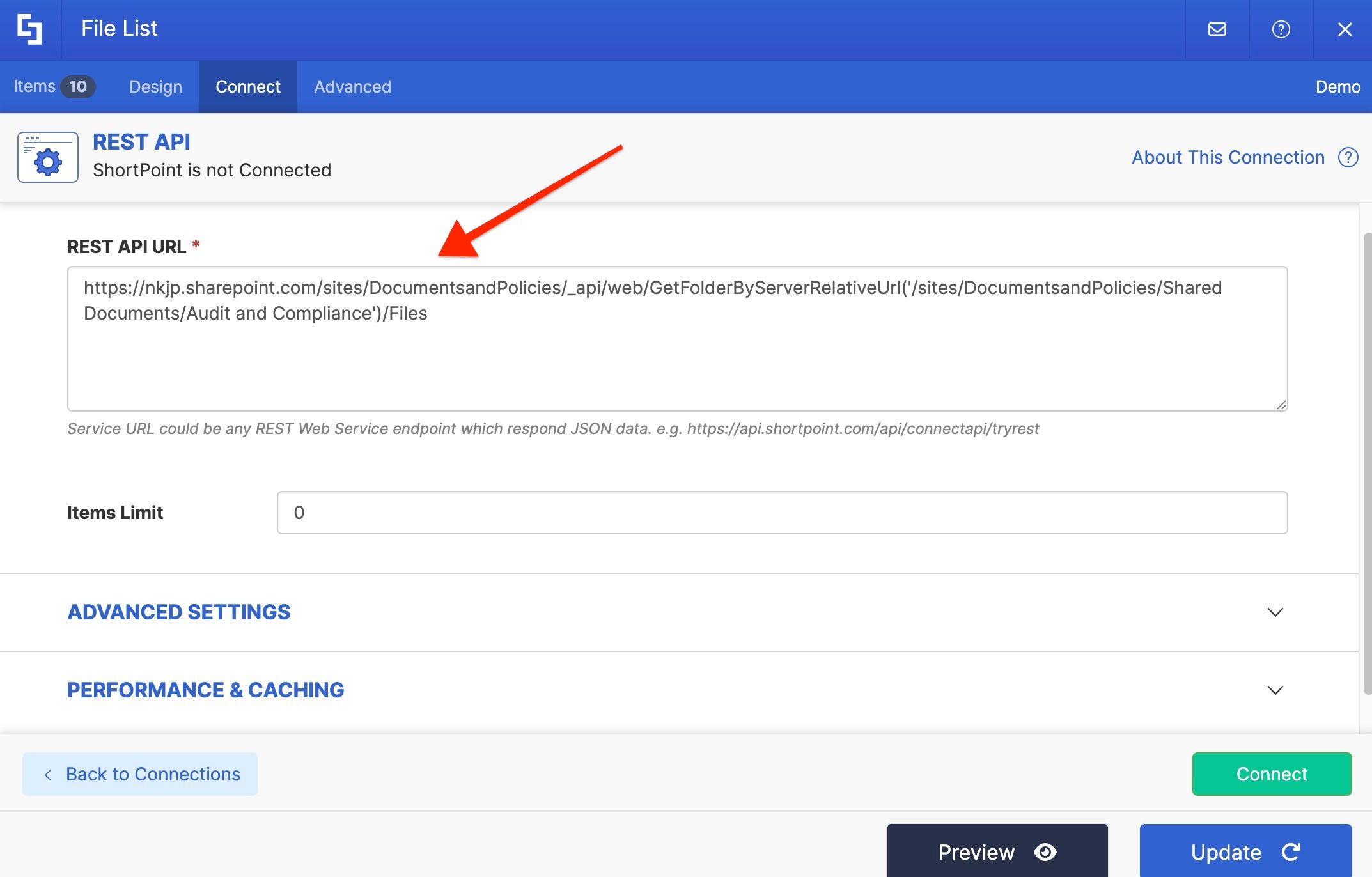
Paste in the REST API URL for the folder you want to connect to. You can also set an item limit here if needed. Then click Connect.
Mapping and previewing the results
Head to the Items tab to map the properties. Select the file name in the Title field, the date modified in the Subtitle field, and the file URL so users can open the file directly from the page.
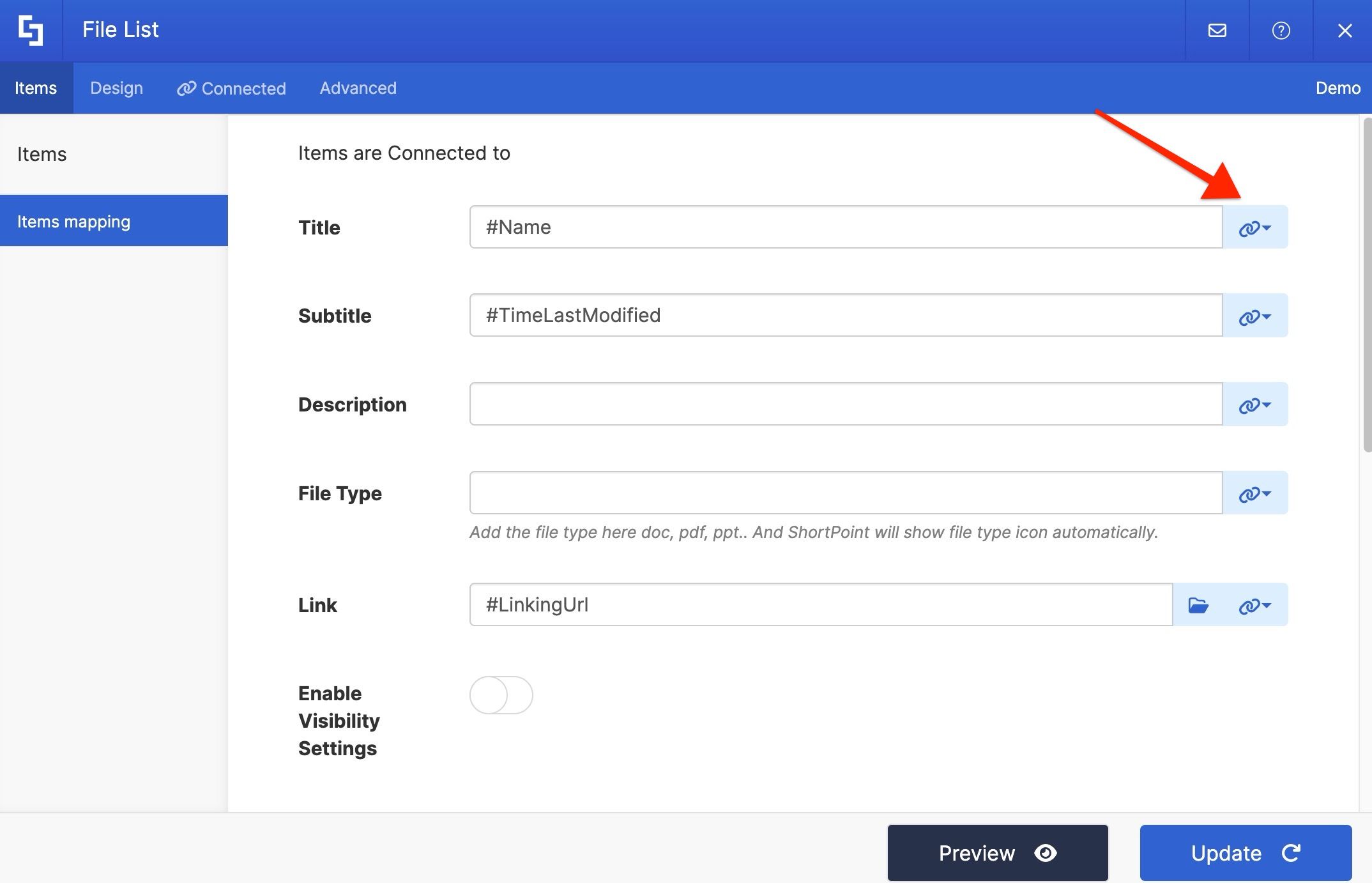
Click Preview to see how it looks.
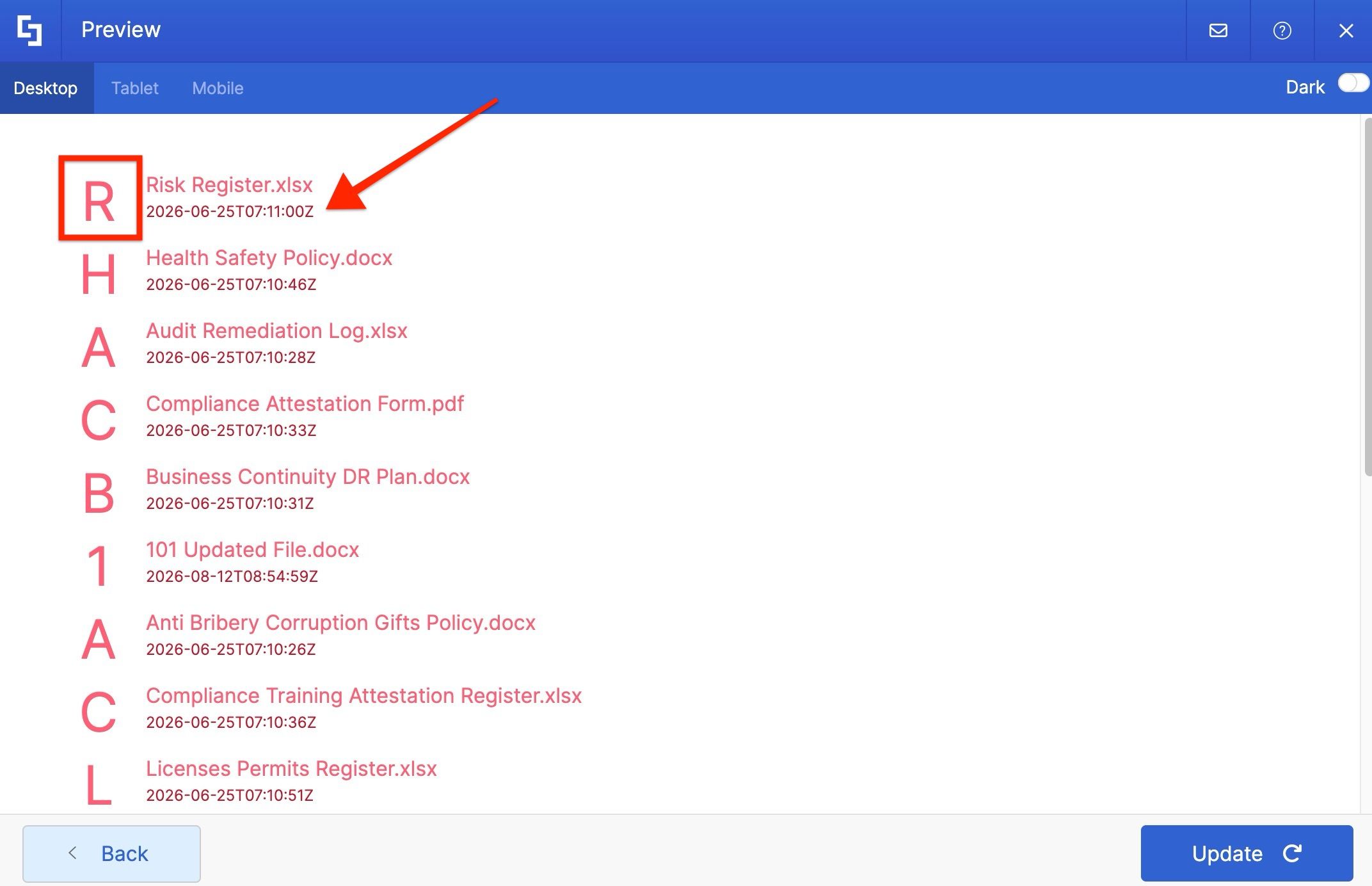
Running this REST API connection on its own pulls data from the target folder, but you may encounter errors in the data it displays. In this example, the file icon does not display the file type and the date displays in the wrong format. This happens often with REST API connections. The data comes through, but not always in the format ShortPoint or your users expect.
Using Advanced Settings
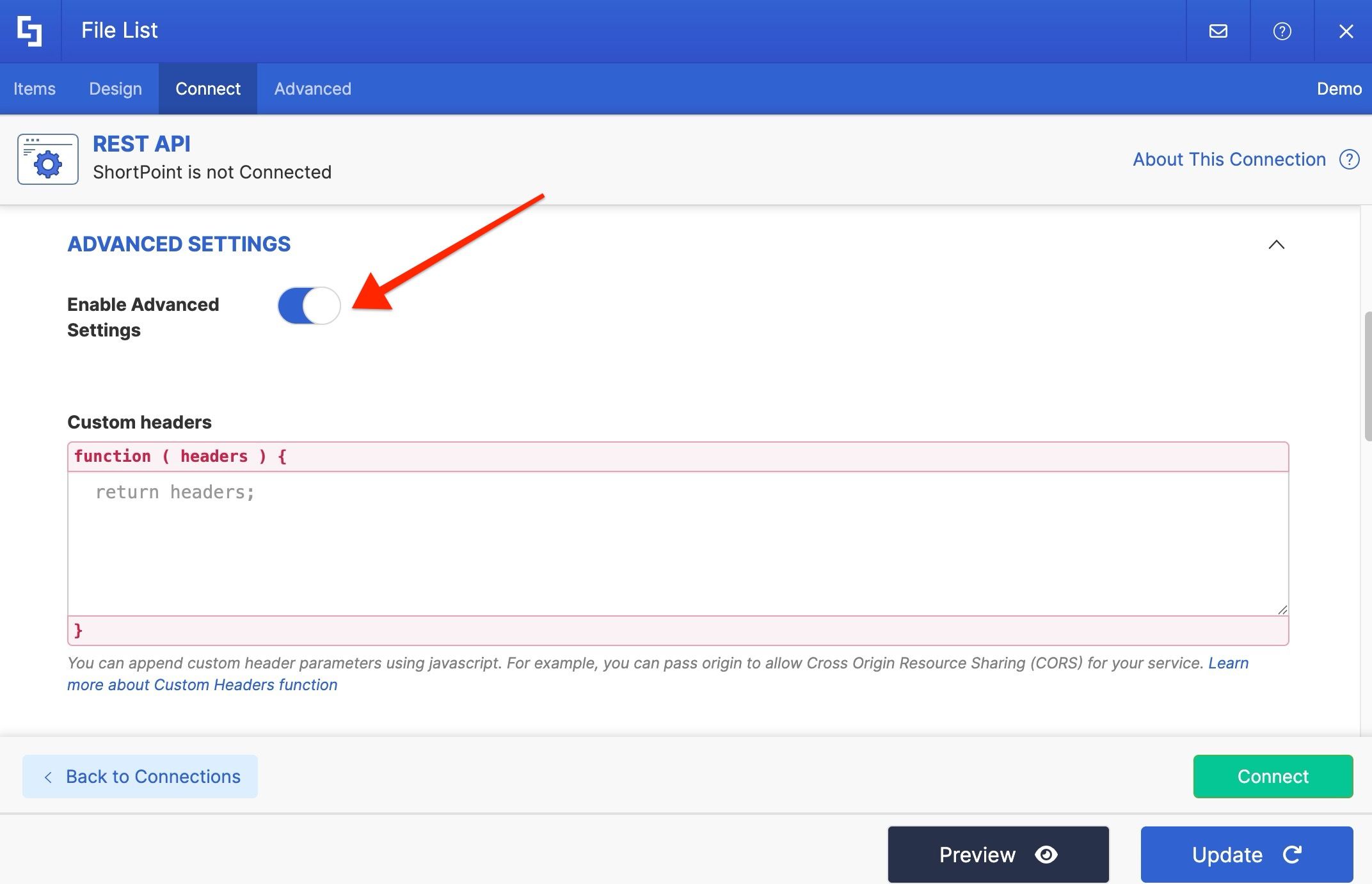
This is where Advanced Settings comes in. It’s a feature available in most of ShortPoint’s connection types, not just REST API, and it gives you more control over how your connection behaves. There are a few capabilities within Advanced Settings, and you can check our Knowledge Base for the full breakdown of each one. For this example, we’ll focus on Map Results, since that’s exactly what we need to fix the file icon and date.
Go back to the Connect tab, scroll down, and toggle on Enable Advanced Settings.
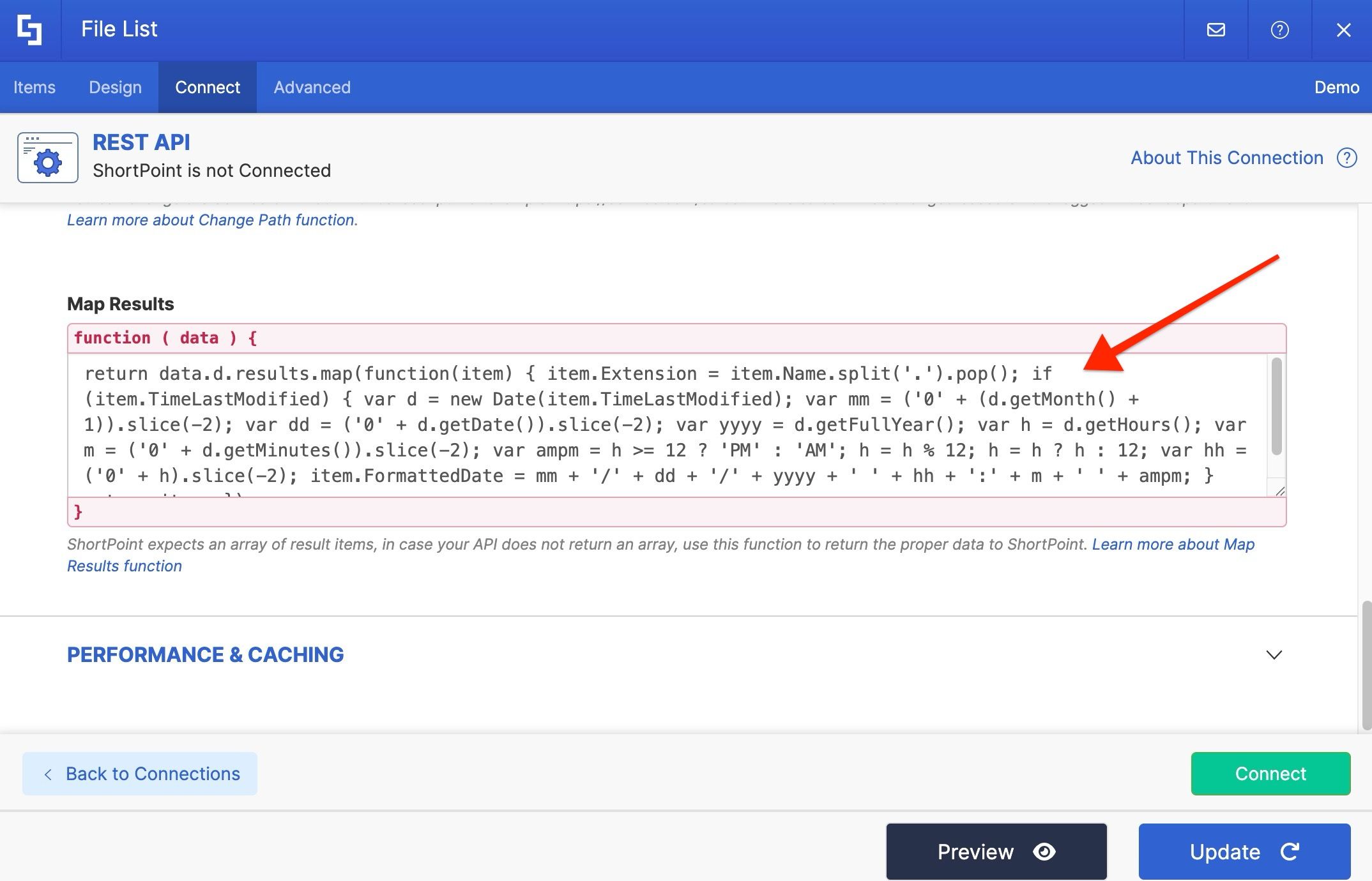
One of the fields you’ll see here is Map Results. Paste in a script that extracts the file extension so the correct icon displays, and formats the date properly. This script is from our Knowledge Base article from earlier.
Click Connect again, then head back to the Items tab. Update the Subtitle field to use FormattedTime instead, and map the Extension property to the File Type field.
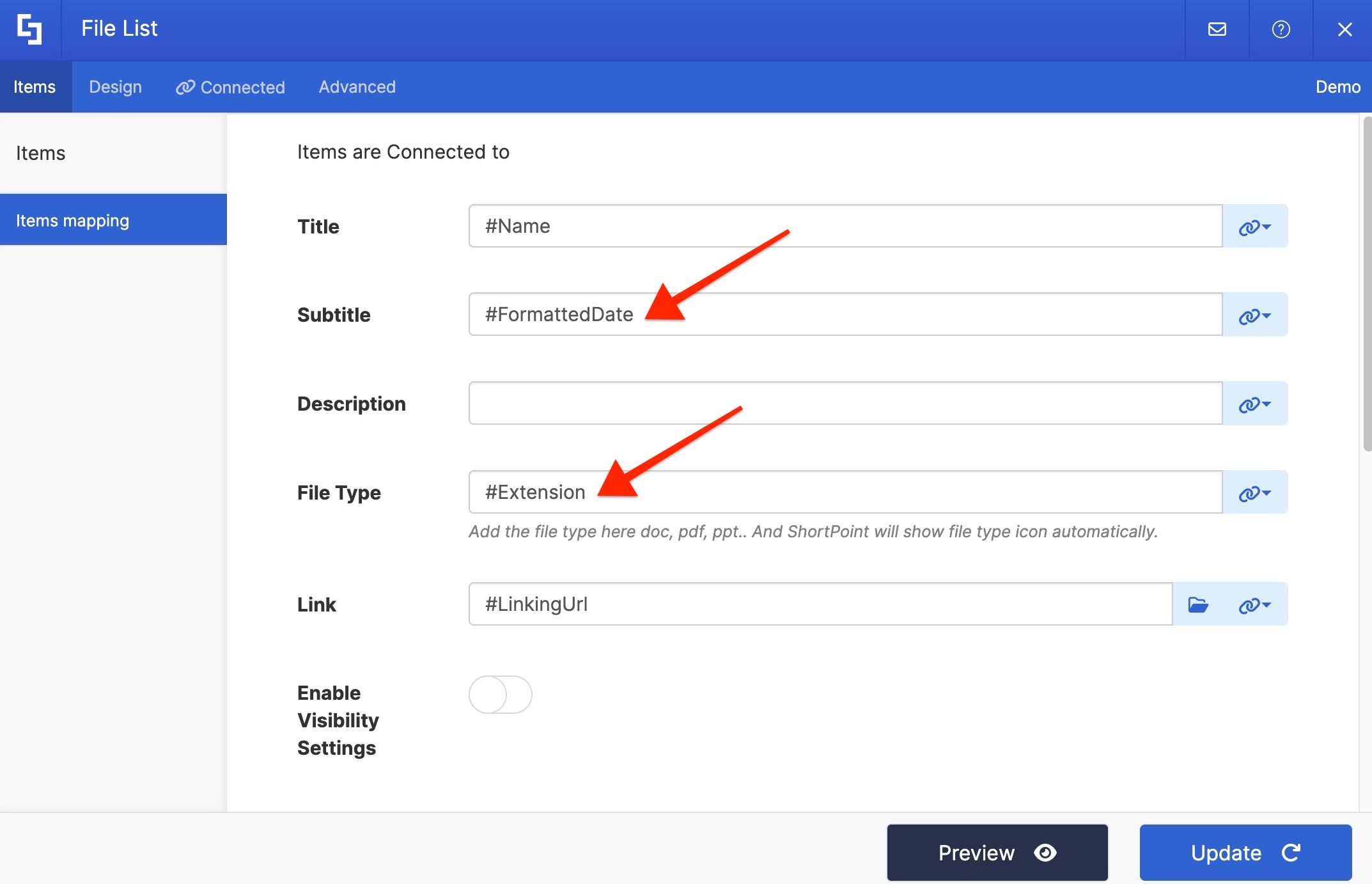
Preview the result. Now the file icon and date both display exactly as they should.
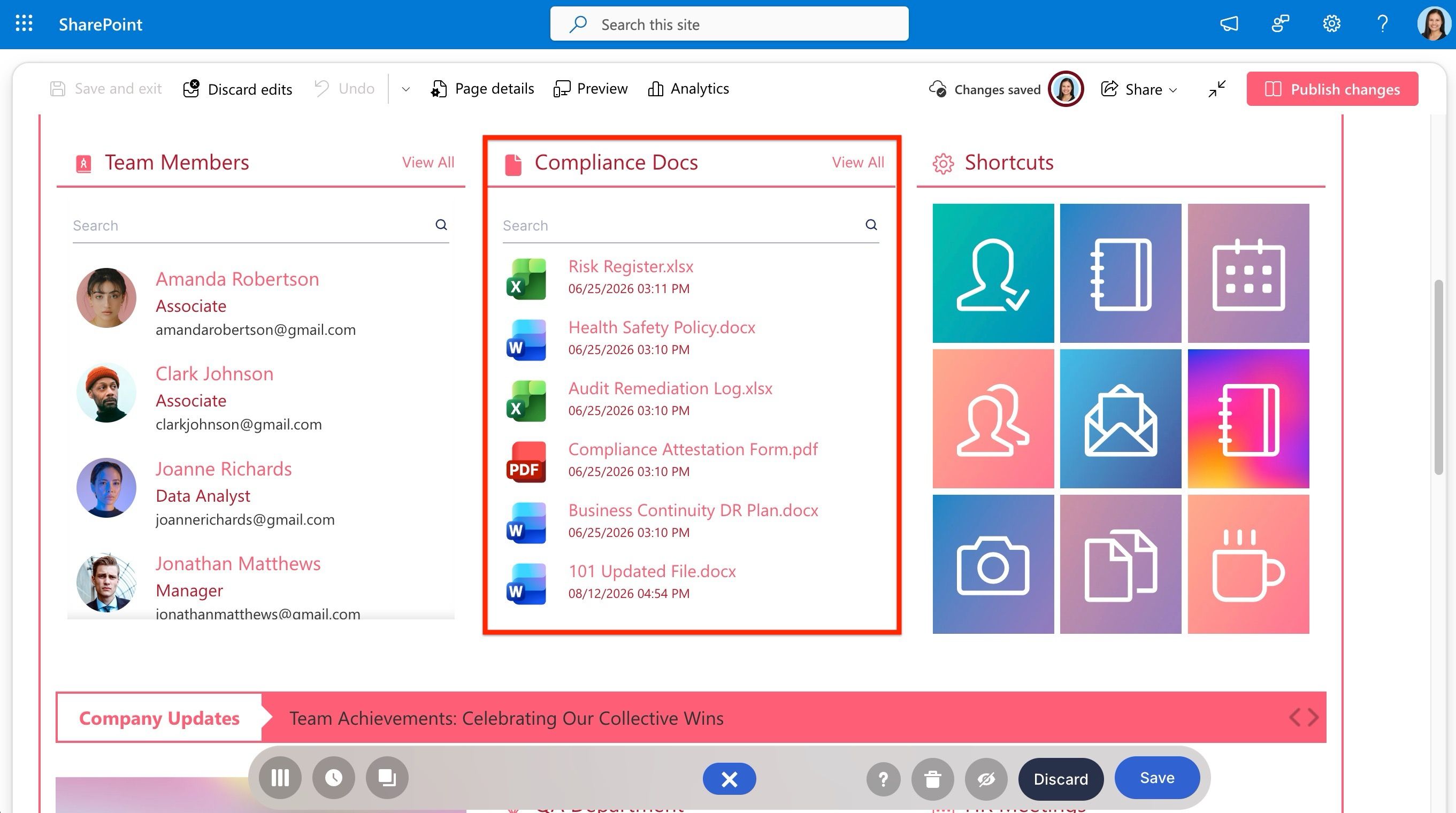
Seeing the connection in action
Just like all our other connections, the data updates automatically whenever the source changes. If files are added or removed from that folder, the page reflects it without any manual editing.
This is just one example of what REST API can do. Our Knowledge Base has a rich collection of REST API use cases covering everything from pulling search results to connecting to external business systems, so there’s plenty to explore at your own pace.
Congratulations! You’ve successfully used REST API to connect to a specific folder and reshaped the data using Map Results — one of the most flexible connection types ShortPoint has to offer.